



TL;DR: How to Add a Twitter (X) Widget to WordPress
There are 3 ways to add a twitter widget wordpress site, each suited to different levels of control and effort.
- SeedProd (Method 1): Use drag-and-drop Twitter blocks to place embed tweets, follow buttons, or tweet buttons anywhere on your site.
- Smash Balloon plugin (Method 2): Display a full live Twitter feed with layout templates, color customization, and caching built in.
- Manual embed (Method 3): Copy code from Twitter Publish and paste it into a Custom HTML block or widget area. No plugin needed.
- Best for sidebars: All 3 methods support sidebar placement. Smash Balloon and the manual method are quickest for a basic sidebar feed.
- Cost: SeedProd and Smash Balloon require paid plans for advanced features. The manual embed method is completely free.
Your visitors browse, then leave without ever following your account. The Twitter content that could keep them connected is sitting over on X while your WordPress site stays static.
In this guide, I’ll walk you through 3 ways to add a twitter widget to WordPress, so you can pick the method that fits your site and get your X content working for you.
Here are the 3 easiest ways to add a Twitter widget in WordPress:
- Use SeedProd: Add tweets, timelines, or follow buttons anywhere on your site with SeedProd‘s Twitter blocks.
- Install a Plugin: Create customizable Twitter feeds with a plugin like Custom Twitter Feeds (Smash Balloon).
- Embed Manually: Copy an embed code from the official Twitter Publish tool and paste it into a block or widget area.
In this guide, I’ll walk you through each method step by step so you can choose the best option for your site.
| Method | Best For | Pros | Cons |
|---|---|---|---|
| SeedProd | Anyone who wants full design control | Drag-and-drop editing; add tweets, timelines, buttons; style to match your theme | Requires paid plan for advanced features |
| Twitter Feed Plugin | Businesses needing multiple feeds or hashtag displays | Ready-made layouts; real-time updates; feed caching for speed | Extra plugin to manage |
| Manual Embed | Quick one-off tweets or simple timelines | No plugin needed; simple copy-paste setup; completely free | Limited styling; manual placement only |
What Is a WordPress Twitter Widget?
A Twitter widget is any block on your site that displays Twitter/X content, from a single embedded tweet to a full live timeline, a follow button, or a tweet button. A Twitter feed plugin is specifically for showing a dynamic multi-tweet timeline that updates automatically. Both fall under the “Twitter widget” umbrella, but they’re different things.
A WordPress Twitter widget (or X widget) is a small content block you can add to your site’s sidebar, footer, or page layout. It shows live content from Twitter/X, such as a timeline, single tweet, or follow button.
Widgets like this keep your site fresh without writing code. Once connected, they update automatically as new tweets are published.
- Embed a full Twitter/X feed (timeline)
- Display a single tweet
- Show tweets from a hashtag or list
- Add a Follow or Tweet button
You can add a Twitter widget in WordPress with SeedProd, a Twitter feed plugin, or by pasting embed code from the Twitter Publish tool.
Why Add Twitter Content to WordPress?
Twitter/X feeds update your site automatically. You won’t need to log in and add content manually to keep things fresh.
- Keeps content fresh without manual updates: Your latest tweets appear on your site as you post them, with no extra work on your end.
- Lets visitors follow you without leaving your site: A follow button or embedded feed means they can connect with your account without navigating away.
- Shows social proof through visible engagement: Follower counts and tweet interactions visible on your site build trust with new visitors.
Twitter widgets that include follow and share buttons can help grow your social media followers. Instead of leaving your site to view your Twitter account, users can follow you on Twitter and share relevant content directly from your site.
1. Add a Twitter Widget Using SeedProd
First, let’s look at how to add a Twitter widget to WordPress with SeedProd.
SeedProd is a drag-and-drop website builder that lets you add Twitter blocks, including embed tweets, follow buttons, and tweet buttons, anywhere on your site without touching code. The Twitter blocks are available on SeedProd’s paid plans.

Follow these steps to add a Twitter widget in WordPress with SeedProd.
Step 1. Install and Activate SeedProd
You first need to get started with a SeedProd plan and download the plugin to your computer. After that, upload and activate the plugin on your WordPress website.
If you need help with this step, see this guide on installing a WordPress plugin.
Note: SeedProd has a free license, but we’ll use the premium version for the advanced Twitter block features.
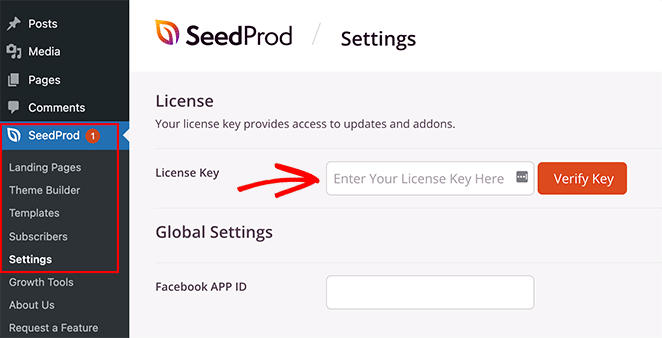
After installing SeedProd, go to SeedProd » Settings and enter your license key. You can find your key on the SeedProd website under your account’s “Downloads” section.
Step 2. Create a WordPress Theme or Landing Page
There are 2 ways you can use SeedProd to customize your WordPress site.
You can either build a custom WordPress theme with all the template parts and pages, or you can build a landing page with your existing WordPress theme.
For this tutorial, we’ll be using the sidebar template of a custom SeedProd WordPress theme. SeedProd can add Twitter blocks to any template part, including the sidebar, header, footer, or individual page templates. You can see this guide for all the steps on creating a custom WordPress theme with SeedProd.
If you prefer to use a landing page, you can follow this guide on creating a landing page in WordPress.
Both guides will walk you through choosing a template and getting your theme or landing page ready to customize. When you’re ready to add your Twitter content, move on to step 3 of this tutorial.
Step 3. Add SeedProd Twitter Blocks to WordPress
Now that you’ve created your custom theme or landing page, you can edit your design in SeedProd’s visual editor.
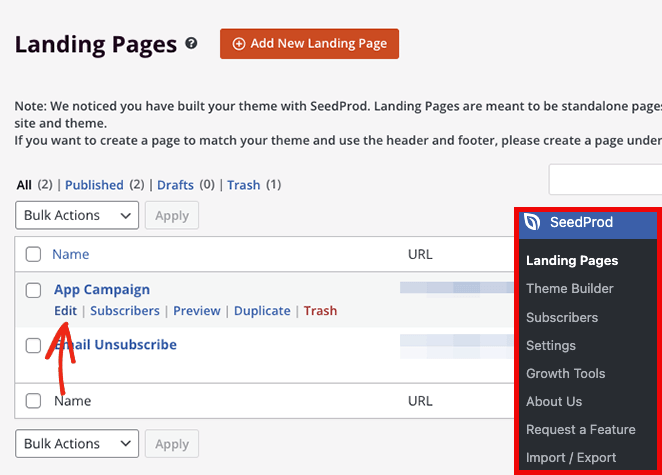
If you’re editing a landing page, navigate to SeedProd » Landing Pages and click “Edit” on the page you wish to customize.
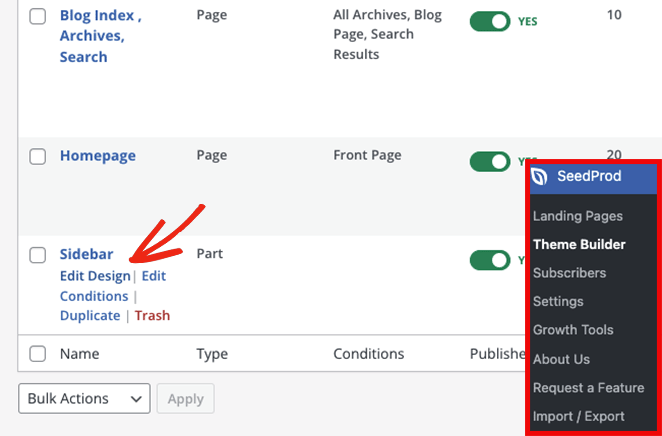
For this guide, we’ll be editing the sidebar template of our custom WordPress theme. To do that, go to SeedProd » Theme Builder, hover over the relevant template and click the “Edit Design” link.
After opening your design, you’ll see it in SeedProd’s visual editor. Blocks and sections are on the left and a live preview is on the right-hand side.
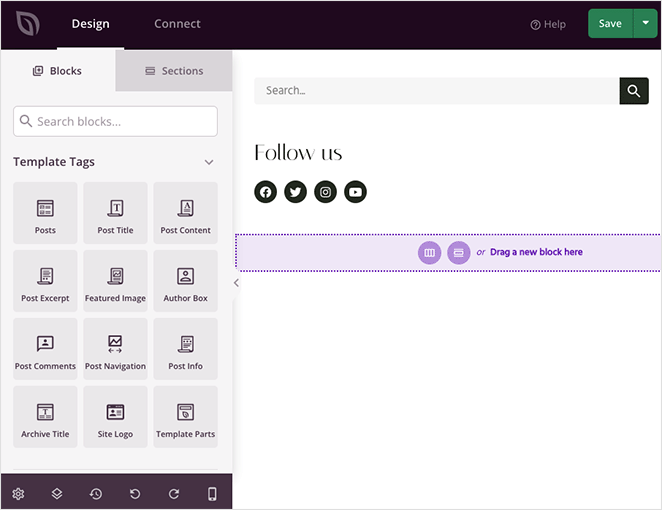
You can click any element on the preview to edit its settings. Doing that will open the customization options in the left-hand panel.
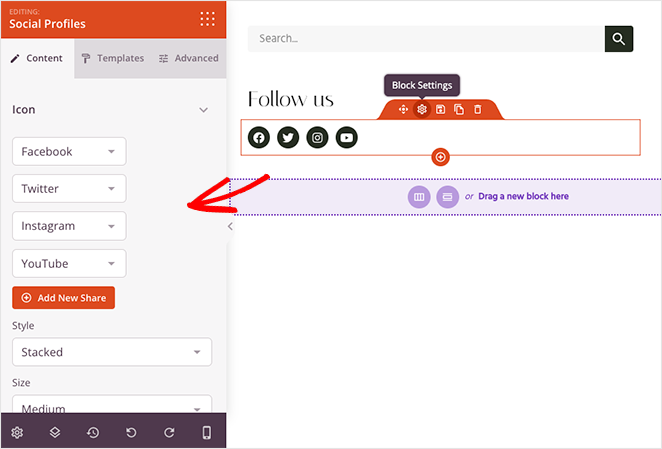
When you scroll down to the Advanced block section, you’ll see various content elements you can add to your design. Here are the blocks we’ll focus on to add Twitter widgets to your WordPress site:
- Twitter Embed Tweet
- Twitter Tweet Button
- Twitter Follow Button

Twitter Embed Tweet
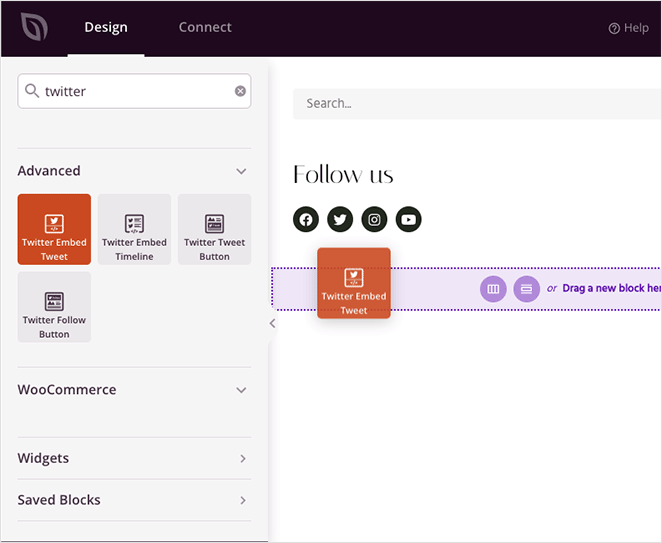
The Twitter Embed Tweet block lets you embed any Twitter post with a few clicks. Drag the block onto your live preview and click it to view the settings.
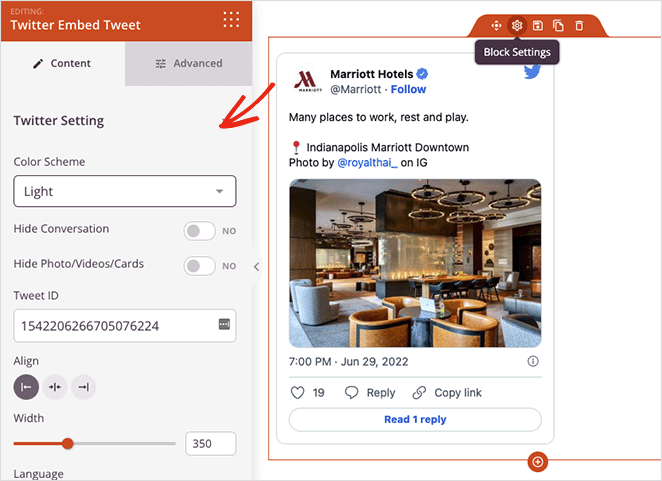
In the settings panel, you can paste the ID of the specific tweet you wish to embed. You can also choose light and dark color schemes, hide tweet conversations, hide photos, videos, and Twitter cards, and adjust the block alignment.
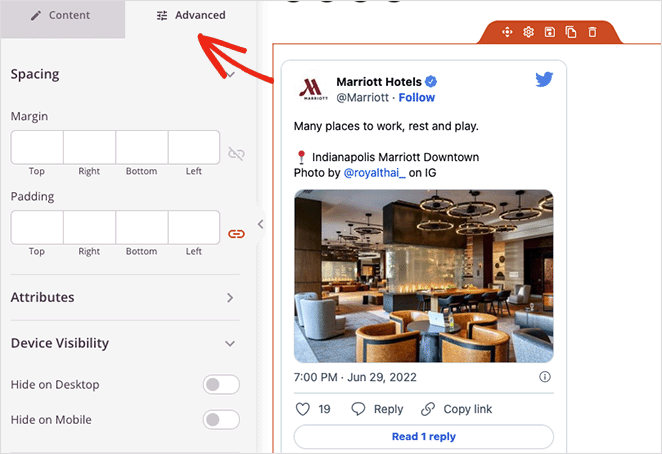
The Advanced tab controls the block spacing and attributes and lets you hide it on mobile or desktop.
Twitter Tweet and Follow Button blocks
The final 2 Twitter widgets in SeedProd are the tweet and follow button blocks. They work similarly to the post and feed embeds, but instead of showing Twitter content, they allow visitors to tweet a custom message or follow your profile on Twitter.
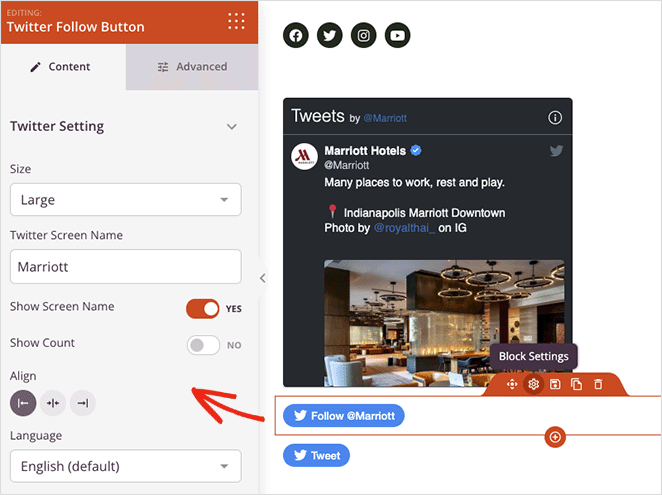
The follow button settings allow you to enter your Twitter screen name, show your follower count and customize the alignment, language, spacing, and device visibility.
In the Tweet button’s settings, you can add the URL you want visitors to share, the tweet content, and hashtags. There is also a field to add @ via mentions and related accounts.
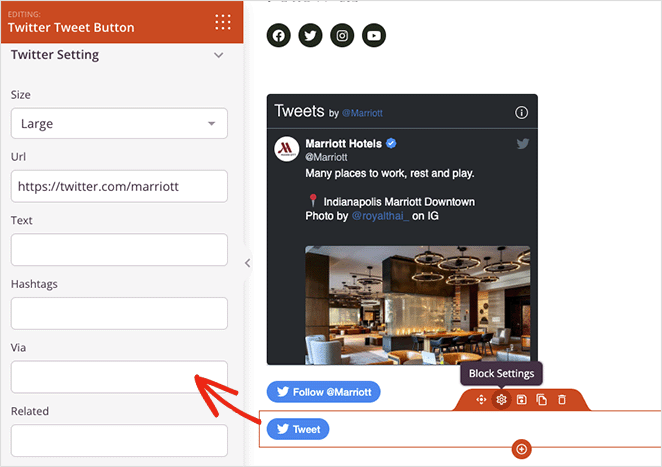
Both buttons let you choose from small or large button sizes and let you control how they appear on mobile and desktop screens.
Note: X quietly deprecated the embed timeline feature, so the Twitter Embed Timeline block is no longer available in SeedProd.
Experiment with different combinations of SeedProd’s Twitter blocks, then click the Save button in the top-right corner to save your changes.
Step 4. Publish Your Twitter Widgets in WordPress
The next step is to make your Twitter content live on your WordPress site. Since we’re using a custom SeedProd WordPress theme, all you need to do is go to SeedProd » Theme Builder and turn the Enable SeedProd Theme toggle to the “On” position.
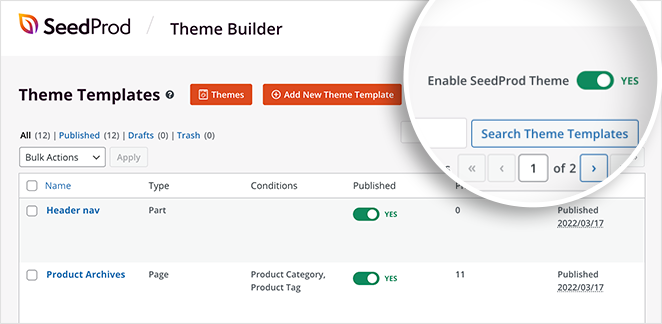
Now you can preview the page with your Twitter content and see how it looks. With SeedProd’s visual editor, you can position your Twitter follow button next to your email sign-up form, so visitors can stay connected in whichever way they prefer.
2. Embed a Twitter Widget with a WordPress Twitter Feed Plugin
X changed its API pricing in 2023, which broke many free Twitter plugins. Smash Balloon maintained its API connection through those changes, but some free or abandoned plugins stopped working. If your current Twitter plugin broke after 2023, that’s likely why.
For this method, we’ll use the Custom Twitter Feeds Pro plugin from Smash Balloon. The free version of Custom Twitter Feeds displays basic feeds; the Pro version adds layout templates and analytics.

The Custom Twitter Feeds plugin is the top-rated Twitter feed plugin for WordPress. You can use it to display Twitter feeds on your website in a few clicks.
You can customize your live Twitter feeds in real-time with the visual feed editor and choose from multiple feed types to suit your business needs.
Follow the steps below to add Twitter feeds in WordPress with Smash Balloon.
Step 1. Install Twitter Feeds Pro Plugin
First, get the Twitter Feeds Pro plugin and install it on your WordPress site.
After activating the plugin, go to Twitter Feed » Settings and enter your license key details.
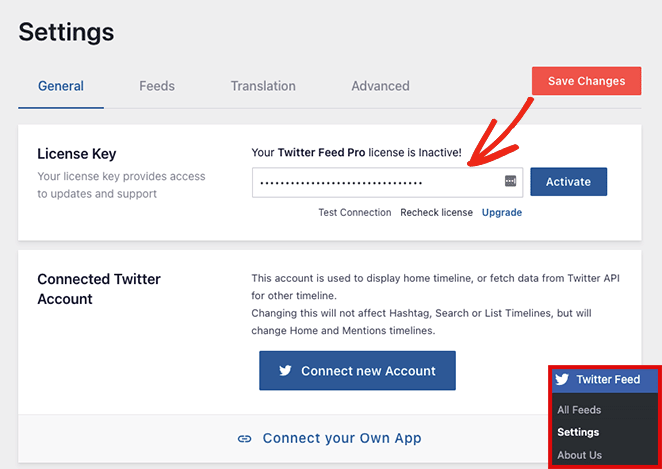
Once you’ve confirmed your license key, you’re ready to add your first Twitter widget.
Step 2. Create a Custom Twitter Widget
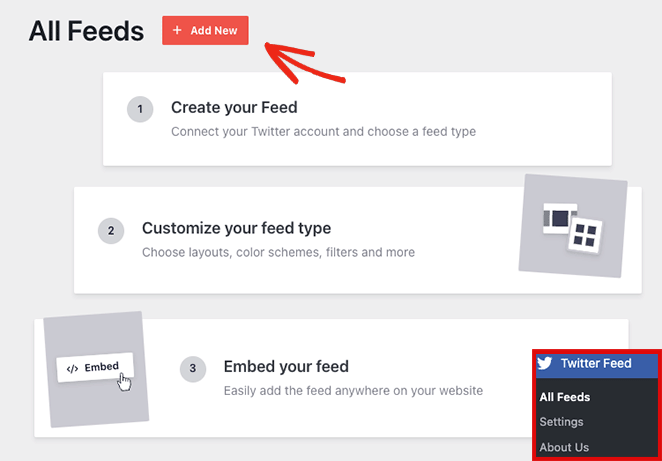
To add a new Twitter widget, go to the Twitter Feed » All Feeds page and click the Add New button.
You can choose the type of feed you want to add on the next page. It will show you the following options:
- User Timeline: a timeline of Tweets from any user on Twitter
- Hashtag: public tweets that contain a specific hashtag
- Home Timeline: the timeline for your Twitter account
- Search: a feed of Tweets that match specific Twitter search terms
- Mentions: Tweets that mention your Twitter handle
- Lists: Tweets from public Twitter lists
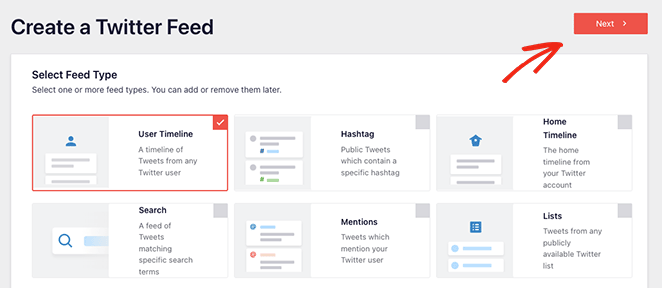
For this guide, we’ll choose the User Timeline option. Click the Next button when you’re ready for the next step.
Step 3. Connect Your Twitter Account
The following screen will ask you to connect your Twitter account for read-only access so it can fetch data from Twitter and display it on your website.
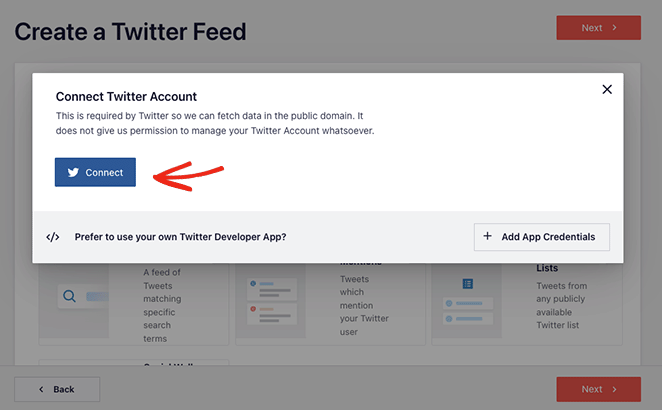
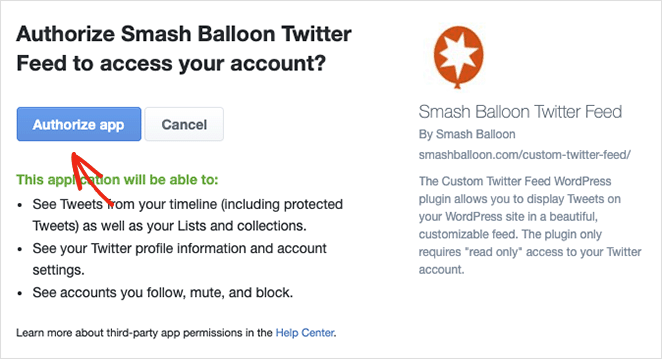
After clicking the Connect button, select Authorize App, and you’ll head back to the Twitter feed creation process.
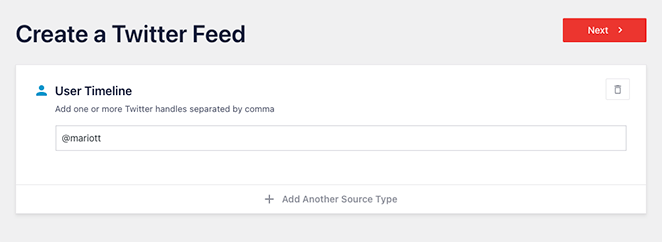
Because we’re adding a User Timeline feed, the next step is to enter the Twitter handles you want to display. Type in the username and click the Next button.
Step 4. Customize Your Twitter Widget
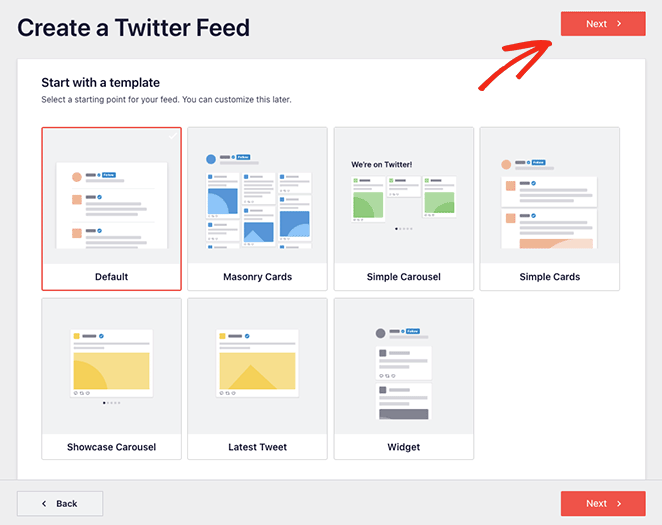
Now you can choose from 7 different templates for your Twitter widget:
- Default feed
- Masonry Cards
- Simple Carousel
- Simple Cards
- Showcase Carousel
- Latest Tweet
- Widget
Click the template that suits your website the best, then click on the Next button.
On the following screen, you can use the live editor to customize your Twitter widget.
In the left-hand panel are options to change your feed layout, color scheme, header design, tweets, lightbox options, and more. You can also preview your changes on the right-hand side.
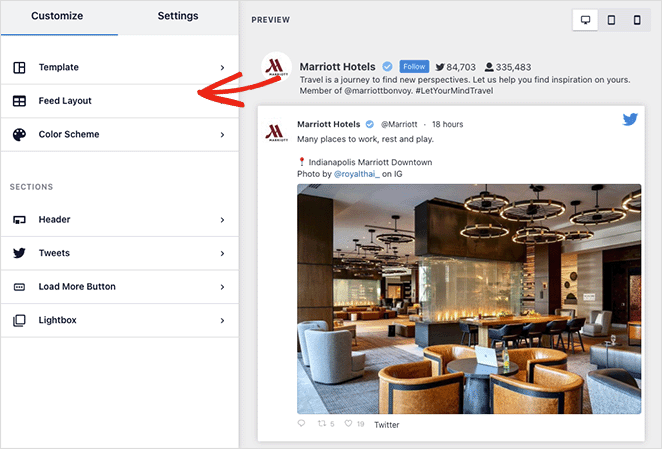
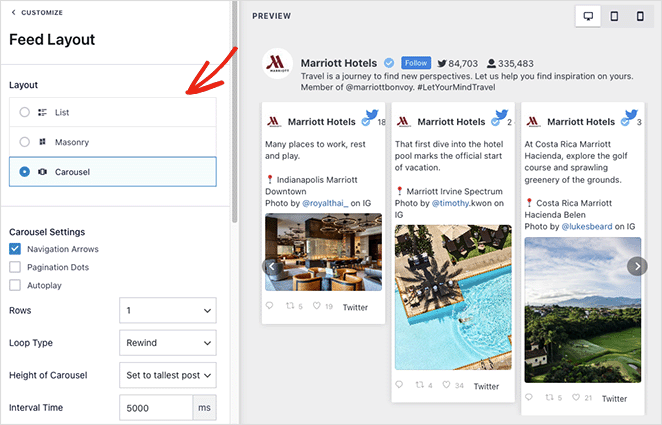
The Feed Layout tab lets you choose from a List, Masonry, or Carousel layout.
You can choose dark, light, or custom colors in the Color Scheme tab. There’s also an option to inherit your color scheme from your WordPress theme, which is the easiest way to make your feed match your site design. Custom CSS is available if you want to go further with styling.
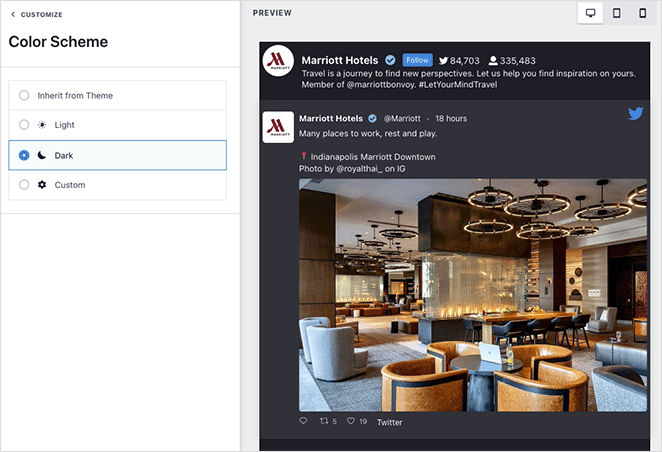
The Header tab gives you several header customization options, such as Standard and Text. You can also disable the header section and hide your Twitter bio.

Continue tweaking your widget appearance until you’re satisfied with how everything looks. Click the Save button to store your settings.
Step 5. Add Your Twitter Widget to WordPress
Embedding your Twitter widget in your WordPress site is easy with Smash Balloon. Click the Embed button at the top of your screen.
A popup will appear with the following embed options:
- Shortcode: paste the Twitter feed shortcode on any page, post, or widget
- WordPress Block: use the built-in WordPress block to add your feed to a post, page, or widget.
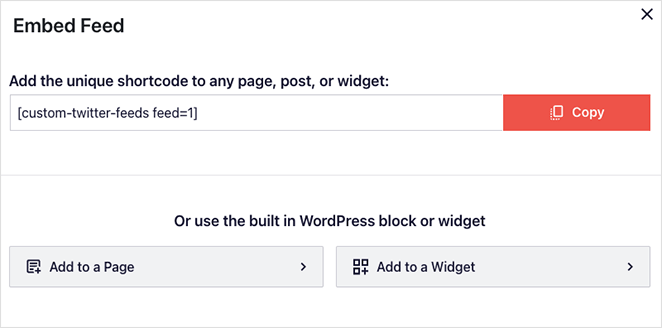
For this guide, we’ll choose the Add to a Widget option.
Clicking that option will open your WordPress widget settings automatically. From there, click the add block icon and look for the Custom Twitter Feeds block.
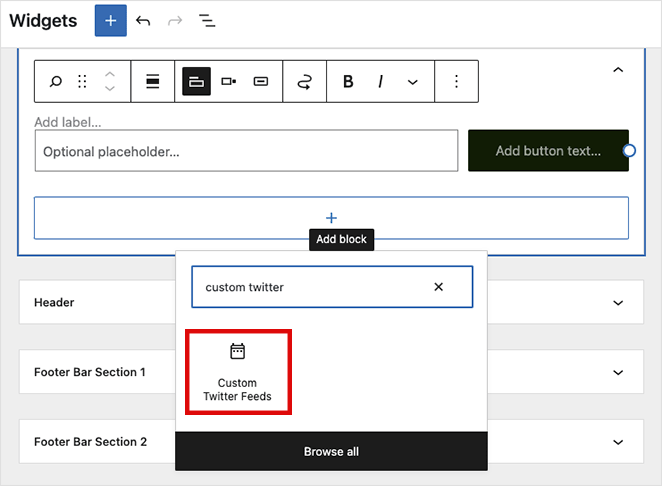
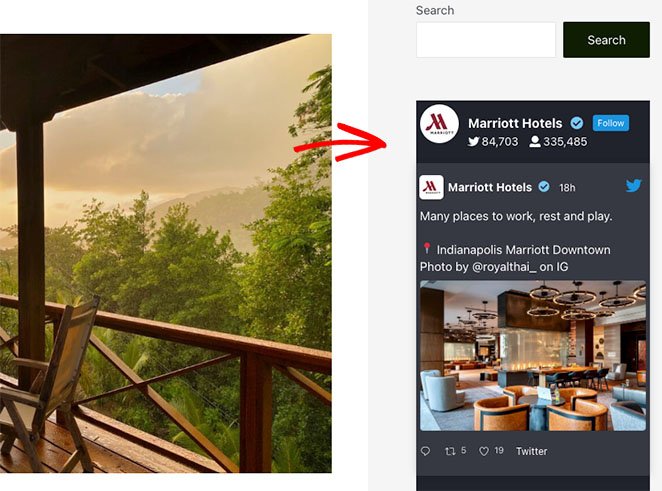
After adding the block to your widget area, click the Update button to save your changes. Now visit your site to see your Twitter widget in action.
3. Add a Twitter Widget to WordPress Manually
This method is completely free and requires no plugin. It uses the Twitter Publish tool to generate an embed code you paste directly into WordPress.
The final method involves using the Twitter Publish tool to manually add a Twitter widget to your WordPress site without a plugin. This option can embed a tweet, timeline, or follow button.
This method doesn’t offer a lot of control over the widget design or the type of content you can show. It’s a good option for users who want a quick embed without adding extra plugins.
To use this method, go to the Twitter Publish tool website and choose which type of embed you’d like to use. We’ll use the Embedded Timeline option for this guide.

On the following screen, you need to enter the full URL of the Twitter profile you want to display and click the Preview button.

Twitter will now generate a shortcode of the timeline you can embed on your website. Click the copy button to save the code to your clipboard, then head back to your WordPress site.
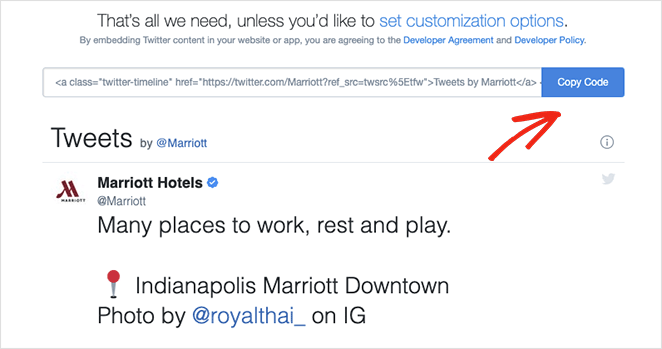
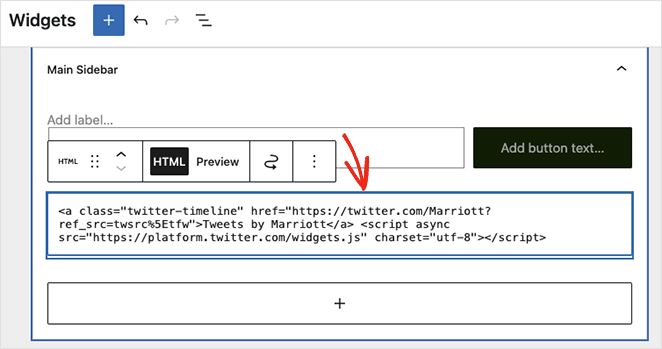
You can add your embed code to any WordPress post, page, or widget area. To embed the timeline as a sidebar widget, go to Appearance » Widgets from your WordPress dashboard.
Now click the add block icon to add a new block to your sidebar and look for the Custom HTML block. Paste the embed code you copied from Twitter into the HTML block and click the Update button.
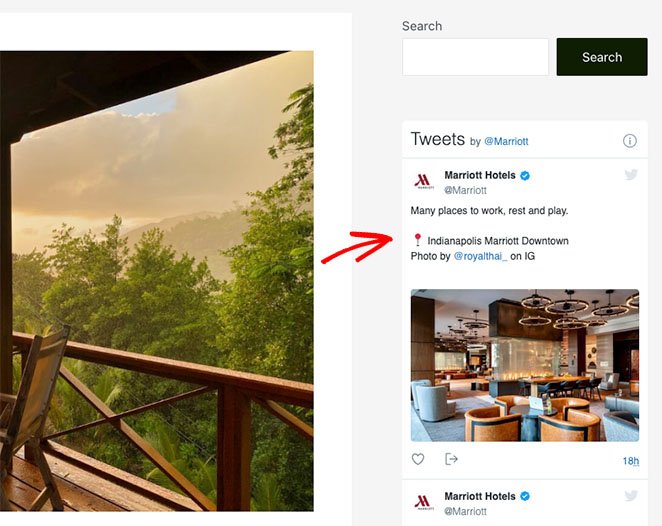
When you visit your live website, your Twitter widget will look similar to this example:
Where to Show Your Twitter Widget on WordPress
Once your widget is set up, placement matters. Here are the 3 most effective spots:
- Sidebar: Good for persistent visibility across all pages. Visitors see your Twitter content regardless of which post or page they’re reading.
- Homepage hero or footer: Good for social proof on your highest-traffic page. A follow count in the footer builds trust for first-time visitors.
- Specific posts or landing pages: Good for topic-relevant content. If you tweet frequently about a topic you write about, embedding a feed on those posts reinforces your authority.
Why Isn’t My Twitter Widget Showing in WordPress?
If your twitter widget wordpress display goes blank or stops updating, one of these 3 causes is usually behind it:
- Caching is blocking the feed: Clear your caching plugin after embedding or updating your widget. Plugins like W3 Total Cache or WP Rocket can serve a stale version of your sidebar that hides the widget.
- Deprecated embed or outdated plugin: The Twitter Publish embedded timeline still works, but check publish.twitter.com for current embed codes. If you’re using a plugin that hasn’t been updated since 2022, X’s 2023 API changes may have broken its connection.
- Widget area not active in your theme: Go to Appearance » Widgets and confirm the sidebar widget area is active and displaying on your site. Some themes disable sidebar areas on certain page templates.
If you need a fresh start, see Method 1 or Method 2 above for updated setup instructions. If your feed worked before but stopped after an X update, Smash Balloon is the most reliable option for ongoing maintenance.
FAQs on Adding a Twitter Widget to WordPress
How do I add a Twitter feed to my WordPress sidebar for free?
The free option is the manual embed method. Go to publish.twitter.com, generate an embed code for your timeline, then go to Appearance » Widgets in WordPress, add a Custom HTML block to your sidebar, and paste the code in. No plugin needed. The free version of Smash Balloon’s Custom Twitter Feeds plugin is another option if you want a styled feed rather than a basic embed.
Why isn’t my Twitter (X) widget showing up in WordPress?
The three most common causes are caching, an outdated plugin, and an inactive widget area. Clear your caching plugin first since that resolves it in most cases. If your plugin hasn’t been updated since 2022, X’s 2023 API changes may have broken it.
See the troubleshooting section above for specific fixes for each cause.
Can I embed a Twitter feed without a plugin?
Yes. Use the Twitter Publish tool at publish.twitter.com to generate an embed code for any public timeline, profile, or tweet. Paste the code into a Custom HTML block in a WordPress post, page, or widget area. The limitation is that you get no styling controls and can’t filter by hashtag or mention.
Does embedding a Twitter feed slow down my WordPress site?
It can, but most good Twitter feed plugins handle this with caching. Smash Balloon, for example, caches the feed data locally so your server isn’t making a live API call on every page load. The manual embed method loads Twitter’s own scripts directly, which can add some page weight.
If speed is a priority, use a plugin with built-in feed caching rather than the manual embed option.
Do I need a Twitter API key to embed tweets in WordPress?
No, not for most methods. Plugins like Smash Balloon handle API authentication through their own connection process. The manual embed method from publish.twitter.com requires no API key at all. Only custom or developer-built solutions that call the Twitter/X API directly require you to create your own API credentials.
You’ve got your Twitter/X content live on your site. Pick the method that fits your setup and come back to the others when you need them.
Ready to add a Twitter widget to WordPress with SeedProd?
Get started with SeedProd today.
You might also like this guide on embedding Facebook events in WordPress.
Thanks for reading! We’d love to hear your thoughts, so please feel free to join the conversation on YouTube, X and Facebook for more helpful advice and content to grow your business.




