

TL;DR: How to Create a Mailchimp Landing Page in WordPress
Building a Mailchimp landing page in WordPress gives you a branded URL and full design control. Here’s how to do it with SeedProd in 6 steps:
- Install SeedProd: Download and activate the plugin, then enter your license key.
- Create a new page: Click Add New Landing Page in your SeedProd dashboard.
- Choose a template: Pick a Newsletter or Lead Squeeze template.
- Customize the design: Edit your content and add an Optin form block to capture emails.
- Connect to Mailchimp: Paste your API key in the Connect tab and select your audience list.
- Configure and publish: Set your page URL in Page Settings, then click Publish.
Mailchimp’s built-in landing pages don’t use your domain. Every page you create gets a URL like this:
https://mailchi.mp/6c3044bf2117/your-landing-page/
That URL lives on Mailchimp’s servers, not yours. Building your Mailchimp landing page in WordPress solves that.
In this tutorial, I’ll show you how to create a Mailchimp landing page in WordPress using SeedProd, a drag-and-drop website builder that connects directly to Mailchimp. No code needed.
Quick steps to create a Mailchimp landing page in WordPress:
- Why Use SeedProd Instead of Mailchimp's Builder?
- Step 1. Install and Activate the SeedProd Landing Page Plugin
- Step 2. Create a New Landing Page with SeedProd
- Step 3. Choose a Landing Page Template
- Step 4. Customize Your Landing Page Design
- Step 5. Connect Your Landing Page to Mailchimp
- Step 6. Configure Your Page Settings
- Step 7. Preview Your Page in Mobile
- Step 8. Publish Your Mailchimp Page in WordPress
- What to Do If Your Mailchimp Connection Isn't Working
- Growing Your List After You Launch
- FAQs About Creating Mailchimp Landing Pages
Why Use SeedProd Instead of Mailchimp’s Builder?

SeedProd lets you build and host your email capture page on your WordPress site, giving you a clean, branded URL. You also get access to hundreds of templates, drag-and-drop design blocks, and built-in integrations like Mailchimp, so you can start collecting subscribers right away.
With that in mind, let’s dive into the steps.
Step 1. Install and Activate the SeedProd Landing Page Plugin
First, click here to get started with SeedProd and download the plugin to your computer. Then install and activate the plugin on your WordPress website.
If you need help with this step, you can follow these instructions to install a WordPress plugin.
After installing and activating SeedProd, you’ll see a welcome screen asking you to enter your license key.
Log in to your SeedProd Account and click the View License Key, Details, and Downloads link to find your license.
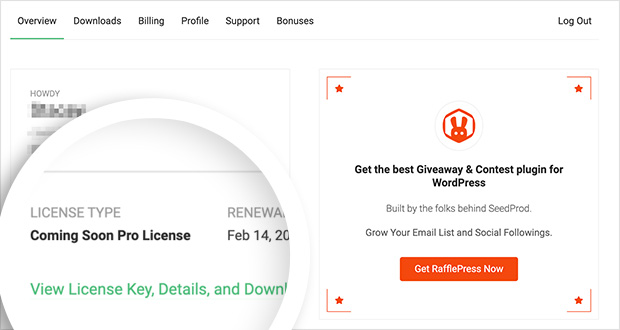
From there, copy your license key.
You can then paste your key in the field provided on your WordPress site.
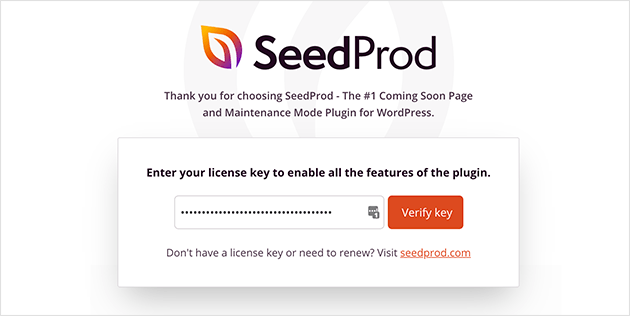
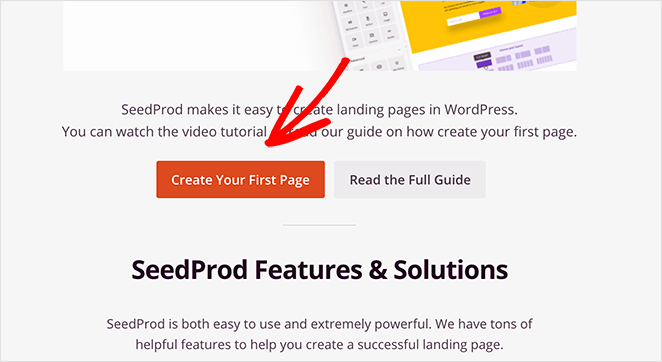
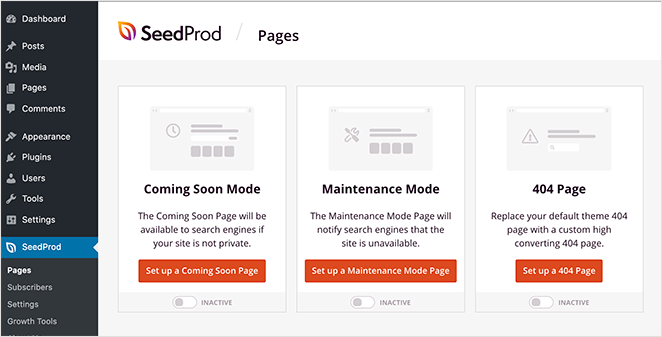
Once you’ve done that, scroll a little way down the screen and click the Create Your First Page button.
Step 2. Create a New Landing Page with SeedProd
The next screen is your SeedProd landing page overview, where all your landing pages will appear once you create them.
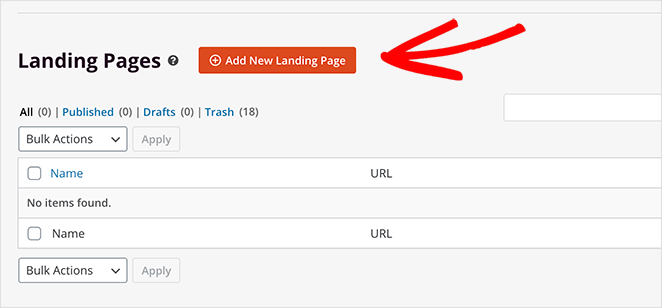
To create your first page, click the Add New Landing Page button.
Step 3. Choose a Landing Page Template
After clicking the button to create your landing page, you’ll see SeedProd’s library of responsive landing page templates. You can customize each template in the drag-and-drop visual editor.
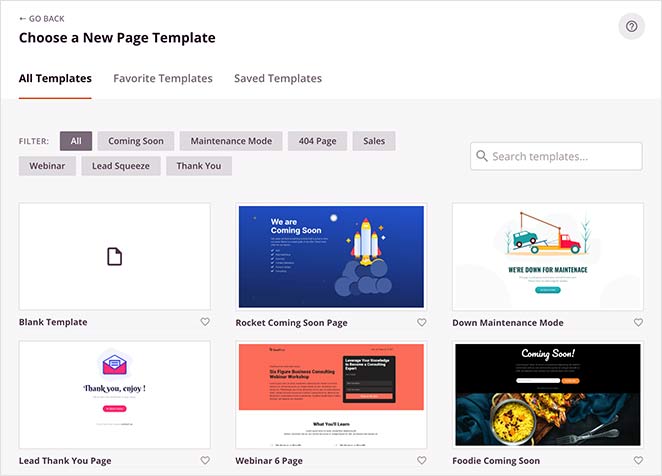
You can filter the templates by clicking any of the following categories at the top of the page:
- All
- Coming Soon
- Maintenance Mode
- 404 Page
- Sales
- Webinar
- Lead Squeeze
- Thank You
Then, it’s merely a case of picking a template that best suits your needs. To launch your template in SeedProd’s visual editor, hover your mouse over the template thumbnail, and click the tick icon.

For this tutorial, we’ll use the Newsletter Squeeze Page template.
Step 4. Customize Your Landing Page Design
After launching your template, you’ll see SeedProd’s drag-and-drop visual editor. The screen is divided into 2 sections.
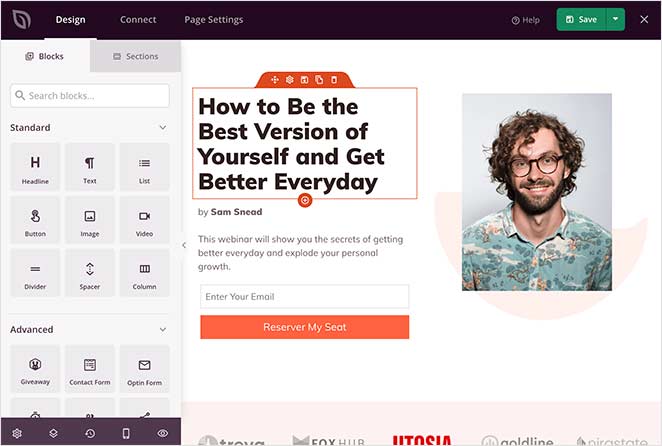
The different elements you can add to your page are on the left-hand side, while on the right is a live preview of your landing page. This allows you to see any changes you make automatically in real-time.
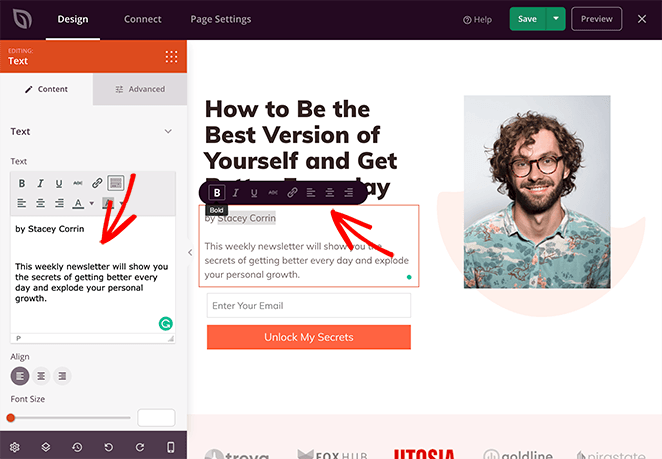
To customize your landing page content, click anywhere on the live preview.
For instance, to change the body copy, click on the existing copy. This opens a settings panel on the left-hand side where you can add your own content. Alternatively, you can use the in-line editing option on the right-hand side.
You can also use this approach to change the images on your page. Just click an existing image to open the settings on the left-hand panel.
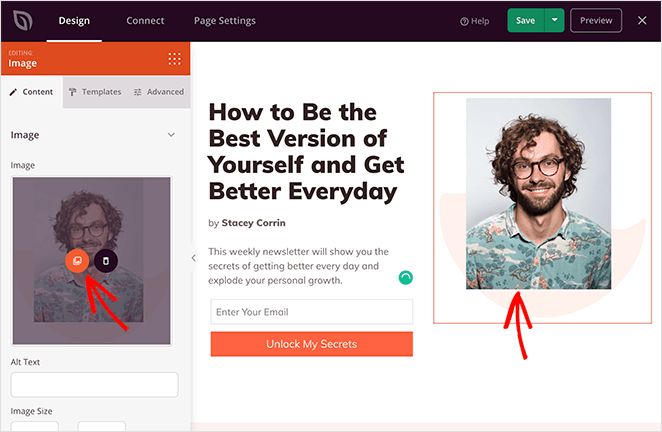
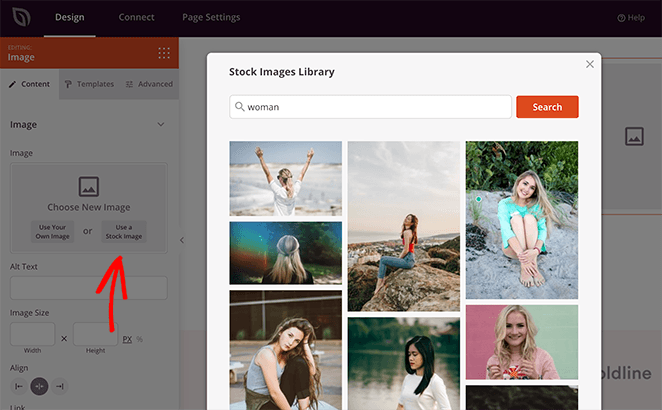
From there, you can delete the default image and replace it with one from your computer or WordPress media library. Alternatively, you can search through thousands of stock images, which are included for free with your SeedProd plan.
After customizing your landing page content, you can add extra content with SeedProd’s landing page Blocks.
Landing Page Blocks
Landing page blocks are the different elements you can add to your page to make it more engaging for your visitors. They come in 2 different block types: Standard and Advanced.
Standard blocks include all the basic page elements, such as images, buttons, headings, and more.
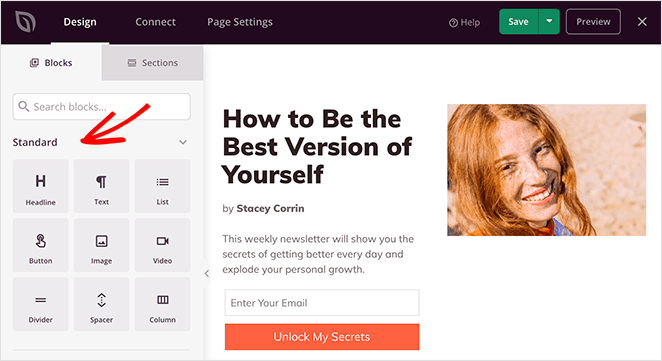
The Advanced blocks are more focused on generating leads, including:
- Giveaway blocks
- Optin forms
- Contact forms
- Social profiles
- Countdown timers
- Star ratings
- Anchor links
- Progress bars
- And more.
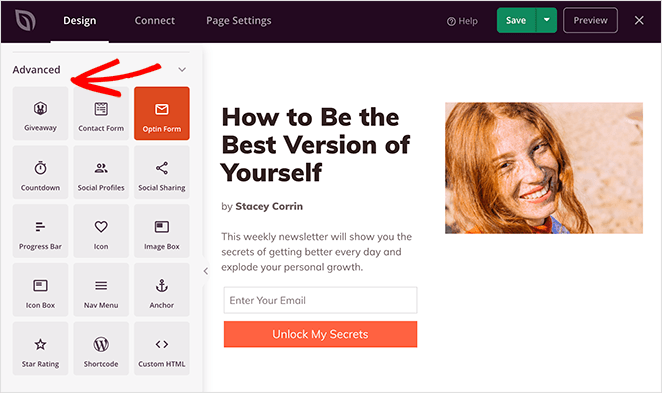
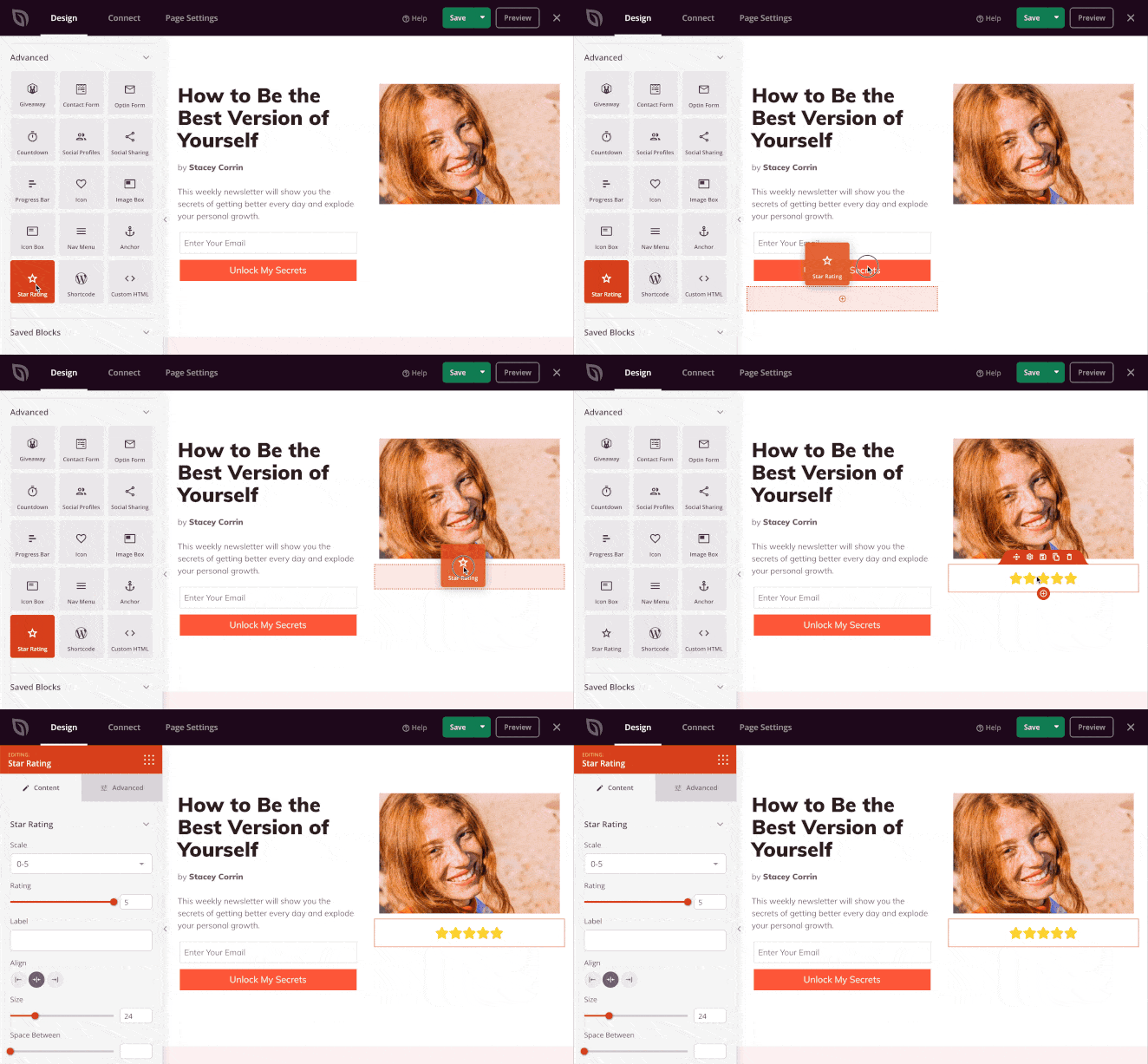
Adding blocks to your opt-in landing page is as simple as dragging one from the left-hand panel and dropping it on your page preview. From there, you can customize the content in the settings panel.
Landing Page Sections
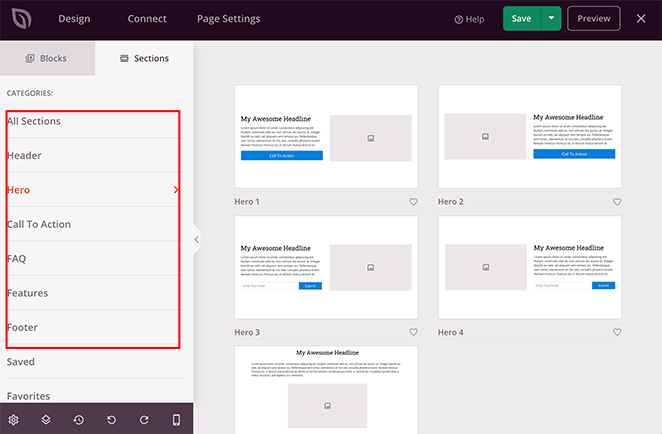
SeedProd also has pre-made landing page sections you can insert with a single click. The FAQ and Call to Action sections are especially useful for email capture, helping visitors feel confident before they subscribe.
Global Settings
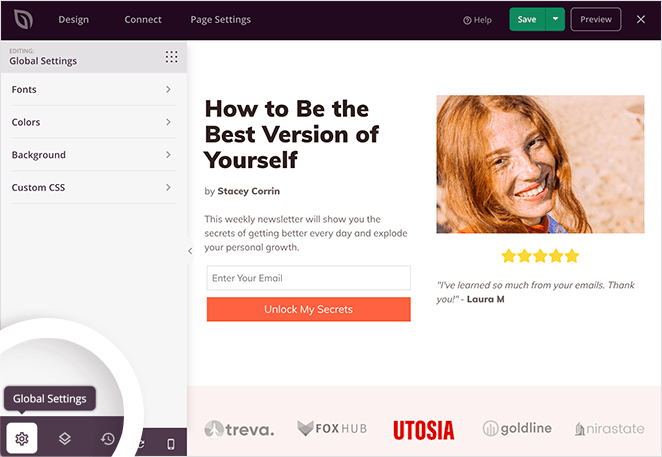
For more customization, click the gear icon in the bottom left of the page builder to open Global Settings. From there you can change your page’s colors and fonts and apply them site-wide.
Continue customizing your page until you’re happy with your design. Don’t forget to click the green Save button periodically to store your settings.
Step 5. Connect Your Landing Page to Mailchimp
With your landing page design in place, it’s time to connect your page to your Mailchimp account and email list.
To do this, click the Connect tab at the top of your screen. This will show you all of the available email marketing services you can integrate with SeedProd.
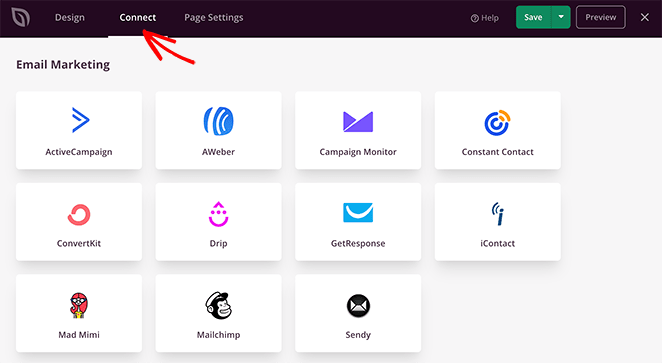
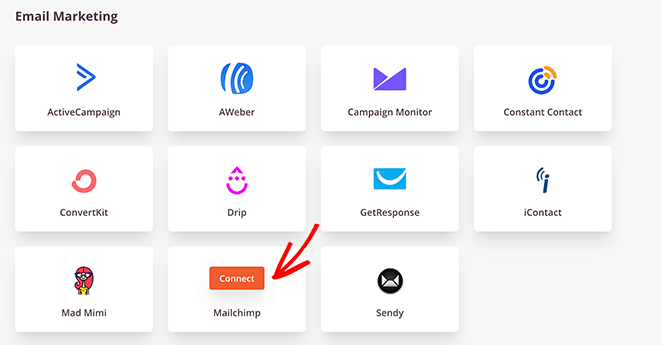
To link your Mailchimp account, hover your mouse over the Mailchimp icon and click Connect.
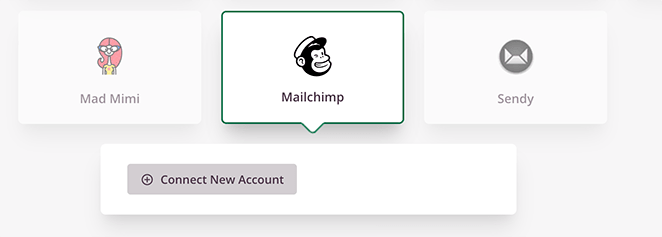
Next, click the Connect a New Account button.
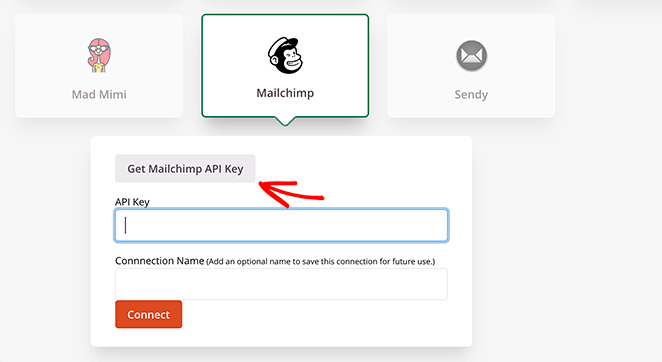
You’ll then be asked to enter your Mailchimp API key and to choose a Connection Name. To find your API key, click the Get Mailchimp API Key button.
This opens Mailchimp in a new window. In your Mailchimp account, click your profile icon in the bottom-left corner, go to Account & Billing, then click the Extras tab and select API Keys. Click Create A Key to generate a new one.
If the interface looks different from the screenshot below, Mailchimp may have updated their settings layout. You can always find the current steps in Mailchimp’s API key documentation.
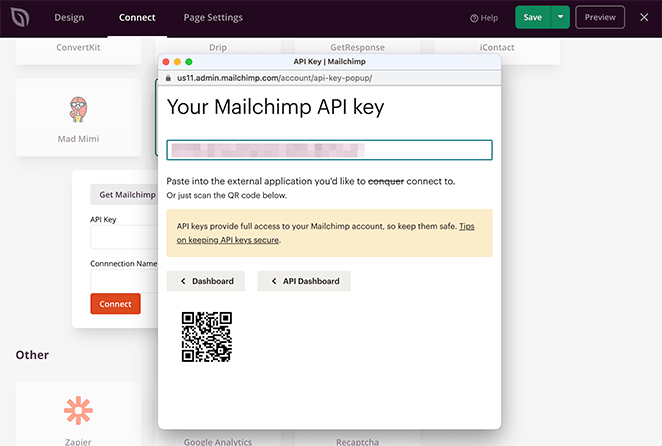
Copy the key and paste it into the field in SeedProd.
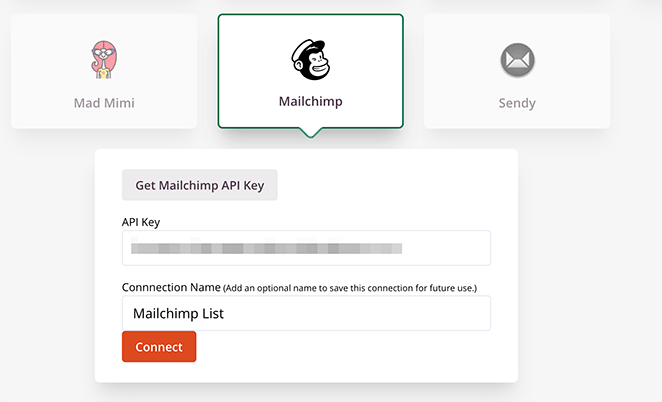
Next, give the connection a name and click the Connect button.
Once you’ve done that, you can choose your preferred list from the drop-down menu and click Save Integration Details.
Now anyone who subscribes to your landing page will be added to your Mailchimp email list automatically.
Step 6. Configure Your Page Settings
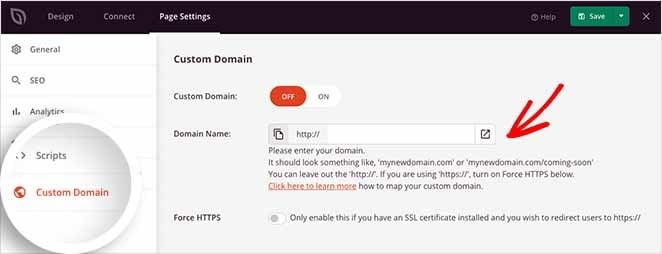
Next, open the Page Settings tab to adjust your landing page details. Here you can change the page name and URL, switch between draft or published, and enable Isolation Mode to avoid plugin conflicts.
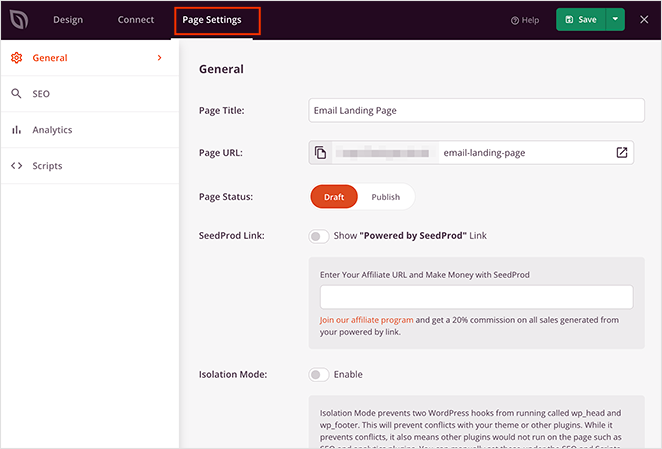
You’ll also find options for SEO & Analytics (works with plugins like All in One SEO and MonsterInsights), and a Scripts area for things like tracking pixels or custom code.
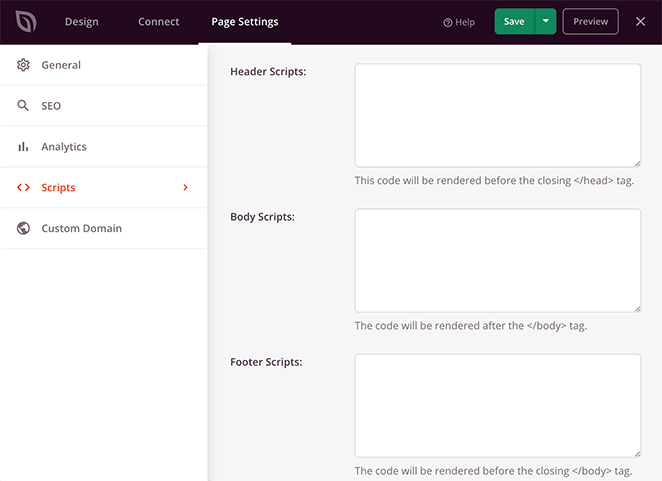
If you’re on the Pro Plan, you can also assign a custom domain to your page. For example, point a coming soon page on oldsite.com to a new domain like newsite.com to start collecting subscribers early.
Once you’ve configured these settings, click Save and return to the Design tab.
Step 7. Preview Your Page in Mobile
Before you make your landing page live, you’ll want to make sure it looks good on mobile screens. If it doesn’t look right on mobile devices, you could look unprofessional and lose potential leads.
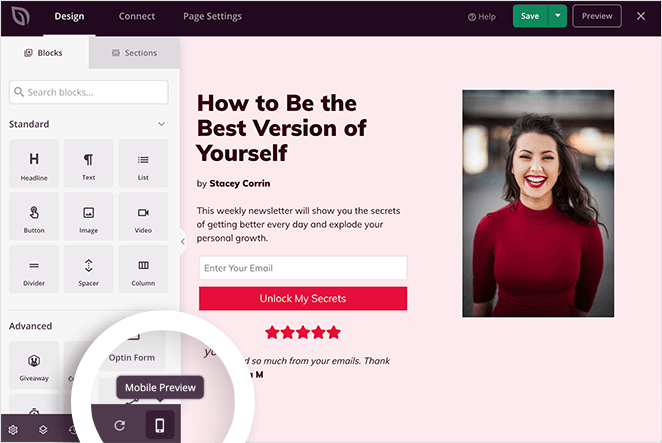
Luckily, SeedProd has a built-in mobile preview option where you can preview your landing page on mobile devices. Just click the Mobile Preview icon to see how your page looks on mobile vs desktop.
If anything doesn’t look the way it should, you can edit your mobile landing page the same way you would with your desktop view.
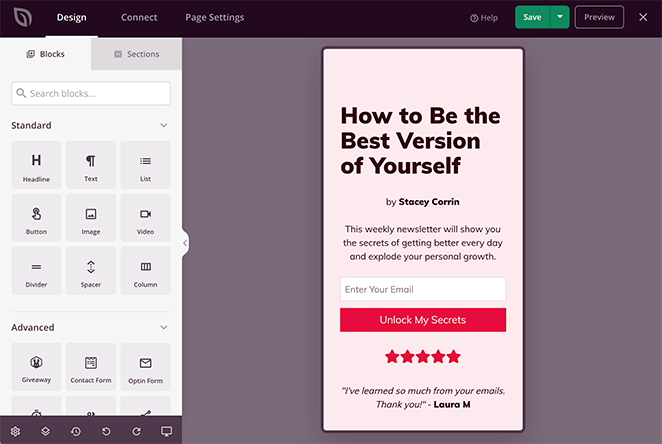
Any changes you make are automatically applied to both versions to keep things looking consistent.
Step 8. Publish Your Mailchimp Page in WordPress
Now the time has come to publish your landing page in WordPress, and this step is just as easy.
To publish your page, click the down arrow next to the Save button in the top-right corner of your screen. Then, click Publish.
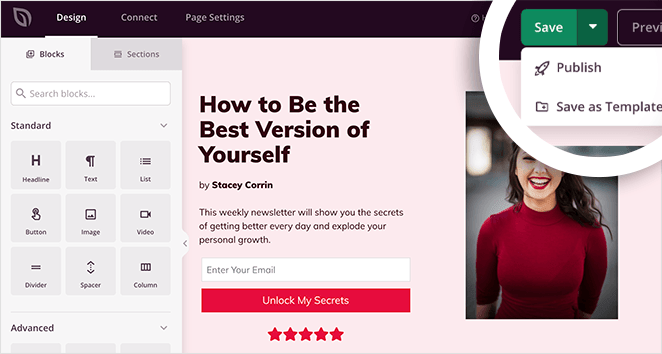
Next, you’ll see a popup telling you that your page has been published.
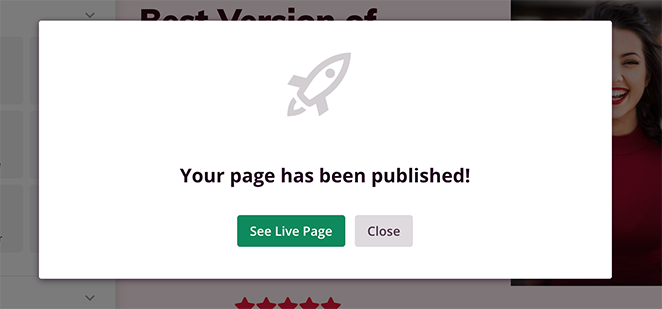
Go ahead and click the See Live Page button to see how your new landing page looks.

What to Do If Your Mailchimp Connection Isn’t Working
Even with the steps complete, you might run into a few hiccups. Here are the three most common issues and how to fix them.
API key error. If SeedProd can’t authenticate with Mailchimp, the most likely cause is a trailing space in your API key. Delete the key from the SeedProd field, go back to Mailchimp and generate a fresh key, then paste it again carefully.
Subscribers not syncing. Open the Connect tab in SeedProd and check which audience list is selected under Save Integration Details. If you have multiple lists in Mailchimp, it’s easy to connect to the wrong one.
Form not capturing leads. This one catches people out because the page-level Mailchimp integration and the Optin block are separate. Make sure the Optin block on your page is also connected to Mailchimp, not just the page-level setting.
Growing Your List After You Launch
Publishing your email signup page is only the first step. Here are three things to do right after you go live.
Drive your first traffic from Mailchimp. Send an email campaign to your existing list with a link to the new page. Subscribers who refer friends or reshare the link can seed early momentum without any paid ads.
Set up a welcome automation. In Mailchimp, create a welcome email that triggers automatically when someone subscribes through this page. A timely welcome email builds trust before your next campaign goes out.
Tag new subscribers for segmentation. In Mailchimp, you can assign up to 5 tags to every subscriber who comes through this page, which lets you segment them from list members who signed up elsewhere. Set this up before you launch so every new subscriber is tagged from day one.
FAQs About Creating Mailchimp Landing Pages
How do you embed a Mailchimp landing page in WordPress?
You can’t embed a Mailchimp-hosted landing page directly into WordPress. Mailchimp landing pages are standalone pages that live on Mailchimp’s servers and can’t be embedded into another site. The better approach is to build your opt-in landing page inside WordPress using SeedProd and connect it to your Mailchimp audience. That way the page lives on your domain and is fully customizable.
Does Mailchimp integrate with WordPress?
Yes. SeedProd connects to Mailchimp via API key, so any Optin form on your landing page feeds directly into your Mailchimp audience list. No third-party bridge plugin is needed. You can also use Mailchimp’s official WordPress plugin to embed sign-up forms in posts and sidebars, though it won’t give you full landing page control.
Can I use Mailchimp to create a landing page?
Yes, Mailchimp has a built-in landing page builder available on all plans, including free. The limitation is that pages are hosted on Mailchimp’s servers with URLs like mailchi.mp, and you can only use a custom domain on a paid Websites plan. For most WordPress site owners, building the page in WordPress with SeedProd gives you more design control and a branded URL from the start.
What are the limitations of Mailchimp’s built-in landing pages?
Mailchimp’s built-in landing pages can’t use your own domain on the free plan, so subscribers see a mailchi.mp URL instead of your brand. You can’t change the audience list after the page is published, and advanced features like iFrames and merge tags in public pages require a paid plan. Building your Mailchimp landing page in WordPress instead lets you avoid these constraints entirely.
Your Mailchimp landing page is now live on your own domain, collecting subscribers directly into your Mailchimp list. You own the URL and the data.
Looking for more tips? Check out our guides on landing page best practices and growing your email list.
Thanks for reading! We’d love to hear your thoughts, so please feel free to join the conversation on YouTube, X and Facebook for more helpful advice and content to grow your business.




