


TL;DR: How to Add Testimonials to WordPress Adding testimonials takes under 15 minutes with any of these three methods.
- SeedProd (paid, Basic+): Best for full design control. Use the drag-and-drop Testimonials block to build a custom landing page with rotating reviews, photos, and star ratings.
- Smash Balloon Facebook Feed Pro: Best for showing live Facebook reviews. Connect your Facebook page and embed an auto-updating reviews feed on any WordPress page.
- WP Testimonials Rotator (free): Best for a simple rotating slider. Add testimonials via a custom post type, then embed with a shortcode.
- Native Gutenberg (free, no plugin): Best for a quick static testimonial. Use the Quote block or copy a pattern from the Pattern Directory.
For a long time, I added testimonials wherever I could. I used text blocks, quotes, or bolded snippets in the middle of a page. It looked okay, but it didn’t feel trustworthy.
Once I started using proper testimonial sections with visual blocks, sliders, and real social proof, the results were better. Pages looked more polished, the reviews stood out, and conversions started to climb.
In this guide, I’ll show you how to add testimonials to WordPress using three simple methods I’ve tried myself. Each method takes under 15 minutes.
Quick Summary: How to Add Testimonials to WordPress
- Use SeedProd to Add Custom Testimonials
- Embed Facebook Reviews with Smash Balloon
- Use WP Testimonials Rotator for a Free Slider
Why Add Testimonials to a WordPress Page?
Showing a customer testimonials section on your WordPress site is an effective way of adding social proof, which can help you win more customers and boost sales. According to BrightLocal’s 2020 Local Consumer Review Survey, 79% of consumers trust online reviews as much as personal recommendations. Plus, if you run an online store, testimonials can even boost your conversion rates.
Where to Add Testimonials on Your WordPress Site
I’ve tested testimonials in several spots across different sites, and placement matters more than most people expect. A review buried at the bottom of a page rarely gets seen; the same review above the fold changes how visitors read everything that follows.
Here’s where testimonials tend to have the most impact:
- Homepage (above the fold): Establishes trust before visitors have read a single word about your product or service.
- Product or service pages (near the CTA): Addresses hesitation exactly when the reader is deciding whether to click the buy or sign-up button.
- Checkout or pricing pages: Reduces purchase anxiety right before the decision point.
- About page: Reinforces brand credibility when visitors are assessing whether to trust you.
- Sidebar (widget area): Keeps a rotating testimonial visible site-wide without requiring you to add it to every page individually.
For most sites, I’d start with the homepage and the main product page. Those two spots give you the most visibility with the least effort.
How to Get Testimonials for Your WordPress Site
The most common blocker isn’t the plugin. It’s not having testimonials ready to display. Here are three approaches that actually get responses:
- Email outreach to past customers: Send a short, personal email within a day or two of a completed purchase or project. Ask one specific question (“What changed for you after using [product]?”) rather than “Can you leave a testimonial?” Specific prompts get specific answers.
- A testimonial submission form with WPForms: Embed a simple form on a “Share Your Experience” page and link to it from your order confirmation emails. WPForms makes this easy with its testimonial form template.
- A dedicated collection landing page with SeedProd: Build a page specifically for collecting testimonials. Include the form, a short prompt, and a few examples of what a good testimonial looks like. You can link to it from post-purchase emails and social media.
The response rate goes up significantly when you make it easy. A direct link to a short form works far better than a vague “reach out anytime.”
What Makes a Testimonial Effective
Not all testimonials carry the same weight. Here’s what separates a credible review from one visitors skim past:
- Include the customer’s full name and company or job title
- Add a photo so the review feels like it came from a real person
- Use specific results over vague praise (“increased leads by 40%” beats “great service”)
- Keep testimonials under 100 words, shorter reads more confidently
- Add star ratings for visual scannability
- Mix text testimonials with short video clips when possible
- Refresh your testimonials every quarter so the dates stay current
Add Testimonials to WordPress Pages with SeedProd
For the first method, we’ll use SeedProd to add testimonials to WordPress pages.

SeedProd is a drag-and-drop website builder that lets you design full WordPress pages in a visual editor, no code required. Used by over 1 million websites, it lets you create custom pages in WordPress quickly.
Its built-in Testimonials block handles layout, rotation, and styling automatically, so you can build a polished testimonials section in a few minutes.
SeedProd’s Testimonials block automatically creates a rotating carousel of reviews with names, photos, titles, and star ratings, no shortcodes or custom CSS needed.
With hundreds of responsive landing page templates to choose from, getting started is easy. With the front-end visual editor, you can customize your page with easy testimonials, star ratings, and other lead-generation tools without writing code.
So follow the steps below to add testimonials to WordPress with SeedProd.
Video Tutorial
I’ve also recorded a quick walkthrough if you prefer to follow along with video.
Step 1. Install and Activate SeedProd
The first step is to download a copy of the SeedProd plugin.
After downloading SeedProd, install and activate it on your WordPress site. If you need help, you can follow this guide for installing WordPress plugins.
Upon activating SeedProd, go to SeedProd » Settings and enter your license key.
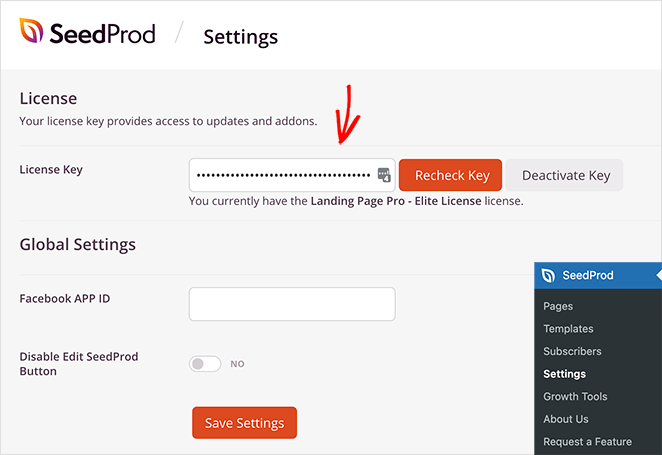
You can find your license key in your account dashboard on the SeedProd website.
Step 2. Create a New WordPress Page
After entering your key, head over to SeedProd » Pages and click the ‘Add New Landing Page’ button.
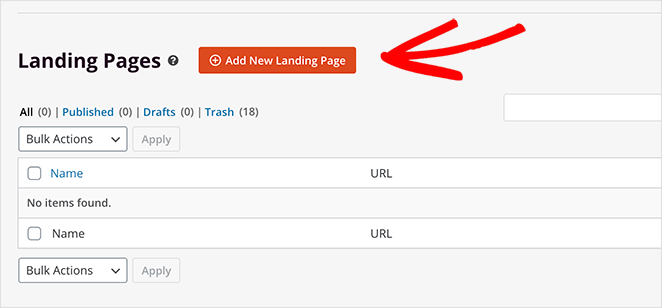
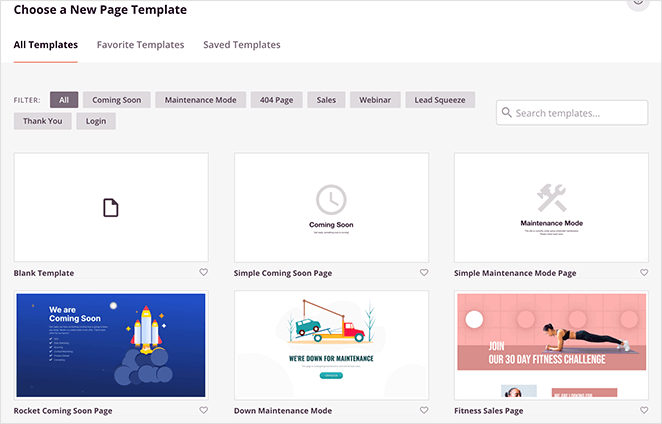
From there, you can choose from hundreds of professionally designed landing page templates.
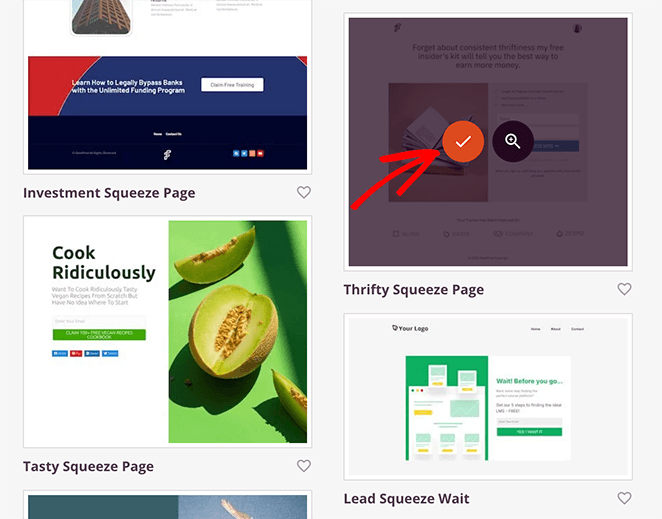
Once you find a template you like, hover over the thumbnail and click the checkmark icon.
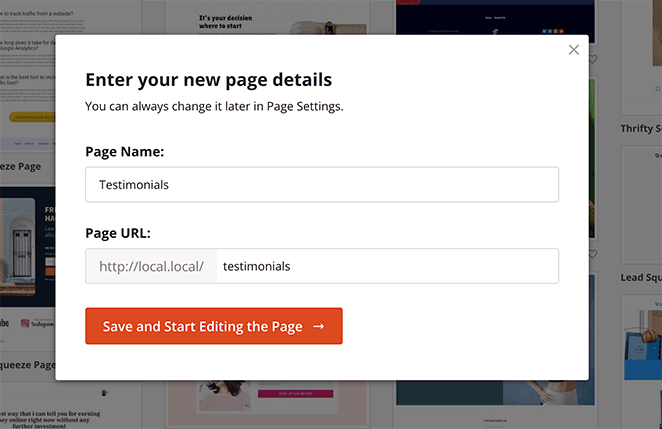
From there, you’re asked to enter your landing page name and URL. After entering those details, click the Save and Start Editing the Page button.
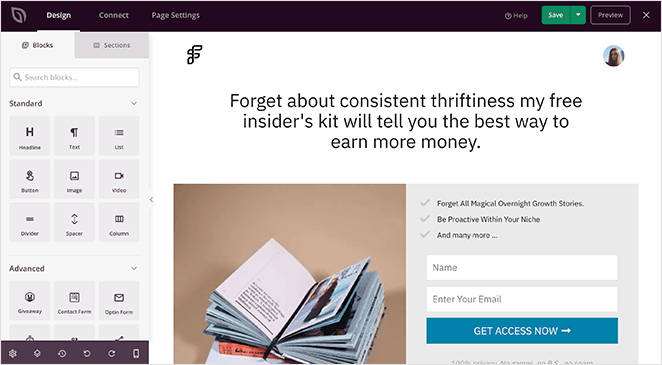
SeedProd will now launch your template in the drag-and-drop visual editor. Click any element to select it, then edit directly in the panel on the left.
You can also show customer reviews on WordPress using built-in testimonial or review blocks.
Step 3. Use the Testimonial Page Block
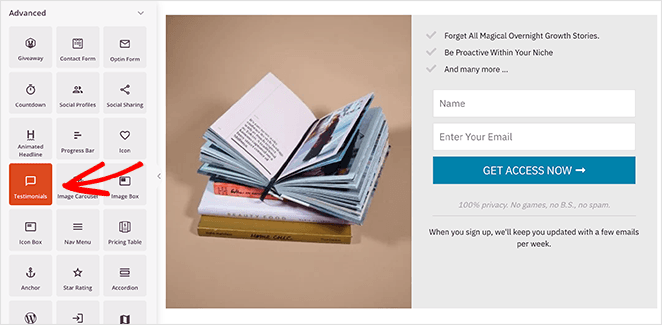
The first block that we’ll add is the customer testimonial block. So drag the ‘Testimonials’ block from the Advanced blocks section and drop it onto your page.
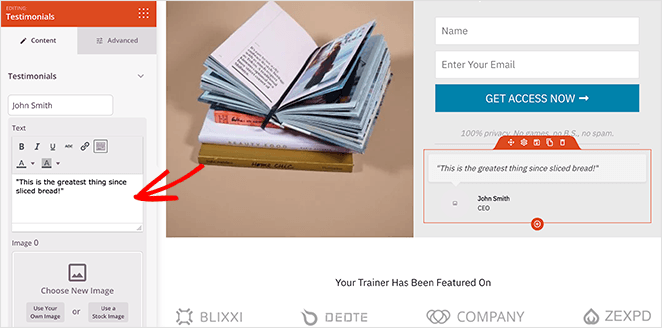
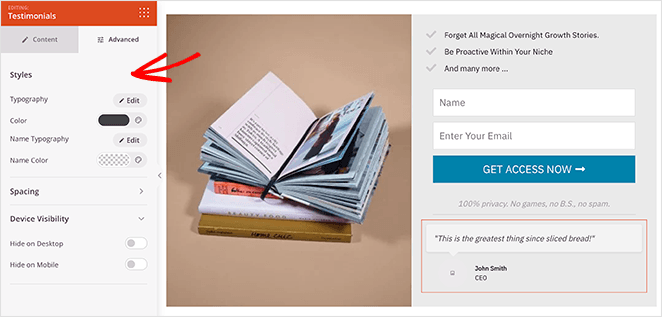
From there, customizing the testimonial block is just as easy. For example, you can click the Content tab to change the testimonial title, text and even add a featured image for the client or customer.
If you click the Advanced tab, you can change the typography, colors, spacing, and even control testimonial views for mobile and desktop devices.
To add multiple testimonials, click the ‘Add Testimonial’ button in the left-hand menu. This will automatically create a rotating block of customer testimonials.
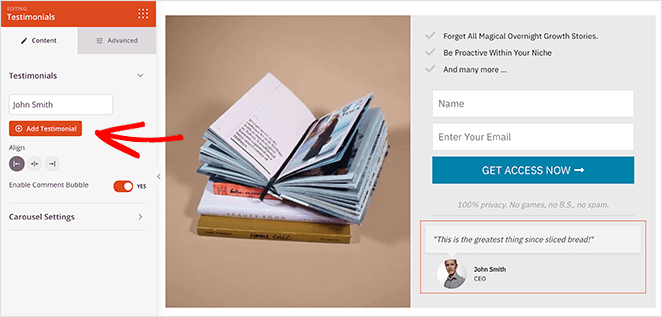
Then, under the Carousel Settings heading, you can change the navigation color mode, turn auto-play on or off, and control the carousel slideshow speed.
You can also use SeedProd’s Business Reviews block to display customer reviews from Google and Yelp, which is great if you sell products or services with WooCommerce. To do that, you can follow this easy guide on how to embed Google and Yelp reviews in WordPress.
Step 4. Customize Your Page
After adding testimonials to your WordPress page, you can continue customizing your design with SeedProd. For example, to change the default template image, click the image block and select the trash can icon to remove it.
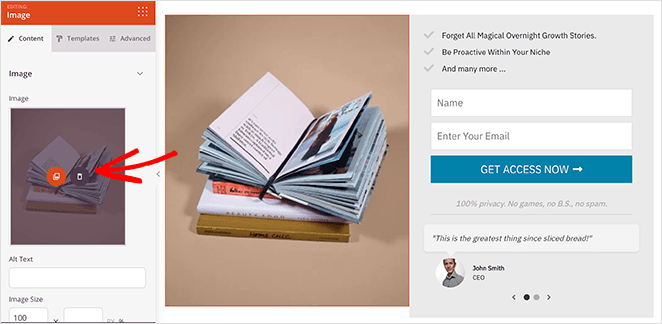
From there, you can upload a new image from your computer, WordPress media library, or SeedProd’s library of free stock images.
And if you want to change your fonts, colors, and custom CSS globally, simply click the gear icon in the bottom left corner.
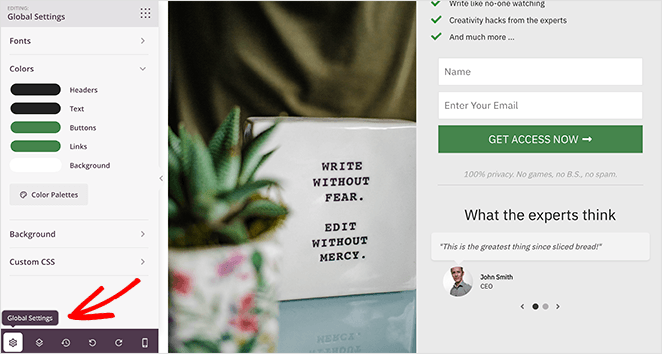
Any settings you change in this panel are added to your entire page. That means you won’t need to edit the fonts or colors of each block individually.
To connect an email list, click the Connect tab at the top of your screen. From there, you can see the various email marketing services that integrate with SeedProd.
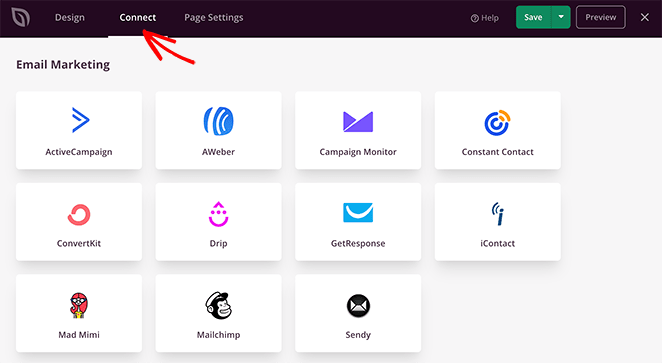
Click your preferred service and follow the instructions to connect your email list with SeedProd.
Remember to click the Save button to store your settings.
Step 5. Publish Your Page in WordPress
When you’re happy with your landing page design, click the dropdown arrow next to the green save button and select Publish.
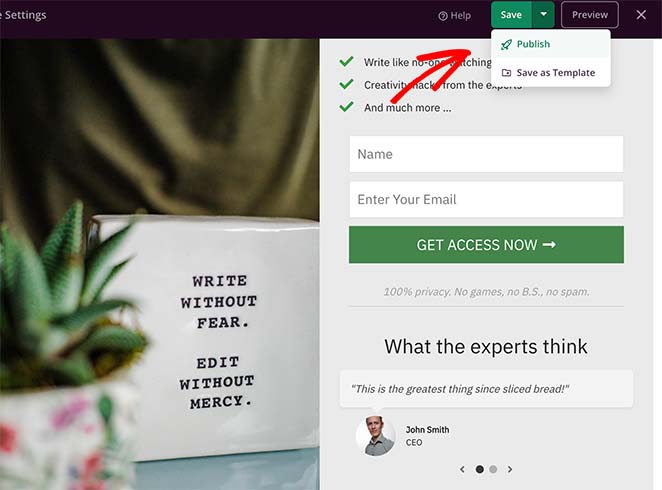
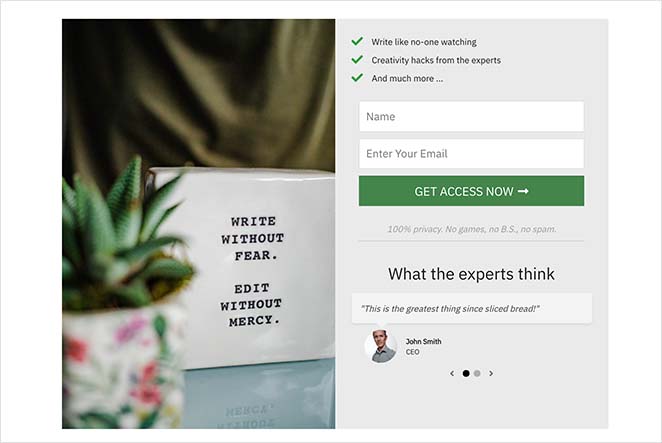
From there, you can preview your design and see the testimonials live on your WordPress page.
Add Facebook Testimonials to WordPress Pages with Smash Balloon
For the second method, we’ll use Smash Balloon to add Facebook testimonials to WordPress pages.
Smash Balloon offers the best suite of social media feed plugins for WordPress.
f you’re wondering how to display reviews on WordPress from Facebook, this tool does it. Their Facebook Feed Pro plugin includes a handy extension that allows you to show Facebook reviews on any post or page in WordPress.
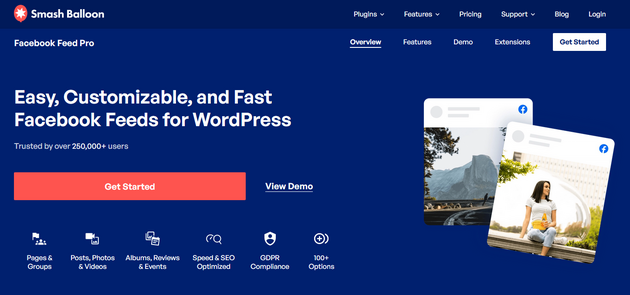
Once you activate, set up, and connect your Facebook account, your testimonials will automatically update when new reviews are posted. Plus, there are plenty of options for filtering and moderating which reviews show up on your site, so you have complete control.
So, if you want to add Facebook testimonials to WordPress pages with Smash Balloon, follow the steps below.
Step 1. Install and Activate Facebook Feed Pro
First, download a copy of Smash Balloon’s Facebook Feed Pro plugin.
Then, install and activate the plugin on your WordPress website.
Next, navigate to the Facebook Feed » Extensions menu from your WordPress dashboard, where you’ll see the Reviews extension. From there, click on the Activate button next to it.
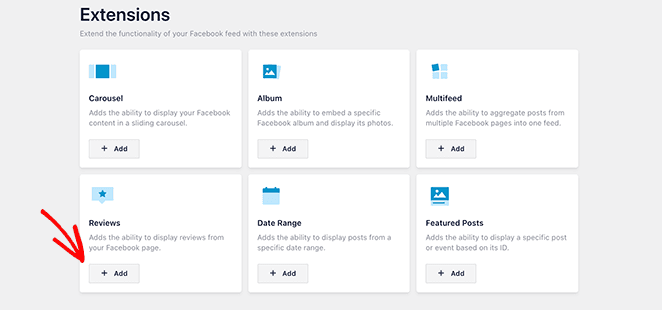
Now you’re ready to start adding testimonials to your WordPress page.
Step 2. Make Your Facebook Testimonials Widget
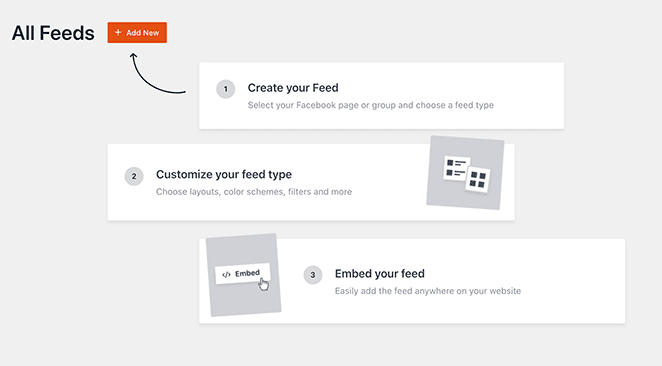
To create your first testimonials feed, go to the Facebook Feed » All Feeds menu from your WordPress dashboard. Then, click the Add New button to create a new Facebook feed.
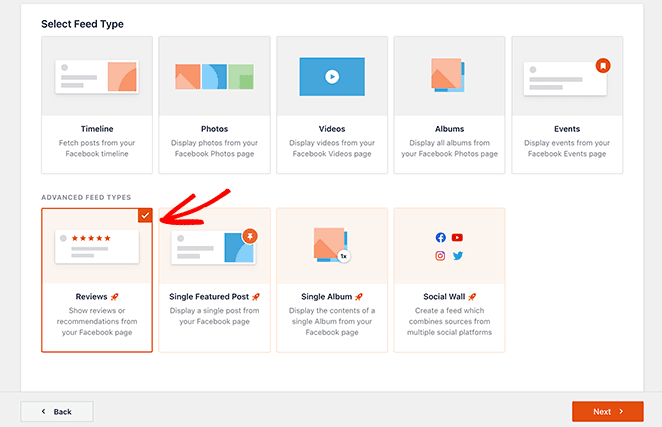
From there, you’ll see several different feeds you can add to your website. To add a reviews feed, click the Reviews option and click Next.
Step 3. Connect to Your Facebook Reviews
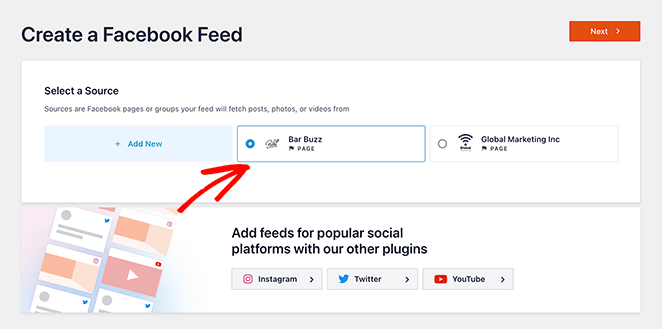
To embed your Facebook reviews on your website, you need to connect your feed to a Facebook page first. To do that, click the Add New button under the Select a Source heading.

Now, you’ll see a popup asking you to choose between a Facebook page source or a Facebook group. To add testimonials, you’ll need to select the Page option and click Connect.
On the next screen, you’ll need to log in to Facebook and choose which Facebook page you want to connect to. Just select the page you want, click Next, grant Smash Balloon’s permissions, and click Done.
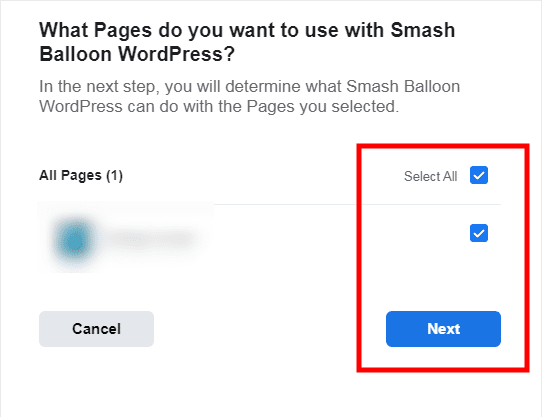
Now, you’ll head back to your WordPress dashboard. From there, select your Facebook page and click Add.
Step 4. Customize Your Facebook Testimonials Feed
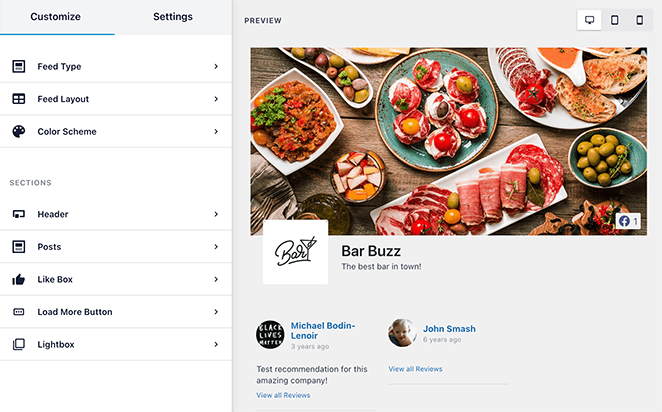
The next step is to personalize your Facebook testimonials feed. In the live editor, you can see the customization settings on the left, with different options for:
- Feed types
- Feed layouts
- Color options
- Post layouts
- Header styles
- Like box
The live preview updates in real time as you make changes.
To start customizing your feed, click the Feed Layout option. You can choose from 3 different testimonial layouts on that screen: list, masonry, and carousel.
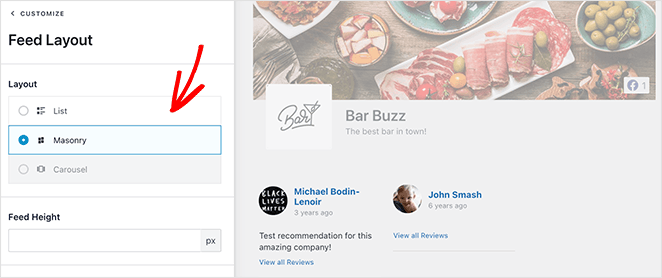
Click any layout you prefer and click the Save button.
Now, let’s customize your feed’s color scheme by clicking the Color Scheme option. On that screen, you can match your WordPress theme’s color scheme, use a light or dark theme, or create a custom theme of your choosing.
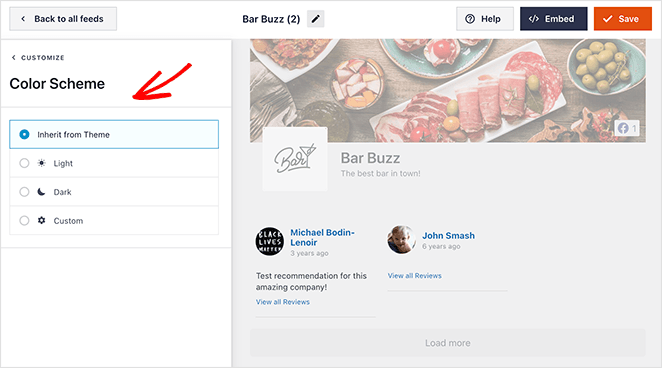
When you’re happy with how your testimonial feed looks, click Save.
Step 5. Embed Your Testimonials Feed in WordPress
There are several ways to add your Facebook reviews feed to WordPress, including:
- In any WordPress post
- In widget-ready areas like your sidebar
- On any WordPress page
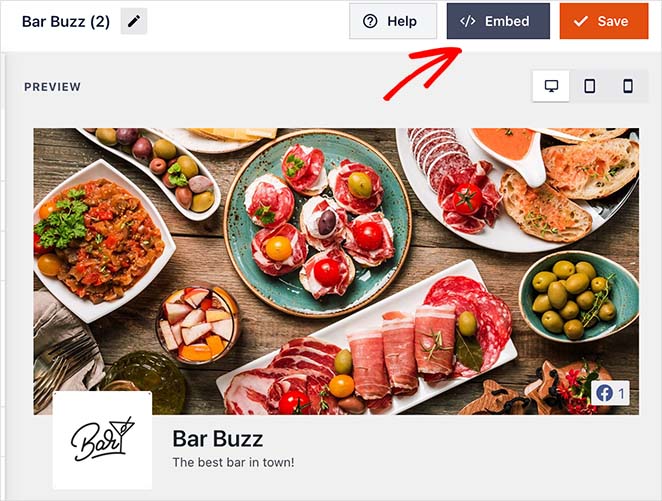
For this guide, we’ll show you how to add testimonials to WordPress pages. So click the Embed button at the top of your screen.
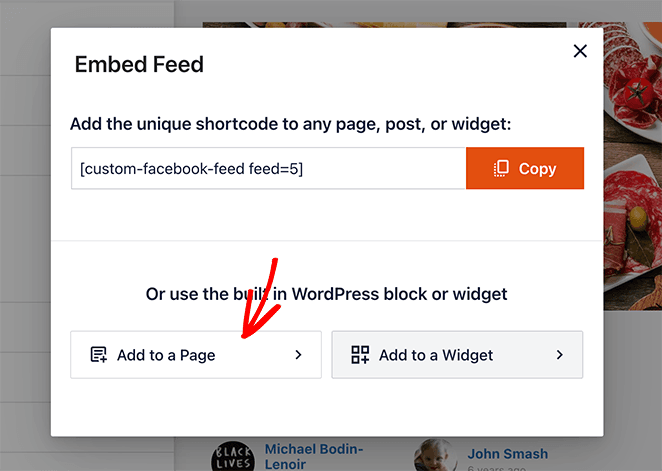
From there, click the Add to a Page button.
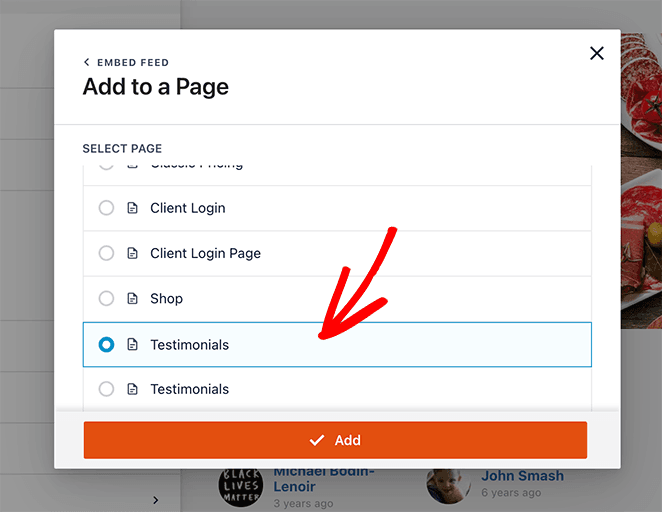
On the next screen, choose the page where you want to add your testimonials and click Add.
After clicking the button, you’ll head to your chosen page’s WordPress block editor.
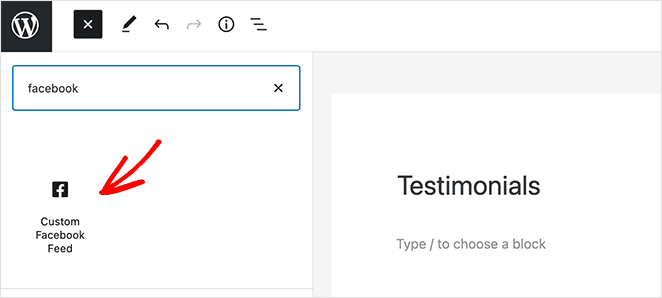
From there, click the plus (+) icon to add a new WordPress block and choose the Custom Facebook Feed widget to add your Facebook reviews feed to your page.
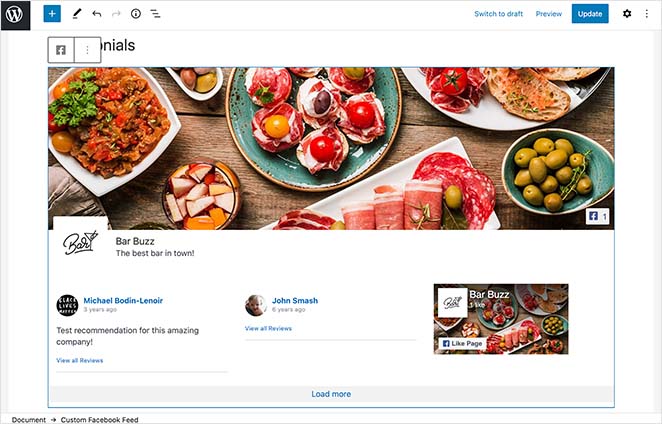
When you’re happy with how everything looks, click Publish. Now, when your customers visit your site, they’ll see your Facebook reviews right on your page.

Use WP Testimonials Rotator Testimonial Plugin for WordPress (Free)
For the last method, we’ll use one of the best WordPress testimonials plugins called WP Testimonials Rotator. This plugin is free in the WordPress plugin directory and lets you add simple rotating testimonials to pages in WordPress.
So if you need a simple and free solution, follow these steps to add testimonials to WordPress pages for free. You might also find this guide on how to create a full testimonial page helpful once your content is ready.
Step 1. Install and Activate WP Testimonials Rotator
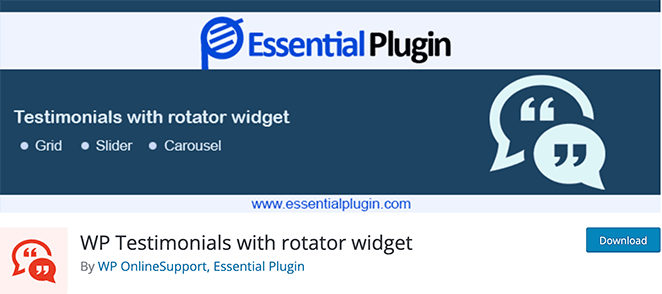
First, download the WP Testimonials Rotator plugin and install and activate it on your website.
Step 2. Create Your Testimonials
Next, go to WP Testimonials » Add New from your WordPress dashboard.
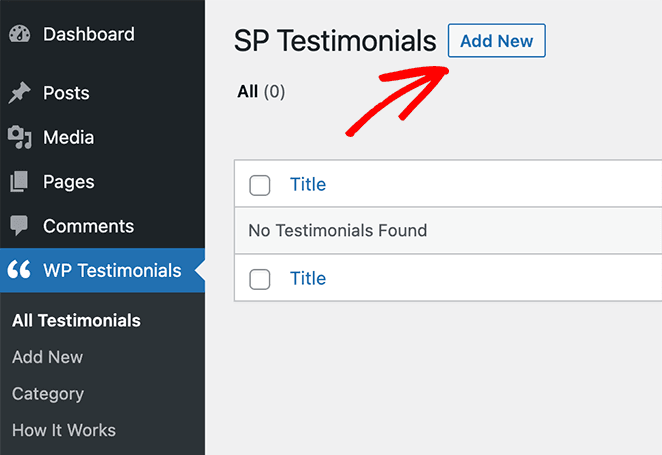
From there, you can add your testimonial details using the WordPress page editor.
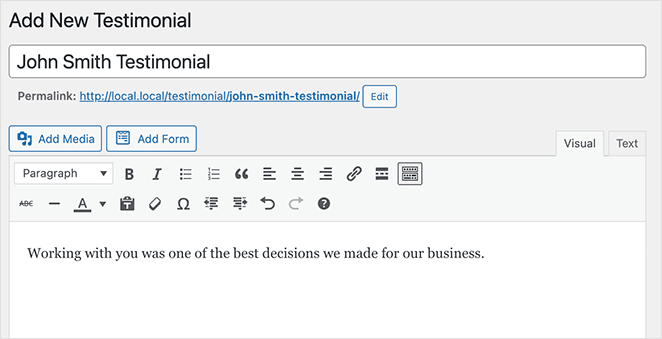
After adding your testimonial quote, you can scroll down and add other details in the custom fields, including:
- Client Name
- Job Title
- Company
- URL
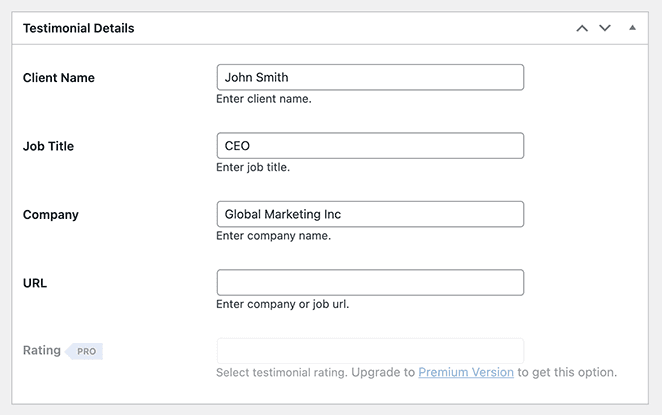
From there, click Publish to publish the testimonial on your website. And if you want your testimonials to rotate, you just need to collect testimonials and add them to your site using the same steps.
Step 3. Publish Your Testimonials in WordPress
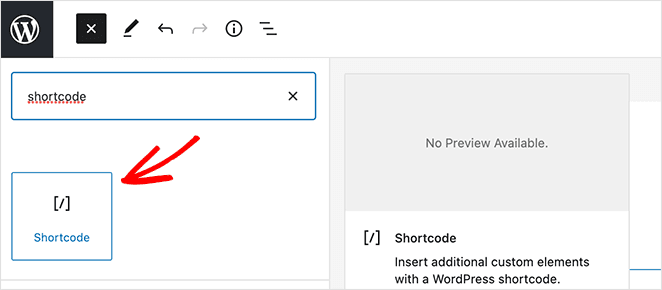
Just create a new WordPress page and click the plus (+) icon to add a new WordPress block.
For this method, you’ll need to search for the Shortcode block and then click it to embed it on your page.
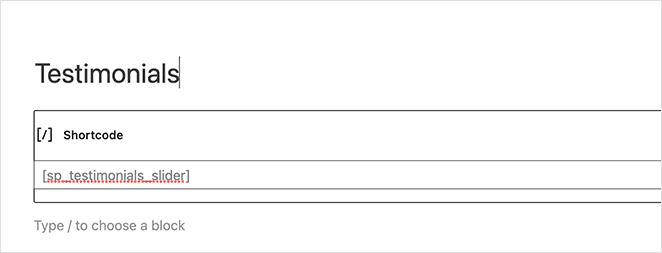
Next, paste the following shortcode into the block:
[sp_testimonials_slider]The shortcode creates a rotating WordPress testimonial slider.
Now, all that’s left is to click Publish. Then, when you preview or visit your page, you’ll see your testimonials live on your WordPress page.

Add Testimonials to WordPress Without a Plugin
If you’re not ready to install a plugin, WordPress’s built-in block editor can handle simple testimonials. It’s not as flexible as the other methods, but it works without adding anything to your site.
Using the Quote Block
The simplest option is the Gutenberg Quote block. Open any page or post, click the block inserter (+), search for “Quote,” and add it. Type the testimonial text in the body and the customer name in the citation field below it.
You can style it further using the block settings panel on the right, changing alignment, text size, or adding a background color to make it stand out.
Using the Pattern Directory
WordPress includes a Pattern Directory with pre-designed testimonial layouts you can copy in one click. In the block inserter, click the Patterns tab and search “testimonials.” You’ll find several ready-made designs that include photo, name, role, and quote fields already laid out.
Copy the pattern onto your page, swap out the placeholder text and photos, and you’re done. This approach is faster than building from scratch and gives you a more polished result than a plain Quote block.
The trade-off: neither approach gives you a rotating slider or automatic updates from an external platform. For those features, you’ll want one of the three plugin methods above.
Frequently Asked Questions
How do I add testimonials to a website without a plugin?
You can use WordPress’s built-in Quote block or find a testimonial pattern in the Pattern Directory (click the block inserter, then the Patterns tab, and search “testimonials”). These options are free and need no installation. The limitation is that you can’t create a rotating slider or pull in live social reviews without a plugin.
How do I make a testimonial slider in WordPress?
Both SeedProd and WP Testimonials Rotator include slider options. With SeedProd, drag in the Testimonials block and click ‘Add Testimonial’ to create a rotating carousel. With WP Testimonials Rotator, add your testimonials via the custom post type and use the shortcode [sp_testimonials_slider] on any page.
Can I show Google or Facebook reviews on my WordPress site?
Yes. With SeedProd’s Business Reviews block, you can pull in Google and Yelp reviews automatically. For Facebook reviews specifically, Smash Balloon’s Facebook Feed Pro plugin connects directly to your Facebook page and displays reviews in a live, auto-updating feed you can embed anywhere on your site.
How do I get customers to leave testimonials?
The most effective approach is a short, direct email sent within a day or two of a completed purchase or project. Ask one specific question (“What changed after using [product]?”) instead of a generic testimonial request. You can also embed a WPForms testimonial form on a dedicated page and link to it from your order confirmation emails.
What should a good testimonial include?
A credible testimonial includes the customer’s full name, company or job title, and a photo. The most effective ones mention a specific result (“increased leads by 40%”) rather than vague praise. Keep them under 100 words and add a star rating if your tool supports it. The Spiegel Research Center at Northwestern University found that pages with 5 or more reviews convert at 270% higher rates than pages with none.
Start Adding Testimonials to Your WordPress Site Today
Replacing scattered text snippets with a proper testimonial section changes how visitors read your pages. The trust signal you’re building is only as strong as how easy it is to see.
Get started with SeedProd today and have your first testimonial block live before the end of the afternoon.
Thanks for reading. Please follow us on Twitter, Facebook, and YouTube for more helpful content to grow your business.



