
TL;DR: Managing SeedProd Pages with AI
Editing a SeedProd site normally means opening the builder for every little change. Here’s how to make those edits by typing instructions to an AI assistant instead.
- Connect once – Install the free WPVibe plugin and approve a one-click link to connect your AI assistant to SeedProd.
- Edit by chat – Change headlines, copy, and buttons on a landing page, and the live page can update on its own.
- Build new pages – Describe the page you want and the assistant builds it in SeedProd with the styling already filled in.
- Change site-wide parts – Update your header, footer, and blog layout through SeedProd’s Theme Builder (a paid feature).
- Flip site modes – Turn coming soon or maintenance mode on and off with one instruction, and this part’s free.
- Know the limit – Big theme templates and a locked-down host can still need one manual save in the builder.
When you’re managing a WordPress site, changing something is rarely one small thing. You open the page, wait for your page builder to load, find the right block, edit it, save, then do it again for the next change.
None of that is hard. It’s just slow, and on a busy site it adds up fast.
For the last few months I’ve been making those edits on my pages a different way, by typing what I want into a chat window instead. In this guide, I’ll show you how it works on a real site, so managing and editing your SeedProd pages is not only faster but easier, too.
- What Does It Mean to Manage SeedProd with AI?
- How to Connect SeedProd to AI (It's Free)
- How to Edit an Existing Page by Chat
- How to Build a New Landing Page with AI
- How to Update Your Header and Footer Site-Wide
- How to Set Up a Blog Page
- How to Turn On Coming Soon or Maintenance Mode
- Where You'll Still Want the SeedProd Builder
- FAQs About Managing SeedProd with AI
What Does It Mean to Manage SeedProd with AI?
Managing SeedProd with AI means you type a change in plain words, and an AI assistant makes that change in SeedProd for you. You don’t open the builder yourself for every edit.
The way I do this is with WPVibe, SeedProd’s own free plugin for connecting an AI assistant to WordPress. You describe a change in chat, and WPVibe lets the assistant make it in SeedProd for you.
So SeedProd itself stays what it’s always been, the drag-and-drop website builder that owns your pages, your theme, and your styling. WPVibe is the layer that lets you drive it by chat instead of by hand.
How to Connect SeedProd to AI (It’s Free)
To connect SeedProd to AI, you install the free WPVibe plugin and link it to the AI assistant you already use. That’s ChatGPT, Claude, or another compatible tool like Cursor.
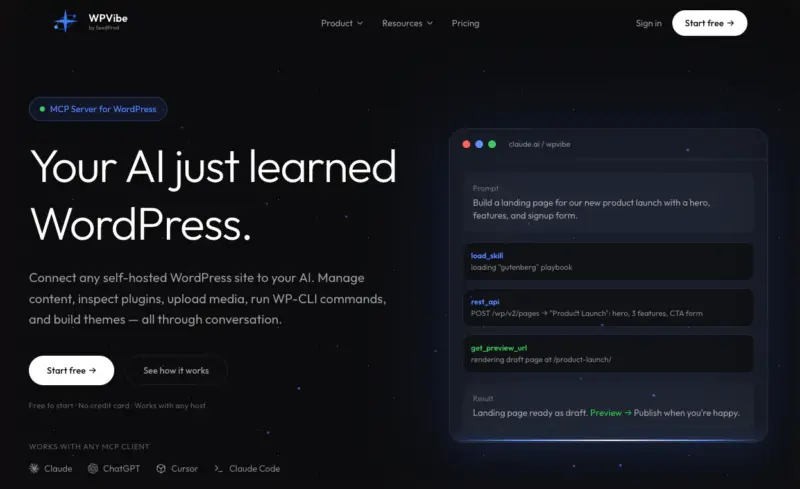
It’s one step, and both the plugin and the connection are free, so starting costs you nothing. It’s also the step people trip on, so do it carefully once, and the rest really is just typing.
- Install the free WPVibe plugin on your WordPress site.
- Connect it to your assistant with a one-click link. WPVibe handles the sign-in, so you never paste a password anywhere.
- Confirm SeedProd shows up. Management runs through SeedProd’s own built-in actions, so there’s nothing extra to configure on the SeedProd side.
Our guides on connecting Claude to WordPress and connecting ChatGPT to WordPress walk it through step by step.
That really is the whole setup. Getting good at what to ask for is the part that takes practice.
Once you’ve connected WPVibe to SeedProd, you can ask it for a lot. In the rest of this guide, I’ll walk you through what I use it for the most when managing and editing my SeedProd powered websites.
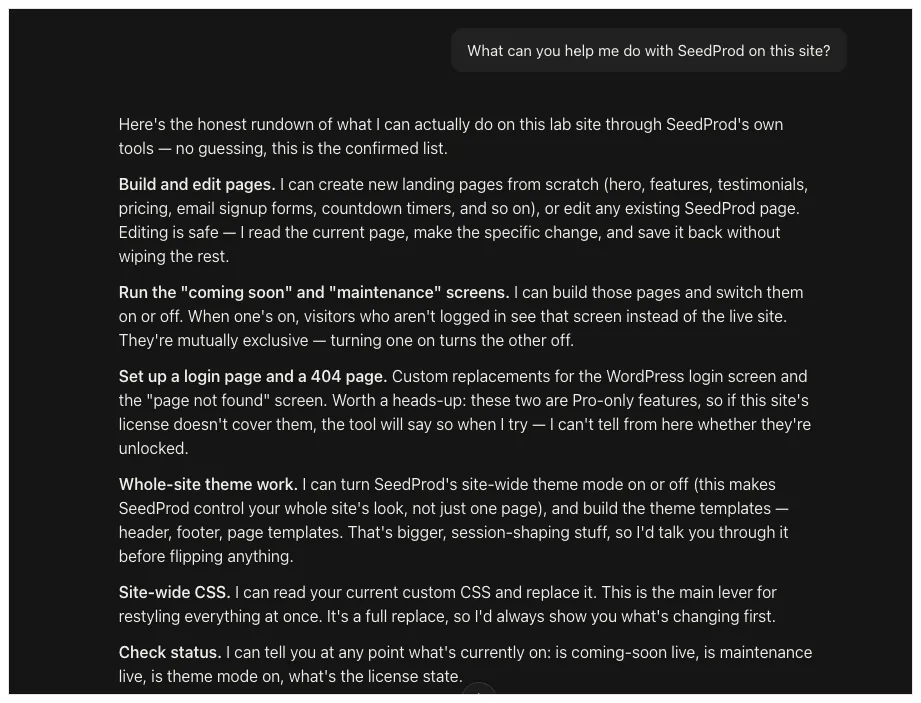
How to Edit an Existing Page by Chat
To edit an existing SeedProd page with AI, you describe the change in chat. For example, you can ask for new copy, a different headline, and even a reworded button.
The live page then updates on its own.
This is the change you’ll likely reach for most, so here’s a real example of me doing it on my own website.
I had a landing page for a spring potting workshop. The hero headline was flat and the button was vague, so I gave the assistant a single instruction.
Change the hero headline to “Get Your Hands Dirty This Spring” and change the main button to say “Save My Spot”.
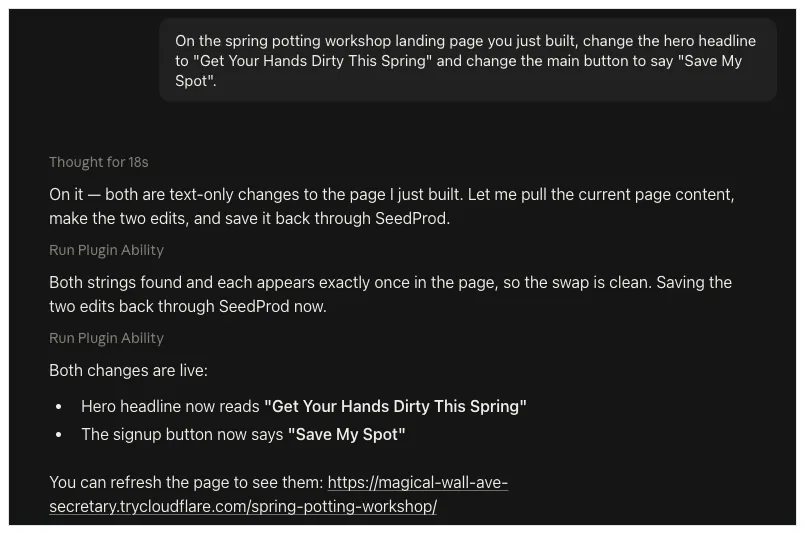
I flipped to a normal browser tab expecting to have to open the builder and save. I didn’t have to.

Both changes were already live. After years of doing this by hand, typing a sentence and watching the page change still feels slightly odd to me.
If that speed makes you nervous, it shouldn’t. Every change is yours to approve before it goes live, and SeedProd’s revision history means anything you dislike is one undo away.
You can see the exact WPVibe prompts in the edit your AI-generated SeedProd site recipe.
How to Build a New Landing Page with AI
To build a new landing page, you describe the page you want and the assistant builds it in SeedProd, styling included.
That workshop page I edited in the previous example didn’t exist a few minutes earlier. I built it from a single instruction.
Build a landing page for a spring potting workshop with a hero headline, a short intro, an email signup form, and a countdown timer, matching the site’s look.
More importantly, I didn’t give it fonts, spacing, or colors. It filled in SeedProd’s own styling defaults and saved the page the normal way.
What I got back was a real SeedProd page perfectly matching my existing design.
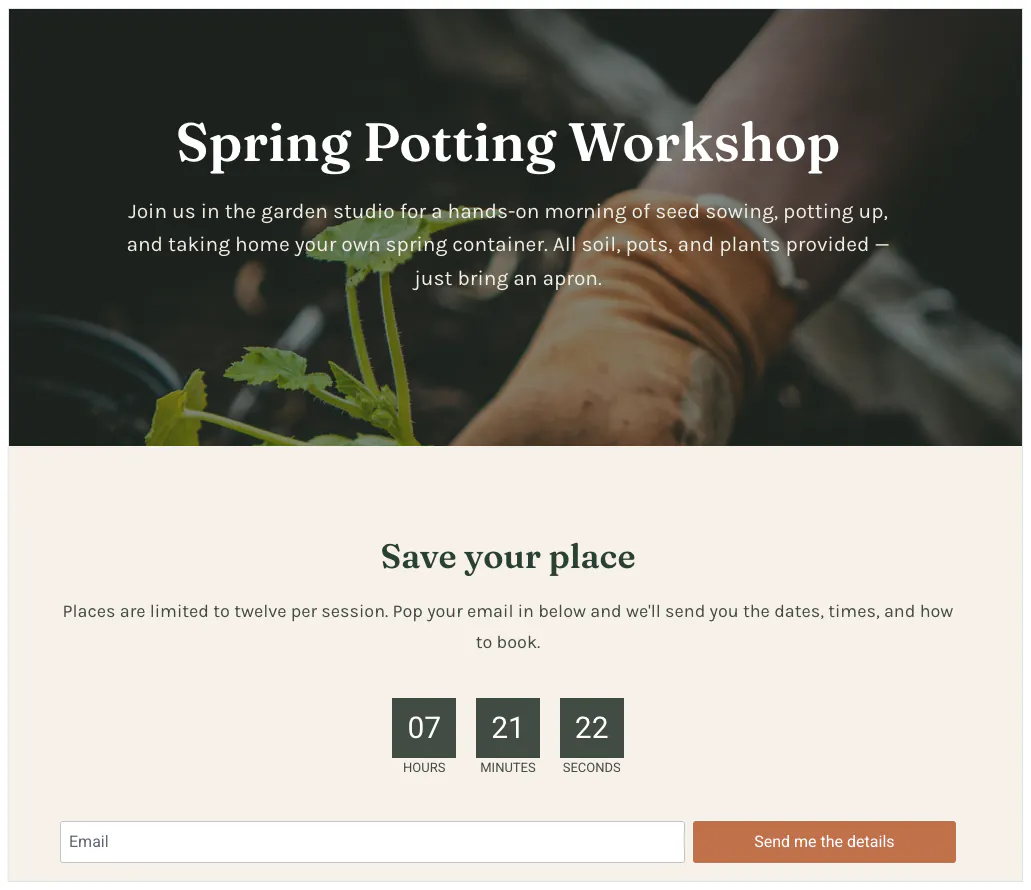
From there it’s yours to shape, by chat or in the builder. The build a landing page with AI recipe has the prompts I based mine on.
How to Update Your Header and Footer Site-Wide
To change your header or footer across the whole site, you edit them through SeedProd’s Theme Builder, which holds them as site-wide templates. One instruction updates every page at once.
That covers changes like a new nav item or a footer line.
This recipe uses SeedProd’s Theme Builder, which comes in on the Plus plan. If you’re on the free or Basic tier, it’s where you’d need to upgrade to follow along.
I asked for two changes in one go.
Add a “Workshops” item to the site navigation, and change the footer to read “© 2026 Birch & Bloom. Grown with care.”
Then I opened a couple of unrelated pages to check it had really gone site-wide, not just onto one.
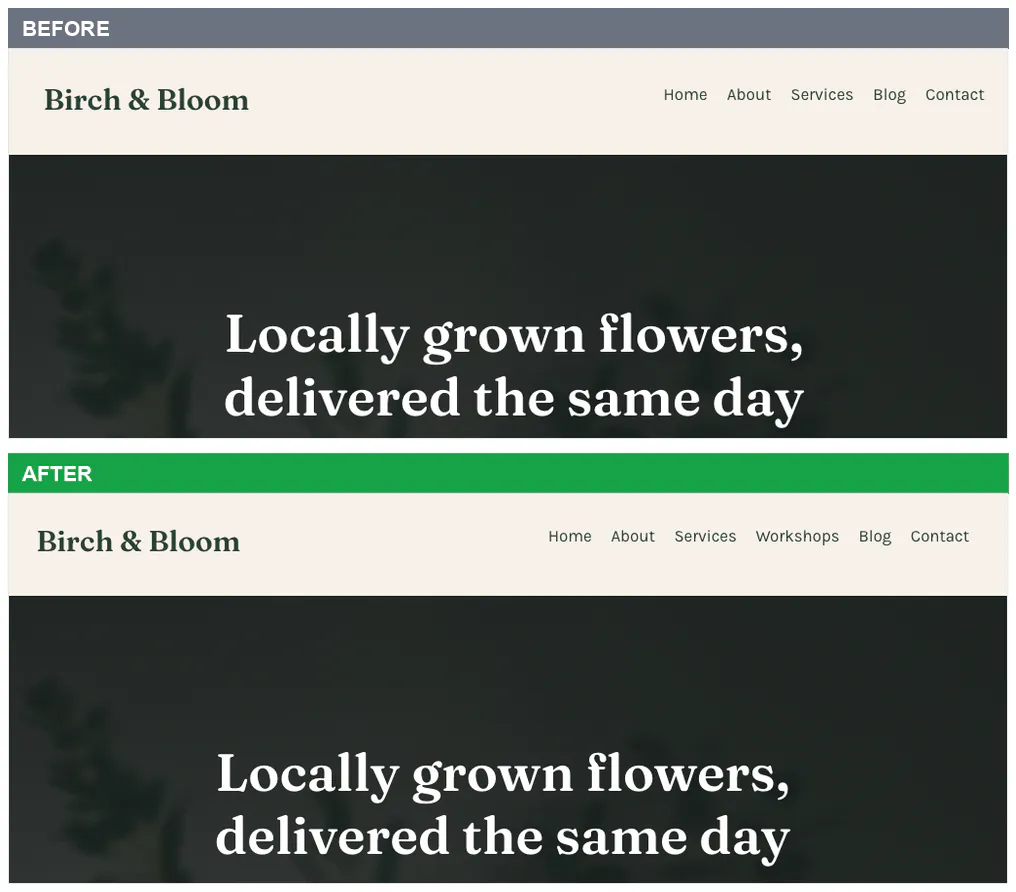
It had. I could see the new nav item and the updated footer on every page I checked.
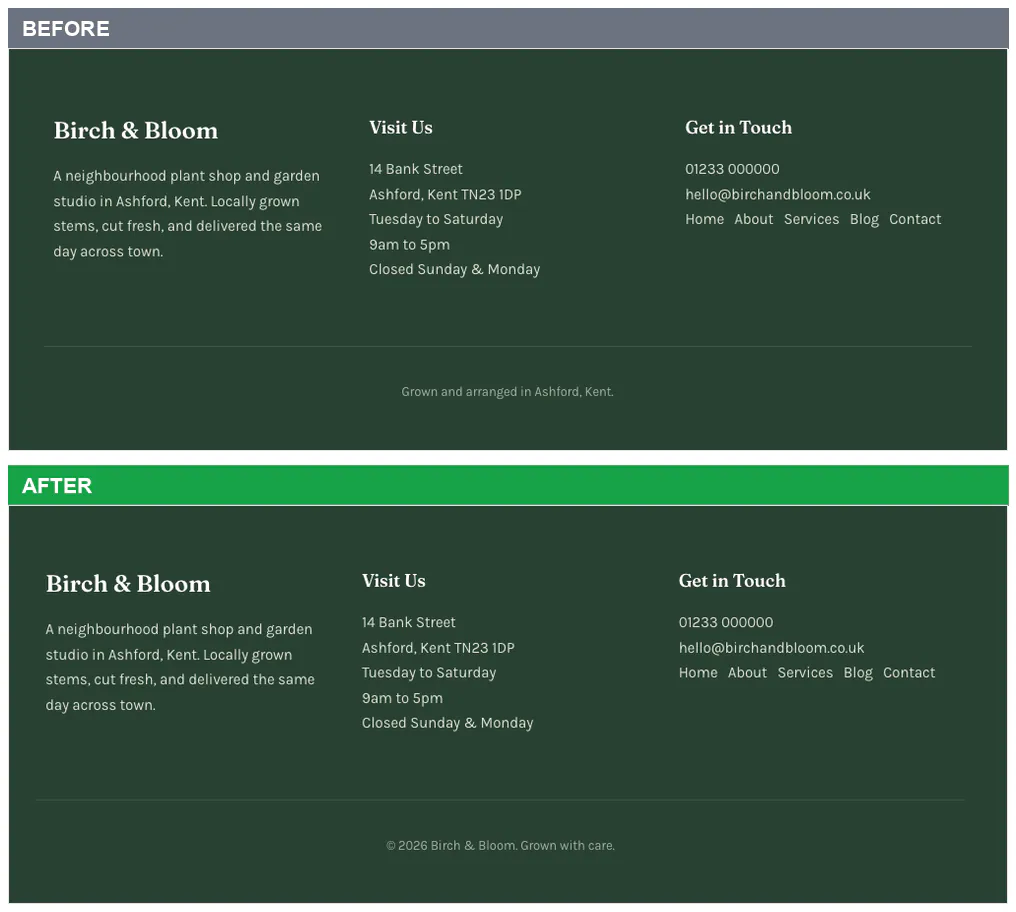
The steps for template edits like this are in the edit a SeedProd theme template with AI recipe.
How to Set Up a Blog Page
To set up or restyle your blog page, you edit it by chat, through the same Theme Builder templates behind your blog and archive layout.
My blog page had a ragged three-across grid with mismatched image heights, and I wanted it tidier. So I described the look I was after.
Make the featured images uniform and show the posts two per row.
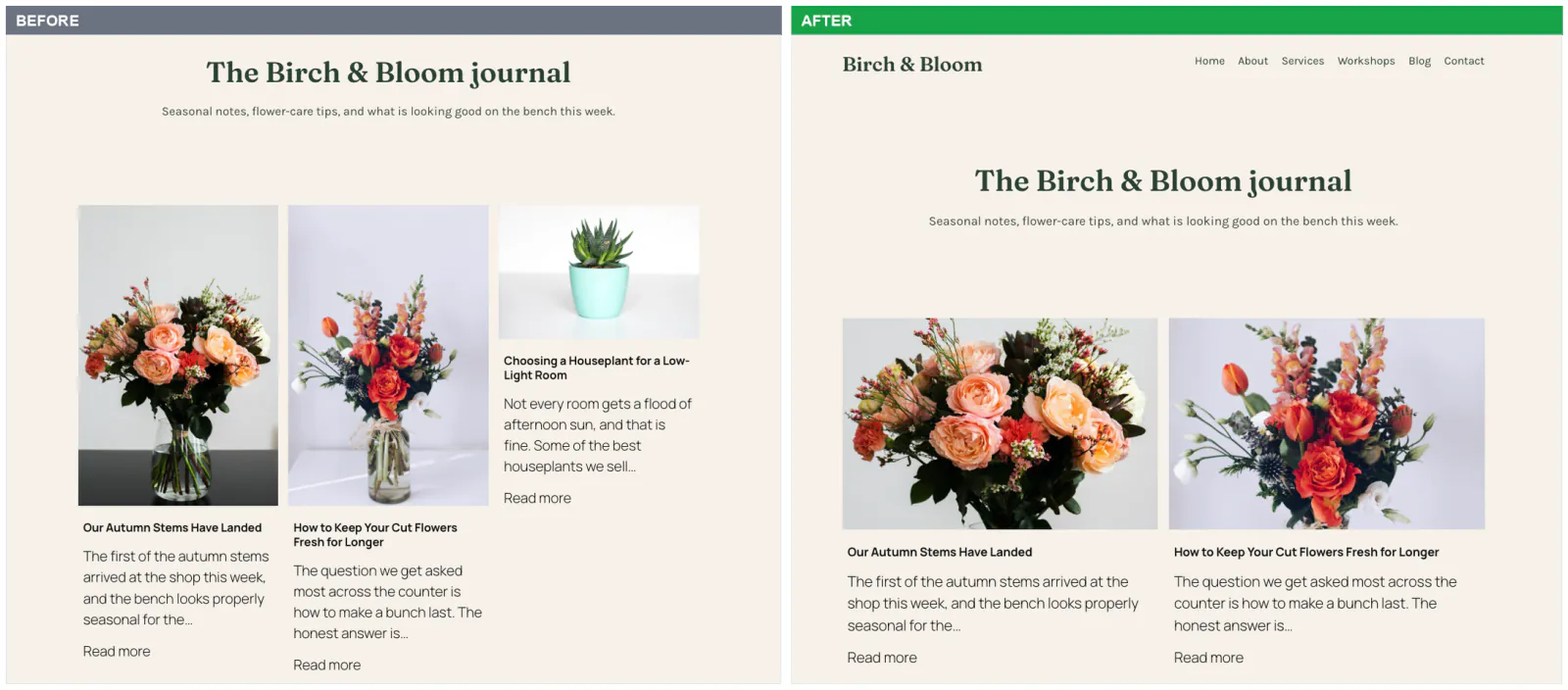
The instruction applied almost instantly, through SeedProd’s site-wide CSS.
If you don’t have a blog page yet, here’s the WPVibe prompt to set up a blog page in SeedProd with AI.
How to Turn On Coming Soon or Maintenance Mode
To turn coming soon or maintenance mode on or off, you tell the assistant to flip it. It’s one of the quickest changes to make this way.
I put my site into coming soon mode with one line.
Put the site into coming soon mode.
Then I checked it in a private browser window, so my own admin session wouldn’t hide it from me.
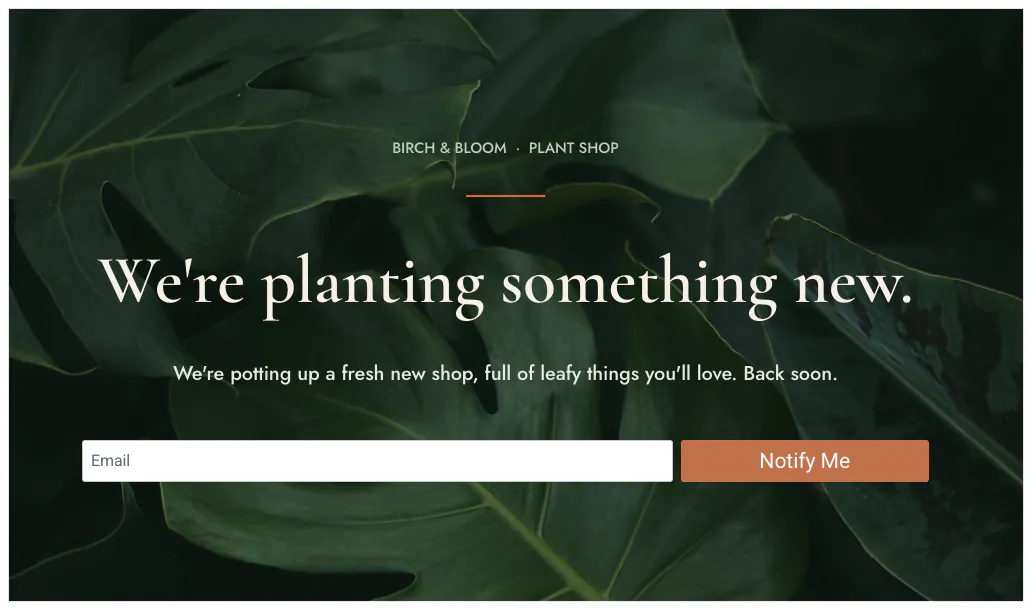
There was the coming soon screen, live for visitors while I kept working behind it. Turning it back off was one more line, and the site was public again.
Both prompts are in the coming soon and maintenance page recipe.
Where You’ll Still Want the SeedProd Builder
You’ll still want to use SeedProd’s builder for the close visual work, the pixel-level design you want to see and nudge by hand. Chat is best for content and structural changes, but that hands-on design is still faster in the builder.
There’s one more time you’ll open the builder yourself. On a security-hardened site, the AI can save a change, but the step that publishes it can get blocked.
It’s one manual Save to push it live, not a redo, and it only happens on locked-down hosts.
I’ve spent years in Beaver Builder, Elementor, and Divi, so I’m not precious about hand-design, but I know when it’s the right tool. Roughly how I split the two:
| Change by Chat | Open the Builder |
|---|---|
| Copy, headline, and button edits | Pixel-level spacing and alignment |
| Building and refining landing pages | Fine visual design you want to nudge by hand |
| Site-wide header, footer, and blog styling | Large theme templates like your home page |
| Flipping coming soon or maintenance mode | Anything you want to see and adjust live |
FAQs About Managing SeedProd with AI
Do I need to know how to code to manage SeedProd with AI?
No. You type what you want in plain English, and the assistant handles the rest. There’s no code and no shortcodes to learn.
What happens if I don’t like a change the AI made?
You approve changes before they go live in the first place. And SeedProd keeps revision history with undo and redo, so you can roll a page back to how it was.
Does managing SeedProd with AI cost anything?
The WPVibe plugin and the connection are free, and SeedProd’s AI website builder is free for up to 3 sites. Editing your header, footer, and blog page uses SeedProd’s Theme Builder, which is on the Plus plan and higher.
Which AI assistant do I use with WPVibe?
You can use ChatGPT or Claude, and other tools built on the same open standard, such as Cursor. WPVibe connects your assistant to SeedProd the same way whichever one you pick.
Start Managing Your SeedProd Site with AI Today
The building was never really the slow part of managing a SeedProd site. Changing things afterwards was, and now that’s a sentence in a chat window.
You don’t need to learn anything new to start. Add the free WPVibe layer, connect the assistant you already use, and let SeedProd keep doing what it’s good at.
Get Started with SeedProd and try it on your next edit.
Thanks for reading! We’d love to hear your thoughts, so please feel free to join the conversation on YouTube, X and Facebook for more helpful advice and content to grow your business.