
TL;DR: Connect ChatGPT to WordPress in About 10 Minutes
Install one free plugin, add the WPVibe app inside ChatGPT, then approve a one-click link in your admin. ChatGPT does the rest.
- Install Vibe AI: Add the free Vibe AI plugin by SeedProd from Plugins » Add New.
- Add the WPVibe app in ChatGPT: Open Settings » Apps » Explore apps, search “WPVibe”, and connect it. The free ChatGPT plan works.
- Authorize your site: ChatGPT gives you a one-click link, and you approve it from your WordPress admin. No password is typed into ChatGPT.
- Build a page: Describe the page you want, and ChatGPT creates it as a SeedProd draft you can refine by chat or in the editor.
You asked ChatGPT to help with your WordPress site, and all you got back was copy to paste or a chatbot widget to bolt on. It never actually touched the site itself.
Now you can connect ChatGPT to WordPress so it does the work, creating and updating real pages through a free plugin called WPVibe. I use ChatGPT regularly, so I set the whole thing up on a free account to see how far it goes.
In this guide, I’ll walk you through the setup, then show you how to build a SeedProd page just by describing it.
What Does Connecting ChatGPT to WordPress Actually Do?
A connection like this lets ChatGPT take actions on your site, like creating a page, changing a headline, or flipping on coming soon mode. It’s not just writing text you paste in yourself.
On its own, ChatGPT can advise you. It can tell you how to build a landing page or what to write on it. The connection adds the doing so ChatGPT makes the page, saves it, and hands you the link.
The bridge is a free plugin called WPVibe, built on an open standard called MCP that lets AI assistants act on outside tools. And what’s more, you don’t need to know how MCP works to use it.
This is also a different thing from a chatbot plugin. A chatbot answers your visitors, whereas this connects ChatGPT to you, the site owner, to handle admin work. When I ask ChatGPT to flip my site into coming soon mode, it does it in the chat, and I never open the dashboard.
What You Need Before You Start
I connect AI to the SeedProd blog this way, so I’ve been through this setup more than once. Before you start, it’s worth knowing exactly what’s required, because one of these items decides whether the page-building part works at all.
- A self-hosted WordPress site (WordPress.org, not WordPress.com): WPVibe connects to self-hosted sites only. WordPress.com’s managed hosting blocks this kind of outside connection.
- WordPress 6.9 or higher: This is what lets ChatGPT run SeedProd’s page actions, which arrived with the WordPress Abilities API in version 6.9. On older versions the connection still handles posts and pages, but the SeedProd actions won’t appear, so this is the requirement that matters most for building pages.
- SeedProd installed: You’ll want a current version of SeedProd (6.20.0 or later) so its page actions are available to ChatGPT.
- The free Vibe AI plugin: This is what powers the WPVibe connection. It’s free, with no credit card.
- A ChatGPT account (the free plan works): WPVibe is a published app in ChatGPT’s Apps directory, so you add it from Settings » Apps » Explore apps. There’s no Developer Mode and no paid plan needed. I confirmed this on a live free-plan account.
Is It Safe to Connect ChatGPT to Your WordPress Site?
Yes, when you set it up the normal way, and your WordPress login password is never shared.
WPVibe uses WordPress Application Passwords, a feature built into WordPress since version 5.6. Your real login password never enters the chat, and the connection credentials are encrypted and stored securely. The first time I set this up, that was the thing I checked, and it held up.
A couple of safeguards make this lower-risk than it sounds:
- New pages and posts default to draft, so nothing goes live without you.
- Deleted content moves to trash with a recovery window, not permanent removal.
If you want to be cautious, test on a staging site first. ChatGPT acts with the permissions of the account you authorize, so it can do what that account can do.
How to Connect ChatGPT to WordPress Using WPVibe
Here’s the full setup. It took me about ten minutes the first time, and it has two parts: install the plugin on WordPress, then connect ChatGPT.
Step 1: Install the Vibe AI Plugin on WordPress
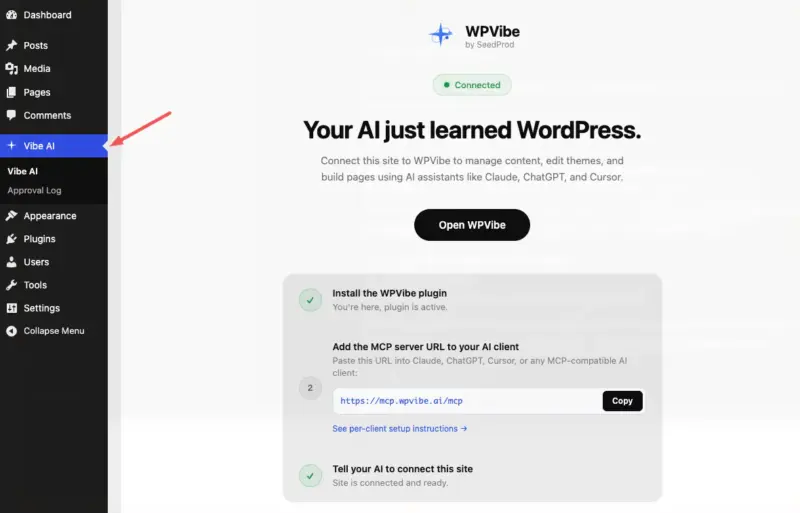
In your WordPress admin, go to Plugins » Add New, search “Vibe AI”, install the plugin by SeedProd, and activate it.
Once it’s active, a Vibe AI item appears in your WordPress admin sidebar. That’s where you’ll check the connection later.
Step 2: Add the WPVibe App in ChatGPT
In ChatGPT, open Settings » Apps, then click Explore apps. You can also reach apps from the + icon in the message box.
Search “WPVibe”, select it (listed as “WPVibe, AI WordPress tools”), and connect it. This works on the free ChatGPT plan, with no Developer Mode.
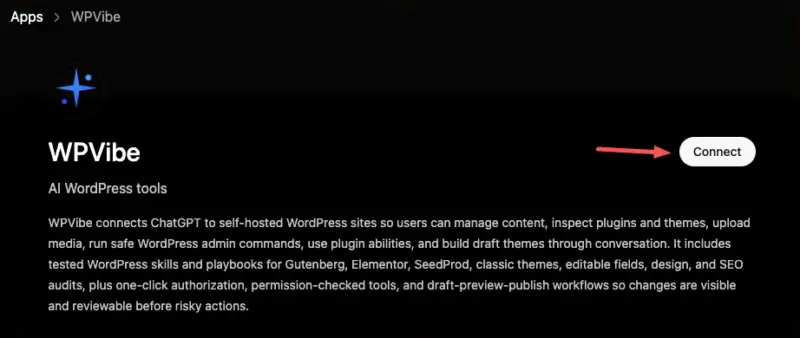
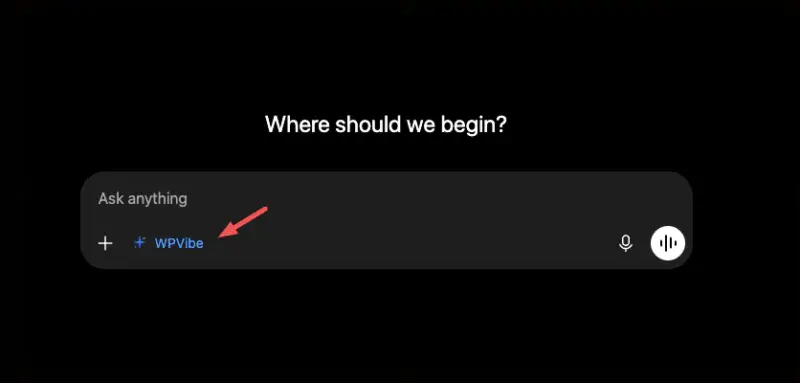
When it’s connected, a “+ WPVibe” chip shows up under the message box. That means ChatGPT can now use it.
Step 3: Authorize Your WordPress Site
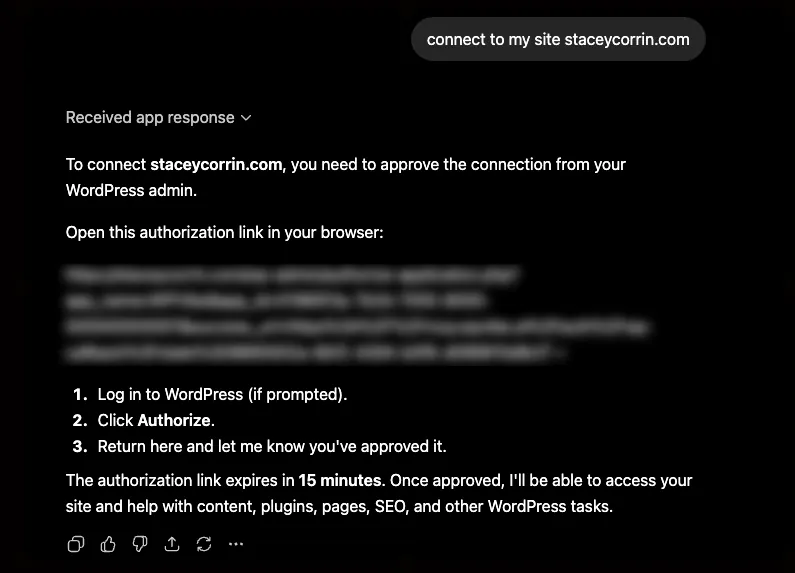
Ask ChatGPT to connect your site and give it your site URL. It returns a WPVibe Connection Request with a one-click authorize link that’s valid for 15 minutes. (Verify your WPVibe account by email if it asks.)
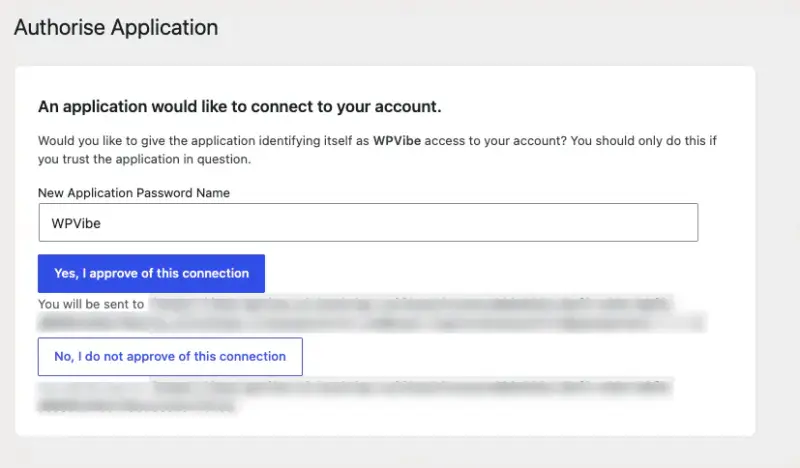
Click the link to open the Authorise Application screen in your WordPress admin, then click Yes, I approve of this connection. No password is typed into the chat.
When you approve, you’re redirected back and the site shows as connected.
Step 4: Test the Connection
Try a simple command, like “List my SeedProd pages” or “List my 5 most recent posts.”
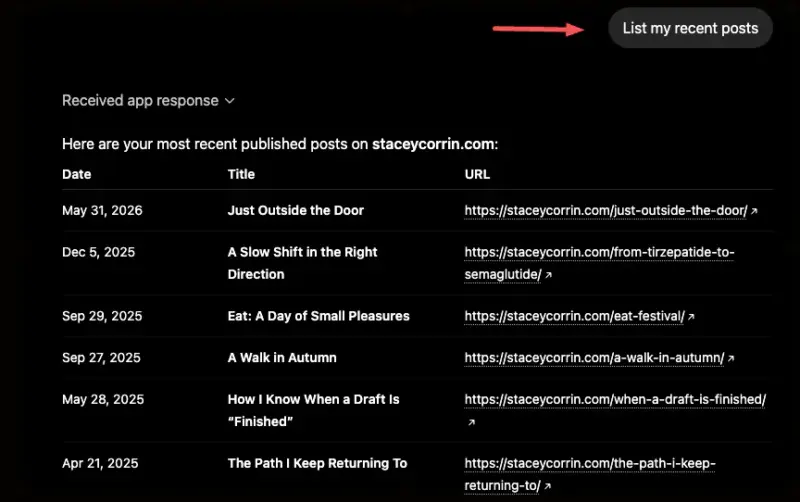
ChatGPT returns the list right in the chat. If it can’t reach the site, open the Vibe AI plugin in your WordPress admin and check the connection status there.
How to Build a SeedProd Page by Chatting With ChatGPT
Once connected, you can describe a page in plain English, and ChatGPT creates it as a SeedProd page set to draft, so you can review before it goes live. SeedProd is a drag-and-drop website builder, and this is where the connection earns its keep.
From a detailed brief, ChatGPT builds a real, styled draft page, not just a skeleton. When I asked for a newsletter signup page, it came back with a narrow centred layout that matched my homepage typography, a working email form, and reassurance text.
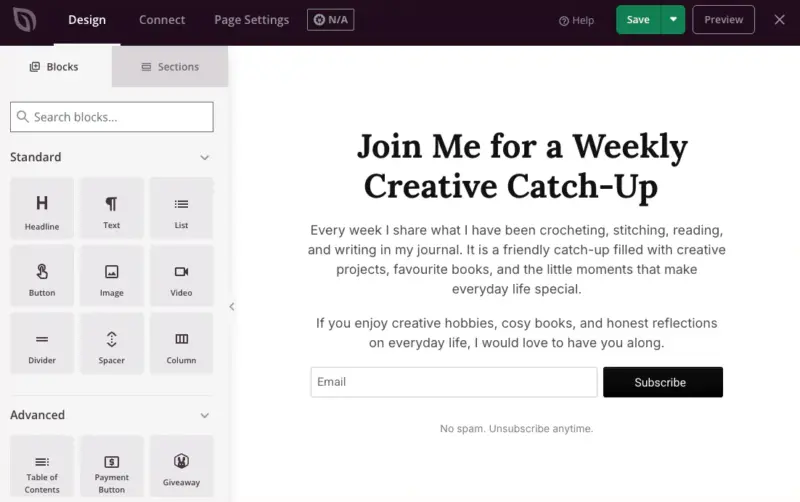
On the next message, it changed the button to my brand accent colour.
Here’s the honest part: the better your brief, the better the page. You still review and refine it, in the editor or by chat, before publishing.
The Brief I Used (and Why It Worked)
I asked for a newsletter signup page that “should feel like a personal letter, not a marketing page.”
The prompt spelled out:
- The content: a large centred headline (“Join Me for a Weekly Creative Catch-Up”), a short supporting paragraph, one email signup form, button text “Subscribe”, and reassurance text “No spam. Unsubscribe anytime.”
- The design: match the homepage style, single narrow column around 600 to 700px, centred, white background, with no images, testimonials, or popups.
- The handover: after creating the page, give me the SeedProd edit URL, the preview URL, and confirm it’s saved as a draft, not published.
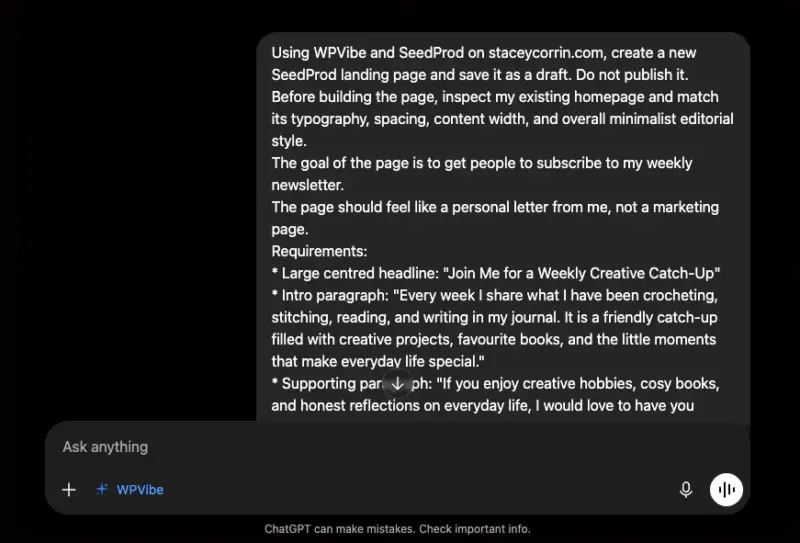
ChatGPT did exactly that. It built the page, saved it as a draft, and returned the edit link with a preview note.
The lesson sits in the brief itself. A specific request, content plus layout plus “give me the edit link and keep it a draft,” is what produces a clean result instead of a vague one.
Quick Follow-Up Commands
Once the page exists, you keep going in the same chat. These all worked for me:
- “Change the button colour to my terracotta accent colour”
- “Show me all my SeedProd pages”
- “Turn on coming soon mode while I update the homepage”
- “Update the headline on my landing page to “
- “Check SeedProd’s current status”
The first draft was good enough to keep. I still nudged the spacing and the headline wording in the editor, which is the kind of thing you’ll want to do by eye rather than describe in a sentence.

WPVibe is made by SeedProd, which is why the SeedProd actions run cleanly through it. Over 1 million WordPress sites use SeedProd to build and manage their pages.
Get started with SeedProd, and once WPVibe is connected, you can build and manage pages by chat from day one.
What Else ChatGPT Can Do on Your WordPress Site
The real win is the backlog of admin work you keep putting off because the dashboard is slow. In one sitting, I had ChatGPT draft a post, fix two meta descriptions, and flip on coming soon mode while I worked on the homepage.
Here are tasks worth handing over, with what to ask and roughly what you save against doing it by hand:
| Task | What to Ask ChatGPT | Time Saved vs. Dashboard |
|---|---|---|
| Draft a blog post | “Write a 1,000-word draft on [topic] and save it as a draft” | 20-40 min |
| Update a meta description | “Update the meta description on [post] to “ | 5 min per post |
| Tidy categories | “Move every post tagged ‘news’ into the News category” | 15-30 min |
| Coming soon mode | “Turn on coming soon mode while I update the homepage” | 2 min |
| Check SEO gaps (if AIOSEO is installed) | “List posts missing a meta description” | 10 min |
On WordPress 6.9 and higher, ChatGPT can discover what each installed plugin can do, including SeedProd and AIOSEO, so you don’t have to spell out every capability. It reads what’s available and works from there.
If your pages are built with SeedProd, here’s how I edit and manage them by chat, from headlines to coming soon mode.
FAQs About Connecting ChatGPT to WordPress
Does connecting ChatGPT to WordPress require any coding?
No. You install a free plugin, add the WPVibe app in ChatGPT, and approve a one-click link in your WordPress admin. There’s no config file to edit and nothing to run in a terminal.
Do I need a paid ChatGPT plan to connect WordPress?
No. WPVibe is a published app in ChatGPT’s Apps directory and connects on the free ChatGPT plan. WPVibe itself is also free.
Can ChatGPT build a full WordPress website on its own?
Through this connection, ChatGPT builds and updates individual SeedProd pages from your description, and you review before publishing. For a whole multi-page site generated from one prompt, that’s SeedProd’s own AI website builder, which is a different tool.
Is this different from a ChatGPT chatbot plugin?
Yes. Chatbot plugins put a bot on your site to answer visitors. This connection lets ChatGPT take admin actions for you, the site owner, like building a page or flipping on coming soon mode.
What happens if ChatGPT makes a mistake on my site?
New pages and posts default to draft, and deleted content goes to trash with a recovery window. You can review or undo anything before it’s permanent.
Start Building WordPress Pages With ChatGPT Today
You came in only able to get copy out of ChatGPT. Now it builds real pages on your site and hands you the links.
If you’re building on WordPress, SeedProd gives you a fast, clean foundation to design from. Get started with SeedProd, and once WPVibe is connected, building and updating pages happens by chat.
Here are some other helpful guides you may like:
- How to Connect Claude to WordPress
- Best ChatGPT WordPress Plugins
- How to Use AI to Write Content in WordPress
- How to Use AI for SEO
Thanks for reading! We’d love to hear your thoughts, so please feel free to join the conversation on YouTube, X and Facebook for more helpful advice and content to grow your business.