


That moment when you hit ‘publish’ on a new product is a great feeling. You’ve prepared something new for your audience, and you’re ready to share it.
The next step is making sure it gets seen. A new product hidden on page ten of your shop doesn’t help anyone.
A dedicated space for new arrivals helps repeat customers browse fresh stock without wading through everything else. I’ve found that the built-in WooCommerce tools cover most of what you need, and for a custom-designed page, SeedProd makes it straightforward.
I’ll show you two ways to display new products in WooCommerce right now. Pick the one that fits how your store is set up.
TL;DR: How to Display New Products in WooCommerce
There are two ways to show new products in your WooCommerce store, from a fully custom page to a built-in block.
- Create a New Products Page with SeedProd – Build a custom arrivals page with your branding, filters, and CTAs using SeedProd’s visual editor.
- Use the WooCommerce Product Collection Block or Shortcode – Drop a recent products grid into any existing page, post, or widget area with no extra plugins.
2 Ways to Display New Products in WooCommerce
Here are three methods, starting with the most customizable and ending with the quickest.
First, you’ll learn how to create a dedicated new products page with SeedProd, a drag-and-drop WordPress website builder used by over 1 million websites. Then you’ll learn how to use WooCommerce’s built-in Product Collection block and shortcodes to add a new arrivals section anywhere in your store.
Let’s dive in!
Method 1: Use SeedProd to Create a New Products Page in WooCommerce
The first method uses SeedProd to create a dedicated new products page for your WooCommerce store.

With SeedProd, you can create a dedicated WooCommerce new arrivals page, build high-converting landing pages for individual products, and even create a WooCommerce coming soon page before a product launches. It includes several WooCommerce blocks that let you pull in products and customize how they display.
You can also use SeedProd to build an entire WooCommerce store without code.
1. Install the SeedProd Plugin
The first step is to install the SeedProd plugin.
For help with this, see this step-by-step guide on how to install a plugin in WordPress.
Note: There is a free version of SeedProd, but you’ll need the Elite plan for the advanced WooCommerce features.
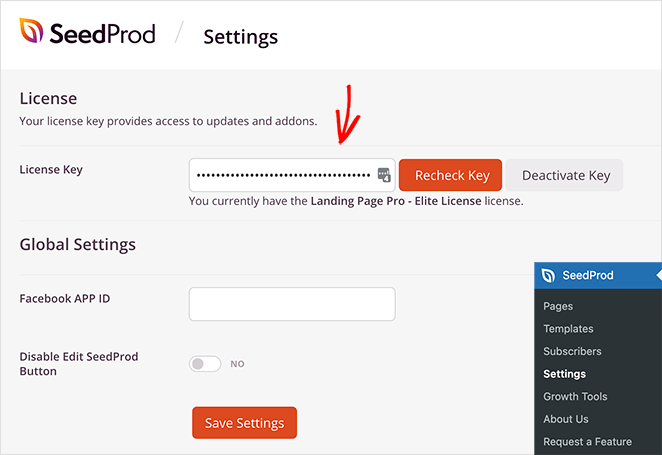
After activating the plugin, go to SeedProd » Settings and enter your license key. You’ll find this in your account area on the SeedProd website.
2. Pick a Template for Your New Products Page
Go to SeedProd » Templates. Choose from hundreds of pre-made landing page templates as a starting point, then filter by category to find one that fits your store.
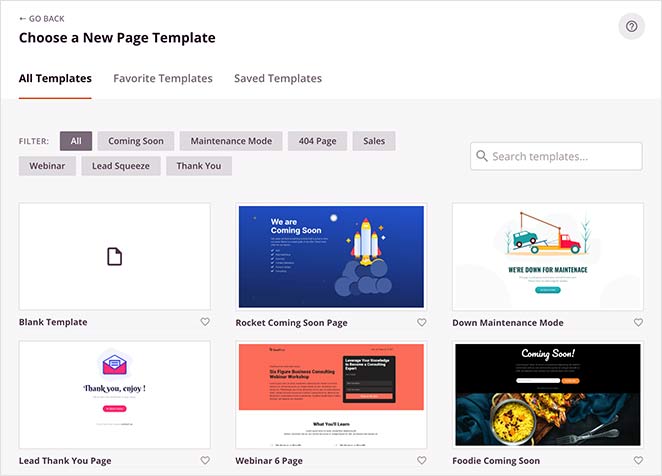
When you find the template you want, hover over it and click the tick icon. For this guide, I’m using the eCommerce Thank You Page template.

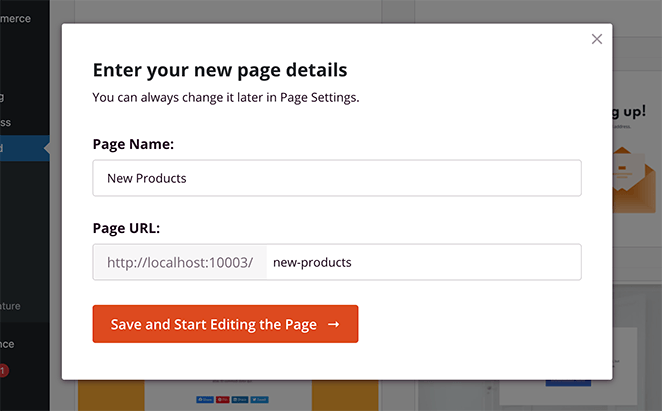
Give your page a name and click Save and Start Editing the Page.
3. Drag in the Recent Products Block
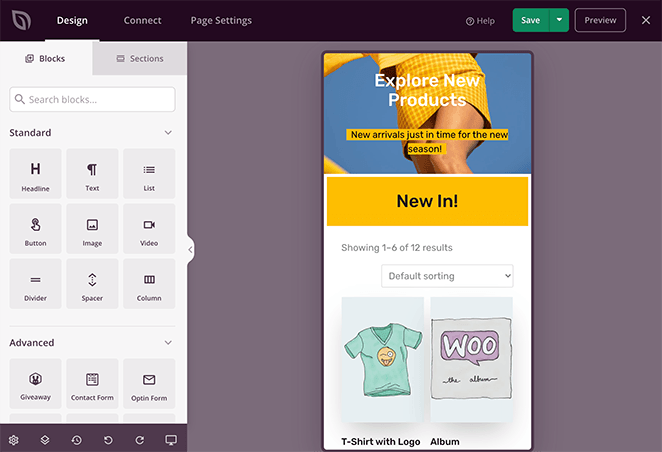
Your template opens in SeedProd’s visual editor. You’ll see blocks and sections on the left side to drag onto your page, and a live preview on the right.
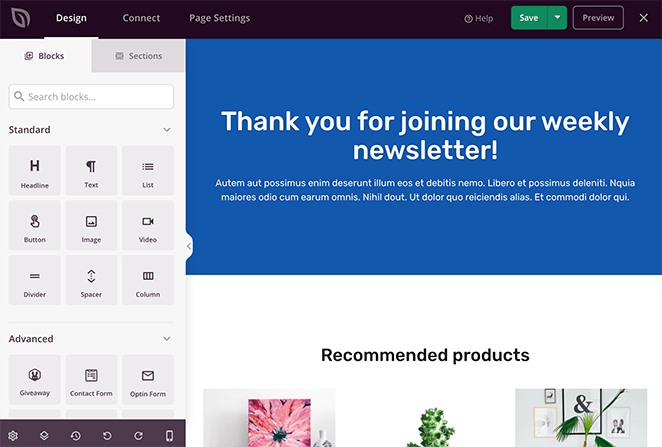
In the left panel, scroll to the WooCommerce section. Find the Recent Products block and drag it onto your page.
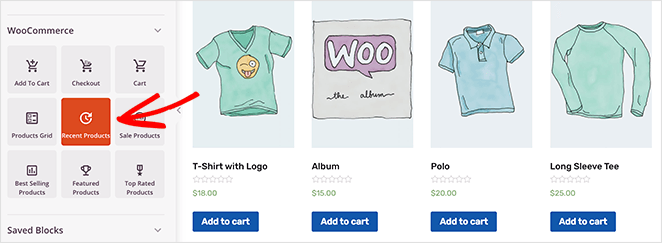
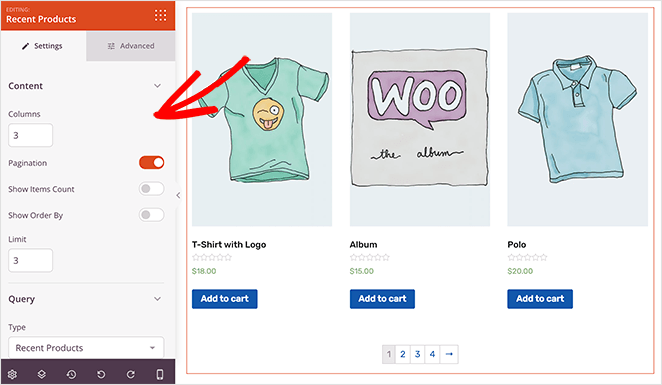
Click the block to open its settings. In the settings panel, you can:
- Choose the number of product columns
- Enable product pagination
- Show item counts for stock management
- Add a filter dropdown menu
- Limit the number of products displayed
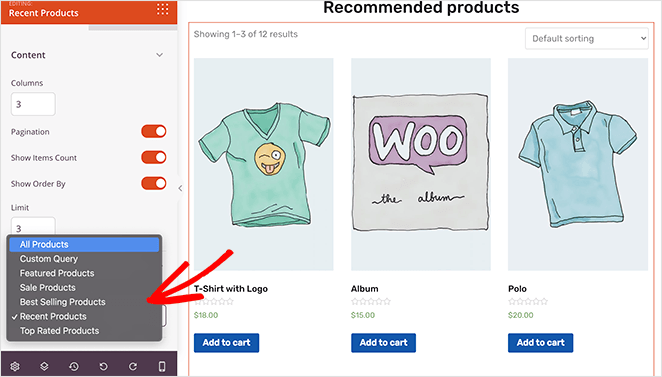
You can also change the query type from recent products to featured, sale, best-selling, top-rated, or a custom query.
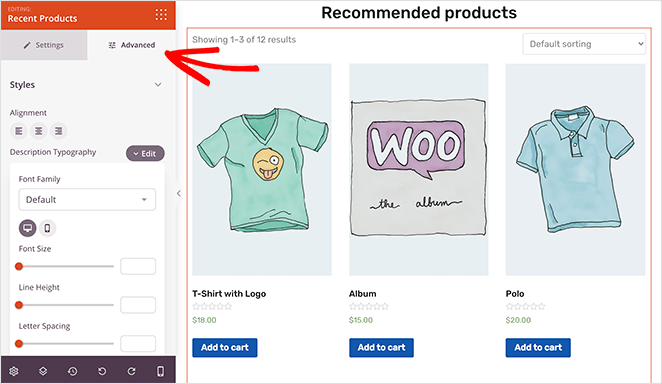
The Advanced tab gives you even more control, including product description typography, price font, sale badge color, button styles, and spacing.
Once you’ve finished adding your products, click Save.
4. Customize the Page Design and Layout
After adding products, customize the page to match your brand. Start by removing the demo content: hover over any block and click the trashcan icon to delete it.
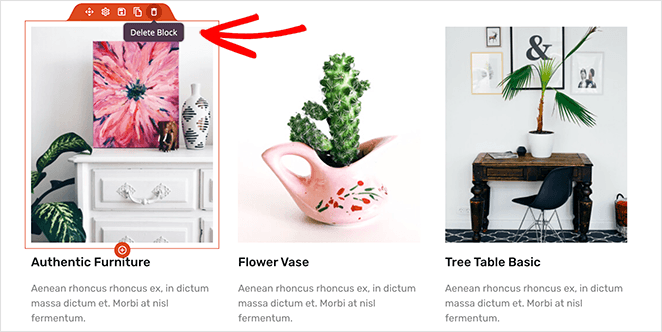
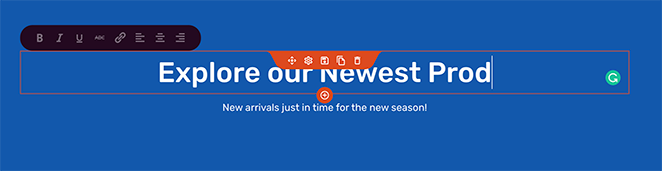
Click any heading or text block to edit it directly. You can also add a background image to any section by clicking the section, choosing a background style, and picking a photo from your media library or the free stock photo library.
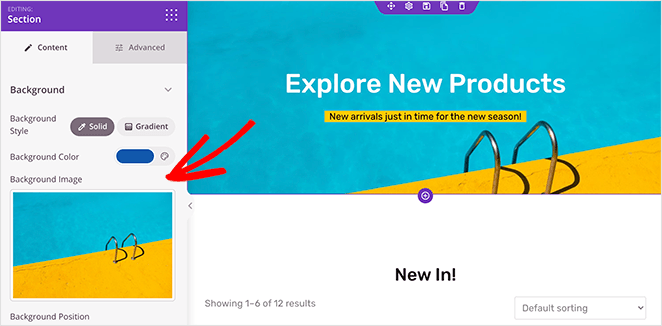
When you’re happy with the design, click Save.
5. Preview and Publish Your New Products Page
Before publishing, check the mobile view. Click the mobile icon in the bottom navigation bar and adjust your layout for smaller screens, like reducing product columns or making buttons easier to tap.
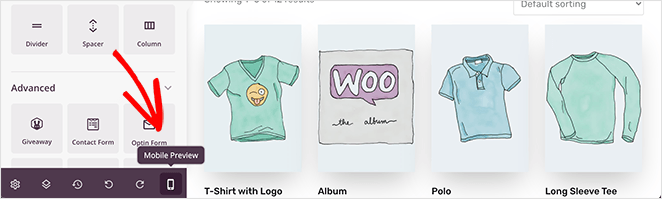
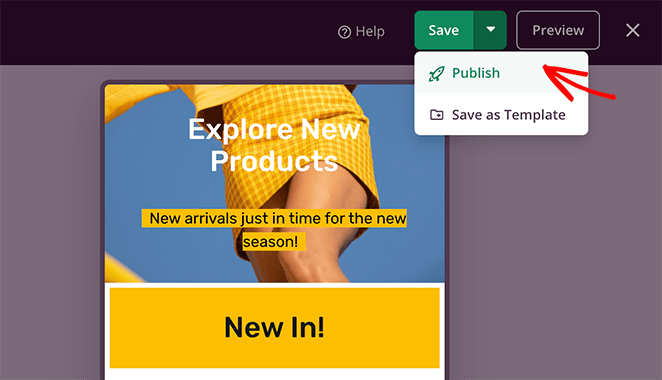
When your page looks good on mobile, click the dropdown arrow next to the Save button and click Publish.
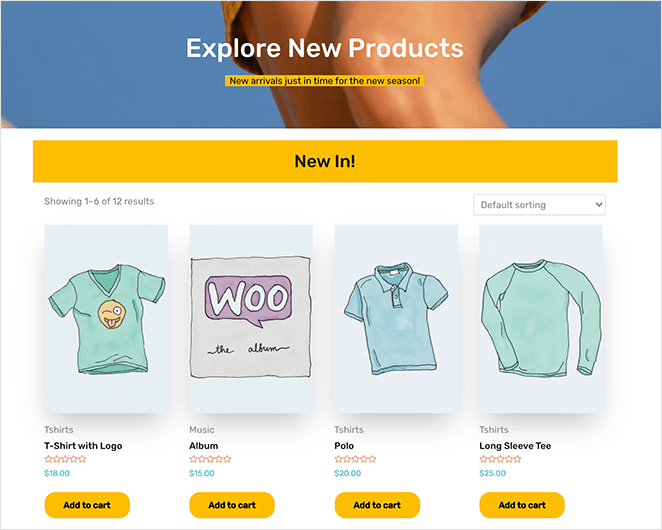
Your new arrivals page is live. From here, you can add it to your WordPress navigation menu so visitors can browse your latest products easily.
With SeedProd, you can keep customizing to improve conversions, including adding short product descriptions, showing variable products, changing your CTA button color, displaying the shopping cart, and adding animated headlines.
Method 2: Show New Products in WooCommerce Without a Plugin
If you want to display new products in your existing WooCommerce pages or WordPress posts, you don’t need a separate plugin. WooCommerce includes a Product Collection block and built-in shortcodes you can use to add a new arrivals section anywhere in your online store.
Use the Product Collection Block in Gutenberg
Newer versions of WooCommerce (8.0 and up) use the Product Collection block. WooCommerce introduced this to replace the older legacy blocks, including “Newest Products,” with a more flexible option. If you’re running an older version, search for “Newest Products” instead.
To add it, edit any post or page in your store and click the + icon. Search for Product Collection and click to add it.
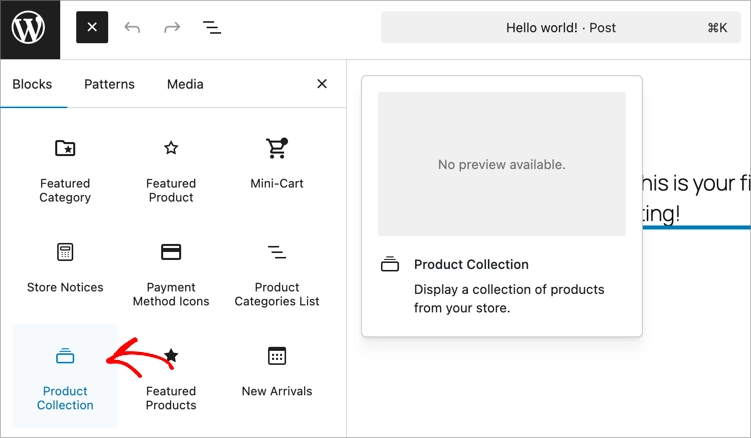
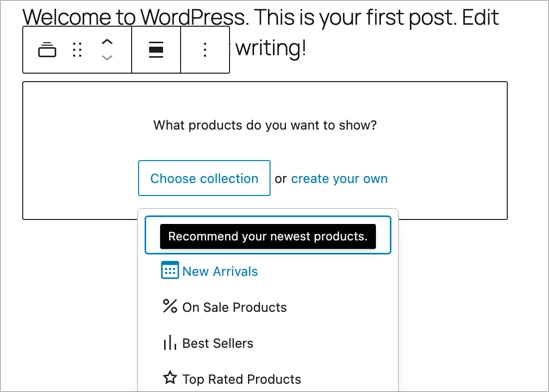
Inside the block, click Choose Collection and select the New Arrivals option.
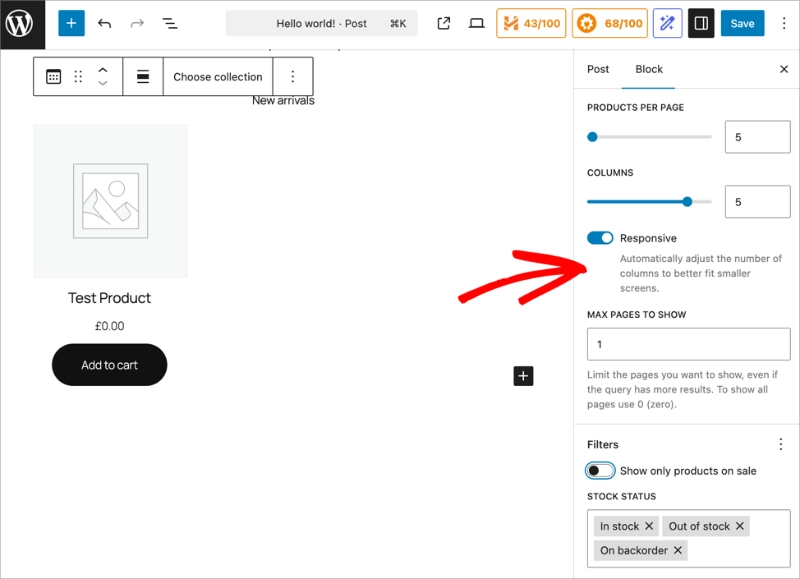
In the block options on the right, you choose the number of product to display per page, set the column count, filter products on sale, stock status, and more.
When you’re happy with how everything looks, click Update or Publish.
Add New Products with a WooCommerce Shortcode
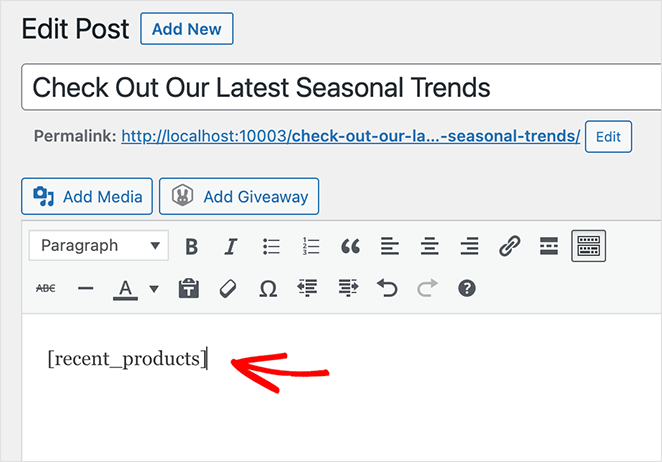
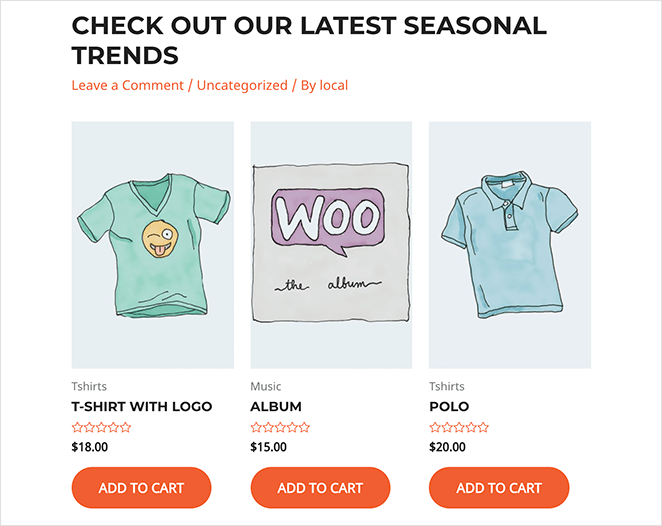
If you’re using the classic WordPress editor, use the [recent_products] shortcode. Paste it into any page, post, or widget to display a grid of recently published products.
You can control the number of products and columns with parameters: [recent_products limit="4" columns="4"].
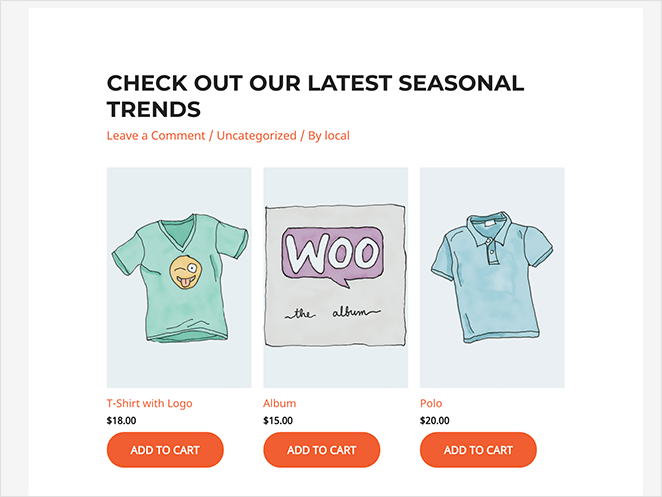
Update or publish the page, and your visitors will see your most recent products highlighted there.
Show New Products in Your Sidebar with a Shortcode
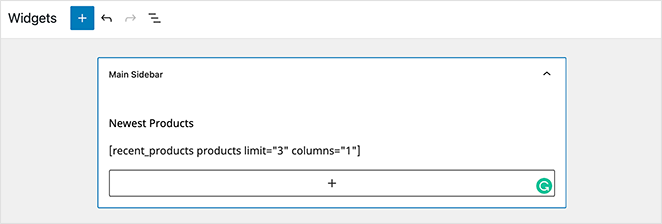
You can use the same shortcode to show new products in your WordPress sidebar.
Go to Appearance » Widgets, add a new paragraph block, paste the [recent_products] shortcode, and click Save.
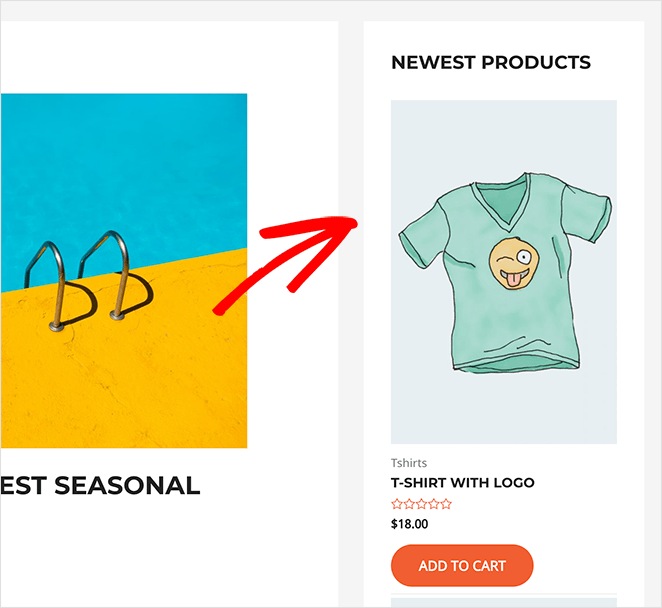
Preview your store and your new products will appear in the sidebar on every page.
Frequently Asked Questions
How do I show only new products in WooCommerce?
For a dedicated new arrivals page, use SeedProd’s Recent Products block. For a section in an existing page, use the Product Collection block (WooCommerce 8+) or the [recent_products] shortcode. Both methods let you control exactly where new products appear without touching your main shop layout.
What is the shortcode for new products in WooCommerce?
The WooCommerce shortcode for displaying new products is [recent_products]. Add limit="4" to control how many products show, and columns="2" to set the grid layout. You can also add orderby="date" to make the date sorting explicit.
Can I add a “New Arrivals” page to WooCommerce?
Yes. With SeedProd, you can build a fully custom “New Arrivals” page using the Recent Products block, then add the page to your navigation menu. It’s a good way to boost visibility for your latest stock without cluttering your main shop page.
How do I show new WooCommerce products in my sidebar?
Paste the [recent_products] shortcode into a sidebar widget. Go to Appearance » Widgets, add a paragraph block, and insert the shortcode. Your newest products will appear in the sidebar across your store.
How long do products stay “new” in WooCommerce?
WooCommerce doesn’t have a built-in timer for “new” labels. The [recent_products] shortcode and Product Collection block pull products sorted by publish date, so older products naturally fall back as you add new ones. If you need to control which products appear as “new,” adjust the limit parameter or use a product category specifically for new arrivals.
Which Method Should You Use?
If you want full control over design and layout, SeedProd is the best option. You can build a completely custom WooCommerce new products page, add conversion elements like CTAs and product filters, and style everything visually without touching code.
If you need a quick section in an existing page or sidebar, the Product Collection block or [recent_products] shortcode work well with no extra plugins.
Want to keep improving your WooCommerce store? Check out these tutorials next:
- How to Secure Your WooCommerce Site
- How to Hide Out-of-Stock Products in WooCommerce
- Customize the “Additional Information” Tab in WooCommerce
- How to Fix WooCommerce View Cart Not Working
- How to Easily Customize Your WooCommerce Shop Page
- How to Add a Product Image Gallery in WooCommerce
- How to Add Star Ratings to WooCommerce Products
- How to Display WooCommerce Featured Products (+ Related Products)
If you liked this article, please follow us on YouTube, Twitter, and Facebook for more helpful content to grow your business.



