

TL;DR: How to Secure a WordPress Site from Hackers
WordPress sites get targeted constantly, but most attacks exploit preventable weaknesses. These are the steps that actually close the door on hackers.
- Keep everything updated: WordPress core, plugins, and themes all need regular updates to patch known vulnerabilities.
- Remove unused plugins and themes: Inactive software still runs on your server and can be exploited.
- Use strong passwords and limit access: Weak logins are the easiest entry point for attackers; use a password manager and assign roles carefully.
- Install a security plugin and firewall: Tools like Sucuri or Wordfence scan for threats and block malicious traffic before it reaches your site.
- Enable SSL and back up regularly: SSL encrypts visitor data; backups give you a fast recovery path if something goes wrong.
- Add 2FA and limit login attempts: Two-factor authentication and login lockouts stop brute force attacks even if a password leaks.
My first real security scare came when spam bots hammered my login page hundreds of times overnight. I didn’t lose access, but I came close, and it taught me fast that WordPress security isn’t optional.
If you need to secure a WordPress site, this guide shows you the exact steps I use now: updates, strong logins, backups, firewalls, SSL, and more, all without touching code.
The stakes are real. Google blacklists thousands of infected sites every day. If your site ends up on that list, you’ll lose traffic overnight, and rebuilding that trust takes months. Attackers can also steal customer data, inject spam links, spread malware to your visitors, or lock you out until you pay a ransom.
The good news is most hacks exploit preventable weaknesses. Follow these steps and you close the door on the vast majority of attacks.
Common WordPress Security Threats to Know
Before diving into the fixes, it helps to know what you’re up against. These are the most common attack types targeting WordPress sites.
- Brute force attacks are automated scripts that try thousands of username and password combinations against your login page. They’re the most common threat WordPress sites face, and the easiest to stop.
- Cross-site scripting (XSS) lets attackers inject malicious JavaScript into your site’s pages. Visitors who load those pages can have their data stolen without knowing anything happened.
- SQL injection happens when an attacker sends malicious code through a form or URL to manipulate your database directly. A successful SQL injection can expose every user account, password, and piece of content on your site.
- DDoS attacks flood your server with fake traffic until it crashes and goes offline. They don’t break in; they just shut you out and make your site unavailable to real visitors.
- Outdated software exploitation is the most avoidable threat on this list. Attackers actively scan for sites running old versions of WordPress, plugins, or themes because known vulnerabilities are publicly documented. An unpatched plugin is an open invitation.
How to Secure Your WordPress Site: 11 Steps
- 1. Update WordPress Core Files to Prevent Hacks
- 2. Remove Unused Plugins and Themes to Improve Security
- 3. Use Strong Passwords and Permissions
- 4. Choose a Secure WordPress Hosting Company
- 5. Back Up Your WordPress Site to Recover from Hacks
- Protect Your Site's Reputation During a Security Incident
- 6. Choose the Best WordPress Security Plugin
- 7. Block Hackers with a WordPress Firewall (WAF)
- 8. Disable WordPress File Editing
- 9. Enable SSL/HTTPS to Secure WordPress Data
- 10. Stop Brute Force Attacks by Limiting Login Attempts
- 11. Use Two-Factor Authentication
1. Update WordPress Core Files to Prevent Hacks
Keep WordPress updated. It’s the easiest way to close known security holes.
WordPress core, plugins, and themes get regular updates, many of which patch vulnerabilities. Minor updates usually install automatically, but you’ll need to apply major updates yourself. Ignoring these leaves your site open to attack.
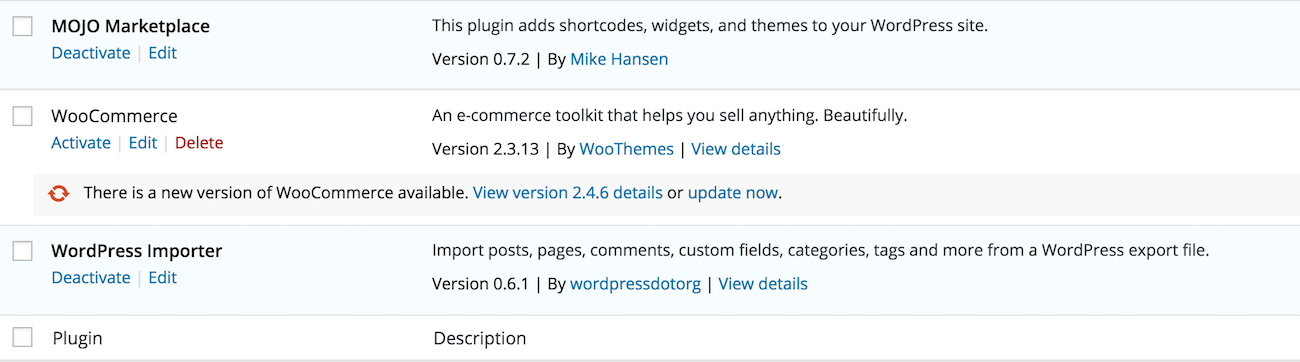
Check your dashboard often and update your plugins and themes as soon as updates are available. It only takes a click and can prevent serious damage.
2. Remove Unused Plugins and Themes to Improve Security
Delete plugins and themes you don’t use. Every inactive file is another way in for hackers.
Even if a plugin or theme is deactivated, its code still exists on your server. Hackers can exploit old or abandoned software to slip into your site. That’s why unused tools are a security risk.
Regularly clean up your site by removing anything you don’t need. This keeps your WordPress installation lean and easier to manage, and it’s one of the most effective WordPress hardening steps you can take without any tools.
3. Use Strong Passwords and Permissions
Use unique, strong passwords and limit account access. Weak logins are the easiest way for hackers to break in.
A secure password should be at least 12 characters long and include a mix of uppercase, lowercase, numbers, and symbols. Avoid using names, birthdays, or anything easy to guess.
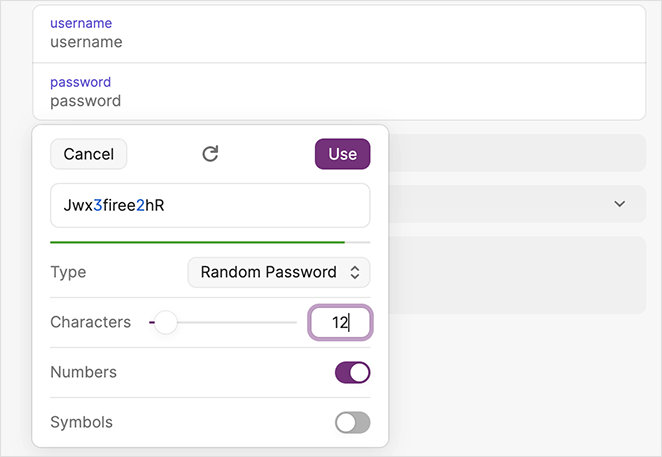
Use a password manager to generate and store complex passwords. You won’t have to remember them, and you’ll never reuse the same one across accounts.
Also, avoid sharing the main admin account. Assign user roles and permissions so each person only has the access they need.
For sites with multiple users or shared computers, consider adding an auto-logout plugin like Inactive Logout. It ends sessions automatically after a set period of inactivity, which reduces risk if someone forgets to log out.
Adding a CAPTCHA to your login page is another low-effort win for WordPress login security. It blocks bot submissions before they even attempt a login. WPForms includes built-in spam protection you can use on forms across your site.
4. Choose a Secure WordPress Hosting Company
Your host is your first line of defense, so pick a secure WordPress hosting provider that actively protects your site from attacks.
The best WordPress hosting companies like Bluehost, SiteGround, and Hostinger include built-in security layers to keep hackers out.
- 24/7 monitoring for suspicious activity
- Protection against large-scale DDoS attacks
- Up-to-date server software and PHP versions
- Disaster recovery and backup systems
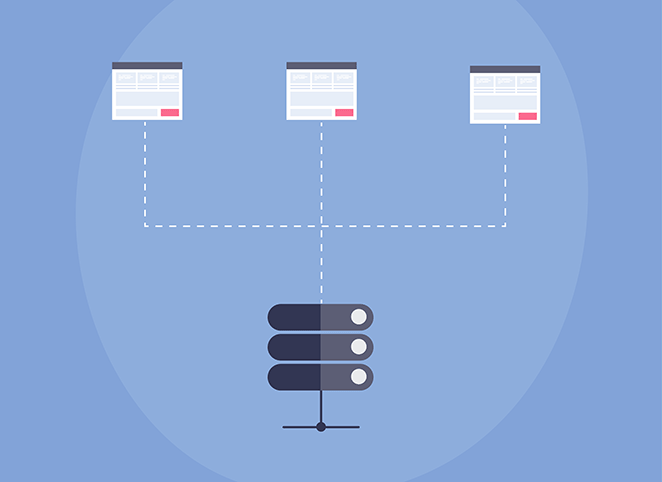
Shared hosting can put your site at risk if another site on the same server gets hacked. For stronger protection, consider managed WordPress hosting. It includes automatic updates, backups, and advanced security features built in.
5. Back Up Your WordPress Site to Recover from Hacks
A reliable backup is your safety net. It lets you restore your site fast if hackers, errors, or crashes take it down.
The best WordPress backup plugins let you schedule automatic backups and store them safely off-site, so you’re never left without a working copy.
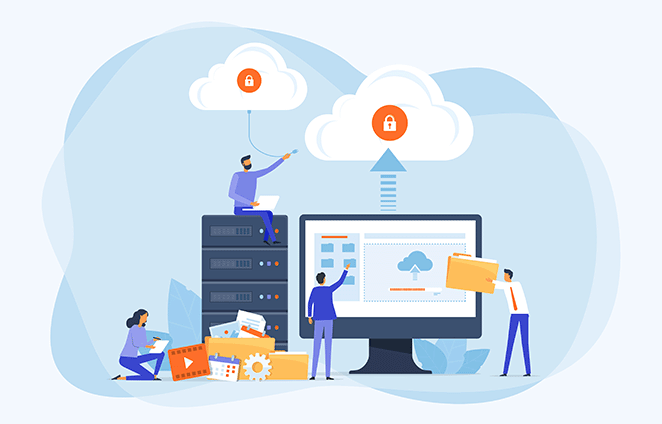
The two features that matter most: off-site storage (so your backup survives even if your host goes down) and one-click restore (so recovery takes minutes, not hours).
Popular plugins include Duplicator, UpdraftPlus, BlogVault, and Jetpack VaultPress Backups. They’re beginner-friendly and don’t require coding.
Protect Your Site’s Reputation During a Security Incident
Even with good security in place, sites sometimes go down for maintenance, updates, or cleanup after a hack. What visitors see during that window matters.
I use SeedProd’s coming soon and maintenance mode pages to put up a clean, branded holding page whenever my site needs to go offline.
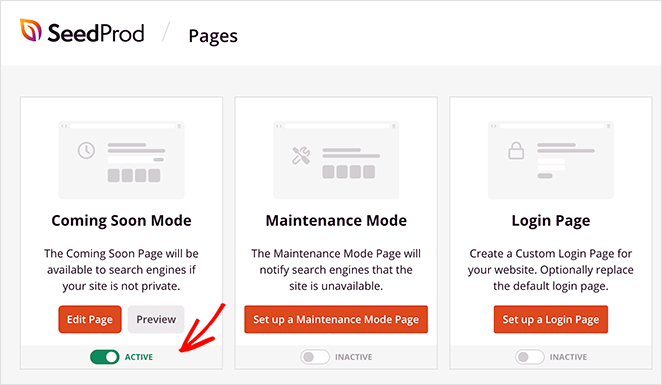
Instead of visitors hitting a broken page or an error screen, they see something professional that keeps their trust intact.
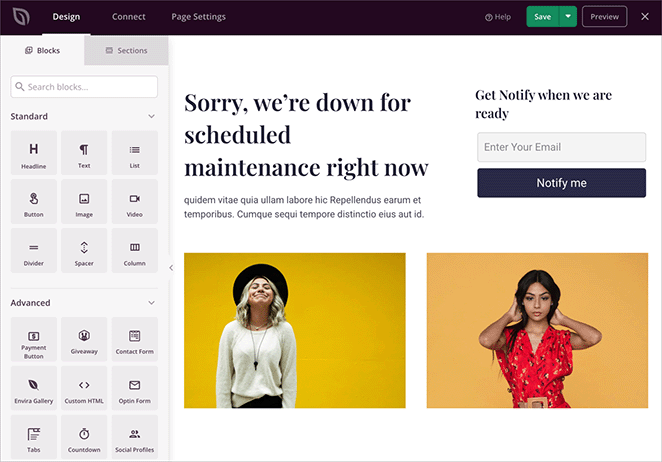
If you ever need to take your site offline to clean up after a security incident, SeedProd makes it simple. Activate a maintenance page in one click, customize it to match your brand, and bring the site back up the moment you’re ready. No code needed.
6. Choose the Best WordPress Security Plugin
A security plugin is like having a guard dog for your site. It scans for threats, blocks attacks, and alerts you if something looks wrong.
With the right plugin, you can monitor failed logins, scan for malware, and harden weak spots in WordPress without touching code.
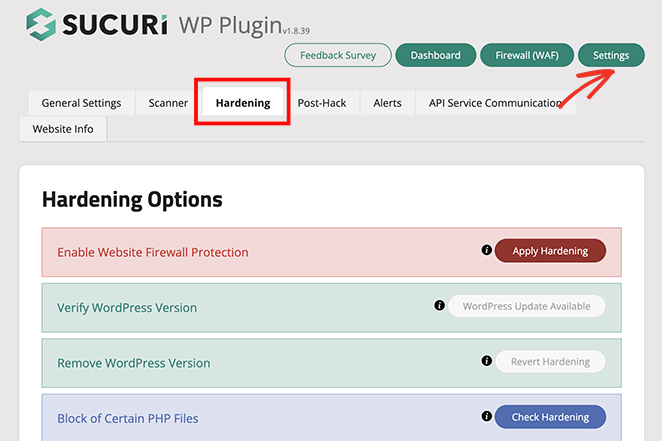
Sucuri is my go-to. After installing, go to Sucuri Security » Settings » Hardening and click “Apply Hardening” for each option. These settings lock down areas hackers often target.
Other great options include Wordfence and iThemes Security, both of which provide firewalls, malware scans, and login protection.
Whichever plugin you choose, set up a weekly automatic malware scan. Most security plugins handle this in settings. If a scan flags something, restore from your most recent clean backup, contact your host, or use Sucuri’s malware removal service, which is included with their paid plans.
7. Block Hackers with a WordPress Firewall (WAF)
A firewall stops hackers before they even reach your site by filtering out malicious traffic.
There are two main types of WordPress firewalls:
- DNS-Level Firewall: Filters traffic through secure cloud servers before it reaches your site.
- Application-Level Firewall: Checks traffic on your server before loading WordPress scripts.
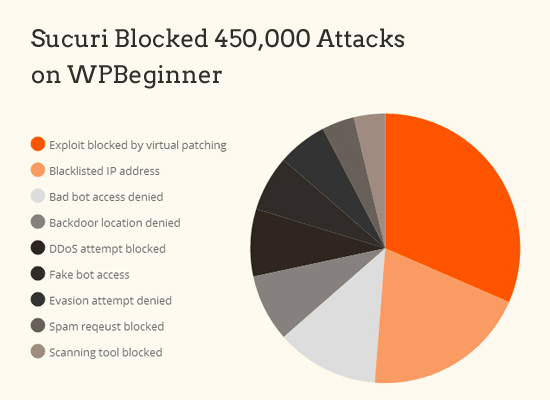
Sucuri Firewall is one of the most effective options. It helped WPBeginner block 450,000 attacks in 3 months, which shows what a DNS-level firewall can do at scale.
With Sucuri, you also get malware cleanup and blacklist removal. If your site gets hacked while using it, they’ll fix it at no extra cost. That’s a service worth far more than the $199/year price.
8. Disable WordPress File Editing
WordPress includes a built-in file editor under Appearance > Theme File Editor that lets you edit PHP files directly from the dashboard. If an attacker ever gains admin access, that editor becomes a serious problem.
Disabling it takes 30 seconds and is one of the most effective WordPress hardening steps most beginners skip. Add this line to your wp-config.php file:
define('DISALLOW_FILE_EDIT', true);Once added, the file editor disappears from your dashboard entirely. Even if someone gets into your admin account, they can’t use it to inject malicious code into your theme files.
9. Enable SSL/HTTPS to Secure WordPress Data
SSL/HTTPS encrypts the data between your site and visitors, making it much harder for hackers to steal information.
Once SSL is active, your site will show HTTPS instead of HTTP, along with a padlock icon in the browser. This builds trust and protects sensitive data like logins and payments.
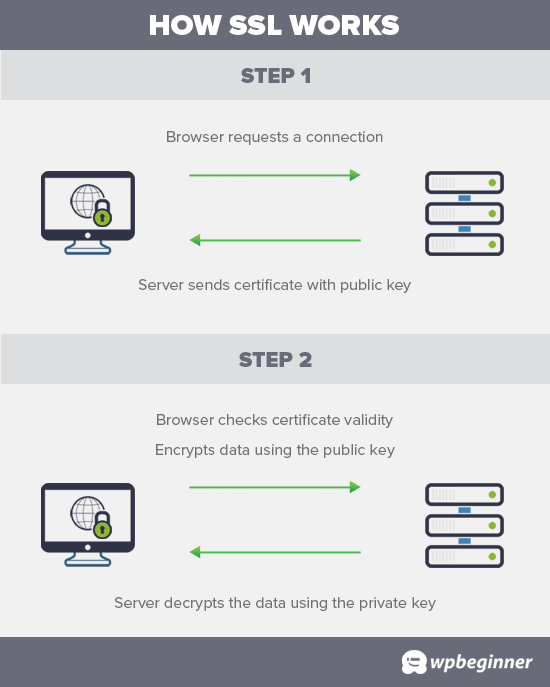
Most hosts now include free SSL certificates through Let’s Encrypt. If yours doesn’t, you can buy one from Domain.com, which includes a $10,000 security warranty and TrustLogo seal.
For help getting set up, see my guide on how to add SSL to WordPress.
10. Stop Brute Force Attacks by Limiting Login Attempts
Limiting login attempts stops hackers from guessing your password over and over until they get in.
When someone enters the wrong password too many times, they get locked out of your site temporarily. This simple step blocks brute force attacks and sends you alerts when suspicious activity happens.
The easiest way is with the free Limit Login Attempts Reloaded plugin. It lets you set the number of failed attempts allowed and emails you whenever a login fails.
You can take WordPress login security a step further by changing your default login URL. Bots and scripts target /wp-login.php by default, so changing it to something custom stops the majority of automated attacks before they start. A plugin like WPS Hide Login handles this without touching code.
11. Use Two-Factor Authentication
Two-factor authentication (2FA) adds an extra lock on your login so hackers can’t break in with just your password.
With 2FA, you log in with your username and password, then confirm a one-time code sent to your phone or app. Even if your password leaks, attackers can’t access your site without that second code.
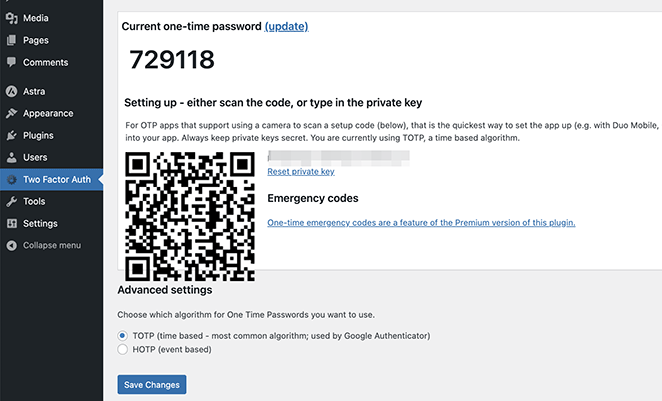
A free option is the WordPress Two Factor Authentication plugin. After installing, go to Two Factor Auth in your dashboard, scan the QR code with an app like Google Authenticator, and you’re set.
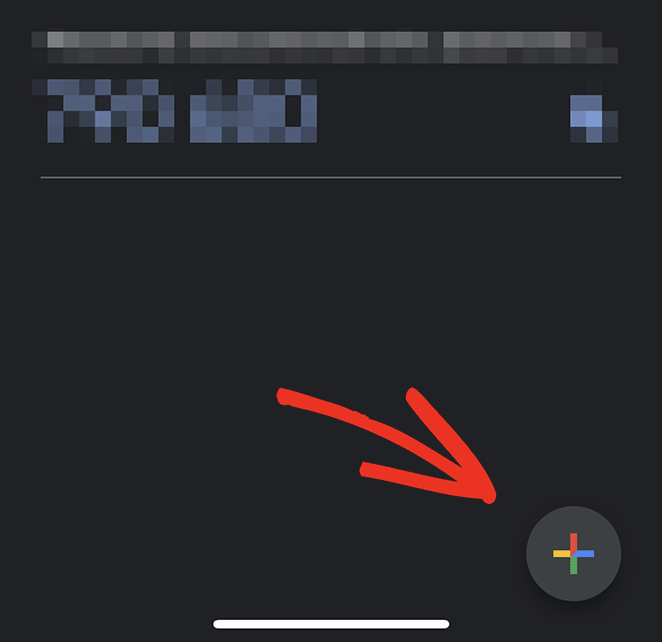
Next time you log into WordPress, you’ll be asked for the code after your password, keeping your site safe from brute force attacks.
FAQs on Securing Your WordPress Website
How do I change my WordPress login URL to prevent brute force attacks?
Use a plugin like WPS Hide Login to change your default /wp-login.php URL to a custom path. This stops automated bots from finding your login page, since they target the default URL by default.
Installation takes under a minute. Go to Settings > WPS Hide Login, enter your custom login URL, and save. Your old login URL returns a 404 error for anyone who tries it.
What is the best WordPress security plugin for beginners?
Sucuri is the best option for most beginners because it combines a firewall, malware scanning, login hardening, and professional malware removal in one place. The free version covers the basics; the paid plan adds the DNS-level firewall.
Wordfence is a strong free alternative with a built-in firewall and scanner. If you’re on a tight budget, Wordfence covers most of what you need without paying anything.
How do I know if my WordPress site has been hacked?
Warning signs include a sudden drop in traffic, strange links or content appearing on your pages, a Google warning in search results, your host suspending your account, or visitors being redirected to other sites.
Run a free scan at Sucuri SiteCheck to check for malware and blacklist status. Most security plugins also include built-in malware scanning you can run from your dashboard.
Do I need a security plugin if I already have a managed WordPress host?
Managed hosting gives you server-level protection, but it doesn’t cover everything. Your host can’t protect against weak passwords, vulnerable plugins, or attacks that exploit your WordPress application directly.
A security plugin adds application-level monitoring, malware scanning, and login protection on top of what your host provides. The two work together, not instead of each other.
Next Steps
These steps cover everything you need to protect your WordPress site from hackers, no coding required. Start with updates and strong passwords today, then layer in a security plugin, firewall, and 2FA.
For further reading, check out these guides:
- Best WordPress multisite plugins
- How to password protect a WordPress site
- Best WordPress duplicator plugins
- How to accept secure Stripe payments in WordPress
Thanks for reading! We’d love to hear your thoughts, so please feel free to join the conversation on YouTube, X and Facebook for more helpful advice and content to grow your business.





Hello, friend my question is that, please tell how to secure wordpress blog /site from hackers? Is this responsibility of hosting providers or my-self. Kindly tell some plugins for wordpress.,.
The best way to secure your WordPress website is not by using a plugin but by denying access to certain directories through htaccess file and your robots.txt file. Also choose a secure hosting provider.
The tips that you added are so helpful. But for securing WordPress, you need to give more emphasis to the security of your login area. You need to pay more attention on strengthening your admin login area.
Nice Article!
Security of the website is the key.
1. Choose a best hosting provider.
2.Your WordPress website must have a strong user name & password, keep Admin Dashboard secured.
3.Only used best rated plugins.
4.Monitor your website time-to-time. Take Regular site backups and cleanup unused plugins.
5. Update your site’s WordPress Versions.
I was wondering if you ever thought of changing the page layout of your blog?
Spot on regarding why more WP users should secure their sites and go beyond security plugins, even though many are excellent. Website hacking is becoming more of a sport it seems, so protecting our sites and customer data is fundamental.
Using a VPN service and proxy server can also helps in securing your wordpress site or blog from getting hacked.
What a relevant information you have shared. I follow the same procedure to keep my website safe. I also use Ace Vpn to keep my data safe and secure while surfing especially paying someone online.