



TL;DR: How to Dim a Background Image in WordPress (No CSS)
You can darken a WordPress background image using a transparent overlay, no CSS required. Here’s the fastest path:
- Native option – Use the WordPress block editor’s Cover block, which has a built-in dimness slider.
- Install SeedProd – Download and activate the plugin, then verify your license key.
- Choose a theme kit – Pick a website kit and open the homepage in the visual editor.
- Upload your image – Click a section, delete the default background, and upload your own.
- Adjust the overlay – Drag the Dim Background slider to 40-60% opacity for the best text readability.
- Publish – Enable your SeedProd theme and go live.
You’ve uploaded a background image you love, but now your headline is nearly invisible against it. The text is there, but visitors can’t read it without squinting. That’s the problem a background image overlay solves, and you don’t need to touch a single line of CSS to fix it.
WordPress has a built-in way to dim background images, and if you want more control over your design, SeedProd adds a dedicated overlay slider that works across sections, rows, and columns. In this guide, I’ll show you both options so you can choose what fits your setup.
Why Dim a Background Image in WordPress?
A WordPress background image is any image that sits behind your content, whether that’s a full-page background or an image behind a specific section like a header or hero block.
But, the problem is contrast. A vibrant or busy background image makes your text nearly impossible to read, and poor text readability over background images is one of the fastest ways to lose visitors.

Adding a transparent color overlay dims the background image without hiding it, so your text stands out and visitors can actually engage with your content.

Easiest Way to Dim a Background Image in WordPress?
To dim a background image in WordPress, the easiest option is to add a transparent color overlay. This creates contrast between the image and your content, so everything is easier to read.
A quick note on terminology: an overlay is a semi-transparent layer placed over your background image. It’s different from a CSS filter (which applies a visual effect to the image itself) and different from simply lowering the image opacity (which affects the whole section).
An overlay gives you the most control, and it’s the approach both WordPress’s block editor and SeedProd use.
If you’re using SeedProd, you can do this in a few quick steps:
- Click on the section with your background image
- Open the settings panel
- Use the Dim Background slider to adjust brightness
- (Optional) Add a color overlay to match your brand
No CSS or HTML is needed. You can preview the results in real time and make your content stand out instantly.
Why SeedProd Is the Best Way to Dim Background Images

SeedProd is the best way to dim background images in WordPress because it doesn’t require coding. It comes with a drag-and-drop website builder, letting you point and click to customize your site.
With its easy overlay feature, you can darken a background image by dragging a simple slider. You can also create a color overlay and change your background image position by choosing an option from a drop-down menu.
Bottom line: SeedProd makes it easy to customize any part of your WordPress site without code.
How to Dim a Background Image Using the WordPress Block Editor
If you’re on a standard WordPress theme and just need to dim one section, the native block editor can handle this without a plugin. The key is the Cover block, which is built specifically for adding content over a background image.
To use it, open a page or post in the block editor and add a Cover block.
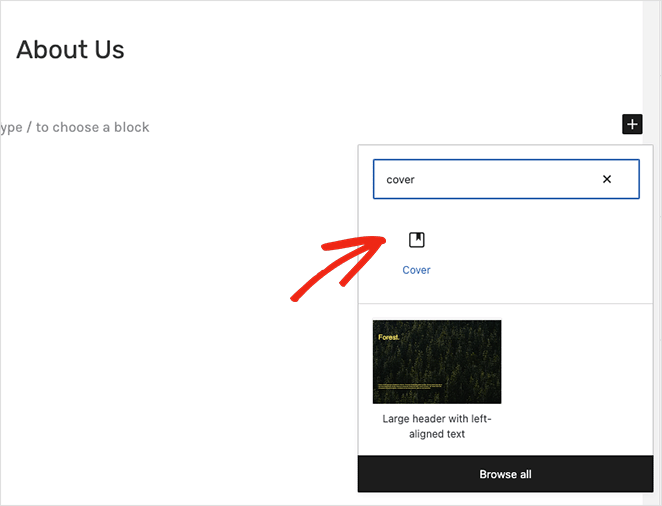
Upload your image, and you’ll see a Dim background image overlay slider appear in the block settings on the right. Drag it to adjust the background overlay opacity until your text is readable.
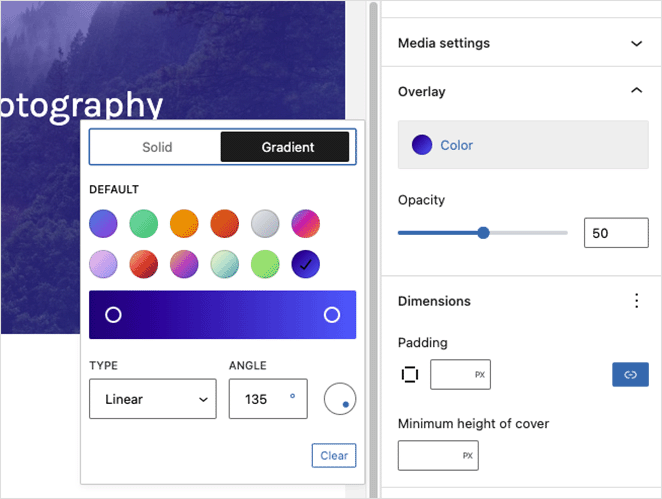
This works well for hero sections and individual content blocks where you want a background image with text on top. The Cover block also lets you pick an overlay color, so you can match your brand while keeping text legible.
Use the block editor if you’re on a standard WordPress theme and only need to dim one section. Use SeedProd if you want full design control, color overlays, and the ability to apply background image opacity adjustments across your entire site without touching theme files.
Steps to Dim a Background Image in WordPress Without Code
Follow these steps to dim a background image in WordPress without CSS code or HTML using SeedProd.
Video Tutorial
Step 1: Install and Activate the SeedProd Plugin
First, you’ll need to visit the SeedProd website and choose a subscription level. We recommend SeedProd Pro because it includes advanced theme-building features.
Once you’ve picked a plan and opened your account, head to the Downloads section of your user dashboard and download the plugin to your computer. While you’re there, copy your plugin license key to use later.
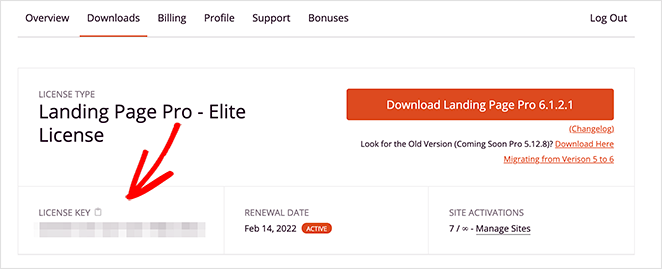
Next, go to your WordPress website and install and activate the SeedProd plugin. If you’ve never done this before, follow this guide on installing a WordPress plugin.
After activating SeedProd, head to the SeedProd » Settings page and paste your license key into the relevant field.
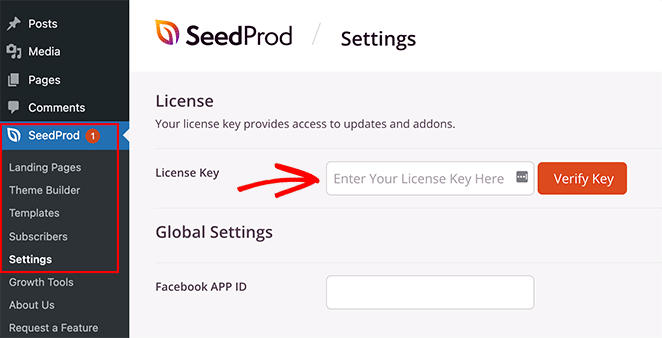
Once you click the Verify Key button, you’ll be able to access all of SeedProd’s Pro features.
Step 2: Choose a Website Kit or Landing Page Template
For this guide, we’ll create a custom WordPress theme. Navigate to SeedProd » Theme Builder from your WordPress admin area and click the Themes button.
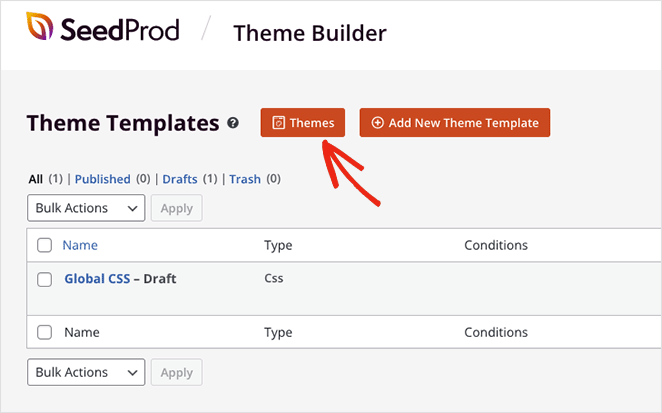
On the next screen, you’ll see a gallery of website kits you can use to create an instant WordPress theme.

Each kit comes with all the pages and theme templates your website needs. You can then customize each page with SeedProd’s drag-and-drop website builder.
Scroll through the kits until you find one that suits your business, then hover your mouse over the kit thumbnail and click the checkmark icon.

After importing the website kit, you’ll see a list of the parts that make up your new WordPress theme. To customize any part, click the Edit Design link, and it will open in the visual editor where you can add your custom background image.
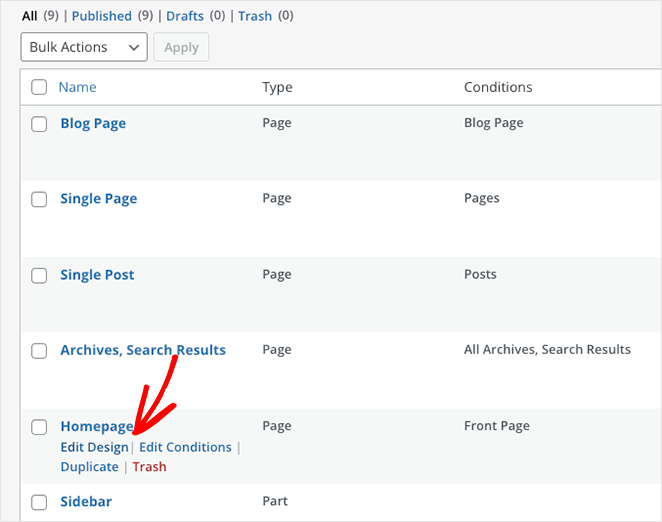
Let’s start by editing the Homepage design.
Step 3: Add Your Background Image to WordPress
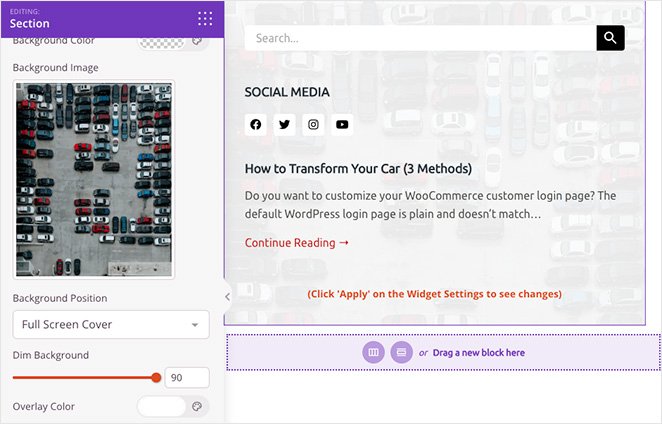
When you open a template in SeedProd’s visual editor, you’ll see a layout similar to the example below.

There are blocks and sections for adding content on the left and a live preview of your design on the right with elements used in your website kit.
You can customize your template easily by clicking any element on the preview. This will open a panel with settings for that element and customization options.

You can also drag a block from the left onto your page to add more content, such as optin forms, social media icons, videos, images, buttons, and more.

Adding a background image to any section is just as easy. Click the area you want to edit, and delete the default background image.

You can then upload a new image from your computer or WordPress media library.

Step 4: Add a Transparent Overlay to Dim Your Background Image
As you can see in our previous example, the background image doesn’t contrast enough with the headline, making it hard to read.
Find the Dim Background heading in the section settings and drag the slider to the right until your heading stands out.

How much should you dim the background?
For most designs, 40-60% opacity on the background overlay gives you the best text readability.
Below 40%, text contrast can still be an issue. Above 70%, your background image becomes nearly invisible, which defeats the purpose of using one.
If you’re working with a hero image or a full-width section, aim for 50% as a starting point, then adjust from there.
You can also use the same panel to add a color overlay to your background image. This is a great way to tie your brand colors into your design while keeping things readable.
To do that, find the Overlay Color heading and click the color picker to select a custom color. You can point and click to find a color that works, or use the arrows to enter a hex, RGBA, or HSLA value.

You can also:
- Adjust the background image position
- Change the background color of a section
- Use a gradient instead of an image

For example, clicking the drop-down arrow lets you position your background in the following ways:
- Full Screen Cover
- Full Screen Cover – Fixed
- Full Screen Contain
- Full Screen Contain – Fixed
- 100% Width Top
- 100% Width Bottom
- Background Repeat
- Repeat Horizontal Top
- Repeat Horizontal Bottom
- Repeat Vertical Center
- Custom Position
Choosing the Custom Position option opens more detailed customization options.

For instance, you can change the X or Y position to show a specific portion of your image. You can also change the attachment type to fixed or scroll, set how the image repeats, and change the background size.
As a result, you can tailor each area of your background images to get the right look.
Can I Dim Background Images in Other Parts of WordPress?
Now that you know how to dim background images with SeedProd, you can use the same approach in other parts of your design.
For example, you can add a background image to rows and columns and use the background overlay WordPress controls to dim it, so your content stands out. This is especially useful for hero images, where text readability over background images is critical.

You can even customize your blog sidebar with a background image, so it’s easier to see against your blog posts. Upload your image, tweak your settings, and you’re ready to publish.
Step 5: Publish Your Changes
For your website visitors to see your new background images, you’ll need to enable your custom SeedProd theme. Head to SeedProd » Theme Builder and turn the Enable SeedProd Theme option to the “Yes” position.
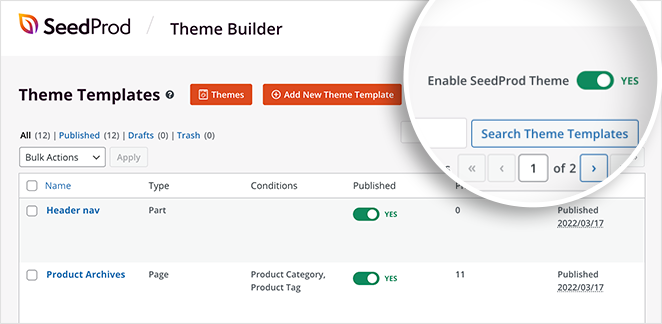
That’s it! Now you can preview your theme and see your background overlays in action.
Here is an example of our new homepage background image:

You can also see our “About Us” section and sidebar background images below:


FAQs on Dimming Background Images in WordPress
Do I need a plugin to dim a background image in WordPress?
Not always. The WordPress block editor’s native Cover block includes a built-in dimness slider you can use without any plugin. If you want full control over background image opacity across sections, rows, and columns throughout your site, a tool like SeedProd makes it much easier.
Can I dim a background image in the WordPress block editor without a plugin?
Yes. Add a Cover block to your page or post and upload your image. You’ll see a Dim background image overlay slider in the block settings on the right side of the editor. Drag it to adjust how dark the overlay appears.
What color overlay works best for dimming a WordPress background image?
Dark gray or black overlays at 40-60% opacity work best for most designs. That range gives you enough contrast for readable text while still showing the image underneath.
If you want to match your brand, you can use a colored overlay instead. Just keep the opacity in that same 40-60% range, and test at different screen sizes to make sure text stays legible.
Can I dim just part of a background image in WordPress?
WordPress doesn’t support selective dimming on a single image. However, you can apply overlays to specific sections, rows, or columns in SeedProd, which creates the effect of partial dimming by targeting only those areas.
If your background image looks great but makes your text hard to read, dimming it is a quick fix that can transform your page.
I showed you how to darken a background image with SeedProd using the Dim Background slider and optional overlay color. You can use this for full-width hero images, section backgrounds, or even sidebars, anywhere you want better contrast without losing your design.
The best part is you don’t need to mess with CSS or theme files. Just drag, adjust, and publish.
Want more ways to customize your site without touching code? Check out these tutorials next:
- Landing Page Navigation Is Dead: Here’s Why
- How to Create Text Animations in WordPress (Easy Steps)
- How to Create Fancy Section Dividers for WordPress Websites
Thanks for reading! We’d love to hear your thoughts, so please feel free to join the conversation on YouTube, X and Facebook for more helpful advice and content to grow your business.




