

TL;DR: How to Make a Landing Page Without Navigation
Navigation menus give visitors an exit route. A landing page without navigation removes that distraction and keeps visitors focused on one action.
- Why it works: Removing the navigation bar can double conversions by keeping visitors on a single path.
- What to remove: Delete the header navigation and any footer nav links using SeedProd’s drag-and-drop editor in two clicks.
- What to keep: Footer trust links like a privacy policy or terms of service are fine to leave.
- When to test: Run an A/B test if you’re unsure. Most distraction-free landing pages outperform ones with full navigation bars.
- Time required: Under 30 minutes with SeedProd.
You spend hours building a landing page, drive traffic to it, and then watch visitors click away through a menu link instead of converting. It’s one of the most common conversion killers I see. The problem isn’t your offer. It’s that the navigation bar gave them somewhere else to go.
A landing page without navigation removes that exit. Without menu links to click, visitors have one choice: your call-to-action.
In this guide, I’ll walk you through why a landing page without navigation converts better and how to create one in WordPress using SeedProd.
Should a Landing Page Have Navigation?
No. Best practice is to remove the navigation bar from landing pages. It keeps visitors focused on your call-to-action and can dramatically improve your conversion rate optimization.
The data backs this up across multiple studies.
- Yuppiechef ran an A/B test with VWO and saw conversions double when they removed the top navigation.
- AmeriFirst reported a 30-40% increase in leads after dropping navigation links.
- VWO’s own guidelines stress that removing navigation helps keep visitors in the “conversion tunnel.”
Only about 16% of landing pages are currently free of navigation bars, which means most pages are still leaving conversions on the table.
That said, a few situations call for keeping minimal links:
- Compliance and trust: Links to your privacy policy or terms of service may be legally required or help reassure visitors.
- Complex products: If you’re selling software or services with multiple features, a single “Learn More” link to a details page can reduce friction.
- Multi-step funnels: In some campaigns, you might need a “Back” link to guide users through a sequence of pages without confusion.
- Support pages: Adding a subtle “Help” or “Contact” link can improve trust if visitors need quick answers before converting.
The key is to keep these links minimal and secondary. They should never compete with your main call-to-action. A common approach is placing them in the footer or as small-text links, so your CTA remains the primary focus.
For paid search campaigns, check Google’s current ad destination policies before removing navigation entirely. Guidelines have changed and some navigation may now be permitted or preferred in certain ad placements.
If you’re not sure whether removing navigation will help your specific page, run an A/B test. Tools like VWO or Google’s built-in GA4 experiments let you test both versions with your actual traffic. Most landing page tests show conversion lifts from removing navigation, but your results can vary by audience and traffic source.
What Can I Use Instead of Navigation on a Landing Page?
If you don’t want a full navigation menu but still need ways to guide visitors, you can use lightweight alternatives that keep the focus on your call-to-action.
- Anchor jump links: Instead of a full menu, add simple links that jump to sections further down the page, like “Features” or “Pricing.”
- Sticky call-to-action: A floating button or bar keeps your signup or “Buy Now” link visible as visitors scroll.
- Footer-only links: Place trust or legal links, such as privacy policy and terms, in the footer, where they don’t distract from your headline or form.
- One-click support: A subtle chat icon or “Need help?” link can answer questions without pulling people away from the page.
In SeedProd, the Button block handles sticky CTAs, and the Navigation Menu block (set to anchor links only) handles in-page jumping without adding any exit links to your page.
How to Create a Landing Page Without Navigation
My tool of choice is SeedProd, a drag-and-drop website builder for WordPress. It lets you create high-quality landing pages, flexible website layouts, and custom WordPress themes without writing code.
SeedProd’s visual builder is easy to use and offers the features you need for a high-converting landing page, including:
- Professionally designed landing page templates
- 30+ content blocks, like social media buttons, optin forms, CTA buttons, etc
- Pre-made content sections for faster customization
- Dynamic text replacement
- Coming soon and maintenance mode
- Powerful access controls
- Email marketing integrations
- Domain mapping
- And more.
Follow the steps below to make a landing page without navigation with SeedProd.
Step 1. Install and Activate SeedProd
First, click this link to get started with SeedProd and download the plugin to your computer.
Note: SeedProd has a free version, but we’ll use SeedProd Pro for the advanced features.
Next, install and activate the SeedProd plugin on your WordPress website. You can follow these instructions on installing a WordPress plugin if you need help.
After installing SeedProd, navigate to the SeedProd » Settings Page. You can enter your license key on this page to activate SeedProd’s Pro features.
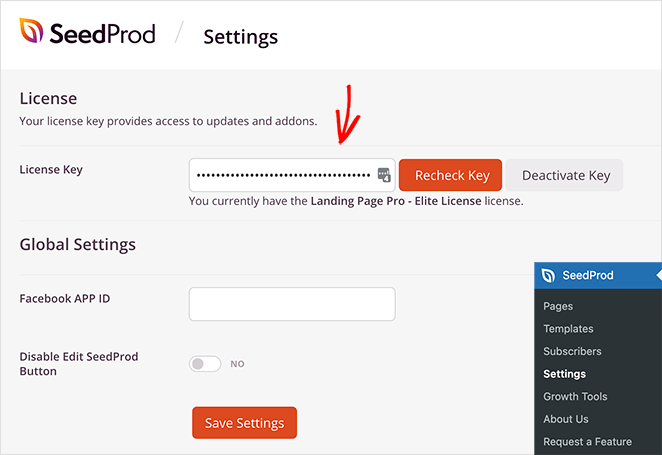
Click the Verify Key button, then go to SeedProd » Landing Pages to create a new page.
Step 2. Choose a Landing Page Template
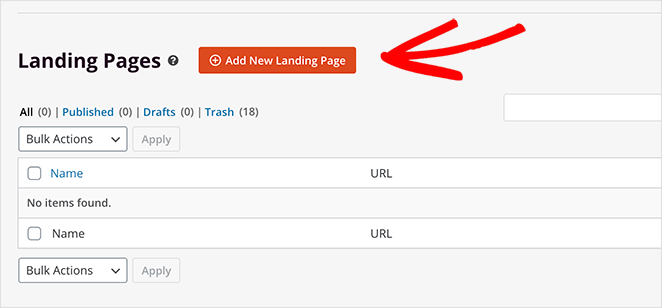
The following page has several options.
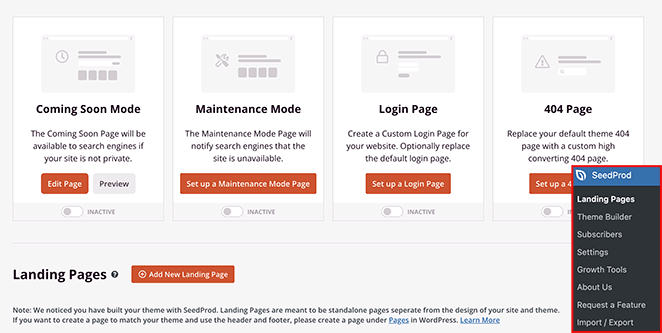
You can activate special modes like Coming Soon or Maintenance Mode from this page, but for now, click the Add New Landing Page button.
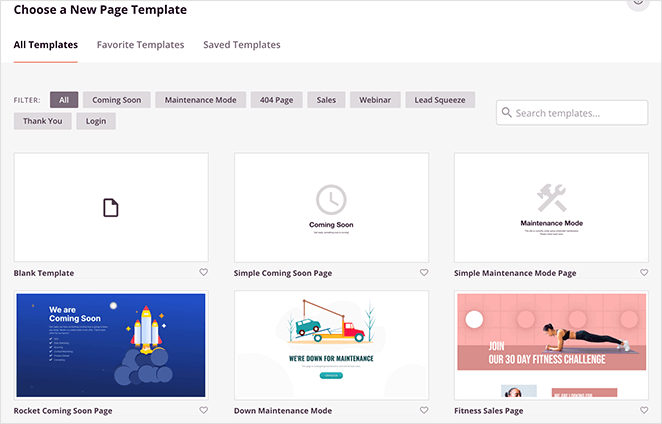
You can choose from 150+ landing page templates on the next page and filter the designs by type. Many of SeedProd’s designs don’t include a navigation menu, but we’ll choose one with a menu bar to show you how easy it is to remove.
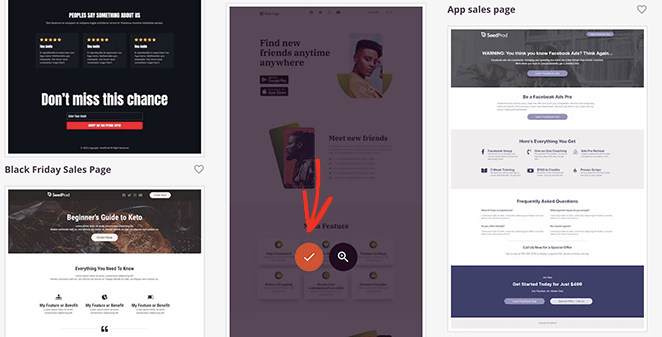
When you find a template you like, click the checkmark icon.
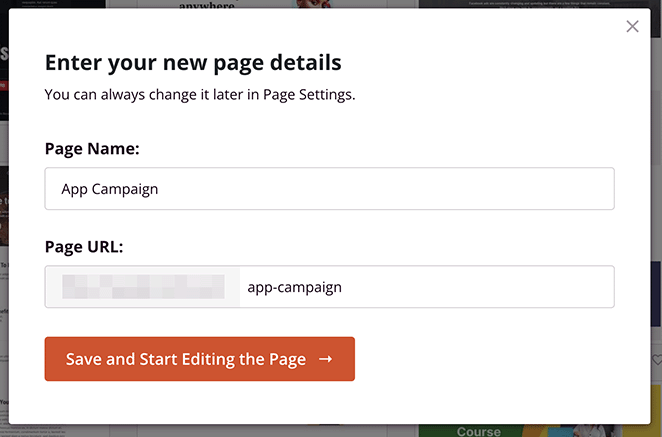
Next, enter your page name and click the Save and Start Editing the Page button.
Step 4. Customize Your Landing Page Design
Your page will open in SeedProd’s drag-and-drop page builder.
The 2-column layout has blocks and sections on the left for customizing your page content. You can then see a live preview of your page on the right.
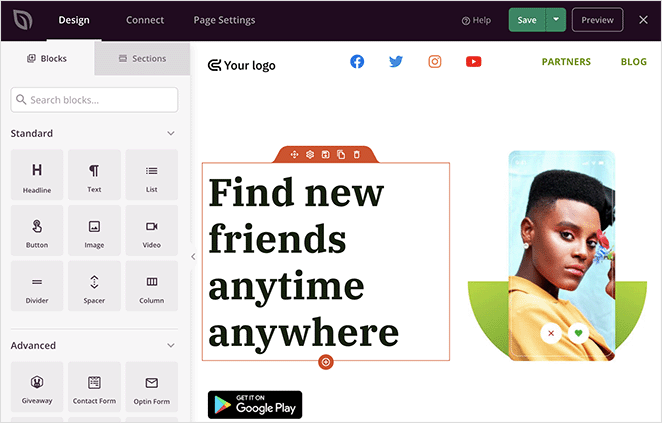
You can click anywhere to edit content; adding new content is as simple as dragging a content block onto your page.
For example, you can remove the navigation menu with 2 clicks. Hover over the navigation section and click the trashcan icon.
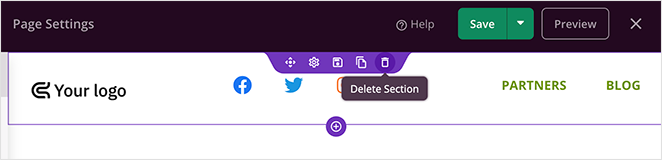
SeedProd will ask you to confirm your choice, so click Yes, Delete It, and it will remove the navigation from your landing page.

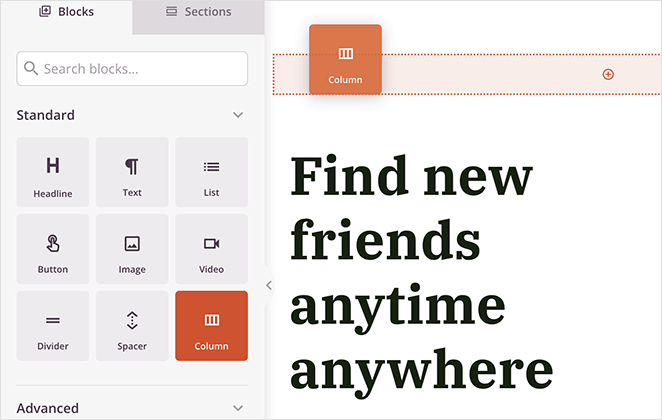
If you want to add your logo back to the page, drag a Column block onto your preview and choose the single column option.
You can then drag over an Image block and click it to show the block settings.
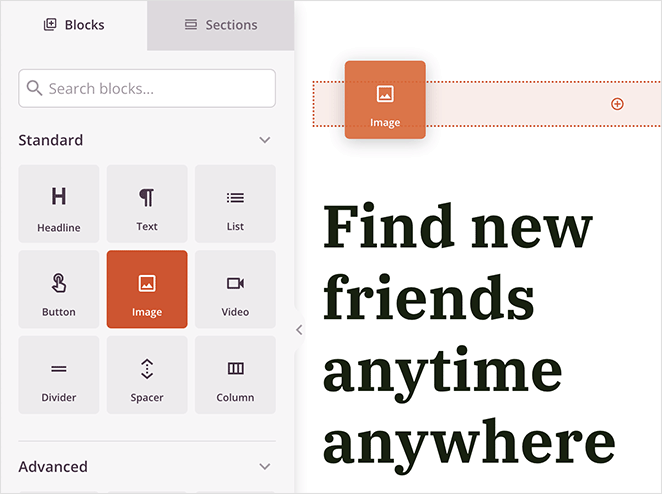
From there, you can upload a logo from your computer or WordPress media library.
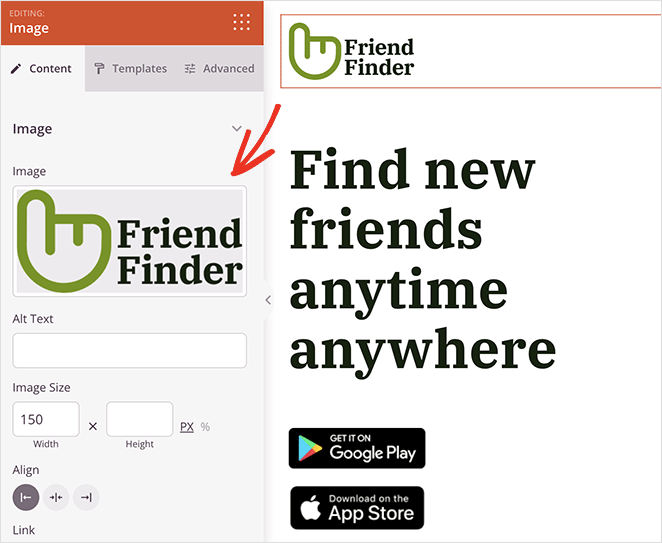
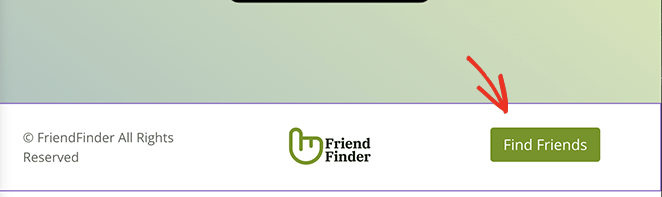
Now let’s look at the page footer area, which often includes navigation links you don’t wish to include. Our page has social media profile links we want to remove from this design.
Hover over the social icons block and click the trashcan icon to remove it.

You can then replace it with a CTA button or leave that area blank.
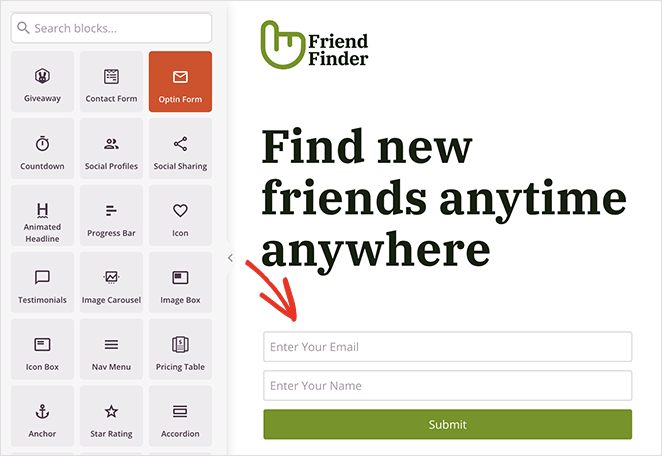
Now you can customize the rest of your design to suit your branding and marketing goals. For example, you can use the optin-form block to grow your email list and generate leads.
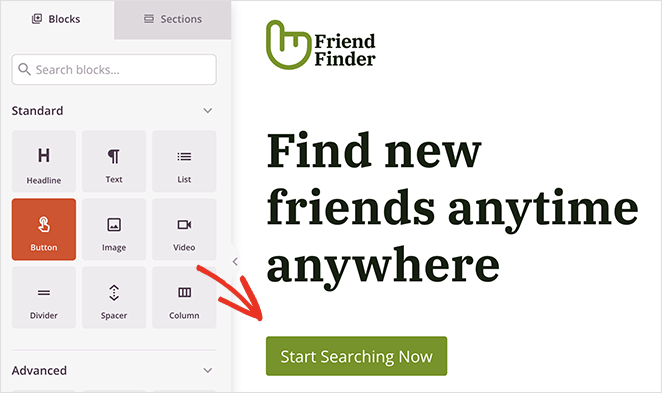
Alternatively, you can add a CTA button directing users to your checkout or app download page.
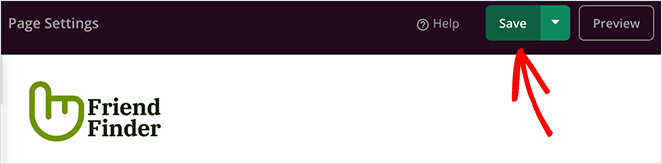
When you’re happy with how everything looks, click the Save button in the top-right corner.
Step 5. Configure Your Page Settings
SeedProd makes it easy to grow your email list with a landing page. You can integrate your page with many email marketing services easily.
To do that, click the Connect tab at the top of your screen. You’ll see all the email providers you can integrate on the next screen, including Constant Contact, Mailchimp, GetResponse, and more.
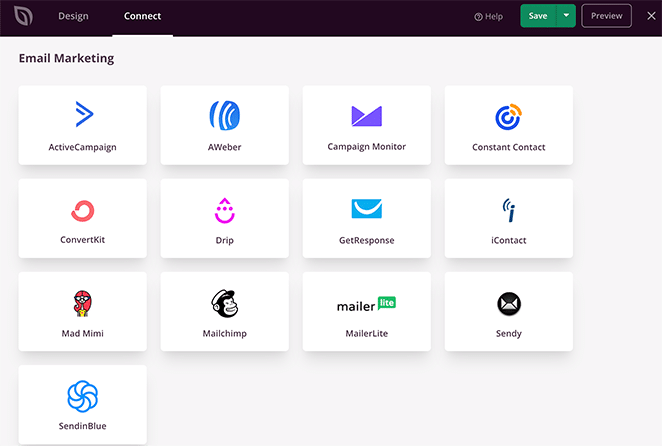
SeedProd’s email marketing documentation has step-by-step instructions for integrating with each service.
You can also click the Page Settings tab to configure the following settings:
- General settings
- SEO
- Analytics
- Scripts
- Custom Domain
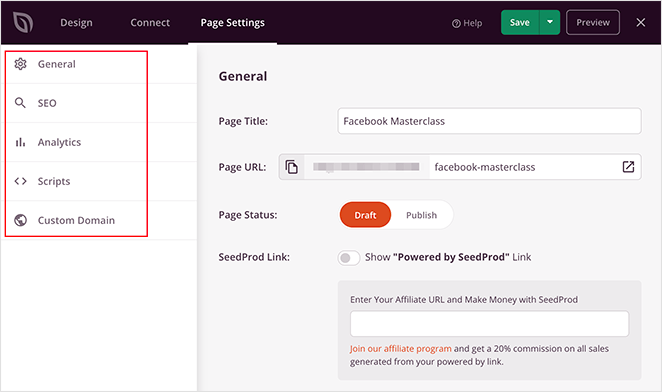
Remember to save your changes before moving on to the next step.
Step 6. Publish Your Page
Now it’s time to publish your page and make it live on your WordPress website. You can publish your page with a few clicks by clicking the dropdown arrow on the Save button and Publish.
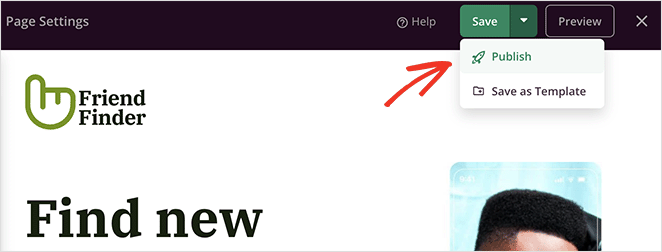
When you visit your landing page, you’ll see it has no navigation. This will ensure your visitors focus on your page’s primary conversion goal.

Landing Page Without Navigation FAQs
Should a landing page have navigation?
No. Best practice is to remove the navigation bar from landing pages. Navigation gives visitors somewhere else to go instead of converting. Studies show removing it can double conversions (Yuppiechef/VWO) or increase leads by 30-40% (AmeriFirst/CXL).
The exception is small footer trust links like a privacy policy or terms of service, which are fine to leave in place. These don’t compete with your main CTA.
Does removing navigation from a landing page hurt SEO?
No. Landing pages don’t rely on navigation menus to rank. What matters for SEO is relevant content, a clear headline, and links pointing to the page. Many high-converting landing pages rank well without a navigation bar.
Navigation is a usability feature for multi-page websites, not an SEO signal. Removing it from a standalone landing page won’t affect your search rankings.
What should I include in a landing page footer instead of navigation?
Stick to trust and compliance links only: a privacy policy, terms of service, and optionally a contact or support link. These reassure visitors without pulling their attention away from your CTA.
Avoid adding social media links, site menus, or blog links in the footer. Each link is an exit route. Keep the footer minimal and the CTA dominant.
Can I A/B test a landing page with and without navigation?
Yes, and it’s a smart move before committing either way. Tools like VWO or Google’s GA4 experiments let you test both versions with your actual traffic. Set up two variants: one with your current navigation and one with it removed.
Most landing page tests favor the no-navigation version, but results can vary by audience and traffic source. Run the test for at least two weeks to get statistically significant data before making a permanent change.
What’s the difference between a landing page and a website page?
A website page is part of a multi-page site with navigation, multiple goals, and broad content. A landing page is a standalone page with one specific goal: getting visitors to take a single action like signing up, buying, or downloading.
Because landing pages have a single goal, they work better without navigation. A website homepage needs menus because visitors come for different reasons. A landing page removes those options on purpose.
Your landing page now has one job. And nothing in the way of it getting done. Get started with SeedProd today and build your first distraction-free landing page in under 30 minutes.
Here are a few of our favorite relevant posts:
- 9 Startup Landing Page Examples and How to Make One
- How to Create a Landing Page with Countdown Timer (5 Steps)
- Landing Page Not Converting? 9 Tips to Fix It Fast
Thanks for reading! We’d love to hear your thoughts, so please feel free to join the conversation on YouTube, X and Facebook for more helpful advice and content to grow your business.




