

Running a multi author blog in WordPress means configuring your site so different writers can log in and work without tripping over each other. It sounds efficient, but handing out backend access to your business website is always a little stressful.
The real problem is that WordPress, out of the box, gives users a lot of power. If you don’t lock down permissions correctly, a well-meaning writer can accidentally mess up your plugin settings or publish a draft that looks unprofessional.
In this guide, I’ll show you how to set up a system that prevents those mistakes so you can focus on publishing, not fixing errors.
Why Multi Author Blogs Go Wrong So Often
Most problems with multi-author sites come from missing structure, not the writers themselves.
The issue is that WordPress roles are just permissions. When you add users without a plan, you invite security risks.
In fact, 74% of breaches involve human elements like privilege misuse. Giving a writer “Administrator” access is a gamble you shouldn’t take.
Then there’s the trust risk. 75% of users judge credibility by design alone.
If formatting varies between authors, your brand looks amateur. It’s smarter to create a custom post template to lock down the layout so writers just fill in the blanks.
These are system failures, not people failures. You can avoid them by setting rules before you hand out the keys.
Let’s walk through the exact workflow I use to manage writers without losing sleep.
Step 1: Set the Rules Before You Add Writers
A multi-author blog only works when everyone follows the same basic process. If you create accounts first and establish rules later, you’ll spend months untangling bad habits.
First, define your workflow. I recommend a strict Draft » Review » Publish pipeline.
No one, except maybe your Editor-in-Chief, should have the ability to hit “Publish” directly. This ensures a second pair of eyes reviews every post for quality and safety before it goes live.
Next, assign roles carefully. To do this, go to Users » Add New in your WordPress dashboard and look for the Role dropdown menu. Getting this selection wrong is the primary cause of security risks.
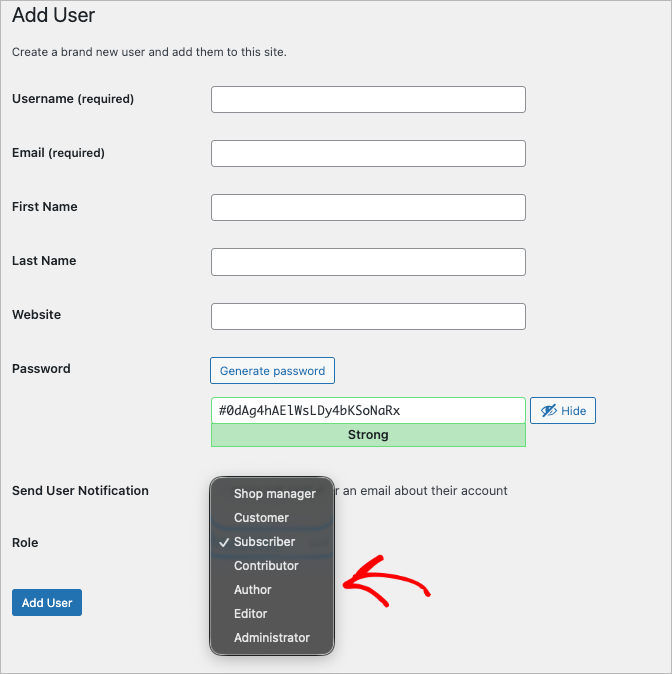
Here is the breakdown of the user roles you should use:
| Role | What They Can Do | Best For |
|---|---|---|
| Administrator | Full access to settings, plugins, and themes. | You (Site Owner) |
| Editor | Publish posts and manage other people’s content. | Managers |
| Author | Write and publish their own posts. | Trusted Writers |
| Contributor | Write drafts only (cannot publish). | New Writers |
Finally, create a lightweight style guide. You don’t need a 50-page manual. Just a simple one-page document listing your rules for headers, image sizes, and tone helps writers deliver clean drafts that require less editing.
Step 2: Give Each Author a Professional Profile Page
Default WordPress author pages are boring, unbranded, and frankly, they don’t do much to build trust with your readers. Google and your audience want to know who is giving them advice. This is the core of E-E-A-T (Experience, Expertise, Authoritativeness, and Trustworthiness).
If your author page is just a list of links without a bio or a photo, you’re missing a huge credibility signal. A simple author box at the bottom of a post is a start, but for a real publication, you need a dedicated profile page.
Build Custom Author Pages with SeedProd
You could try to edit the author.php file in your WordPress theme to fix this, but that requires coding and can break easily. It’s much faster to use SeedProd.

SeedProd is a drag-and-drop WordPress website builder trusted by over 1 million websites. You can use it to create custom WordPress themes, custom landing pages, and custom WooCommerce stores without any code.
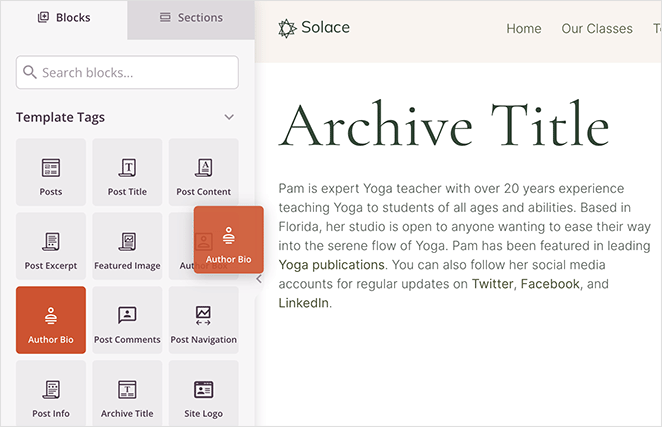
With the Theme Builder, you can visually design a layout for your author archives. You simply drag over the Author Bio block, and it automatically pulls in the right text for specific writers on your team.
If you want full control over the look and feel, check out our guide on how to create a custom author page.
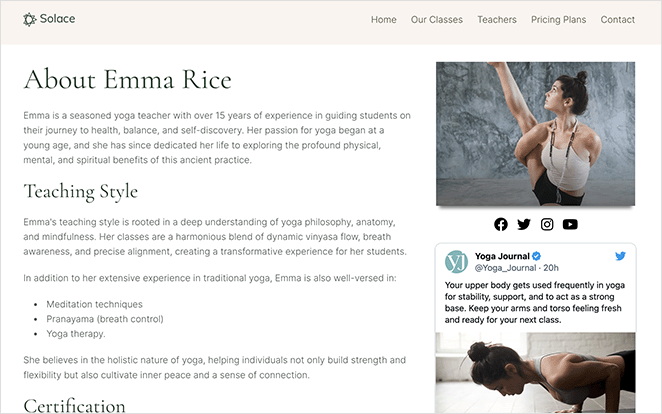
This tutorial walks you through exactly how to build these individual profile pages to match your brand’s style.
Here is what your custom profile page needs to include:
- Headshot & Bio: Prove they are real humans, not AI bots.
- Social Links: Let readers connect and verify their identity.
- Credentials: List their degrees or experience to establish authority.
- Latest Articles: Show off their body of work.
While there are basic author bio plugins available, they often lack design flexibility. Using a visual page builder ensures your team looks professional, consistent, and trustworthy.
Step 3: Add Guest Authors Without Giving Them Access
Not every writer needs a WordPress account. Creating a full user profile for a one-time guest post is actually a major security risk.
I call these “Zombie Accounts.” You create a login for a guest writer, they publish one post, and then everyone forgets the account exists. Three years later, that dormant account has a weak password and is an open door for hackers.
Use a “Guest Author” Plugin
The smartest way to handle one-off posts is to credit the writer without giving them a login. To do this, you can use a plugin like Co-Authors Plus to create a “Guest Author” profile.
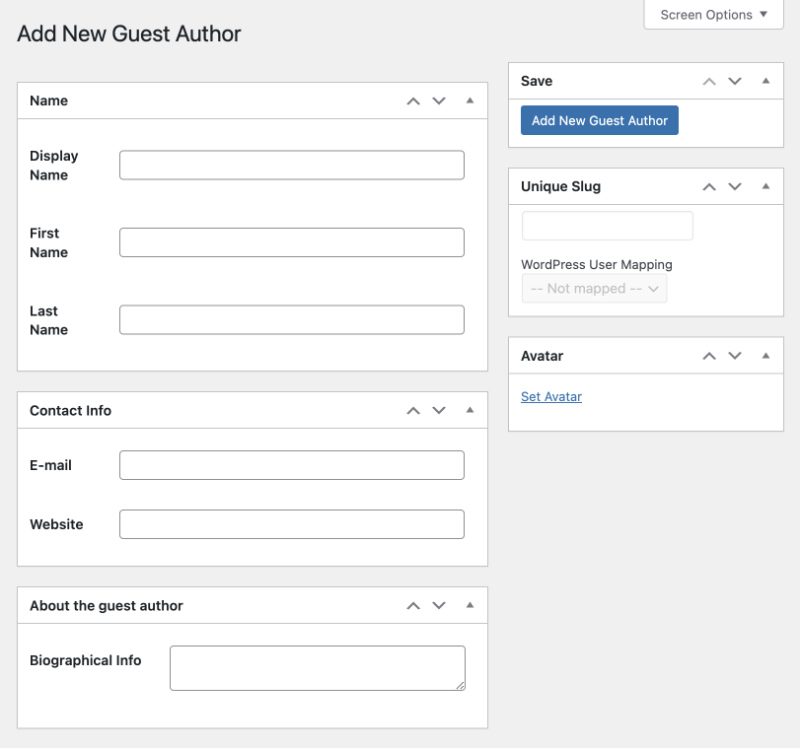
You simply type their name into the byline box on the post editor. It looks exactly like a regular author profile to your readers, but there is no username or password attached to it.
Automate Registrations (Safely)
If you have regular contributors who need to log in frequently, creating accounts manually gets tedious. That’s why I like to automate this safely with WPForms.
WPForms is the most beginner-friendly WordPress form builder on the market. Over 6 million websites use it to create contact forms, payment forms, surveys, and more with a simple drag-and-drop interface that’s now even easier with AI.
Instead of adding users one by one, you can use WPForms to build a user registration form that collects their bio and details. The trick is to set the default role for this form to Contributor.
This way, they get into the system to write, but they don’t get the keys to the castle.
Step 4: Track Which Authors Are Actually Performing
A multi-author blog improves faster when you know exactly what is working and who is writing it.
It’s easy to fall into the trap of paying writers based on word count. But 10 mediocre articles that nobody reads are actually worse than one great article that brings in leads. You need to look at impact, not just volume.
The problem is that Google Analytics doesn’t track authors out of the box. Trying to set that up manually involves creating custom dimensions and editing code, which I find to be a huge headache.
The easiest fix is to use MonsterInsights, the best analytics plugin for WordPress, used by over 3 million professionals. It lets you install Google Analytics on your WordPress website without writing a single line of code.
You can also enable “Author Tracking” with just a few clicks. You just install the Dimensions addon, and it automatically starts tagging your traffic with the author’s name.
Once enabled, you can view a “Top Authors” report right inside your WordPress dashboard.
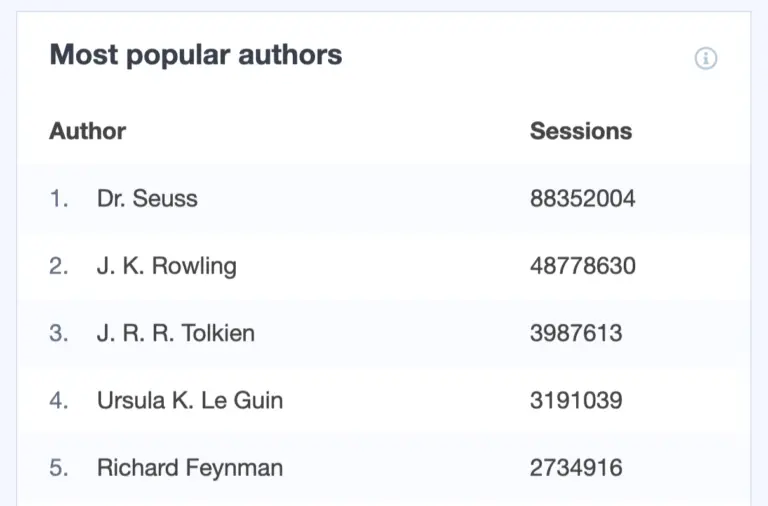
You might find that one writer consistently brings in search traffic, while another gets zero traction. This lets you stop guessing and start assigning topics based on what actually drives results.
FAQs About Multi Author Blogs in WordPress
Running a team comes with some specific technical questions. Here are the answers to the ones I see most often.
Building a multi-author blog is the best way to scale your content, but you need a safety-first mindset.
Structure makes growth easier. If you set the ground rules now with roles, workflows, and templates, you can scale from two writers to twenty without your site falling apart.
The best place to start is by making your team look like a real publication. Use SeedProd to build consistent, professional Author Pages that build trust instantly.
You may also find the following WordPress guides helpful:
- How to Create a Press Page on Your WordPress Site
- How I Use AI to Write Content for WordPress
- How to Create an Author Website in WordPress Without Coding
Thanks for reading! We’d love to hear your thoughts, so please feel free to join the conversation on YouTube, X and Facebook for more helpful advice and content to grow your business.




