
TL;DR: How to Build a WordPress Site with Claude Code
Claude Code can build a real WordPress site start to finish, all from an AI chat session, without you touching the editor. The catch is it’s only as good as the brief you give it, so here’s the short version.
- Connect Claude Code to your site: the free WPVibe plugin links them in one click.
- Give it the full picture of your business first: real name, address, hours, prices, and your story, or it invents them.
- Ask for a whole site, not separate pages: so the header, footer, menu, and blog all match.
- Review every page before you publish: invented details slip into anything you didn’t spell out.
- The takeaway: brief it properly and check its work, and you get a usable site instead of a fictional one.
You know what your business does. Turning that into a WordPress site that looks the part is where the time goes.
Choosing a theme, laying out each page, getting the header, footer, fonts, and menus to match across all of them. That’s the part that eats a weekend, and plenty of people stall before the homepage is even finished.
So I tried building the site with Claude Code instead. I gave it a few sentences about a florist shop, and it built the whole thing in four minutes and forty seconds. Homepage, About, Services, Contact, and a working blog, all matching, and I never opened the WordPress editor once.
In this guide, I’ll show you exactly how to build a WordPress site with Claude Code, plus the one habit that decides whether you end up with a real site or one full of convincing details it made up.
Can Claude Code Build a WordPress Site?
Yes, Claude Code can build a WordPress site, and honestly faster than I expected. But to get the results you want, you’ll need three things behind the scenes working together.
First is Claude Code, the AI assistant I used for this build. It runs in your terminal, and it’s the bit you actually talk to, in plain English.
You’ll also need WPVibe, the free plugin that connects Claude to your WordPress site. That’s what lets it make real changes without you doing the technical stuff.
The last piece is SeedProd, our drag-and-drop WordPress website builder, which makes the whole building process go faster and easier.
In a nut shell, Claude does the legwork, WPVibe sends the instructions to your site, and SeedProd executes them. And the most important thing is you call the shots.
How to Build a WordPress Site with Claude Code (Step by Step)
Building a site with Claude Code comes down to four steps. And I’ll be honest, step two is the one that makes or breaks the whole thing.
- Connect Claude Code to your site.
- Give it the full picture of your business.
- Let it build the whole site.
- Review every page before you publish.
Step 1: Connect Claude Code to Your Site
First, you connect Claude Code to your WordPress site with the free WPVibe plugin. Install it from the plugin directory and activate it, the same as any other plugin.
WPVibe then gives you a one-click link to authorize the connection. You click it, approve it, and Claude can reach your site, with no app passwords or settings to wire up.
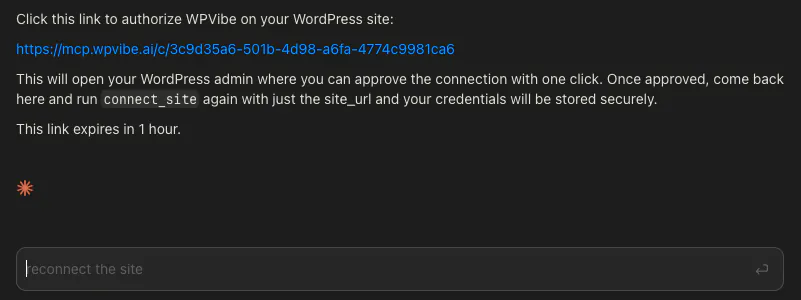
You do all of this from the Claude Code chat in your terminal. Once it’s linked, ask Claude to list your pages, and you’ll know straight away that it can see your site.
One thing that tripped me up when building this site is that SeedProd has to be switched on, not just installed. So activate it before you start, or Claude can’t use it to build anything.
Step 2: Give It the Full Picture of Your Business
What you tell Claude up front is what decides whether you end up with a real site or one with a bunch of made-up information.
So hand over the real details like:
- Your business name
- Address
- Opening hours
- Prices
- What you actually offer
- Your story
Whatever you leave out, it’ll happily fill in for you, and it’ll read like fact.
You don’t need to tidy any of it up. If you have an About page, a services list, or an old brochure, paste it into the chat and let Claude pull what it needs.
The first time, I gave it the shape of the business but none of the facts, like the address, opening hours, and prices. So it filled the gaps itself, and every guess read like the truth.
Do the opposite. Hand it the real details up front, like this:
“Build a website for Birch and Bloom, a florist in Faversham, Kent. We opened in 2019. We do wedding flowers, weekly subscriptions, and same-day local delivery. Open Tuesday to Saturday, 9am to 5pm. Phone 01795 000000. Keep the tone warm and local.“
The more real detail you give it, the less it has to guess at. Spend five minutes here and you save yourself an hour of corrections later.
Step 3: Let It Build the Whole Site
Now tell it to build the whole thing at once, not page by page. The line that mattered most in my build was this:
“I want to test if we can use SeedProd’s Theme Builder rather than just making individual landing pages.”
That one instruction changes what you get. The Theme Builder is what puts a shared header, footer, and menu on every page, instead of a handful of loose pages that don’t match.
Claude switched it on and built the homepage and inner pages itself.
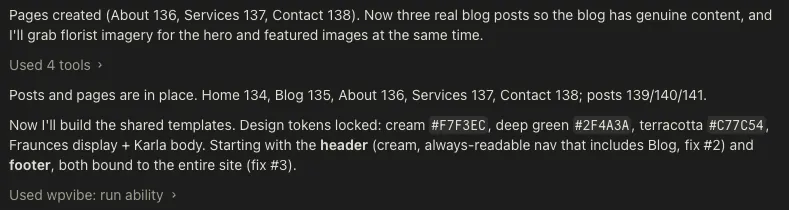
Then I asked for the parts a real site needs:
“Add the blog-index and single-post templates.”
It built both, so the blog listing and every post after it inherit the same design. You watch it happen in the chat, you’re not clicking through the builder yourself.
One thing worth knowing before you do this. Turning on Theme Builder creates fresh Home and Blog pages and swaps which pages your site uses for those.
Switching it back off later won’t undo that, so note your current setup first. It’s not a dealbreaker, just worth knowing.
Step 4: Review Every Page Before You Publish
Even with a solid brief, read every page before it goes live. Anything you didn’t spell out, it can still invent, and it reads like fact.
Go through each page and check the details that do real damage if they’re wrong, your name, address, phone number, prices, and opening hours.
When you spot something off, you don’t fix it by hand. Tell Claude in the chat, “the phone number should be 01795 000000”, and it updates the page for you.
Think of it like checking a new hire’s first piece of work. You read it closely this once, and after that you trust the parts that keep coming out right.
The Website Claude Code Built for Me
Follow those four steps and you get a proper, finished WordPress website. When I ran it for the florist, Claude Code built a connected site with a consistent design, full pages, and even a working blog.
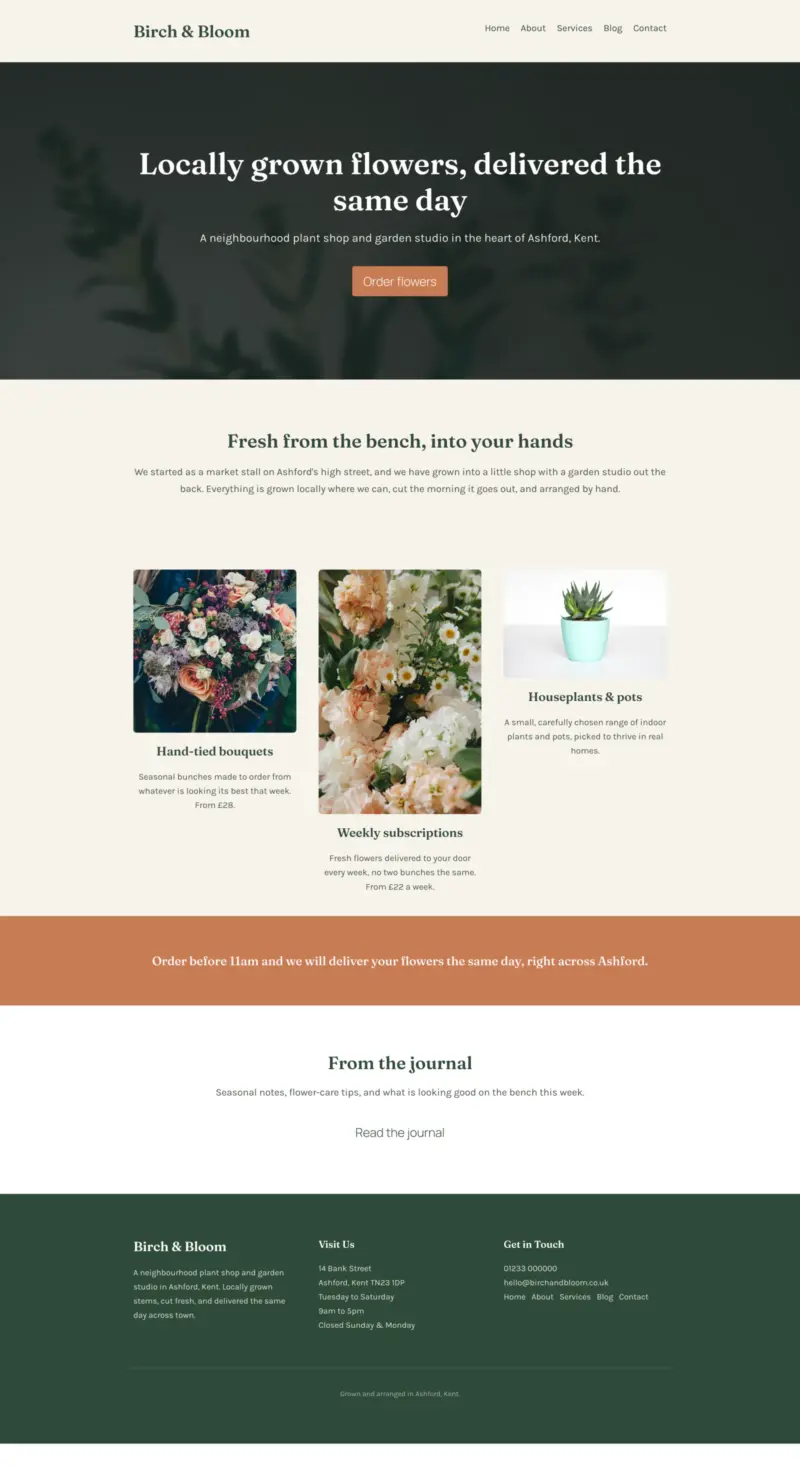
The main pages came together in about four minutes forty seconds. I just watched them appear, homepage, inner pages, blog, all matching, with nothing for me to do.
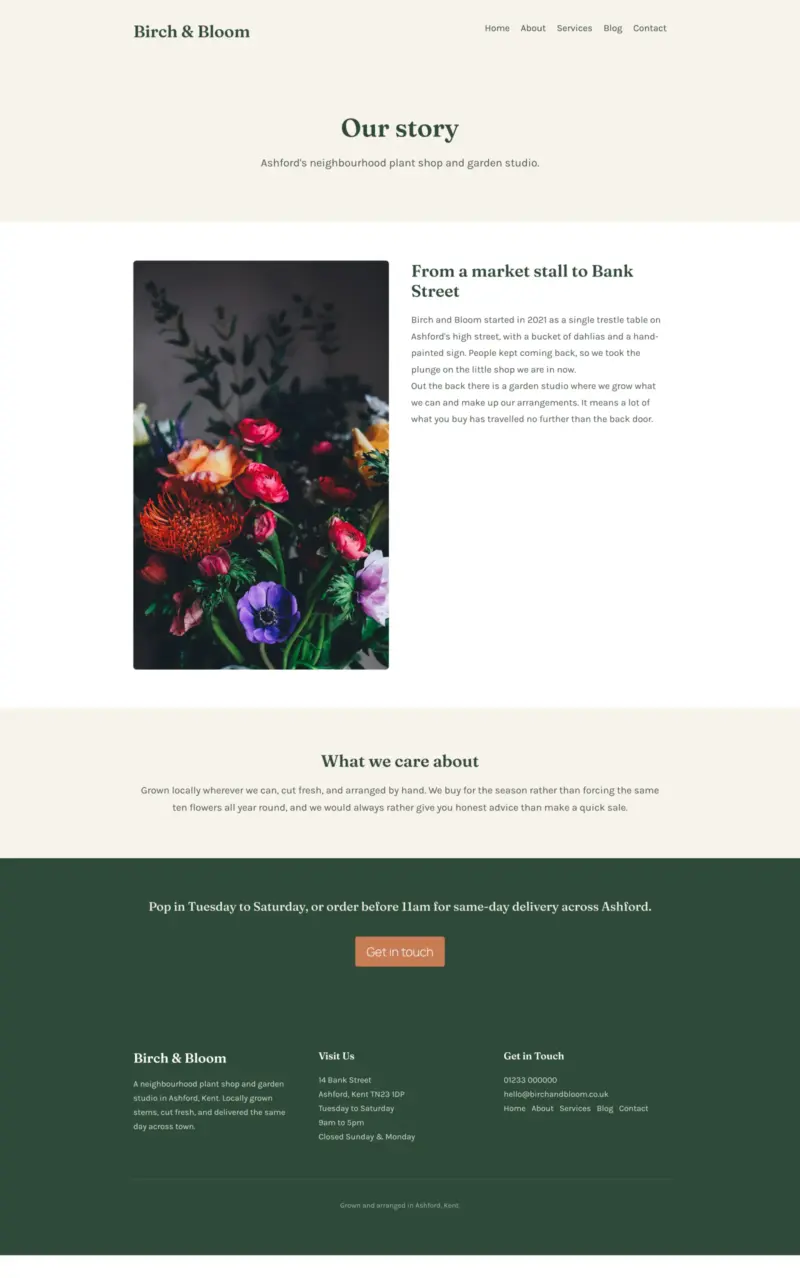
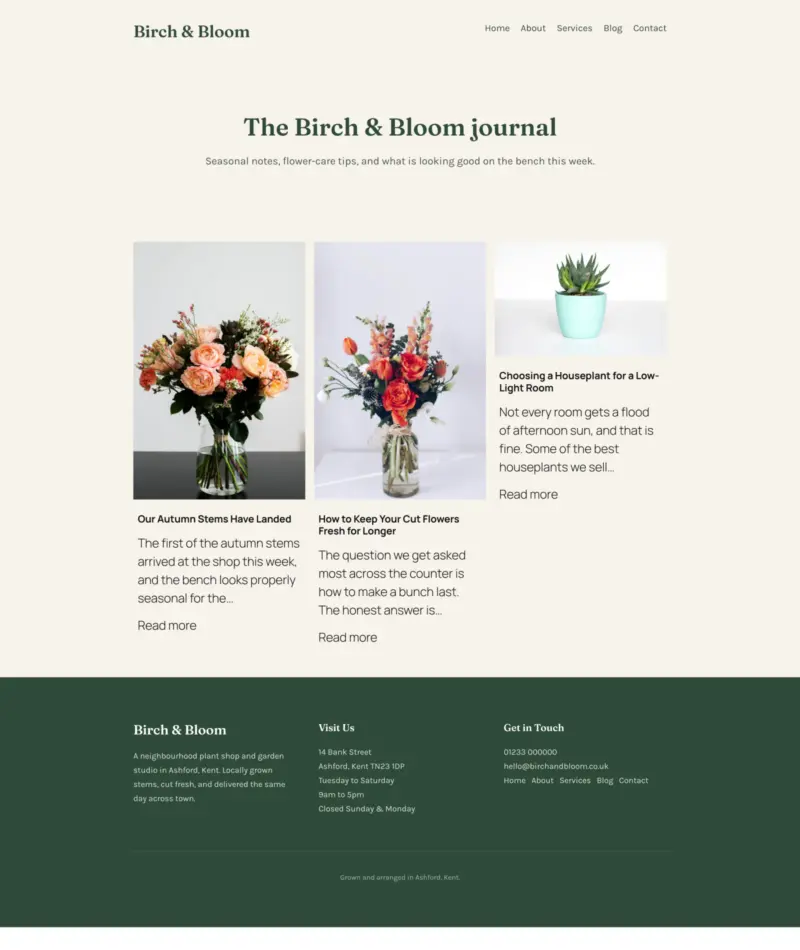
The blog wasn’t for show either. It pulled in real posts with a proper single-post layout, the kind of thing that usually eats an afternoon when you’re starting out.
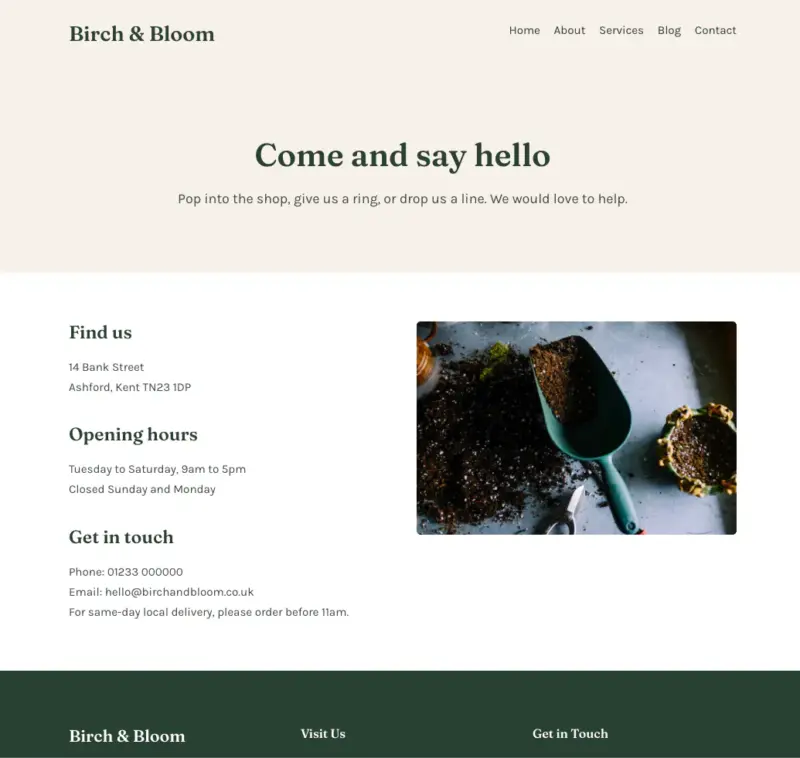
The Contact and Services pages were finished too, carrying the same header and footer as the rest of the site.
Should You Build a WordPress Site This Way?
Yes, building a WordPress site this way is worth it, and it’s fast, but there are two small catches. You’ll be working inside your AI chat instead of clicking around WordPress, and you check what it builds before it goes live.
Which route you take depends on what you’re building.
| Approach | Best for | What you get |
|---|---|---|
| Full website (Theme Builder) | A real multi-page business site | The same menu and branding on every page, plus a blog |
| Single landing page | One focused page (a promo, opt-in, or coming soon page) | A standalone page with no shared navigation |
For a proper business site, go with the full connected website. Save the single landing page for when you just need one focused page and nothing else.
Either way, SeedProd is what does the actual building. Every page Claude made was a SeedProd page underneath.
The bit that turns loose pages into a real website is SeedProd’s Theme Builder. It puts the same header, footer, and menu on every page and gives you a proper blog, and it’s a Plus-plan feature.
The quick first draft is the easy bit, and making it true is down to you.
The edits after that don’t need the builder either. Here’s how I edit and manage SeedProd pages with AI once the site is live.
Get started with SeedProd to build yours.
FAQs About Building WordPress Sites with Claude Code
Do you need to know how to code to build a WordPress site with Claude Code?
No, you don’t write any code yourself. You do need to be happy in the terminal, where you type your instructions, and willing to check the AI’s work before anything goes live.
Is it safe to give an AI access to my live WordPress site?
You connect in one click through WPVibe, and no passwords change hands. Even so, I’d build on a test or staging site first and check everything before it touches your live site.
Can Claude Code edit an existing site, or only build new pages?
Both, it can work on pages you already have as well as make new ones. This test just happened to be a build from scratch.
Will the pages hurt my site speed or SEO?
The pages use SeedProd’s lightweight output, so speed isn’t the worry. The SEO risk here is the invented content, which is exactly why you check every page before publishing.
My florist site took under five minutes to build. The fixes afterward took longer, and only because my first brief left gaps for it to fill.
Give Claude the full picture up front and you skip most of that.
Get started with SeedProd to build your site, then read every page before it goes live.
Thanks for reading! We’d love to hear your thoughts, so please feel free to join the conversation on YouTube, X and Facebook for more helpful advice and content to grow your business.