

TL;DR: How to Add an Author Box in WordPress Without a Plugin
An author box is a bio section below your posts showing your name, photo, and credentials. You can add one in minutes without installing a plugin.
- Author Block – Add the native WordPress Author block in the editor. Fastest option, no plugin needed.
- Theme settings – Fill in your profile bio and your theme displays the author box automatically.
- SeedProd – Design a fully custom author box with drag-and-drop, no code required.
- PHP code – Add a function to functions.php for complete manual control.
Pro tip: Fill in your WordPress profile bio and upload a Gravatar first. All four methods pull from the same profile fields.
If you’ve searched “how to add an author box in WordPress without a plugin,” you’ve already seen the plugin-heavy results. This guide is different. You can add an author box using tools already built into WordPress.
An author box builds trust. Readers see your name, a short bio, and a headshot below each post, and your site feels credible rather than anonymous. This tutorial covers four methods, from the simplest (a native block in the editor) to a custom design using SeedProd.
Why Author Boxes Matter
An author box is a bio section that appears below your blog posts. It typically shows your name, profile photo, a short bio, and links to your social profiles or website.
Most WordPress themes show the author name on posts by default, but nothing more. An author box fills that gap.
For solo bloggers, it’s an E-E-A-T signal that tells search engines the content comes from a real person with relevant experience. For multi-author sites, it keeps readers oriented and gives each contributor their own presence.
What to Include in Your Author Box
Before setting up your author box, know what to put in it. The most effective ones include:
- Display name – Your real name or the name your audience knows.
- Short bio – 2-3 sentences about your background. Keep it specific to your niche.
- Credentials – Relevant experience or expertise that supports your content.
- Profile photo – A headshot. WordPress pulls this from Gravatar automatically if your email matches your Gravatar account.
- Social links – Twitter/X, LinkedIn, or wherever you’re most active.
Set these up at Users → Profile in WordPress. All four methods below pull from the same profile fields, so filling this in once covers everything.
How to Add an Author Box in WordPress Without a Plugin (4 Methods)
As we mentioned earlier, customizing your WordPress theme to include a writer bio section isn’t always straightforward. Here are 4 ways to add a WordPress author box without a plugin, from easiest to most technical.
Method 1: Use the WordPress Author Block
WordPress has a built-in Author block in the block editor. No plugin, no code. It pulls your name, bio, and avatar from your user profile automatically.
The one limitation: it adds the author box to individual posts, not globally. For site-wide coverage on every post, use Method 2 (theme) or Method 3 (SeedProd) instead.
Step 1. Open a Post in the Block Editor
Go to Posts → All Posts and open the post you want to update.
Step 2. Add the Author Block
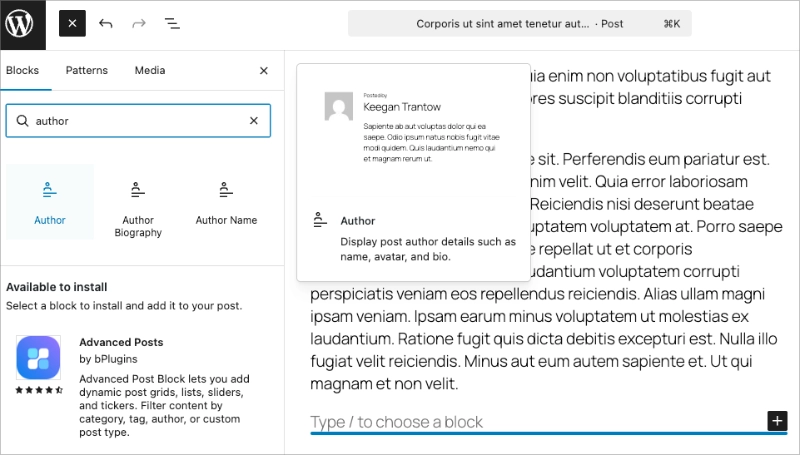
Click the + inserter in the editor and search for “Author.” Select the Author block, which displays post author details such as name, avatar, and bio. It typically goes below your post content.
Step 3. Configure the Block Settings
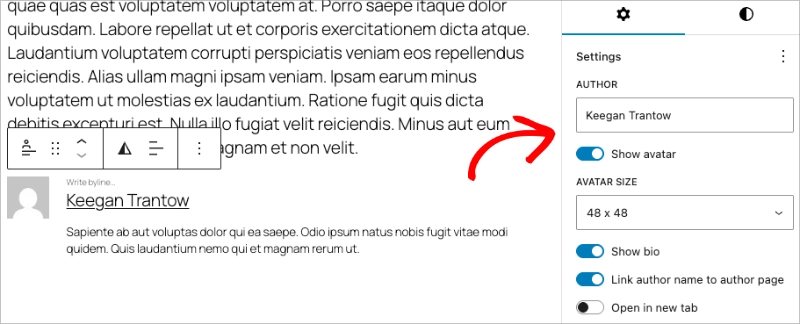
In the right-hand sidebar, you’ll see options to show or hide the avatar, set the avatar size, show the bio, and link the author name to their author page.
Step 4. Update the Post
Click Update to save. The author box now appears on that post.
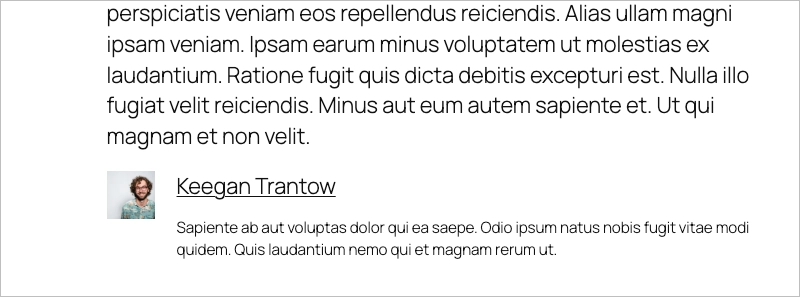
If your bio or photo is not showing, go to Users → Profile and fill in the Biographical Info field. Make sure your email matches your Gravatar account so the photo appears.
Method 2: Add a Custom Author Box with SeedProd (No Code)
If your WordPress theme doesn’t support author boxes, and you want to customize how your website and author info look, this is the solution for you.
This method uses the SeedProd WordPress plugin to easily add a custom writer info section and create a WordPress theme.

SeedProd is the best WordPress website builder with drag-and-drop functionality. It lets you create custom WordPress themes, layouts, and landing pages without writing a single line of code.
With hundreds of responsive templates, you can get started quickly. It also includes tons of customizable content elements that allow you to customize every inch of your website without hiring a developer.
One of those powerful elements is the Author Box, which lets you tailor your author bio to your website’s design and add custom links and content.
Step 1. Install SeedProd Website Builder Plugin
To get started, you’ll first need to get a SeedProd license.
Note: You’ll need a SeedProd Pro or Elite License to use the Theme Builder and Author Box block.
After downloading SeedProd to your computer, you’ll need to install and activate the plugin .zip file on your WordPress website. Here’s a guide to installing WordPress plugins if you need help.
Once SeedProd is live on your website, go to the SeedProd » Settings page and enter your license details.
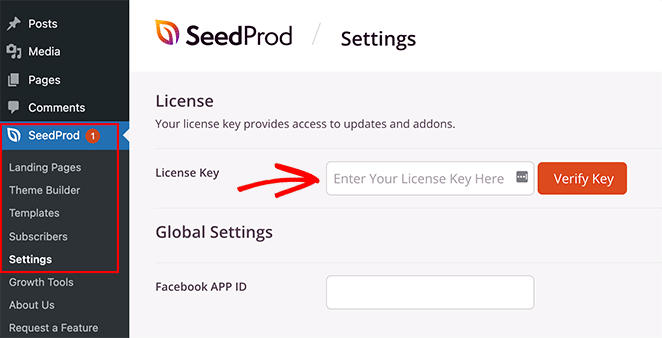
You can find your plugin license key on the SeedProd website in your account area, under ‘Downloads.’
Step 2. Create a WordPress Theme
The next step is to go to the SeedProd » Theme Builder page and click the ‘Themes’ button.
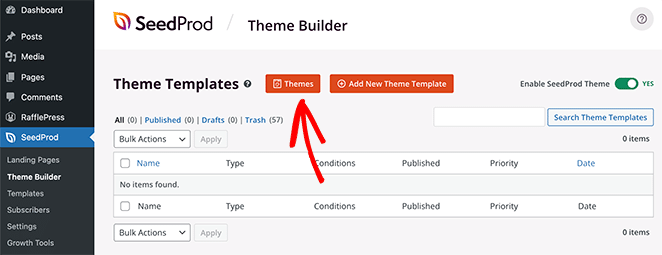
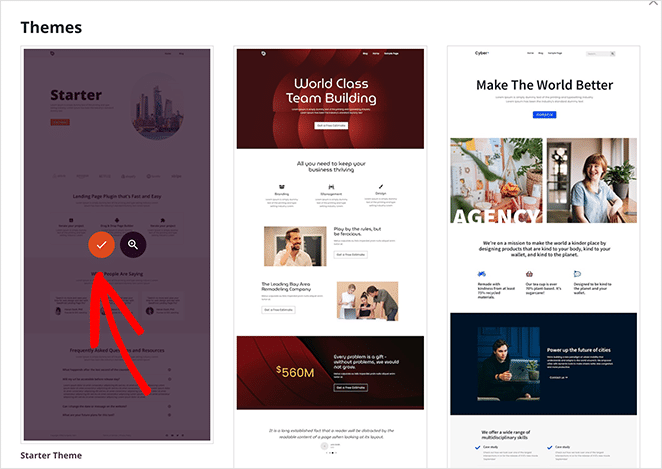
Doing so opens a window with several premade WordPress themes that allow you to get started quickly. Hover over any theme you like and click the checkmark icon to import it to your website.
From there, you’ll see a list of the individual template parts that make up your theme. For example, the Online Author theme that we chose includes the following templates:
- Single Page
- Single Post
- Blog, Archives, Search
- Homepage
- Sidebar
- Footer
- Header
- Global CSS
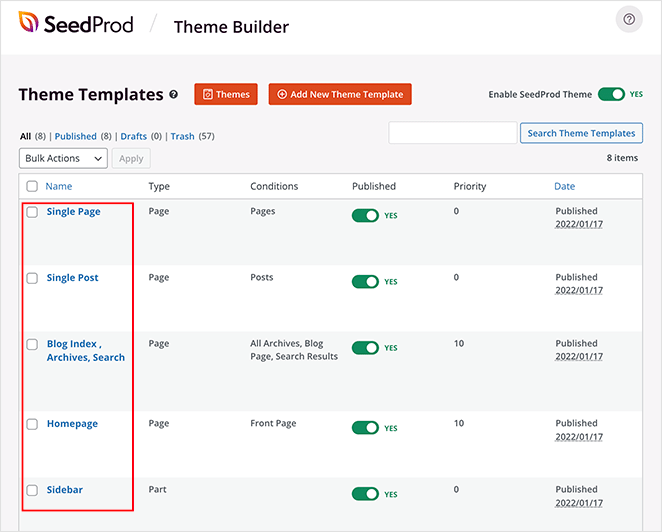
Typically, you need to visit a file manager to access and edit your WordPress theme files. But with SeedProd, you can see them all in your WordPress dashboard without leaving your site.
Even better, you can edit each template in SeedPod’s easy visual editor without writing code. As a result, you can customize your entire WordPress theme by pointing, clicking, dragging, and dropping. Easy!
Step 3. Add an Author Box to Single Posts Template
To add a custom author box to your WordPress theme with SeedProd, you’ll first need to add your author details to your profile page. You can do that by following the steps in Method 2.
Next, go to SeedProd » Theme Builder and find the Single Post template. From there, hover over it and click the ‘Edit Design’ link.
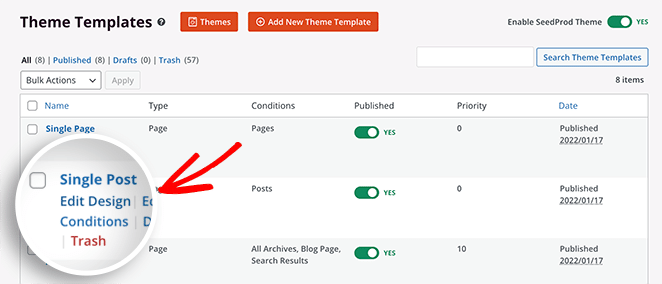
That will open your Single Post template in SeedProd’s drag-and-drop builder.
SeedProd’s visual editor has a simple layout. On the left are blocks and sections that are easy to add to your design. Then, on the right is a preview to see the changes in real-time.
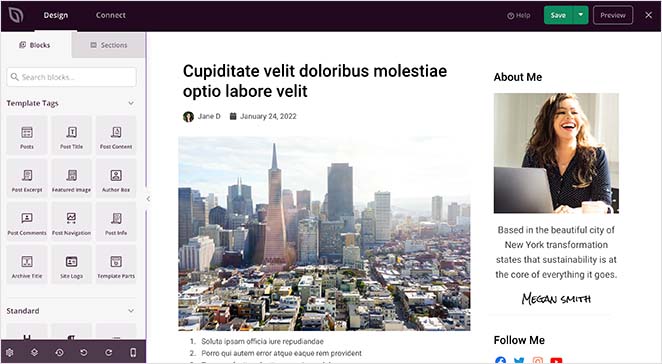
You can click anywhere on the preview to edit your page layout and blocks. Then, on the left, you can customize each block’s settings in real-time.
The theme we’re using doesn’t currently have an author box under the post content. We’ll need to use one of SeedProd’s Template Tags to add one.
Template Tags are individual blocks that let you show dynamic WordPress content anywhere on your design. For example, our theme includes:
- Post Title
- Featured Image
- Post Info
- Post Comments
That information comes automatically from your WordPress database, allowing you to add it anywhere in your theme.
To add an author bio to your theme, find the Author Box block under the ‘Template Tags’ heading and drag it under your posts.
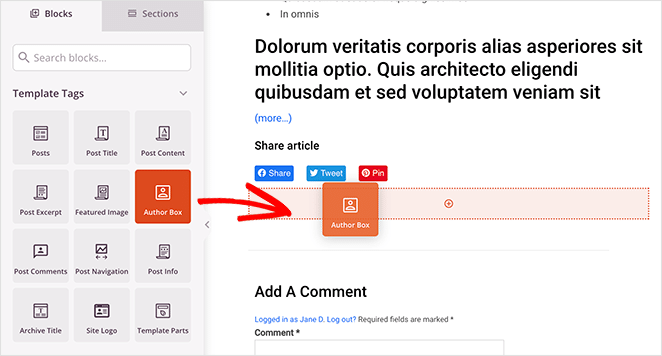
Then you can click the block to edit the settings, such as:
- Show or hide the profile picture
- Show or hide the display name
- HTML tag type
- Include a website or archive posts link
- Show or hide the author’s biography
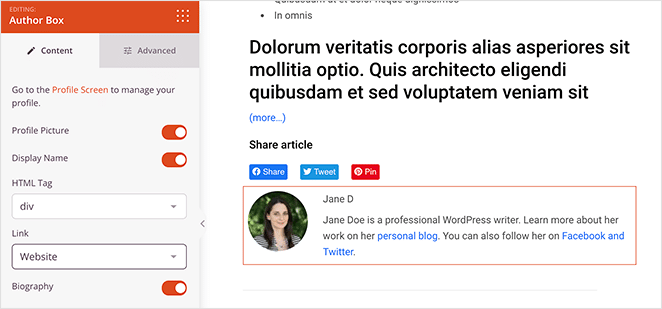
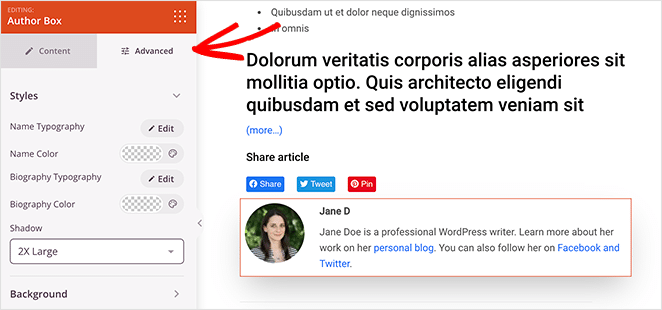
If you click the Advanced tab, there are even more customization options for the author box. For instance, in the ‘Styles’ section, you can change the fonts, font colors, and shadows.
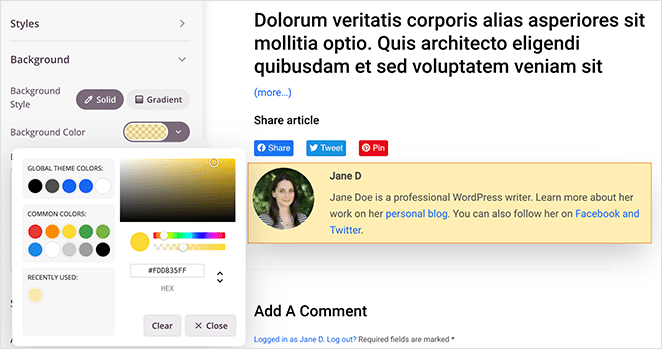
In the Background section, you can change the background color, background gradient and add a custom background image.
You can also customize the spacing, borders, and give the author box a custom CSS class.
Now all that’s left is to continue customizing the single post layout.
If you need a little help, here’s a step-by-step guide on how to create a custom Single Post template with SeedProd. It walks you through all the different blocks and settings you’ll need and how to edit each one.
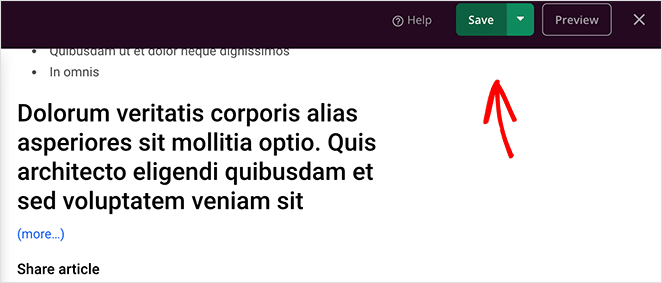
When you’re happy with how your template looks, click the green Save button in the top-right corner.
Step 4. Customize the Rest of Your Theme
You now have 2 options left:
- Publish the current WordPress theme design
- Customize the rest of your theme templates
We recommend going through the rest of the theme templates, including your homepage, blog page, headers, and footers, and tweaking them to match your branding.
All you need to do is go back to SeedProd » Theme Builder and click the ‘Edit Design’ link on any template. From there, you can customize the template as you did with the ‘Single Post’ layout.
Step 5. Publish Your WordPress Theme
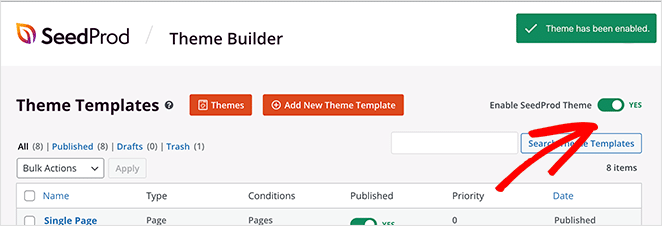
Making your WordPress theme and Author Box live with SeedProd, is easy. Go to the Theme Builder page and change the Enable SeedProd Theme toggle to ‘Yes.’
Now, you can go to any post on your WordPress site and see your new custom author box.
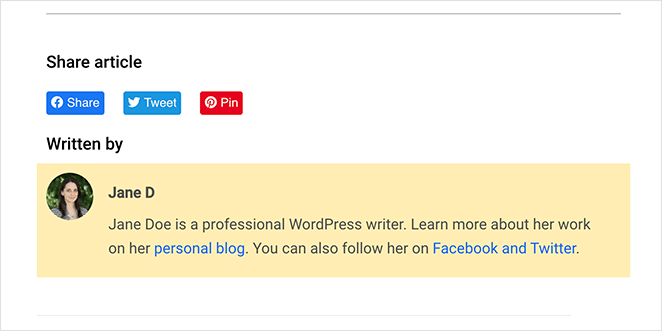
Method 3: Use Your WordPress Theme’s Author Box Support
Many of the best WordPress themes use the built-in user profile to show an author box below each blog post. Usually, it will include the author’s profile picture and biographical info.
But first, you’ll need to check if your theme includes support for author boxes.
You can check that by going to Users » All Users from your WordPress admin panel. Then, hover your cursor over the relevant profile and click the ‘Edit’ link.
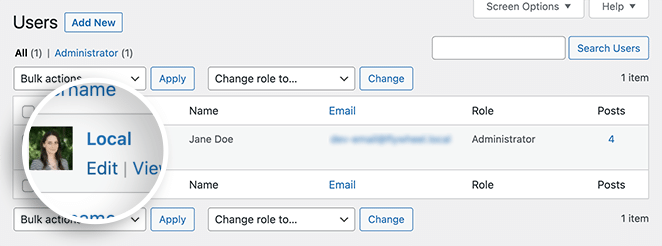
On the following screen is editable information about that particular user. If your WordPress theme supports author boxes, there should be a section called ‘Biographical Info’ further down the page.
In that area, you can add a brief author bio and include links to social networks or author websites with HTML.
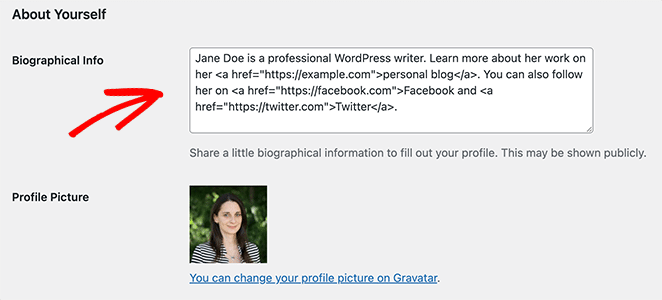
Your theme will automatically get the author’s profile picture from the Gravatar service if they have an account. Otherwise, it will show a grey placeholder image.
After adding your author information, click the Update Profile button.
Now you can click on any article on your website by that writer and view their author box live.
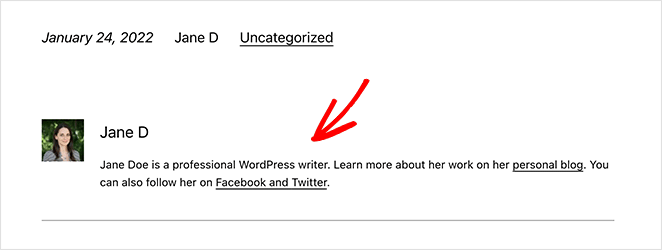
If the author box does not appear after filling in your bio, your theme may not include built-in author box support. In that case, use Method 1 (Author Block) for a quick fix, or Method 3 (SeedProd) for a custom design.
Method 4: Manually Add an Author Box to WordPress with Code
If you want to create a WordPress author box without a plugin, you’ll need to add a new function to your WordPress theme. Because this method involves editing your theme files, we only recommend it for advanced users.
Note: It’s good to create a child theme to make any custom theme changes. That way, you won’t risk losing modifications because of a theme update. Alternatively, you can use WPCode to add code snippets anywhere on your WordPress site.
To add a WordPress author box without a plugin, copy the following code snippet and paste it into your functions.php file:
function wpb_author_info_box( $content ) {

global $post;

// Detect if it is a single post with a post author
if ( is_single() && isset( $post->post_author ) ) {

// Get author's display name
$display_name = get_the_author_meta( 'display_name', $post->post_author );

// If display name is not available then use nickname as display name
if ( empty( $display_name ) )
$display_name = get_the_author_meta( 'nickname', $post->post_author );

// Get author's biographical information or description
$user_description = get_the_author_meta( 'user_description', $post->post_author );

// Get author's website URL
$user_website = get_the_author_meta('url', $post->post_author);

// Get link to the author archive page
$user_posts = get_author_posts_url( get_the_author_meta( 'ID' , $post->post_author));

if ( ! empty( $display_name ) )

$author_details = '<p class="author_name">About ' . $display_name . '</p>';

if ( ! empty( $user_description ) )
// Author avatar and bio

$author_details .= '<p class="author_details">' . get_avatar( get_the_author_meta('user_email') , 90 ) . nl2br( $user_description ). '</p>';

$author_details .= '<p class="author_links"><a href="'. $user_posts .'">View all posts by ' . $display_name . '</a>';

// Check if author has a website in their profile
if ( ! empty( $user_website ) ) {

// Display author website link
$author_details .= ' | <a href="' . $user_website .'" target="_blank" rel="nofollow">Website</a></p>';

} else {
// if there is no author website then just close the paragraph
$author_details .= '</p>';
}

// Pass all this info to post content
$content = $content . '<footer class="author_bio_section" >' . $author_details . '</footer>';
}
return $content;
}

// Add our function to the post content filter
add_action( 'the_content', 'wpb_author_info_box' );

// Allow HTML in author bio section
remove_filter('pre_user_description', 'wp_filter_kses');
The function gets the author’s information and shows it below WordPress posts on your site.
Next, you’ll need to style the author box to match your theme and branding. Here is some sample CSS code you can use to get started:
.author_bio_section{
background-color: #F5F5F5;
padding: 15px;
border: 1px solid #ccc;
}

.author_name{
font-size:16px;
font-weight: bold;
}

.author_details img {
border: 1px solid #D8D8D8;
border-radius: 50%;
float: left;
margin: 0 10px 10px 0;
}
To add that code to your theme, click Appearance » Customize from your WordPress admin panel. Doing so will open the WordPress Theme Customizer, where you can visually customize certain aspects of your theme.
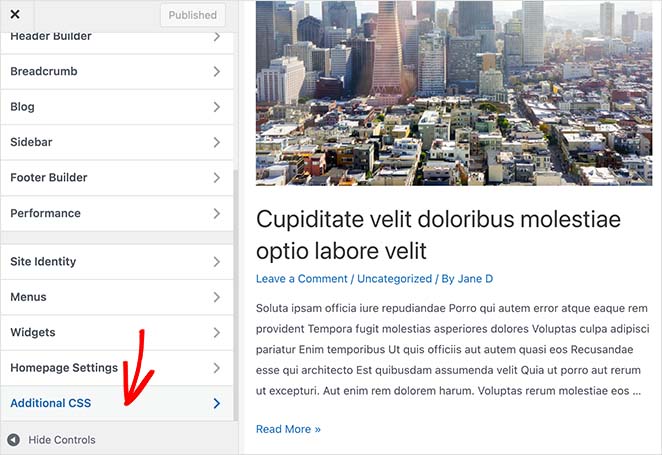
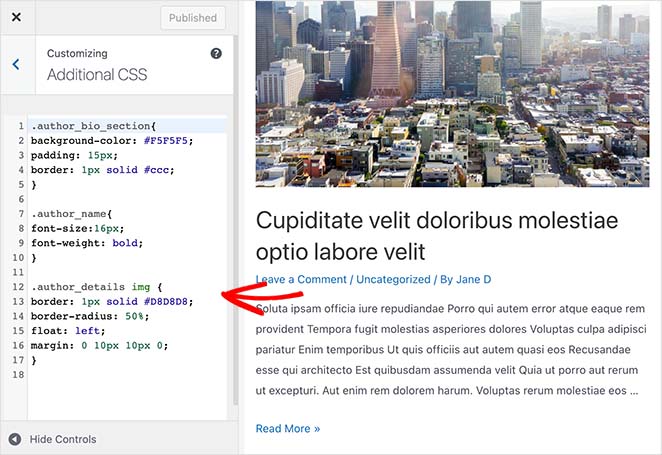
Scroll down until you see the Additional CSS heading and expand the tab. Then paste your custom CSS code and click the Publish button.
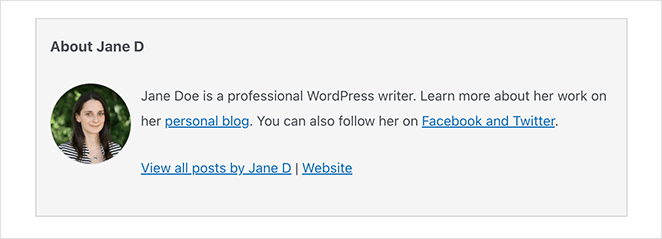
You can now visit any blog post and see your author box in action.
Frequently Asked Questions
Can I add an author box in WordPress without a plugin?
Yes. You can manually add code to your theme’s functions.php file or use your theme’s built-in support if it includes a biographical section for authors.
What’s the easiest way to add an author box in WordPress?
Using a drag-and-drop builder like SeedProd is the easiest method. You can create a custom author box visually, without writing any code.
Why is my WordPress author bio not showing?
This usually happens if your theme doesn’t support author bios or if the author’s profile is missing biographical info. Go to Users » Edit Profile and fill in the bio section to fix it.
Can I display social media links in my author box?
Yes. Many themes and plugins let you add social links using HTML or profile fields. With SeedProd, you can fully customize the author box to include links, images, and more.
Do I need a plugin to customize the author box layout?
No, but using a plugin like SeedProd gives you complete control over the design without editing code. It’s ideal if you want to match your author box to your brand.
Why is my Gravatar or profile photo not showing in the author box?
Your profile photo comes from Gravatar, a free service at gravatar.com. Create an account there using the same email as your WordPress profile, then upload a photo. It can take a few minutes to appear. If it still does not show, check that the email at Users → Profile matches your Gravatar account exactly.
Does the WordPress author box work for multi-author sites?
Yes. Each method in this guide pulls author information from the individual WordPress user profile. Each contributor fills in their own bio and Gravatar, and the author box updates automatically to show the correct author on each post.
You now know how to create a WordPress author box without a plugin. Plus, you have all the steps you need to add an author box in WordPress using a powerful plugin.
SeedProd is much more than a simple author box plugin. It’s a complete WordPress website builder with all the tools you need to create a fully custom WordPress site for beginners and advanced users alike.
Why not try it for yourself?
You might also like this other post that offers stunning login page examples for WordPress.
Thanks for reading! We’d love to hear your thoughts, so please feel free to join the conversation on YouTube, X and Facebook for more helpful advice and content to grow your business.



