


A testimonial page is a simple page that shows real proof that your product or service works. When you know how to create a testimonial page with the right mix of stories and visuals, it can close the trust gap that stops visitors from becoming customers.
Essentially, your testimonial page should answer the doubts people already have. If you treat it like a stack of short, clear reference letters, you’ll give new visitors the confidence to move forward.
I’ve seen many businesses collect great feedback only to bury it in long paragraphs that no one reads. So in this guide, I’ll show you how to build a testimonial page that looks polished, feels real, and actually helps you win more business.
Why Your Website Needs a “Social Proof” Hub
A testimonial page helps close the trust gap. New visitors don’t know you yet, and they assume you’ll only highlight the best parts of your business. When they see real customer stories, the message feels more credible.
I see this happen on many sites. A short review that speaks to a common worry can calm doubts in seconds. Recent studies show that around 72% of consumers say positive testimonials and reviews make them trust a business more.
Building this type of page by hand can get messy, especially if you want consistent spacing or clean columns. That’s why I use SeedProd’s website builder. It organizes your reviews into simple grids or sliders so your strongest proof is easy to scan.
The 3 Ingredients of a Perfect Testimonial Page
A strong testimonial page gives visitors clear proof that your business delivers results. When your reviews answer common doubts and look real, they guide people toward a confident yes.
From what I’ve seen, these three ingredients make the biggest difference:
- An objection focused layout. Group your reviews by the questions visitors ask most, like ease of use or customer support. This helps people find the reassurance they need faster.
- Authentic visuals. Headshots and logos make testimonials feel real. Plain text alone often reads as made up, even when it isn’t.
- Short video clips. A 30 second recording can be more convincing than several paragraphs. Simple customer videos usually feel the most genuine.
When you mix these elements together, the page feels organized, honest, and easy to trust.
How to Create a Testimonial Page in WordPress
You can build a clean testimonial page in WordPress without writing any code by using SeedProd.

It’s the drag and drop website builder I use when I want a page that looks professional and loads fast. With its visual editor and ready made blocks, you can design a testimonial layout in minutes.
Let me show you the exact steps I follow to build a page that feels polished and easy to trust.
Step 1: Install and Activate SeedProd
Start by installing SeedProd on your WordPress site. For this guide, I’m using SeedProd Pro because it includes more templates, and a dedicated testimonial block for displaying social proof.
After you upload and activate the plugin, enter your license key to unlock the visual builder and the testimonial blocks you’ll use in this page.
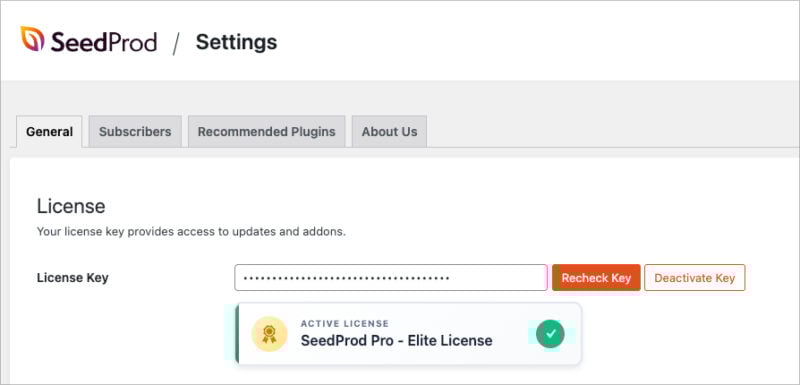
For help with installation, see this guide on installing SeedProd.
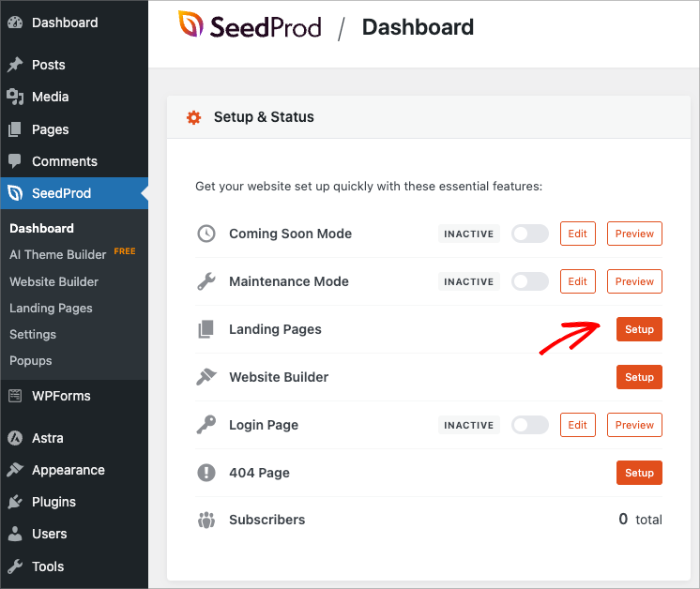
Once it’s active, you’ll see a new SeedProd menu in your dashboard. Click the Setup option next to Landing Pages. This is where you’ll create your testimonial page.
Step 2: Choose a Landing Page Template
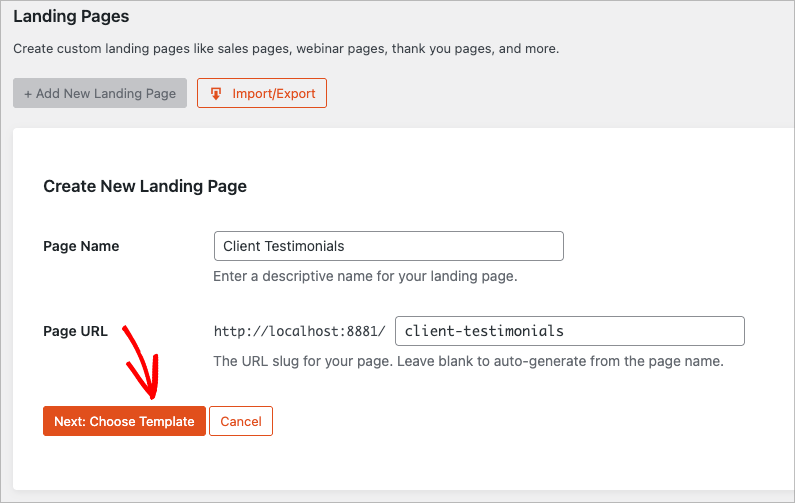
Select Add New Landing Page on the landing page dashboard and give your page a name and URL. Choose something easy to recognize like “Client Testimonials”, then click the Choose Template button.
Pick a template that gives your testimonials room to shine. I usually choose a Sales layout or a Blank Template because both make it easy to shape the page around your customer stories.
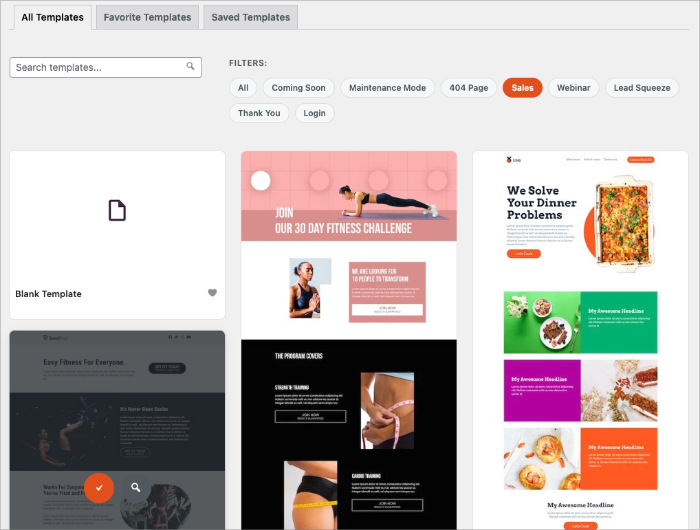
Click the checkmark icon to pick the template you want. After you select a template, SeedProd will open it in the visual editor so you can start adding testimonials to your page.
Step 3: Add the Testimonial Block
Before you add your testimonials, clear out any parts of the template you don’t need. Hover over a section you want to remove and click the trashcan icon. This keeps your layout clean so you can build around your customer stories.

Next, update the parts you want to keep. Click any heading to rewrite the text, or select an image to replace it with one from your media library.
You can also adjust colors, spacing, and alignment from the Advanced tab of any block. This gives you a simple way to shape the page before you bring in your reviews.

When your base layout feels right, open the blocks panel and drag the Testimonials block onto the page. SeedProd handles the spacing, alignment, and styling for you so your reviews look consistent without custom code.

To add your first testimonial, click the Add Testimonial button inside the block. Enter the reviewer’s quote, name, and job title. You can also upload a headshot, which helps the testimonial feel more real.
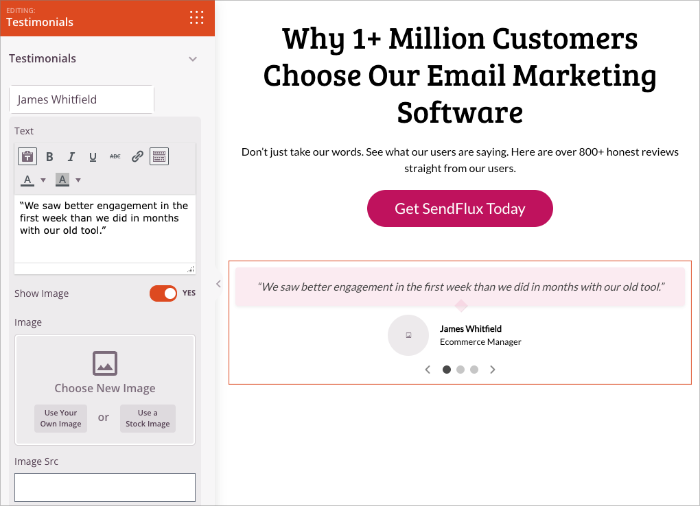
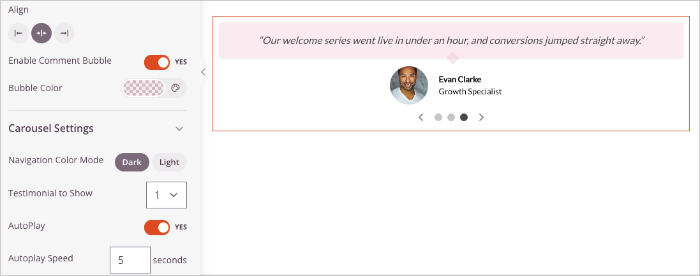
In the block settings on the left, you can choose to display your testimonials in a carousel, turn on comment bubbles, or show multiple testimonials at once. These options help you create a layout that fits your design and keeps your page easy to scan.
If you want to add a video testimonial, drag the Video block onto your page. Then, paste in a YouTube or Vimeo link, and add commentary with a text block.
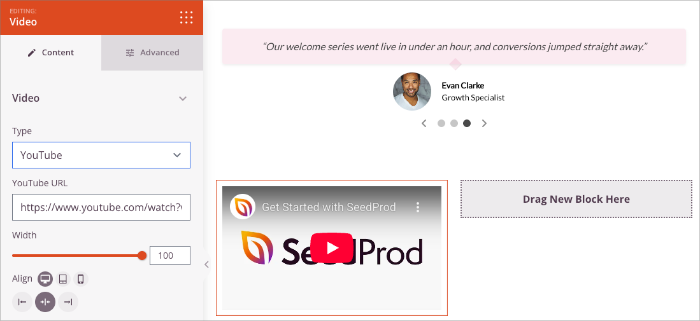
Short clips work best because they feel personal and give visitors a quick sense of the reviewer’s tone and emotion.
You can duplicate the block, move it into new rows, or stack multiple testimonials to shape the flow of your page.
Step 4: Customize Your Review Layout
With your testimonials in place, you can fine tune how the section looks. These small styling choices help your page feel clean and easy to read.
Use the left sidebar to adjust spacing, columns, and text alignment. A little more space between testimonials makes each one easier to scan, while choosing two or three columns can keep the page from feeling too long.
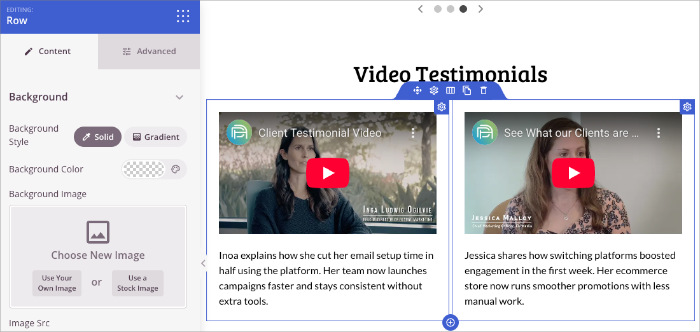
You can also update your colors and fonts in the Global Settings panel to match your brand. This keeps your testimonial section consistent with the rest of your site without needing custom CSS.

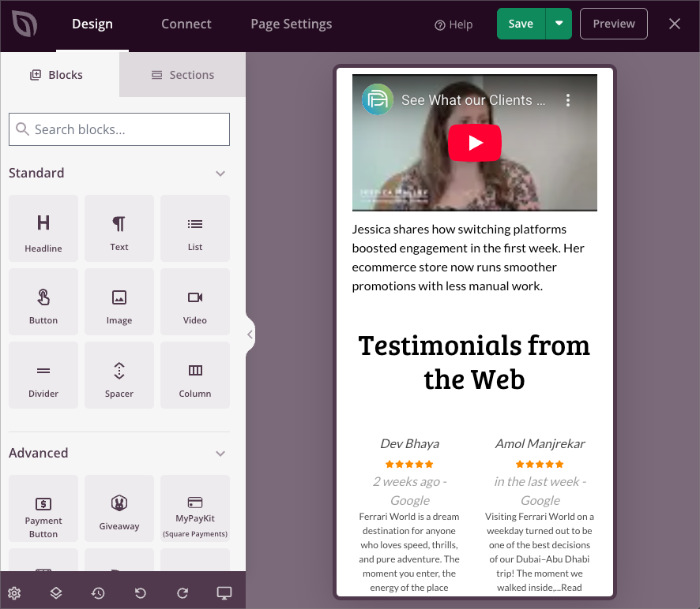
When everything looks balanced, preview the page on mobile. SeedProd shows you exactly how your testimonials will appear on smaller screens so you can make quick adjustments.
Displaying Customer Testimonials from Elsewhere
You don’t have to collect every testimonial yourself. Many businesses already have great feedback on Google or Yelp. When you bring those reviews onto your site, you add third party proof that feels even more trustworthy.
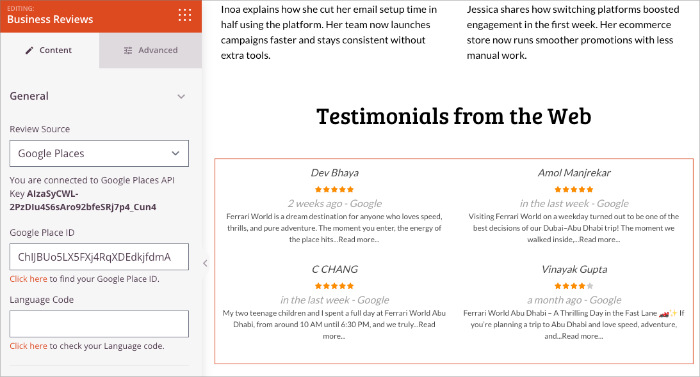
SeedProd makes this easy with its Business Reviews block. In your SeedProd settings, enter your Google Places and Yelp API keys. This connects your account so you can pull reviews in automatically.
After your keys are added, drag the Business Reviews block onto your page and paste in your Google Places ID. SeedProd will display your latest reviews with stars, profile photos, and timestamps, which adds instant credibility.
If you want even more help, see our guide on embeding Google reviews or try helpful WordPress review plugins to mix ratings from different sources.
Step 5: Save and Publish Your Testimonial Page
When your testimonial page looks the way you want, click the Save button in the top corner of the builder. This makes sure all your changes are stored before you publish anything.
Switch to the mobile preview to see how your testimonials appear on smaller screens. This quick check helps you catch spacing issues or long lines of text that may need adjusting.
When everything feels right, click Publish. SeedProd will make your testimonial page live so visitors can see your best customer stories right away.

FAQs About Testimonials
Final Verdict
A good testimonial page builds trust and helps visitors feel confident choosing you.
Your best customer stories should be easy to find and simple to scan. With SeedProd, you can create a clean, convincing testimonial page in minutes without touching code.
If you’re ready to turn your reviews into real results, build your testimonial page with SeedProd today.
You may also find the following tutorials helpful:
- How to Create a Press Page on Your WordPress Site
- How to Make a Landing Page with a Form in WordPress
- How to Add a Gallery to WordPress
- How to Hide Page Titles in WordPress
Thanks for reading! We’d love to hear your thoughts, so please feel free to join the conversation on YouTube, X and Facebook for more helpful advice and content to grow your business.




