

You can add a hero image to any WordPress site in under 15 minutes, and it will display correctly on mobile without extra coding.
A hero image is the large banner at the top of your homepage or landing page with text and a button overlay. It’s the first thing visitors see, so when it’s done well, it communicates your message instantly.
When I first started with WordPress sites, my hero images looked perfect on desktop but broke on mobile. Text overlapped, important parts were cropped, and the layout felt messy.
After building dozens of landing pages, I’ve learned what actually works. In this guide, I’ll show you three simple methods based on your theme type, and every option is mobile friendly with no technical skills required.
- Prepare Your Hero Image First
- Method 1: Using Your Theme Settings (Easiest for Classic Themes)
- Method 2: Using the WordPress Cover Block (Best for Block Themes)
- Method 3: Using a Page Builder Like SeedProd (Works with Any Theme)
- Troubleshooting Common Hero Image Problems
- FAQs on Adding WordPress Hero Images
Prepare Your Hero Image First
The right image size and file format prevent broken layouts and slow loading.
I learned this the hard way after uploading hero images that were way too big and made my page crawl. Now I always prepare images before uploading.
Use 1920×1080 pixels for most themes. If you want a shorter hero section, use 1600×900 pixels instead. Keep your file size under 250KB using TinyPNG.
| Dimension | Use Case |
|---|---|
| 1920×1080 pixels | Standard full-width hero (recommended) |
| 1600×900 pixels | Shorter hero section |
Use JPG for photos and PNG for graphics with text.
Pick images with negative space where text can sit. Dark images work better with light text. From what I’ve seen, many beginners pick beautiful images that make headlines impossible to read. Now I look for images with clear empty space where text can breathe.
With the basics in place, let’s look at how to actually add your hero image.
Method 1: Using Your Theme Settings (Easiest for Classic Themes)
Many WordPress themes include a hero section option in the Customizer that requires no plugins or page builders.
When I’m working on a project that already has a theme installed, I always check for this option first. It’s the fastest way to add a hero image if your theme supports it.
Not all themes have this feature, so if you don’t see it, skip to Method 2 or 3. This method only works on the page your theme designates, which is usually the homepage.
Step 1: Open the WordPress Customizer
In your WordPress dashboard, go to Appearance → Customize.

The Customizer opens in a new screen with your site preview on the right.
Step 2: Find the Hero Section Settings
Look for sections labeled Hero, Header, Front Page, or similar.
You’ll see a sidebar on the left with different customization options. The hero settings might be under a section like “Homepage Settings” or “Header Options.”
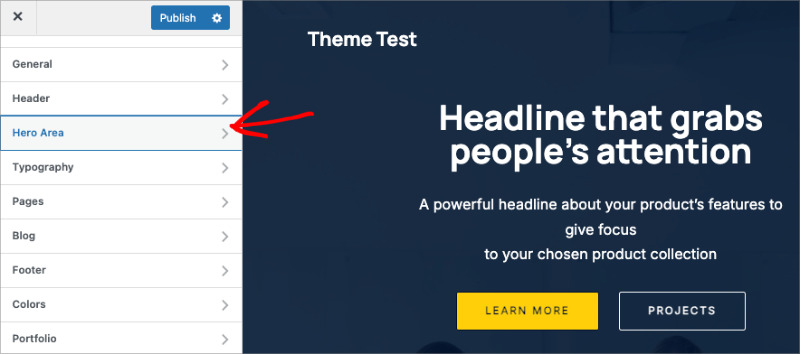
I’ve noticed that theme developers name these sections differently, so sometimes you have to hunt around a bit. If you don’t see anything obvious, check under “Front Page” or “Homepage” sections first.
Step 3: Upload Your Hero Image
Click on the hero section option and look for an image upload button.
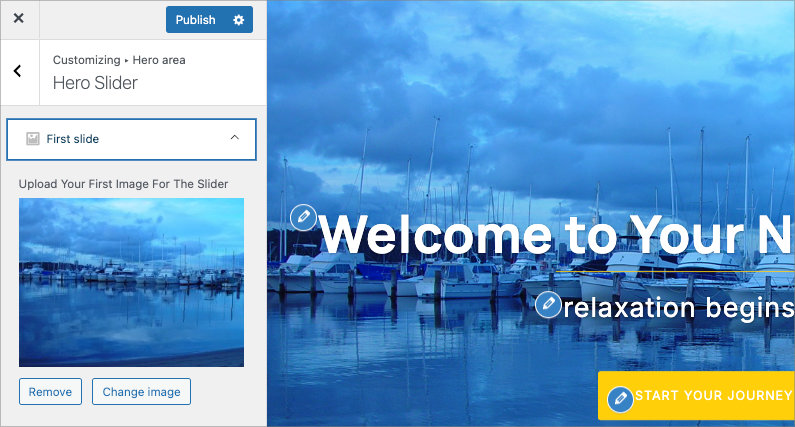
Click Select Image or Upload, then choose your prepared hero image from your computer.
Step 4: Add Your Headline and Button Text
Enter your headline in the text field provided.
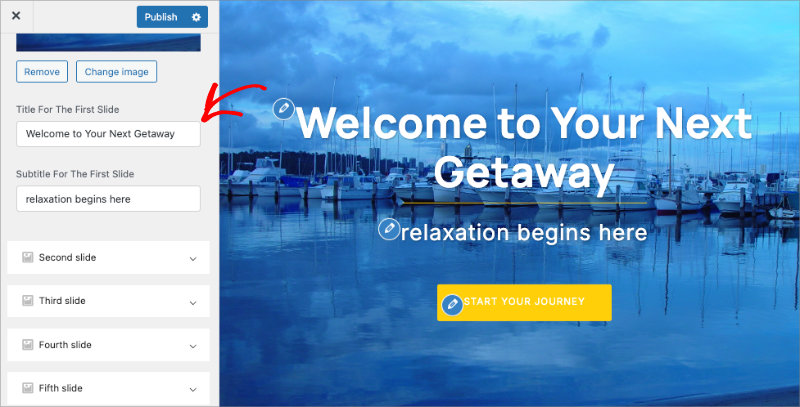
Add your button text and the URL where the button should link. Most themes give you fields for both the button label and destination link.
Step 5: Publish the Changes
Click the Publish button at the top of the Customizer sidebar.

Your hero image is now live on your homepage. Visit your site in a new tab to see it.
Method 2: Using the WordPress Cover Block (Best for Block Themes)
The Cover block is a feature of the WordPress block editor that lets you add a full-width hero image with text overlay on any page without plugins.
I use this method often because it gives me flexibility to add hero images to any page, not just the homepage. I’ve built landing pages with the Cover block where each page has its own unique hero section.
The Cover block is mobile-responsive by default, which saves me from having to test and fix mobile layouts later.
Step 1: Open the Page Editor
Go to the page where you want the hero image and click Edit.
For most people, this is the homepage. You’ll see the WordPress block editor with your page content.
Step 2: Add a Cover Block at the Top
Click the + icon at the very top of the page and search for “Cover.”
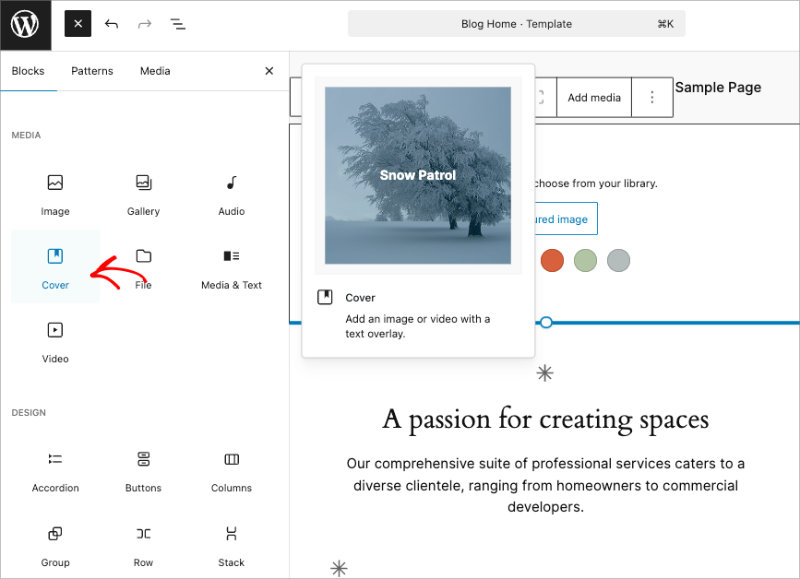
Select the Cover block from the results. A placeholder Cover block appears at the top of your page.
Step 3: Upload Your Hero Image
Click Upload inside the Cover block and select your hero image from your computer.
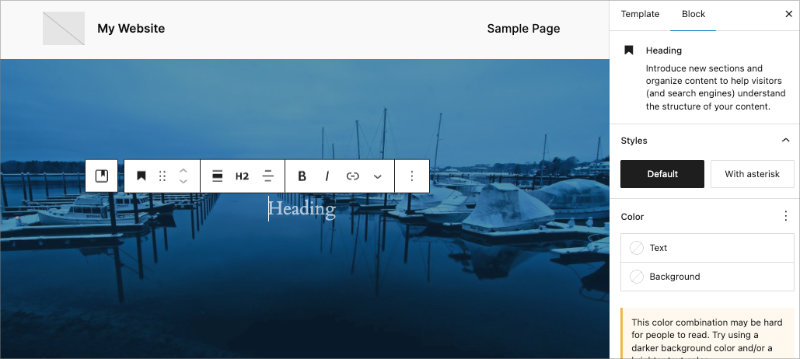
The image fills the Cover block as the background. You’ll see a default text prompt in the center of the block.
Step 4: Add Your Headline
Click inside the Cover block and start typing your headline.
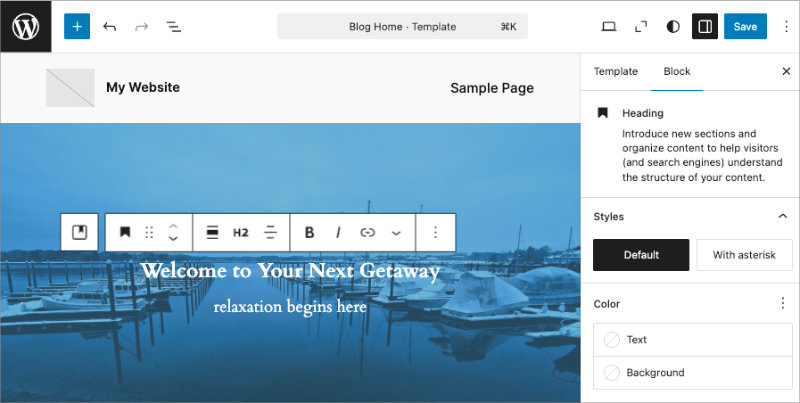
To change the text to a heading, click the paragraph dropdown in the block toolbar and select Heading. Choose H1 or H2 depending on your page structure.
Step 5: Add a Button Block
Press Enter after your headline to create a new line, then type /button and press Enter again.
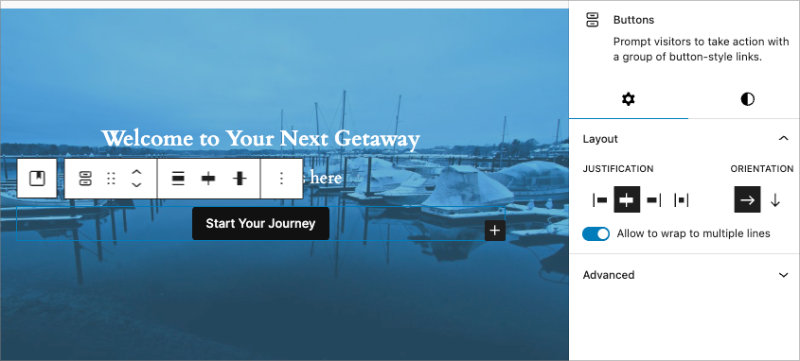
A button block appears below your headline. Type your button text and add the link URL in the toolbar that appears when the button is selected.
Step 6: Adjust Text Color and Overlay
With the Cover block selected, look at the block settings panel on the right side of the screen.
Scroll down to find the overlay opacity slider. Drag it to darken or lighten the background behind your text.
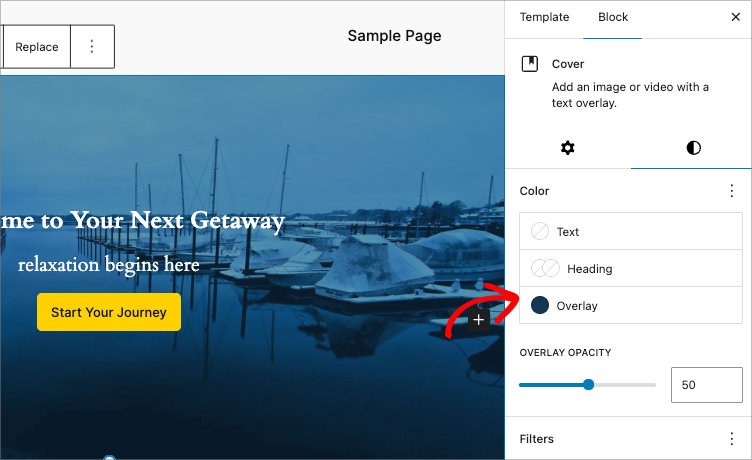
I usually set the overlay opacity between 30% and 50% for good contrast. If I’m working with a dark hero image, I might go lighter on the overlay. If the image is bright and busy, I add a darker overlay so the text stands out.
To change text color, select your headline or button, then choose a color from the text settings in the right panel.
Step 7: Update the Page
Click the Save or Update button in the top-right corner. then, visit your page to see your hero image live.

You can add a parallax effect later if you want (the image stays fixed while content scrolls) by turning on the “Fixed background” toggle in the Cover block settings. I use this sparingly because it can make some hero images look awkward on mobile.
Method 3: Using a Page Builder Like SeedProd (Works with Any Theme)
WordPress page builders give you drag-and-drop control over hero sections and often work regardless of which WordPress theme you’re using.
I use this method when I want more control than the Cover block offers, or when I’m working with a theme that doesn’t have hero settings. The live preview makes it easy to see exactly how spacing and colors look before publishing.
SeedProd is a drag-and-drop WordPress website builder trusted by over 1 million websites. You can use it to create custom WordPress themes, custom landing pages, and custom WooCommerce stores without any code.

I use it regularly on my own sites, and the live preview has caught spacing issues I wouldn’t have noticed until after publishing. That visual feedback saves me a lot of time.
Step 1: Install SeedProd
To get started, install and activate SeedProd on your WordPress website. There’s a free version that works for basic hero sections, but for this guide I’ll use SeedProd Pro because it provides more customization options.
You can follow these instructions for help on installing SeedProd.
Step 2: Create a New Landing Page
In your dashboard, go to SeedProd → Landing Pages.
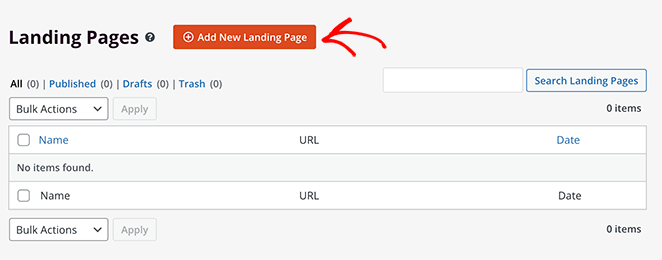
Click the Add New Landing Page button. You’ll see a screen asking you to enter your page name, and to then choose a template.
Step 3: Choose a Template with a Hero Section
Browse the templates and pick one that has a hero section layout you like.
Templates save setup time because the hero section is already structured. You’ll just swap out the placeholder image and text with your own.
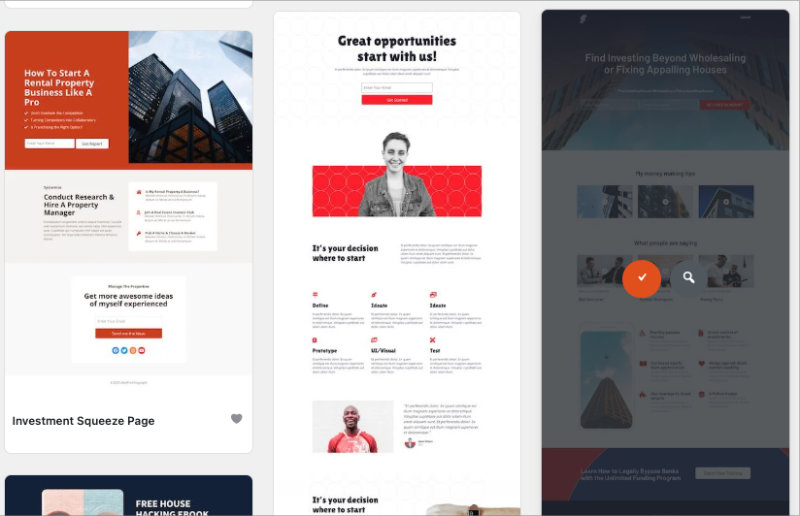
I usually start with a template rather than building from scratch. Even if I end up changing the layout, the template gives me a solid starting point with proper spacing and element hierarchy already figured out.
Click the checkmark icon on the template you want, then click Use This Template.
Step 4: Open the Hero Section for Editing
The SeedProd visual editor opens with your chosen template loaded.
Click on the hero section at the top of the page. Colored handles appear around the section when it’s selected.

Step 5: Upload Your Hero Image
In the settings panel on the left, look for the section background settings.
Select the existing image, then click image icon to choose an image from your media library.
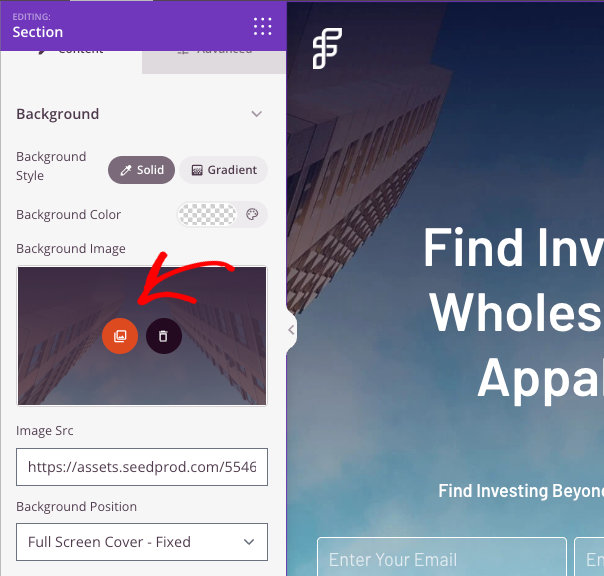
The image appears as the background of the hero section immediately. This is what I mean about the live preview being helpful. You can see right away whether the image works with the existing text or if you need to adjust the overlay.

Step 6: Edit the Headline and Button
Click on the headline text in the hero section and start typing your new headline.
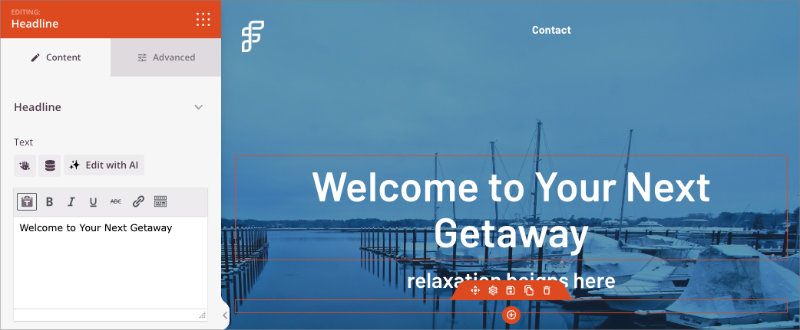
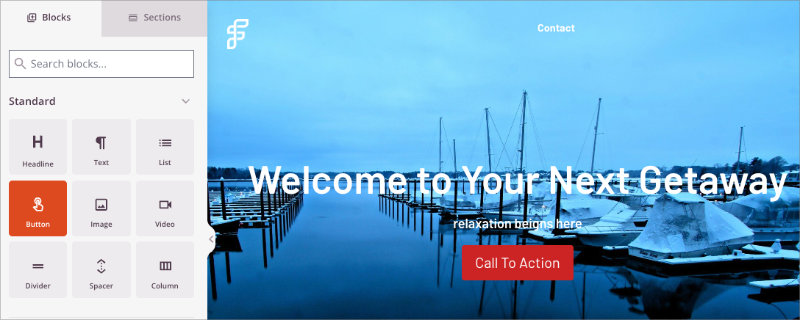
In this example, I’m replacing the optin-form block with a button block. To do this, simply delete the existing block by clicking the trashcan icon.

Then, from the blocks sidebar, drag and drop the button block onto your page.
Step 7: Adjust Overlay and Colors
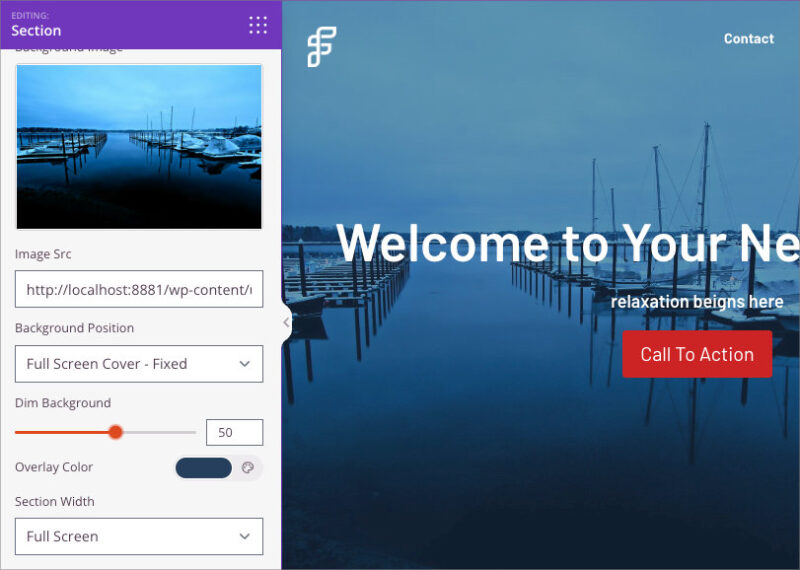
With the hero section selected, scroll down in the left panel to find the overlay controls.
You can choose a custom overlay color, and then dim the background so your text and buttons stand out clearly from your hero image.
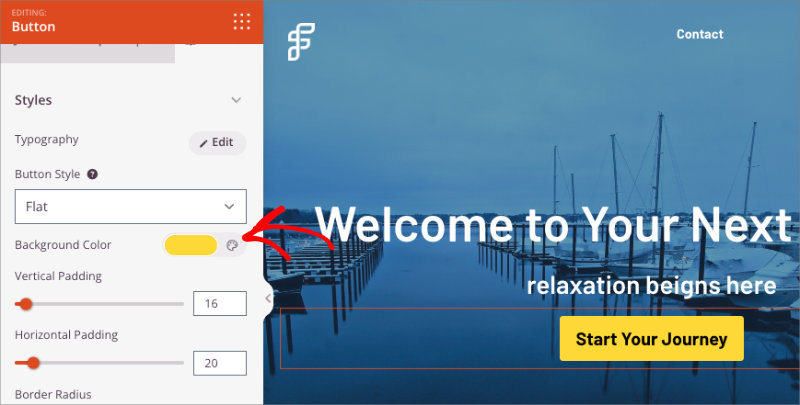
To change text size or color, click on the headline or button and adjust the settings in the left panel.
Step 8: Preview on Mobile
Click the device switcher icons at the bottom of the editor (desktop, tablet, mobile).
Switch to mobile view to see how your hero image looks on a phone screen. You can adjust text size and spacing specifically for mobile if needed.
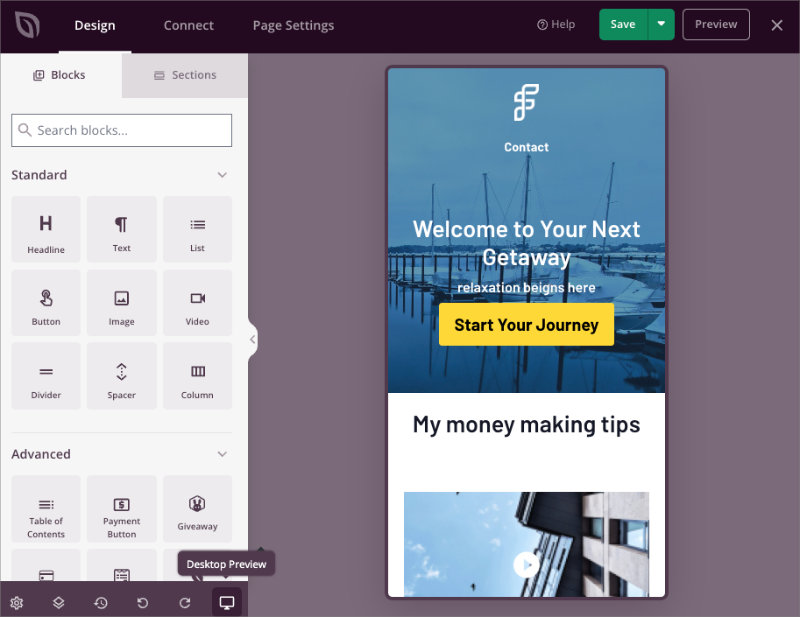
I always check mobile view before publishing because what looks good on desktop doesn’t always translate. I’ve caught headlines that were too big and ran off the screen, or buttons that looked tiny and hard to tap on mobile.
For a full guide on customizing the rest of your page, see our tutorial on how to create a landing page in WordPress.
Step 9: Publish the Page
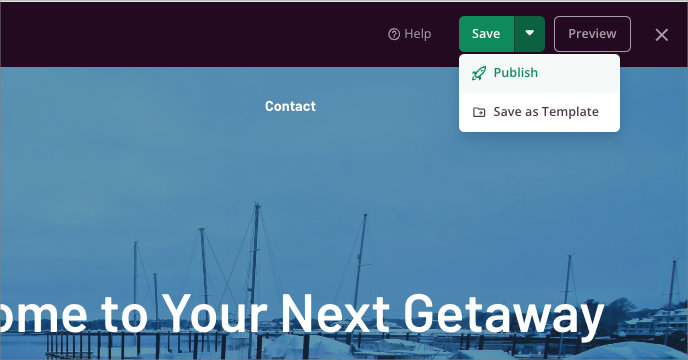
When you’re happy with the hero section, click Save in the top-right corner. Then click the dropdown arrow next to Save and select Publish.
If you want gradient overlays, particle effects, or shape dividers, those options are available in the hero section settings. They’re not necessary, but I’ve used gradient overlays when I needed extra contrast for light text on a bright image.
When you’ve published your page, view it in your browser to see your new hero section live.

Troubleshooting Common Hero Image Problems
Most hero image issues come down to wrong dimensions, poor contrast, or theme CSS conflicts.
I’ve dealt with all of these issues at some point. Here’s how to fix them.
| Problem | Why It Happens | How to Fix It |
|---|---|---|
| Image looks blurry or pixelated | Image dimensions too small | Re-upload at 1920×1080 pixels minimum. Small images stretched to full width lose quality. |
| Text is hard to read | Not enough contrast | Add a dark overlay (30-50% opacity) in your block or builder settings, or switch text to white. |
| Hero image doesn’t span full width | Theme restricts width or alignment not set | Enable full-width alignment in Cover block settings. If using a page builder, set section to full-width. |
| Image crops weirdly on mobile | Focal point is off-center | Use images with centered subjects, or adjust focal point setting in your page builder. |
FAQs on Adding WordPress Hero Images
What size should a hero image be in WordPress?
1920×1080 pixels works for most themes and scales well on mobile. If you want a shorter hero section, use 1600×900 pixels instead. Keep the file size under 250KB after compression so it doesn’t slow down your page load.
Can I use video as a hero background instead of an image?
Yes, the Cover block and most page builders support video backgrounds. Keep video files under 5MB and always include a fallback image for mobile users because video backgrounds often don’t play on phones to save data.
Do hero images slow down my website?
Only if the file size is too large. Compress your hero image to under 250KB before uploading. Large hero images over 1MB will delay page load and hurt SEO. Use a tool like TinyPNG to compress without losing quality.
How do I change an existing hero image on my WordPress site?
It depends on which method you used to add it. For theme settings, go to Appearance → Customize. For Cover block, edit the page and select the block. For page builders, open the page in the builder and click on the hero section.
What’s the difference between a hero image and a hero banner?
The terms mean the same thing. Both refer to the large image at the top of a page with text and button overlay. Some people say “hero banner” when the image spans full width, but there’s no technical difference.
A hero image makes your homepage more engaging when it communicates one clear message with a strong visual. Pick the method that fits your theme, test it on mobile, and don’t overthink the design.
The right hero image with readable text and a clear call-to-action gets visitors to take the next step. I’ve seen simple hero sections outperform elaborate ones because they focused on clarity over complexity.
Related guides:
- Landing Page Best Practices for Incredible Conversion Rates
- How to Hide Images in Mobile View on WordPress
- Call-to-Action Best Practices for High-Converting Landing Pages
- How to Easily Add a Button to Your WordPress Header
- How to Dim a Background Image in WordPress Without CSS
Thanks for reading! We’d love to hear your thoughts, so please feel free to join the conversation on YouTube, X and Facebook for more helpful advice and content to grow your business.




