

TL;DR: How to Hide a Page Title in WordPress (7 Methods)
There are 7 ways to hide a WordPress page title, from no-code theme toggles to custom CSS. Here’s a quick overview:
- SeedProd – Click the title block in the visual editor and delete it. No code needed.
- Theme settings – Popular themes like Astra, Neve, and GeneratePress have a built-in title toggle on each page.
- Elementor – Use the Page Settings panel in Elementor to toggle off Show Title.
- Full Site Editor – Delete the title block from your page template in Appearance > Editor.
- Free plugin – Install Hide Page and Post Title to toggle visibility per page.
- CSS (specific page) – Use the page ID and title class with
display: none;in a CSS snippet. - CSS (all pages) – Apply
display: none;to the title class globally using WPCode.
Want to hide a page title in WordPress? You’re not alone. I’ve had to do this plenty of times when building clean landing pages, minimalist homepages, or even sales funnels that didn’t need a giant headline getting in the way.
Some WordPress themes automatically add the title to the top of every page, but that’s not always what you want. The good news is: you can remove it without hurting your SEO or needing to code (unless you want to).
In this guide, I’ll show you step-by-step how to hide the page title on individual pages, across your whole site, or just on specific devices like mobile. Every method here works in the latest version of WordPress and doesn’t require any advanced skills.
Why You Might Want to Hide a Page Title
Not every page needs a visible title at the top, especially if you’ve already designed a custom header or banner. Here’s when I usually hide them:
- Landing pages with tailored messages or call-to-action blocks
- Homepages that use hero sections or logo banners instead of text
- Coming soon or maintenance pages where the content speaks for itself
- Sales or product pages where space above the fold is critical
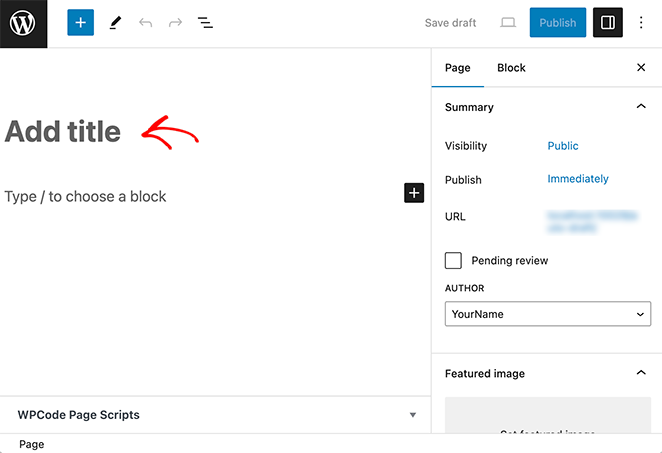
In these cases, the title often repeats what your design already explains. Removing it gives you more flexibility with layout and a cleaner visual hierarchy, especially on mobile.
Easiest Way: Hide WordPress Page Titles Using SeedProd (Step-by-Step)
It’s our mission at SeedProd to make it easy to build and customize your website without code.

With our drag-and-drop website builder, you can create custom WordPress themes, web pages, and even standalone landing pages.
It also means you can hide titles on any single page or theme with a few clicks.
Our template library has over 300+ landing page templates and website kits to kickstart the design process. Let’s choose one to see how easily you can remove a page title from the design.
First, make sure SeedProd is installed and activated on your WordPress site.
Please see our documentation on installing SeedProd if you need help with this.
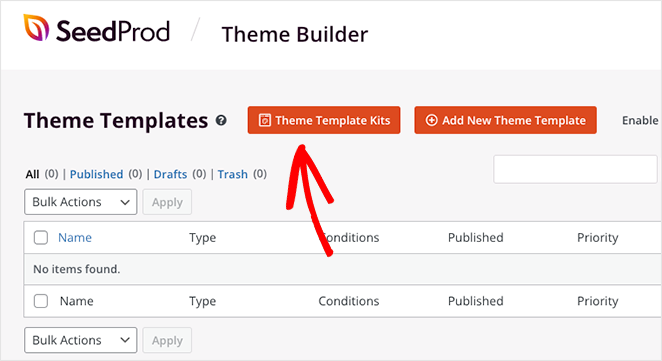
After activation, go to SeedProd » Theme Builder from your WordPress admin. From there, click the Theme Template Kits button.
Now, you’ll see the template library with designs for different types of websites.
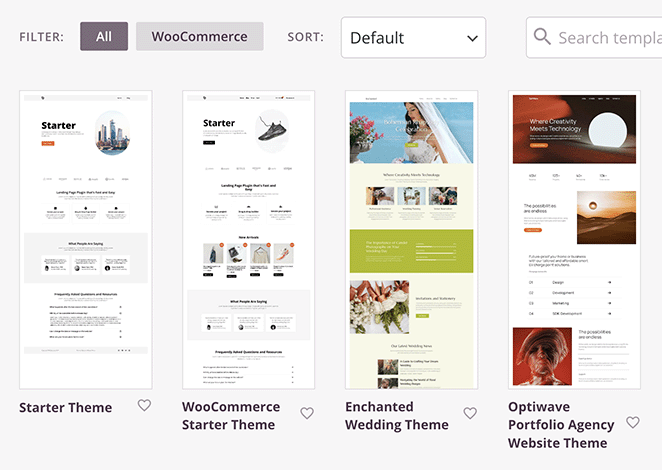
You can take a closer look at any design by clicking the magnifying glass icon. The demo will open in a new browser tab or window.
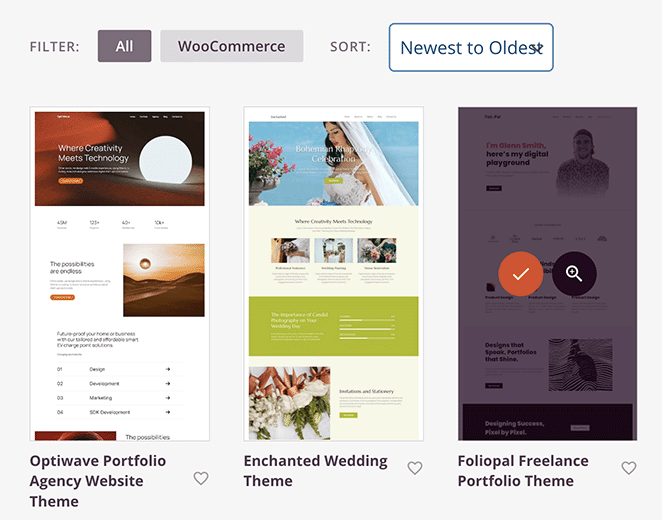
When you’re ready to choose a design, hover over it and click the checkmark icon.
Importing a site kit only takes a few seconds. When it’s complete, you’ll see a list of templates that form your theme’s framework.
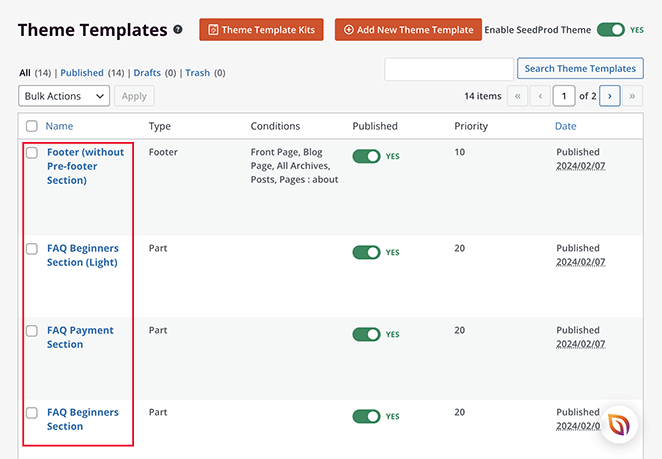
Each theme template has a consistent design and content specific to its purpose. For instance, the Blog Page lists recent posts, while the Homepage has a description, client logos, services, and more.
You can edit each template by hovering over its title and clicking the ‘Edit Design’ link.
Let’s do this for the Blog Page.
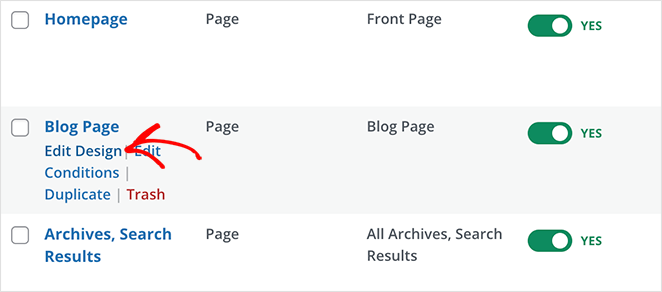
In our example, you can see that the blog page has a header banner with text explaining what the page is about. This makes the ‘Blog’ heading redundant, so we can remove it.
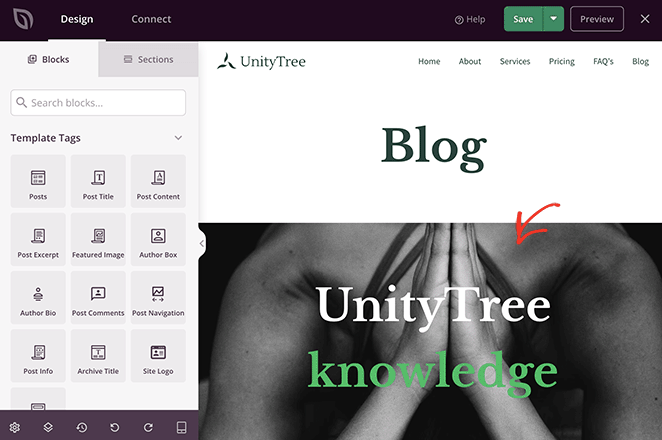
To remove the page title, hover your mouse over it and click the trashcan icon.
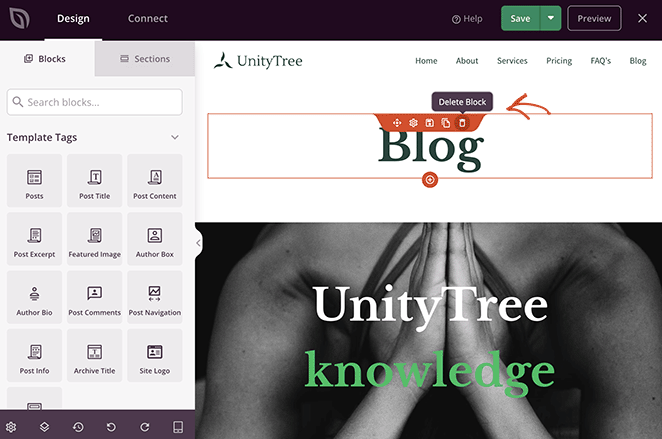
After removing the title, click the Save button to save your changes. Then, you can preview the page to see how it looks.

You can repeat this step for any other page you create with SeedProd.
For instance, you can create a page the default way by going to Pages » Add New Page, then edit the design by clicking the Edit With SeedProd button.
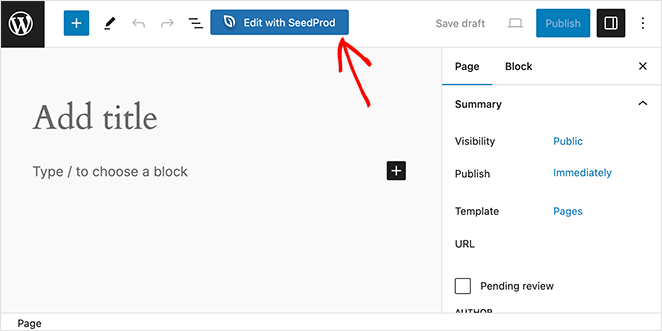
Then, you can remove the page title using the steps above.
Alternative Methods to Hide WordPress Page Title
Using SeedProd is just one way to hide your page title. If your website has a different setup, one of the alternative methods below may suit you better.
How to Hide a Page Title Using Your Theme’s Settings
Many popular WordPress themes include a title visibility option on each page, and it’s the quickest route if you’re already using one of them. I’ve seen this save real time in client builds when the design calls for a custom hero section above the fold.
Here’s where to find the setting in the most common themes:
- Astra: Edit your page and scroll down to the Astra Settings panel in the right sidebar. Set the Page Title option to Disabled.
- Neve: Edit your page and look for the Neve Meta Options section in the right sidebar. Toggle the Page Title setting to hide it.
- GeneratePress: Edit your page and find the Page Settings section at the bottom of the editor. Check the box to disable the page title.
- Kadence: Edit your page and look for the Kadence Settings section in the right sidebar. Under Header, set the Page Title to Hidden.
If your theme isn’t listed here, check the page settings panel for options labeled Title, Header, or Page Header. Most modern themes include some version of this toggle.
This method only hides the title on pages where you manually disable it. To hide titles across your whole site, use the Full Site Editor or CSS method instead.
How to Hide a Page Title in Elementor
If you use Elementor to build your pages, it has its own title visibility setting built in. I’ve used Elementor on client sites and the option is straightforward to find.
Open your page in the Elementor editor and click the hamburger menu in the top-left corner. Select Page Settings. In the panel that opens, find the Hide Title option and toggle it off.
This only applies to pages you build with Elementor. For non-Elementor pages or site-wide changes, use a different method from this guide.
How to Hide Titles Using the Full Site Editor (FSE)
You can remove the title from all pages using the Full Site Editor (FSE) if your site uses WordPress 5.9 or later versions. This method also applies to WordPress themes that support full site editing, like Neve FSA.
If your theme supports FSE, you should see the Appearance » Editor option in your WordPress admin.
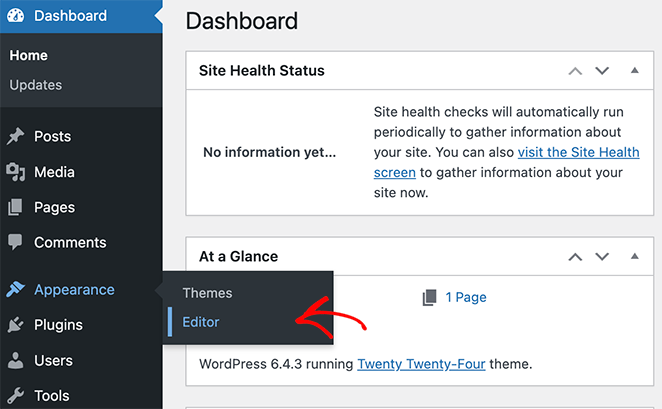
From there, you can click Editor to open the FSE dashboard.
Once the editor opens, click the Templates heading in the left-hand panel. Then, you can choose which template to hide the page title from.
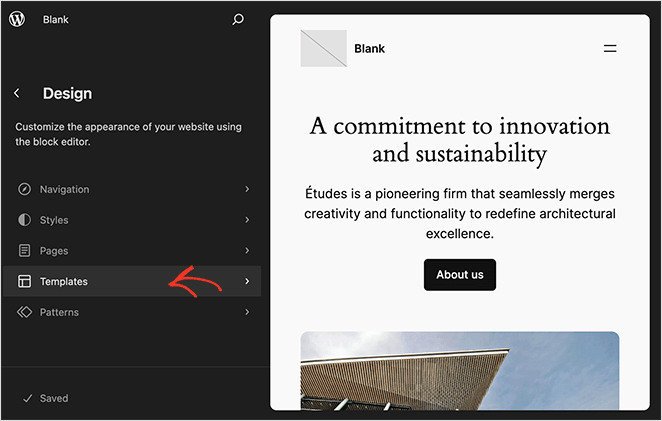
For this example, let’s click the Pages option.
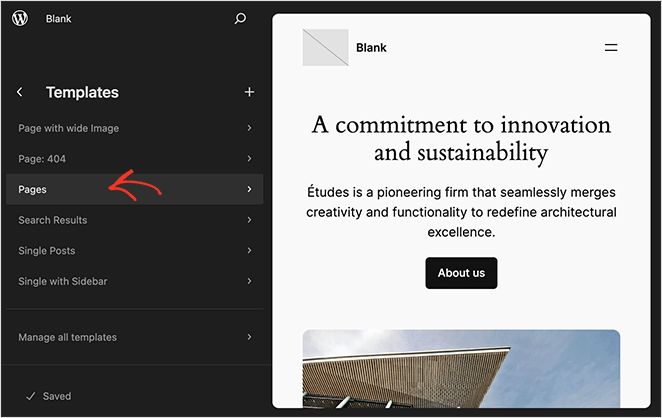
Now, click the page title in the preview on the right.
You’ll see a toolbar above the title. Click the 3 dots on the right of this panel to show more settings.
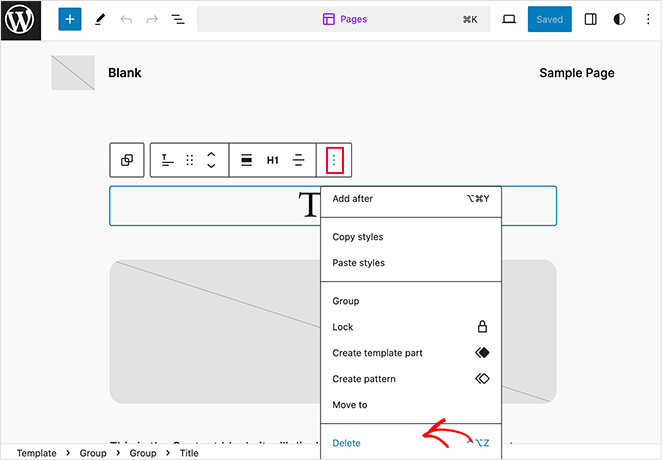
Scroll down until you see the Delete option, and click it.
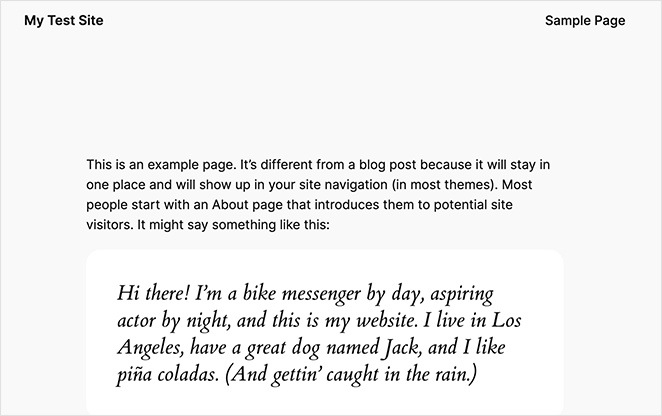
After saving it, the title will disappear from all pages on your site that use this template. Here is an example of how this looks on our test website:
Can I Hide a Title Using a Plugin?
Another way to hide specific page titles is by installing a title remover plugin.
We’ll use the Hide Page and Post Title plugin. It’s a free WordPress plugin that lets you hide pages, posts, and custom post titles with a few clicks.
This is a good method if you don’t use a WordPress theme that supports the Full Site Editor.
If you need help installing this plugin, please refer to this guide on how to install a WordPress plugin.
Once the plugin is activated, go to Pages » All Pages from your WordPress dashboard and edit the page you want to change.
Inside the editor, look at the right-hand sidebar and scroll down to the Hide Page and Post Title section. Now, all you need to do is click the checkbox next to ‘Hide the title.’
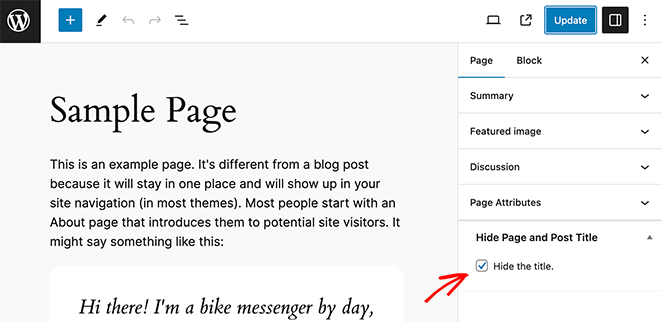
Remember to save your changes or click the Publish button. When you visit your page, you’ll see the title is gone.
You can also use this plugin to hide blog post titles.
How to Use CSS to Hide Page Titles in WordPress
The next two methods allow you to hide and remove page titles in WordPress using CSS. This means the title is hidden from visitors but will still load in your page’s HTML code.
The benefit of this approach is that search engines like Google still know the title and can use it to understand your page’s content.
Using CSS to Hide Specific Page Titles
Let’s start by using additional CSS code to hide specific page titles. For this, all you need is the page ID and class name.
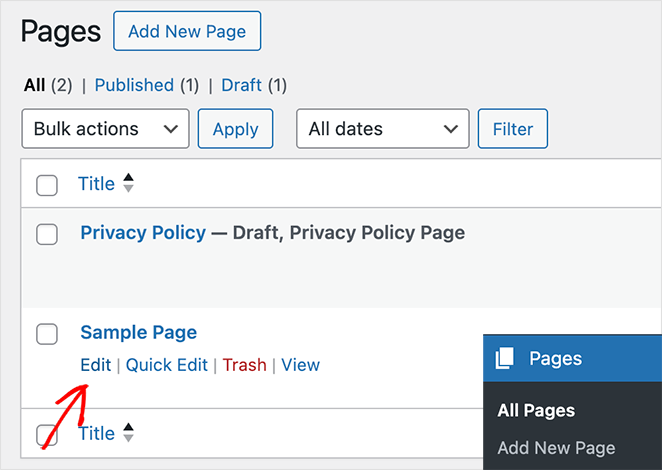
From the backend of your website, navigate to Pages » All Pages, find the page you want to change, and click Edit.
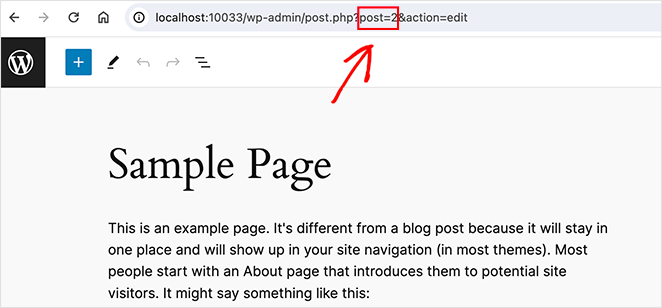
Now look at the page URL in your address bar, where you’ll notice a section with the word ‘post=’ and a number, like post=2. This is your page ID, so note it down, as we’ll need it next.
The next step is adding the CSS to your WordPress theme.
On our test site, we’re using the Full Site Editor, which no longer includes the theme customizer by default. So, we’ll install the WPCode plugin, which lets us easily add custom code snippets to WordPress.
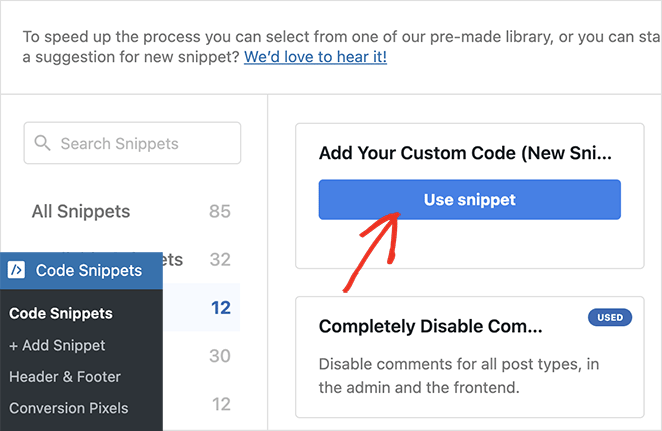
Upon installation, navigate to Code Snippets » + Add New Snippet, which lets you choose from various snippet types.
For this example, highlight the first option, ‘Add Your Custom Code,’ and click the Use Snippet button.
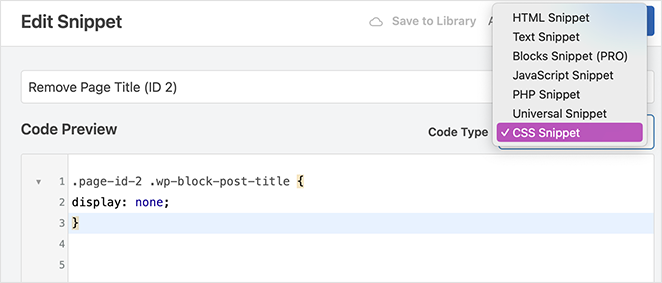
Once inside the snippet editor, choose CSS Snippet from the ‘Code Type’ dropdown menu. Then, paste the following code to hide your page title.
Remember to replace the ‘page-id’ with the value you copied earlier.
.page-id-2 .wp-block-post-title {
display: none;
}
After adding the snippet, click Update and turn the status toggle to the Active position. You should no longer see the page title when you visit the page.
If you’re still seeing the page title, it’s likely because your theme uses a different CSS class. In this case, you’ll need to find the right class by inspecting the page’s code.
To do this, visit the particular page you want to change on the frontend of your site, highlight the page title, and right-click it.
In the drop-down that appears, click the Inspect element option.
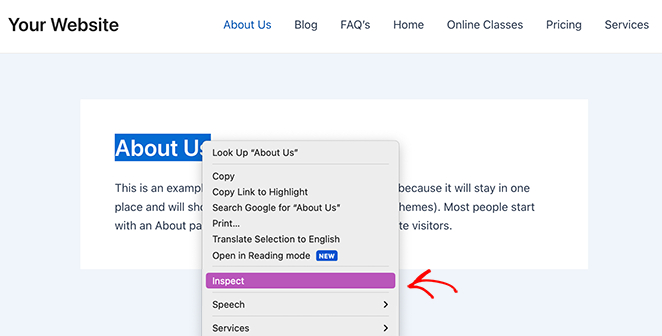
Now, you’ll see a new panel with the page title highlighted in the source code. Because we’re using a different theme for this example, you’ll see that the page title class is also different.
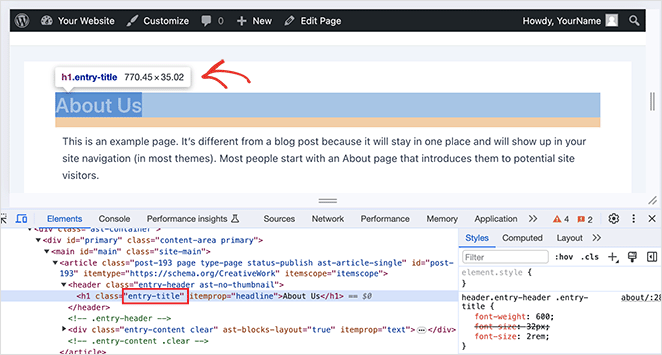
Yours might be called ‘entry-title’ or something similar. Therefore, you’ll need to tweak the code from earlier with the correct CSS class.
This is how the final code may look:
.page-id-2 .entry-title {
display: none;
}
Now paste this code into the snippet editor, then save and activate the changes.
When you visit your page, you should no longer see the page title.
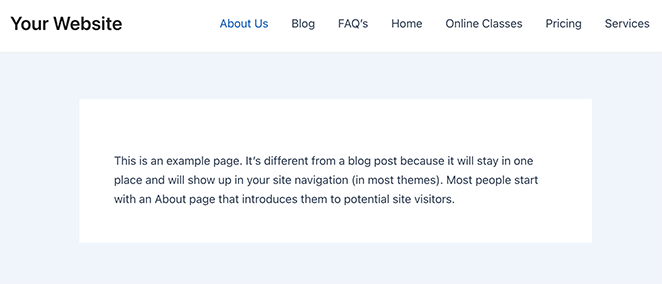
Removing ALL Page Titles with CSS
The final method we’ll cover lets you hide the title from all pages on your WordPress website.
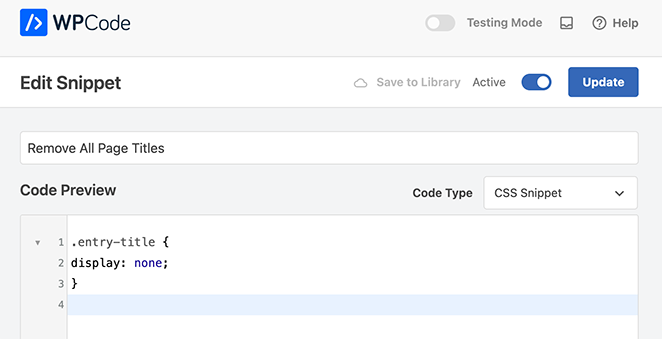
For this, all you’ll need is the page title class. So, find the correct page title class for your theme, as we highlighted in the previous method, and paste the following snippet into your code editor:
.entry-title {
display: none;
}
After saving and activating the snippet, you should see that the title is hidden from every page on your website.
Troubleshooting: When Page Titles Won’t Hide
CSS doesn’t always work on the first try. Here’s how to fix the most common problems.
The title still shows after adding CSS
Your theme probably uses a different CSS class than .wp-block-post-title. To find the right one, visit the page on the frontend, right-click the title, and select Inspect.
Look for the class name on the heading element. Common alternatives include .entry-title, .page-title, or .post-title. Copy that class and update your snippet.
Extra spacing remains after the title disappears
Some themes apply margin or padding to the title container, and that space stays even after you hide the title element. Add margin: 0; padding: 0; to your CSS rule to remove it:
.page-id-2 .wp-block-post-title {
  display: none;
  margin: 0;
  padding: 0;
}
Replace .wp-block-post-title with your theme’s actual title class.
A plugin stopped working after a theme update
Theme updates can override the plugin’s CSS rules. If the title reappears after an update, switch to the custom CSS method. It tends to be more reliable than plugin-based hiding.
FAQs About Hiding Page Titles in WordPress
Will hiding a WordPress page title hurt my SEO?
Hiding the visible title does not hurt your SEO as long as you keep the title tag intact. The methods in this guide hide the on-page heading but leave your SEO title (set in AIOSEO or another SEO plugin) untouched. Search engines read the title tag in your page’s HTML head, not the visible heading. Use a WordPress SEO plugin to make sure your title tag is properly set.
How do I hide a page title in WooCommerce?
You can hide WooCommerce page titles using the same methods in this guide. In SeedProd, hide the title element using the device visibility settings. For CSS, use the WooCommerce page title class with display: none;. A common starting point is .woocommerce-page .page-title { display: none; }. Find the correct class using browser Inspect if this doesn’t work on the first try.
What if the page title still shows after adding CSS?
Your theme most likely uses a different CSS class than the one in your snippet. Right-click the title on the frontend and select Inspect. The developer panel will highlight the title element and show you the actual CSS class. Common class names include .entry-title, .page-title, and .post-title. Copy that class, update your snippet, and save. If the issue persists, check that the snippet is active in WPCode.
Can I hide the title only on mobile in WordPress?
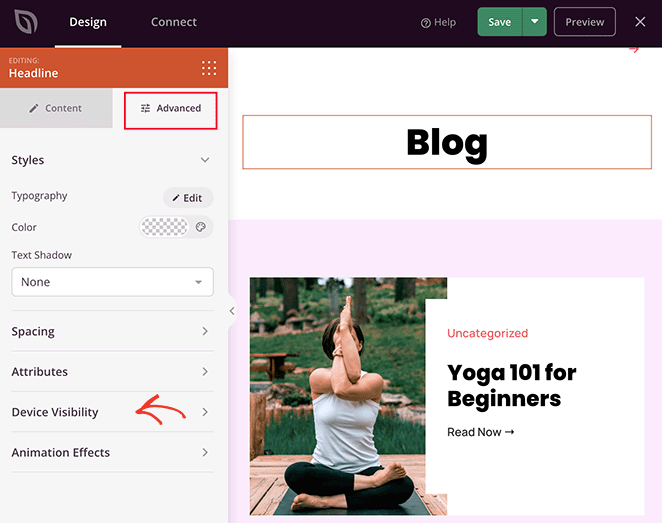
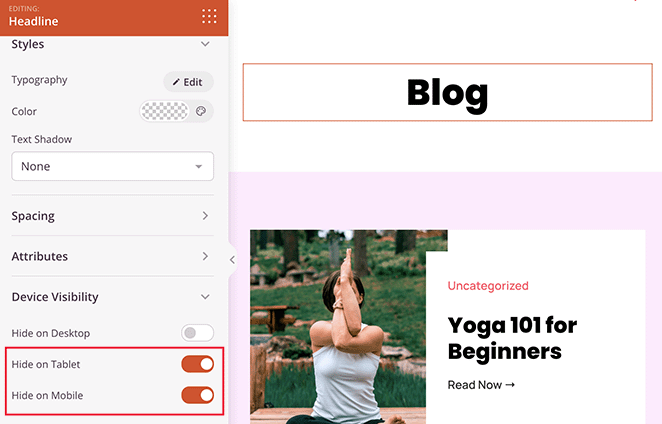
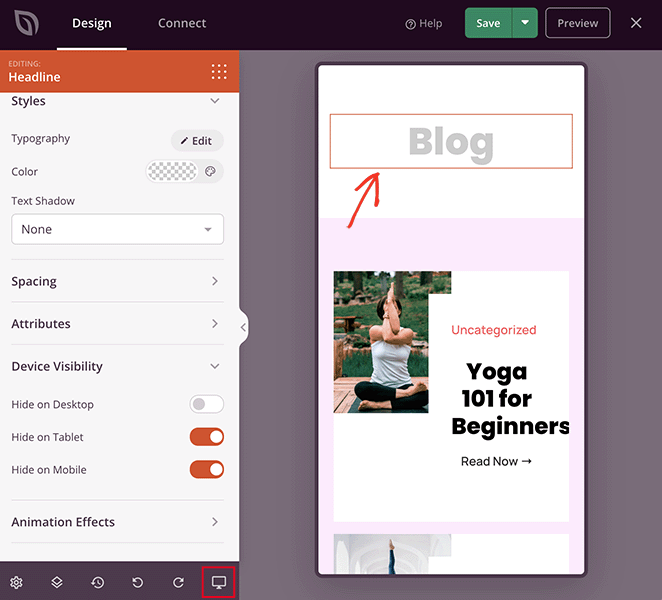
Yes, SeedProd makes this straightforward. Edit your page in SeedProd, click the title block, and open the Advanced tab in the left sidebar. Under Device Visibility, toggle on Hide on Mobile or Hide on Tablet. Save your changes and the title will only appear on the devices you choose.
Does every WordPress theme have a built-in option to hide titles?
Not every theme includes a title visibility toggle, but most popular modern themes do. Astra, Neve, GeneratePress, and Kadence all have a per-page title setting in the block editor sidebar. If your theme doesn’t have this option, use the Hide Page and Post Title plugin or the CSS method instead. Both work regardless of your theme.
Next, More WordPress Layout Tutorials
I hope this step-by-step guide has helped you learn how to hide page titles in WordPress.
Looking to customize your layout even more? These guides show how to tweak page visibility, margins, and design elements across devices:
- How to Hide Images in Mobile View on WordPress
- How to Hide Your WordPress Site Until Ready
- How to Change Blog Layout in WordPress
- How to Change Margins in WordPress
Ready to build pages that look exactly the way you want? Get SeedProd and take full control of every design detail without writing code.
Thanks for reading! We’d love to hear your thoughts, so please feel free to join the conversation on YouTube, X and Facebook for more helpful advice and content to grow your business.




