

TL;DR: Customize the WordPress Login Page
The default WordPress login screen shows a generic logo and nothing of your brand. Here are five ways to change that, from no-code to a few lines of CSS.
- SeedProd: Redesign the whole page with a drag-and-drop builder, no code needed.
- WPForms: Build a login form with the User Registration add-on.
- Manual code: Add CSS to functions.php to restyle the existing screen.
- Logo-only plugin: Swap the logo and link with a free login customizer.
- Secure it: Hide the login URL and limit attempts once it looks the part.
Want a full rebrand without touching code? Start with SeedProd. Just need the logo changed? A login customizer plugin is enough.
You run a membership site or a client site, and people log in through a screen that looks nothing like your brand. The stock WordPress login page, with its little WordPress logo, feels like a detour off your site.
I customize the WordPress login page on my own sites, and I’ll show you five ways to do it, from a no-code plugin to a few lines of CSS. Pick the one that fits how much control you want.
- Benefits of Customizing Your WordPress Login Page?
- Custom WordPress Login Page Design Examples
- Which Method Should You Use?
- How to Customize WordPress Login Page Using SeedProd
- Customize WordPress Login Page Using WPForms
- How to Customize WordPress Login Page Manually
- How Do You Change the WordPress Login Logo?
- How Do You Secure Your Custom Login Page?
- How Do You Test Your Custom Login Page?
- Customize WordPress Login Page FAQs
Benefits of Customizing Your WordPress Login Page?
The default WordPress login page shows the WordPress logo and two form fields, and nothing else. That’s fine if you’re the only person logging in to the backend.
But once visitors register and log in, a stock screen that looks nothing like your site can feel suspicious. A custom login page with your branding tells users they’re in the right place.
Custom WordPress Login Page Design Examples
So what does a branded login page actually look like in practice? You can add your own images, link back to your homepage, drop in a call to action, or include social icons.
Here are a few real examples to show what’s possible.
MonsterInsights WordPress Login Page Customization
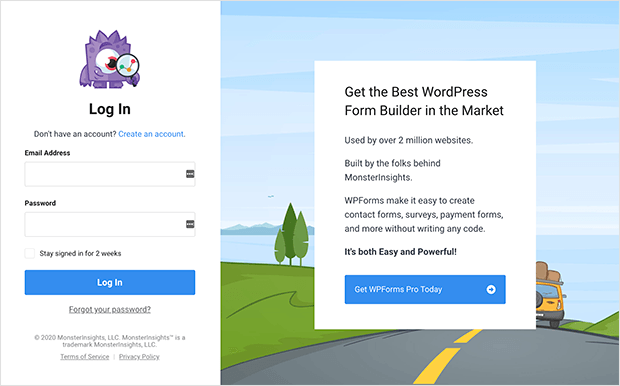
MonsterInsights uses a two-column layout. The login form sits on the left, and a call to action for its sister product sits on the right.
The background image gives the page a distinct, branded feel that the default screen can’t match.
TED Custom WordPress Login Page
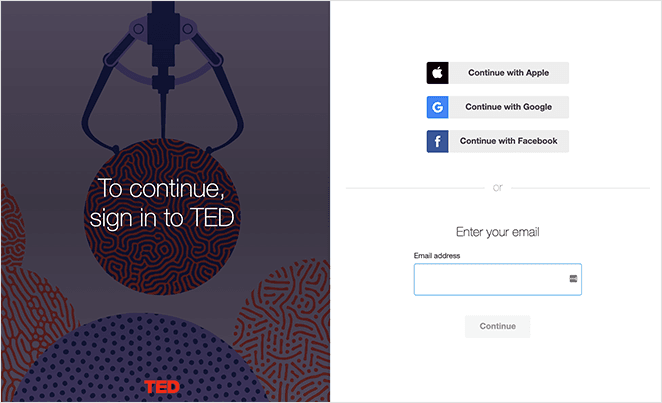
TED uses another two-column design. An image and headline sit on the left, with several ways to log in on the right.
Users can also sign up for a TED account by entering their email address right there.
Church Motion Graphics Customized Login Page
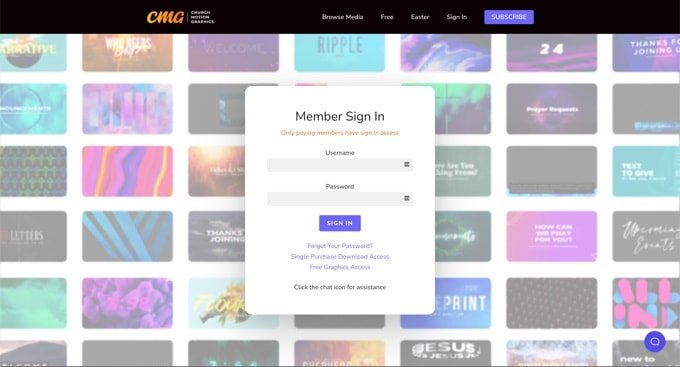
This login page grabs attention with a colorful background that reflects what the business does. The header, footer, and navigation stay consistent with the rest of the site.
The login form itself stays minimal, with a light background that contrasts the bright imagery. You can browse more login page examples for inspiration.
Which Method Should You Use?
Five methods is a lot, so here’s how to match one to your situation before you start. The right pick depends on how much you want to change and whether you’re comfortable with code.
- Full redesign, no code: Use SeedProd to rebuild the whole login page with a drag-and-drop builder.
- Just the logo: Use a free login customizer plugin like Colorlib to swap the logo and link.
- You’re a developer: Add CSS to functions.php for full control and zero plugins.
- A login form, not a page: Use WPForms to build a branded login form you can embed anywhere.
- Social login: Let people sign in with Google or Facebook using a dedicated social login plugin.
How to Customize WordPress Login Page Using SeedProd

SeedProd is a drag-and-drop WordPress website builder with a built-in Login Page mode. It lets you redesign the login screen visually, with no code, and it works with any WordPress theme.
I use SeedProd’s Login Page mode on my own site, and the part I value most is speed. Restyling the login screen with CSS by hand takes me an afternoon of trial and error, while the no-code flow gets me a finished page in minutes.
It’s a WordPress landing page builder as well, so the same editor handles coming soon pages, sales pages, and custom login pages from one place.
Follow the steps below to style your WordPress login page with SeedProd.
Step 1: Install and Activate SeedProd
First, download the SeedProd plugin and install it on your WordPress website.
If you’re new to this, follow this step-by-step guide to installing a WordPress plugin.
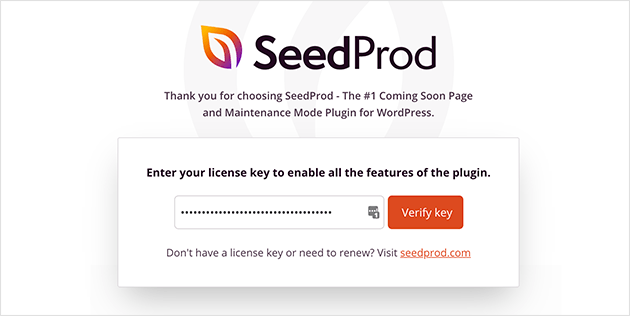
After activating the plugin, you’ll see the SeedProd welcome page in your dashboard. Enter your license key, then click the Create Your First Page button.
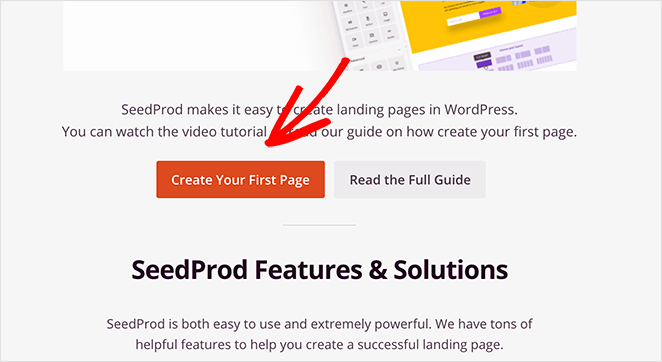
Step 2: Edit Your WordPress Login Page
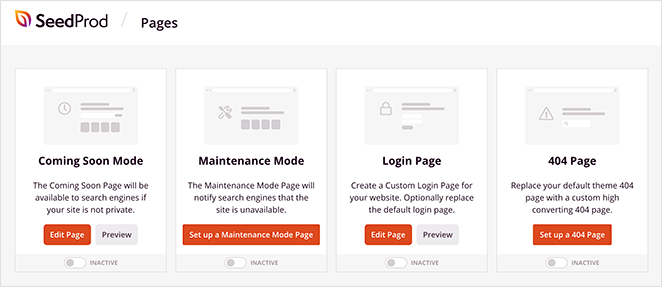
You’ll see the different page modes SeedProd can enable. For this tutorial, you want Login Page mode.
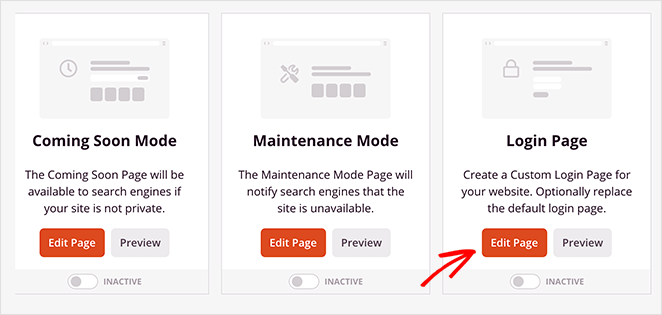
Click Edit Page under the Login Page heading to get started.
Step 3: Choose a Custom WordPress Login Page Template
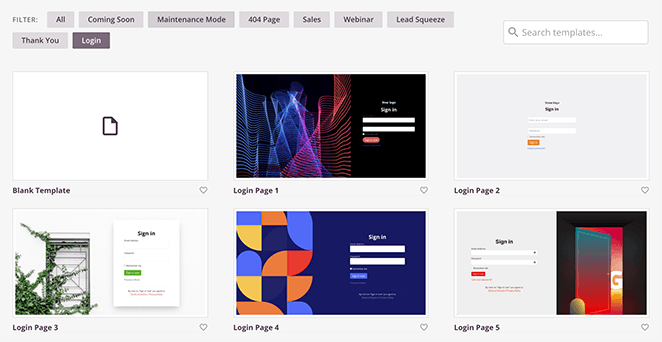
On the next screen, you’ll see SeedProd’s library of login page templates. Every template is editable in the visual builder.
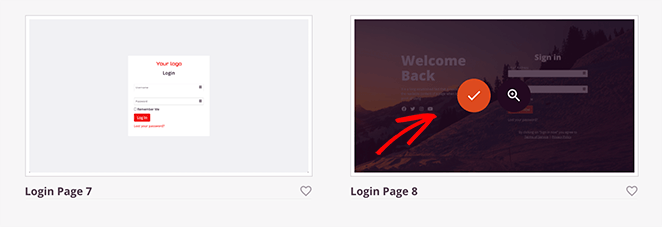
Click the Login filter to show every login page template. Hover over the one you like and click the tick icon. For this guide, I’ll choose Login Page 8.
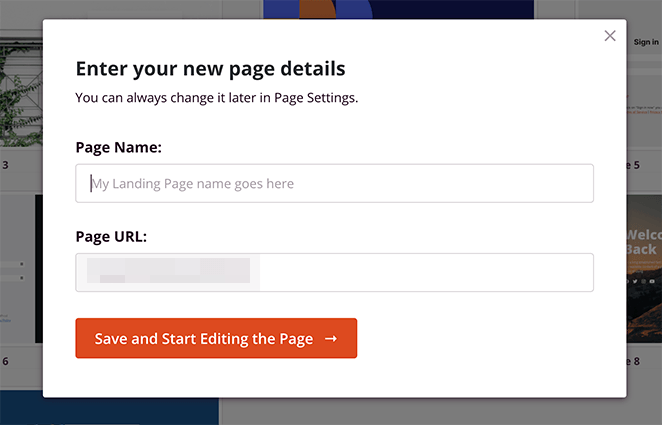
A popup asks you to name the page and set its URL. Click Save and Start Editing Page to open it in the drag-and-drop editor.
Step 4: Customize Your WordPress Login Page
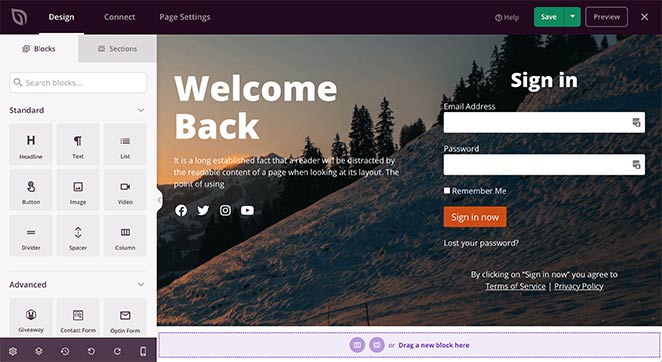
The editor has two parts. Blocks and sections sit on the left, and a live preview of your login page sits on the right.
To add content, drag a block from the left and drop it onto the page. You can add a logo to the top of the page in a few clicks.
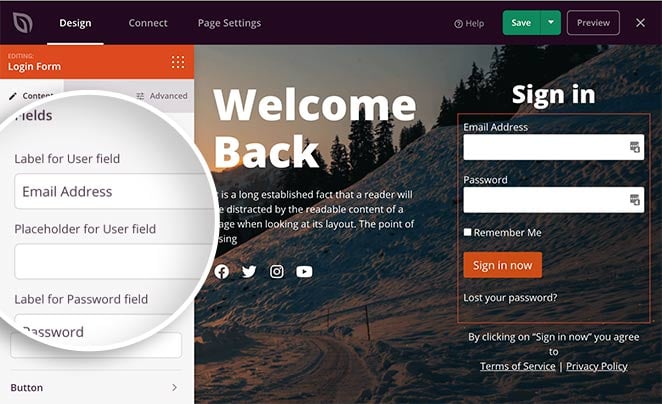
Click any block to edit it. Clicking the login form opens SeedProd’s Login block settings on the left.
There you can edit the form labels, show or hide the name and password fields, and change the button text.
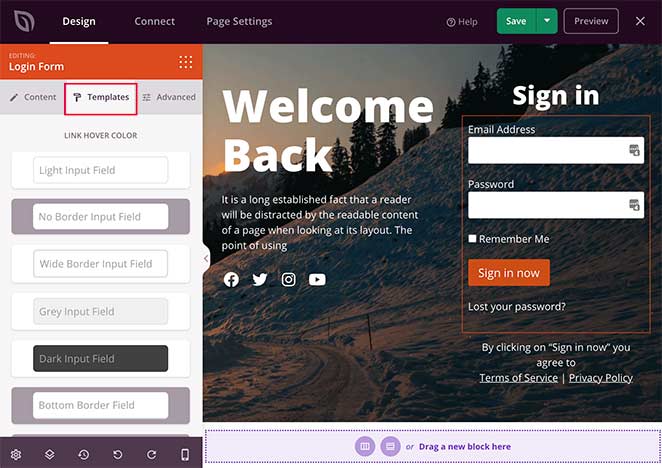
Click the Templates tab to pick from several form styles. Choose one and it applies to your form instantly, no code required.
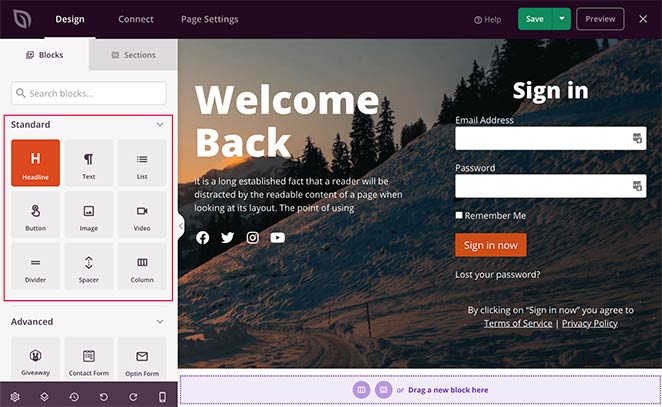
You can add buttons, columns, and images to round out the design. If you want people to sign in faster, this is also where you can add a social login button so users log in with Google or Facebook.
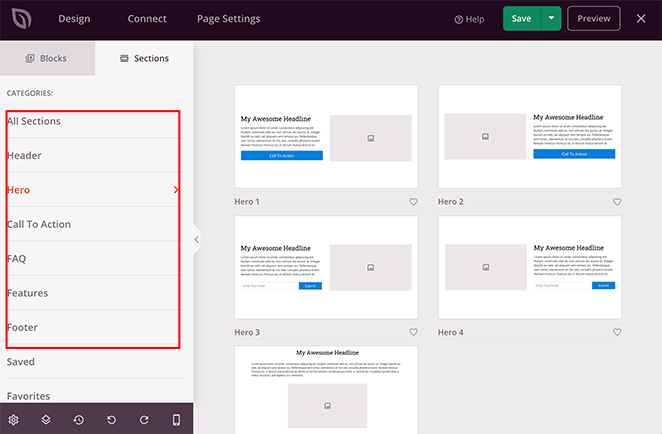
SeedProd also has prebuilt Sections, so you don’t have to build areas like a header or footer block by block. Click the Sections tab to browse them.
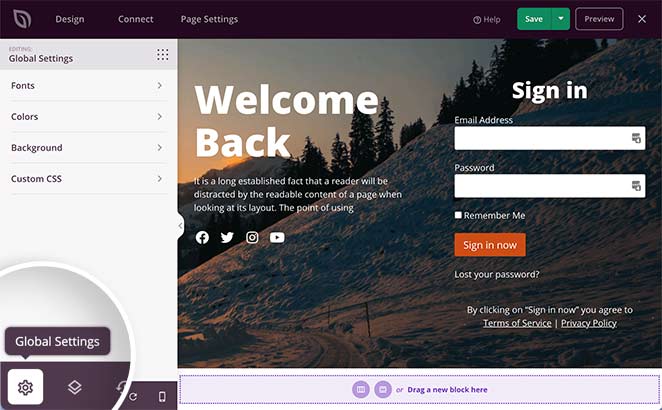
To set fonts, colors, and the background once for the whole page, click the gear icon in the bottom-right corner to open Global Settings.
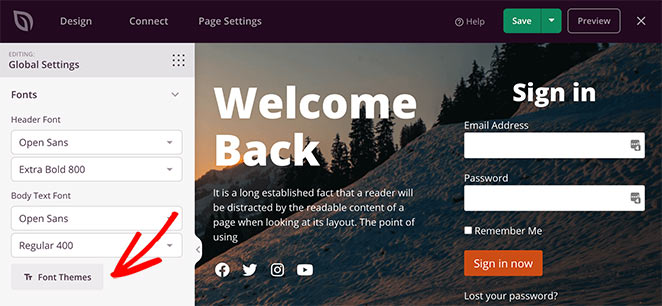
Under the Fonts tab, change your header and body fonts and weights from the drop-down menus.
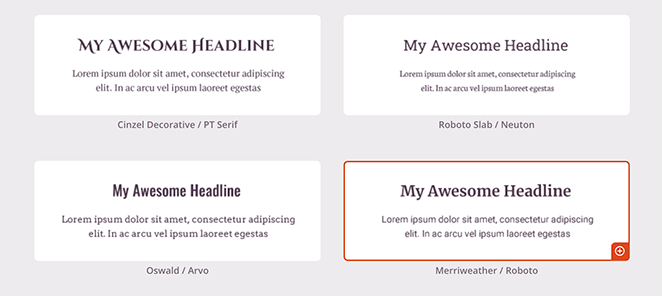
Click the Font Themes button to browse combinations that pair well, then add them in one click.
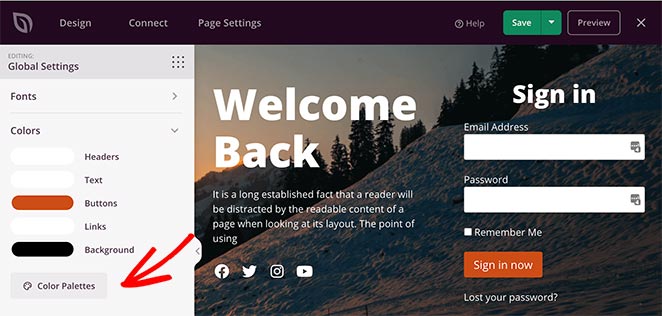
Set colors for links, headers, text, buttons, and backgrounds with the color picker.
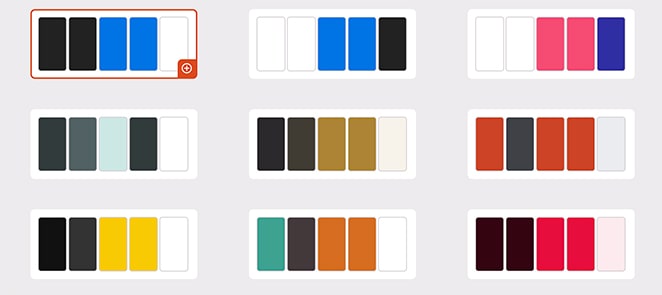
Or click the Color Palettes button to choose from 20+ ready-made schemes.
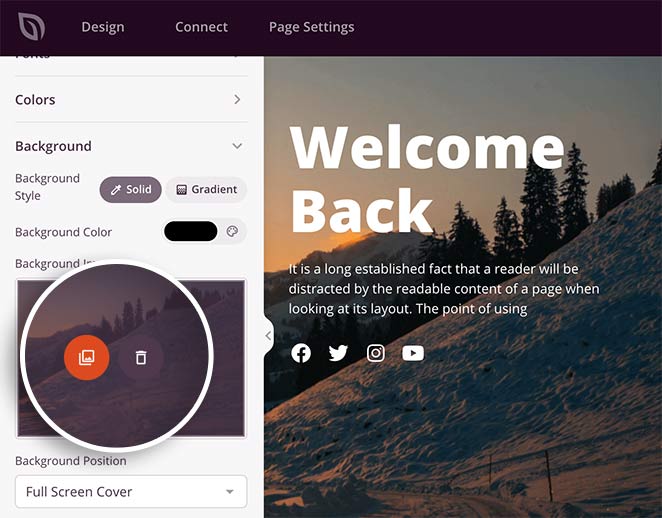
The Background section handles your page background. Set a solid color, a gradient, or a full-width image.
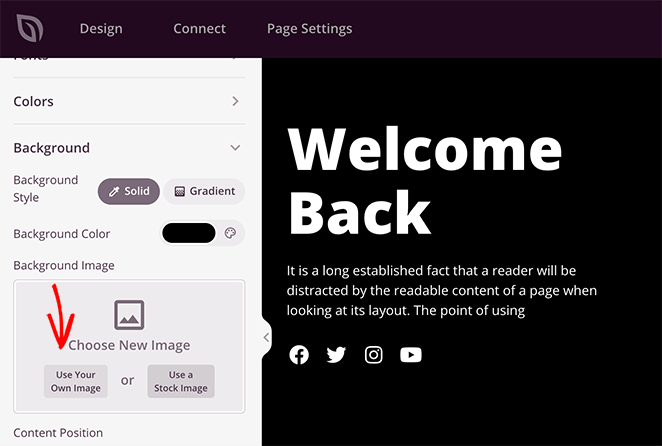
Click the trash can icon to remove the existing image, then click Use Your Own Image to pick a new one from your computer or media library.
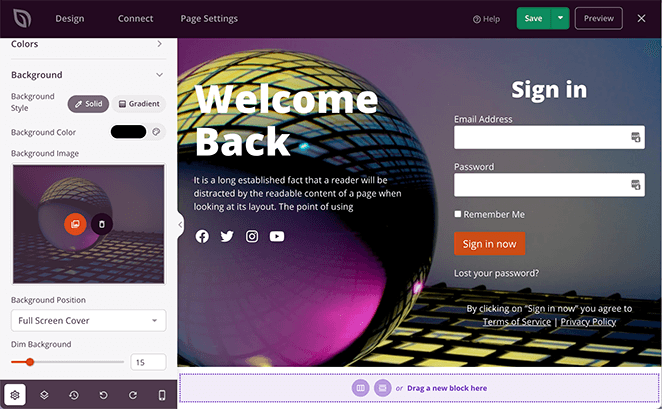
Remember to click Save to store your changes.
Step 5: Configure Your WordPress Login Page Settings
With the design in place, set up a few options. If you’ve added an optin form to collect email addresses, connect your email marketing service first.
Click the Connect tab at the top, choose your email service, and follow the steps to link your account.
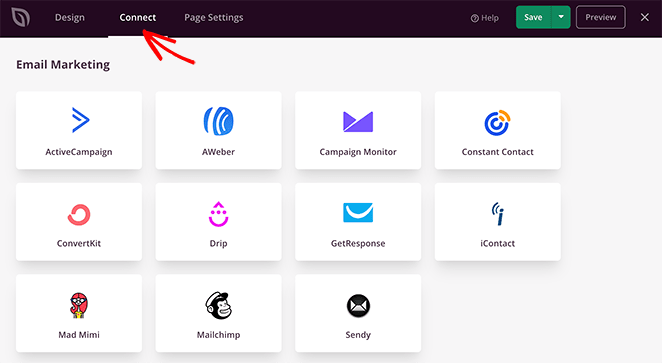
SeedProd integrates with popular email newsletter services, including Constant Contact, ConvertKit, AWeber, and Mailchimp.
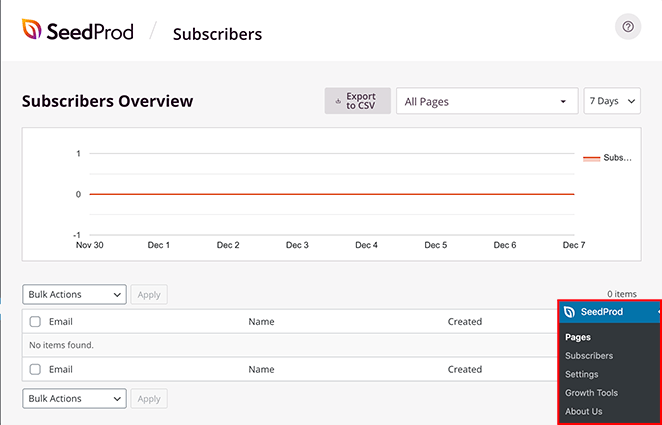
No email provider yet? SeedProd’s subscriber management feature stores signups on your site. View them under SeedProd » Subscribers.
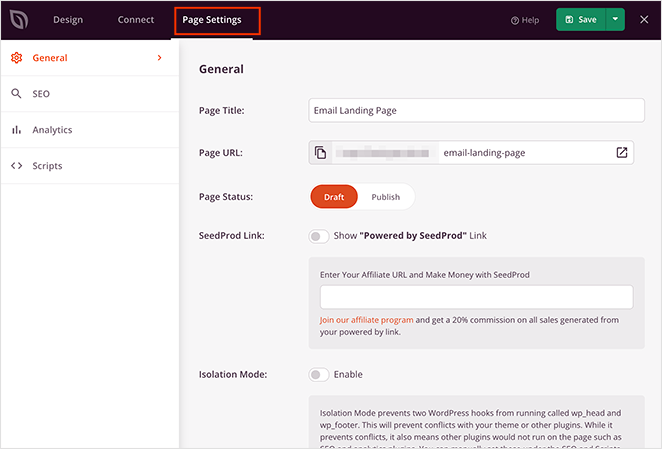
Next, click the Page Settings tab. From there you can adjust:
- General: Change the page name and URL, and set it to draft or published.
- SEO: Edit the page title and meta description through an SEO plugin like All in One SEO.
- Analytics: Track performance with a plugin like MonsterInsights.
- Scripts: Add tracking or retargeting scripts such as the Facebook pixel.
Click Save before moving on.
Step 6: Check Your Login Page Is Mobile Friendly
Every page you publish should be mobile responsive, or it’s harder for phone users to log in. SeedProd’s templates are responsive, and a preview tool lets you check.
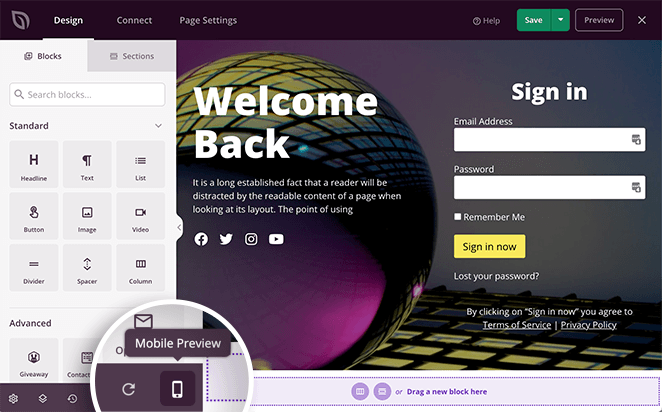
Click the mobile preview icon at the bottom of the screen to see your page as phone users would.
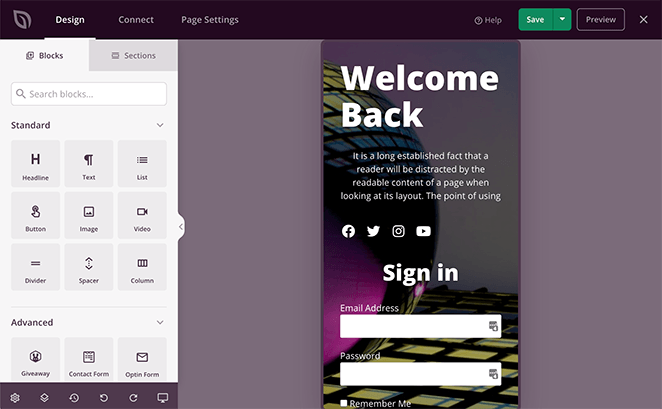
You can keep editing in either view, and SeedProd saves the changes across both.
Step 7: Publish Your Custom WordPress Login Page
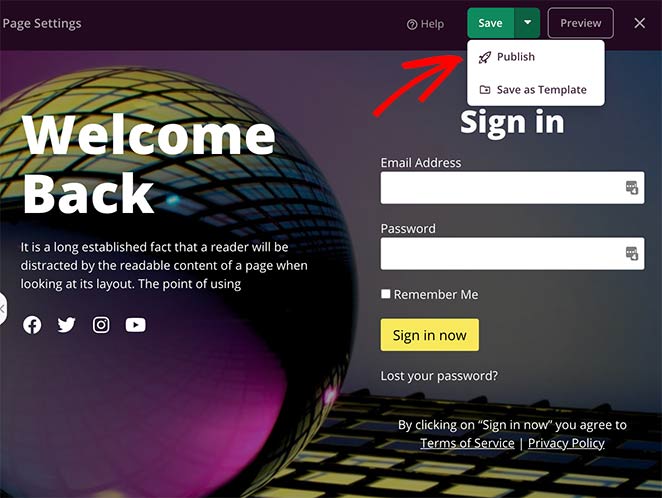
Once you’re happy with the page, click the down arrow next to the green Save button and select Publish.
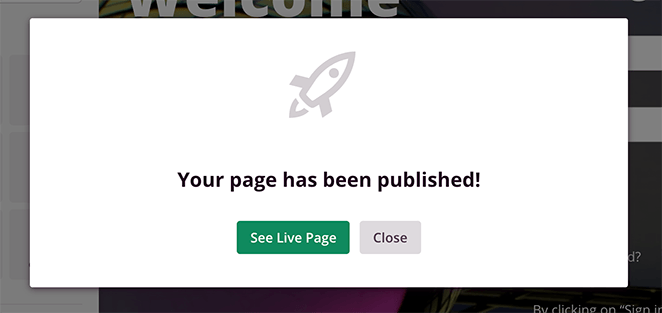
A popup confirms the page is live. Click See Live Page to view it.
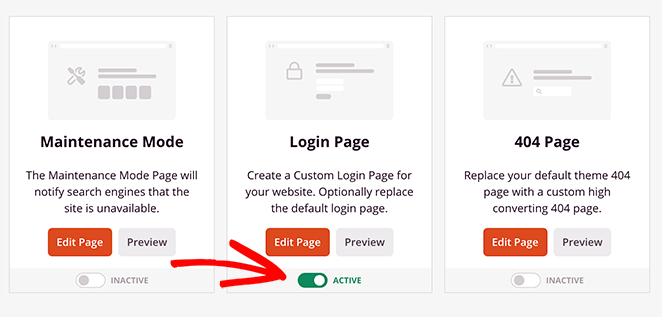
The last step is to turn on Login Page mode. Exit the builder, then under the Login Page heading switch the toggle to Active.
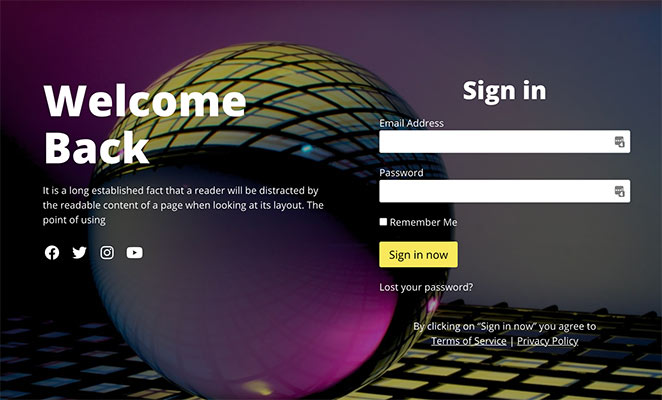
Now anyone visiting your WordPress login page sees your custom design.
Customize WordPress Login Page Using WPForms
The second method uses WPForms, the best drag-and-drop form builder for WordPress. What you might not realize is that its User Registration Form add-on can build a login form for your site.
With millions of sites using WPForms to build smarter forms, you’re in good hands. WPForms is part of the Awesome Motive family of products, same as SeedProd.
If you want a login form rather than a full page, follow this guide on how to create a WordPress custom login form with WPForms. It also covers adding a lost-password link and showing the form with a shortcode.
How to Customize WordPress Login Page Manually
Can you customize the WordPress login page without a plugin? Yes. You can add code to your theme’s functions.php file or a site-specific plugin, though it takes some comfort with code and gives you less control than a visual builder.
If you’re new to this, read this guide on how to add code snippets in WordPress so you don’t break your site by accident.
The snippet below restyles the login screen and swaps the logo. Edit the color values and logo path to match your brand, then add it to functions.php:
// Custom WordPress login page styles
function clp_login_head() { ?>
    <style>
        /* Replace the default logo */
        .login h1 a {
            background-image: url('https://example.com/wp-content/uploads/your-logo.png');
            background-size: contain;
            width: 320px;
            height: 80px;
        }
        /* Link colors */
        .login #nav a,
        .login #backtoblog a { color: #0073aa !important; }
        /* Submit button */
        .login .button-primary {
            background: #0073aa;
            border-color: #0073aa;
        }
    </style>
<?php }
add_action( 'login_head', 'clp_login_head' );

// Point the logo link to your home page instead of wordpress.org
function clp_login_url() { return home_url(); }
add_filter( 'login_headerurl', 'clp_login_url' );

// Change the logo hover/title text
function clp_login_title() { return get_bloginfo( 'name' ); }
add_filter( 'login_headertext', 'clp_login_title' );
That changes the logo, the link it points to, and the form colors on your existing login page. If you’d rather avoid code entirely, the SeedProd method above does the same job in the visual editor.
Show Your WordPress Login Form Anywhere Without a Plugin
To display the WordPress login form on any page or template, without a plugin or widget, add this to your theme template file:
<?php wp_login_form(); ?>That outputs the standard login form wherever you place the code. To customize the labels, redirect, and field options, pass arguments instead:
<?php
$args = array(
    'echo'           => true,
    'redirect'       => home_url(), // where to send users after login
    'form_id'        => 'loginform',
    'label_username' => __( 'Username' ),
    'label_password' => __( 'Password' ),
    'label_remember' => __( 'Remember Me' ),
    'label_log_in'   => __( 'Log In' ),
    'remember'       => true,
);
wp_login_form( $args );
?>
You can change the CSS around this form to match the rest of your site.
How Do You Change the WordPress Login Logo?
You don’t always need a full custom page. Sometimes changing the logo and the link behind it is enough, and a free plugin handles it without code.
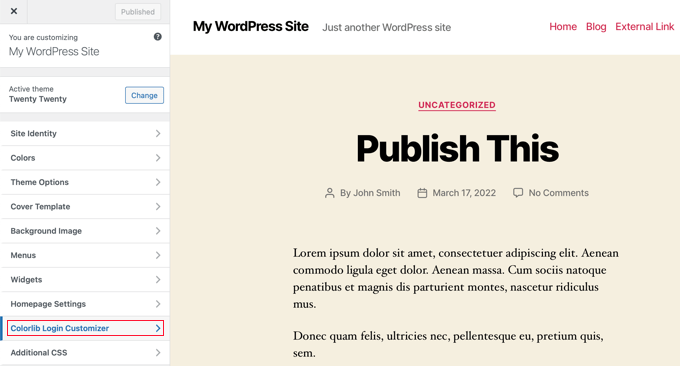
Install and activate the Colorlib Login Customizer plugin. Then go to Appearance » Customize and click the new Colorlib Login Customizer item.
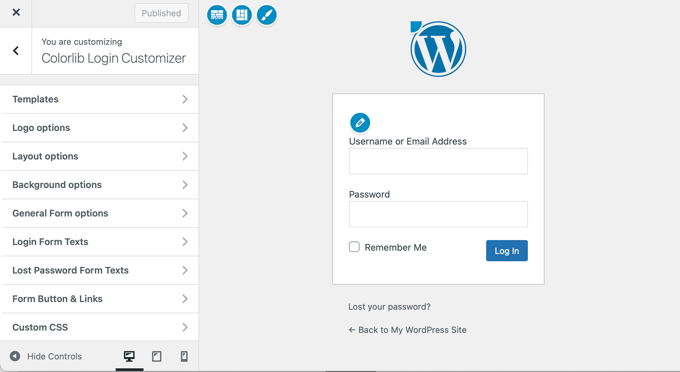
The customizer loads your login screen with settings on the left and a live preview on the right. Click the Logo options tab.
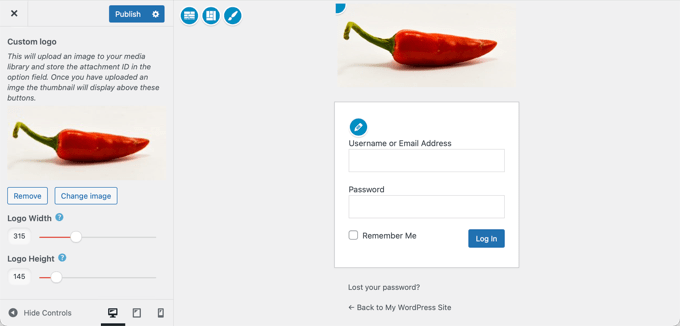
From there you can hide the WordPress logo, upload your own, and change its URL and text. You can also adjust the logo’s size, width, and height.
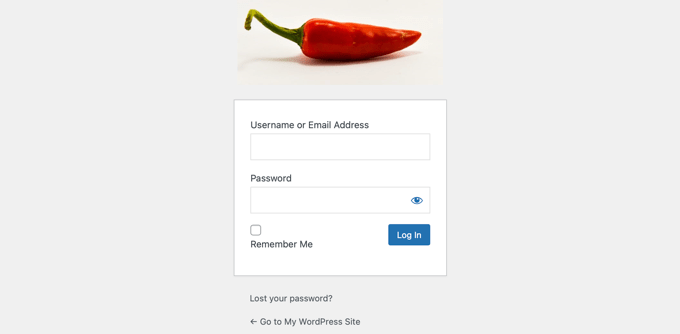
You can go further with columns, background images, and custom colors. Publish the changes once you’re happy with the new logo.
How Do You Secure Your Custom Login Page?
A branded login page is also a more visible target, so it’s worth hardening once it looks the part. A few steps cut down on brute-force attempts and bots.
- Change the login URL: Move the login away from the obvious wp-login.php. Here’s how to change your WordPress admin login URL.
- Limit login attempts: Cap how many times someone can try a password before they’re locked out, which blocks most brute-force attacks.
- Use generic error messages: The default “Invalid username” tells an attacker which half they got right. A vaguer message gives less away.
- Add two-factor authentication: A second code on top of the password stops a stolen password from being enough on its own.
On my own sites, changing the login URL is the first thing I do, since it stops most automated attacks before they ever reach the form.
How Do You Test Your Custom Login Page?
Before you call it done, run through a quick test so a typo doesn’t lock out your users. I always log out and try the page fresh, the way a real visitor would.
- Page loading: Check the page loads cleanly with no broken elements.
- Logo and design: Confirm the new logo and styling appear as expected.
- Login test: Log in with your username and password and make sure it works.
- Error messages: Enter wrong credentials and check the error displays properly.
- Forgot password: Trigger a reset and confirm the email arrives with a working link.
- Custom URL: If you set a custom URL, confirm it points to the new login page. Not sure where yours is? Here’s how to find your WordPress login URL.
- Responsiveness: Open the page on mobile, tablet, and desktop to check it looks right everywhere.
Customize WordPress Login Page FAQs
Can you customize the WordPress login page without a plugin?
Yes. You can restyle the existing login screen by adding CSS and a few hooks to your theme’s functions.php file or a site-specific plugin. It changes the logo, the link behind it, and the form colors without installing a page builder.
The tradeoff is that it takes some comfort with code and gives you less design control than a visual tool. For a full redesign with no code, a builder like SeedProd is easier.
How do I change the WordPress login logo without code?
Install a free login customizer plugin like Colorlib Login Customizer, then go to Appearance » Customize and open its settings. From the Logo options tab you can hide the WordPress logo, upload your own, and set the link and size.
Everything updates in a live preview, so you see the new logo before you publish. SeedProd’s Login Page mode also lets you drop in a logo block if you want to redesign the whole page.
Is it safe to customize the WordPress login page?
Yes, customizing the login page is safe when you use a reputable plugin or careful code. It changes how the page looks, not how WordPress authenticates users, so your security isn’t weakened by the design itself.
A custom page is a good moment to add real protection too. Changing the login URL, limiting login attempts, and turning on two-factor authentication all reduce the risk of brute-force attacks.
How do I add social login to the WordPress login page?
Social login lets people sign in with an existing Google or Facebook account instead of a separate WordPress password. You add it with a dedicated social login plugin that connects to those services.
It cuts signup friction because users skip creating and remembering another password. Once the plugin is set up, you can place the social login buttons on your custom login page alongside the standard form.
Start Customizing Your WordPress Login Page
That stock login screen no longer has to greet your members. With SeedProd you can change the colors, fonts, logo, and layout without writing any code, and have a branded login page live in minutes.
Get started with SeedProd and rebrand your login page.
Thanks for reading! We’d love to hear your thoughts, so please feel free to join the conversation on YouTube, X and Facebook for more helpful advice and content to grow your business.



