

TL;DR: How to Build a Typeform-Style Form in WordPress
WPForms Pro replicates Typeform’s one-question-at-a-time experience inside WordPress in about 15 minutes. Your form data stays in your WordPress database, with no monthly subscription required.
- Install WPForms Pro: Activate the plugin and verify your license key in WPForms » Settings.
- Enable Conversational Forms addon: Go to WPForms » Addons and install both the Conversational Forms and Surveys & Polls addons.
- Build your survey form: Create a new form from a template using the drag-and-drop builder.
- Customize the form settings: Enable conversational mode, set a title, message, permalink, logo, and color scheme.
- Publish and share: Preview, save, and send people to the unique permalink WPForms generates.
Typeform’s free plan limits responses to 10 per month and charges extra just to remove their branding. That’s the real reason people search for a Typeform alternative for WordPress: the tool works well, but the pricing punishes anyone who actually uses it.
I use WPForms for all forms on this site, and its Conversational Forms addon replicates the one-question-at-a-time experience without the subscription or the data living on someone else’s server. In this guide, I’ll walk you through the full setup.
You’ll end up with a fully branded conversational form that lives inside WordPress, answers stored in your own database.
Quick steps to create a Typeform in WordPress:
- Step 1: Install WPForms to Create a Typeform-Style Form in WordPress
- Step 2: Enable the WPForms Conversational Forms Addon
- Step 3: Build a New Conversational Survey Form Like Typeform
- Step 4: Customize the Conversational Form Settings and Design
- Step 5: Save and Publish Your Typeform-Style Form in WordPress
- FAQs About Creating a Typeform-Style Form in WordPress
What is the Best Typeform WordPress Alternative?

The best alternative to Typeform for WordPress is WPForms. WPForms lets you build any type of WordPress form, including Typeform-style conversational forms, using a visual drag-and-drop builder with no code required.
WPForms lets you build forms right within WordPress so you can publish them without leaving your site. And the ready-made form templates help you create any type of form with just a few clicks.
For this guide, you’ll need the WPForms Pro plan, which includes all the advanced features you need to make a form like Typeform. The free version doesn’t include conversational forms. WPForms Pro starts at $199.50/year, which works out to less than $17/month without Typeform’s per-response limits.
Why Use WPForms Instead of Typeform?
There are three concrete reasons to build conversational forms with WPForms instead of Typeform, and all three come down to the same thing: ownership.
- Typeform’s free plan caps responses at 10/month and charges to remove Typeform branding. For a site with real traffic, you’ll hit that ceiling immediately.
- WPForms stores submissions in your WordPress database. No third-party account holds your data. No risk of losing access to your responses if you cancel a subscription.
- WPForms is a one-time annual fee, not a recurring per-response plan. Typeform’s paid plans start at $25/month. WPForms Pro is a flat yearly rate regardless of how many responses you collect.
There’s also the question of how the two approaches work. When you embed Typeform into WordPress, you’re pasting an embed code from Typeform’s platform onto your page. Your form data lives on Typeform’s servers, not yours.
Using WPForms is a native WordPress solution: the form is built inside WordPress, responses go into your WordPress database, and there’s no external account dependency.
If you need a completely free option, WPForms Lite doesn’t include conversational forms. Fluent Forms has a free tier with basic multi-step forms if cost is the constraint.
Creating Typeform Style Web Forms in WordPress
Building a form similar to Typeform is useful when you want to have a more friendly tone in your surveys. Filling in a form like this is almost like having a conversation with a friend, which keeps you engaged and more likely to complete it.
They’re also handy when you want to build longer forms that often bore users, such as:
- Registration forms
- Job application forms
- Detailed contact forms
- Multiple choice question surveys
- Order forms, and more.
- File upload forms
And since you’re able to add some creative flair to conversational-type forms, it can help you reduce form abandonment.
Let’s learn how to create a Typeform WordPress form.
Step 1: Install WPForms to Create a Typeform-Style Form in WordPress
To begin, grab a copy of WPForms and install and activate the plugin. For help on how to install a WordPress plugin, check out this step-by-step guide.
When you’ve activated the plugin, go to WPForms » Settings and add your license key.
You can find your license key in your WPForms account area once you log in.
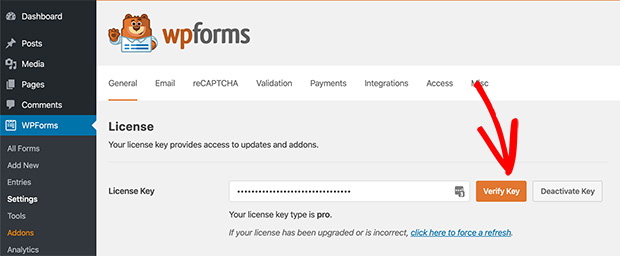
Add your license and click the Verify Key button.
Step 2: Enable the WPForms Conversational Forms Addon
After verifying your license key, you’ll need to activate the Conversational Forms Addon for WPForms.
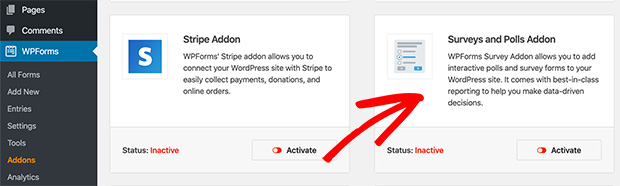
To do this, head to WPForms » Addons and locate the conversational forms option. Then click Install Addon.
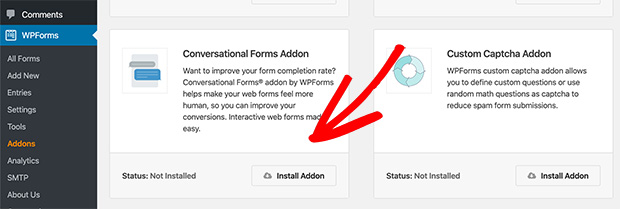
You’ll then notice the status will change to Active in a green color rather than red for inactive.
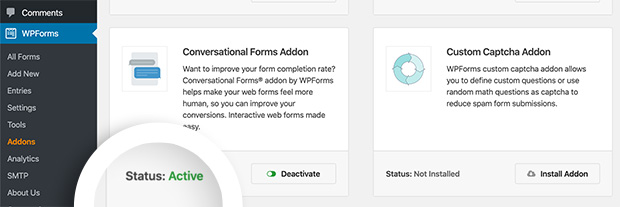
With this addon, you can build WordPress Typeform style forms from scratch, as well as turn existing forms into conversational ones.
And because we’re creating a survey form in this tutorial, you’ll also need to follow the same process to install and activate the Surveys & Polls Addon to make use of the advanced survey features.
Step 3: Build a New Conversational Survey Form Like Typeform
While conversational forms are great for longer web forms, we’ll keep things simple by showing you how to create a Typeform-style survey form.
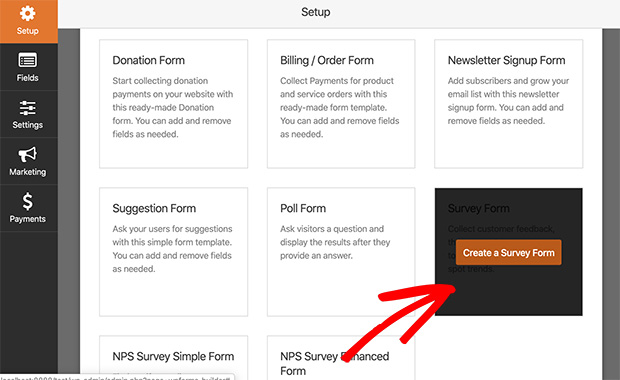
To create a new survey form, go to WPForms » Add New. The following page displays a wide range of form templates you can use to quickly launch a new form type.
Then with the drag-and-drop form builder, you can rearrange form fields and other elements to your liking.
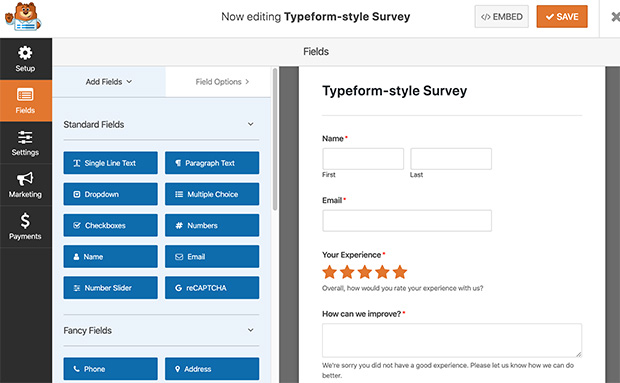
After you’ve created your form, head over to the settings page to configure the form settings.
Step 4: Customize the Conversational Form Settings and Design
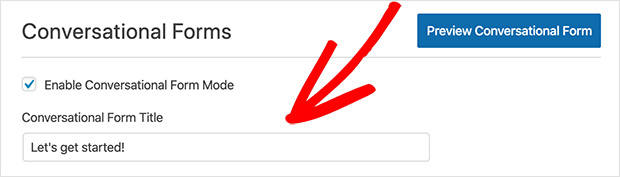
To enable the conversational forms feature, visit Settings » Conversational Forms. Then select the checkbox titled Enable Conversational Forms Mode.
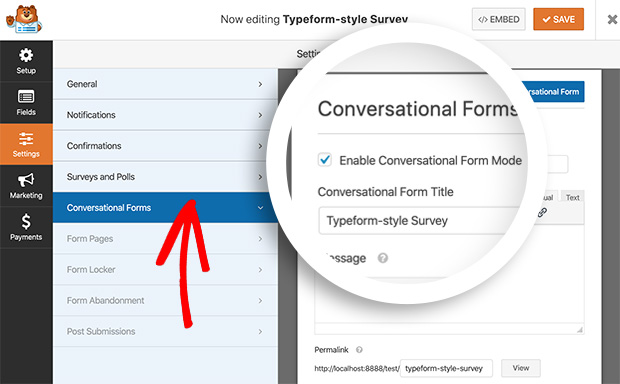
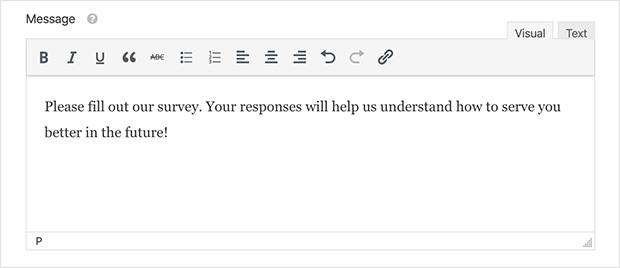
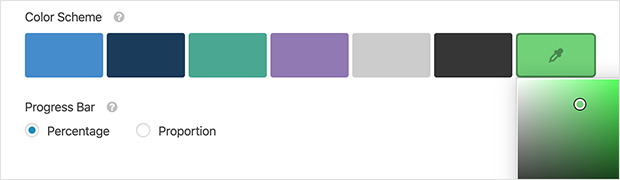
After enabling conversational mode, you’ll see a range of settings for customizing the form page. Here’s what each one does:
- Title: The name your respondents see at the top of the form page. Keep it short and descriptive.
- Message: A welcome message shown before the form begins. Use this to set context and give respondents a reason to continue.
- Permalink: The URL for your standalone conversational form page. WPForms generates one automatically from your form name, but you can customize it. Shorter permalinks are easier to share.
- Logo: Upload your logo to keep the form consistent with your branding. Click Upload Image and select a file from your computer or media library.
- Color Scheme: Choose colors for your form page. The color picker includes a dropper tool for matching exact colors used on your site.
- Progress Bar: Choose whether to display form completion as a percentage or a proportion.


One useful setting that goes beyond design: you can even turn a normal form into a landing page that includes a conversational form.
For a fully branded landing page around your form, SeedProd is a natural companion. It’s a drag-and-drop website builder that lets you design the full page layout while WPForms handles the form itself. That combination replicates what Typeform.com does as a hosted platform, but everything lives on your WordPress site with your branding.
WPForms also supports conditional logic through the Smart Conditional Logic addon. This replicates Typeform’s Logic Jumps feature, letting you show or skip questions based on how a respondent answered a previous question. It’s worth enabling on longer surveys to keep the experience focused.
Step 5: Save and Publish Your Typeform-Style Form in WordPress
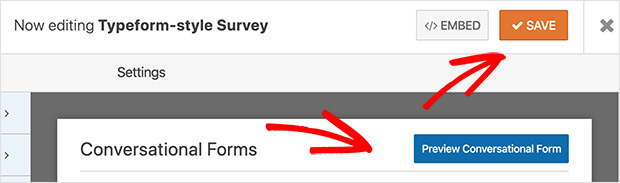
When you’ve configured your settings, scroll to the top of the form editor and click Preview Conversational Form. And if you’re happy with how everything looks, click Save.
Your form is now ready to be filled in. Simply direct people to the permalink you created earlier, and they can make a start.

What Happens Next?
Once your form is live and people start filling it in, you’ll want to know how to access the results.
To view submissions, go to WPForms » Entries in your WordPress dashboard and select your form. Every response is stored there, with a timestamp and all field data.
You can also set up email notifications so you get an alert whenever someone submits. Go to Settings » Notifications inside the form editor and configure the recipient address.
If you’re using the form to collect leads, WPForms connects to most major email services including Mailchimp, ConvertKit, and ActiveCampaign. Set up the integration under Settings » Integrations to automatically add new respondents to your list. I use this on our own forms and it saves the step of manually exporting and importing responses.
FAQs About Creating a Typeform-Style Form in WordPress
Is WPForms a free Typeform alternative for WordPress?
WPForms has a free version called WPForms Lite, but it doesn’t include the Conversational Forms addon. You’ll need the WPForms Pro plan to build Typeform-style conversational forms in WordPress. Typeform also has a free tier, but it limits responses to 10 per month and requires paid plans to remove Typeform branding. WPForms Pro removes those response and branding constraints.
Does WPForms support conditional logic like Typeform?
Yes. WPForms supports conditional logic through the Smart Conditional Logic addon, which replicates Typeform’s Logic Jumps feature. You can show or skip questions based on previous answers, which keeps surveys focused and reduces the number of irrelevant questions respondents see. The addon is available on WPForms Pro and higher plans.
How do I view form submissions in WPForms?
Go to WPForms » Entries in your WordPress dashboard and select the form you want to review. All submissions are stored there with timestamps and full field data. You can also export entries as a CSV, set up email notifications for new submissions, or connect WPForms to an email marketing service to automatically add respondents to a list.
Can I use a conversational form on a WordPress landing page?
Yes. WPForms generates a standalone permalink for each conversational form, so you can share that URL directly without embedding it on a page. If you want a fully designed landing page around the form, SeedProd pairs well with WPForms. You build the page layout in SeedProd and drop in the WPForms block, giving you complete control over the surrounding design while keeping the conversational form experience intact.
Get Your Conversational Form Live Today
Typeform’s response limits and branding fees are a problem you don’t need to have. With WPForms, your form data stays in WordPress, there are no monthly response caps, and you keep your own branding throughout.
For more help with your forms, you may like my other guides:
- How to Create a Landing Page in WordPress
- How to Create a WordPress User Registration Form
- How To Create a WordPress Event Registration Form
- How to Create a Multi-Step Form in WordPress
Thanks for reading! We’d love to hear your thoughts, so please feel free to join the conversation on YouTube, X and Facebook for more helpful advice and content to grow your business.



