

TL;DR: Model Context Protocol (MCP) lets AI assistants connect directly to your WordPress site and take action on your behalf using plain-English instructions.
- What MCP is – An open standard that connects AI assistants to external tools and data sources, including your WordPress site.
- What AI agents can do – Create and edit posts, update pages, manage categories, moderate comments, and retrieve media. All from a plain-English instruction.
- WordPress.com – MCP is built in for paid plan users. Enable it in account settings and connect your AI client.
- Self-hosted WordPress – WPVibe connects your site to Claude or ChatGPT in about 60 seconds, free. WordPress 7.0 will add MCP to core once it ships.
- Safety – Agents can only do what the WordPress user role you assign them allows. Nothing more.
Every explanation of MCP I found when I first went looking was written for developers. REST APIs, JSON configurations, server setup instructions. Not exactly useful if you’re running a WordPress blog or small business site.
I use Claude Code to manage WordPress content every day, and it turns out MCP is what makes that possible. Once I understood what it actually was, it clicked fast.
In this guide, you’ll learn what MCP is, what AI can do on your WordPress site once it’s connected, and whether you need to do anything about it right now.
- What Is the Model Context Protocol?
- How Does MCP Work With WordPress?
- What Can AI Agents Actually Do on Your WordPress Site?
- WordPress.com vs. Self-Hosted WordPress: Which One Has MCP?
- Is It Safe to Let AI Agents Into Your WordPress Site?
- How to Connect Your WordPress Site to an AI Agent Today
- FAQs About MCP in WordPress
What Is the Model Context Protocol?
MCP (Model Context Protocol) is an open standard that lets AI assistants connect directly to external tools, including your WordPress site. Instead of copying content out of your editor and pasting it into your AI tool, your AI can just go do the thing.
Before it existed, getting AI to help with WordPress content meant a lot of back-and-forth. Copy the text out, paste it into ChatGPT, make edits, paste it back. It worked, technically.
But it was basically using AI as a fancier clipboard.
Anthropic created and open-sourced MCP in 2024. WordPress, WooCommerce, and a lot of other platforms have adopted it since.
The analogy I keep coming back to is USB. Before USB, every device needed its own proprietary cable.
MCP does the same thing for AI connections: one standard that any compatible AI can plug into, regardless of platform.
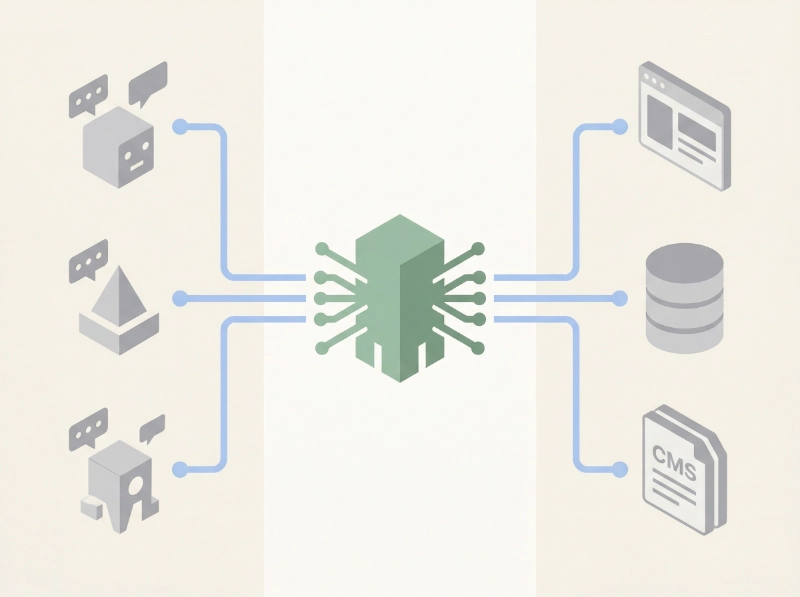
I use Claude Code daily, and it’s itself an MCP client. The connection to my WordPress sites was already built into it. I just hadn’t thought about what was making it work.
How Does MCP Work With WordPress?
When I ask Claude to fetch a post and update the meta description, I type one sentence. What I didn’t fully understand until I read more about it is that three things are happening behind that one sentence.
Your AI sends the request to an MCP server sitting between it and your WordPress site. That server translates it into a WordPress REST API call. WordPress then performs the action and the result comes back.
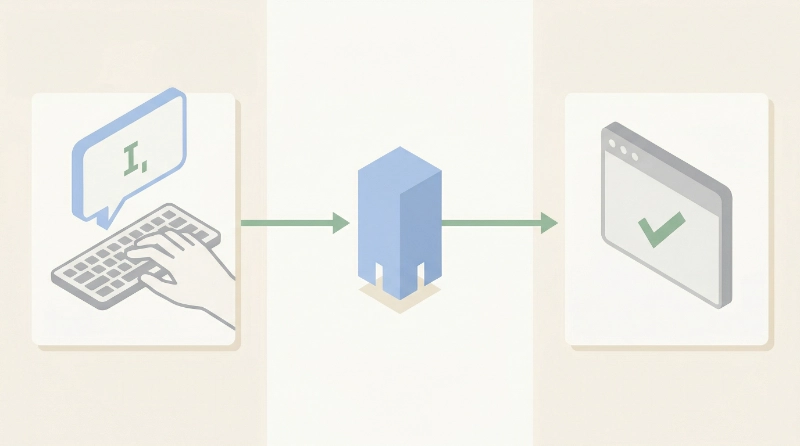
You never see any of that. You just see the result.
In plain terms, the flow is:
- You type a plain-English instruction to your AI
- The AI sends it to the MCP server on your site
- The MCP server calls the WordPress REST API
- WordPress acts, and the result comes back to your AI
MCP also defines three types of things an AI can do:
- Tools (actions, like publishing a post
- Resources (data it can read, like your post content)
- Prompts (pre-built instructions for common tasks)
You don’t interact with these directly. They’re what makes it consistent across different AI tools.
What Can AI Agents Actually Do on Your WordPress Site?
Once connected, an AI agent can work with posts, pages, comments, categories, tags, and your media library. All from a plain-English instruction.
In my own workflow, I use it to update meta descriptions, pull post content for edits, and check whether drafts are published or still pending. It’s WordPress automation without the plugin stack.
Here’s what that looks like in practice:
- Posts – Create a draft, update body copy, or change status from draft to published
- Pages – Update page content or a meta description using plain English
- Comments – Approve, delete, or flag spam without opening the dashboard
- Categories – Assign posts to categories or rename them
- Tags – Add or remove tags across multiple posts at once
- Media – Search your library or retrieve image URLs on demand
That’s the content layer. With REST API and WP-CLI access, the scope gets wider:
- Plugin data – Query plugin databases to retrieve user behavior, purchase history, or custom fields
- Plugin APIs – Trigger actions through plugin endpoints, like tagging CRM contacts based on activity
- Theme patterns – Assemble page layouts from your theme’s built-in pattern library using prompts
That last one is the most underrated. Instead of building a landing page block by block, you describe what you want and the AI assembles it from patterns your theme already has.
There are things it can’t do without elevated permissions. Installing plugins, managing users, and changing core settings are all off-limits unless the connected account has that access.
Connect your AI as an Editor-role user and it stays within content.
WordPress.com vs. Self-Hosted WordPress: Which One Has MCP?
Both WordPress.com and self-hosted WordPress support MCP, but the setup path is different depending on which version of WordPress you’re running.
WordPress.com
If you’re on a paid WordPress.com plan (Personal, Premium, Business, or Commerce), MCP is already there. Go to Account Settings, then AI and MCP, and toggle it on.
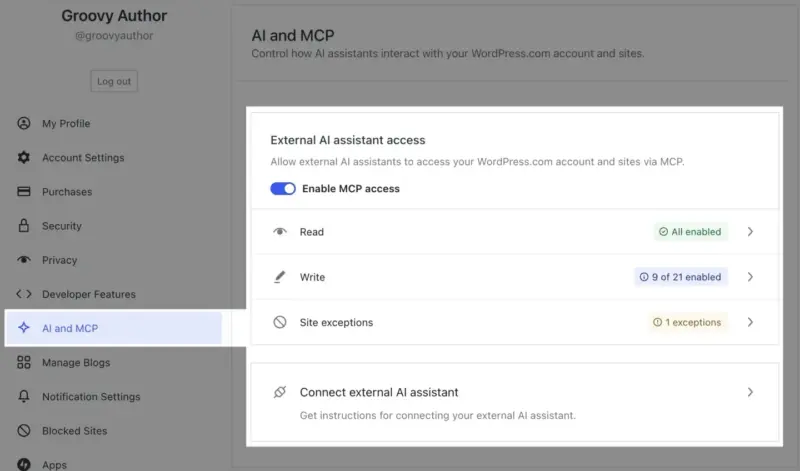
You’ll get a server URL to paste into your AI client. No plugin needed.
Self-Hosted WordPress
WordPress 7.0 will ship MCP support directly into core, but it’s not out yet.
Until then, WPVibe is the current option. Install it from wp-admin like any other free plugin. It connects your self-hosted site to Claude or ChatGPT, no coding required. I’ll explain more about this later.
| WordPress.com | Self-Hosted (via WPVibe) | |
|---|---|---|
| Available now? | Yes, paid plans only | Yes, free |
| Setup method | Toggle in account settings | Paste URL, one-click auth |
| Plugin required? | No | Optional (free at wordpress.org/plugins/vibe-ai) |
| Cost | Requires paid plan | Free |
Is It Safe to Let AI Agents Into Your WordPress Site?
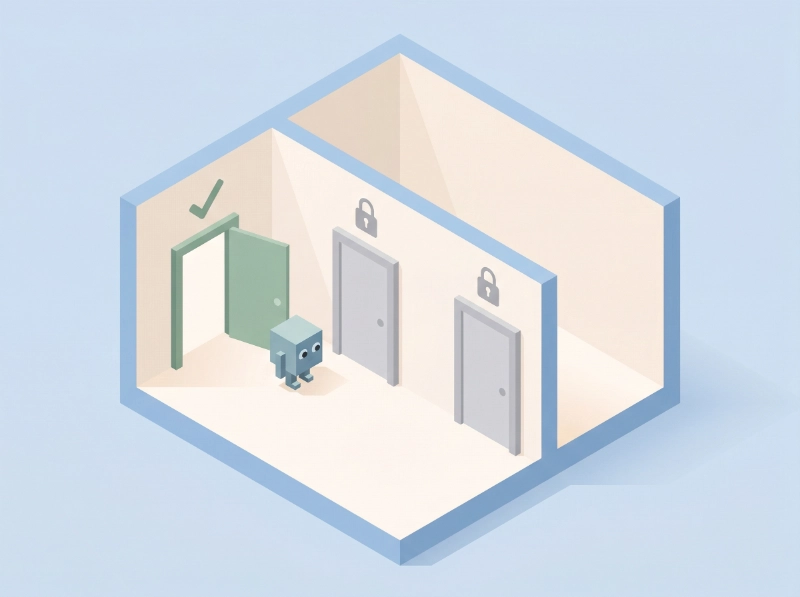
This was my first question too. The short answer is that agents can only do what the WordPress account you connect them to is allowed to do.
Connect Claude as an Editor and it can edit content, but it can’t install plugins, delete users, or change site settings. You’re not handing over admin access. You’re handing over whatever role you assign.
Every action can go through a confirmation step. Your AI tells you what it’s about to do and waits. You approve or cancel.
From what I’ve read in Anthropic’s documentation, your content isn’t used to train AI models. The AI reads it to complete the task, and that’s it.
You can revoke access any time through WordPress Application Passwords.
Like any tool connected to your site, it’s worth using the minimum permissions needed. For content tasks, Editor is enough. No reason to give admin access for something that only needs to update post copy.
How to Connect Your WordPress Site to an AI Agent Today
The fastest way to connect WordPress with an AI agent is with WPVibe, a free plugin now available in the WordPress plugin directory.
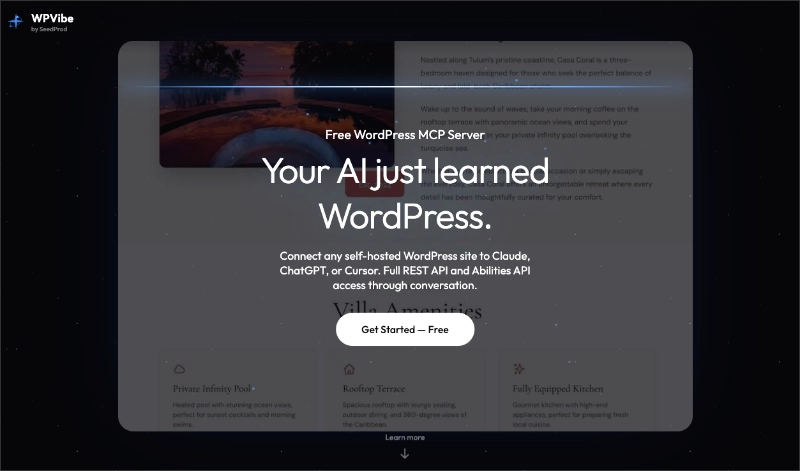
It sits between your AI assistant and your site, handling the connection so you don’t have to set anything up manually. Setup takes about 60 seconds.
Simply install and activate the WPVibe plugin from your WordPress dashboard. Then click the Connect to WPVibe button.
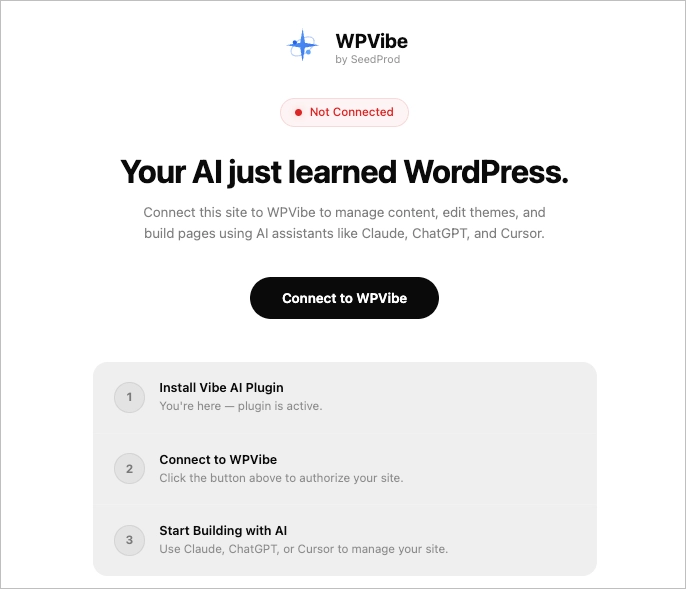
You’ll then head to mcp.wpvibe.ai, where you’ll see instructions for adding the MCP server to your AI client such as Claude, ChatGPT, or Cursor.
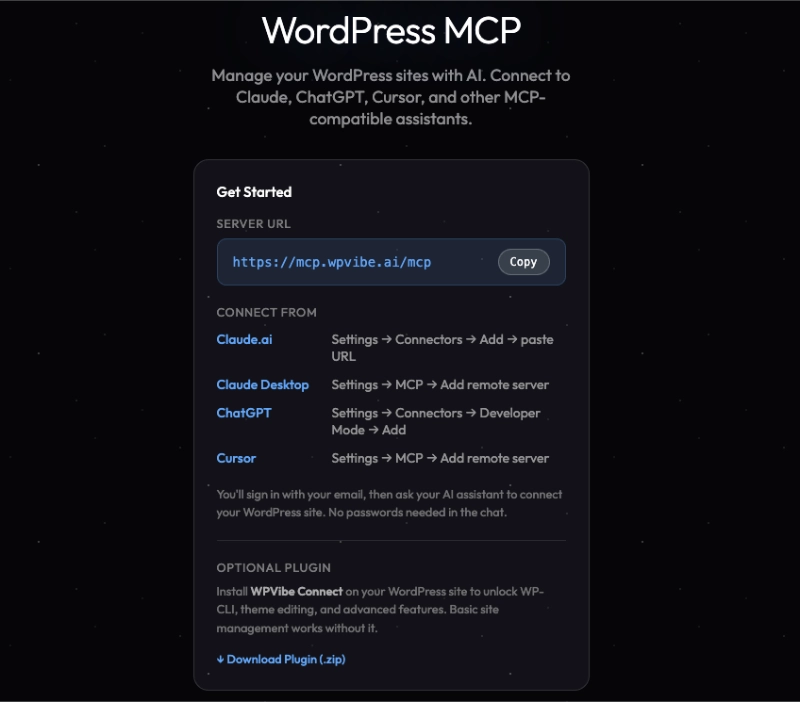
Once it’s added, go to your AI client and ask it to connect your site. That’s it. Here’s what it looks like connecting my own site using Claude Code.
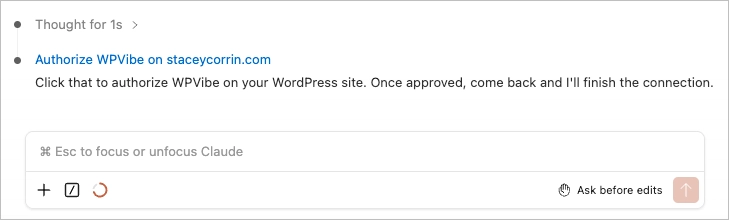
Once you’re connected, you can create posts, update pages, manage categories, check post status, all from a plain-English instruction in Claude or ChatGPT.
I manage content through Claude using WPVibe now regularly and rarely open wp-admin for routine edits. So, if you’re looking for AI tools for WordPress site management, this is the setup I’d start with.
Most of that is SeedProd pages I edit by chat rather than opening the builder.
If you want to see it in action before you try it, WordPress creator Jackson recently put WPVibe through its paces on YouTube.
His verdict: it’s the easiest AI-to-WordPress setup he’s tried, and one of the most promising AI workflows for WordPress right now.
Get started with WPVibe for free.
FAQs About MCP in WordPress
What is Model Context Protocol used for in WordPress?
MCP lets AI assistants take actions on your WordPress site using plain-language instructions. Once connected, an AI like Claude or ChatGPT can create posts, update pages, manage categories and tags, and moderate comments. It’s the layer that connects your AI tool directly to your website so you don’t have to copy and paste content between them.
Can ChatGPT or Claude connect to my WordPress site?
Yes. Both Claude and ChatGPT support MCP. They can connect to WordPress.com sites on paid plans, or to self-hosted WordPress sites using WPVibe right now. WordPress 7.0 will build MCP support directly into every self-hosted install once it ships.
Do I need to be a developer to use MCP with WordPress?
Not for basic setup. On WordPress.com, it’s a toggle in account settings, then a configuration step in your AI client. On self-hosted WordPress, WPVibe handles the technical side in about 60 seconds.
Is MCP available on self-hosted WordPress?
Yes, through WPVibe today. WPVibe connects your self-hosted site to Claude or ChatGPT for free. WordPress 7.0 will build MCP into core so every self-hosted install gets it without a separate plugin.
MCP is one of those things that sounds more technical than it is. Once you’ve asked your AI to pull a post, update the copy, and push it back, doing the same thing manually through wp-admin starts to feel like extra steps.
If you’re on a self-hosted site, WPVibe is free and connects in 60 seconds. No reason to wait for WordPress 7.0.
More WordPress AI Guides
- Adding WP-CLI to Your MCP Server Gives Your AI Agent Superpowers
- Best AI Website Builder for WordPress: 7 Tools Tested (2026)
- What Is SeedProd AI and How Does It Work?
- How I Use AI to Write Content for WordPress with Examples
If you found this helpful, follow us on Twitter, Facebook, and YouTube for more WordPress tips and tutorials.



