


TL;DR: How to Add a Search Bar to WordPress
You can add a search bar to WordPress without code in four ways. Pick the one that matches how much control you need.
- Search block: Add the free, built-in WordPress Search block to any page or post in seconds.
- Search widget: Drop the Search widget into a sidebar or footer through Appearance » Widgets.
- SeedProd: Place a styled search bar anywhere, including a custom header or search results template, with a drag-and-drop block.
- SearchWP: Use a dedicated search plugin when you want live results and better relevance than the default.
When I started using WordPress, I was frustrated with the basic search feature. It often returned irrelevant results or missed some content completely.
Through running my own WordPress sites, I now know that a good search feature helps visitors find what they’re looking for and keeps them on your site longer. That makes them happier and more likely to come back.
That’s why, in this guide, I’ll show you how to add a search bar to WordPress. By the end, you’ll have a search feature your visitors actually want to use, and which serves your website better.
Why Add a Search Bar to WordPress?
A search bar gives visitors a fast way to find what they came for. When people can search instead of clicking through tabs, they’re more likely to stay and explore.
It also pays off in conversions. On-site searchers are 1.8% more likely to convert than visitors who don’t use search, which makes a search bar a real factor in turning visitors into subscribers and customers.

When visitors find what they need quickly, they tend to stay engaged longer, which can support your SEO over time. A good search bar also tells you what your audience wants.
By reviewing what people search for, you can shape your content around real demand. If the default search keeps letting you down, a dedicated WordPress search plugin can fill the gaps.
Where Should You Put a Search Bar?
Before you add anything, decide where the search bar will do the most good. Placement changes how often people actually use it.
- Header: The most visible spot. A search bar here appears on every page, so it’s the best choice for content-heavy sites and stores.
- Sidebar: Useful as secondary access on blogs and archive pages, where readers often look for related posts.
- Footer: A low-pressure fallback for visitors who scroll to the bottom looking for a way to dig deeper.
On the sites I’ve built, the header wins almost every time for a busy blog or shop. I save the sidebar and footer for sites where search is a nice-to-have rather than the main way people get around.
How to Add a Search Bar to WordPress: 4 Ways
The default WordPress search works for simple sites, but it’s limited. It ignores tags, categories, and custom fields, doesn’t order results by relevance, and gives you no record of what people search for.
Here’s how to choose between the four methods:
- Search block or widget: Free and built in. Best when you just need a working search box fast.
- SeedProd: Best when you want design control and placement the default tools can’t reach, like a custom header or search results template.
- SearchWP: Best when search quality is the problem and you want live results and better relevance.
I’ll start with the simplest free method and work up to the ones that give you more control.
Method 1. Add the WordPress Search Block (Free, No Plugin)
WordPress includes a free Search block, so you can add a search bar without a plugin. This is the fastest route, and it’s the answer most people are after when they want search on a single page or post.
Open the page or post where you want the search bar in the block editor. Click the + icon, type “Search,” and select the Search block.
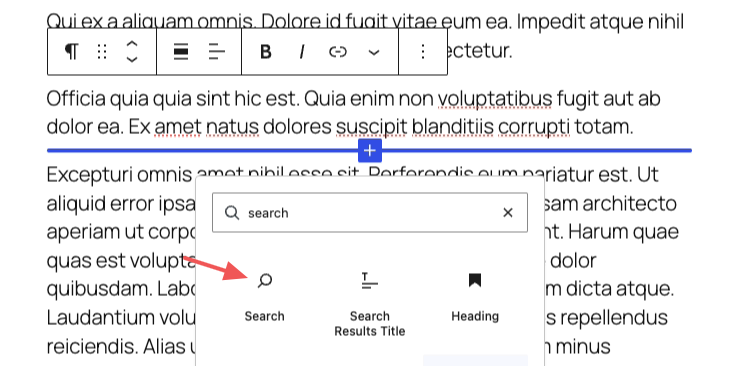
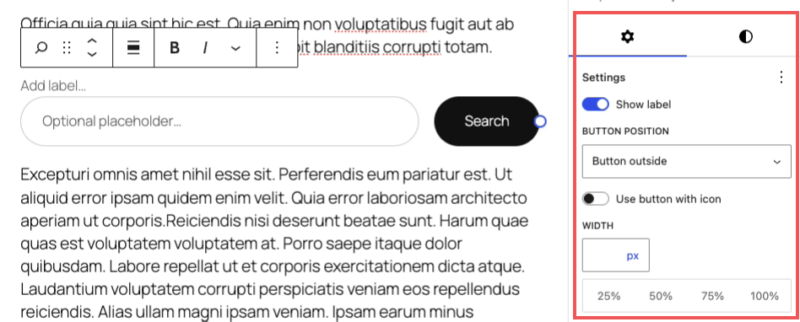
The block drops a search field and button straight into your content. You can edit the button label, switch the button to an icon, and adjust the width from the block toolbar and settings panel.
If you run a block theme, you can also add the Search block to your site-wide header. Go to Appearance » Editor, open your header template, and insert the Search block the same way. It then shows on every page.
When I want a quick search box on a landing page and don’t need any styling, this is what I reach for first. It takes about a minute.
Method 2. Add a Search Widget in WordPress
If your theme uses classic widget areas, the Search widget is the built-in way to add a search bar to a sidebar or footer. It’s free and takes a couple of clicks.
From your WordPress dashboard, go to Appearance » Widgets. Find the Search block in the widget panel and add it to a widget area, such as your sidebar or footer.
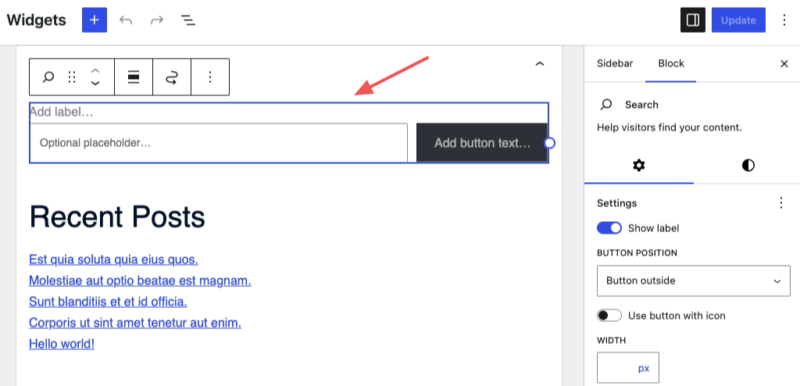
Save your changes, then visit your site to confirm the search box appears where you placed it. On the older client sites I’ve worked on that still run classic themes, this is the route I use because the block editor header method isn’t available.
Method 3. Add a Custom Search Bar to WordPress with SeedProd
The free Search block and widget get a search box on your site, but they don’t give you much control over how it looks or where it goes. That’s where SeedProd comes in.

SeedProd is a drag-and-drop website builder that lets you place a styled search bar almost anywhere on your site without touching code. That includes spots most free methods can’t reach, like a custom header, a search results template, or your WooCommerce pages.
I use SeedProd on my own sites, so this is the method I know best. You can add the search bar to a page, your header, or a sidebar, and it looks consistent everywhere.
SeedProd has a free version and several premium plans. I’ll use SeedProd Pro here because the Search Form block and Theme Builder are part of the paid plans. Choose your plan and download the plugin to get started.
Get Started with SeedProd Today
After downloading it, follow these steps to install the SeedProd plugin on your WordPress site.
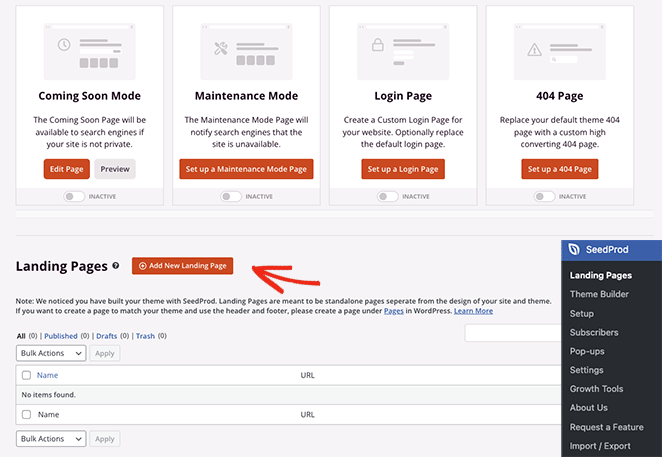
With SeedProd activated, decide where you want the search bar. You can add it to a standalone page, a custom theme, the header, or the sidebar.
The landing page builder is best for standalone pages built to boost leads and conversions.
The Theme Builder is best for building a custom WordPress theme without hiring a developer.
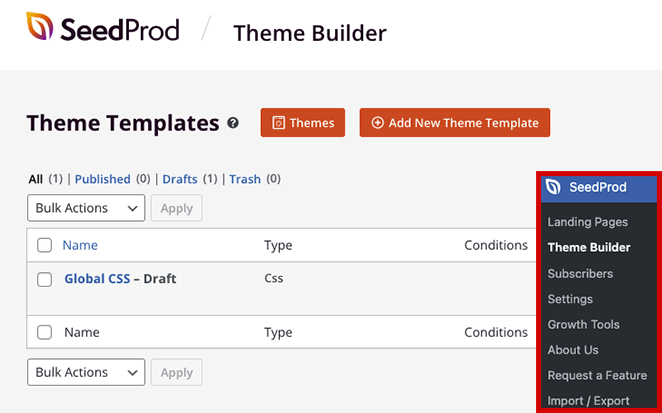
To find these options, go to SeedProd in your WordPress dashboard and choose either Theme Builder or Landing Pages. From there, select a pre-made landing page template or a full website kit and start customizing.
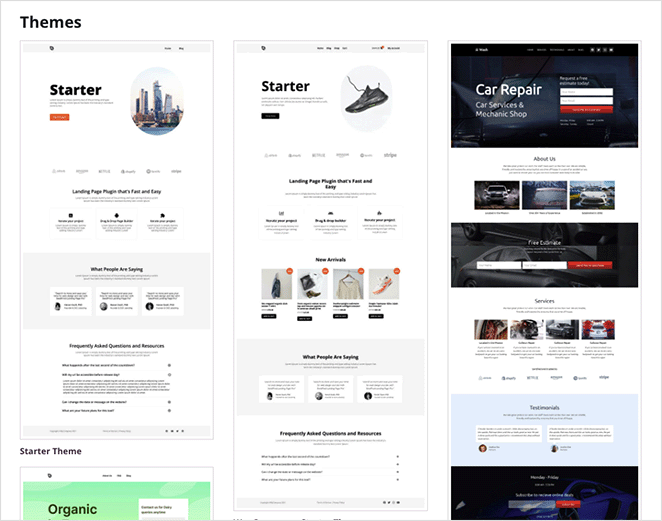
Need every step? Here’s a guide on how to create a custom WordPress theme and how to create a landing page in WordPress.
How Do I Add a Search Box to a WordPress Page?
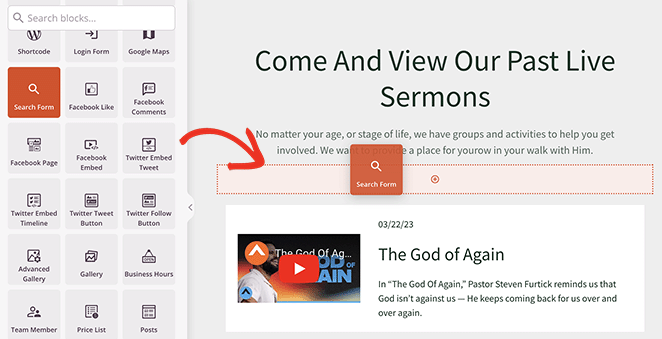
Inside the SeedProd builder, you’ll find a panel on the left with blocks to add to your page. Scroll down to the Search Form block.
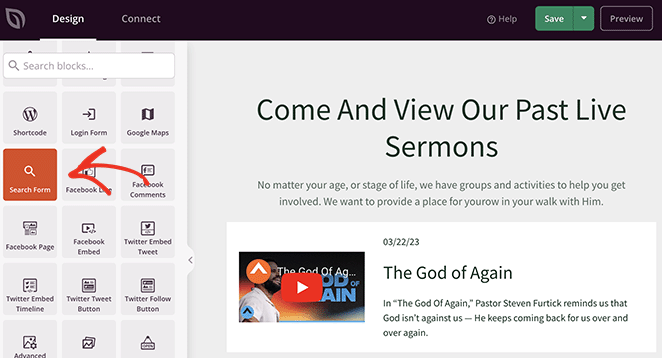
Drag and drop the block where you want the search bar to appear on your page.
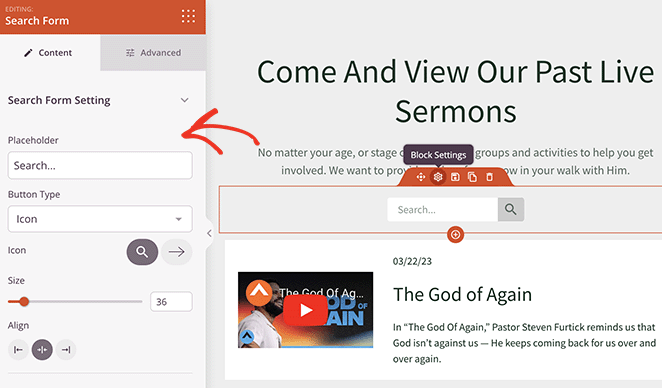
In the search block settings, you can customize its appearance, size, and search icon. You can also add placeholder text like ‘Search here…’ to guide your visitors.
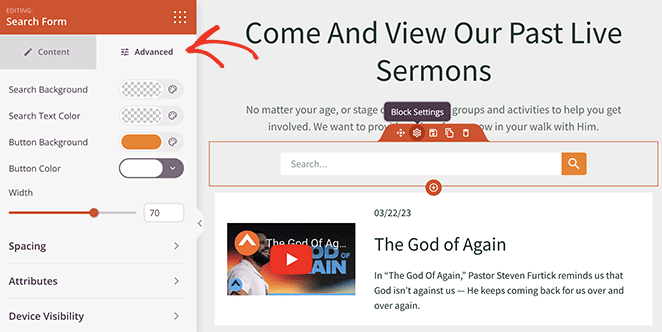
The ‘Advanced’ tab gives you more control. You can change the button and box colors to match your theme, adjust spacing, control device visibility, and add animations.
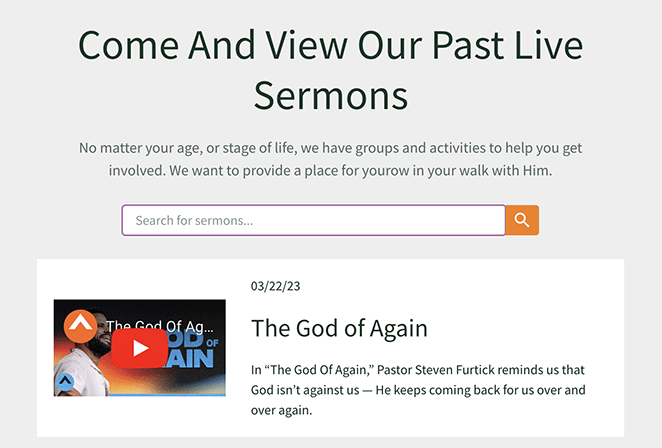
When you’re happy with your changes, click the Save and Publish button, then visit your page to see the new search bar.
How Do I Add a Search Bar to the WordPress Header?
A search bar in the header is the most accessible option because it shows on every page. With SeedProd, you add it through the Theme Builder.
The Theme Builder lets you customize parts of your site including the header, footer, sidebar, and archives. If you haven’t set up your theme yet, follow these steps to customize your WordPress header first.
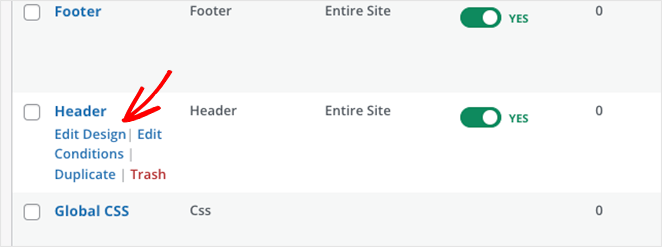
Once you’re editing the header, you’ll see the SeedProd builder interface. Find the Search Form block in the left panel and drag it to where you want it in the header.
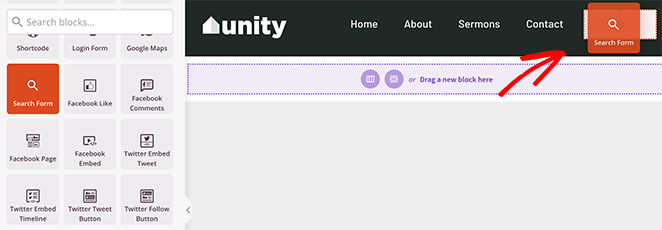
Fine-tune the search bar to fit your header design. In the ‘Advanced’ tab, you can adjust the styling and set how the bar appears on different devices.
Once you’ve saved your changes, visit your site to see the header search bar in action.

How Do I Add a Search Widget to a WordPress Sidebar?
The sidebar is a good spot when you want search to be accessible without dominating the page. With SeedProd, adding it to the sidebar works the same way as the header.
Go to your WordPress dashboard, click SeedProd, then Theme Builder. Click the “Edit Design” link on your sidebar template to open the builder.
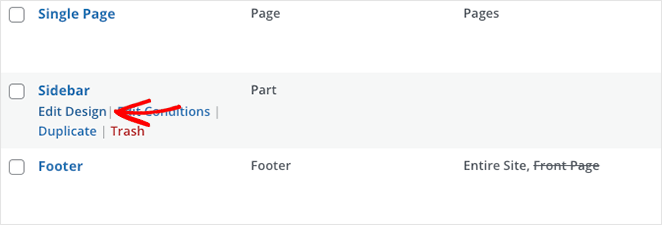
If you don’t have this template yet, follow these steps to create a custom sidebar in WordPress.
Once you’re in the builder for your sidebar, find the Search block in the left panel and drag it to where you’d like it.
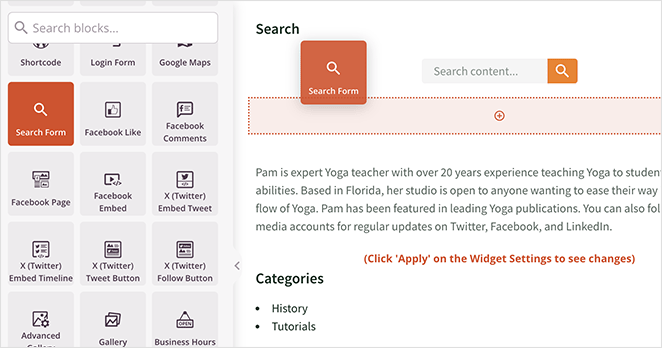
Customize its appearance, then click the Save button to make your changes live.

How Do I Change or Edit the WordPress Search Bar Text?
You can change the placeholder text inside the search field and the label on the search button. This is a quick way to make the bar feel like part of your brand.
In the SeedProd Search Form block settings, edit the placeholder text to something like ‘Search the blog…’ and change the button text from ‘Search’ to whatever fits, such as ‘Go’ or ‘Find.’
With the free Search block, you can edit the button label in the block settings. The placeholder text on the native block is fixed unless your theme or a plugin lets you change it.
Method 4. Add Site Search to WordPress with a Search Plugin
If your real problem is search quality, a dedicated WordPress search plugin like SearchWP is the better fit.

SearchWP adds search boxes with advanced features like Ajax-powered live search and customizable search results.
Live Ajax search shows results in real time as users type. That cuts the wait and makes the whole search experience feel faster.
How Do I Add a Search Bar to a WordPress Menu?
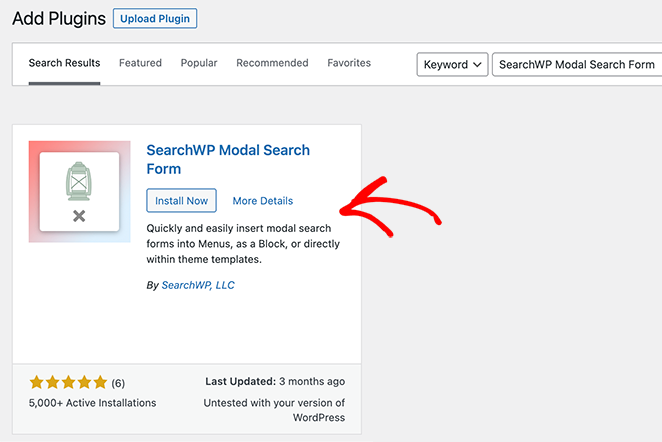
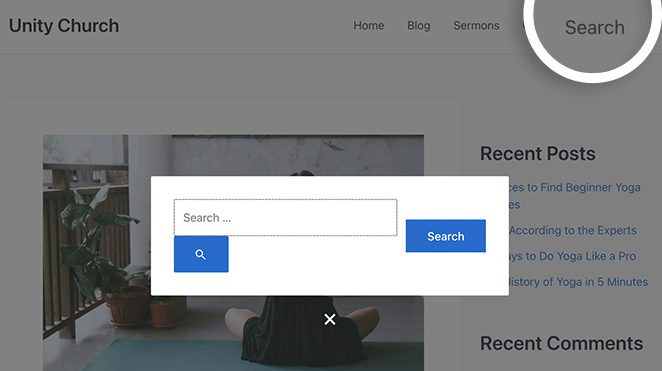
First, go to your WordPress dashboard, open Plugins » Add New, and search for ‘SearchWP Modal Search Form.’ Install and activate it. You can also download it from WordPress.org and upload it manually.
After activation, go to Appearance » Menus and select a menu to edit from the dropdown.
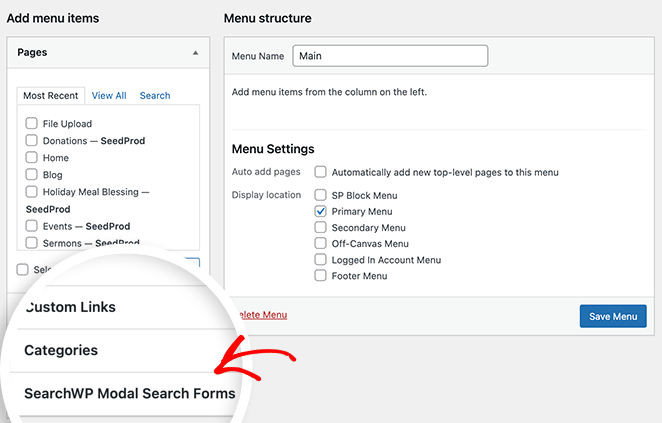
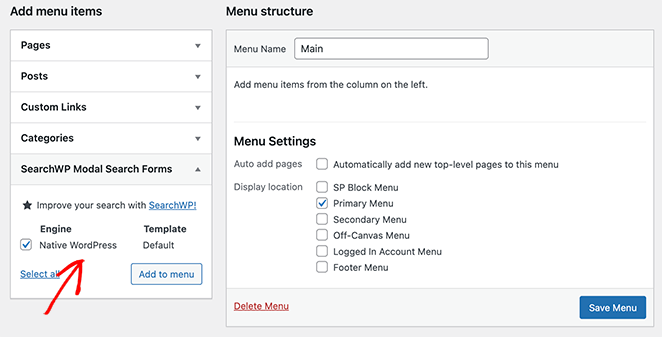
Find the ‘SearchWP Modal Search Forms’ box on the left and click it to expand. Check the ‘Native WordPress’ option and click Add to menu.
A ‘Native WordPress’ item appears in your menu. Click it to customize, and change the label to ‘Search’ for clarity.
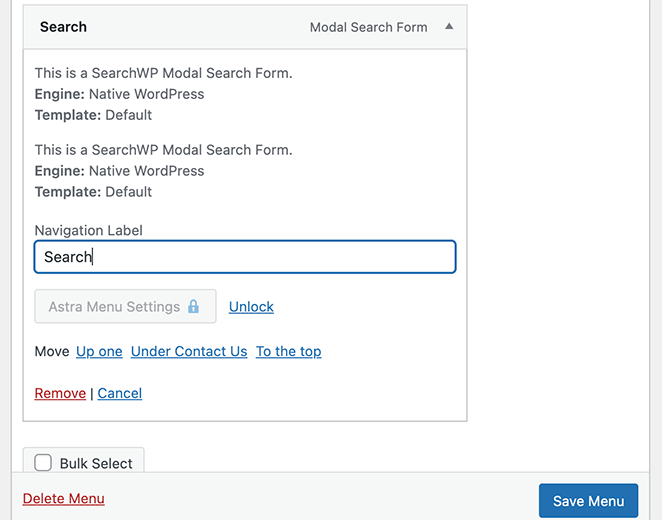
Click Save Changes and visit your site to see the menu search in action.
How Do I Add Ajax-Powered Live Search?
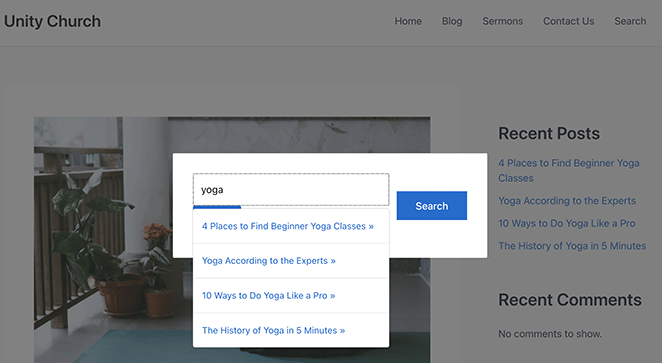
For a more interactive experience, you can add live results with Ajax. This displays relevant results as users type, similar to how Google works.
Install and activate the ‘SearchWP Live Ajax Search‘ plugin. It works with the SearchWP Modal Search Form and has no settings to configure.
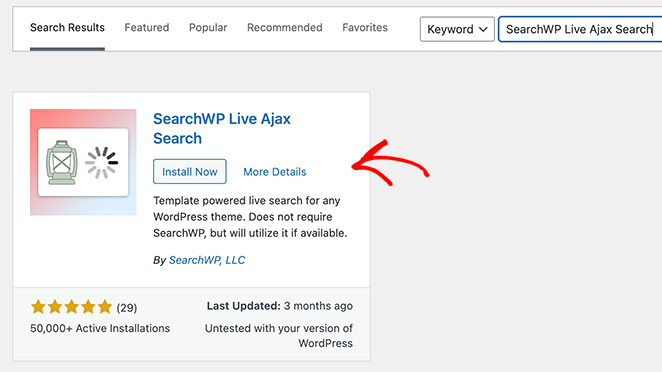
Once activated, the plugin adds live search to all your forms. Visit your search form on the front end and type a query to see it work.
How Do I Customize WordPress Search Results?
Adding a live search bar to your WordPress menu is a good start, but the premium SearchWP plugin goes further. It lets you customize search results and highlight promoted items like products.
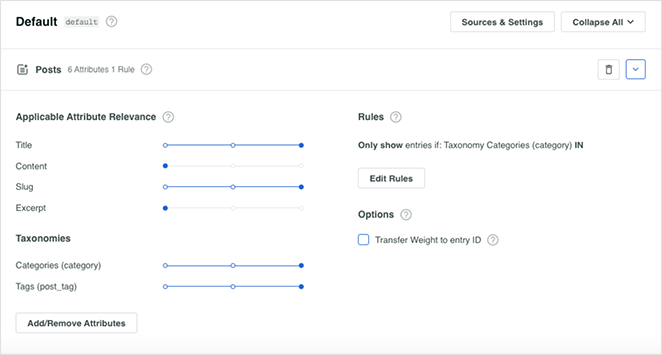
For a complete walkthrough, see these tips on how to improve WordPress search with SearchWP.
Frequently Asked Questions About Adding a Search Bar to WordPress
How do I add a search bar in WordPress without a plugin?
WordPress includes a free Search block you can add without any plugin. Open a page or post in the block editor, click the + icon, type “Search,” and select the Search block.
If you run a block theme, you can also add the same block to your header through Appearance » Editor so it shows on every page. Classic themes can use the built-in Search widget instead.
How do I add a search bar to my WordPress menu?
The native WordPress menu doesn’t support a search box on its own, so you need a plugin like SearchWP Modal Search Form. After installing it, go to Appearance » Menus, expand the SearchWP box, check ‘Native WordPress,’ and click Add to menu.
Rename the item to ‘Search,’ save your changes, and the search option appears in your navigation.
How do I change or edit the WordPress search bar text?
With SeedProd, open the Search Form block settings and edit the placeholder text and the button label directly, for example ‘Search the blog…’ and a button that says ‘Go.’
With the free Search block, you can edit the button label in the block settings. The placeholder text on the native block is fixed unless your theme or a plugin lets you change it.
Why does the default WordPress search return poor results?
The default WordPress search only matches post titles and content. It ignores tags, categories, and custom fields, and it doesn’t order results by relevance.
That’s why searches on bigger sites often miss the right page. A plugin like SearchWP fixes this by indexing more of your content and ranking results by how well they match.
Add Your Search Bar Today
Adding a search bar makes your site easier to use and helps visitors find what they came for. The free Search block and widget cover the basics, while SeedProd and SearchWP give you design control and better results.
If you want a search bar that matches your site and goes anywhere, including a custom header or WooCommerce page, you can build one with SeedProd right now.
If you’re looking for more easy WordPress tutorials, check out these guides:
- How To Add Before and After Photo Slider to WordPress
- How to Add an Author Box in WordPress
- How to Create Animated Number Counters in WordPress
- How to Create Fancy Section Dividers for WordPress
- How to Make Your Blog Look Like a Website
- How to Create Tabs in WordPress for Stunning Tabbed Content
- How to Create Text Animations in WordPress (Easy Steps)
Thanks for reading! We’d love to hear your thoughts, so please feel free to join the conversation on YouTube, X and Facebook for more helpful advice and content to grow your business.



