


TL;DR: How to Add Text Over an Image in WordPress
The fastest way to add text over an image in WordPress is the Cover block for a quick overlay, or SeedProd’s Advanced Gallery for styled hover text. Both work right inside your site, with no Photoshop, no code, and no external app to download.
- Cover block (no plugin): Add a Cover block in the block editor, pick your image, and type your text straight onto it.
- SeedProd Advanced Gallery: Drag the Advanced Gallery block onto your page and turn on hover text to show titles or captions over each photo.
- SeedProd Sections: Drop in a ready-made Call to Action section with a background image and overlay text in one click.
- Text behind an image: Overlap group blocks or layer a Cover block to fake the text-behind-subject look.
- Keep it readable: Add an overlay to dim the photo, use high-contrast text, and keep the words away from busy areas of the image.
Want to highlight a sale, add a call-to-action, or make your photos more engaging? Adding text over an image in WordPress is the fastest way to do it, and you can do the whole thing inside your site without Photoshop or a separate online tool. You can turn a plain picture into a banner, a hero header, or even a mini ad in just a few clicks.
In this guide, I’ll walk you through three easy ways to put text over images in WordPress, from the built-in block editor to a drag-and-drop builder that gives you more design control.
- Why Add Text Over an Image in WordPress?
- How to Add Text Over an Image in WordPress
- Method 1. Add Text Over an Image Using the SeedProd Gallery Block
- Method 2. Add Text Over an Image Using SeedProd Sections
- Method 3. Add Text Over an Image With the WordPress Cover Block
- How Do You Keep Text Readable Over an Image?
- How Do You Add Text Behind an Image in WordPress?
- How Do You Wrap Text Around an Image in WordPress?
- FAQs on Adding Text Over a WordPress Image
Why Add Text Over an Image in WordPress?
Adding text over an image makes it more useful. You can highlight product features, add calls-to-action on banners, or place labels directly on photos so visitors instantly understand what they’re looking at.
You don’t need Photoshop or graphic design skills for any of it. WordPress gives you several built-in ways to add text overlays right inside your site, which is where the three methods below come in.
How to Add Text Over an Image in WordPress
Below, you’ll find 3 different ways to add text over an image in WordPress. We’ll start with a WordPress plugin, then show you how to create text overlays with the WordPress block editor.
Method 1. Add Text Over an Image Using the SeedProd Gallery Block

The plugin we’ll start with is SeedProd, the best website builder for WordPress. SeedProd lets you build text-over-image layouts visually, dragging blocks into place without touching code.
You can start with a full website kit or landing page template, then customize your design with WordPress blocks. The Gallery block, for example, lets you turn on a colored overlay and show your photo titles, descriptions, and captions on hover.
Follow the guide below to learn how to add text over an image with SeedProd.
Step 1. Install and Activate SeedProd
First, click the button below to create your SeedProd account and download the plugin file to your computer.
Get Started with SeedProd Today
Then, inside your account dashboard, click the Downloads tab and copy your SeedProd license key.
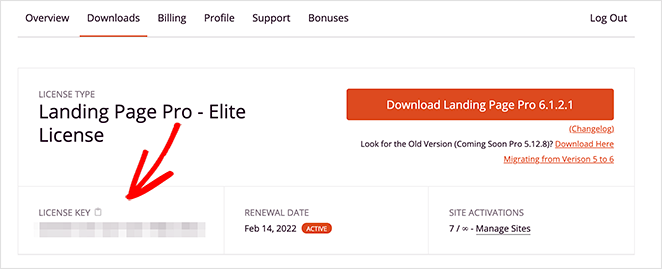
Next, upload the plugin .zip file to your WordPress website. If you need help with this step, follow these instructions on installing and activating a WordPress plugin.
After activating SeedProd, go to SeedProd » Settings from your WordPress admin area and paste the license key you copied earlier.
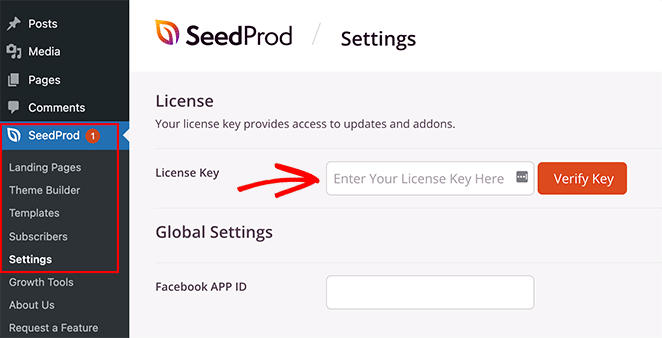
Now click the Verify Key button and go to the next step.
Step 2. Create a New WordPress Layout
For this step, you’ll need to decide which type of WordPress layout you want to create with SeedProd. You can build a WordPress theme from scratch using one of the full Website Kits, or choose a landing page template to create a standalone landing page.
The Theme Builder option is ideal if you want to replace your existing WordPress theme completely. If you only want to create or customize a page and keep your current theme, the Landing Page Builder is a better option.
We have tutorials for both routes. Follow this guide to create a WordPress theme or these steps to create a landing page in WordPress with SeedProd.
Both tutorials walk you through choosing a premade template and setting up your basic layout. For this guide, we’ll select the Theme Builder option.
Once you’ve chosen a template for your design, you can edit it and add your customizations. In this case, we’re using the Photography Portfolio Theme and plan on customizing the Portfolio page.
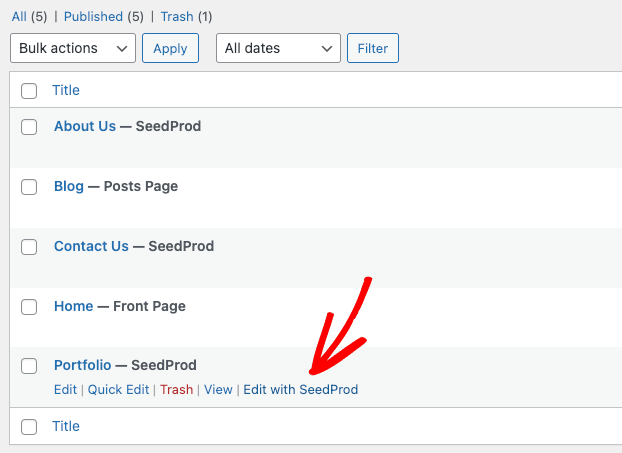
To edit the Portfolio page, go to Pages » All Pages, find the page you want, and click the Edit with SeedProd link.
Step 3. Embed and Customize the Gallery Block
When you open your design, you’ll see a layout like the example below.
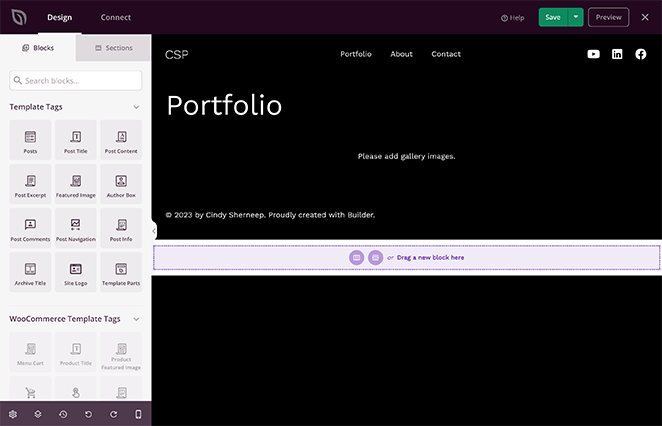
On the right is a live preview of your page that you can click and edit in real time. On the left are WordPress blocks and sections that you can drag and drop onto your design.
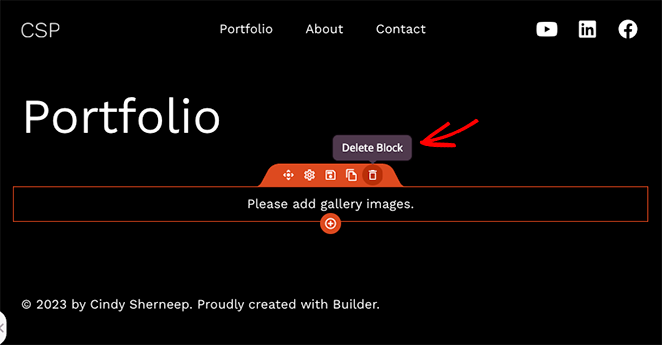
You can also remove elements by hovering over them and clicking the trashcan icon. We’ll do this for the Gallery block that came with our template, because we’re replacing it with the Advanced Gallery.
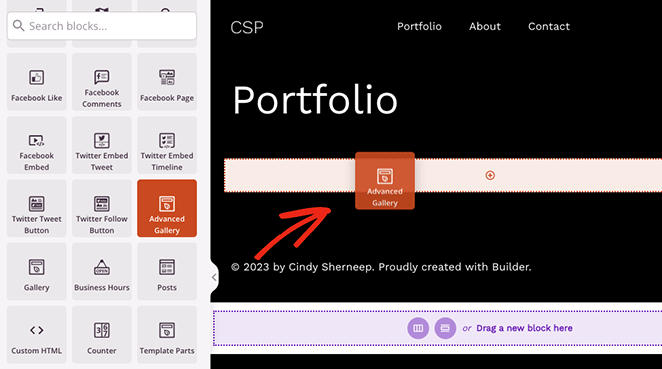
SeedProd’s Advanced Gallery block lets you set overlay color, font, alignment, and which caption text shows on hover. We’ll use it to add text over the images in the portfolio, so find the Advanced Gallery block and drag it onto your page.
The block settings open in the left-hand sidebar. Inside this panel, first choose Single or Multiple from the “Type” drop-down menu.
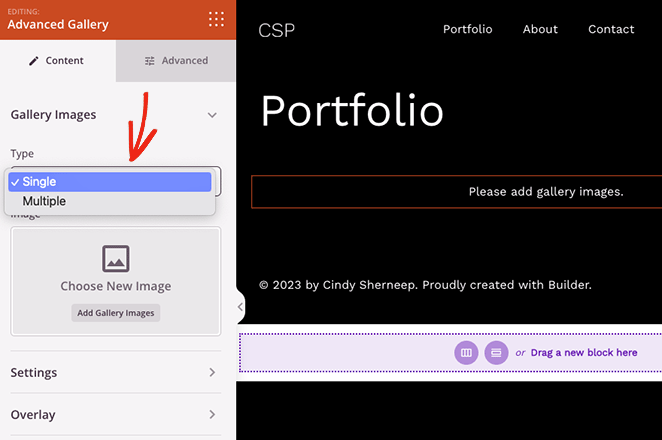
The “Multiple” option lets you add more than one gallery to your page with a filter you can click to see each gallery. The “Single” option displays only one gallery without the filters.
After choosing the gallery type, you can start adding your photos. Click the Add Gallery Images button and select images from your computer or WordPress media library.
You can add any photos, including JPEG/JPG, PNG, GIF, and other file types.
Once you’ve uploaded your photos, you can open the Settings menu and choose the number of columns, spacing, aspect ratio, image size, and link.
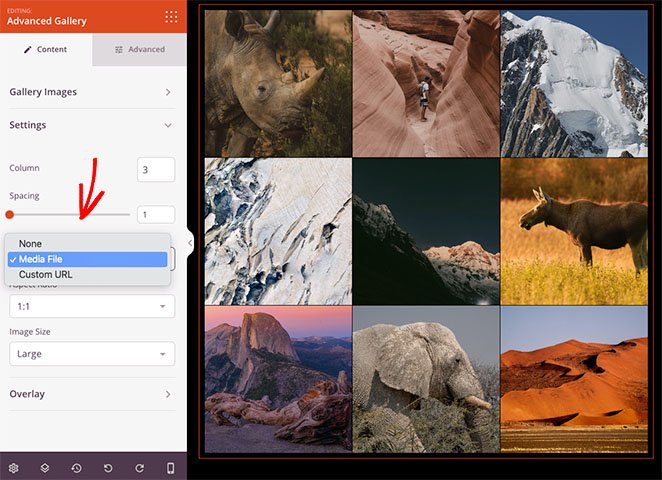
Below, you can choose which text to display when you hover over each photo. For both options, you can show the following:
- Title
- Caption
- Alt
- Description
This is how it looks with the image caption displayed on hover.
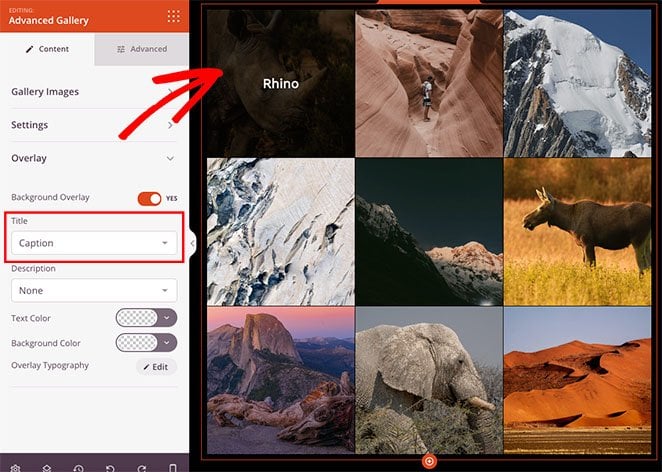
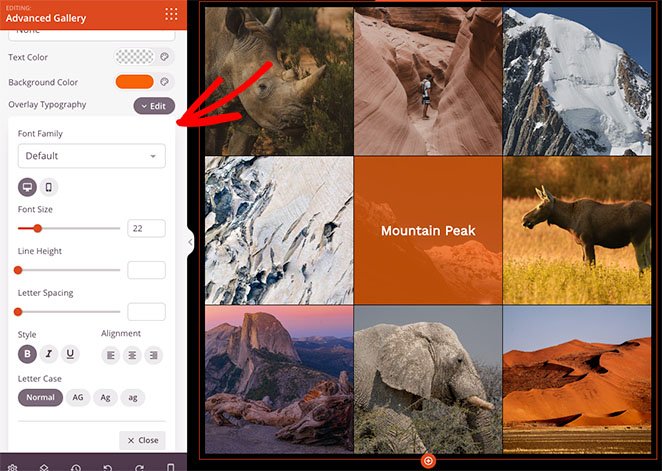
If your captions are hard to read, you can adjust the overlay background color and edit the text font, text alignment, and text style.
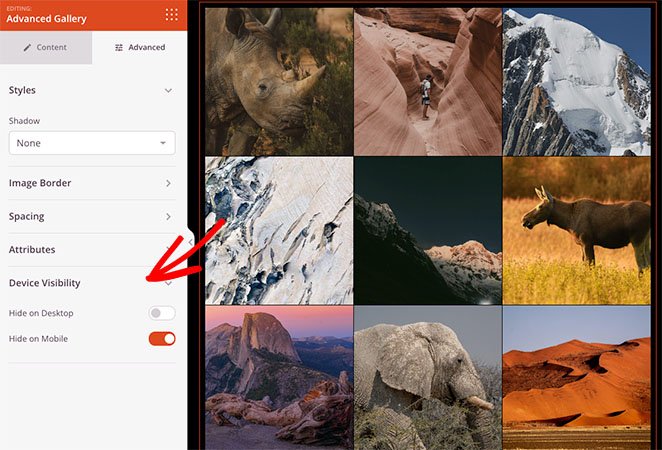
The Advanced tab has many other customization options, including shadow, border, spacing, and mobile visibility styles.
With Device Visibility, you can show and hide specific elements on different device sizes, like Android tablets, iPhones, Apple iPads, Mac iOS laptops, and Microsoft desktops.
When you’re happy with your design, remember to save your changes by clicking the Save button in the top right corner.

Step 4. Publish Your Changes
Now, all that’s left is to make the WordPress customizations live on your website. If you’re making a landing page, click Publish on the Save drop-down menu.
If you’re using SeedProd’s Theme Builder, you’ll need to go to SeedProd » Theme Builder and turn on the Enable SeedProd Theme toggle.
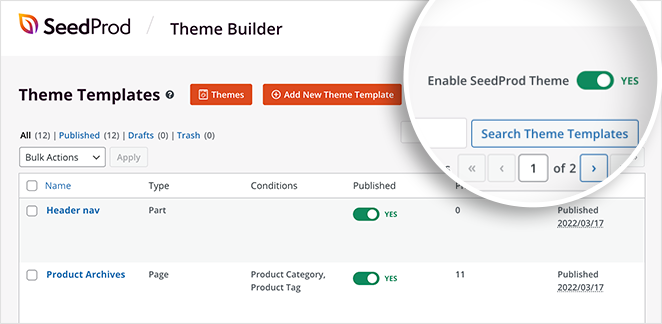
Now you can preview your page and see your image text overlays in action.

Method 2. Add Text Over an Image Using SeedProd Sections
Another way to add text over an image in WordPress is with SeedProd’s premade sections. When you edit any template with SeedProd’s drag-and-drop editor, you’ll see a Sections tab on the left-hand side of your screen.
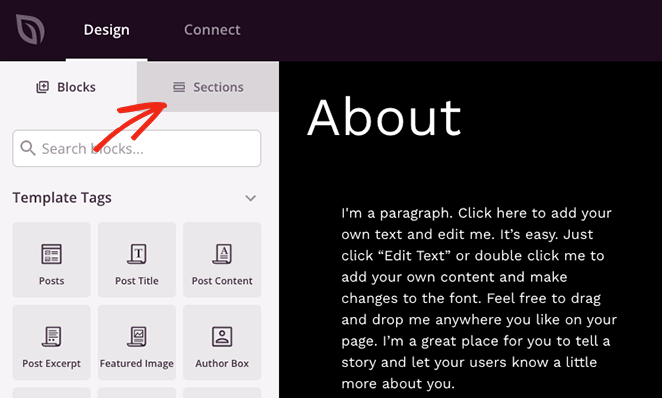
Clicking that tab shows several sections for your Header, Footer, Hero, Call to Action, Features, and FAQs. They’re collections of WordPress blocks in a ready-made layout that you can add to your page with one click.
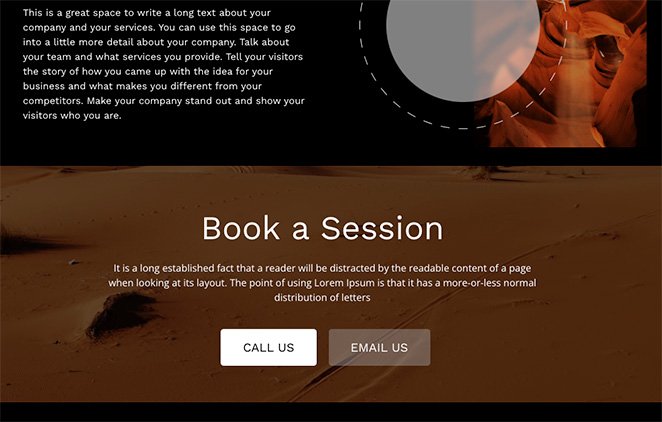
If you want to show an image with a call-to-action button, you can choose a section from the Call to Action library and click the plus icon to embed it.
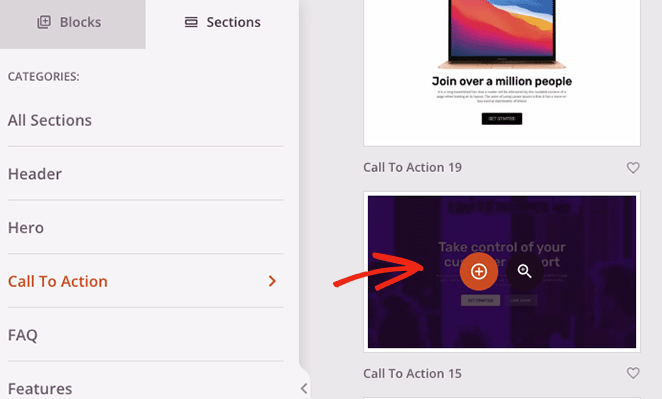
The section appears at the bottom of your design, where you can customize it to suit your needs.

In this case, we’ve changed the background image, added an overlay color to dim the background, and customized the heading text and call-to-action buttons.
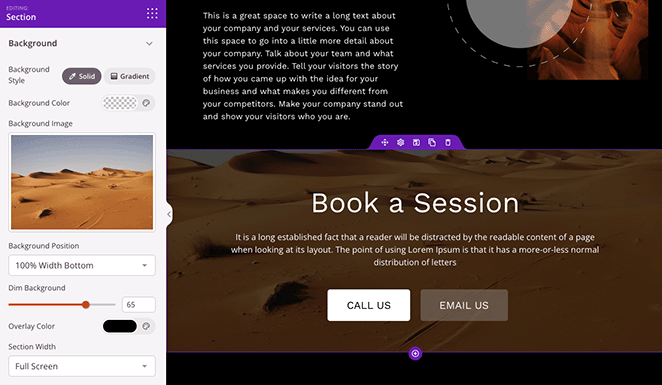
Remember to Save and Publish your changes when you’re finished. Then you can preview your design live on your website.
Method 3. Add Text Over an Image With the WordPress Cover Block
The following method shows you how to add text over an image in WordPress without a plugin. You can use the WordPress Cover block to display any image and type text over it.
This method doesn’t offer as many customization options as the previous one. It’s still a handy way to add text to images if you don’t want to add another WordPress plugin to your website.
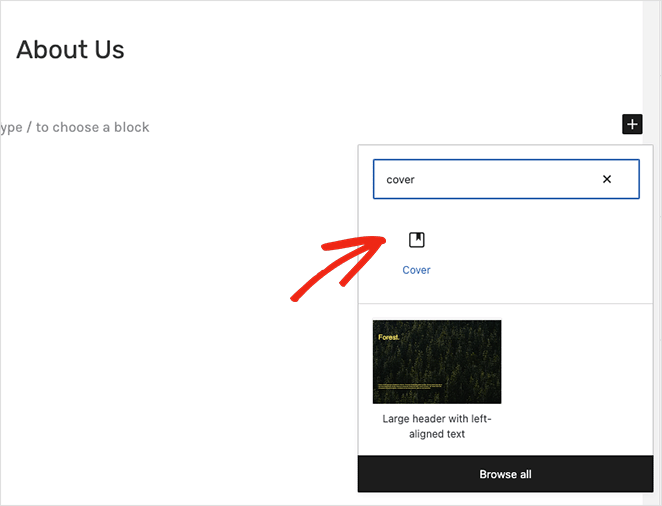
To add the Cover block to a post or page, click the plus (+) icon in the WordPress block editor. Then type in “Cover” and choose the Cover block when it appears.
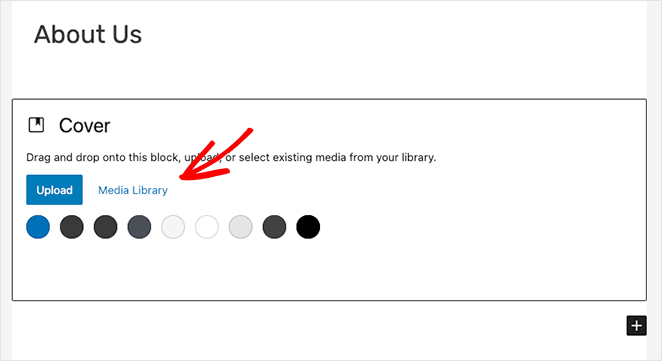
Next, click the “Upload” or “Media Library” button to choose an image for your cover.
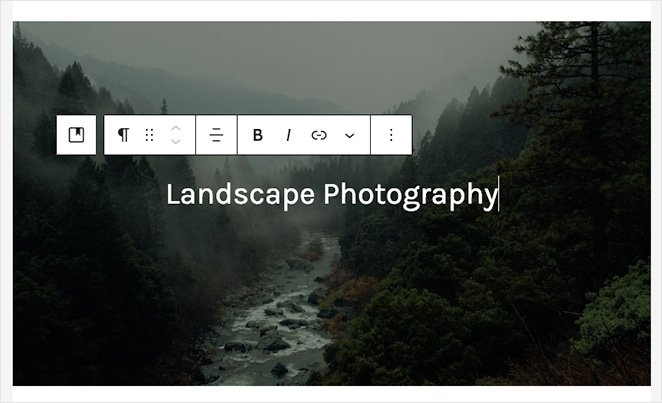
After choosing an image, you can type directly onto the photo to add a headline or description.
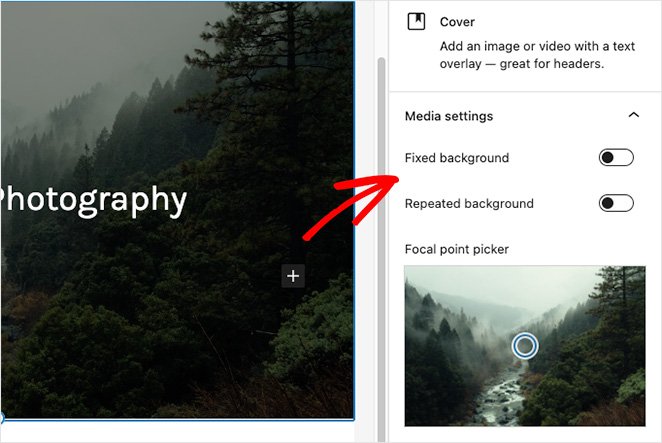
You can customize your background image in the right-hand panel by enabling a fixed or repeating background. You can also change the image focus by dragging the marker on the preview.
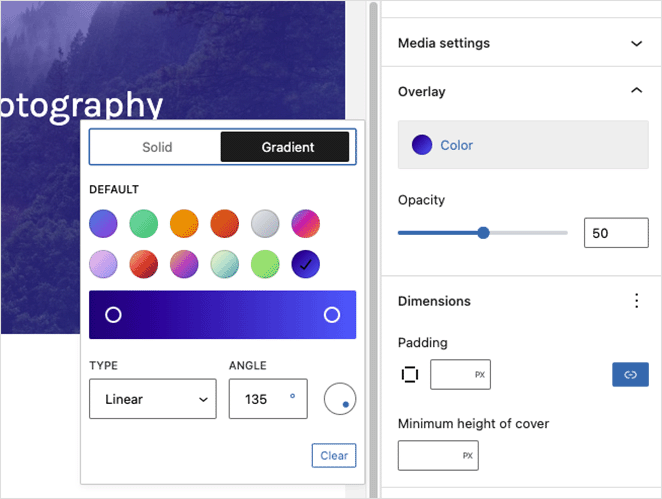
The Overlay Settings panel lets you choose a color or gradient overlay for your image. In the same panel, you can set the overlay opacity, padding, and dimensions.
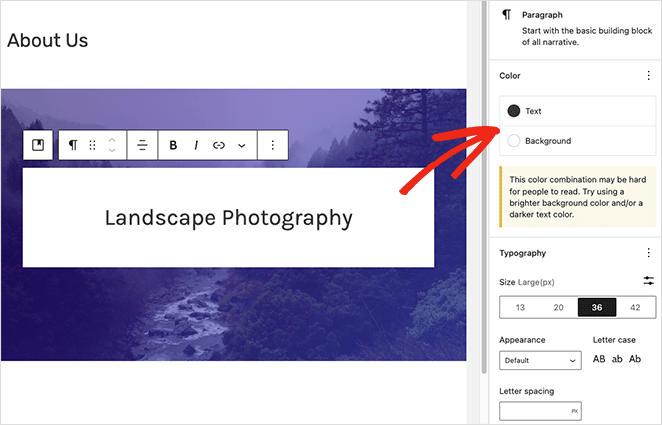
Clicking the overlay text opens text tools where you can change the text color and background color and play with the different font styles.
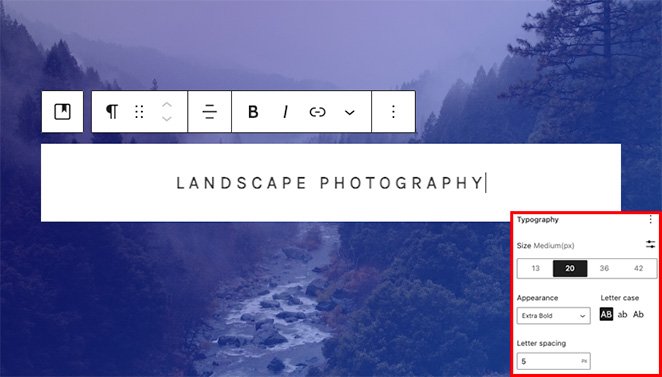
Changing the letter case, letter spacing, and font size let us make this label effect.
Once you’re happy with how your Cover block looks, you can publish or update your page. When you visit your website, you’ll see your text on top of the image.

How Do You Keep Text Readable Over an Image?
The trick to readable text over an image is contrast, so the words never compete with the photo behind them. A busy or bright image is the most common reason overlay text disappears, and a few small adjustments fix it.
- Use high-contrast text: Light text on a dark photo, or dark text on a light one, stays legible at a glance.
- Add an overlay to dim the background: A semi-transparent color layer calms a busy image, the same way you dim a background image behind a hero section.
- Size the font for the device: Text that reads fine on desktop can shrink to nothing on mobile, so check both before you publish.
- Avoid the busy areas of the photo: Place your words over a calm patch of sky, wall, or shadow rather than across a detailed subject.
How Do You Add Text Behind an Image in WordPress?
Adding text behind an image is a layered design effect, where a word sits behind the subject so the photo appears to overlap it. WordPress doesn’t have a single “text behind image” button, but you can fake the look with overlapping blocks.
The simplest route is the Cover block. Set a large heading as the overlay text, then drop the image opacity in the Overlay Settings so the text reads as if it’s behind the photo rather than on top of it.
For a stronger effect, use overlapping Group blocks. Place a heading in one group and an image with a transparent background (a PNG cut-out) in another, then use negative margins or padding to pull the image over part of the text.
How Do You Wrap Text Around an Image in WordPress?
Wrapping text around an image means the paragraph flows beside the photo instead of stopping above and below it. The WordPress block editor handles this with image alignment, no code needed.
Add your Image block first, then select it and choose Align left or Align right from the block toolbar. Type your paragraph in the block directly after the image, and the text wraps around the open side.
Keep the image at a modest width so there’s room for the text to sit beside it. On narrow mobile screens, WordPress drops the wrapped text below the image automatically, which keeps the layout readable.
FAQs on Adding Text Over a WordPress Image
How do I add text over an image in WordPress without a plugin?
Use the built-in WordPress Cover block. Add a Cover block in the block editor, choose your image, and type your text straight onto the photo. You can then set an overlay color and adjust the text style in the right-hand panel.
How do I add text behind an image in WordPress?
WordPress has no single button for it, so you fake the layered look with overlapping blocks. Set a heading as Cover block overlay text and lower the image opacity, or stack two Group blocks and pull the image over part of the text with negative margins.
How do I wrap text around an image in WordPress?
Add an Image block, select it, and choose Align left or Align right in the block toolbar. Type your paragraph in the block right after the image, and the text flows around the open side. On mobile, WordPress drops the text below the image automatically.
How do I keep text readable over a busy image?
Add a semi-transparent overlay to dim the photo, then use high-contrast text so the words stand out. Place the text over a calm part of the image, like sky or a plain wall, and check the font size on mobile before you publish.
Start Adding Text Over Your Images Today
You can now add text over any image in WordPress, from a quick Cover block overlay to a fully styled SeedProd gallery. Pick the method that matches how much design control you want, and you can have it live in minutes.
Get Started with SeedProd Today
You might also like the following WordPress tutorials:
- How to Create Tabs in WordPress for Tabbed Content
- How to Customize WordPress Post Excerpts (Without Code)
- How to Create Text Animations in WordPress (Easy Steps)
Thanks for reading! We’d love to hear your thoughts, so please feel free to join the conversation on YouTube, X and Facebook for more helpful advice and content to grow your business.



