

TL;DR: How to Display WooCommerce Product Categories
WooCommerce does not show categories on your homepage or shop page by default. Here are the four methods that work:
- SeedProd (homepage and shop page): Drag a Products Grid block into your homepage or shop template and filter by category.
- WooCommerce Customizer (shop page, classic themes only): Go to Appearance » Customize » WooCommerce » Product Catalog and set “Shop page display” to Show categories.
- Shortcodes (any page): Use
[product_categories]on any page or post to display a category grid without a page builder. - WooCommerce blocks (block editor): Add the Product Categories List block to any page using Gutenberg. Works with block themes.
- Navigation menu: Go to Appearance » Menus, enable Product Categories in Screen Options, and add them to your menu.
You set up your WooCommerce store, added your products, and organized everything into tidy categories. Then you look at your live shop and see a wall of unsorted products with no category navigation in sight.
That gap between your back-end setup and what shoppers actually see trips up a lot of store owners. In this guide, I’ll walk you through how to display product category in WooCommerce using four methods: the built-in Customizer, shortcodes, blocks, and SeedProd’s visual editor.
- How Do I Add Product Categories and Tags in WooCommerce?
- How Do I Display WooCommerce Product Categories on My Site?
- How Do I Display WooCommerce Categories Using a Shortcode?
- How Do I Use WooCommerce Blocks to Display Categories?
- Why Are My WooCommerce Product Categories Not Showing?
- How Do Product Categories Affect WooCommerce SEO?
- Frequently Asked Questions
How Do I Add Product Categories and Tags in WooCommerce?
Adding categories and tags in WooCommerce is straightforward. You can add them when you create product listings or directly from the WooCommerce dashboard.
Adding WooCommerce Product Categories
Go to Products » Categories from your WordPress admin area. From there, enter your product category information.
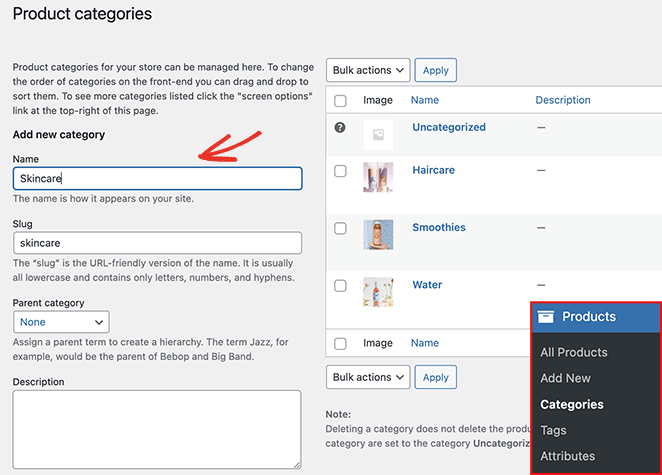
You can include a name, slug, parent category, description, display type (products, subcategories, or both), and thumbnail. Click Add new category to save it.
Adding WooCommerce Product Tags
Go to Products » Tags from your WordPress admin area. On the next page, enter the tag name, slug, and description.
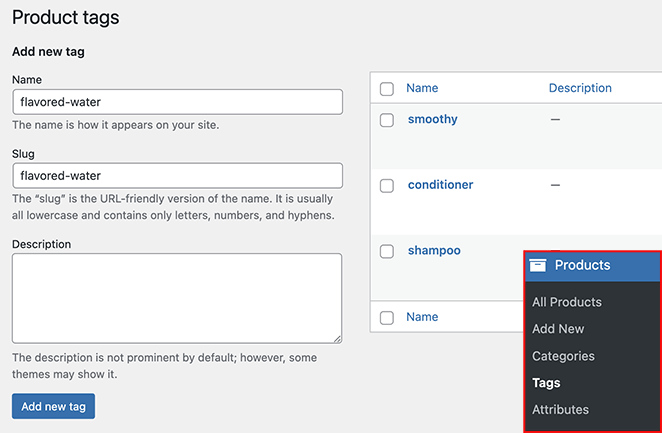
Click Add new tag to save it.
How Do I Display WooCommerce Product Categories on My Site?
Once your categories exist, you need to surface them where shoppers can see them. There are four main methods: SeedProd’s visual editor, the WooCommerce Customizer, shortcodes, and WooCommerce blocks. The right one depends on your theme and how much control you want.
How Do I Display Product Categories on My WooCommerce Homepage?
WooCommerce doesn’t offer a built-in way to show product categories on your homepage. The quickest path is using SeedProd, a drag-and-drop website builder for WordPress that lets you customize your WooCommerce store without touching code.

When categories are clearly visible on your homepage, shoppers land in the right section immediately instead of scrolling through a product grid looking for what they need. I’ve seen that single layout change reduce the friction that sends visitors away before they buy.
Follow these steps to use SeedProd to add product categories to your homepage.
Step 1. Install and Activate SeedProd
Download the SeedProd plugin and install and activate it on your WordPress website. You can follow this guide on installing a WordPress plugin if you need help.
Note: You will need a SeedProd Elite plan to access WooCommerce features.
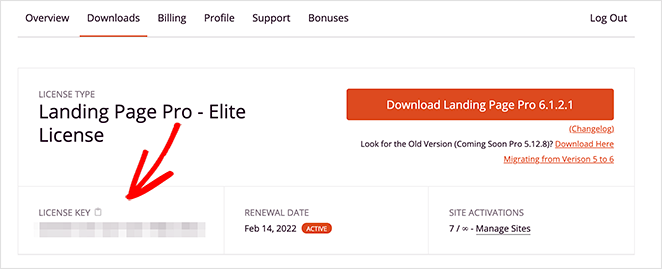
Next, go to SeedProd » Settings, enter your license key, and click Verify Key. This unlocks your chosen plan’s features.
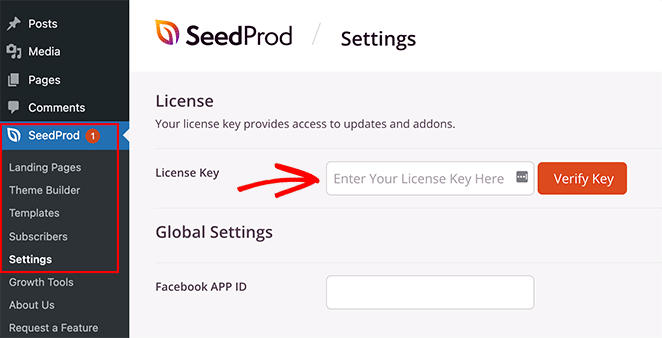
You can find your license key in your SeedProd account area under the Downloads tab.
Step 2. Create a Custom WooCommerce Theme
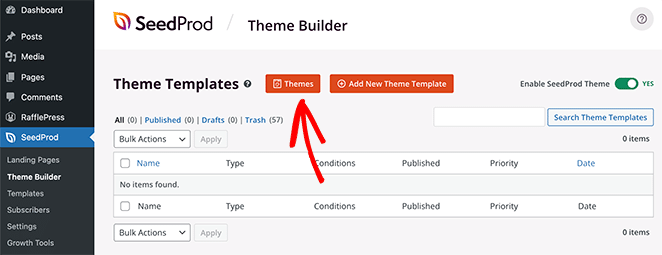
Next, create a custom theme for your WooCommerce site. Go to SeedProd » Theme Builder and click the Themes button.
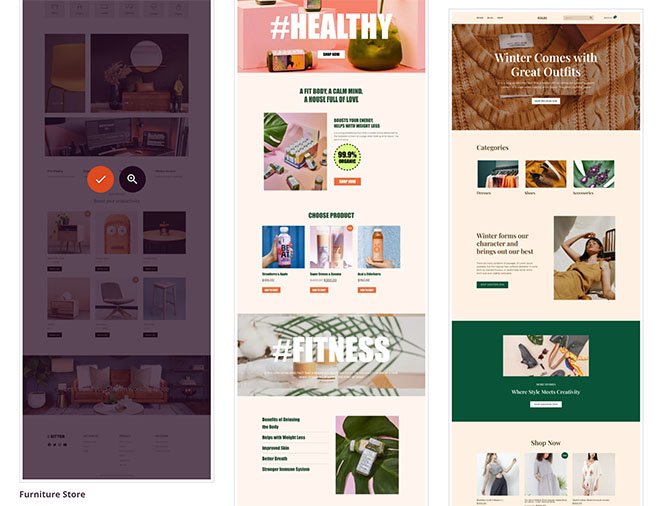
You’ll see a library of professional WordPress themes. Hover over a theme you like and click the checkmark icon.
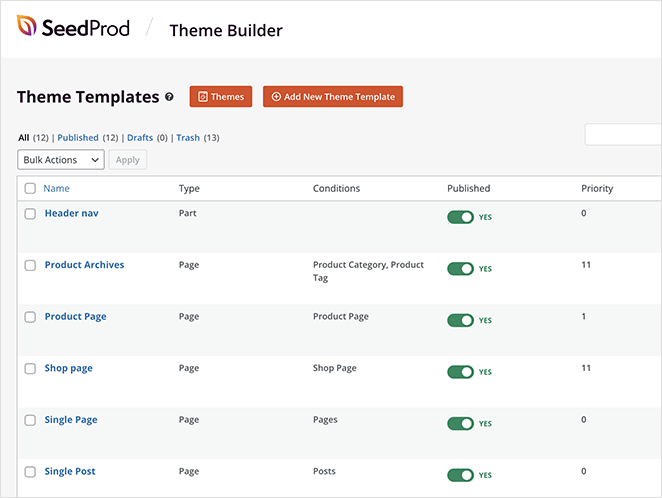
SeedProd automatically creates all the different templates for your theme and lists them in the Theme Builder dashboard.
Step 3. Customize Your WooCommerce Homepage
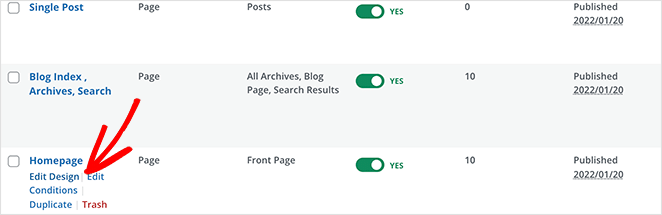
Find the Homepage template in your list and click “Edit Design” to open it in SeedProd’s page builder. You’ll see blocks and sections on the left with a live preview on the right. Every change updates in real time.
Customizing your homepage with SeedProd means dragging a block into place and clicking to edit. There are 2 ways to display product categories.
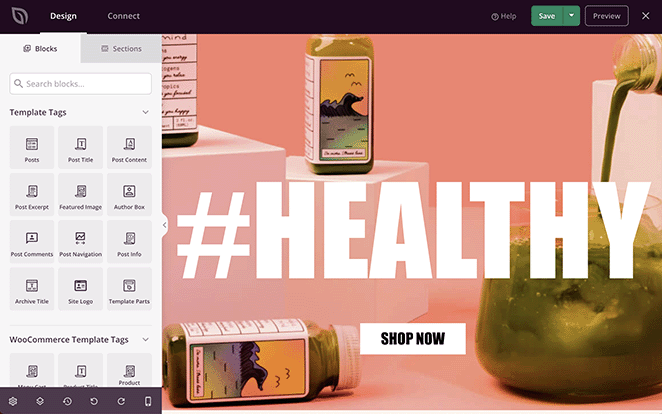
- Display products by category
- Add the WooCommerce Product Category widget
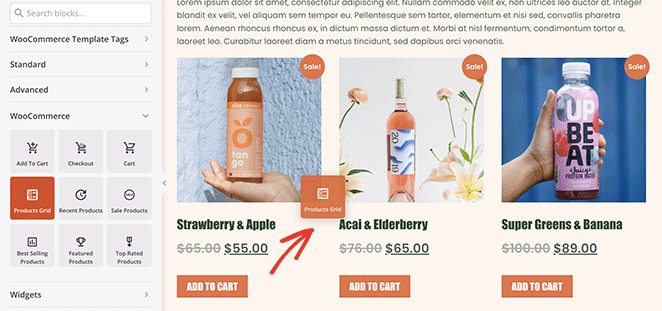
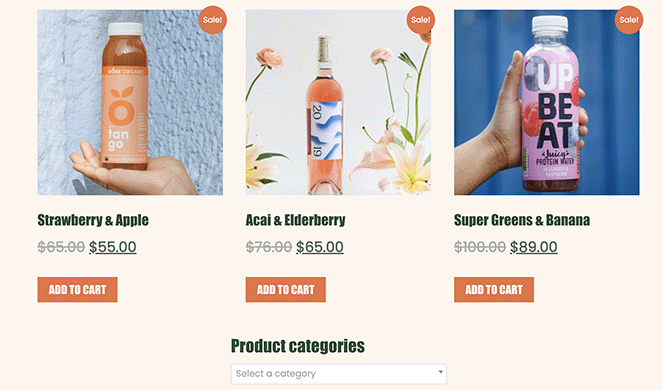
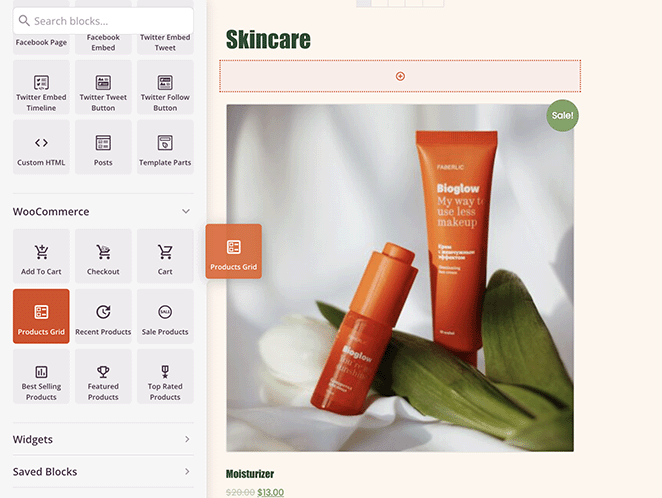
For the first option, find the Products Grid block in the WooCommerce blocks section. Drag it to a section or row on your homepage.
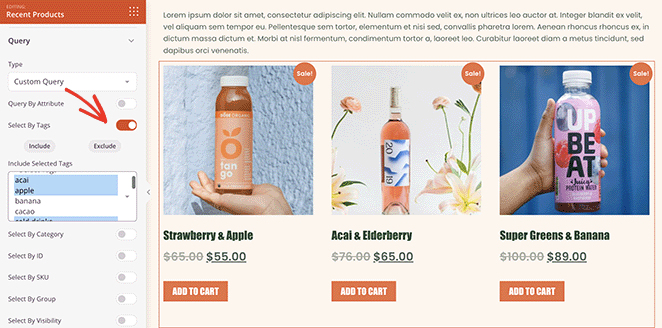
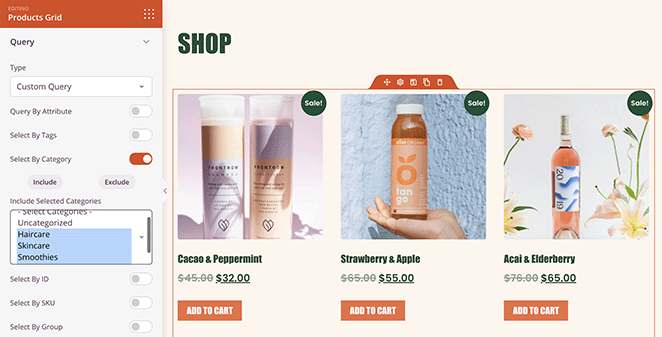
Click the product grid to open the settings panel. Select “Custom Query” from the Type dropdown and enable the “Select By Category” toggle.
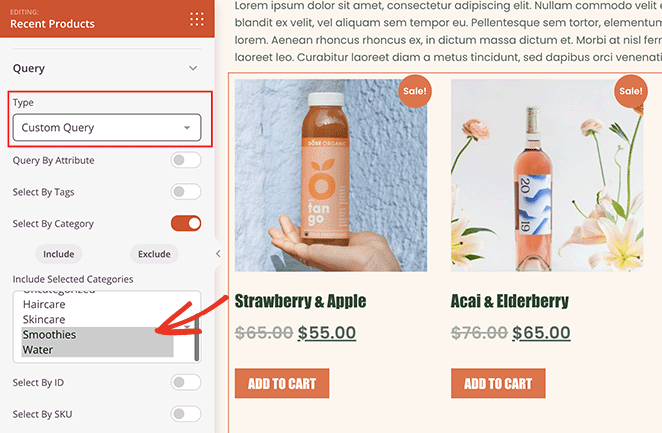
Choose which category’s products to display. Hold Shift to select multiple categories.
To filter by tag instead, toggle “Select by Tag” and choose which tags to include.
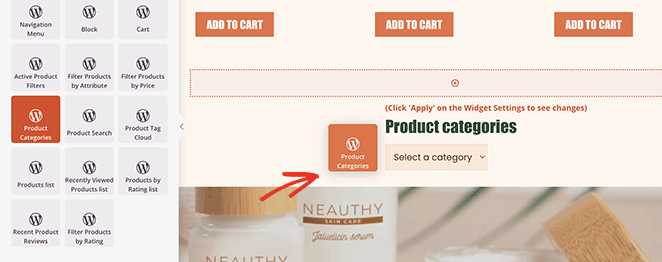
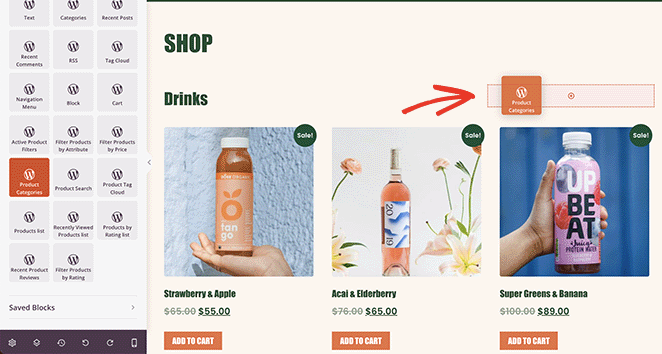
For the second option, go to the Widgets section and find the “Product Categories” widget. Drag it into place on your homepage design.
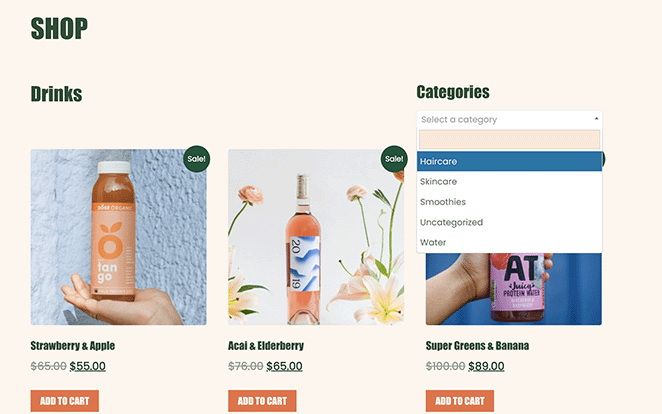
Clicking the widget lets you choose a title, order categories by name, show as dropdown, display product counts, show hierarchy, and more.
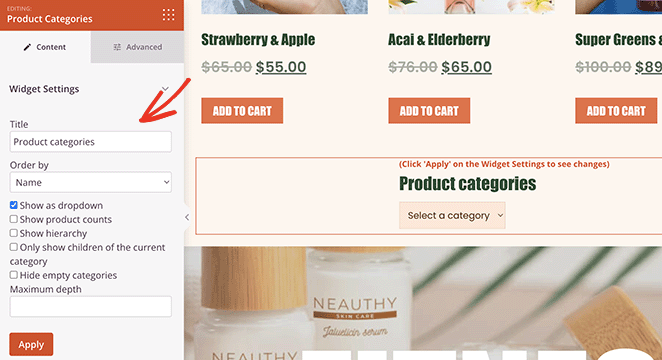
Control widget styling in the Advanced tab. When you’re happy with the layout, move to Step 4 to publish.
Step 4. Publish Your WooCommerce Theme
Go to SeedProd » Theme Builder and turn the Enable SeedProd Theme toggle to the “on” position in the top-right corner.
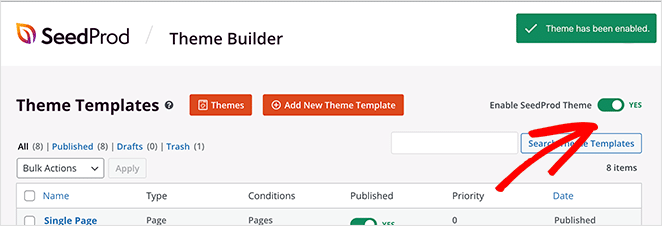
Preview your homepage to see the category display live.
How Do I Display Product Categories on the WooCommerce Shop Page?
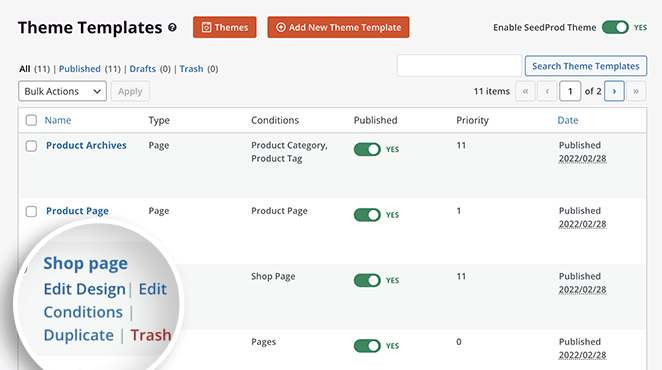
You can use SeedProd to display categories on your WooCommerce shop page too. Go to SeedProd » Theme Builder and click Edit Design on the “Shop Page” template.
The page opens in the visual editor where you can customize your shop page design. Follow the steps from the previous method to display your products by category.
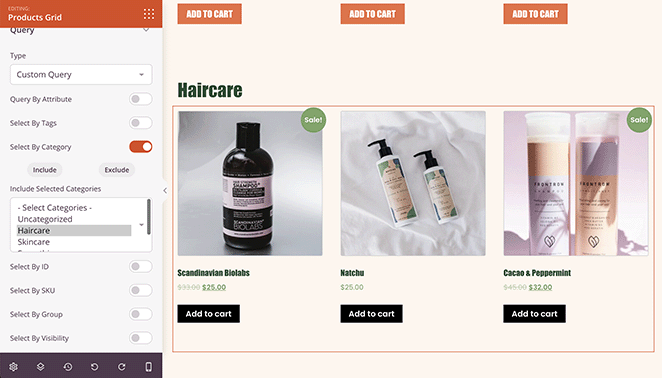
You can also create a separate grid for each product category: one grid for drinks, one for haircare, and so on.
Add a new column and drag over the “Product Categories” widget to display categories as a list or dropdown on the shop page.
How Do I Show WooCommerce Categories on the Shop Page Without a Plugin?
Important note for block theme users: The Appearance » Customize path below only works with classic WordPress themes. WooCommerce removed these Customizer shop layout settings for block themes. If you’re on a block theme and don’t see WooCommerce options in your Customizer, use the shortcodes or WooCommerce blocks methods instead.
On a classic theme, go to Appearance » Customize, then click WooCommerce and Product Catalog. Under “Shop page display,” select Show categories.
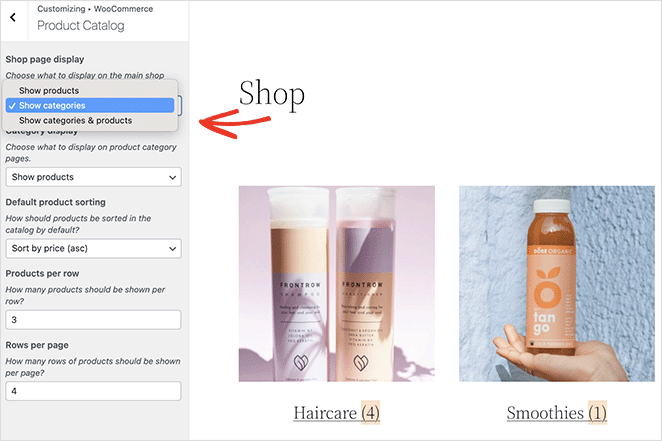
You can choose to show subcategories, products, or both.
How Do I Display WooCommerce Subcategories in the Shop Layout?
Go to Appearance » Customize » WooCommerce » Product Catalog and under “Category display,” select “Show subcategories” from the dropdown.
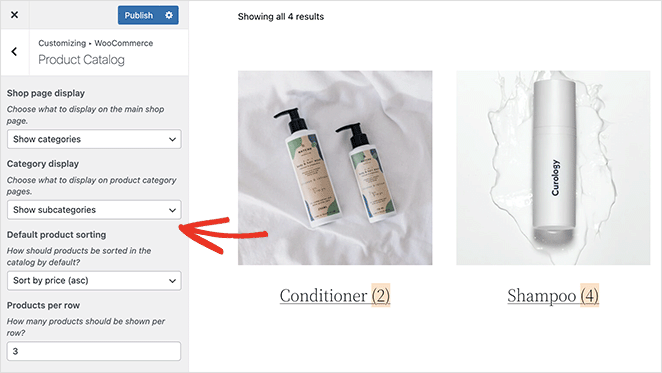
Click Publish to save your changes.
How Do I Display WooCommerce Categories Using a Shortcode?
WooCommerce shortcodes let you display product categories on any page or post without a page builder or theme change. This works with both classic and block themes.
The two main shortcodes are:
[product_categories]displays a grid of all your product categories with thumbnails and category names[product_category]displays products from a specific single category
To display all categories, open any page in the WordPress block editor, add a Shortcode block, and paste in [product_categories]. Save and preview the page.
You can control the layout using attributes:
numberlimits how many categories show (e.g.,[product_categories number="4"])columnscontrols the grid column count (e.g.,[product_categories columns="3"])idsshows only specific categories by ID (e.g.,[product_categories ids="12,15,18"])hide_emptyhides categories with no products (set to0to show empty ones)
The shortcode approach is the fastest option when you want categories on a landing page or custom page without rebuilding your theme. It works on any page, including pages built outside the shop template.
How Do I Use WooCommerce Blocks to Display Categories?
If you’re on a block theme, WooCommerce blocks are the most current method for displaying product categories. They work directly in the Gutenberg editor and replace the Customizer path that’s no longer available in block themes.
The two blocks you’ll use most often:
- Product Categories List displays a navigable list of all product categories. Useful in sidebars and shop page layouts.
- Products by Category displays a grid of products filtered to a specific category.
To add the Product Categories List block, open your page in the block editor. Click the + icon, search for “Product Categories List,” and select it.
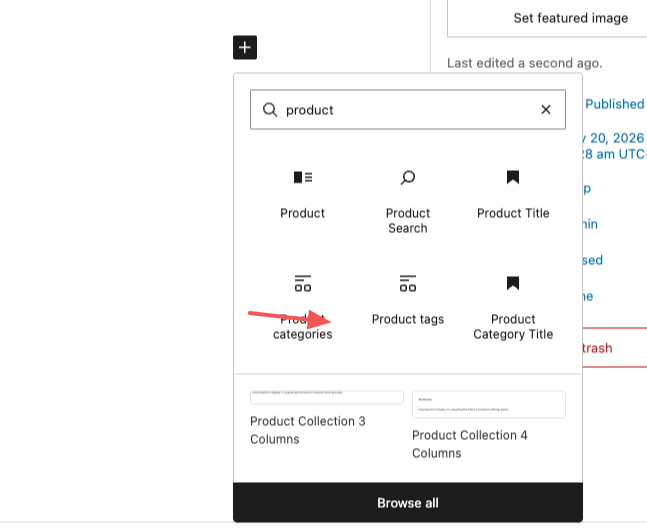
Once added, the sidebar settings let you show product counts, show the category hierarchy, and control whether top-level categories only or all subcategories appear.
This method gives block theme users a clean, native way to add category navigation without the Customizer. It also updates automatically when you add or rename categories.
How Do I Add WooCommerce Product Categories to My Sidebar?
Adding product categories to your sidebar helps shoppers narrow down what they’re looking for without returning to the shop page. SeedProd lets you add custom sidebars to WordPress and configure them in the visual editor.
Go to SeedProd » Theme Builder and open the Sidebar template.
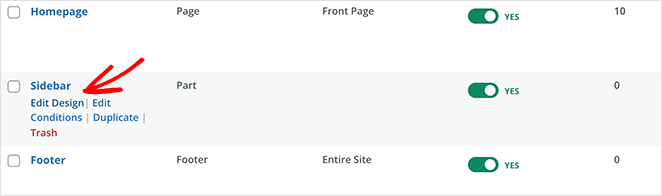
Drag over the Product Grid block and customize the query display options to show products from one category or tag.
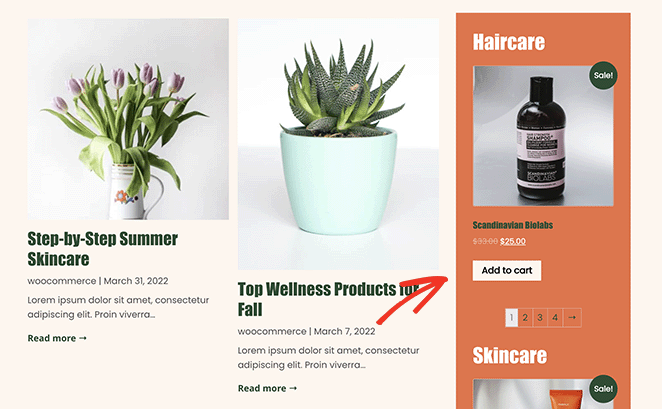
In this example, 2 Product Grid blocks display 2 different categories in the blog sidebar.
How Do I Add WooCommerce Categories to My Navigation Menu?
Go to Appearance » Menus, then click the Screen Options tab in the top-right corner.
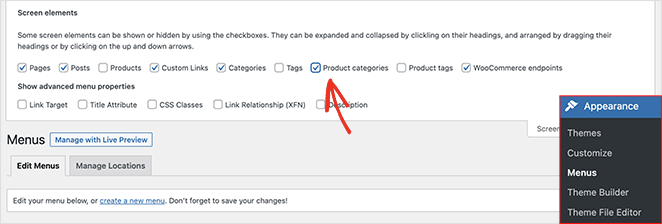
Click the “Product categories” checkbox. That displays all your WooCommerce categories on the menu screen.
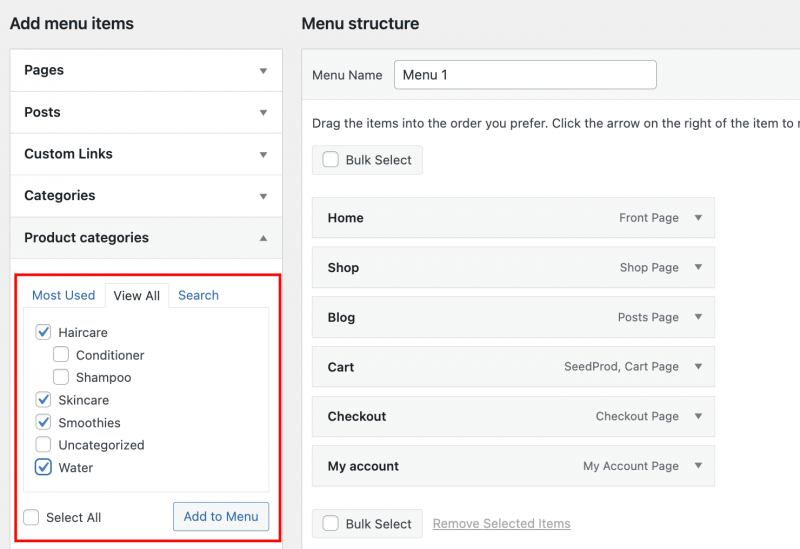
Open the “Product categories” tab, select the categories you want to add to your menu, and click Add to Menu.
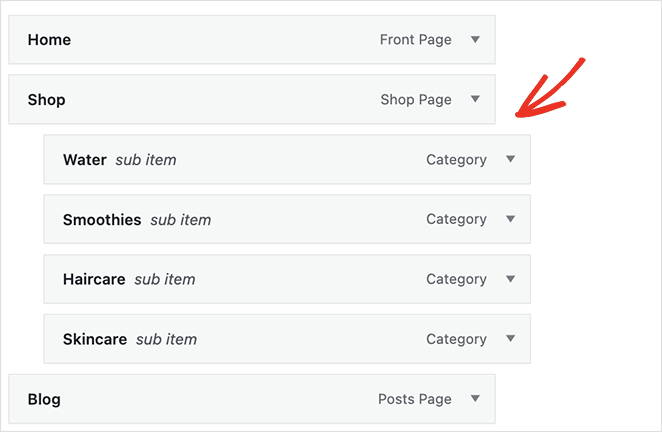
Drag items to change their position. Nesting them under your Shop page creates a dropdown category menu.
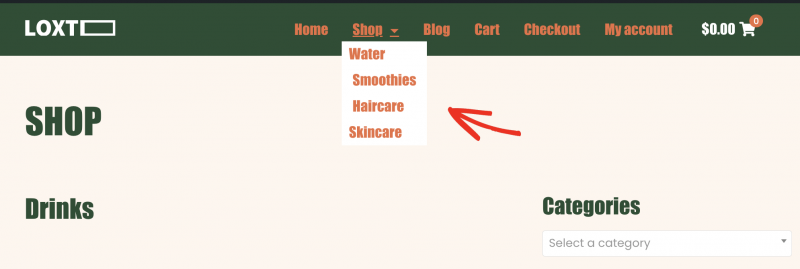
Save your menu. Visit your homepage to see the product categories in your WooCommerce navigation menu.
Why Are My WooCommerce Product Categories Not Showing?
If you’ve set up categories but they’re not appearing on your store, here are the common causes to check.
- Categories not assigned to products: Categories only appear when at least one product is assigned to them. Go to Products, open each product, and confirm the correct category is checked in the Product Categories panel.
- Empty categories hidden by default: WooCommerce hides empty categories from the shop page. To show them, go to WooCommerce » Settings » Products » Display and uncheck “Hide empty categories.”
- Block theme users, Customizer path removed: WooCommerce removed the shop layout settings from the Customizer for block themes. Use the shortcodes or WooCommerce blocks methods instead.
- Cache not cleared: After making display changes, clear your site and browser cache before checking. Cached pages can still show the old layout even after saving.
How Do Product Categories Affect WooCommerce SEO?
Product categories are not just navigation aids. They’re ranking pages in their own right, and how you set them up affects how your store performs in search.
- Category URLs are independent ranking pages: Each WooCommerce category gets its own URL (e.g.,
/product-category/mens-clothing/). These pages can rank for category-level keywords, separate from your individual product pages. - Category descriptions add keyword content: The description field in Products » Categories outputs text on category archive pages. A useful description that includes your target keyword gives search engines more to index on what would otherwise be a thin page.
- Keyword cannibalization between categories and products: If your product pages and category pages target the same keyword, they compete against each other in search results. Use category pages for broad terms (“women’s running shoes”) and product pages for specific terms.
- Flat structure ranks faster: Deeply nested categories push pages further from your homepage in crawl depth. A flatter structure keeps category pages closer to the root and easier for Google to discover.
More ways to customize your store:
- How to Customize the WooCommerce Additional Information Tab
- How to Customize Your WooCommerce Cart Page
- How to Display Featured Products in WooCommerce
Frequently Asked Questions
How do I show product categories in WooCommerce menu?
Go to Appearance » Menus and click the Screen Options tab. Check the “Product categories” checkbox to reveal your categories in the left panel. Select the categories you want to add and click Add to Menu. You can drag them to nest under your Shop page item, which creates a dropdown category menu in your navigation.
Why are my WooCommerce product categories not showing on my shop page?
The most common causes are: categories not assigned to any products (WooCommerce hides empty categories by default), or using a block theme where the Customizer path has been removed.
Check that your products have categories assigned. If you’re on a block theme, use the [product_categories] shortcode or the WooCommerce blocks method instead of the Customizer.
Can I display WooCommerce categories without a plugin?
Yes. WooCommerce includes a built-in shortcode: [product_categories]. Add it to any page using a Shortcode block in the WordPress editor and your categories display as a grid.
The WooCommerce Customizer method (Appearance » Customize » WooCommerce » Product Catalog) also works without a separate plugin, but only on classic themes.
How do I show subcategories on a WooCommerce category page?
Go to Appearance » Customize » WooCommerce » Product Catalog. Under “Category display,” select “Show subcategories” from the dropdown and click Publish.
This controls what appears when a shopper clicks into a parent category. They’ll see child category thumbnails instead of products directly.
Start Organizing Your WooCommerce Store Today
That wall of unsorted products you started with? You now have four methods to replace it with a store shoppers can actually navigate.
If you want full control over where and how categories appear, SeedProd’s visual editor gives you that without writing a line of code. Over 1 million WordPress sites use it.
If you’re still building your store, you may also like this guide on how to add a coming soon page to WooCommerce.
Thanks for reading! We’d love to hear your thoughts, so please feel free to join the conversation on YouTube, X and Facebook for more helpful advice and content to grow your business.



