
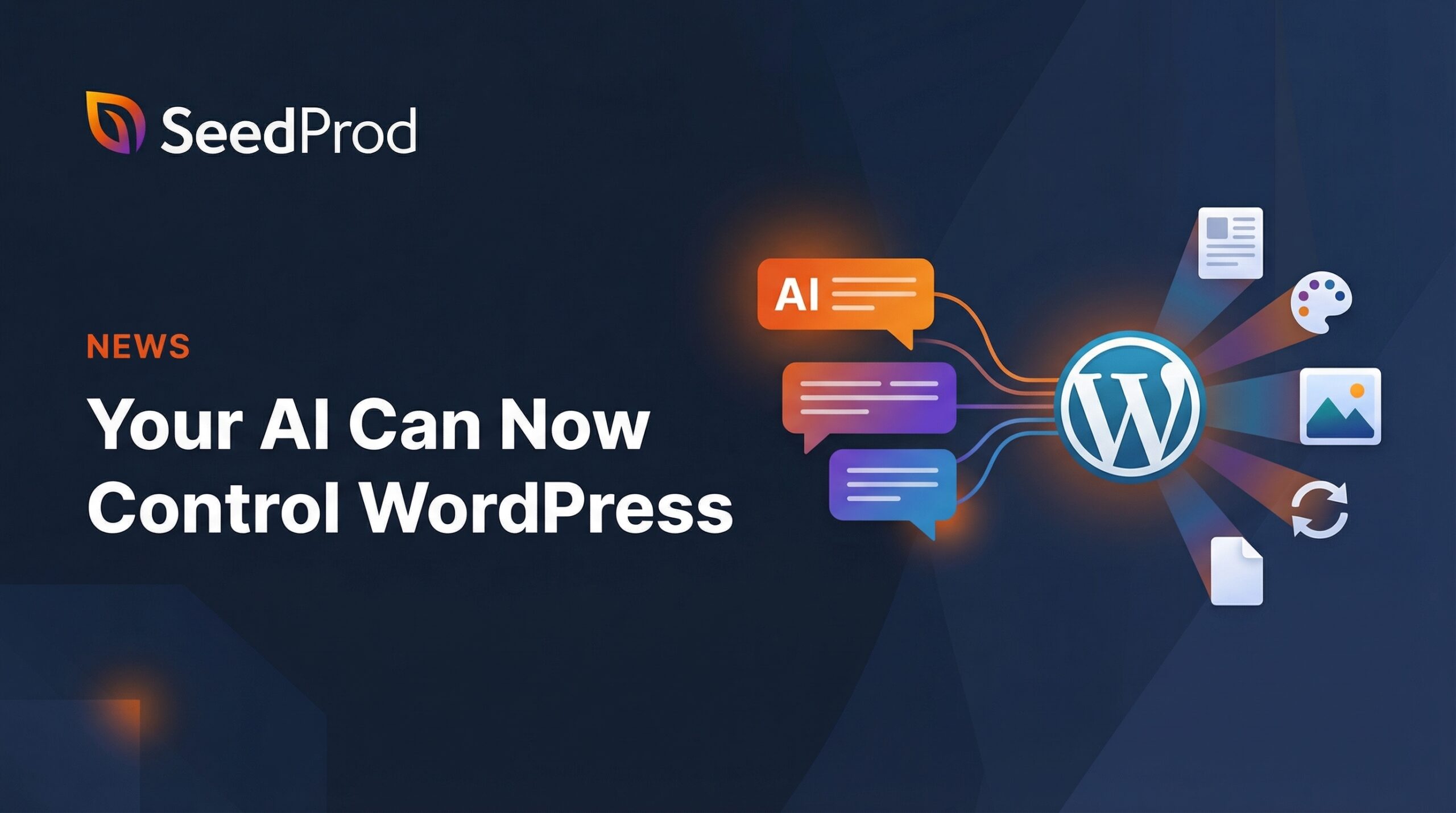
If you manage a WordPress site, you know the routine. Every update means logging in, clicking through menus, and doing it all manually. Rinse and repeat.
What if you could skip all that and just tell your AI what you want?
There are a few ways to connect AI to WordPress today, but each has limitations:
- WordPress.com’s MCP only works with WordPress.com-hosted sites.
- The official WP MCP Adapter plugin only works with local AI clients like Claude Desktop and Cursor, not Claude.ai or ChatGPT.
And neither gives you full REST API access to manage your site.
| Feature | WPVibe | WP MCP Adapter | WordPress.com MCP |
|---|---|---|---|
| Works with | Any self-hosted WP | Any self-hosted WP | WordPress.com only |
| Connection | Remote (hosted) | Local plugin (stdio) | Remote (hosted) |
| Claude.ai / ChatGPT | ✓ | ✗ | ✓ |
| Claude Desktop / Code | ✓ | ✓ | ✓ |
| Cursor / Windsurf | ✓ | ✓ | ✓ |
| Full REST API | ✓ | ✗ | ✗ |
| Abilities API | ✓ | ✓ | ✗ |
| Setup | Paste URL + one click | Install plugin + config file | Paste URL |
| Price | Free | Free | Free |
WPVibe takes a different approach. Instead of bringing AI into WordPress, it brings your WordPress site into your AI.
You work in Claude.ai, ChatGPT, Cursor, or whatever AI client you already use, and your AI manages WordPress for you through conversation.
In fact, I’m writing this post with WPVibe right now. I told Claude to create a draft on seedprod.com, set the featured image, and format the content.
I never opened wp-admin or copied and pasted anything. I just used conversation.
WPVibe is free and works with any self-hosted WordPress site. Remote or local. Claude.ai, ChatGPT, Cursor, Windsurf, Claude Desktop, and more.
It takes less than 2 minutes to set up. Install the plugin, connect your AI assistant with one click, and start talking to your site. You don’t need to touch any code or manage API keys.
Watch WPVibe in Action
What Can WPVibe Do for Your WordPress Site?
Here’s everything you get with WPVibe, completely free:
- AI Content Management – Tell Claude to draft a blog post, ask ChatGPT to update your about page, or manage your media library through conversation. No menus, no clicking around.
- Full WordPress REST API Access – Your AI can manage any part of your site through the REST API, including custom post types and plugin settings. If WordPress can do it, your AI can do it.
- WordPress Abilities API Support – On WordPress 6.9+ sites, your AI automatically discovers what your plugins can do and works with them directly. No custom setup needed.
- Theme File Browsing – Understand how your theme is built before making any changes. Your AI can browse the file structure, search through code, and analyze how everything fits together.
- Media Uploads from Any URL – No more downloading and re-uploading images. Just give your AI an image URL and it adds it directly to your media library.
- Live Reload – No other WordPress MCP tool does this. Every change your AI makes automatically refreshes your frontend pages and sends a notification in wp-admin with a direct link to the updated content.
- One-Click Authorization – Click one link in your WordPress admin and you’re connected.
- Any AI Client – Use whatever AI you already pay for. Claude.ai, ChatGPT, Claude Desktop, Cursor, Windsurf, and more. Your content stays on your server with no vendor lock-in.
What You Can Say to Your AI
Here are a few examples of what you can do with WPVibe — just by typing a message:
- “Create a draft post about our summer collection with a hero image and schedule it for Tuesday”
- “Put all products in the Summer category on 20% sale through July”
- “Show me a breakdown of our contact form submissions by topic this month”
- “Find all posts that are missing a featured image”
- “Update the meta description for our top 10 most visited pages”
- “Move all draft posts older than 6 months to trash”
If your site can do it through the WordPress REST API or the new Abilities API, your AI can do it through WPVibe.
WPVibe Is Perfect For
- Bloggers & Content Creators – Write and publish posts, organize content, and manage media through conversation. Great for creating more content in less time without living in wp-admin.
- WordPress Developers – Browse theme files and analyze code structure. Understand how any theme is built without manually clicking through files.
- Agencies & Site Managers – Connect client sites and manage content at scale. Automate routine tasks that eat up billable hours.
- WooCommerce Store Owners – Update product descriptions, manage store settings, and keep your catalog fresh without logging into wp-admin every time.
How to Get Started with WPVibe
Setting up WPVibe takes less than 2 minutes:
Step 1: Install the Plugin
Download WPVibe and install it on your WordPress site via Plugins » Add New » Upload Plugin. Activate the plugin.
Step 2: Connect Your AI Assistant
Pick your AI client and follow the instructions below:
Claude.ai
Go to Settings » MCP Servers » Add Server. Enter the name “WPVibe” and the URL https://mcp.wpvibe.ai/mcp. Click Save. Open a new chat and ask WPVibe to connect your site.
ChatGPT
Go to Settings » MCP » Add MCP Server. Enter the name “WPVibe” and the URL https://mcp.wpvibe.ai/mcp. Click Add. Start a new conversation and ask WPVibe to connect your site.
Claude Desktop
Open Settings » Developer » Edit Config. Add WPVibe to your MCP servers with the URL https://mcp.wpvibe.ai/mcp. Restart Claude Desktop and ask WPVibe to connect your site.
Cursor
Go to Cursor Settings » MCP » Add New MCP Server. Set type to “SSE” and enter the URL https://mcp.wpvibe.ai/mcp. Ask WPVibe to connect your site in Composer.
Claude Code (CLI)
Run claude mcp add wpvibe --transport http https://mcp.wpvibe.ai/mcp in your terminal. Start a new session and ask WPVibe to connect your site.
Step 3: Authorize the Connection
When you ask WPVibe to connect your site, it generates a one-click authorization link. Click it.
It opens your WordPress admin where you approve with one click. Credentials are encrypted and stored securely. Done.
Step 4: Start Managing Your Site
That’s it. Start talking to your AI about your WordPress site. “Create a new page called About Us.” “Update the blog post title.” “Upload this image to the media library.” Your AI handles the rest.
Get WPVibe Today – It’s Free
Give WPVibe a try. Install the plugin, connect your favorite AI assistant, and experience what it’s like to manage your WordPress site through conversation.
As always, thank you for your continued support of SeedProd, and we look forward to bringing you more exciting updates in the future.
John and the SeedProd team
P.S. We’re already working on WPVibe Pro with AI theme editing, WP-CLI commands, and deep SeedProd integration coming soon. Sign up at wpvibe.ai to get notified when it launches.




