



Cada vez que termino de configurar un nuevo sitio web, lo siguiente que hago es conectar sus canales sociales. Una audiencia no se construye sola, y un sitio que ignora Facebook deja las oportunidades más fáciles sobre la mesa.
Tener tu sitio y tu página de Facebook en dos mundos separados significa que te estás perdiendo interacciones y seguidores fáciles.
Por eso te voy a mostrar mis tres formas más fiables de añadir una página de Facebook a WordPress. También te mostraré cómo añadir un botón Me gusta de Facebook, para que los visitantes puedan seguir tu página en un solo clic sin salir de tu sitio.
RESUMEN: Cómo añadir una página de Facebook a WordPress
Puedes conectar tu página de Facebook a WordPress en pocos minutos, sin necesidad de código. Estas son las formas que recomiendo, además de cómo añadir un botón Me gusta para que los visitantes puedan seguirte en un solo clic.
- SeedProd (lo más fácil) – Arrastra el bloque Facebook Page y pega la URL de tu página.
- Plugin de Página de Facebook – Genera el código de inserción de Facebook y pégalo en un bloque de HTML personalizado.
- Smash Balloon – Muestra un feed de Facebook en vivo y que se actualiza automáticamente con un plugin gratuito.
- Botón Me gusta de Facebook – Añade un botón Me gusta de un solo clic con el bloque Facebook Like de SeedProd o el código propio de Facebook.
¿Por qué añadir tu página de Facebook a WordPress?
Si diriges un negocio local o una página comunitaria, tus visitantes ya están en Facebook todos los días. Añadir tu página de Facebook directamente a tu sitio significa que pueden dar a "Me gusta" o seguir sin irse, y es en ese momento sin fricciones donde ocurre la mayor parte del crecimiento social.
También mantiene tu marca visible en dos lugares a la vez, por lo que los nuevos visitantes que te encuentren a través de Google pueden conectar contigo en redes sociales en la misma sesión. Para un negocio local, esa combinación de visibilidad en búsquedas y conexión social es difícil de superar.
A continuación, te explicaré cómo añadirla paso a paso.
Método 1: Añadir tu página de Facebook a WordPress usando SeedProd
Si estás creando una página nueva desde cero, como una página de destino dedicada o un centro de Facebook para tu marca, SeedProd es la mejor opción. Su editor de arrastrar y soltar incluye un bloque de página de Facebook integrado, por lo que puedes incrustar tu página y personalizar el diseño completo sin escribir ningún código.

SeedProd es el mejor constructor de páginas de WordPress y constructor de sitios web con arrastrar y soltar. Te permite crear diseños de página personalizados sin la molestia de codificarlos desde cero.
Con su bloque Facebook Page, puedes incrustar cualquier página de Facebook en WordPress con solo unos pocos clics. También tiene bloques útiles que te permiten incrustar un botón Me gusta de Facebook, comentarios de Facebook y publicaciones de Facebook.
Aquí tienes los pasos sobre cómo añadir una página de Facebook a WordPress usando SeedProd.
Paso 1. Instalar y Activar SeedProd
Primero, necesitarás descargar el plugin SeedProd e instalarlo en tu sitio de WordPress.
Para esta guía, estamos usando SeedProd Pro por sus funciones de personalización avanzadas.
Si necesitas ayuda, puedes consultar nuestra documentación sobre cómo instalar SeedProd y activar tu licencia.
SeedProd ofrece 2 formas de personalizar tu sitio de WordPress. Puedes crear una página de destino independiente o crear un tema de WordPress personalizado usando su función Theme Builder.
Para esta guía, usaremos la funcionalidad del constructor de páginas de destino.
Paso 2. Elige una plantilla de página de destino
Para crear una nueva página de destino, navega a 'Landing Pages' desde tu panel de WordPress y haz clic en el botón 'Add New Landing Page'.
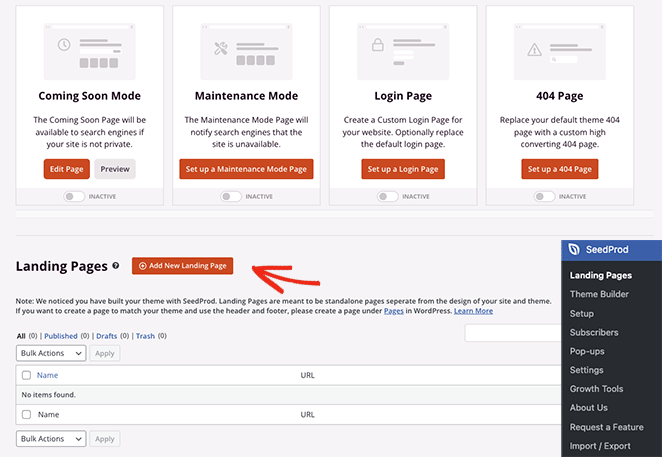
Desde allí, verás cientos de plantillas de página de destino predefinidas que puedes usar como punto de partida para tu diseño. Cada plantilla es 100% adaptable a móviles, asegurando que tu diseño se vea genial en dispositivos móviles como smartphones y tablets.
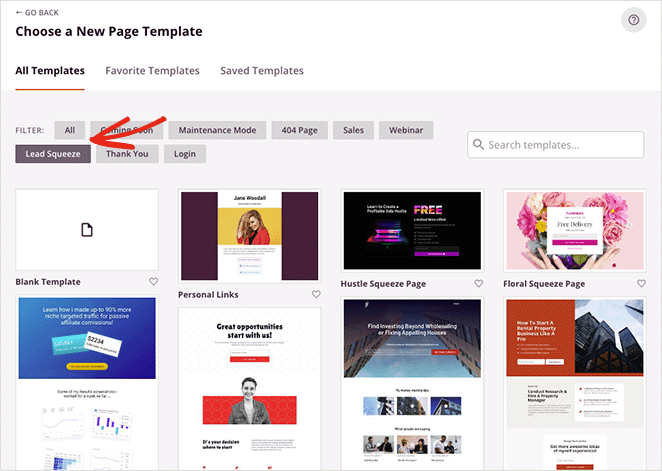
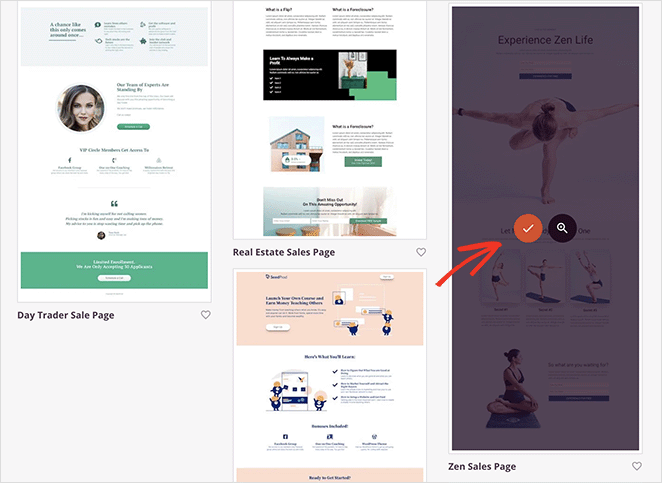
Puedes filtrar las plantillas haciendo clic en las pestañas de la parte superior o usar el cuadro de búsqueda para encontrar un diseño para un nicho específico. Una vez que encuentres una que te guste, pasa el ratón sobre ella y haz clic en el icono de la marca de verificación.
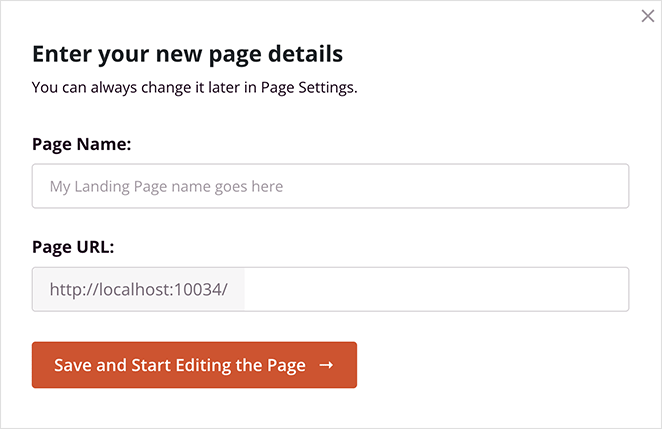
A continuación, introduce un nombre para tu página y haz clic en el botón 'Save and Start Editing the Page'.
Ahora, la plantilla se abrirá en el editor visual de SeedProd, donde puedes empezar a personalizar su diseño y contenido sin necesidad de código.
Paso 3. Añadir el bloque de página de Facebook
El editor de arrastrar y soltar de SeedProd es fácil de navegar.
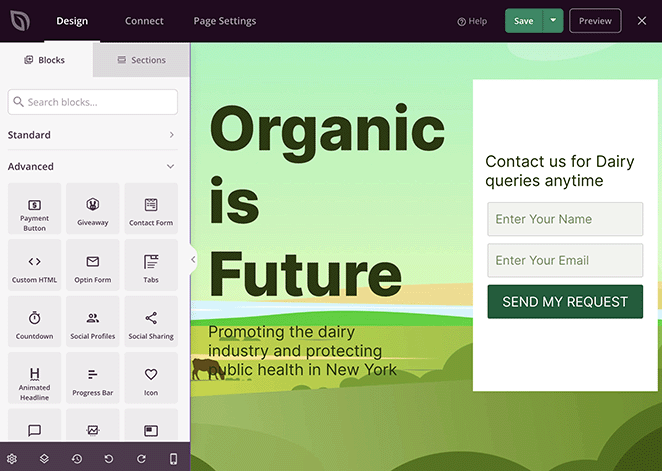
Verás una vista previa en vivo a la derecha y bloques, secciones y configuraciones a la izquierda. Puedes arrastrar elementos de contenido desde el panel de bloques a la vista previa y editar sus configuraciones con unos pocos clics.
Así es como se añade el bloque de página de Facebook a tu página de destino:
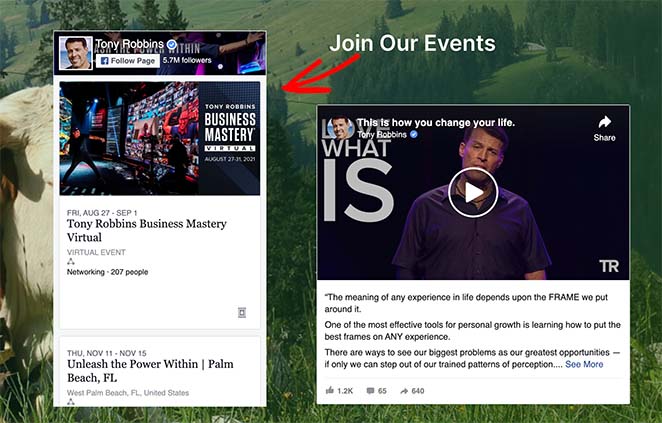
Desde el panel 'Advanced Blocks', desplázate hacia abajo hasta que veas el bloque Facebook Page. Para añadirlo a tu página, arrástralo desde la izquierda y suéltalo en tu vista previa.
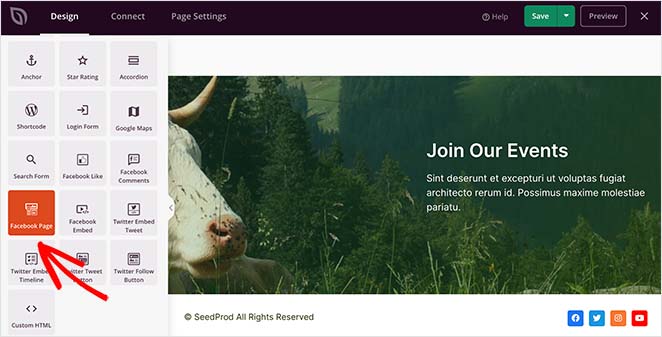
Ahora, puedes hacer clic en el bloque para ver sus opciones de personalización y añadir la URL de tu página de Facebook.
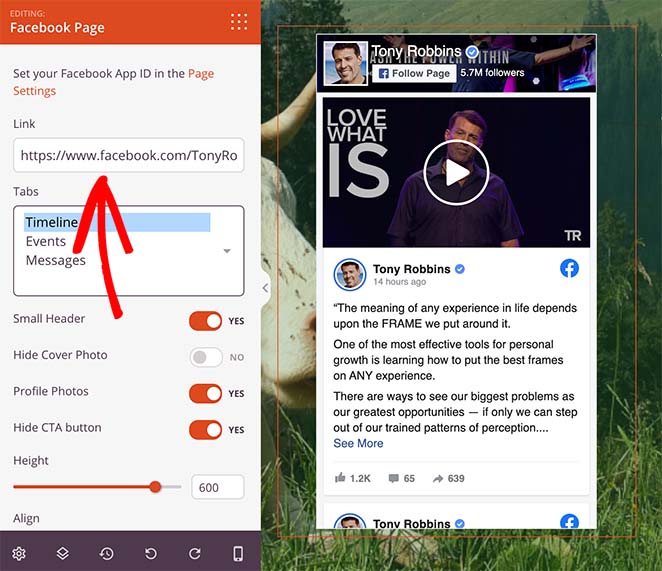
Si tu página no aparece, deberás hacer clic en el enlace "Configuración de la página" e introducir la información de tu ID de aplicación de Facebook.
Cómo obtener un ID de aplicación de Facebook
El ID de la aplicación es la única parte de esto que parece complicada, pero solo la configuras una vez.
He aquí cómo:
- Ve a developers.facebook.com/apps e inicia sesión con tu cuenta de Facebook.
- Haz clic en 'Create App' y selecciona el tipo de aplicación 'Consumer' cuando se te solicite.
- Rellena el nombre de tu aplicación y tu correo electrónico de contacto, y luego completa el asistente de configuración.
- Una vez creada la aplicación, tu ID de aplicación aparece en la parte superior del panel de la aplicación. Cópialo y pégalo en el campo de Configuración de la página de SeedProd.
La configuración adicional del bloque de página de Facebook incluye la capacidad de:
- Habilitar un encabezado pequeño
- Ocultar tu foto de portada
- Mostrar fotos de perfil
- Ocultar el botón de llamada a la acción
- Cambiar la altura del widget de Facebook
- Ajustar la alineación del widget
Incluso puedes mostrar diferentes tipos de feeds de Facebook, incluyendo una línea de tiempo, eventos y mensajes.
Lo genial de este bloque es que incluye automáticamente los botones Me gusta y Compartir para que los usuarios puedan compartir fácilmente tu contenido de redes sociales en otras plataformas.
Paso 4. Personaliza tu página de WordPress
Una vez que tu feed de la página de Facebook esté en su lugar, puedes continuar personalizando el resto de tu página de destino.
Algunas ideas incluyen:
- Añadir un formulario de suscripción para recopilar direcciones de correo electrónico
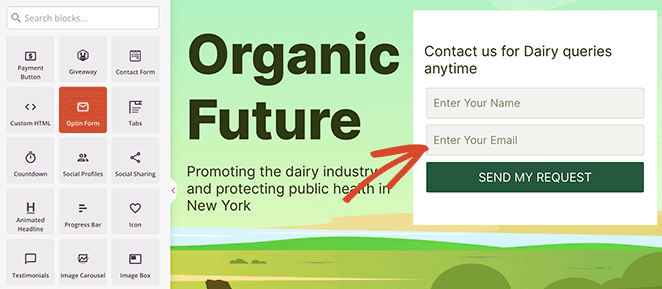
- Incluir testimonios de clientes satisfechos para aumentar la confianza
- Añadir un botón para unirte a tu Grupo de Facebook

- Incrustar un vídeo de bienvenida para atraer a los visitantes por primera vez
Para obtener una guía completa sobre cómo personalizar tu página de destino, consulta nuestra guía paso a paso sobre cómo crear una página de destino en WordPress.
Paso 5. Guarda tus cambios
Cuando estés satisfecho con tu página, haz clic en el botón 'Save' y 'Publish' en la esquina superior derecha de tu pantalla.
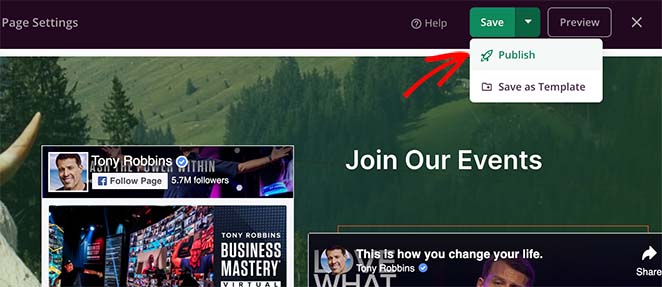
Ahora, puedes visitar la página para ver cómo queda.
Método 2: Añadir una página de Facebook a WordPress sin un plugin
El segundo método utiliza el propio Page Plugin de Facebook, por lo que no interviene ningún constructor de páginas.
Este método también es relativamente fácil, pero no ofrece el mismo nivel de personalización que obtienes con un constructor de páginas de WordPress. También implica copiar y pegar fragmentos de código en tu sitio.
Paso 1. Obtén el plugin de página de Facebook
Para empezar, visita el sitio web del plugin de página de Facebook. Aquí es donde introducirás los detalles de tu página y generarás un código para incrustar en tu sitio web.
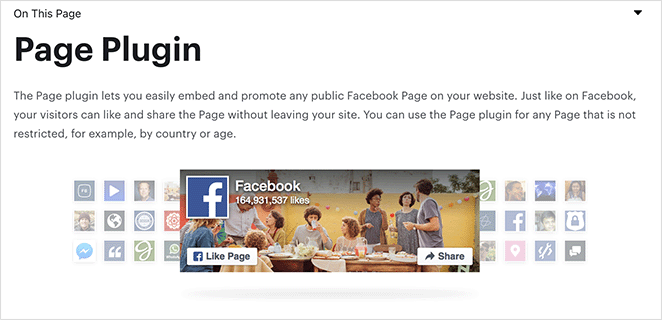
Paso 2. Configura el plugin de página de Facebook
En la página del plugin, verás un formulario donde puedes introducir los detalles de tu página de Facebook.
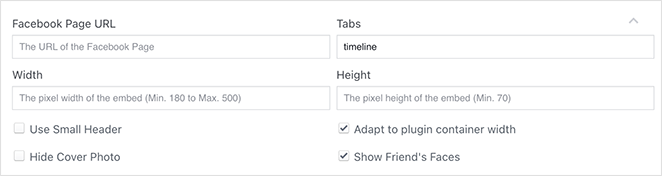
Puedes pegar la URL de tu página de Facebook, introducir un ancho y alto personalizados para el plugin, ocultar la foto de portada y más.
Paso 3. Genera tu código de incrustación de página de Facebook
Después de rellenar los detalles necesarios, haz clic en el botón ‘Obtener código’.

Facebook generará ahora un código JavaScript e iFrame para pegar en tu página web. En la ventana emergente, elige la opción iFrame y copia el código de inserción.
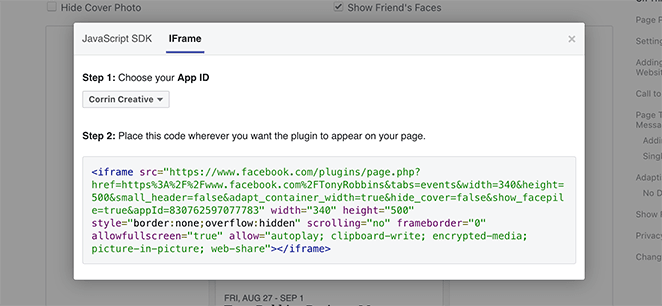
Paso 4. Añade el código de incrustación de página de Facebook a WordPress
Ahora, es hora de añadir este código a tu blog de WordPress. Muchos sitios muestran su página de cuenta de Facebook en una nueva entrada o en un widget de barra lateral, así que veamos cómo hacerlo.
Ve a la pestaña ‘Apariencia’ en tu administrador de WordPress y selecciona ‘Widgets’.
A continuación, haz clic en el icono más para añadir un nuevo bloque de WordPress y busca el widget de HTML personalizado o de Texto. Añade este widget al área donde te gustaría que apareciera tu página de FB.
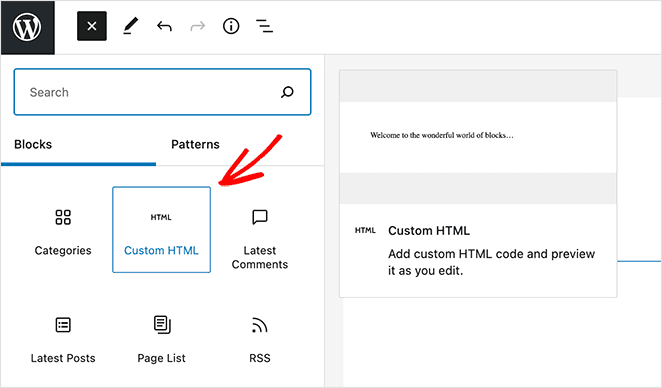
Finalmente, copia el código HTML generado por Facebook y pégalo en el área del widget.
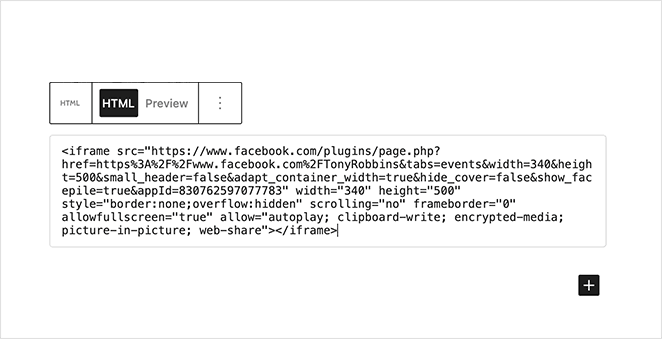
Ahora haz clic en el botón ‘Guardar’ para aplicar los cambios. Con esto, tu página de Facebook debería aparecer ahora en la barra lateral de tu WordPress.
Para añadirlo a una página o entrada en su lugar, abre la página en el editor de bloques, haz clic en el botón ‘+’ para añadir un nuevo bloque, busca ‘HTML personalizado’ y pega el código de inserción allí. Publica la página y tu feed de Facebook aparecerá justo donde lo colocaste.
¿No aparece? Primero, comprueba que tu página de Facebook esté publicada y que la URL que introdujiste sea correcta. Si un plugin de seguridad o de caché está bloqueando scripts externos, intenta deshabilitarlo temporalmente para probar.
El código de inserción JavaScript de Facebook a veces puede ser bloqueado, así que cambia al código iFrame del Paso 3 si eso sucede. Asegúrate también de que el dominio en el que estás insertando coincida con el dominio registrado en la configuración de tu aplicación de Facebook.
Método 3: Añadir un feed de Facebook a WordPress con un plugin
Si deseas un feed dinámico y con estilo que se actualice automáticamente a medida que publicas en Facebook, la mejor opción es el plugin Custom Facebook Feed de Smash Balloon. Es la solución más popular para este caso de uso y funciona en cualquier página, publicación o barra lateral existente.

Con su plugin de Feed de Facebook, puedes mostrar una galería filtrable de tus publicaciones de Facebook sin escribir ningún código. Aquí te explicamos cómo configurarlo.
Paso 1. Instalar el plugin Custom Facebook Feed
En tu panel de WordPress, ve a Plugins » Añadir nuevo y busca ‘Custom Facebook Feed by Smash Balloon’. Instala y activa la versión gratuita.
Una vez activo, verás un nuevo elemento de menú ‘Facebook Feed’ en tu panel.
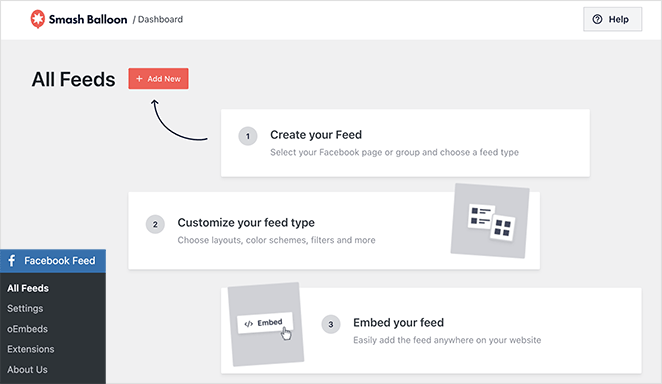
Paso 2. Conectar tu cuenta de Facebook
Haz clic en Facebook Feed » Añadir nuevo para iniciar el asistente de configuración. Se te pedirá que conectes tu cuenta de Facebook.
Haz clic en ‘Conectar con Facebook’, inicia sesión si es necesario y concede al plugin permiso para acceder a tus páginas.
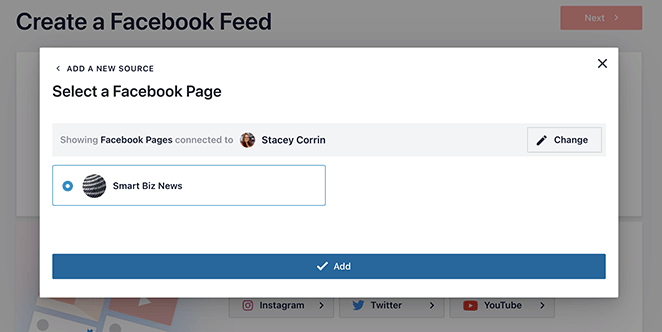
El plugin solo solicita acceso de lectura, por lo que puede mostrar tus publicaciones sin la capacidad de publicar en tu nombre.
Paso 3. Seleccionar tu página de Facebook
Después de conectar, verás una lista de las páginas de Facebook que administras. Selecciona la página que deseas mostrar y haz clic en ‘Siguiente’.
El asistente te permitirá elegir un tipo de feed: Cronología, Fotos, Eventos o Vídeos. Puedes previsualizar cómo se verá en tu sitio.
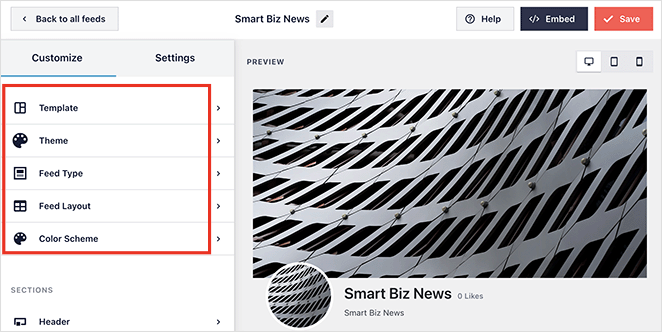
Paso 4. Copiar el shortcode o añadir el bloque
Una vez configurado tu feed, Smash Balloon te proporciona un shortcode como [custom-facebook-feed]. También puedes usar el bloque dedicado ‘Facebook Feed’ si estás utilizando el editor de bloques de WordPress.
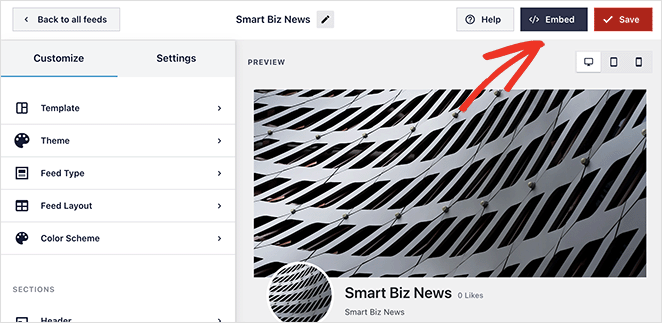
Guarda el feed y anota el nombre del shortcode o bloque. Lo usarás en el siguiente paso para colocar el feed en tu sitio.
Paso 5. Colocar el feed en tu página
Abre la página o entrada donde quieras que aparezca el feed. Si estás usando el editor de bloques, haz clic en el botón ‘+’, busca ‘Facebook Feed’ y selecciona tu feed en el menú desplegable. Si estás usando un shortcode, añade un bloque ‘Shortcode’ y pégalo.
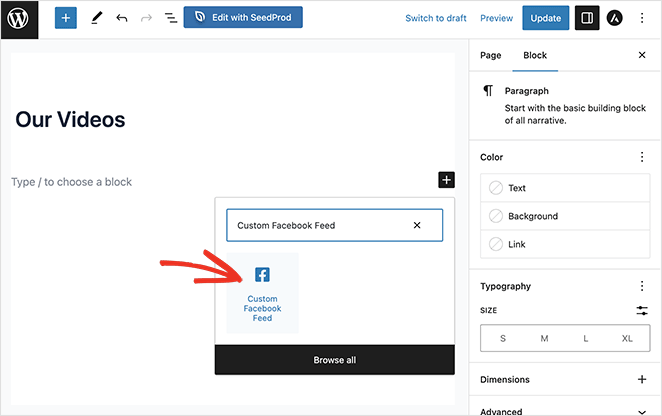
Para añadir el feed a tu barra lateral, ve a Apariencia » Widgets, añade un widget ‘Shortcode’, pega el shortcode y guarda. Publica la página y tu feed de Facebook en vivo aparecerá justo donde lo colocaste.

Cómo añadir un botón Me gusta de Facebook en WordPress
Insertar tu página es una cosa. Dar a los visitantes una forma de seguirla con un solo clic es otra, y eso es lo que hace un botón de Me gusta de Facebook.
En los blogs que he administrado, un botón "Me gusta" era la forma más sencilla de convertir a un lector en un seguidor. Comentar y compartir requieren esfuerzo, pero un "Me gusta" es un solo clic y hace crecer tu página silenciosamente en segundo plano.
WordPress no tiene un botón "Me gusta" incorporado, así que te mostraré dos formas de añadir uno. La ruta sin código utiliza SeedProd. La ruta manual utiliza el propio código de Facebook.
Añadir un botón Me gusta de Facebook con SeedProd (sin código)
Si seguiste el Método 1, ya tienes SeedProd instalado y una página abierta en el constructor. Añadir un botón "Me gusta" solo requiere unos pocos clics más.
Junto al bloque de Página de Facebook, los bloques de Facebook de SeedProd te permiten incrustar tu página, publicaciones individuales, comentarios y un botón "Me gusta" independiente.
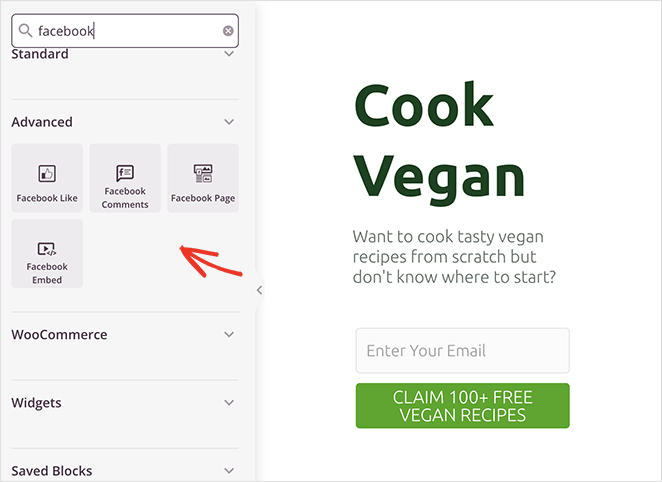
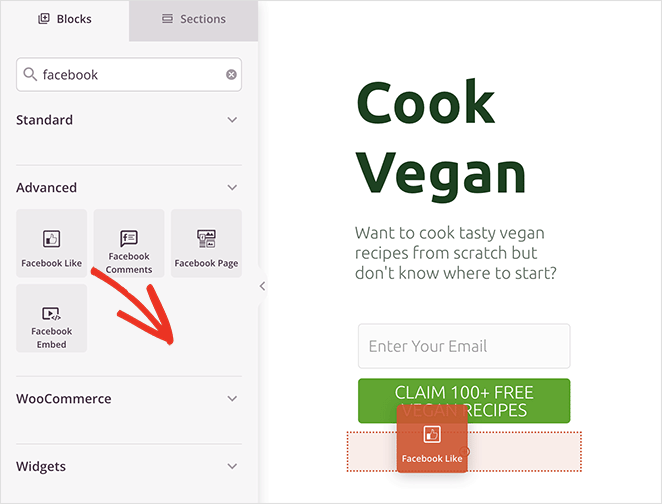
Para añadir el botón, arrastra el bloque "Me gusta" de Facebook desde el panel 'Bloques avanzados' a tu página.
Haz clic en el bloque para abrir su configuración, donde puedes definir exactamente cómo se ve el botón. Puedes establecer el diseño en estándar, botón, recuento de botones o recuento de cajas.
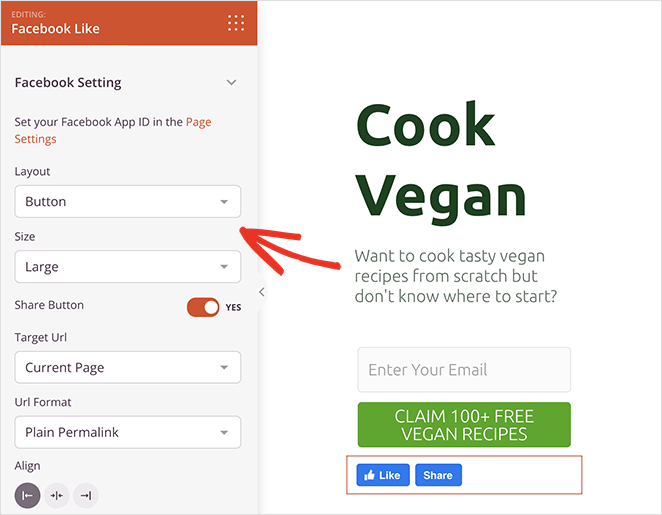
Desde el mismo panel, puedes elegir un tamaño pequeño o grande y activar o desactivar un botón "Compartir" de Facebook junto a él.
También puedes dirigir el botón a tu página actual o a una URL personalizada, cambiar el formato de la URL entre enlaces permanentes simples y bonitos, y alinear el botón a la izquierda, derecha o centro.
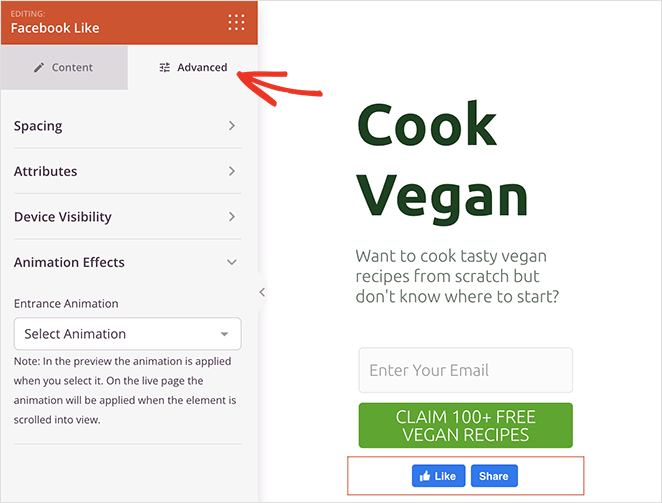
En la pestaña de configuración 'Avanzado', puedes ajustar el espaciado del botón, animarlo y controlar su visibilidad en móvil y escritorio, todo sin escribir ningún código.
Nota: Para que el botón se muestre correctamente, añade tu ID de aplicación de Facebook en SeedProd » Ajustes. Puedes obtener ese ID desde el panel de tu aplicación en developers.facebook.com, el mismo lugar cubierto en los pasos del ID de aplicación anteriores.
Cuando estés satisfecho con el botón, haz clic en la flecha desplegable del botón 'Guardar' y selecciona 'Publicar'.

Ahora puedes visitar tu página y ver el botón "Me gusta" de Facebook en acción.
Añadir un botón Me gusta de Facebook manualmente con código
Si prefieres no usar un plugin, puedes pegar el propio código del botón "Me gusta" de Facebook en WordPress. Requiere unos pasos adicionales, así que solo lo recomiendo si te sientes cómodo editando código.
Para hacerlo más seguro, usaremos el plugin WPCode. Te permite administrar fragmentos de código sin editar directamente los archivos de tu tema, por lo que una actualización del tema no puede eliminarlos.
Primero, ve a la página Botón "Me gusta" en el sitio web Meta for Developers y desplázate hacia abajo hasta el 'Configurador de Botón "Me gusta"'.
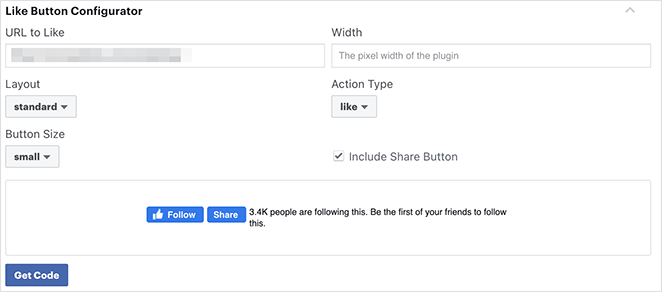
Introduce la URL de tu página de Facebook en el campo 'URL a indicar "Me gusta"', luego ajusta el diseño y el tamaño hasta que la vista previa se vea bien. Cuando estés satisfecho, haz clic en 'Obtener código'.
Verás una ventana emergente con dos pestañas, SDK de JavaScript e iFrame, y dos fragmentos de código. Haz clic en la opción de JavaScript.
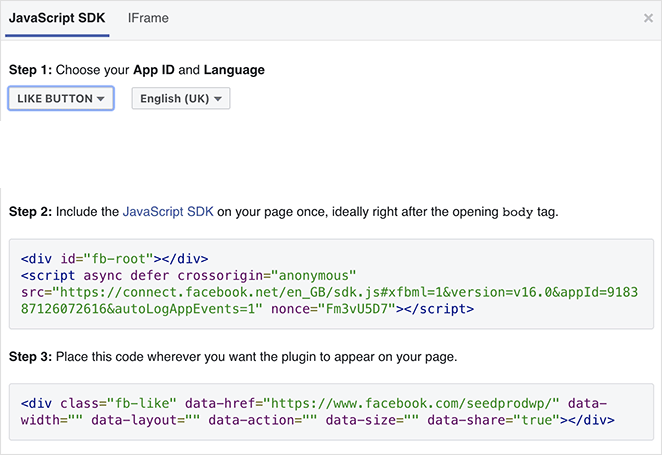
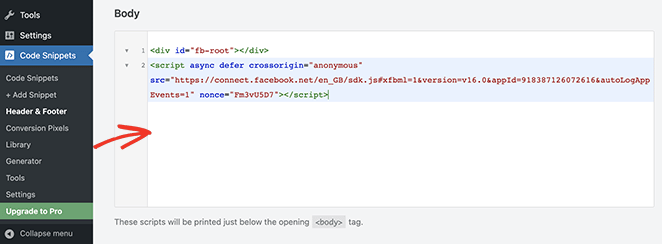
Ahora instala y activa el plugin WPCode. Luego ve a Fragmentos de código » Encabezado y Pie de página en tu panel.
Copia el primer fragmento de Facebook, pégalo en la sección 'Cuerpo' y haz clic en 'Guardar cambios'.
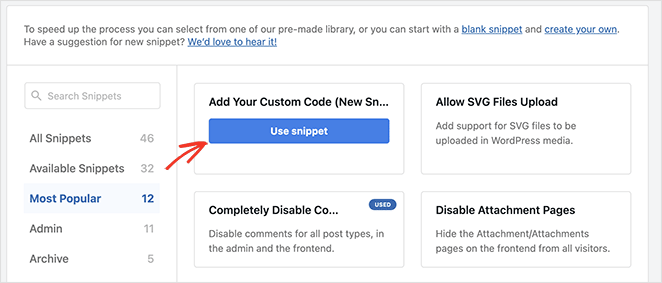
A continuación, añadirás el segundo fragmento, que realmente muestra el botón. Ve a Fragmentos de código » + Añadir fragmento y elige 'Añadir tu código personalizado (Nuevo fragmento)', luego haz clic en 'Usar fragmento'.
Dale un nombre al fragmento, pega el segundo fragmento de Facebook en el cuadro ‘Vista previa del código’ y establece el ‘Tipo de código’ en ‘Fragmento HTML’.
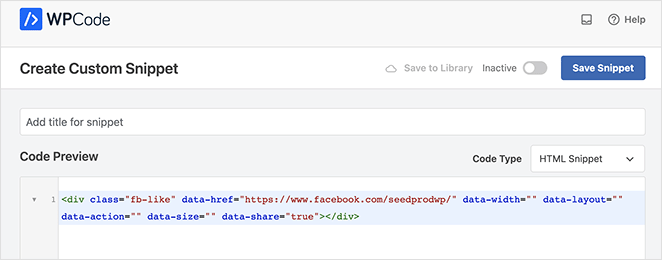
Desplázate hacia abajo hasta la sección ‘Inserción’ para elegir dónde aparece el botón. Para mostrarlo encima de tus publicaciones, abre el menú desplegable ‘Ubicación’ y selecciona ‘Insertar antes del contenido’ en ‘Específico de la página’.
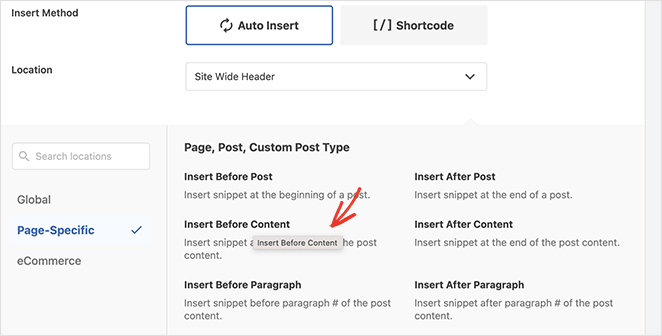
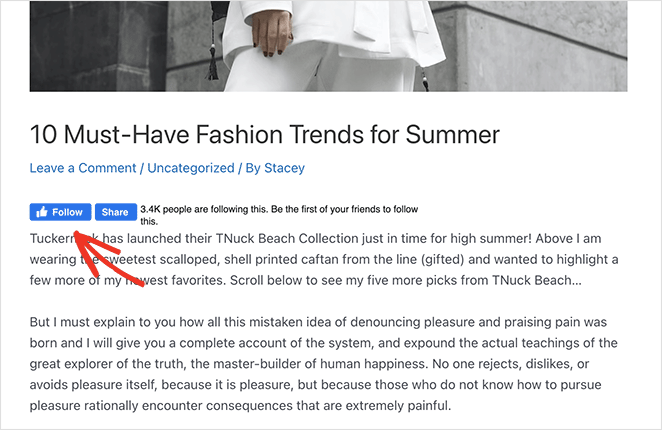
Finalmente, haz clic en ‘Guardar fragmento’ y cambia el interruptor de Inactivo a ‘Activo’. Visita cualquier entrada de blog y tu botón Me gusta de Facebook aparecerá antes del contenido.
Preguntas frecuentes sobre cómo añadir una página de Facebook a WordPress
¿Cuál es la forma más fácil de mostrar mi página de Facebook en WordPress?
Si ya estás utilizando un maquetador de páginas como SeedProd, su bloque de página de Facebook es la forma más rápida. De lo contrario, pega la URL de tu página en la herramienta del plugin de página de Facebook, copia el código y añádelo a un bloque o widget de HTML personalizado.
¿Cómo añado mi página de Facebook a la barra lateral o al pie de página de WordPress?
Ve a Apariencia » Widgets, añade un bloque de HTML personalizado a tu barra lateral o pie de página, pega el código de incrustación de tu página de Facebook y guarda.
¿Por qué no se muestra mi página de Facebook incrustada?
Comprueba que tu página esté publicada, que la URL sea correcta y que ningún plugin de seguridad o configuración del tema esté bloqueando los scripts. Si aún así no aparece, intenta usar el código iFrame de Facebook en lugar de JavaScript.
¿Añadir una página de Facebook a WordPress ralentizará mi sitio?
Puede que sí, porque los scripts de Facebook se cargan desde fuera de tu sitio. Para mantener la velocidad, coloca el código incrustado más abajo en la página, limita el número de pestañas que muestras y utiliza la caché.
¿Es un botón de 'Me gusta' de Facebook lo mismo que un botón de 'Compartir'?
No exactamente. El botón Me gusta añade tu página a los ‘Me gusta’ de Facebook de alguien, mientras que un botón Compartir publica tu página en su línea de tiempo. Con el bloque Me gusta de Facebook de SeedProd, puedes mostrar ambos juntos.
¿Dónde debería colocar un botón de 'Me gusta' de Facebook?
Normalmente lo pongo al final de una página de destino o justo debajo del título de una entrada de blog. Ambos lugares tienden a recibir más clics que la barra lateral.
A continuación, descubre más formas de personalizar tu sitio de WordPress
Esperamos que esta guía te haya ayudado a aprender cómo agregar una página de Facebook a WordPress. Hay muchas otras formas de personalizar tu sitio de WordPress con SeedProd que no podríamos enumerar todas en una sola publicación.
Así que aquí tienes algunas de nuestras mejores guías de personalización de WordPress:
- Cómo personalizar los estilos del menú de WordPress de 3 maneras sencillas
- Cómo crear una página de autor personalizada de WordPress (2 maneras sencillas)
- Cómo Crear Páginas de Destino Personalizadas para Impulsar las Conversiones
- Cómo incrustar vídeos de Facebook en WordPress (3 maneras sencillas)
- Cómo crear fondos animados de Particle.js en WordPress
¡Gracias por leer! Nos encantaría conocer tu opinión, así que únete a la conversación en YouTube, X y Facebook para obtener más consejos y contenido útil para hacer crecer tu negocio.



