

You can build a WordPress website with AI to instantly generate a custom layout, copy, and images without writing a single line of code. This process turns a project that usually takes weeks into a task you can finish in minutes.
I know the frustration of the traditional route. I’ve spent many hours staring at a blank screen, trying to pick a color palette or write a catchy headline. It usually ends with a generic template that looks like everyone else’s site, or an expensive bill from a developer.
AI tools remove that gridlock. They handle the heavy lifting of structure and design so you can focus on your business strategy.
I tested this myself using SeedProd’s AI builder. In just 22 seconds, I had a complete website with a homepage, about page, blog, and contact form. Here is exactly how I did it.
If you want inspiration before you start, browse these WordPress website examples to see what’s possible across different site types.
How to Build a WordPress Website with AI (Quick Answer)
To build a WordPress website with AI, you need a self-hosted WordPress installation and an AI website builder plugin. The AI tool analyzes a short description of your business to automatically generate a custom theme, pages, images, and copy. This process replaces manual coding and lets you launch a unique site in minutes.
Here is the complete process to create your site:
- Get a domain and hosting – Set up a self-hosted WordPress site with a provider like Bluehost or SiteGround.
- Install an AI builder – Download and activate a plugin like SeedProd.
- Access the AI Theme Builder – Open the builder and select the AI generation option.
- Enter site details – Type your website name and a brief description of what you do.
- Let AI generate – Wait 22-60 seconds for the tool to create your layout and content.
- Import and Customize – Import the theme files and use the visual builder to adjust the design.
- Publish – Enable your new theme and go live.
Time: 10 minutes | Cost: Hosting + Plugin | Skill: Beginner-friendly (no coding)
Benefits of Building a WordPress Site with AI
AI tools solve the biggest problem in web design: getting stuck on the technical details before you even launch. I’ve used these tools on multiple projects, and here is why I recommend them.
- Overcome Writer’s Block – You don’t need to be a copywriter. The AI generates headlines and paragraphs based on your business description, giving you a solid first draft instantly.
- Save Time and Money – Hiring a developer can cost thousands and take weeks. An AI builder does the heavy lifting in minutes for the price of a plugin license.
- No Coding Required – You never need to touch PHP or CSS. If you can type a description, you can build a site.
- Unique Designs – Most beginners use the same free themes, making their sites look identical. AI generates a unique layout and color scheme specific to your brand.
It isn’t about replacing creativity. It is about skipping the setup so you can focus on growing your business.
What AI Can and Can’t Do for Your WordPress Website
| Feature | AI Can Do | AI Can’t Do |
| Layout & Design | ✅ Create complete site structure in seconds ✅ Choose coordinated color schemes ✅ Generate responsive layouts | ❌ Make nuanced brand-specific design choices ❌ Replicate exact brand guidelines |
| Content | ✅ Write starter copy for all pages ✅ Generate relevant headlines ✅ Create placeholder text | ❌ Write deeply personalized content ❌ Fully optimize for SEO without human input |
| Images | ✅ Generate custom AI images ✅ Select relevant stock photos ✅ Match images to your theme | ❌ Create specific branded photography ❌ Generate complex infographics |
| Features | ✅ Add basic contact forms ✅ Create standard page templates ✅ Set up blog layouts | ❌ Build advanced forms or calculators ❌ Add complex integrations ❌ Create custom functionality |
Bottom line: AI gives you a professional starting point in seconds. You’ll still need to add your personal touch for brand uniqueness and advanced features.
Speed Comparison: AI vs Traditional Methods
| Method | Time | Cost | Skill Level | Customization |
| SeedProd AI | 22-60 seconds | $39.50/year | None | Extensive |
| WordPress.com AI | 2-3 minutes | Free-$45/month | None | Limited |
| 10Web AI | Under 5 min | $10/month | Minimal | Moderate |
| ZipWP | 60 seconds | Free-$99/year | None | Moderate |
| Manual coding | 2-4 weeks | Free (your time) | Advanced | Complete |
| Hire developer | 1-3 weeks | $500-$5,000 | None | Complete |
SeedProd AI is 200x faster than traditional development while giving you full WordPress ownership and flexibility that standalone AI builders can’t match.
How Do You Build a WordPress Website with SeedProd AI?
Watch this quick walkthrough, then follow the step-by-step instructions below:
- Step 1. Get Hosting and Install SeedProd
- Step 2. Generate Your Website with SeedProd AI
- Step 3. Import Your AI-Generated Theme
- Step 4. Customize Your Website
- Step 5. Generate Images with SeedProd AI
- Step 6. Generate Content with SeedProd AI
- Step 7. Publish Your WordPress Website
- FAQs About Building a WordPress Website with AI
Step 1. Get Hosting and Install SeedProd
To build a WordPress website with AI, you first need a domain name and web hosting. This is the foundation where your site files live.
If you don’t have hosting yet, I recommend a provider like Bluehost. It installs WordPress for you automatically so you can start building right away.
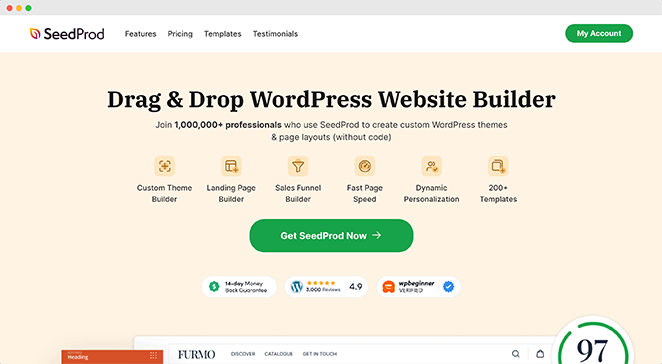
Next, install SeedProd. This is a visual website builder plugin that lets you create themes and pages without writing code.
The AI theme generation is a premium feature. You will need to get a Pro license from the SeedProd website.
Once you have your license, upload and activate the plugin on your WordPress dashboard. If you need help, follow this guide to activating SeedProd Pro.
Step 2. Generate Your Website with SeedProd AI
Start by going to SeedProd’s WordPress AI theme builder page and clicking the ‘Try our AI Theme Builder for FREE’ button.
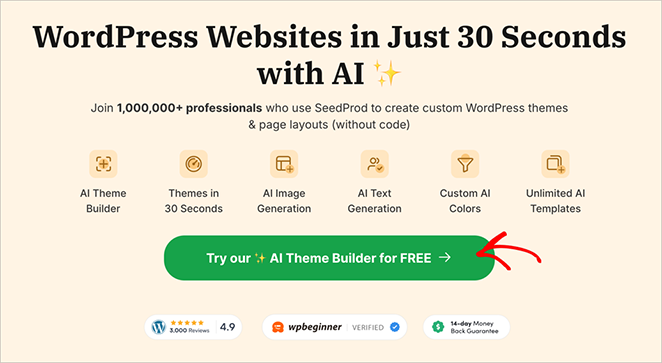
Now, you’ll see SeedProd’s AI site builder.
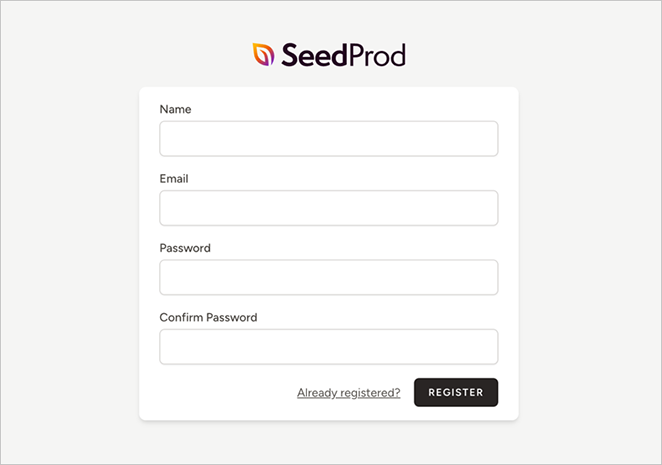
Here, you’ll need to set up your SeedProd account. If you already have one, just log in. If not, it’s quick to create one. Just fill in your details.
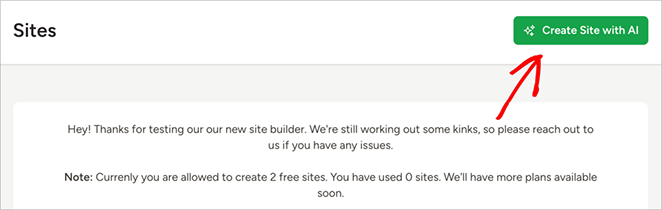
After logging in, you’ll see the AI Theme Builder dashboard. To get started, simply click the ‘Create Site with AI’ button.
Next, you’ll need to tell the AI about your website. Enter your website name and a brief description.
You can also choose to let the AI pick your website colors, or you can select them yourself later.
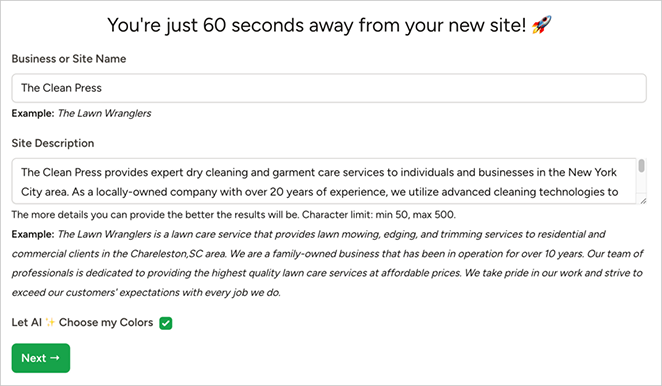
Once you’ve filled in these details, click ‘Next’.
Now, sit back and watch the AI work its magic. In a few seconds, you’ll have a complete website.

Once the process finishes, you will see a preview of your new site structure.

And just like that, you’ve got the foundation of your new website. In the next step, we’ll look at how to customize what the AI has created.
Step 3. Import Your AI-Generated Theme
First, look for the WordPress icon in the SeedProd AI theme builder dashboard. Then, click it to open your temporary admin dashboard.
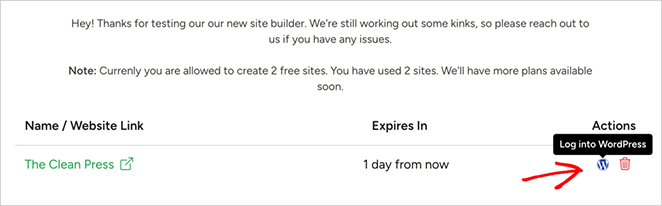
Once you’re in, go to SeedProd » Import / Export. You’ll see an ‘Export Theme Files’ button here, so go ahead and click that.
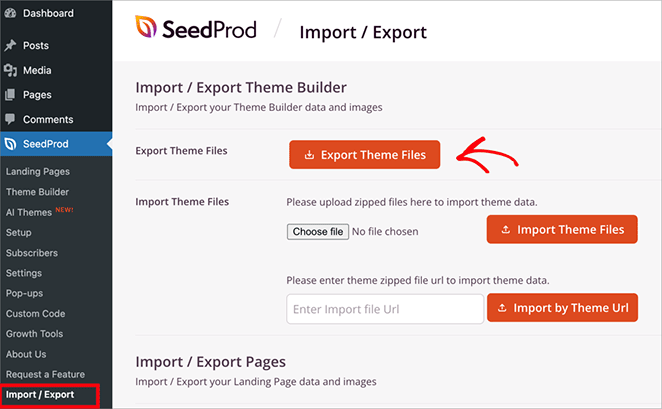
Now, switch over to your own WordPress site’s admin panel. Then, navigate to the same Import/Export page.
Here, click ‘Choose File’ and find the theme file you just exported. Once you’ve selected it, hit ‘Import Theme Files’.
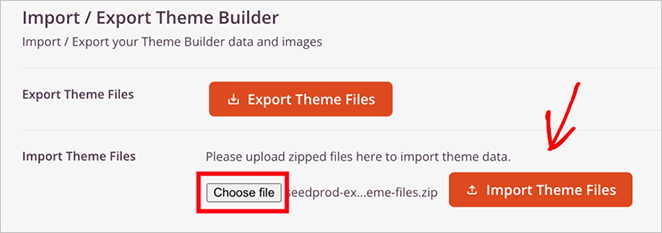
And there you have it! Your AI-generated theme is now on your own WordPress site, ready for you to customize.
Step 4. Customize Your Website
First, go to SeedProd » Theme Builder in your WordPress dashboard to see the template files that make up your design.
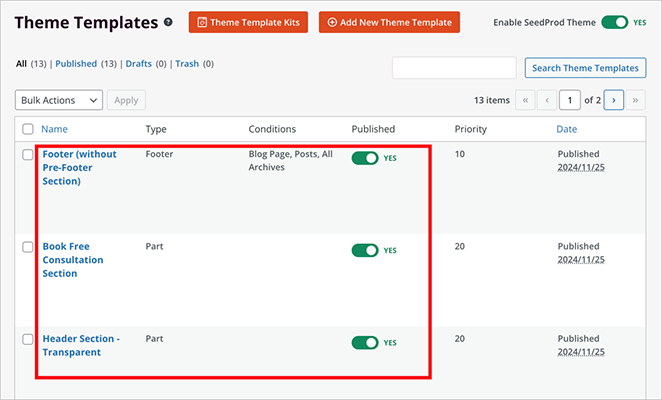
If you want to change a template, hover over it and click ‘Edit Design’. This will open SeedProd’s drag-and-drop builder.
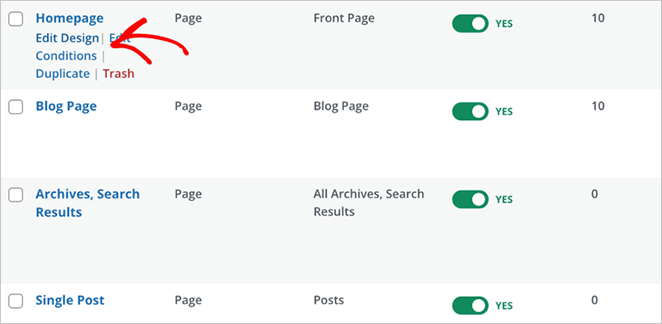
The drag-and-drop builder is pretty intuitive, but don’t worry if you’re not sure where to start.
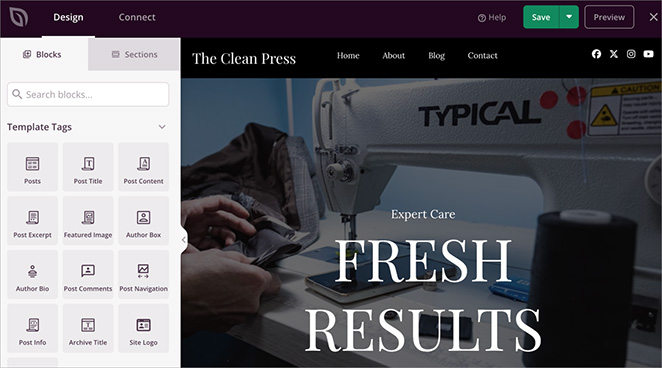
Here’s a detailed guide to help you create a custom WordPress theme that fits your vision.
Step 5. Generate Images with SeedProd AI
To add custom AI-generated images, add an ‘Image’ block in the drag-and-drop builder and click ‘Add with AI’.
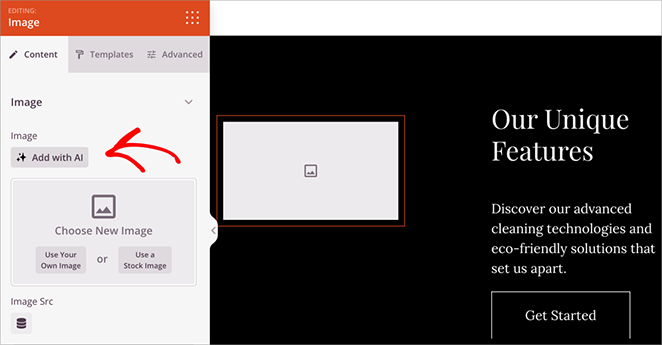
Describe the image you want, click ‘Generate Image’, and the AI will create it in seconds. You can then edit or regenerate until you’re satisfied.
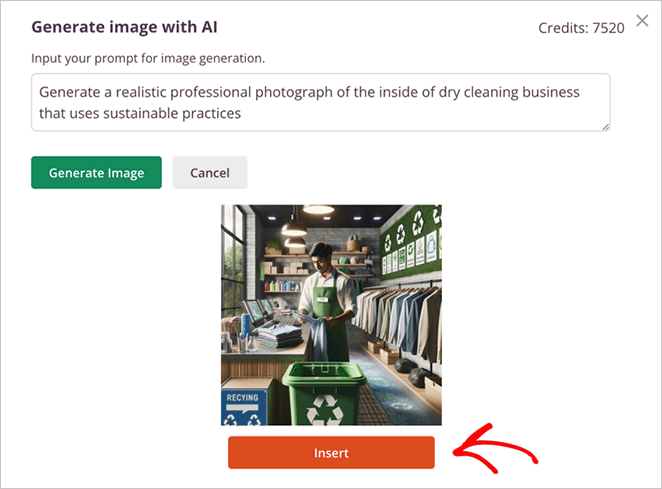
For a full walkthrough, see our guide on generating images with AI.
Step 6. Generate Content with SeedProd AI
SeedProd AI can also help you create content for your site.
To use this feature, add or edit a ‘Headline’ or ‘Text’ block in the drag-and-drop builder. Then, look for the ‘Generate AI Text’ button and click it.
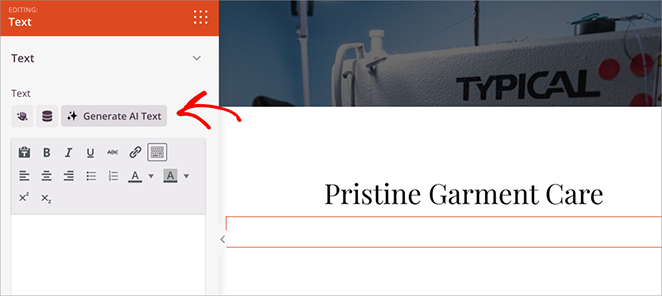
Now, type in what kind of content you want or choose one of the available prompts.
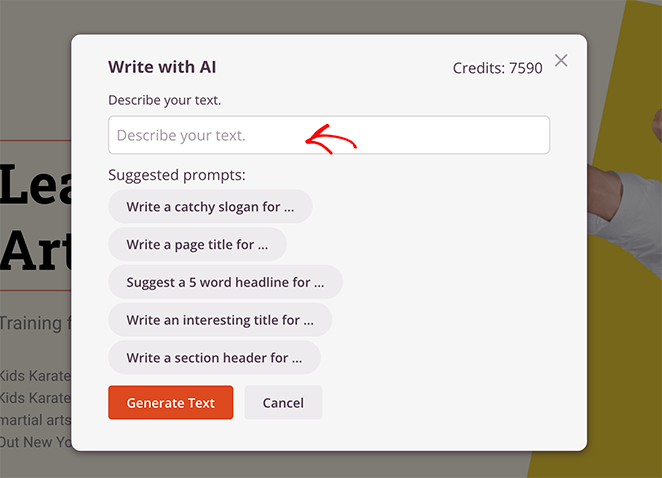
Click ‘Generate Text’ when you’re ready.
The AI will create content based on your input. You can refine, adjust, or edit this text as needed.
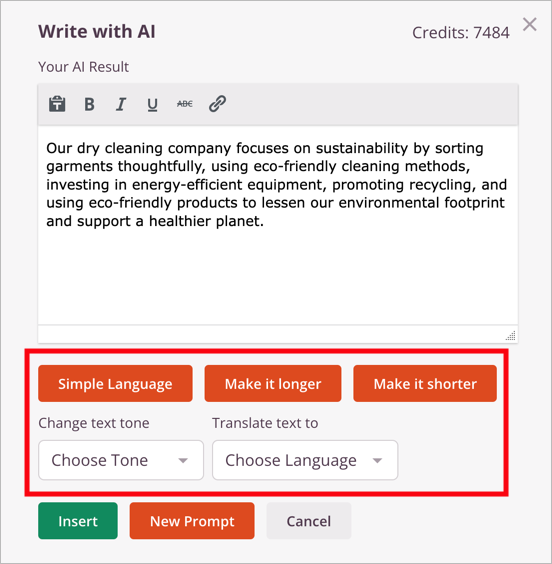
For example:
- You can fine-tune the text to better match your brand’s voice.
- Need it shorter or longer? You can adjust the length easily.
- Running a multilingual site? The AI can translate your content into dozens of languages.
Once you’re happy with the content, click ‘Insert’ to add it to your page.
This tool is great for creating initial drafts or sparking ideas for your site’s content. To learn more, see this guide on using AI to write content.
Next, we’ll look at the final steps to get your AI-built WordPress site ready for launch.
Step 7. Publish Your WordPress Website
You’ve made it to the final step. Let’s get your website live.
First, review your design and content. Are you happy with how everything looks? Great.
Then, in the SeedProd builder, click the ‘Save’ button to save your changes.
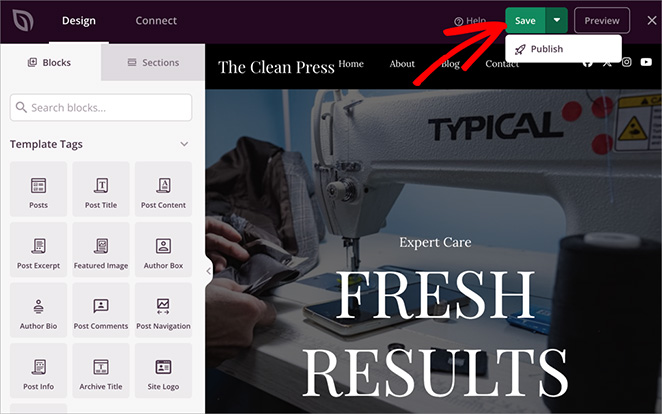
Now, click the ‘Publish’ button. This will make your changes visible on your live site.
There’s one more important step. If you haven’t done it already, go to SeedProd » Theme Builder in your WordPress dashboard.
Here, you’ll find a toggle labeled ‘Enable SeedProd Theme’. To make your theme live, simply switch the toggle to ‘On.’ This activates your theme and applies it to your entire website.
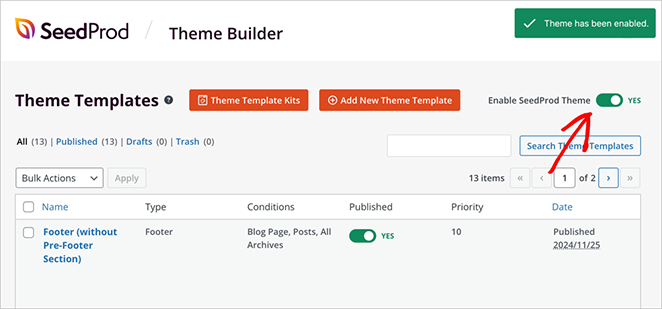
That’s it! Your WordPress website is live, built with AI, and ready for visitors.
Keep in mind, this is just your starting point. SeedProd AI gives you the first draft. Now it’s your turn to refine, publish, and grow.
FAQs About Building a WordPress Website with AI
Let’s tackle some common questions about building websites with AI and using SeedProd:
Next Steps
You now have everything you need to build a WordPress website with AI. Your SeedProd-generated site is just the starting point. Customize it, add your content, and make it uniquely yours.
Ready to expand your skills? Check out these guides:
- How to Create an AI Landing Page in WordPress
- How to Change Blog Layout in WordPress
- How to Set Up an Online Store in WordPress
- How to Customize WordPress Menu Styles
Thanks for reading! We’d love to hear your thoughts, so please feel free to join the conversation on YouTube, X and Facebook for more helpful advice and content to grow your business.



