

TL;DR: How to Edit Your WordPress Navigation Bar (2 Methods)
You can edit your WordPress navigation bar using SeedProd for full visual control, or the built-in WordPress menu editor for quick changes.
Here’s how each method works.
- Choose your method: SeedProd for design control and dropdowns; Appearance > Menus for quick edits with your existing theme.
- Install SeedProd (Method 1): Download from your account, activate, and verify your license key in SeedProd > Settings.
- Edit your header: Open the Theme Builder, choose a template, then click Edit Design on the Header to access the Nav Menu block.
- Add links or a button: Use the Simple Menu for quick links, the WordPress Menu option for existing menus, or drag in a Button block for a CTA.
- Publish or save: Toggle Enable SeedProd Theme (Method 1) or click Save Menu in Appearance > Menus (Method 2).
Your navigation bar looks fine to you, but visitors keep landing on the wrong pages, or giving up and leaving.
The links are there, but they don’t point where they should. The design feels off. Or you’ve just launched a new service page and can’t figure out where to add it without breaking the whole layout.
I’ve been building WordPress sites for 13+ years, and the navigation bar is one of those things that sounds simple until you’re actually trying to change it. In this guide, I’ll show you two ways to edit your WordPress navigation menu: one using SeedProd for full visual control, and one using WordPress’s built-in menu editor for quick updates.
How Do I Edit My WordPress Navigation Bar?
You can edit your WordPress navigation bar with a drag-and-drop website builder like SeedProd, or with the WordPress menu editor built into Appearance » Menus. Both work for beginners, but they give you different levels of control.
| Feature | SeedProd | Built-in Editor |
|---|---|---|
| Visual drag-and-drop editing | Yes | No |
| Dropdown (submenu) support | Yes (via WordPress Menu option) | Yes |
| Mobile navigation | Yes | Depends on theme |
| CSS required for styling | No | Often yes |
| Free to use | Paid (Pro) | Yes (built-in) |
| Works with any theme | Replaces theme | Yes |
Method 1. How to Edit Navigation Bar in WordPress with SeedProd
SeedProd is a drag-and-drop website builder for WordPress that gives you complete visual control over your navigation bar without touching code. You see every change live as you make it. Fonts, colors, menu links, buttons, and layout all adjust in real time.

With SeedProd, you can create custom WordPress themes, build landing pages, and edit site-wide elements like headers and menus in one place. The Nav Menu block makes it easy to point, click, and edit your navigation bar visually.
Beyond menus, SeedProd also helps you:
- Create a coming soon page
- Enable maintenance mode
- Build custom 404 and login pages
- Embed social media content
- Design WooCommerce stores
Step 1. Install the SeedProd Plugin
To edit your WordPress navigation bar with SeedProd, first install and activate the plugin. Go to the SeedProd pricing page, choose a plan, and download the plugin from your account dashboard.
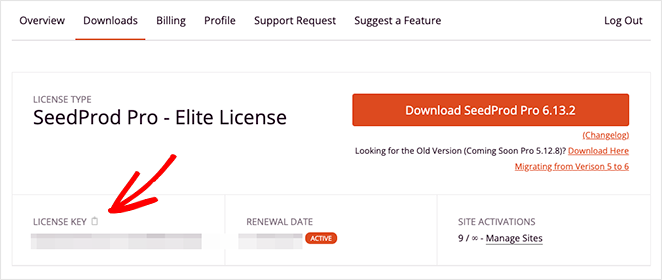
Next, upload the plugin to your WordPress site and click Activate. Then head to SeedProd » Settings, paste your license key, and click Verify Key to unlock the Theme Builder feature.
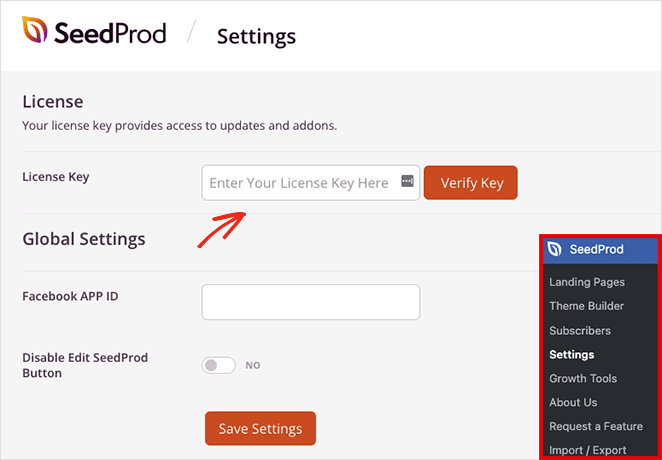
Now go to SeedProd » Theme Builder in your WordPress dashboard to start creating your custom theme and navigation menu.
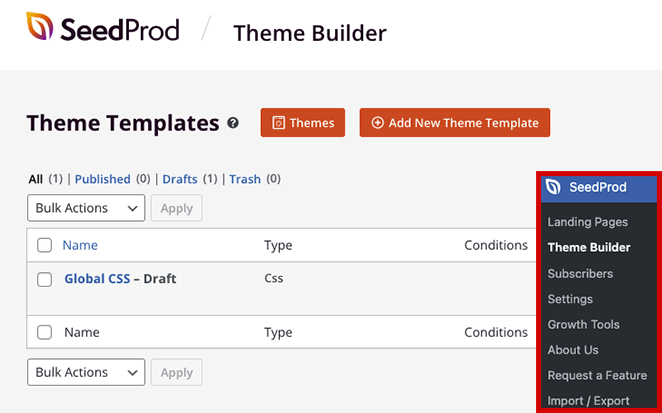
Note: If you don’t want to replace your theme, you can still edit a navigation bar in SeedProd by creating a landing page and customizing its header.
Step 2. Choose a WordPress Theme Template
The fastest way to set up your navigation bar in SeedProd is to start with a premade WordPress theme template. Each template includes all the parts of a site — header, footer, homepage, and blog — so you only need to customize the design.
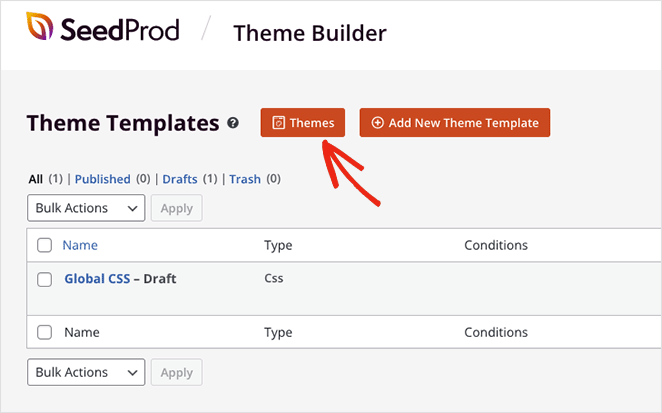
From the Theme Builder dashboard, click Themes to open the template gallery. You can preview designs in a new tab and pick one that fits your business.
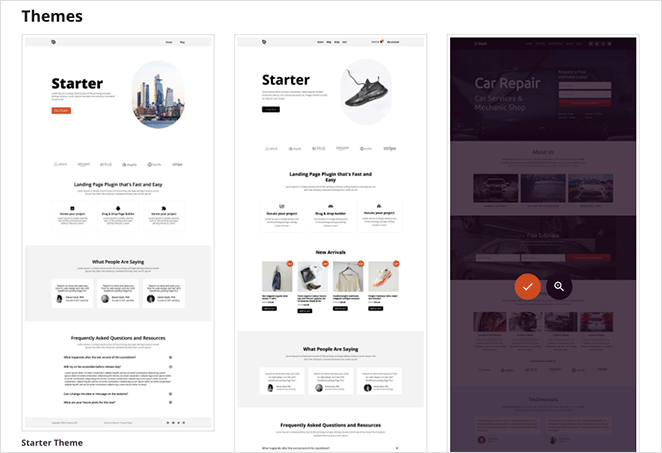
For this tutorial we’ll use the Car Maintenance theme, but you can choose any template. Click the orange checkmark to import it into your site.
Once imported, SeedProd automatically creates your site’s structure, including the header, footer, and blog pages. You can now open any part in the drag-and-drop editor to start customizing.
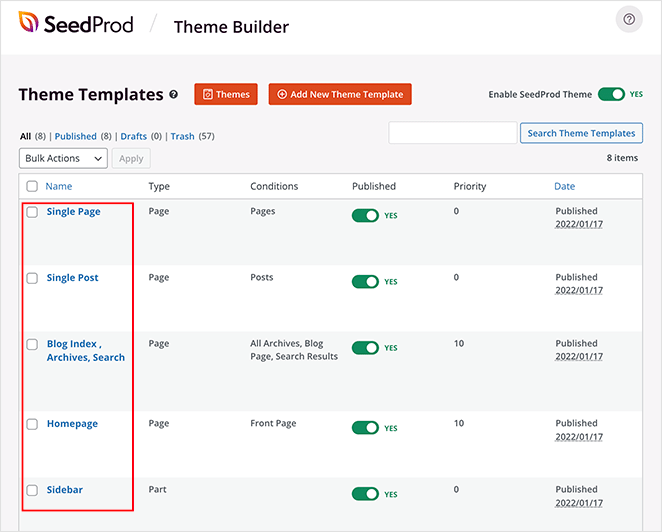
Step 3. Customize the Header Template Part
Your navigation bar lives inside the header template. SeedProd’s premade themes usually add one automatically, so all you need to do is open the header and customize it.
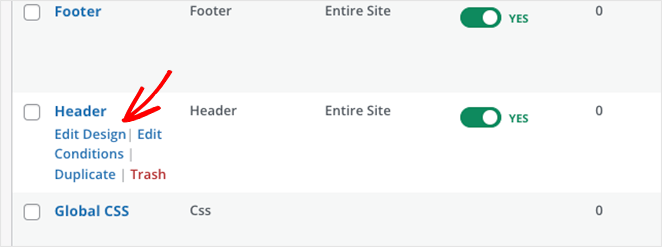
To edit your header, hover over the Header template in the Theme Builder and click Edit Design. This opens the live drag-and-drop editor.
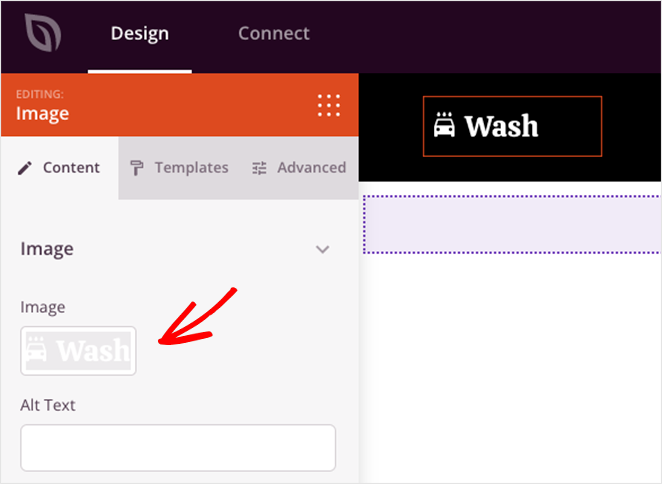
Click any element in the preview to edit it. The settings panel appears on the left, where you can change text, styling, and functionality.
For example, click the logo block to delete the placeholder logo and upload your own from the WordPress media library.
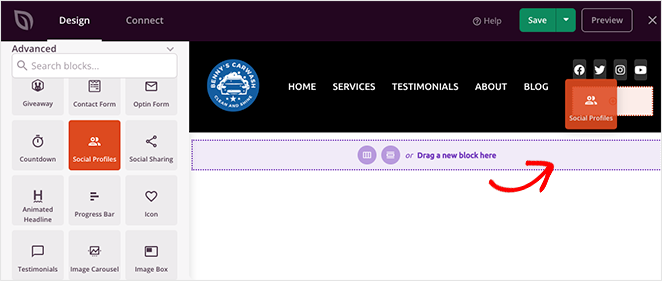
You can also drag new blocks, like social media icons, a search bar, or custom buttons, into the header to expand your navigation bar.
With the header basics covered, you’re ready to edit the navigation menu itself in the next step.
Step 4. Edit Your WordPress Navigation Bar
SeedProd uses a Nav Menu block to display your site’s navigation. This block gives you two ways to manage menus: a simple option for quick links or a WordPress Menu option for advanced control.
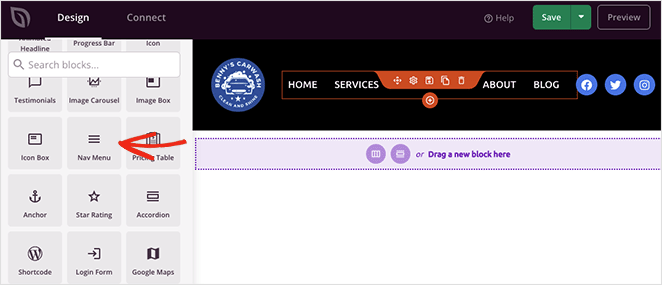
Option 1: Simple Menu
Add links directly inside the builder to any page, post, category, tag, or external URL. It’s fast to set up but doesn’t support dropdown menus or existing WordPress menus.
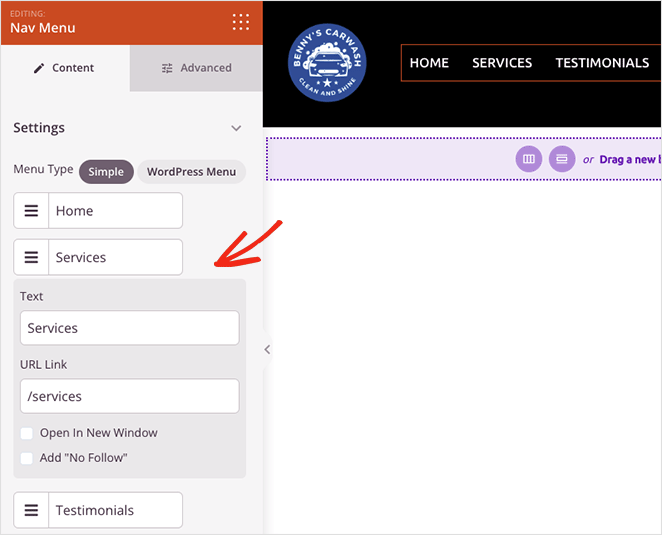
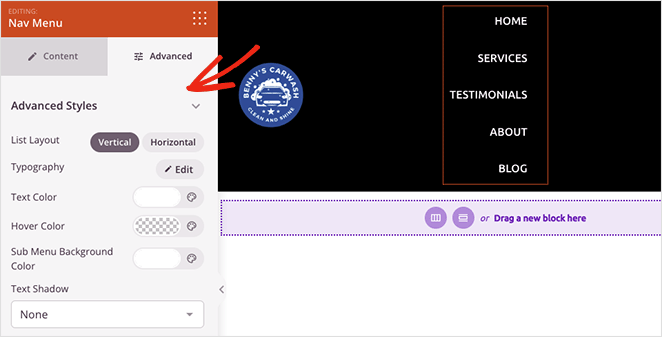
You can style the Simple menu with options for alignment, font size, spacing, and dividers. In the Advanced tab, switch between horizontal or vertical layouts and adjust typography, colors, and borders.
Option 2: WordPress Menu
Select a menu you’ve already created in the WordPress menu editor from the drop-down. This option supports mobile navigation and inherits the flexibility of WordPress’s built-in Appearance » Menus settings.
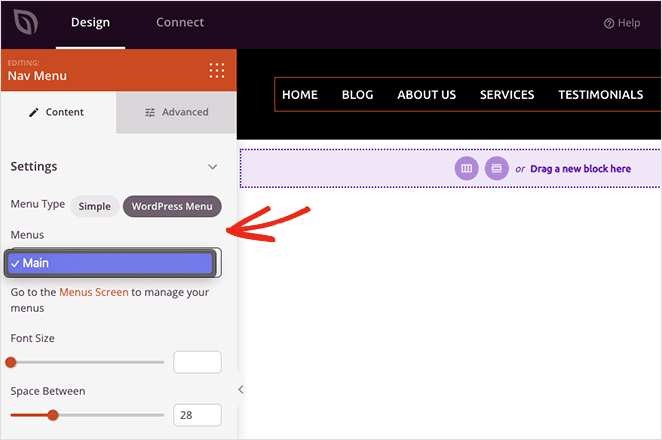
You’ll also see a quick link back to the default WordPress menu page, where you can adjust your layout. As with the Simple menu, the Advanced tab lets you customize fonts, colors, shadows, visibility by device, and more.
How to Add a Menu Button in WordPress
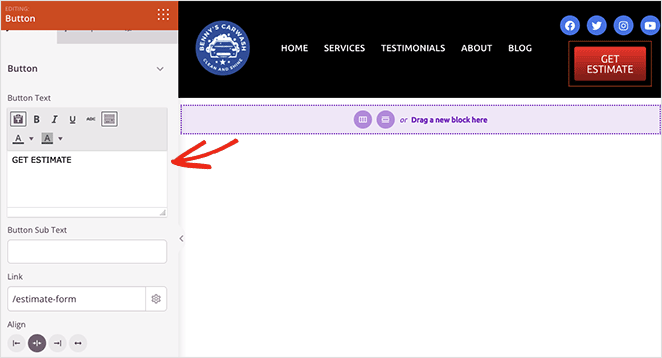
A menu button is a great way to highlight actions like “Sign Up” or “Get Started.” In SeedProd, you can add one with the Button block.
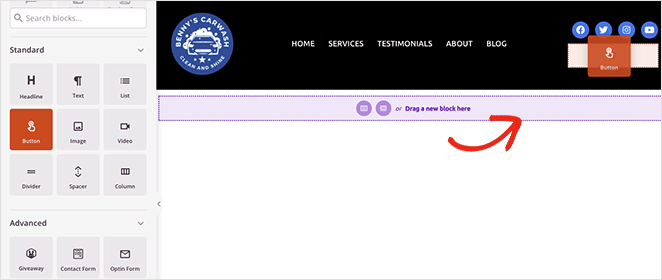
From the left-hand sidebar, drag the Button block into your header. Then customize the call to action text, link, and styling directly in the settings panel.
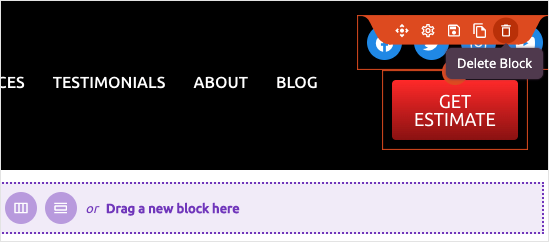
Pro Tip: Remove any elements you don’t need by hovering over them and clicking the trashcan icon.
When your menu looks the way you want, click Save in the top-right corner and close the editor to return to the Theme Builder dashboard.

You can repeat this same process to customize other parts of your WordPress theme.
Conversion tip: Your navigation bar doesn’t have to be just links. Adding a “Get a Quote” or “Book a Demo” button that links to a dedicated landing page turns your header into a conversion tool. I’ve seen sites double their lead form submissions just by making that CTA visible on every page.
Step 5. Publish Your Custom WordPress Theme
After editing your WordPress menu and header templates, you’re ready to make the changes live. Find the Enable SeedProd Theme toggle on the Theme Builder page and turn it to the “On” position.
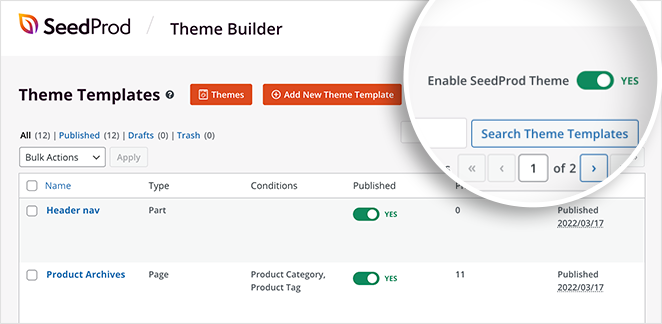
Now head to your home page to see your new custom navigation menu live on your site.

Method 2. How Do I Edit My WordPress Menu Without a Plugin?
If you want to keep your current theme, the WordPress menu editor is built right into your dashboard. You don’t need any extra plugins, though your styling options depend on your theme.
Important: This method works for classic themes only. If you don’t see Appearance » Menus in your dashboard, your site is likely running a block theme (such as Twenty Twenty-Four). Block theme users should go to Appearance » Editor and look for the Navigation section instead.
Step 1. Go to Appearance » Menus
In your WordPress dashboard, go to Appearance » Menus. If you already have a menu, select it from the drop-down at the top. If not, type a name for your new site menu and click Create Menu.
Step 2. Add Items to Your Navigation Menu
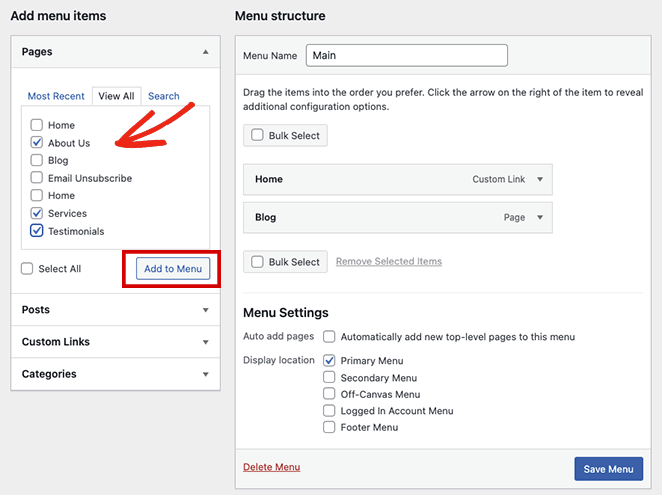
To add new items, select pages from the left-hand panel and click Add to Menu. You can also include posts, categories, custom links, or tags by expanding their sections.
Step 3. Reorder Your Menu Items
After adding items, drag and drop them into the order you want. Items at the top of the list appear first in your header menu. Click Save Menu after reordering to preserve your changes.
Step 4. Create Dropdown (Submenu) Items
To create a dropdown in your navigation menu, drag a menu item slightly to the right, underneath another item. It will indent — that’s how WordPress recognizes it as a submenu. The parent item becomes the top-level link, and the indented item appears in the dropdown when a visitor hovers over it.
Step 5. Remove Menu Items
To remove an item, click the arrow next to it to expand its settings, then click Remove. This removes it from the navigation menu without deleting the page from your site.
Step 6. Set a Display Location and Save
Choose where your header menu displays under Menu Settings > Display Location. Options vary by theme and may include:
- Primary Menu
- Secondary Menu
- Off-Canvas Menu
- User Account Menu
- Footer Menu
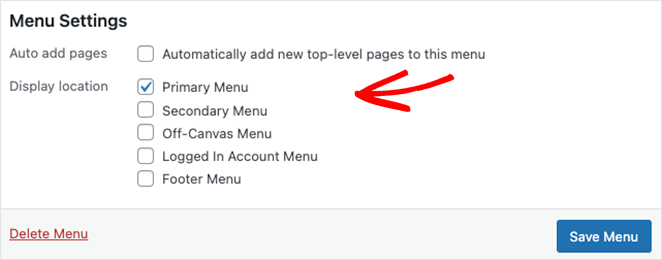
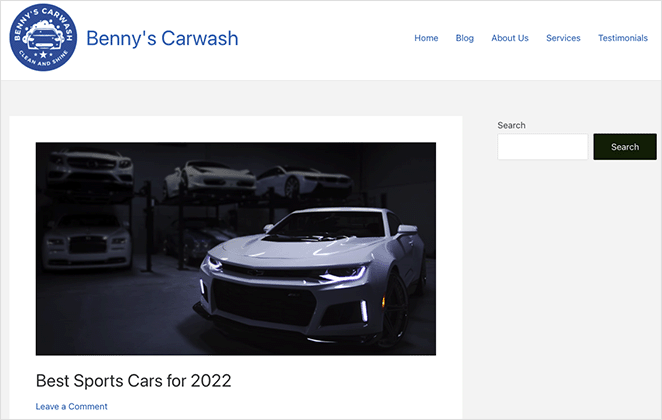
Click Save Menu when you’re done, then preview your site to see the updated navigation bar.
Frequently Asked Questions
How do I edit my WordPress navigation menu without losing my existing pages?
Editing your navigation menu in WordPress doesn’t affect your pages or posts. The Appearance > Menus screen only controls which links appear in your menu and in what order — it doesn’t delete any content.
To be safe, start by selecting your existing menu from the drop-down at the top of the Menus screen before making changes. That way you’re editing the right menu, not accidentally creating a new one.
Why can’t I find the Menus option under Appearance in WordPress?
If you don’t see Menus under Appearance, your site is running a block theme (such as Twenty Twenty-Four or Twenty Twenty-Five). Block themes manage navigation through the Site Editor, not the classic Menus screen.
Go to Appearance > Editor, then look for the Navigation section to edit your site menu. Alternatively, SeedProd works with any theme and gives you full visual control over your navigation bar without the Site Editor.
How do I add a dropdown menu in WordPress?
In the WordPress menu editor (Appearance > Menus), drag a menu item slightly to the right, underneath the item you want as the parent. It will indent to show it’s now a submenu.
The parent item becomes the top-level link, and the indented items appear as a dropdown when visitors hover over it. Click Save Menu when you’re done. In SeedProd, use the WordPress Menu option in the Nav Menu block — it inherits your existing menus including any dropdown structure you’ve set up.
Can I edit my WordPress navigation bar without a plugin?
Yes. WordPress has a built-in menu editor at Appearance > Menus that works with any classic theme. You can add links, reorder items, create submenus, and set display locations without installing anything extra.
The trade-off is that styling is limited to whatever your theme supports. If you want to change fonts, colors, or layout without writing CSS, a visual builder like SeedProd is the easier path.
How do I make my WordPress menu sticky (fixed on scroll)?
A sticky navigation bar stays visible as visitors scroll down the page. In SeedProd, open the Header template in the Theme Builder, click on the header row, and look for the Sticky Header option in the settings panel on the left. Toggle it on and save.
For the built-in WordPress menu editor, sticky behavior depends on your theme. Many themes include a sticky header option in the Customizer (Appearance > Customize). If yours doesn’t, you’ll need a plugin or custom CSS to add it.
Next Steps
Your navigation bar is now pointing where it should. Those visitors who were landing in the wrong place, or leaving because they couldn’t find what they needed, have a clearer path through your site.
If you run a WooCommerce store, you might also want to add a WooCommerce shopping cart icon in your menu so customers can get to their cart from anywhere on your site. And if you want to go further with your header design, such as logo placement, search bar, or layout, see the full guide on how to customize your WordPress header.
Get started with SeedProd today.
Thanks for reading! We’d love to hear your thoughts, so please feel free to join the conversation on YouTube, X and Facebook for more helpful advice and content to grow your business.



