

TL;DR: How to Hide Images in Mobile View on WordPress
Three ways to hide images on mobile in WordPress. Method 1 uses SeedProd and prevents images from loading entirely, not just hiding them visually.
- Why hide images on mobile – Large images slow load times and push content out of view on small screens.
- SeedProd website method – Use Device Visibility in the Advanced tab to toggle Hide on Mobile on any image or section.
- SeedProd landing pages – Same steps apply in SeedProd » Landing Pages, no theme changes needed.
- CSS method – Add a display:none media query, but note: the browser still downloads the image on mobile.
Big desktop images can break your mobile layout. They slow down load times, push content too far down, and make your site feel cluttered on small screens. The fix is simple: hide images on mobile so visitors see only what matters.
In this guide, I’ll show you three easy ways to hide images in mobile view on WordPress, including a no-code option and a quick CSS method.
Why Hide Image in Mobile on WordPress?
Hiding images in mobile view keeps your site clean and easy to use. A giant hero photo or promo banner that looks great on desktop can overwhelm small screens, slow down load times, and push important content out of view. In some cases, you may also want to run desktop-only offers without confusing phone visitors.
The bottom line: hiding images on mobile gives users a faster, clearer experience.
How to Show and Hide Image in Mobile View on WordPress
The solutions for hiding images on mobile screens may seem complex for users unfamiliar with coding languages. A quick Google search reveals instructions for writing custom CSS, div classes, and all manner of technical jargon.
Don’t worry. You won’t need any technical expertise for the methods we cover below. All you need is a WordPress plugin, a WordPress website, and the ability to follow some easy steps.
Method 1: Hide Image in Mobile View on Website
We’ll use SeedProd to hide images on mobile in WordPress without writing code.

SeedProd is the best website builder for WordPress. It lets you create WordPress themes, landing pages, and responsive layouts without writing code.
It includes hundreds of premade templates, and you can customize every inch of your website with the visual drag-and-drop page builder, blocks, and sections. You can also use Device Visibility settings to hide specific content on mobile and desktop views.
SeedProd also offers built-in modes, such as coming soon, maintenance mode, 404 page, and login page. You can turn each mode on and off with one click, allowing you to hide your website from the public while working on its design.
Follow the steps below to hide images in mobile view on your WordPress website.
Step 1. Install and Activate SeedProd
First, click the button below to get your copy of SeedProd.
Note: To use SeedProd’s website builder feature, you need a SeedProd Pro license.
After downloading the plugin, install and activate it on your WordPress site. You can follow this guide on installing a WordPress plugin if you need help.
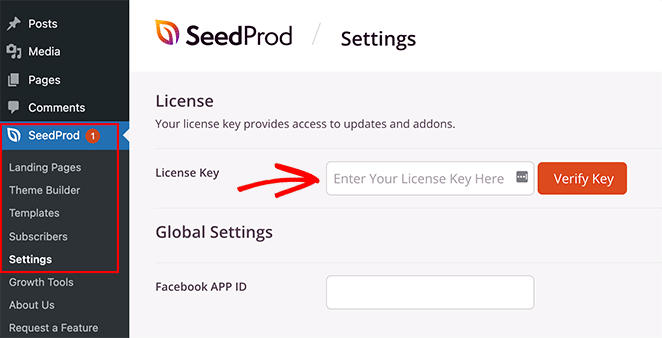
Next, go to SeedProd » Settings and enter your license key.
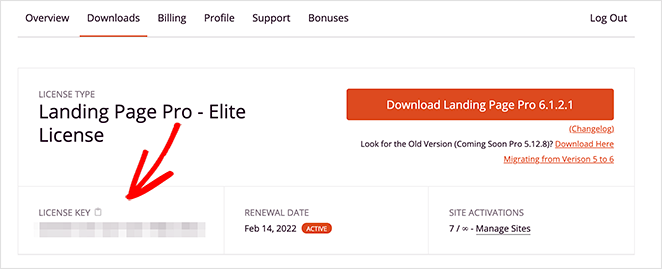
You can find your key in your SeedProd account dashboard under the ‘Downloads’ section.
Click the Verify Key button to unlock your SeedProd license, then move on to the next step.
Step 2. Choose a Website Template
The next step involves creating a custom WordPress theme. That will allow you to use SeedProd’s ‘Device Visibility’ settings to show and hide different content on desktop and mobile.
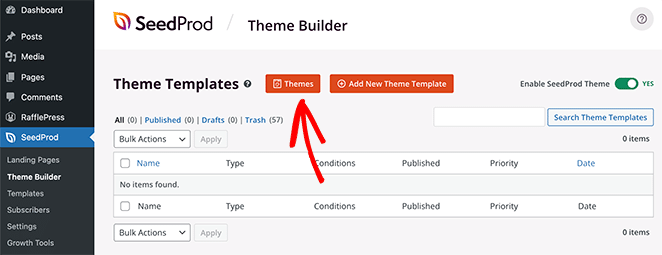
Go to SeedProd » Theme Builder and click the Themes button to choose a website template.
Many themes are available for various industries and website types, including eCommerce, blogs, portfolios, etc.
Once you find a theme you like, hover over it and click the checkmark icon to import it to your site.
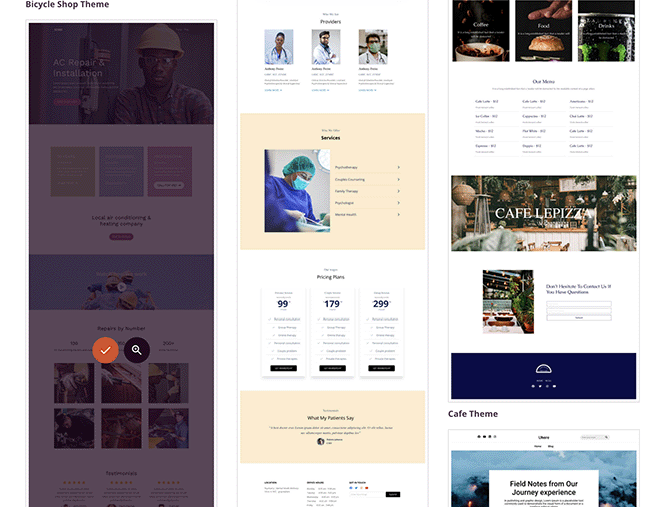
You’ll now see the different parts that make up your WordPress theme.
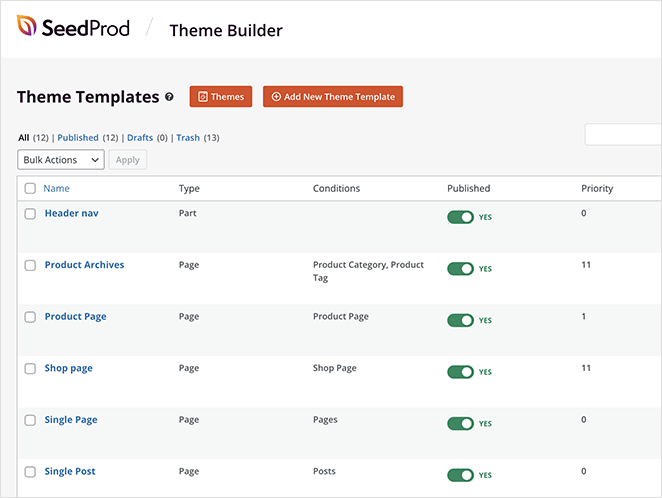
Typically, you’d need to customize these manually with code, but with SeedProd, you can visually edit each part of your website with the drag-and-drop page builder.
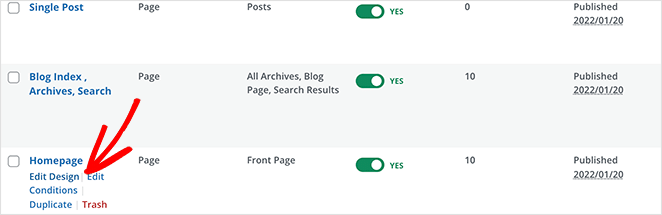
To customize any part of your website, hover over a theme template and click the ‘Edit Design’ design link. For this guide, we’re starting with the homepage.
Once you’ve chosen a template, you can customize the layout with SeedProd’s drag-and-drop builder. When you’re ready, move to Step 4 to hide the image.
Step 4. Hide Website Images on Mobile with Device Visibility
Hiding images in mobile view is easy with SeedProd’s ‘Device Visibility’ settings. You can hide images individually or entire image sections with a single click.
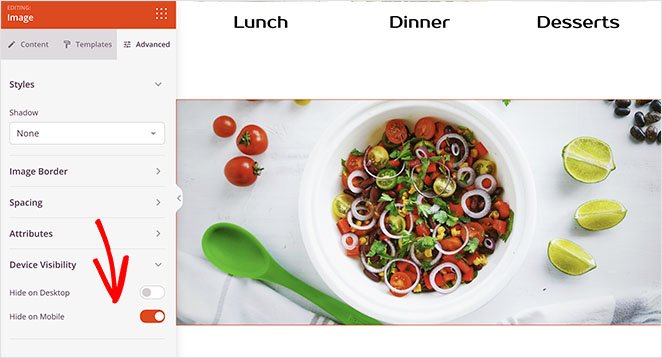
To hide images individually, find the image you wish to hide, then click on it to open the content settings.
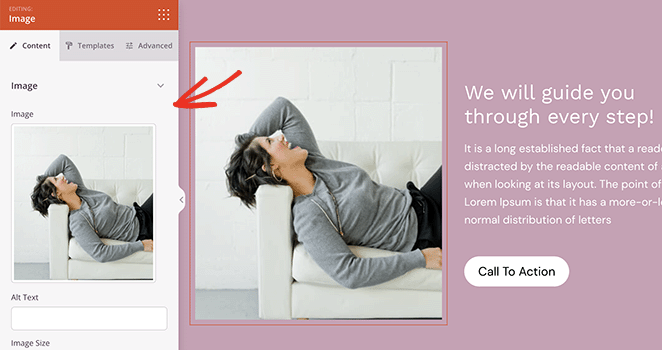
Next, click the ‘Advanced’ tab, and expand the ‘Device Visibility’ section.
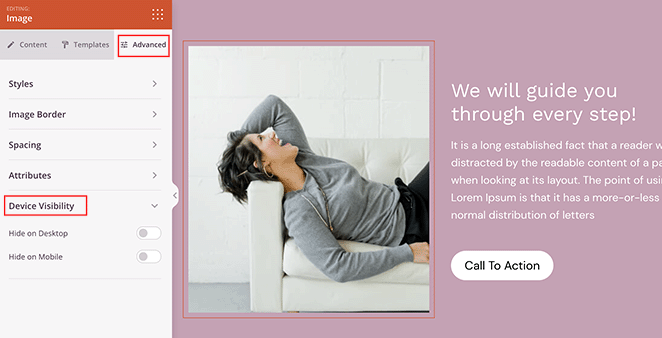
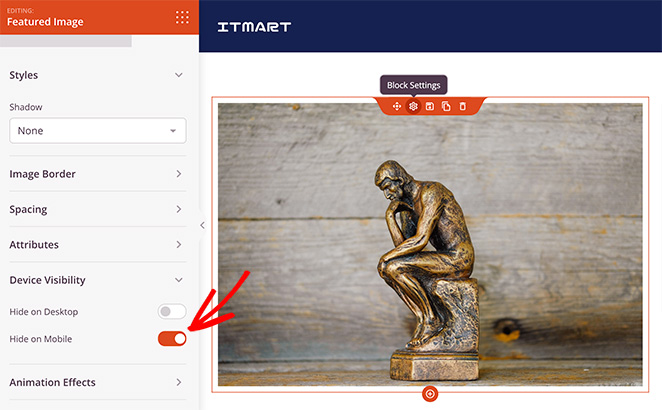
To hide the image on mobile, click the toggle next to the ‘Hide on Mobile’ heading.
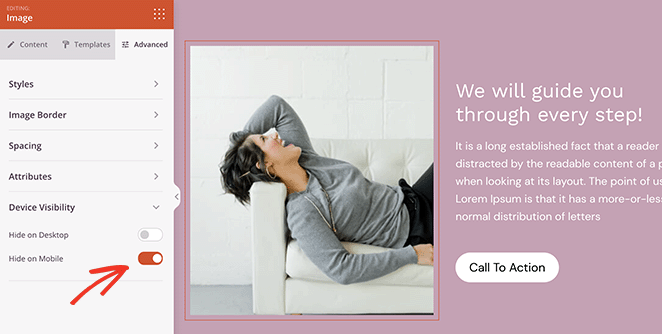
That image will now only display to desktop visitors and is hidden on mobile.
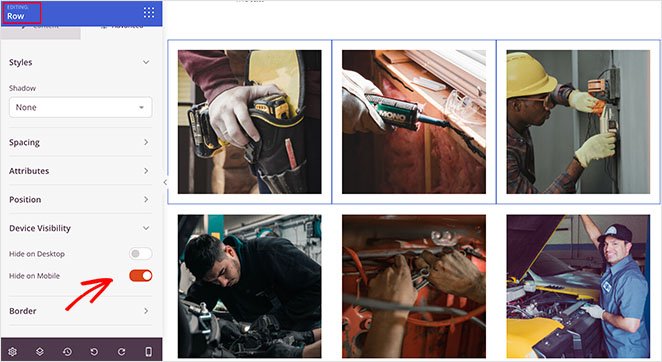
You can follow the same steps to hide entire image rows with SeedProd. Simply open the row’s settings, and in the ‘Advanced’ Tab, use the ‘Device Visibility’ settings to hide the image row on mobile.
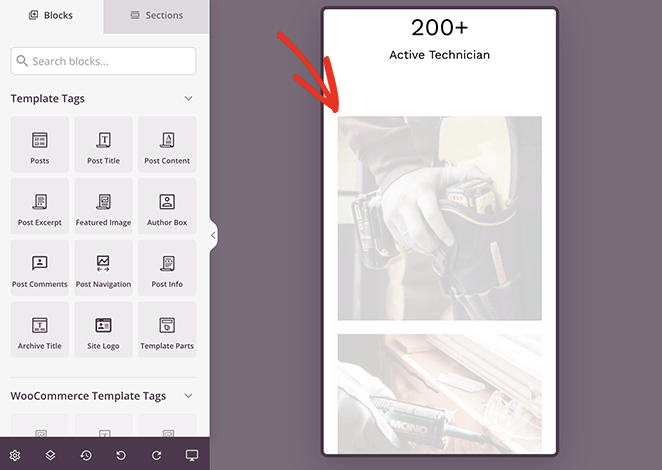
You can preview your changes by clicking the ‘Mobile Preview’ icon in the bottom toolbar.
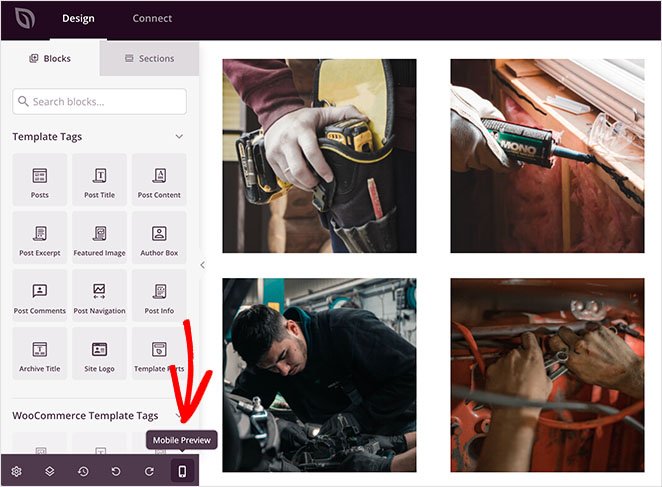
Any ‘greyed out’ images won’t be visible to mobile website visitors.
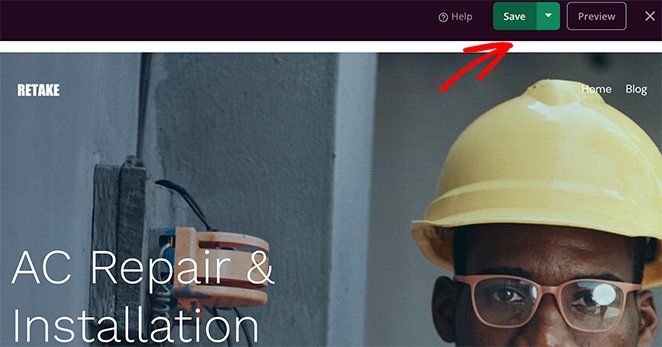
When you’re happy with how your design looks, click the Save button in the top-right corner of your screen.
Follow the steps above to hide images in mobile view for any other theme template, such as your Sidebar, Single Posts, Pages, etc.
For example, if you want to hide your blog post featured images on mobile, you can edit your Single Post template and change the visibility settings on the Featured Image block like this:
Step 5. Publish Your WordPress Website
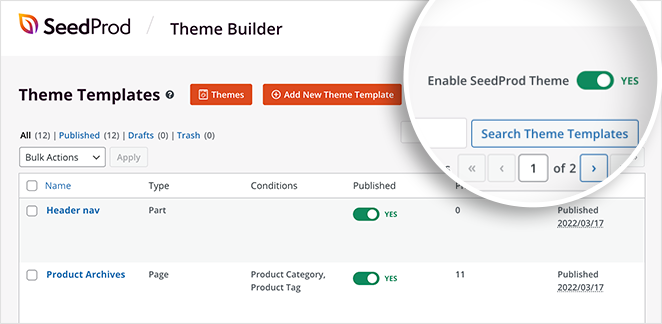
When you’re ready to make your custom theme live, go to SeedProd » Theme Builder and turn the ‘Enable SeedProd Theme’ toggle to the ‘On’ position.
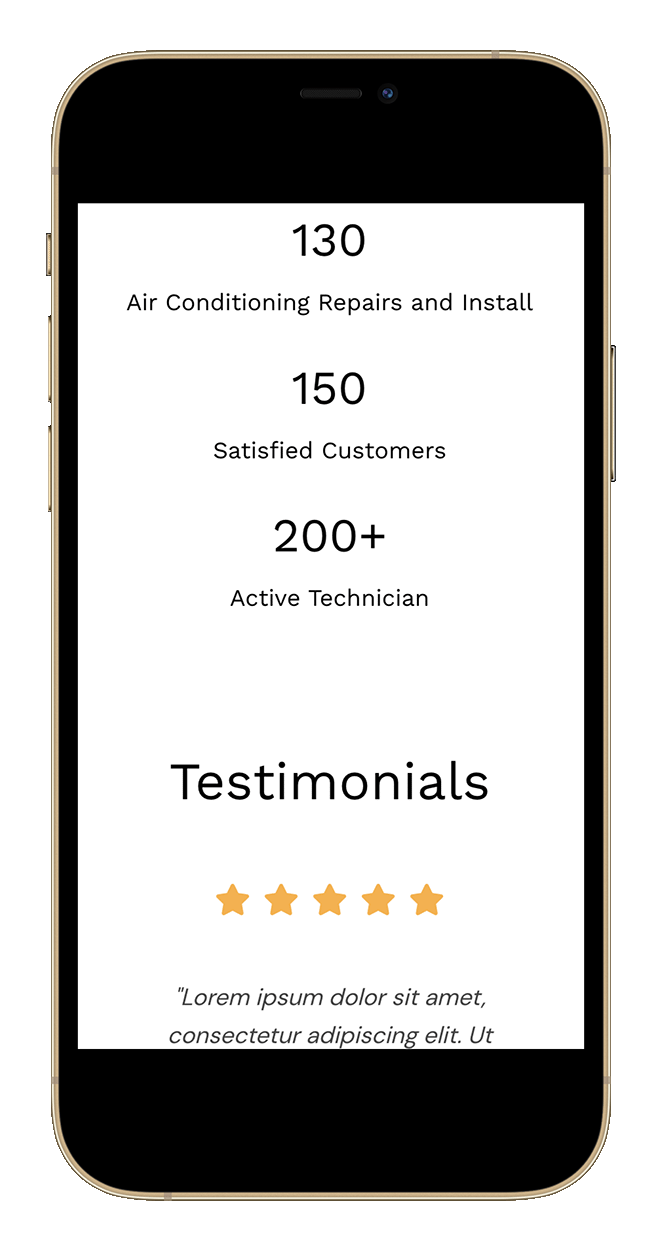
Now you can preview your website to view the changes. As you can see from this example, the images we chose earlier are hidden on mobile.
Method 2: Hide Images in Mobile View on Landing Pages
The same steps work for standalone landing pages. Create a page in SeedProd » Landing Pages, open it in the editor, and toggle Hide on Mobile in the Advanced tab.
Method 3: Hide an Image on Mobile with CSS
Note: I only recommend this method if you’re comfortable working with coding languages. You can use the built-in WordPress customizer to add custom CSS to your website.
I understand that some website owners prefer to customize their sites manually. For that reason, the following method will show you how to hide images on mobile using custom CSS.
First, find the class of the content element that contains your image. For example, your blog posts’ featured image. You can then hide it by using the following CSS class:
@media only screen and (max-width : 320px) {
.your-element-class {
display: none;
}
}
Important: display:none hides the image visually, but the browser still downloads it on mobile. If page speed is the goal, Method 1 is the better choice. SeedProd’s Device Visibility prevents the image from loading at all.
You’ll need to replace the ‘your-element-class’ with the CSS class that contains your image. You may also need to adjust the max device width to suit your WordPress theme and media query.
In this example, we hid the post featured image on mobile by targeting the ‘.featured-media img class’:
@media only screen and (max-width: 782px) {
.featured-media img{
display: none;
}
}
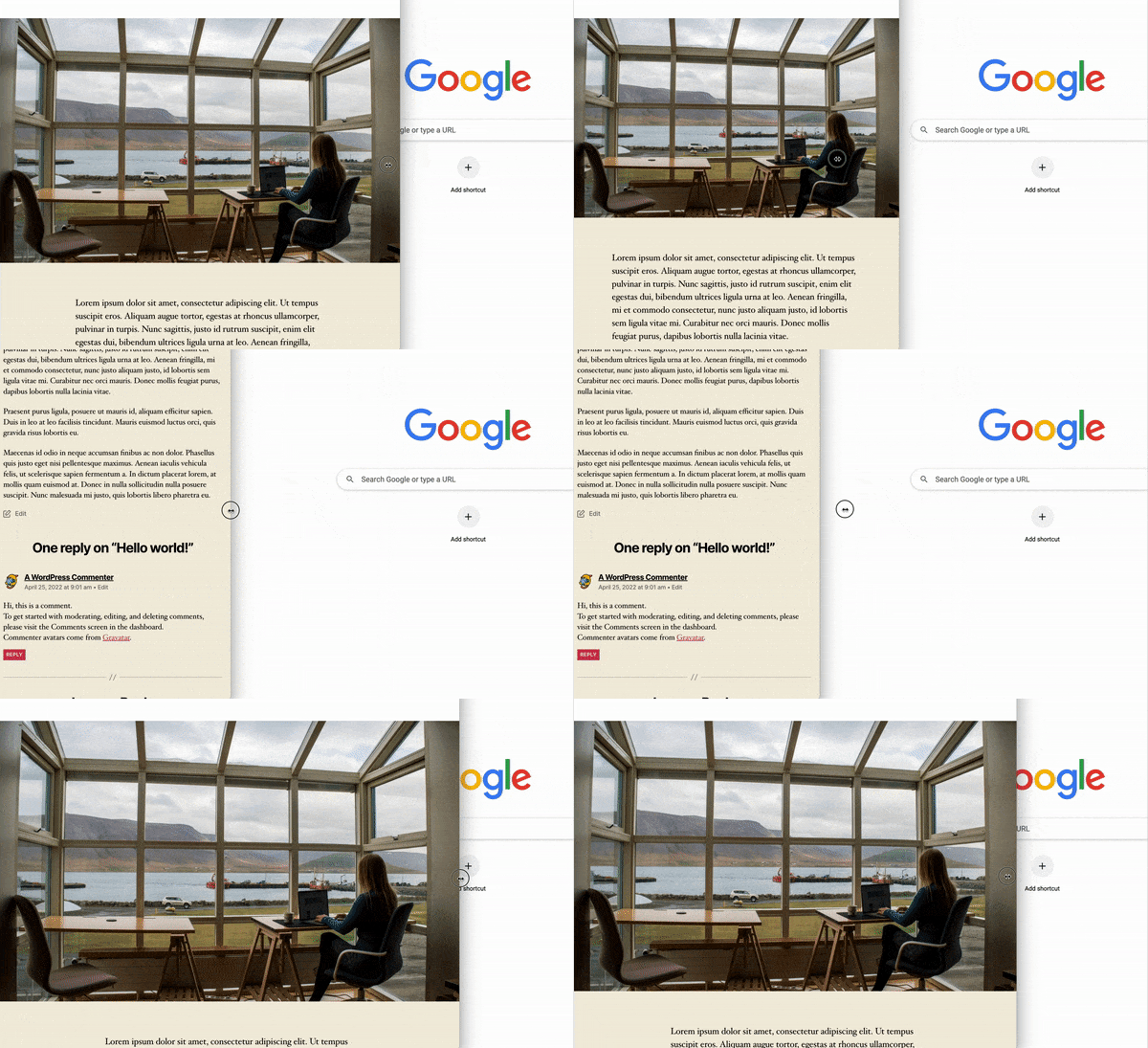
As you can see, the image disappears automatically on smaller screen sizes.
If you’re using the WordPress block editor without SeedProd, check the Advanced panel in block settings for a “Hide on mobile” toggle. WordPress 6.x added this option for most core blocks.
FAQs on Hiding Images in Mobile View
I hope this article helped you learn how to hide images in mobile view on WordPress. You might also like the following guides:
- How to Add a Custom Sidebar in WordPress
- How to Add Custom CSS in WordPress (Beginner Friendly)
- How to Add a Box Shadow in WordPress
- How to Hide Page Titles in WordPress
Thanks for reading! We’d love to hear your thoughts, so please feel free to join the conversation on YouTube, X and Facebook for more helpful advice and content to grow your business.



