
TL;DR: How to Add or Remove Space Between WordPress Blocks
To add space, drop in a Spacer block and set its height. To remove a gap, select the block and set its margin and padding to zero. If the gap stays, the space is coming from the parent block or your theme, not the block itself.
- Add space: Insert a Spacer block (or a Separator for a divider line) and set its height.
- Remove a gap: Select the block, open Dimensions, and set its margin and padding to 0.
- Still there? Check the parent: Group the blocks and drag the group’s Block Spacing to 0, the setting most beginners miss.
- Rule out strays: Open List View and delete any leftover Spacer or empty paragraph.
- Theme gap: If the editor looks fine but the live page doesn’t, fix it in the Site Editor or with a little CSS.
You’ve built a page in WordPress and something looks off. Two blocks sit too far apart, or a gap just won’t close no matter how many times you set the margin to zero.
I’ve seen many beginners struggle with pages that look “off” without realizing the issue is spacing. Too much space feels disconnected, too little looks cluttered.
You can add or remove space between blocks in WordPress yourself, with or without code. I’ll show you how to find where a gap is coming from first, then fix it with SeedProd, the block editor, Block Spacing, or a little CSS.
Set the margin and padding to zero and the gap is still there? That’s normal. The space usually comes from the parent block’s Block Spacing setting or your theme’s CSS, not from the blocks themselves.
- Why Add or Remove Space Between WordPress Blocks
- Find Where the Space Is Coming From
- Add or Remove Space Between WordPress Blocks Using SeedProd
- Add or Remove Space Using the WordPress Block Editor
- Adjust Block Spacing to Close Gaps Between Blocks
- Add or Remove Space Between Blocks with Custom CSS
- Best Practices for WordPress Block Spacing
- FAQs About WordPress Block Spacing
Why Add or Remove Space Between WordPress Blocks
Most of the messy-looking pages I’ve been asked to fix don’t have a font or color problem. They have a spacing problem.
White space isn’t wasted space. It’s what helps people focus on your content and understand the flow of your page.
Most WordPress themes add their own padding or margins by default, which can make sections look uneven. Adjusting those spaces gives you more control over how each part of your page connects.
Research shows that white space can improve comprehension by almost 20%. That means a few small spacing tweaks can make your content easier to read and more enjoyable to browse.
Here’s why you might want to fine-tune your block spacing:
- Group related content for better clarity.
- Separate different sections to improve flow.
- Make pages easier to read and navigate.
Find Where the Space Is Coming From
Before you change anything, find out where the space is actually coming from. Most spacing problems trace back to one of a few places, and fixing the wrong one is why gaps won’t budge.
I always start with List View, because a forgotten Spacer block is the culprit more often than any theme setting. Here’s the order I check things in:
- Check the block above the gap: Click it and look at its bottom margin and padding under Dimensions.
- Check the block below: Click it and check its top margin and padding.
- Open List View: Look for a stray Spacer block or an empty paragraph you can delete.
- Check the parent block: If the blocks sit inside a Group or Columns block, select the parent and look at its Block Spacing.
- Rule out your theme: If the editor looks fine but the live page doesn’t, the space is coming from theme CSS. Right-click the gap on the live page and choose Inspect to see the rule adding it.
Naming the source before you touch a single setting is what separates a five-minute fix from an hour of trial and error.
The white space between your header and body usually falls into that last bucket. It’s set by your theme or template, so you’ll adjust it in the Site Editor or with a little CSS, not on your content blocks.
Add or Remove Space Between WordPress Blocks Using SeedProd
The easiest way to manage white space in WordPress is with SeedProd, a drag-and-drop website builder that lets you design complete pages and themes without touching any code. It’s used by over a million website owners who want full visual control of their layouts.

I use SeedProd myself to build my own website, and I’m not a designer. What I love is that I can see every change live, including adjusting space, moving sections, and balancing layouts until everything looks exactly right.
After installing and activating the plugin, open SeedProd » Landing Pages from your WordPress dashboard.
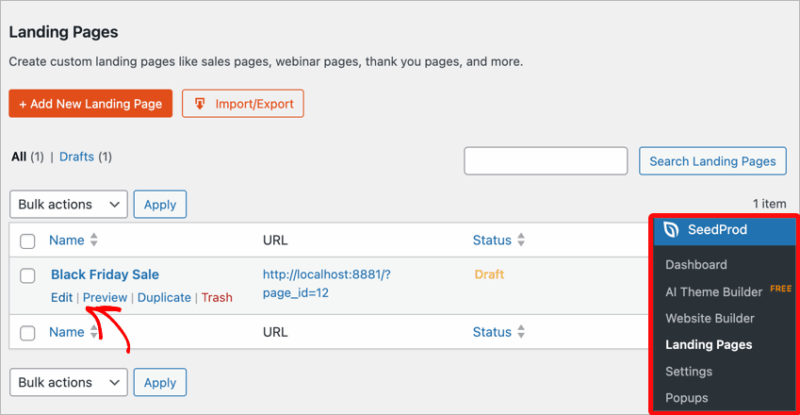
From here, you can create a new page or edit an existing one to launch the visual builder.
Inside the builder, you can drag and drop blocks directly onto your layout and instantly see how your page looks.
To add extra space, drag the Spacer block into your layout.
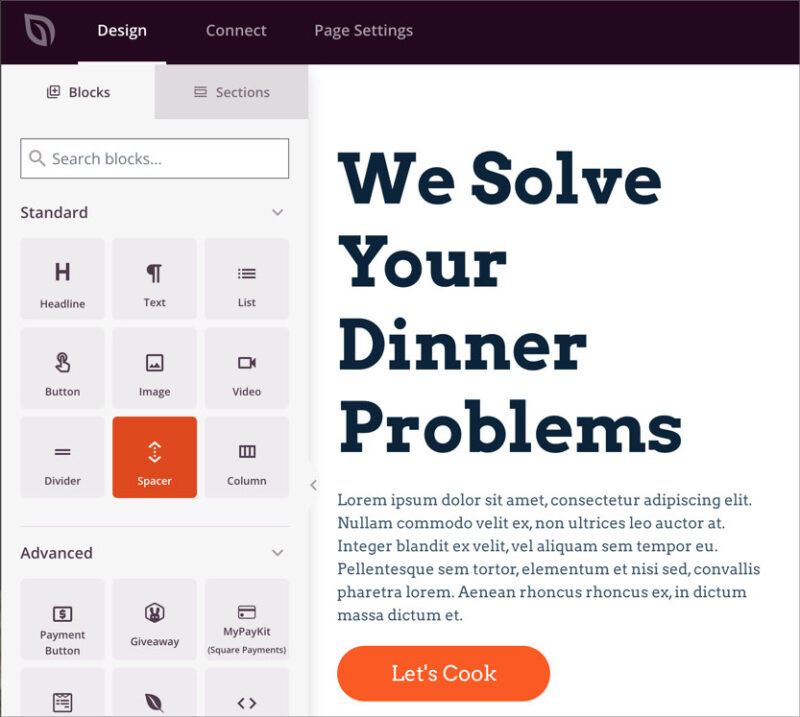
Use the height slider in the left panel to increase or decrease white space wherever you need it. I often add a bit of space between sections like hero banners, testimonials, and CTAs to make each one stand out.

You can also fine-tune spacing for any block individually. Click the block, open the Advanced tab in the left panel, and look for the Spacing section.
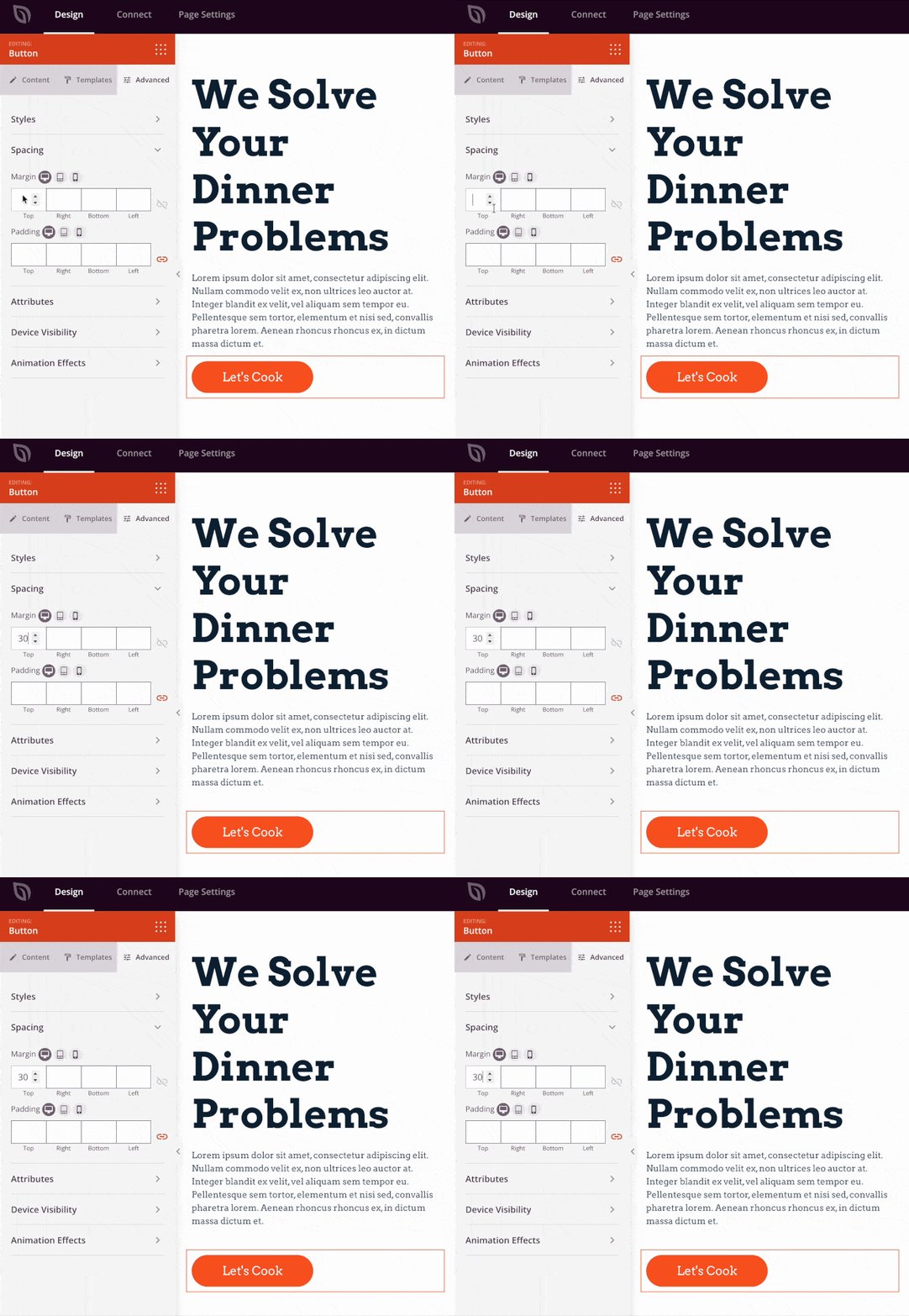
Here, you can adjust the Margin (space outside the block) or Padding (space inside it). Small tweaks here can make your design feel much more balanced and professional.
When you’re happy with the results, click Save and then Publish to make your page live. You can also preview your layout on mobile to check how the spacing looks across devices.

For help creating your first custom page, check out our full guide on how to create a landing page in WordPress.
Add or Remove Space Using the WordPress Block Editor
The WordPress block editor (also called Gutenberg) has built-in tools for controlling white space. The block that adds a blank space between other blocks is the Spacer block, and you can adjust it without extra WordPress plugins.
I use the block editor for quick spacing fixes on posts where I don’t need the full builder. To start, open the post or page you want to edit and click the + Add Block button, then type “Spacer” and select the Spacer block.
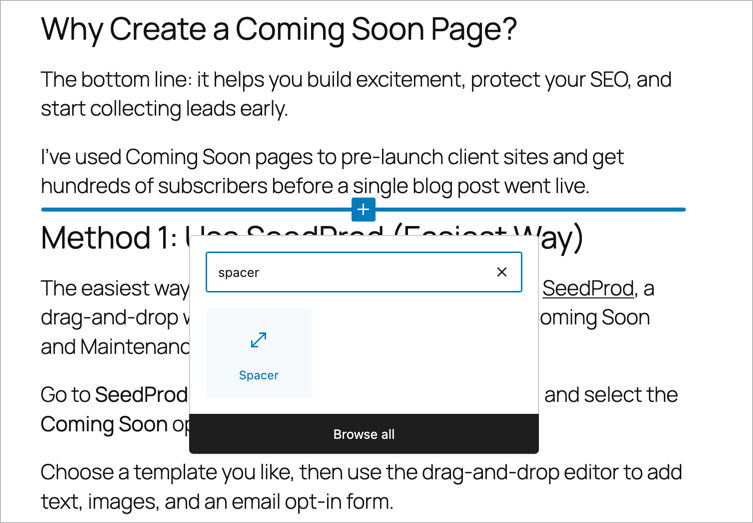
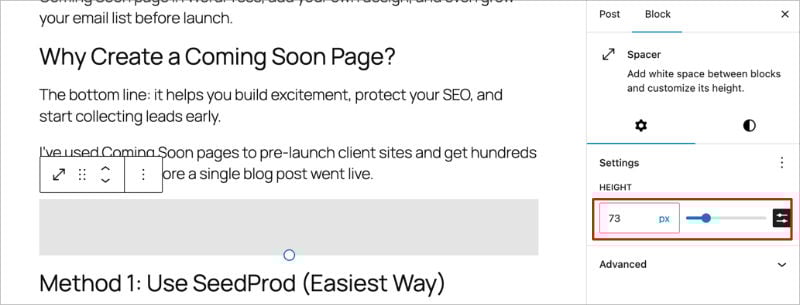
This inserts a blank block into your layout. Drag the handle at the bottom of the block, or use the sidebar settings, to adjust the height. The larger the height value, the more white space appears between your blocks.
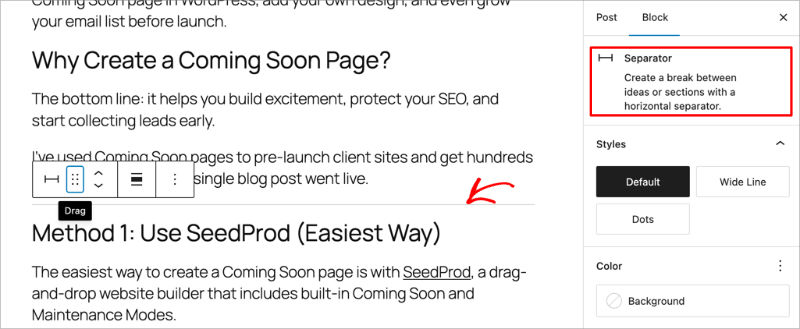
For smaller visual breaks, try the Separator block instead. It adds a subtle divider line that helps split sections without creating too much empty space.
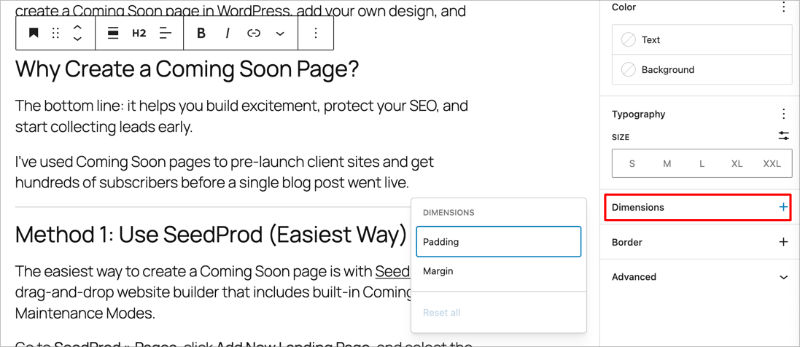
You can also fine-tune spacing for any individual block. Select the block, open the Settings panel on the right, and look for the Margin or Padding options under “Dimensions.”
If you ever notice inconsistent spacing, open the List View panel. It shows every block on your page, making it easy to spot duplicate Spacer blocks or gaps that need adjustment. When you find a stray Spacer or empty paragraph, delete it to close the gap.
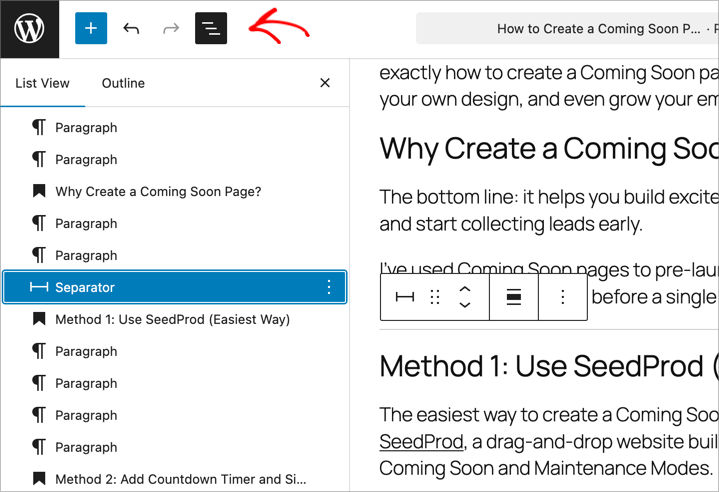
When everything looks balanced, click Update to save your changes. Always preview your page on both desktop and mobile so the spacing feels natural across all devices.
Remove Space Between Paragraphs
Pressing Enter in the editor creates a brand-new paragraph block, which adds a full line of space between paragraphs. To keep two lines tight together, press Shift + Enter instead, which adds a line break inside the same block.
For the gap between separate paragraphs, select one and lower its margin under the Dimensions panel.
Adjust Block Spacing to Close Gaps Between Blocks
When margin and padding on the individual blocks do nothing, the gap is set by Block Spacing, the space a parent block puts between its children. This is the fix beginners miss most often.
I reach for it whenever a gap won’t close from a block’s own settings, and it usually does the trick. Select the two blocks in List View, right-click, and choose Group.
With the group selected, open the Dimensions panel and find the Block Spacing control. Drag it down to 0 to close the gap, or set a custom value to space the blocks evenly.
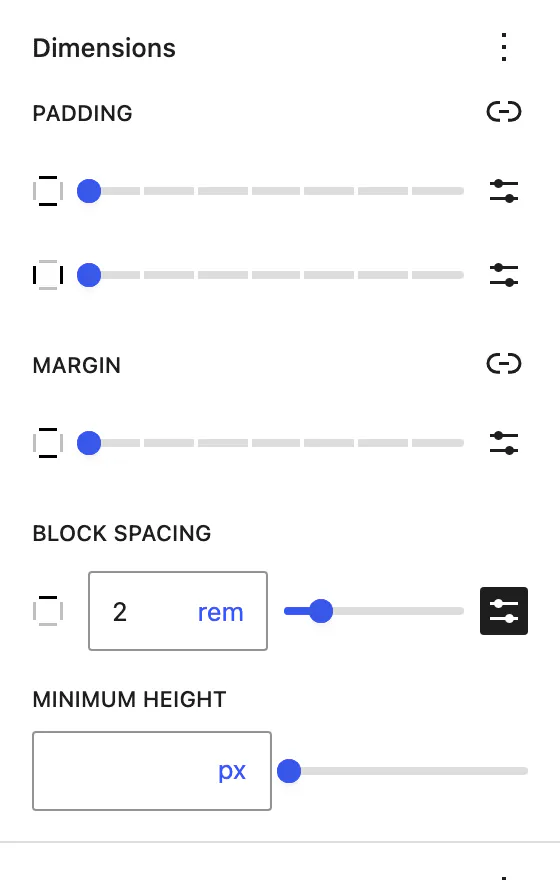
The same setting controls the space between columns. Select the parent Columns block, open Dimensions, and adjust its Block Spacing to widen or tighten the gap between each column.
On a Columns block, you can unlink the sides to set the horizontal and vertical gaps separately. The vertical value is what controls the spacing when your columns stack on mobile.
Add or Remove Space Between Blocks with Custom CSS
If you want more precise control over spacing, you can use custom CSS to set exact margin or padding values for your blocks. I only reach for CSS when I need the same spacing on every page, since the visual options are faster for one-off fixes.
For spacing across your whole site, a block theme gives you a quicker route than CSS. Go to Appearance » Editor » Styles » Layout and adjust the global Block Spacing there, which updates every page at once.
Developers can set the same values directly in the theme’s theme.json file. Custom CSS through the Customizer is the right tool for classic (non-block) themes, or when you need one exact value on specific blocks.
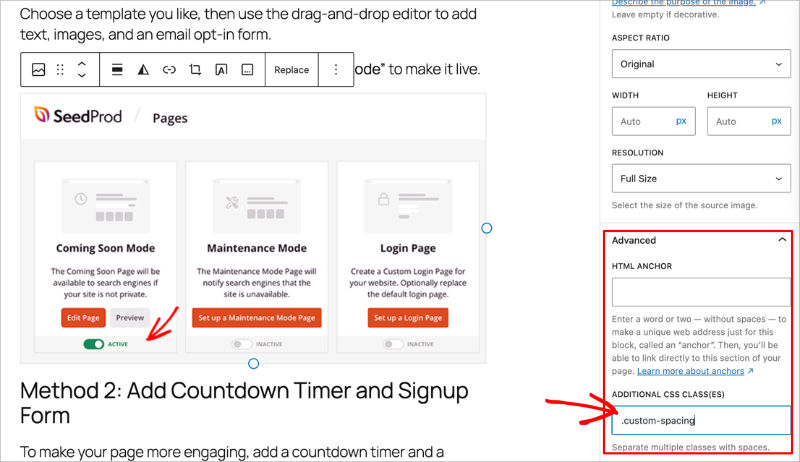
To use a class, start by selecting the block you want to adjust in the editor. In the right-hand sidebar, open the Advanced section and look for the field labeled Additional CSS Classes.
Here, you can assign a custom class name, like custom-spacing.
Next, go to Appearance » Customize » Additional CSS in your WordPress dashboard. This option only appears on classic themes that don’t use the Site Editor. If your theme includes the Site Editor, add your CSS with a plugin like WPCode instead.
In the CSS editor, enter a simple rule like this:
.custom-spacing { margin-bottom: 20px; }This example adds 20 pixels of space below any block with that class. To remove spacing entirely, change the value to 0 instead. You can experiment with different values to get the spacing just right for your layout.
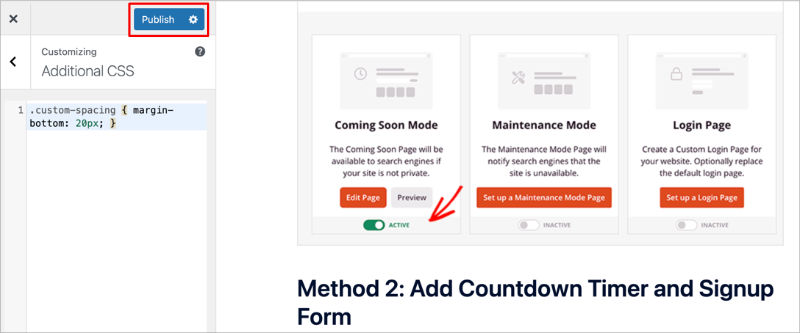
When you’re finished, click Publish to save your changes. If you use caching plugins, clear your cache afterward so the new styles appear correctly.
Custom CSS is ideal when you need exact spacing for specific elements, but for most users, the visual options in SeedProd or the block editor are faster and easier.
Prefer to skip the guesswork?
Space every block exactly right, no CSS required
SeedProd’s visual builder lets you drag, drop, and set the space around any block and see it live. A gap that fought you in the editor takes seconds to fix.
Build My Page VisuallyBest Practices for WordPress Block Spacing
The mistake I see most often is a different gap in every section, which makes even good content feel messy. Once you understand how spacing works, it’s worth a few extra minutes to keep it consistent across your pages.
Good white space isn’t about using the same amount everywhere. It’s about creating balance so your content feels easy to read and visually connected.
- Keep spacing consistent: Use similar gaps between related sections, like text and images, to make your design feel intentional.
- Use more space for key areas: CTAs, testimonials, and featured sections stand out more when surrounded by extra white space.
- Tighten grouped elements: Inside columns or content boxes, reduce margins and padding to keep elements visually linked.
- Preview on all devices: A layout that looks perfect on desktop might feel too cramped or too loose on mobile. Always check the mobile preview.
- Remember margin vs. padding: Margin adds space outside a block, while padding adds space inside it. Adjust each based on your layout needs.
- Stay proportional: As a general rule, use 40 to 60px between major sections and smaller gaps within grouped content.
FAQs About WordPress Block Spacing
Here are some quick answers to common questions about adding or removing space between blocks in WordPress.
Which block adds a blank space between other blocks?
The Spacer block. In the WordPress editor, add a Spacer block wherever you want a gap, then set its height in pixels to control how much space appears.
For a thin dividing line instead of empty space, use the Separator block. Both are built in, so you don’t need a plugin.
How do I remove the white space between the header and body in WordPress?
That gap is almost always theme or template spacing, not something on your content blocks.
In a block theme, open Appearance » Editor » Styles » Layout and reduce the global Block Spacing, or edit the header template part. In a classic theme, remove it with a small custom CSS rule targeting the header or main content area.
Why is there still a gap after I set margin and padding to 0?
Because the space isn’t coming from that block. It’s usually set by the parent Group or Columns block’s Block Spacing, a leftover Spacer block, or your theme’s default CSS.
Select the parent block and check its Block Spacing, open List View to find stray Spacers, then use browser Inspect if the gap only shows on the live page.
Does WordPress spacing affect SEO?
Not directly, but clean layouts improve readability and user experience. The easier your pages are to read and navigate, the more likely visitors are to stay longer, which can indirectly support better engagement signals.
Get Your Block Spacing Right
Getting your spacing right changes how your whole site feels. When your content has room to breathe, it’s easier to read and looks more polished.
Whether you use the block editor, a little CSS, or build visually, the key is consistency. If you’d rather see every change live as you space things out, build your pages with SeedProd and skip the guesswork.
If you’d like to keep improving your layouts, here are a few helpful guides to explore next:
- How to Add a Box Shadow in WordPress
- How to Hide Page Titles in WordPress
- How to Change Blog Layout in WordPress
- How to Make a Page Full Width in WordPress
Thanks for reading! We’d love to hear your thoughts, so please feel free to join the conversation on YouTube, X and Facebook for more helpful advice and content to grow your business.