

TL;DR WordPress errors almost always trace back to one of four things: plugin or theme conflicts, file and database problems, memory and resource limits, or misconfigured settings. Most have a fix you can run in under 10 minutes.
- Plugin/theme conflicts: Disable plugins one by one via FTP to isolate the culprit.
- Memory exhausted: Add
define('WP_MEMORY_LIMIT', '256M');to wp-config.php. - Database connection error: Check your wp-config.php credentials match your hosting account.
- White Screen of Death: Rename the plugins folder via FTP, then reactivate one by one.
- Email not sending: Install WP Mail SMTP and route email through an SMTP provider.
- 403/404/500 errors: Usually an .htaccess or file permissions fix; go to Settings » Permalinks and click Save Changes.
WordPress error messages are frustrating because most of them don’t explain what actually went wrong. I’ve been fixing WordPress site errors for 13+ years, and the pattern is always the same: the error screen looks alarming, but the fix is usually straightforward once you know where to look.
The most common WordPress errors fall into four categories. Each has a specific fix, and this guide walks you through all of them with step-by-step instructions.
Note: This guide covers self-hosted WordPress.org sites only. If you’re on WordPress.com, you won’t have access to FTP, wp-config.php, or plugin management, so most of these fixes won’t apply.
What Are the Most Common WordPress Errors?
WordPress errors cluster into four groups. Finding your error type first saves time before diving into the fixes below.
Server Errors
- WordPress 500 Internal Server Error
- 403 Forbidden Error in WordPress
- WordPress 404 Error
- ERR_TOO_MANY_REDIRECTS
File and Database Errors
- Error Establishing a Database Connection
- WordPress Parse or Syntax Error
- WordPress Not Uploading Images
Memory and Resource Errors
- WordPress Memory Exhausted Error
- Connection Timed Out Error
- Maximum Execution Time Exceeded
- WordPress Loading Slow
Configuration Errors
- WordPress Not Sending Email
- WordPress Stuck in Maintenance Mode
- WordPress White Screen of Death (WSoD)
- “Are You Sure You Want to Do This” Error
- WordPress Login Redirect Loop
Backup Your Site Before Fixing WordPress Errors
Before you try to fix any WordPress error messages, make sure you have a full backup of your site. That way, if something goes wrong, you can restore your website in minutes.
You can follow this step-by-step guide to back up your WordPress site. It’s also smart to set up a regular backup schedule so you’re always protected. There are plenty of WordPress backup plugins that can do this automatically. Or, if you prefer, you can create a manual backup and save it to your computer or cloud storage.
How to Find and Diagnose WordPress Errors
Before jumping to fixes, it helps to know exactly what error you’re dealing with. These three methods cover most situations.
- Enable WP_DEBUG: Open your wp-config.php file and set
define('WP_DEBUG', true);. WordPress will display PHP errors on screen. Turn it off again after you’ve found the problem. - Check your PHP error log: Your hosting control panel (cPanel, Plesk, or your host’s dashboard) usually has an Error Logs section. PHP fatal errors that don’t show on screen will appear here with file names and line numbers.
- Use the browser console: For frontend WordPress admin errors that only appear on certain pages, open Chrome DevTools (F12) and check the Console tab. JavaScript errors and failed resource loads show up there.
How to Fix Common WordPress Errors (Step-by-Step)
Now that you have a backup in place, let’s go through the most common WordPress errors and how to fix each one. I’ve included links to detailed tutorials when you need more help.
1. WordPress Not Sending Email
If your WordPress site isn’t sending emails, this is one of the most common WordPress site errors and usually happens because your hosting server isn’t set up to use the default PHP mail() function correctly.
Even when your host allows mail(), many email providers block these messages because they fail authentication checks. This often leads to emails landing in spam folders or not being delivered at all.
The easiest way to fix this is to send all WordPress emails through SMTP (Simple Mail Transfer Protocol). SMTP uses proper authentication so your messages are trusted and delivered reliably.
I recommend using the free WP Mail SMTP plugin. It configures your WordPress site to send emails through popular SMTP services like Gmail, Microsoft 365, Amazon SES, and more.
Once installed, follow this step-by-step guide to set up WP Mail SMTP. After setup, WordPress will use SMTP for all outgoing emails, fixing the delivery problem.
Tip: To avoid this issue in the future, test your site’s email functionality after installing or updating plugins. You can also use WP Mail SMTP’s built-in email log feature to monitor whether messages are being sent successfully.
2. WordPress Stuck in Maintenance Mode
If you see a message that your site is “undergoing scheduled maintenance” and it won’t go away, WordPress may be stuck in maintenance mode. This usually happens when an update to WordPress core, a theme, or plugins is interrupted.
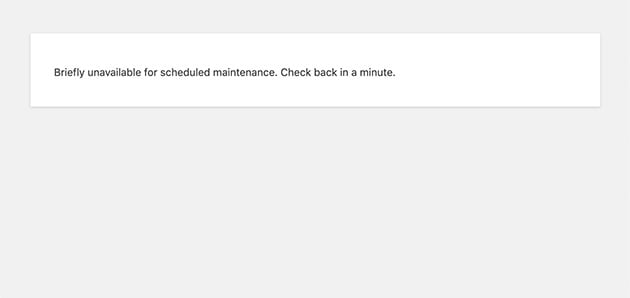
When WordPress updates, it briefly puts your site into maintenance mode so visitors don’t see a broken page. If the update doesn’t complete properly, the site can stay locked down and inaccessible.
To fix this, connect to your site using FTP or your hosting file manager and look for a file named .maintenance in your site’s root folder (the same folder as wp-config.php). Delete that file, then refresh your site.
If you continue to have issues, see our full tutorial on how to fix being stuck in WordPress maintenance mode.
Tip: Update your plugins and themes one at a time instead of all at once. Always back up your site before updates so you can restore it quickly if something goes wrong.
3. WordPress White Screen of Death (WSoD)
The WordPress White Screen of Death (WSoD) shows a blank screen with no error message. It’s frustrating because you don’t know what went wrong.
This issue is usually caused by a plugin or theme conflict, a corrupted file, or hitting your PHP memory limit. Here’s how to diagnose it:
- Check if it’s site-wide. If you have multiple WordPress installs on the same host, see if they’re all affected. If they are, contact your hosting provider.
- Disable all plugins. Connect via FTP and rename the plugins folder inside wp-content. If the site loads, rename the folder back and activate each plugin one by one until you find the culprit.
- Switch to a default WordPress theme. Rename your active theme’s folder in wp-content/themes and let WordPress revert to a default theme automatically.
- Increase your PHP memory limit. Edit wp-config.php and add this line before the “That’s all, stop editing!” comment:
define('WP_MEMORY_LIMIT', '256M');
For more troubleshooting steps, check out our guide on fixing the WordPress White Screen of Death.
Tip: Always keep a backup of your site and update plugins and themes regularly. Conflicts and corrupted files are the top causes of the White Screen of Death, and outdated code makes the problem more likely.
4. WordPress Memory Exhausted Error
If you see a fatal error message about WordPress running out of memory, a plugin, theme, or script is using more memory than your site is allowed. This often happens on shared hosting plans with low default PHP memory limits.
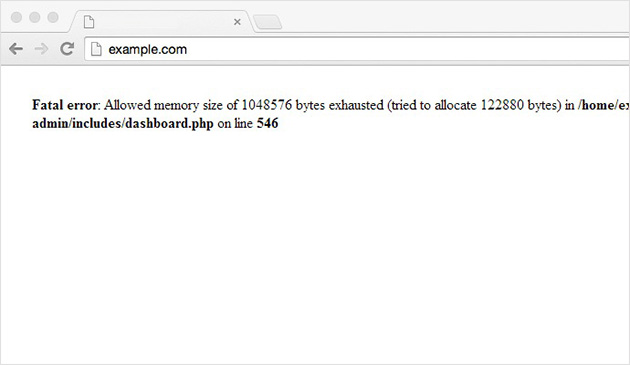
The fix is to increase the PHP memory limit. Connect to your site using FTP or your hosting file manager and open the wp-config.php file in your WordPress root folder.
Add the following line before the “That’s all, stop editing!” comment:
define( 'WP_MEMORY_LIMIT', '256M' );Save the file and refresh your site. If the error persists, you may need to raise the limit to 512M or contact your hosting provider to increase it for you.
If you recently installed or updated a plugin before this error appeared, try disabling it. Resource-heavy or poorly coded plugins can quickly exhaust available memory.
Shared hosting plans have hard memory limits that aren’t always user-configurable. If you’re regularly hitting memory limits despite the wp-config.php fix, that’s a signal your site has outgrown shared hosting, and it may be worth considering a VPS or managed WordPress plan.
For more solutions, see this full guide on fixing the WordPress memory exhausted error.
Tip: Delete unused plugins and themes and keep your WordPress installation lean. The fewer scripts that run, the less likely you’ll hit your memory limit.
5. Connection Timed Out Error in WordPress
If you see an “ERR_CONNECTION_TIMED_OUT” error in WordPress, your server is taking too long to respond. This usually happens on shared hosting plans when your site uses more resources than the server allows.
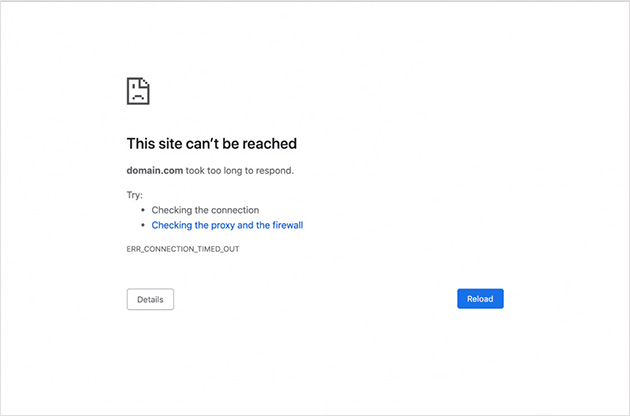
To fix it, start by deactivating all plugins. Connect via FTP or your hosting file manager and rename the plugins folder in wp-content. If the site loads, rename the folder back and reactivate each plugin one by one to find the one causing the slowdown.
Next, check your theme. Temporarily switch to a default WordPress theme (like Twenty Twenty-Five) to rule out theme issues. You can do this by renaming your active theme folder in wp-content/themes.
If the problem persists, increase your PHP memory limit by adding this line to wp-config.php before the “That’s all, stop editing!” comment:
define( 'WP_MEMORY_LIMIT', '256M' );You can also ask your hosting provider to raise your server’s resource limits. On shared hosting, there’s often a ceiling that the wp-config.php fix can’t bypass, and upgrading to a VPS or managed WordPress hosting plan may be the permanent fix.
For a full breakdown, see this guide on fixing WordPress connection timed out errors.
Tip: Use a lightweight theme and avoid running too many resource-heavy plugins. If your site is growing, consider upgrading from shared hosting to a plan with more resources.
6. Error Establishing a Database Connection in WordPress
This error means WordPress can’t connect to your database. Without a working database connection, your site can’t load any content.
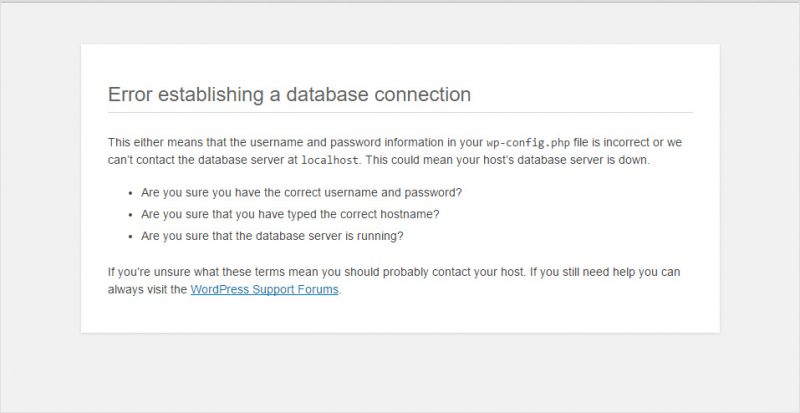
Start by checking your database credentials in wp-config.php. Make sure the database name, username, password, and host match the details in your hosting account. Even a single typo can cause this error.
If your credentials are correct, the database might be corrupted. You can enable WordPress’s built-in repair tool by adding the following line to wp-config.php before the “That’s all, stop editing!” comment:
define( 'WP_ALLOW_REPAIR', true );Then visit this URL in your browser to repair the database:
https://yoursite.com/wp-admin/maint/repair.phpAfter the repair, remove the line you added to wp-config.php. If the problem continues, your database server may be down. In that case, contact your hosting provider for help.
For more details, see this step-by-step guide on fixing the database connection error in WordPress.
Tip: Use a reliable host and avoid making manual changes to the database unless you know what you’re doing. Regular backups make it easy to recover if the database ever becomes corrupted.
7. WordPress Internal Server Error
The 500 Internal Server Error usually has one of three causes: a corrupted .htaccess file, a plugin conflict, or your PHP memory limit being hit.
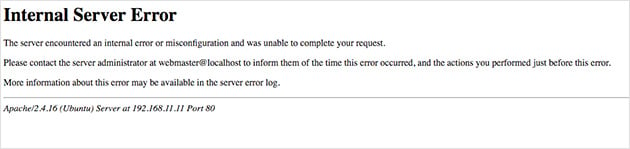
To fix it, start by checking the .htaccess file. Connect to your site via FTP or your hosting file manager and rename the file (e.g., .htaccess-old). Then refresh your site.
If it loads, go to Settings » Permalinks in WordPress and click Save Changes to generate a new .htaccess file.
If that doesn’t fix it, try disabling all plugins by renaming the plugins folder inside wp-content. If the error clears, rename the folder back and reactivate plugins one by one to find the problem.
If the error persists, switch temporarily to a default WordPress theme (like Twenty Twenty-Five) by renaming your active theme folder in wp-content/themes.
Finally, increase your PHP memory limit by adding define('WP_MEMORY_LIMIT', '256M'); to wp-config.php before the “That’s all, stop editing!” comment.
For detailed steps, see this guide on fixing the WordPress internal server error.
Tip: Make sure you back up your .htaccess file and keep plugins and themes updated. Most internal server errors happen because of outdated code or corrupted configuration files.
8. WordPress Parse or Syntax Error
The WordPress parse or syntax error usually appears after adding code to your site. It means there’s a mistake in the code, often a missing character, incorrect function name, or a copy-paste error.
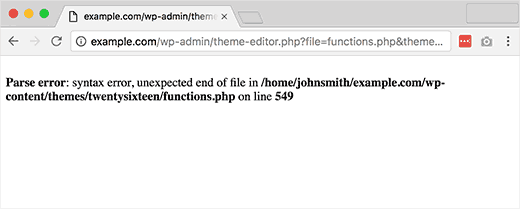
If you can’t access the WordPress admin area, connect to your site via FTP or your hosting file manager. Locate the file mentioned in the error message and open it in a text editor.
Carefully review the line number shown in the error and fix the syntax mistake. If you recently added a code snippet, remove it completely.
Once fixed, save the file and refresh your site. If you’re not sure how to fix the code, you can restore a recent backup or replace the file with a clean copy from a fresh WordPress download.
For beginners, this guide explains how to safely add code snippets to WordPress.
Tip: Always test code snippets on a staging site before adding them to a live site. A single typo can bring down your entire website.
9. WordPress 404 Error
If you get a 404 error when trying to access a post or page, it usually means your permalink settings need to be refreshed or your .htaccess file is missing or corrupted.
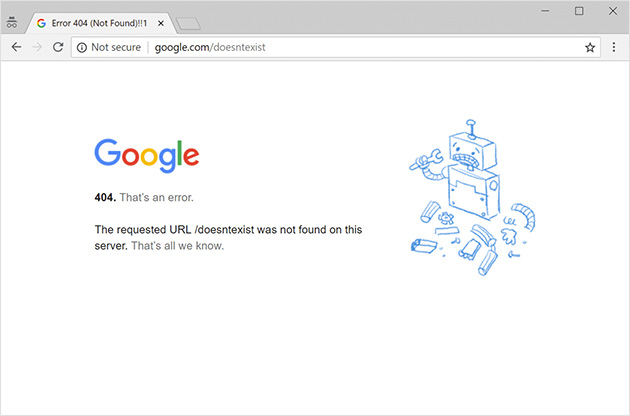
The easiest fix is to log in to your WordPress dashboard and go to Settings » Permalinks. Without changing anything, click Save Changes. This will flush and regenerate your permalink rules.
If the error persists, check that your .htaccess file exists in the root folder of your WordPress install. If it’s missing, create a new file and paste in the default WordPress rewrite rules from the WordPress docs.
Another option is to use a plugin like All in One SEO (AIOSEO) to monitor and redirect 404 errors. This helps you track broken URLs and fix them easily.
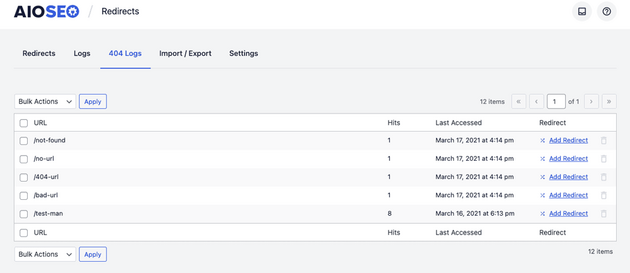
Tip: Check your site for broken links regularly. Fixing or redirecting them quickly improves your site’s SEO and user experience.
10. WordPress Not Uploading Images
If you can’t upload images to the WordPress media library, the problem is often incorrect file permissions on your server. When WordPress can’t write to the uploads folder, image uploads will fail.
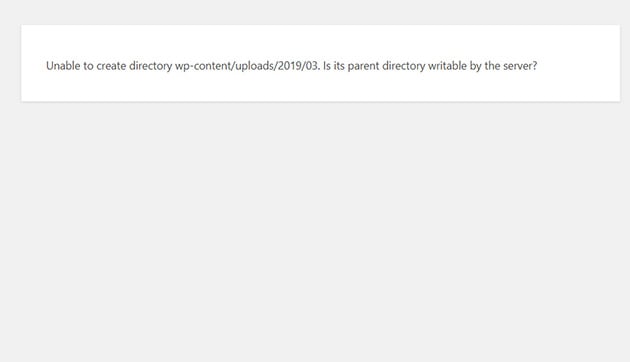
To fix this, connect to your site via FTP or your hosting file manager and go to wp-content/uploads. Right-click the folder and select File Permissions.
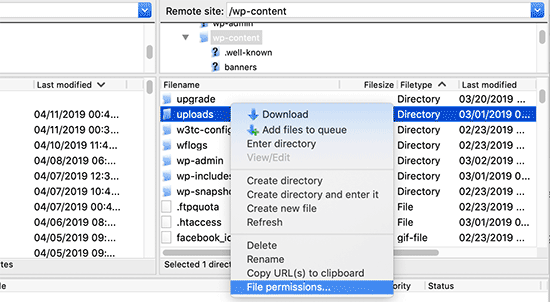
Set the folder permission to 744 and apply changes to all subdirectories. Then set the file permissions inside the folder to 644. These values allow WordPress to upload files without giving too much access.
If the error continues, disable any image optimization or security plugins temporarily to see if they are blocking uploads. You can also try increasing the maximum upload size in your php.ini or wp-config.php file.
Tip: Avoid uploading images with special characters or spaces in the file name. Use lowercase letters, numbers, and hyphens instead to prevent upload errors.
11. “Are You Sure You Want to Do This” WordPress Error
This error usually appears when a WordPress plugin, theme, or form action is missing a security verification token (called a nonce). It can also happen if you’re uploading a file that’s too large or incompatible.
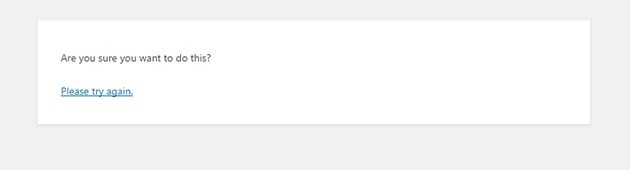
To fix it, first disable all plugins by renaming the plugins folder inside wp-content. If the error goes away, reactivate plugins one at a time to find the one causing the issue.
If it’s not a plugin, switch temporarily to a default WordPress theme (like Twenty Twenty-Five) by renaming your active theme folder in wp-content/themes. This helps rule out theme-related problems.
Also check the file you’re uploading or importing. Make sure it meets WordPress’s size and file type requirements. If it’s too large, you may need to increase your maximum upload limit in php.ini or wp-config.php.
For more troubleshooting steps, see this guide on fixing the “Are You Sure You Want to Do This” error in WordPress.
Tip: Always keep your plugins and themes updated. Many developers patch nonce and upload handling issues quickly, so using outdated code can trigger this error.
12. WordPress Login Redirect Loop
If you enter your login details but WordPress keeps redirecting you back to the login screen, you’re stuck in a login redirect loop. This can be caused by browser cookies, cache issues, or corrupted login files.
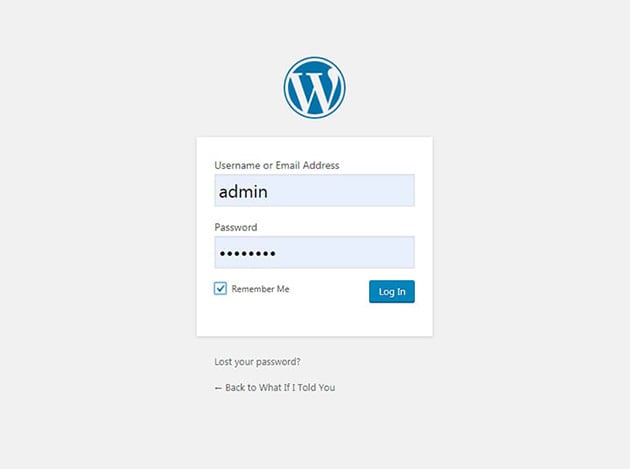
First, clear your browser cookies and cache. In Chrome, go to Settings » Privacy and Security » Clear Browsing Data. Then try logging in again.
If that doesn’t work, disable all plugins via FTP by renaming the plugins folder inside wp-content. If you can log in after this, one of your plugins is causing the problem. Reactivate them one by one to find the culprit.
Next, check your active theme. Temporarily switch to a default WordPress theme (like Twenty Twenty-Five) by renaming your theme folder in wp-content/themes. A corrupted theme file can also cause login issues.
If you’re still stuck, open your wp-config.php file and add this line above the “That’s all, stop editing!” comment:
define( 'COOKIEPATH', '/' );This forces WordPress to use the correct cookie path. Then refresh the login page and try again.
For more tips, see this full guide on fixing WordPress login redirect loop errors.
Tip: Enable automatic plugin and theme updates for security patches. Redirect loop issues often happen after partial updates or conflicts with outdated code.
13. 403 Forbidden Error in WordPress
The 403 Forbidden error appears when your server is blocking access to a page or resource. It’s often caused by incorrect file permissions, security plugin settings, or a corrupted .htaccess file.
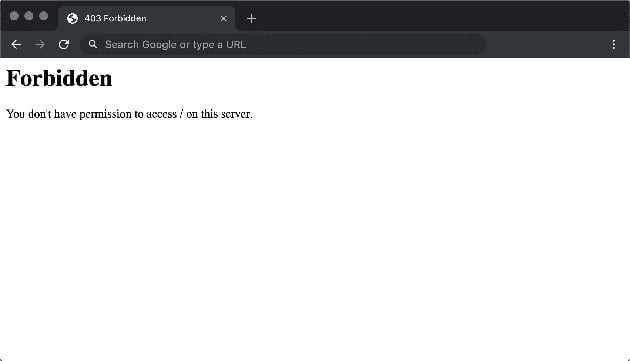
First, disable all security and firewall plugins. Connect to your site via FTP or your hosting file manager and rename the plugins folder inside wp-content. If the error goes away, one of your plugins was blocking access. Reactivate them one by one to find the culprit.
If that doesn’t work, check your file permissions. Folders should generally be set to 744 and files to 644. You can change these settings using your FTP client or hosting file manager.
Next, rename your .htaccess file (e.g., .htaccess-old) and reload your site. If the error clears, generate a new .htaccess file by visiting Settings » Permalinks in WordPress and clicking Save Changes.
If you’re still seeing the error, contact your hosting provider. They can check if server-level firewall or mod_security rules are blocking your site.
Tip: Only install plugins and themes from trusted sources. Poorly coded software can trigger false positives in security rules and cause 403 errors.
14. ERR_TOO_MANY_REDIRECTS in WordPress
This WordPress error message appears when your browser gets stuck in an endless redirect loop. The three most common causes are a misconfigured HTTPS setup, incorrect WordPress or Site Address URL settings, or a caching plugin serving stale redirect rules.
Start by clearing your browser cookies and cache completely, then try loading the site again. Stale cookies are often the whole problem.
If that doesn’t fix it, check your WordPress URL settings. Log in to your hosting dashboard and access phpMyAdmin. In your WordPress database, open the wp_options table and look at the siteurl and home values. Both should match and use the same protocol (http or https, not a mix).
You can also update these values in wp-config.php by adding:
define('WP_HOME', 'https://yoursite.com');
define('WP_SITEURL', 'https://yoursite.com');
If a caching plugin is involved, disable it via FTP by renaming the plugins folder, then check if the redirect loop clears. Reactivate plugins one at a time to find the conflict.
Finally, if you recently switched from http to https, make sure your SSL certificate is active and your hosting is set to force HTTPS. A half-configured HTTPS setup is one of the most common causes of redirect loops I see.
Tip: When migrating from http to https, update your WordPress URLs, flush your cache, and test in an incognito window before declaring it fixed.
15. Maximum Execution Time Exceeded in WordPress
This PHP fatal error appears as “Maximum execution time of X seconds exceeded” and means a script on your site ran too long. It’s common on shared hosting plans where the default PHP execution time is set low (often 30 seconds).
The two most common causes are resource-heavy plugins running complex operations (imports, backups, SEO scans) and shared hosting limits that cap execution time to protect server resources.
To fix it, increase the max_execution_time value. The safest method is to add this line to your wp-config.php before the “That’s all, stop editing!” comment:
set_time_limit(300);Alternatively, if you have access to php.ini via your hosting panel, find the line that reads max_execution_time = 30 and increase it to 120 or 300.
If you recently installed a new plugin before the error appeared, deactivate it first. Backup plugins, SEO crawl tools, and import plugins are common culprits because they process large amounts of data in a single request.
On shared hosting, there’s often a hard ceiling on execution time that you can’t change from wp-config.php. If the error keeps returning, this is another case where upgrading to a VPS or managed WordPress hosting plan resolves it permanently.
Tip: If a backup plugin is timing out, check its settings for a “split” or “chunked” backup option. These break large operations into smaller requests that stay within time limits.
16. WordPress Loading Slow
Slow WordPress loading isn’t technically an error message, but it’s one of the most common WordPress performance issues and can feel just as frustrating. A site that takes more than 3 seconds to load loses visitors before they see a single word.
The most common causes are running too many plugins, no caching setup, unoptimized images, or poor hosting. Here’s how to diagnose and fix each one:
- Install a caching plugin: WP Super Cache or W3 Total Cache generates static HTML files of your pages, dramatically reducing server load and improving response times.
- Optimize your images: Large uncompressed images are one of the biggest speed killers. Use a plugin like Smush or ShortPixel to compress images automatically on upload.
- Deactivate unused plugins: Every active plugin adds code that loads on every page. Deactivate and delete plugins you aren’t using.
- Use a lightweight theme: Page builder themes with lots of built-in features often load slowly. In my testing with GTmetrix, a page built with SeedProd loaded in 556ms with 16 HTTP requests, while the same page built with Elementor took 1,882ms and 32 requests. That difference compounds on every page load across your site.
- Enable a CDN: A content delivery network serves your static files from servers closer to your visitors, reducing load times for international traffic.
For a complete walkthrough, see our guide on how to speed up your WordPress site.
Tip: Run your site through GTmetrix or Google PageSpeed Insights to get a specific list of what’s slowing you down. Fixing the top two or three items usually produces the biggest improvement.
FAQs About Common WordPress Errors
What are the most common WordPress errors beginners face?
The most common WordPress errors beginners run into are the White Screen of Death, “Error Establishing a Database Connection,” the 500 Internal Server Error, WordPress stuck in maintenance mode, and email delivery failures. All of these are fixable, and most trace back to a plugin conflict, a file permissions issue, or a memory limit that needs to be raised.
Why does my WordPress site show a 403 Forbidden error?
A 403 Forbidden error means your server is blocking access to a file or page. The most common causes are a corrupted .htaccess file, incorrect folder or file permissions (folders should be 744, files 644), or a security or firewall plugin triggering a false block. Start by renaming your .htaccess file via FTP, then regenerate it from Settings » Permalinks.
How do I find out which plugin is causing a WordPress error?
Connect to your site via FTP or your hosting file manager and rename the plugins folder inside wp-content to something like “plugins-disabled.” If the error clears, you know a plugin is the cause. Rename the folder back, then go to your WordPress dashboard and reactivate plugins one at a time, testing after each one. The plugin that brings the error back is the culprit.
What causes the WordPress White Screen of Death?
The White Screen of Death is almost always caused by a plugin or theme conflict, a corrupted file, or a PHP memory limit being exceeded. It produces a blank white screen with no error message because PHP hit a fatal error before the page could render. Disabling plugins via FTP, switching to a default theme, and raising the PHP memory limit are the standard fixes, in that order.
How do I fix WordPress not loading or timing out?
A timeout error usually means your server is taking too long to process a request. Start by disabling all plugins via FTP to rule out a resource-heavy plugin. Then check your hosting plan’s memory and execution time limits; on shared hosting, these are often low by default. Adding define('WP_MEMORY_LIMIT', '256M'); to wp-config.php helps, but if the error keeps returning, upgrading to a VPS or managed WordPress host may be necessary.
How to Prevent WordPress Errors
Most WordPress troubleshooting is avoidable. These five habits prevent the majority of the errors covered in this guide.
- Use a staging site before updates: Most managed WordPress hosts (SiteGround, WP Engine, Kinsta) include one-click staging. Test plugin and theme updates there before pushing to live. You’ll catch conflicts before your visitors do.
- Update plugins and themes one at a time: Bulk updates make it harder to identify which change caused a new error. Update one item, test, then move to the next.
- Run automatic backups: Set up a backup plugin that runs daily and stores copies offsite. A backup makes every error recoverable.
- Use quality hosting: Cheap shared hosting with low memory limits and poor uptime is the root cause of many memory exhausted, timeout, and max execution time errors. A managed WordPress host removes most of these constraints.
- Set up uptime monitoring: Tools like UptimeRobot (free) alert you the moment your site goes down. You’ll know about errors before your visitors email you about them.
Stay Ahead of Common WordPress Errors
WordPress error messages are frustrating, but as you’ve seen, most of them have quick fixes. From memory limits and plugin conflicts to database connection issues, the key is to work through each step methodically and keep your site backed up.
Half of these errors trace back to resource conflicts from using too many or poorly coded tools. That’s why I switched to SeedProd after years of debugging Elementor sites.
In my GTmetrix testing, a SeedProd page loaded in 556ms with 16 HTTP requests vs. 1,882ms and 32 requests with Elementor, which means fewer compatibility issues with security plugins and less chance of hitting memory limits. If you’re building new pages or redesigning your site, SeedProd is worth a look.
Want more ways to improve your site? Check out these guides:
- How to Speed Up Your WordPress Site
- Essential WordPress Security Tips for Beginners
- Top Mistakes Beginners Make Building WordPress Sites
- How to Get WordPress Support (For Beginners)
Thanks for reading! We’d love to hear your thoughts, so please feel free to join the conversation on YouTube, X and Facebook for more helpful advice and content to grow your business.





good experience to go through your blog, very helpful
Can You solve the issue with other plugins that protection from view source, drag and drop and right click doesn’t work in seedprod landing page?
I have the pro version.
Hi Janus, thank you for your question. Can reach out to our support team here where we can better answer your question, please?