
Wenn das SeedProd-Supportteam ein Problem auf Ihrer Website direkt untersuchen muss, können Sie ein temporäres WordPress-Administrator-Konto erstellen und die Anmeldedaten in Ihrem Support-Ticket mitteilen. Befolgen Sie die nachstehenden Schritte, um es einzurichten.
Schritte zum Erstellen des temporären Admin-Kontos
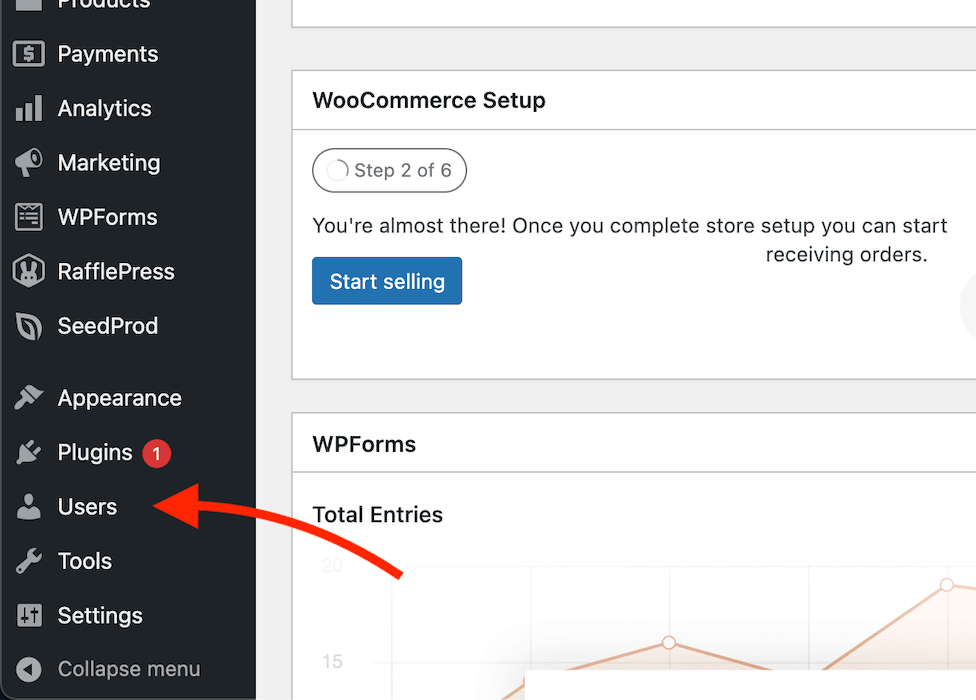
- Klicken Sie in Ihrem WordPress-Adminbereich im linken Navigationsmenü auf Benutzer.
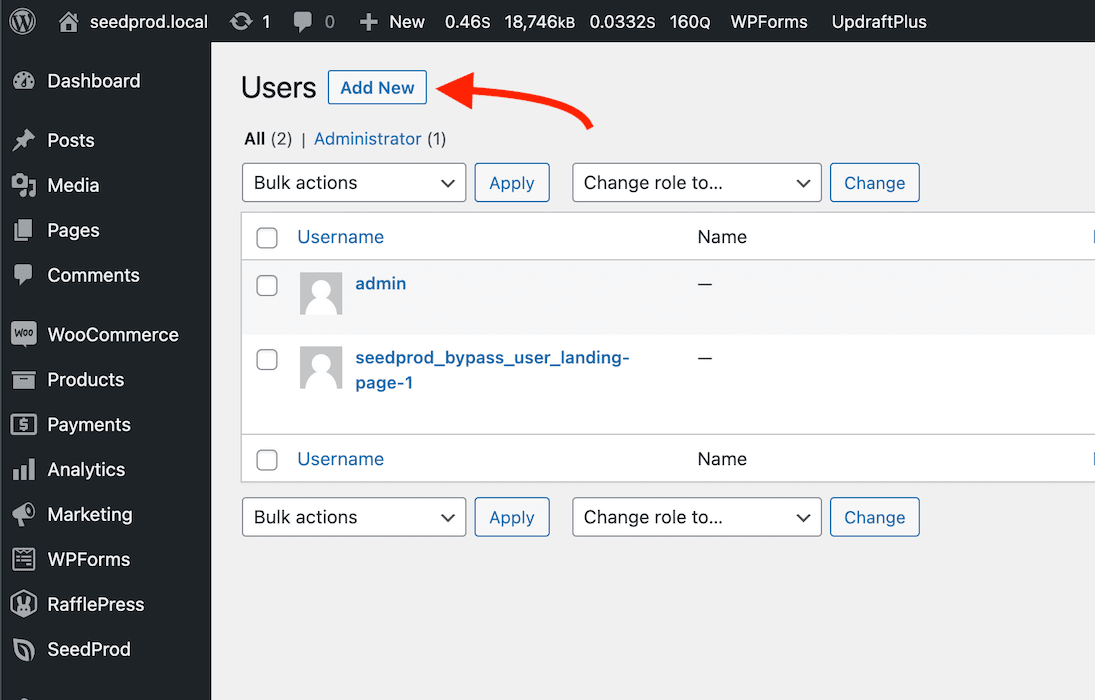
- Klicken Sie auf der Benutzerseite oben auf die Schaltfläche Neu hinzufügen.
- Füllen Sie die Details für den neuen Benutzer mit den folgenden Werten aus und klicken Sie dann auf Neuen Benutzer hinzufügen.
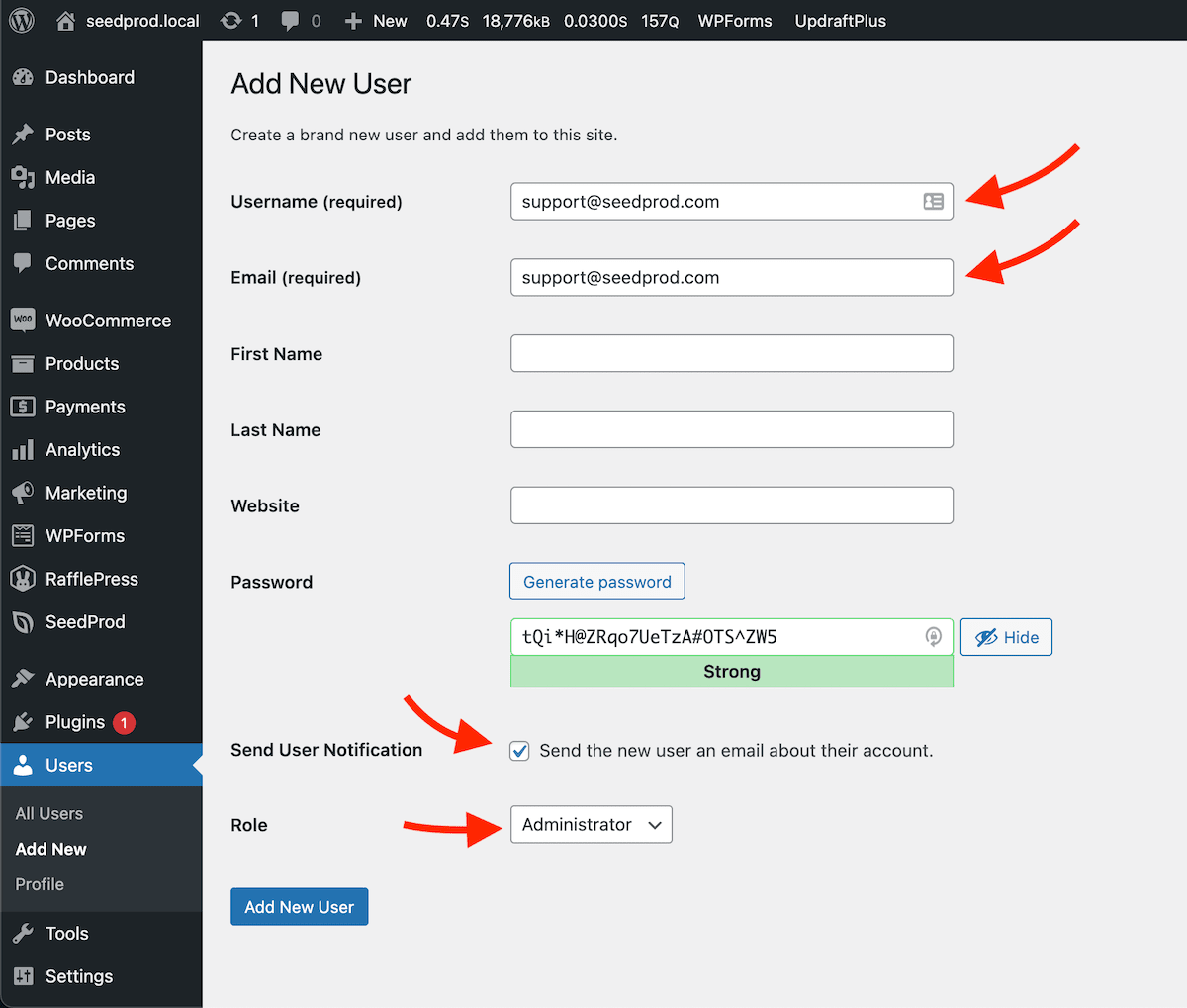
Verwenden Sie diese genauen Werte, wenn Sie das Formular ausfüllen:
- Benutzername:
support@seedprod.com - E-Mail:
support@seedprod.com - Benutzerbenachrichtigung senden: Aktiviert
- Rolle: Administrator
Sobald das Konto erstellt ist, sendet WordPress automatisch eine Anmeldebenachrichtigung an die E-Mail-Adresse des Supportteams.
Sobald Ihr Problem behoben ist, gehen Sie in Ihrem WordPress-Admin zu Benutzer, suchen Sie das Konto support@seedprod.com und löschen Sie es, um Ihre Website sicher zu halten.