

TL;DR: WordPress SEO (search engine optimization) is how you get Google to notice your site and send you traffic. Here’s what this guide covers:
- Keyword research: Find the phrases your audience is actually searching for before you write.
- On-page optimization: Use keywords in titles, headings, URLs, and body copy without overstuffing.
- Technical setup: Fast load times, clean URLs, XML sitemaps, and mobile-friendly design all matter.
- Internal linking: Connect your pages together so search engines can crawl your whole site.
- Schema markup: Structured data helps AI systems and voice search cite your content directly.
- Track results: Use Google Search Console and Google Analytics to measure what’s working.
You’ve published posts, set up your site, and still can’t get Google to notice you. Your food blog, small business, or portfolio looks great, but the traffic just isn’t coming.
WordPress search engine optimization (SEO) is the process of improving your site so search engines can find, understand, and rank it. I’ve been doing this for 13+ years across personal blogs and client sites, and the same fundamentals keep working.
In this guide, I’ll walk you through the practical steps to rank higher in Google and bring in consistent WordPress organic traffic.
Table of Contents
- What is WordPress SEO?
- WordPress SEO Basics
- On-Page WordPress SEO
- Technical WordPress SEO
- Advanced WordPress SEO
- FAQs About WordPress SEO
What is WordPress SEO?
WordPress SEO (search engine optimization) is a set of strategies that help your website appear higher in search results on Google and other search engines. The better your SEO, the more likely people are to find your site when searching for what you offer.
Search engines want to give people the most helpful results possible. SEO for WordPress is about showing Google that your site has exactly what those people are looking for.
Essential Elements of WordPress SEO
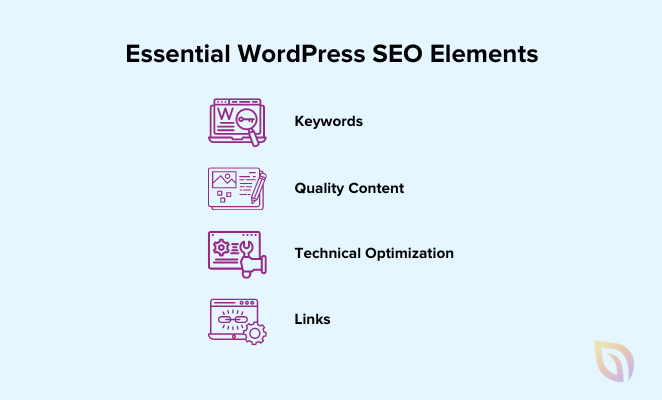
- Keywords: The words and phrases people type into search engines. If you have a baking blog, keywords might be “easy cake recipes” or “best chocolate chip cookies.”
- High-quality content: Helpful, interesting posts and pages that people want to read and share.
- Technical optimization: Make sure your website is set up in a way that’s easy for search engines to crawl.
- Links: Get other websites to link to yours (backlinks). This signals to search engines that your site is trustworthy.
Improving your WordPress ranking means more people find your site on their own. That translates to more potential customers, sales, and a stronger brand presence online.
WordPress SEO Basics
Website Structure for Optimal SEO
Think of your website like a map. A clear structure helps search engines find and understand everything your site offers. Two important parts of that map are your navigation menu and how you organize your content.
Start with a simple navigation menu. Group your content into logical categories so search engines can understand what your site is about and how pages relate to each other.
SeedProd is a drag-and-drop website builder that lets you build your entire WordPress site—navigation, pages, theme—without writing code. Its visual builder lets you create a well-organized navigation menu that’s structured correctly for crawling, without needing a developer.
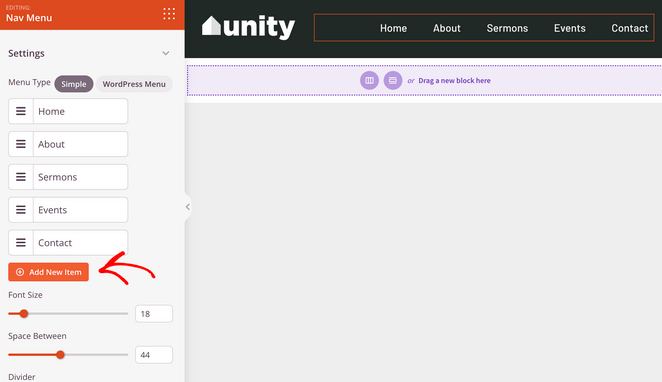
See our guide on how to add a navigation menu to WordPress for all the steps.
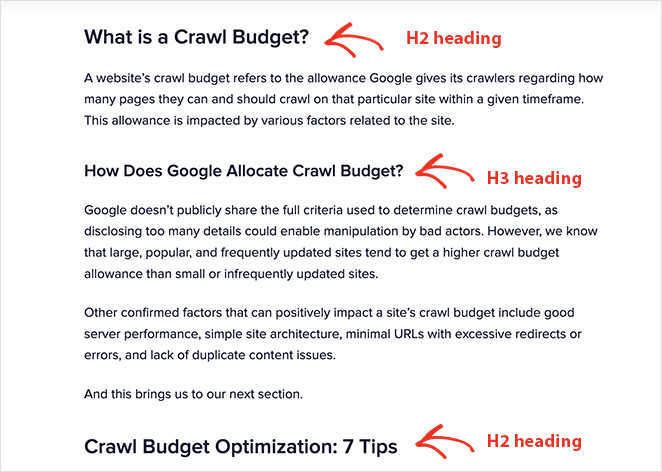
How you organize the text on each page matters, too. Use clear headings (H1, H2, H3, etc.) to break up your content into sections. This makes pages easier to read and helps search engines understand what each section covers.
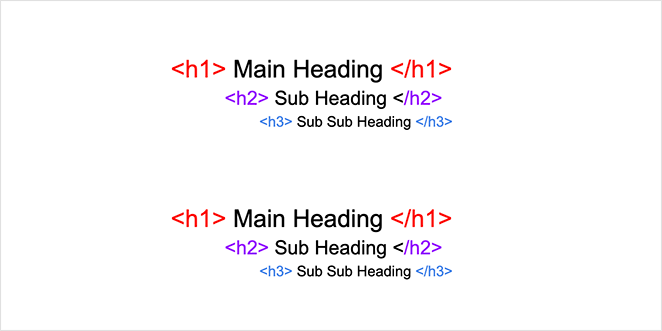
Think of your main H1 heading like the title of a book chapter, then use smaller headings (H2, H3, etc.) like section titles within that chapter. Search engines look at these headings to understand what your page is about.
SeedProd has ready-made heading blocks, so you can organize your content with just a few clicks.
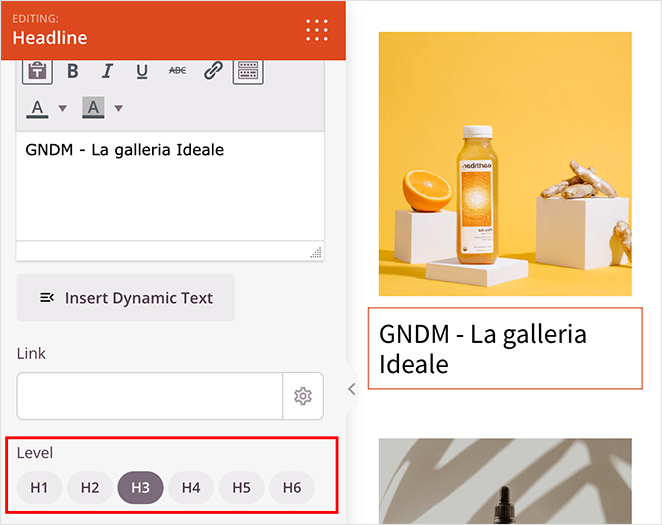
A well-organized website is great for search engines and visitors. But even with clear menus, there’s another way to make your site easier to navigate.
Breadcrumbs for User-Friendly Navigation
Think of breadcrumbs like a trail on your website that shows visitors where they are. They’re usually a line of clickable links at the top of the page showing the path to get there.
They might look like this: Homepage > Blog > Category > Article Title.
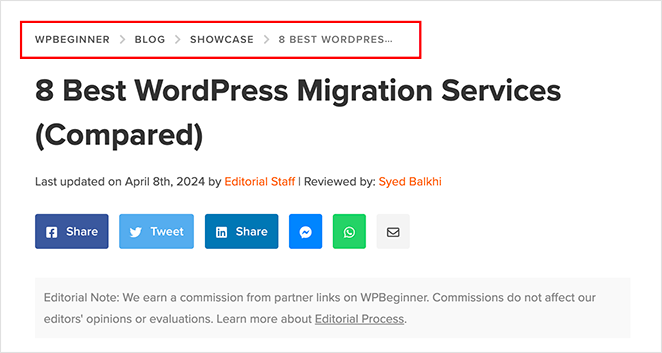
Breadcrumbs help visitors quickly jump back to a previous page or explore similar topics. They also help Google understand how your site fits together.
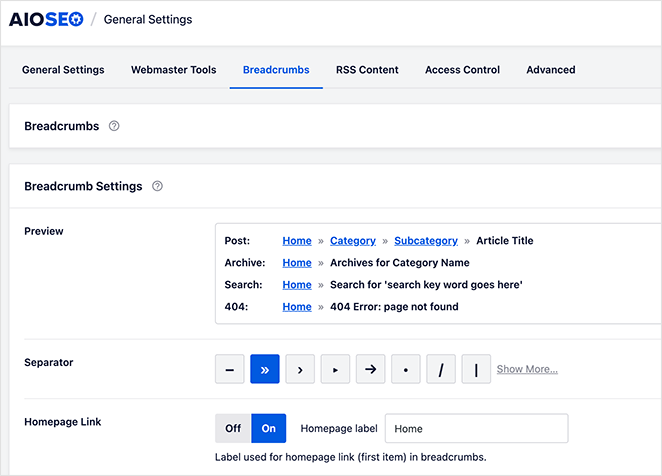
You can add breadcrumbs with a WordPress SEO plugin like All in One SEO. The plugin settings have a Breadcrumbs tab with all the options you need.
SEO-Friendly URLs for Easier Crawling
The web address of each page (also called the URL) matters for SEO. You want URLs that are short, simple, and hint at what the page is about.
Confusing URLs with random numbers and letters (like “pageid=123”) don’t help anyone. Use descriptive URLs with keywords in them (something like “/best-on-page-seo-tools/”) so both people and search engines know what they’ll find.
WordPress lets you customize your URLs. Go to Settings » Permalinks from your WordPress dashboard.
On this page, you’ll see several URL structures. The most SEO-friendly option is typically “Post name,” as it creates URLs based on your actual post or page title.
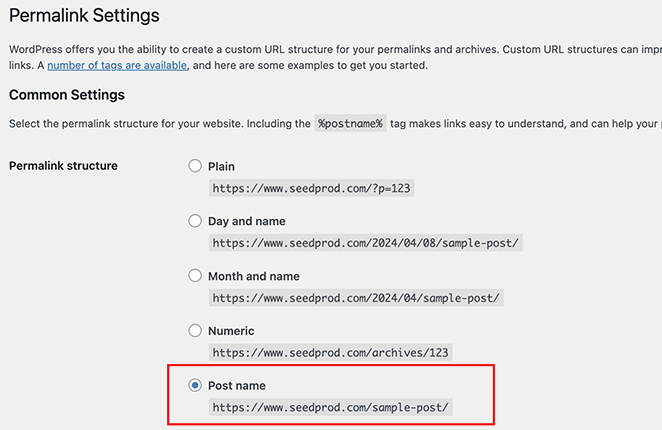
Click the radio button next to your preferred structure and save your changes.
Set your permalink structure early. Changing it later can break existing links and hurt your SEO.
One more thing: the www and non-www versions of a URL are treated as different addresses by Google. Pick one and stick with it. You can set this in Settings » General, or use AIOSEO’s site management tools to handle it automatically.
XML Sitemaps for Content Discovery
Imagine search engines are like librarians organizing a huge library. An XML sitemap is like handing them a complete list of every page on your website.
Sitemaps are especially helpful if you have a lot of pages, update your site often, or have pages that visitors might not easily find on their own.
The easiest way to create a sitemap is with an SEO plugin like All in One SEO. It automatically creates the sitemap for you and lets you choose exactly which pages to include.
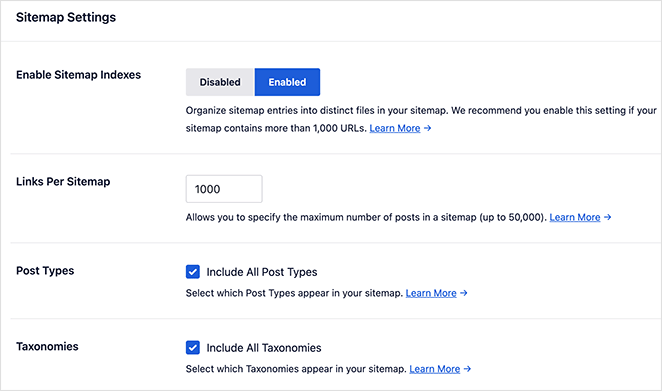
The best part about creating your sitemap with a plugin is that it updates automatically, so search engines always have the newest list of your pages.
The final step is letting Google know about your sitemap. Sign in to Google Search Console, select your website from the list of properties, and click “Indexing” in the left sidebar menu.
Under “Index,” look for the “Sitemaps” section, click inside the “Add a new sitemap” field, and enter your sitemap URL. You can typically find it at yourwebsite.com/sitemap.xml.
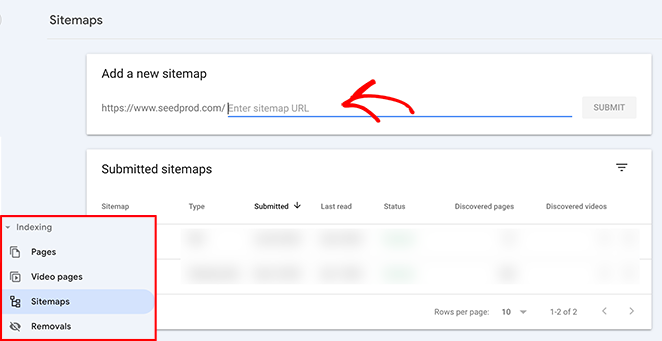
Click “Submit.” Search Console will process your sitemap. It may take some time to crawl and index everything, so be patient.
Which WordPress SEO Plugin Should You Use?
Once your site structure is in place, you need a plugin to handle the SEO details. A good SEO plugin manages your page titles, meta descriptions, sitemaps, schema markup, and redirects, all from one place.
My recommendation is AIOSEO (All in One SEO). It’s the SEO plugin I use on this site, and it handles everything from sitemaps to on-page analysis to schema markup without requiring any technical knowledge. It also integrates directly with Google Search Console, so you can see your ranking data without leaving WordPress.
You can handle titles and meta descriptions manually through your theme or via code, but a plugin saves hours of configuration. I haven’t done it the manual way in years.
Make Sure Search Engines Can Index Your Site
This is the most common beginner mistake I see. WordPress has a setting that tells search engines not to index your site. New sites often have it turned on by accident.
Here’s how to check and fix it:
- In WordPress: Go to Settings » Reading and make sure “Discourage search engines from indexing this site” is unchecked.
- In Google Search Console: Use the URL Inspection tool to confirm your homepage is indexed. If it’s not, request indexing.
- Why it matters: A site that isn’t indexed won’t show up in search results no matter how good your SEO is. Check this first before anything else.
On-Page WordPress SEO
Choose the Right Keywords
Keywords are how people tell Google what they’re looking for. Choosing the right ones is how you make sure your site shows up when your ideal audience is searching.
Start by figuring out which keywords your audience is already using. There are tools to help:
- Google Keyword Planner, Ubersuggest, and AnswerthePublic are free starting points for keyword research.
- For more in-depth analysis, consider Ahrefs, SEMRush, or Moz, though they come with a cost.
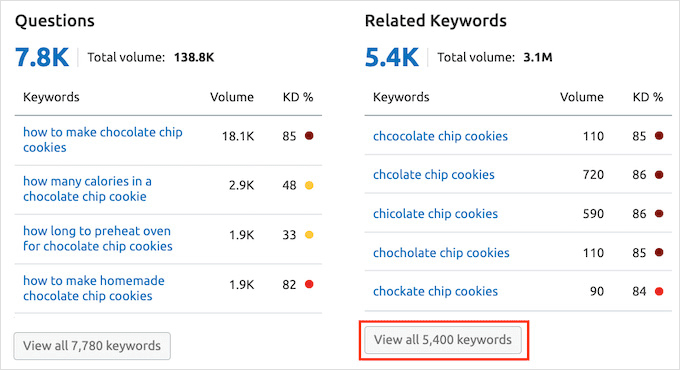
When choosing keywords, ask yourself three things:
- Does it match? The keyword should be a precise fit for what your page covers.
- Are people searching for it? Pick keywords people actually use, not just what you think they might search for.
- Can you compete? Aim for a mix of popular keywords and more specific ones that are easier to rank for.
If you’re a local business, include location in your keywords. A bakery in Austin might target “best pastries Austin” or “Austin wedding cakes.”
Write Click-Worthy Titles and Meta Descriptions
Your page title and meta description are like a billboard for your website in search results. They’re your chance to grab attention and convince people to click.
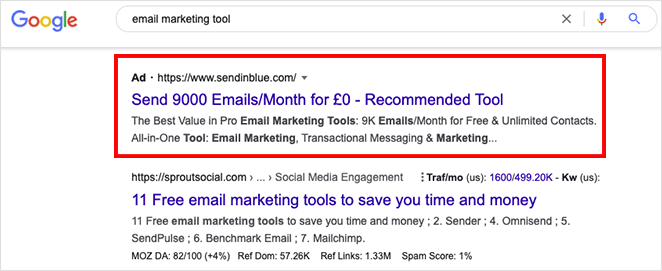
- Get more clicks: A compelling title and description make people more likely to choose your site over others in the results.
- Signal your topic: This helps search engines match your page with the right searches.
Tips for writing great titles and descriptions:
- Include your keyword: Let both search engines and people know what your page is about.
- Start strong: Put your keyword near the beginning, but don’t force it to sound awkward.
- Make it a promise: Don’t just describe the page—tell people what they’ll get from clicking.
Optimize Your Content for Search Engines and Users
The actual writing on your pages matters a lot to search engines. Here’s how to optimize your WordPress site for search while still writing for real people:
- Use keywords naturally: Include your keywords where they make sense. Forget the old idea of keyword stuffing.
- Organize with headings: Headings break up your text and give search engines clues about what each section covers.
- Write for people first: Helpful content that solves a real problem impresses search engines more than any trick.
External links also help. Linking out to credible sources like Google Developers, Wikipedia, or official documentation signals topical authority. Set external links to open in a new tab, and avoid linking to direct competitors.
Use Categories and Tags Correctly
Categories and tags are how WordPress organizes your content, and they affect SEO more than most beginners realize.
Use categories for your main topics and keep them broad. Tags are for specific details, but don’t create a tag for every post. Creating too many tags with the same keyword as multiple posts can produce thin, duplicate content that hurts your WordPress ranking.
A practical rule: if a category or tag page would have fewer than 5 posts on it, it probably shouldn’t exist yet.
Optimize Images for WordPress Speed and SEO
Pictures make your site more interesting, but they can also slow it down if you’re not careful. Slow sites frustrate visitors and search engines both.
Before you upload, make your image files smaller. Tools like TinyPNG or ShortPixel can do this without making images look blurry.
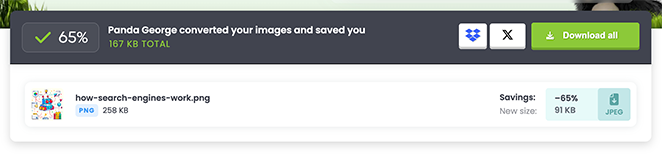
Don’t upload a giant image if you’re only displaying it as a thumbnail. Resize it beforehand.
Alt text is a short description that tells people and search engines what’s in the picture. It’s also important for screen readers, and it’s a natural place to include a relevant keyword when it fits.
SeedProd includes an option to add alt text whenever you insert an image into your pages.
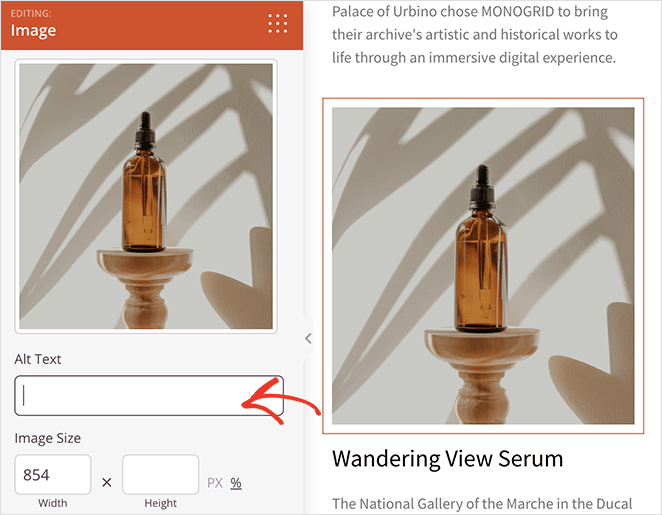
Take advantage of this feature to make sure all your images are optimized for both search engines and screen readers.
Technical WordPress SEO
Site Speed Optimization for SEO and User Experience
A slow website turns off both visitors and search engines. If your site takes too long to load, visitors click away before they even read a word.
Studies show that if your site takes more than 3 seconds to load, over half of visitors will leave.
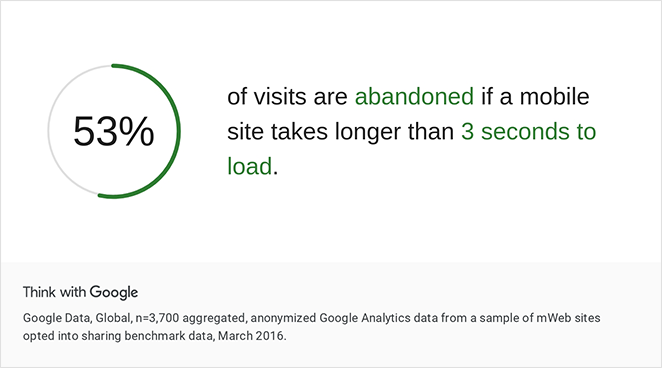
Search engines want to give people the best experience possible, and fast sites are part of that. Here’s how to speed up your WordPress site:
- Start with good hosting: Your hosting company is the foundation. Choose one known for fast performance.
- Pick a simple theme: Fancy themes can look great but load slowly. Look for WordPress themes designed to be lightweight.
- Compress your images: Big image files are a major cause of slowdowns.
- Use a caching plugin: Caching saves a “snapshot” of your pages so they load faster for repeat visitors.
- Consider a CDN: A content delivery network puts copies of your site closer to visitors around the world.
In my own testing with GTmetrix, a SeedProd-built page loaded in 556ms with 16 HTTP requests. The same page built with Elementor took 1,882ms and 32 requests.
Google uses Core Web Vitals as a ranking signal, so the difference between those numbers is real for your WordPress SEO.
Here are the tools to measure and understand your site’s speed:
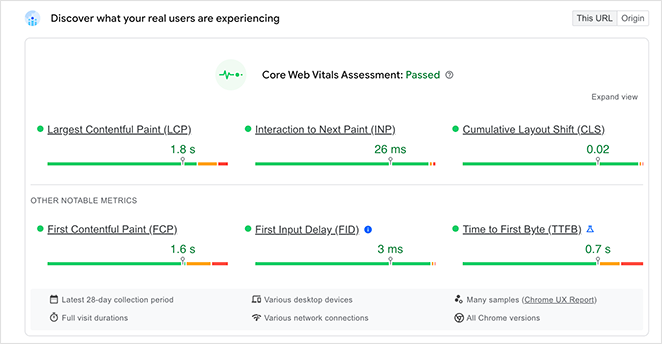
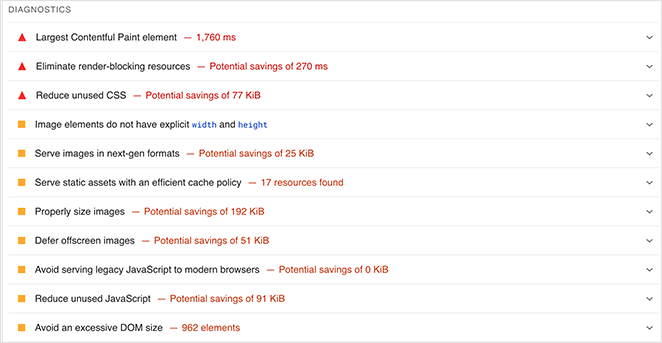
- GTmetrix: Tells you exactly what’s making your site slow and how to fix it.
- Google PageSpeed Insights: Checks load speed on desktop and mobile, and gives specific tips tied to your rankings.
Don’t get too hung up on the scores. The most important part is the advice these tools give you about why your site is slow.
Responsive Design for Mobile-Friendly SEO
People visit websites on computers, phones, and tablets. Your site needs to look good on all of them.
That’s what responsive design means. Your website automatically adjusts to fit any screen. Google looks at the mobile version of your website first when deciding how to rank it, so if your site doesn’t work well on phones, it may struggle in search results.
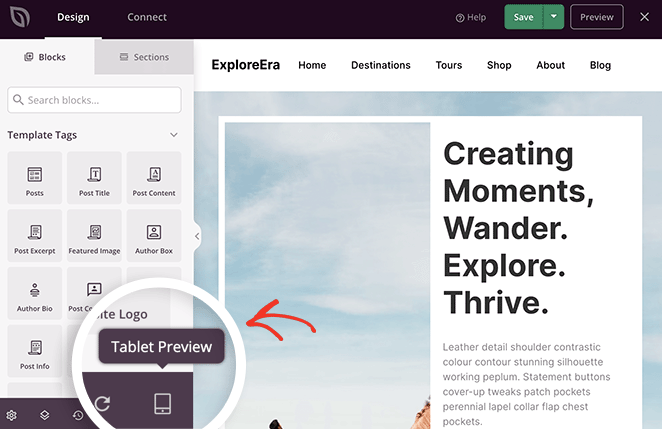
SeedProd lets you confirm every page looks right on mobile before publishing. You can preview and adjust for desktop, tablet, and phone right inside the builder.
See our guide to how to make a desktop website mobile-friendly.
Does Website Security Affect Your SEO Rankings?
Yes, it does. Search engines want to send people to safe websites, and a hacked or insecure site can hurt your rankings directly.
- Hackers are bad for rankings: A compromised site can redirect your visitors somewhere dangerous. Search engines won’t recommend it.
- HTTPS builds trust: The padlock in the address bar signals a secure site. Search engines favor secure sites and warn users about ones that aren’t.
- SSL for e-commerce: If you run an online store, an SSL certificate protects customer payment information.
- Downtime hurts too: A hacked site that goes offline can’t be indexed or recommended by anyone.
How to protect your WordPress website:
- Use strong passwords: Different passwords for every account, changed regularly.
- Keep everything updated: WordPress core, themes, and plugins all need regular updates.
- Choose a security-focused host: Your hosting company is your first line of defense.
- Use a security plugin: A good security plugin adds extra layers of protection.
What to Do About 404 Pages
A 404 error means someone landed on a page that doesn’t exist. These hurt your SEO in two ways: search engines waste crawl budget on dead links, and visitors land nowhere.
You can find 404 errors in Google Search Console under Coverage » Not Found. Fix them by either restoring the missing page or setting up a redirect to the closest relevant page. AIOSEO’s built-in redirects feature handles this automatically, so you don’t have to manage it manually.
Advanced WordPress SEO
Does Internal Linking Help SEO?
Yes, and it’s one of the most underused tactics on WordPress sites. Internal linking creates connections between pages on your site, which does several things for your WordPress SEO at once.
- Helps search engines find your content: Internal links act like a map, guiding search engines to all the important pages on your site.
- Shares authority: When you link from a popular page to a less popular one, it passes some of that page’s strength along.
- Shows topical depth: Linking related pages together with descriptive anchor text helps search engines understand what your site covers as a whole.
Tips for effective internal linking:
- Be helpful: Link to pages that are genuinely related to what someone is already reading.
- Use your keywords: Instead of “click here,” use descriptive anchor text that includes your keywords.
- Make it natural: Work links into actual sentences, don’t just append a list of links at the end.
Schema Markup for Better Search Results
Schema markup is a layer of structured data you add to your website that tells search engines exactly what your pages are about. Instead of guessing from the text alone, they can read precisely what type of content you have (a recipe, a product, an event, a review).
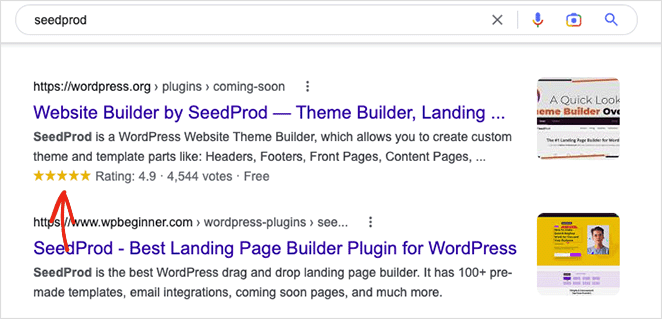
In 2026, the biggest value of schema markup is AI citation. Perplexity, ChatGPT, and Gemini all parse structured data when pulling answers for their responses.
Adding schema markup to your pages improves your chances of being cited directly inside an AI-generated answer, not just linked in traditional results. Voice search also favors schema-marked content.
The easiest way to add schema to WordPress is with AIOSEO. Install and activate the All in One SEO (AIOSEO) plugin, then look for the Schema settings in its dashboard.
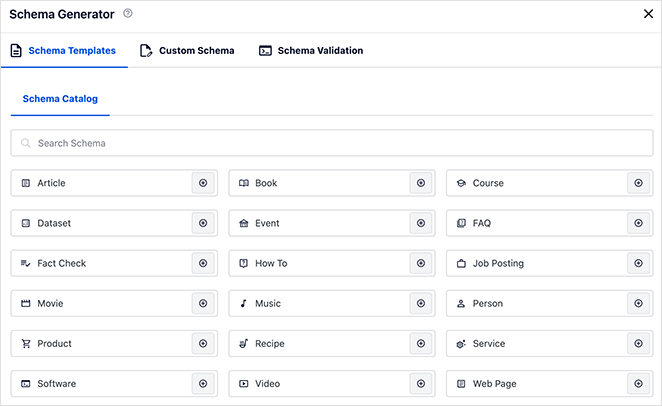
AIOSEO lets you select the appropriate schema type (article, recipe, product, etc.) and fill in the relevant details through a user-friendly interface.
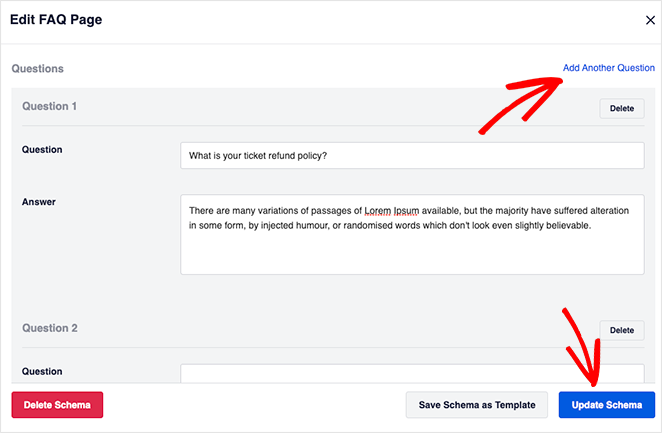
After saving, verify your schema using Google’s Rich Results Test. Other SEO plugins like Yoast SEO and Rank Math offer similar features.
Optimizing WordPress SEO for AI Search
Search is changing. More people now see answers in AI Overviews or chat-style results before they ever click a website. You need to optimize your WordPress content for AI systems that summarize and cite web pages, not just for traditional search.
- Chunk your content clearly: Use short paragraphs, lists, and headings so AI models can pull self-contained answers.
- Write answer-first: Start each section with a direct, simple answer, then expand. This matches how AI generates summaries.
- Use schema markup: Structured data (FAQ, HowTo, Product) helps AI engines understand and surface your content.
- Cover related questions: Add FAQs or H3s that match “People Also Ask” queries. These appear frequently in AI answers.
- Prioritize clarity: AI systems favor content that is concise, factually clear, and written in natural language.
By optimizing for AI search, you increase the chance of your WordPress site being cited inside AI-generated answers, not just linked in traditional results.
How to Track Your WordPress SEO Results
All your SEO work only matters if you can see whether it’s having an impact. These two free tools give you the data you need.
- Google Search Console: This shows you which keywords are bringing visitors to your site, how your pages rank, and whether search engines can index your content. Check it monthly for position trends and impressions.
- Google Analytics: Tracks traffic, sessions, and conversions. Use it to see which pages drive the most organic visits and whether SEO improvements are translating into real business outcomes.
The metrics that matter most for WordPress SEO: organic sessions (are more people finding you?), average position (are you ranking higher?), and click-through rate (are people choosing your result?). Check all three monthly. If position is improving but CTR is flat, your title and meta description need work.
Want to get started? See our guide on how to add Google Analytics to WordPress.
FAQs About WordPress SEO
Is WordPress still the best for SEO?
WordPress is genuinely strong for SEO. It gives you full control over titles, meta descriptions, URLs, schema markup, and page speed. The ecosystem of SEO plugins, especially AIOSEO, makes technical tasks beginner-friendly without requiring any coding knowledge.
In my experience running content on WordPress for 15+ years, no other platform gives you this level of control with this little effort. Other platforms make you rely on their defaults. WordPress lets you optimize every detail.
Can a beginner do WordPress SEO without hiring an expert?
Yes, most WordPress SEO is learnable and doable yourself. Start with an SEO plugin like AIOSEO, focus on keyword research, set clean URLs, and write genuinely helpful content.
Paid tools help, but free options cover the basics well. Google Search Console and Google Analytics are both free and give you everything you need to track progress and find opportunities. You don’t need to hire anyone to get started.
What is the best SEO plugin for WordPress?
AIOSEO (All in One SEO) is my recommendation. It handles sitemaps, schema markup, redirects, breadcrumbs, and on-page optimization all in one place, with a beginner-friendly interface that doesn’t require any technical knowledge.
AIOSEO also integrates directly with Google Search Console so you can see your keyword ranking data without leaving WordPress. Yoast SEO and Rank Math are solid alternatives, but AIOSEO is the one I use on this site.
Start Ranking Higher in Google Today
You published the posts and set up the site. Now you have the SEO fundamentals to get Google to notice it. Keyword research, clean structure, fast load times, schema markup, and consistent tracking: that’s what moves the needle.
If you’re building or redesigning your site, SeedProd makes the technical side easier. You get clean, fast code, a built-in mobile preview, and a drag-and-drop visual builder that doesn’t require a developer.
Get started with SeedProd and build a site that’s ready to rank from day one.
Thanks for reading! We’d love to hear your thoughts, so please feel free to join the conversation on YouTube, X and Facebook for more helpful advice and content to grow your business.



