

TL;DR: How I Sell Canva Templates on WordPress
You don’t need to be a designer or a developer. Here’s the full process in six steps.
- Create your template in Canva: Design it, then get the shareable template link (not a download).
- Wrap the link in a PDF: Create a simple PDF in Canva, paste the template link inside, and save it.
- Install Easy Digital Downloads: The free version is enough to get your digital product shop running on WordPress.
- Connect a payment gateway: Stripe and PayPal are included on the free plan.
- Upload the PDF as your product file: Buyers download the PDF, click the link inside, and get an editable copy in their own Canva account.
- Promote your template shop: Social media, SEO, and your email list are the fastest routes to your first sales.
I started selling Canva templates after getting the same client request over and over: “Can you make me something I can reuse?” Turns out, people are happy to pay for done-for-you designs, especially when they don’t have time to learn design tools.
Once a template is listed in your online store, it can keep selling for months without any extra work from you. That’s what passive income actually looks like in practice. In this guide, I’ll show you exactly how I sell Canva templates on WordPress to earn that kind of recurring income.
The setup took me one afternoon. I’ll walk you through every step.
Why Sell Canva Templates Instead of Using Etsy?
The first time a template I made sold three times in one week without me doing anything, I understood why this business model works. One design, sold repeatedly, to people who needed exactly what I’d already built.
Canva users constantly need new, quality designs. They want editable templates they can adapt without starting from scratch. That’s the gap you fill.
Etsy has built-in traffic, but it takes 6.5% plus listing and transaction fees on every sale. You also have limited control over your brand and no direct customer relationship. Your own WordPress template shop means you keep your full profit margin and own the customer email address from day one.
Here’s why Canva templates are worth selling from your own site:
- Low startup cost: A free Canva account is enough to start. Canva Pro ($15/month, or $120/year) adds efficiency but isn’t required. EDD’s free version handles sales. WordPress hosting is your main cost.
- Passive income stream: Once listed, your templates keep selling without extra work from you.
- Built-in demand: Canva users constantly need new, quality editable templates.
- Bundle potential: You can turn one idea into a bundle and sell it at a premium.
One more distinction worth knowing: Canva also has a Creator program where you can submit templates directly to Canva’s marketplace. The Creator program earns you royalties, but Canva controls the price. Selling on your own WordPress store means you set the price and collect the full amount. Neither path is wrong, but they’re different businesses.
What Types of Canva Templates Sell Best?
You can sell almost any type of digital design you can make in Canva. Start with what your audience needs most, then make it easy for them to reuse your designs.
Here are high-demand Canva template types:
- Instagram posts, stories, thumbnails
- Blog graphics like featured images and infographics
- Printables: planners, workbooks, flyers
- Resumes, menus, media kits
- Website wireframes, pitch decks, and more
Check marketplaces like Etsy and Creative Market to see which template styles are selling well before you commit to a category.
Before we dive into the steps, get started with a Canva account. We’ll then guide you through creating and selling your digital products in WordPress.
How to Create and Sell Canva Templates in WordPress
If you don’t already have one, you’ll need a WordPress website first. This involves choosing a web hosting provider, a domain name, installing WordPress, and customizing your website.
Don’t worry if this sounds overwhelming. You can follow our step-by-step guide on how to create a WordPress website, where we explain it all.
Once your website is ready, you can move on to the first step, creating templates to sell in your online store.
Step 1. Create Canva Templates to Sell
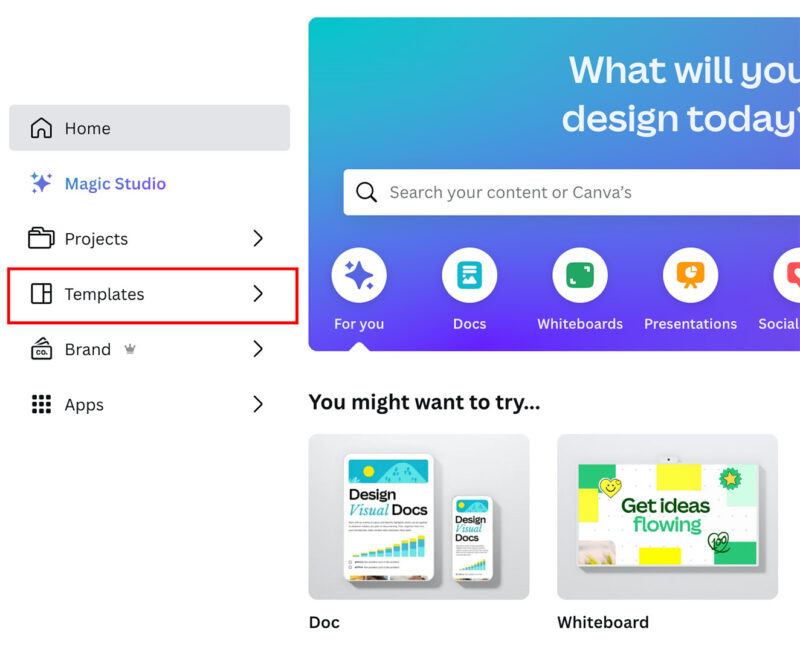
To get started, go to the Canva website and log into your account. Then, from the homepage, click the Templates tab on the left-hand sidebar.
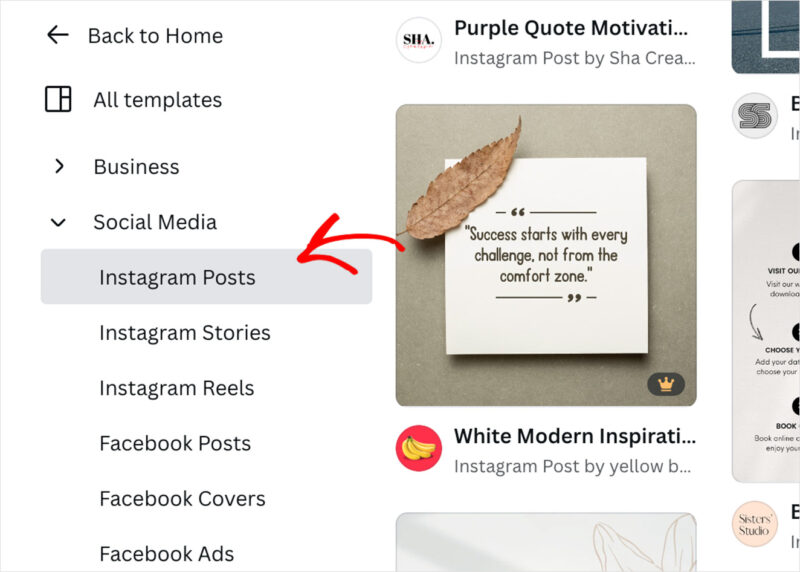
Now, you can look through the templates and find one that fits your initial idea. For this guide, we’ll use the Instagram post template, which you can find under All Templates » Social Media » Instagram Posts.
To choose a template, click it and select the Customize this template button in the popup that appears.

You’ll now see the Canva creator, which lets you customize the template any way you like with drag-and-drop.
On the left are various elements, including shapes, text, uploads, and AI features to generate text automatically.
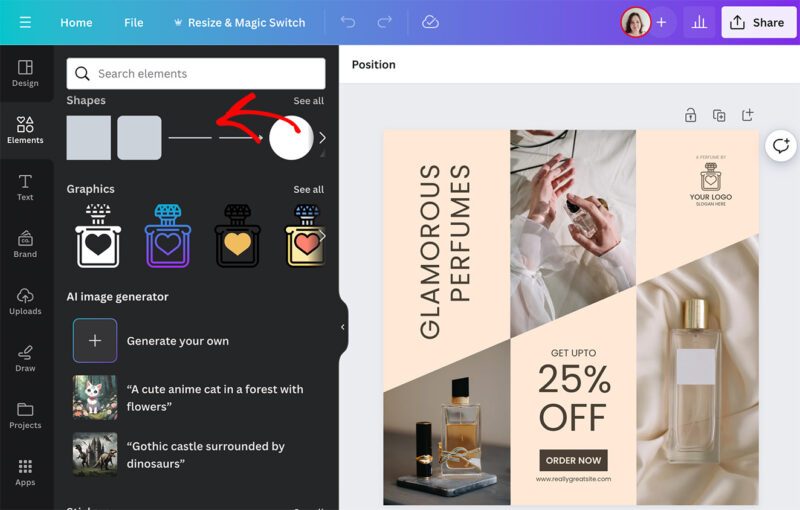
The editor is on the right, where you can click any part of your template to customize it.
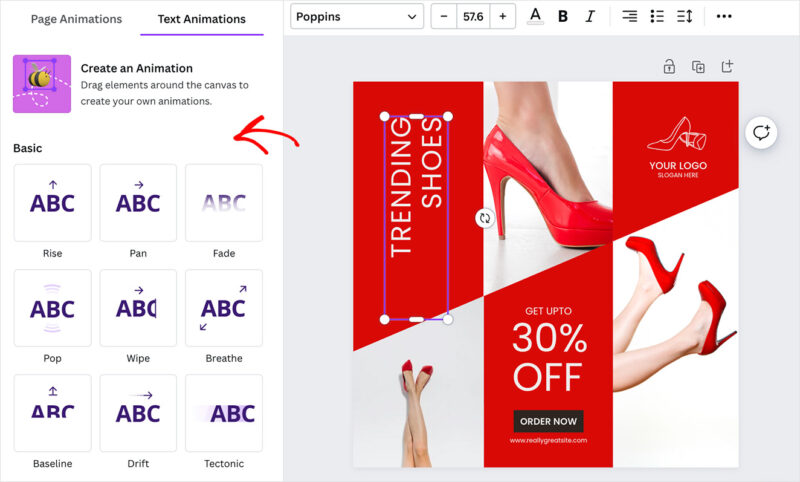
Some customizations involve changing colors and fonts and deleting and duplicating elements. You can even animate parts of your design to make it more eye-catching.
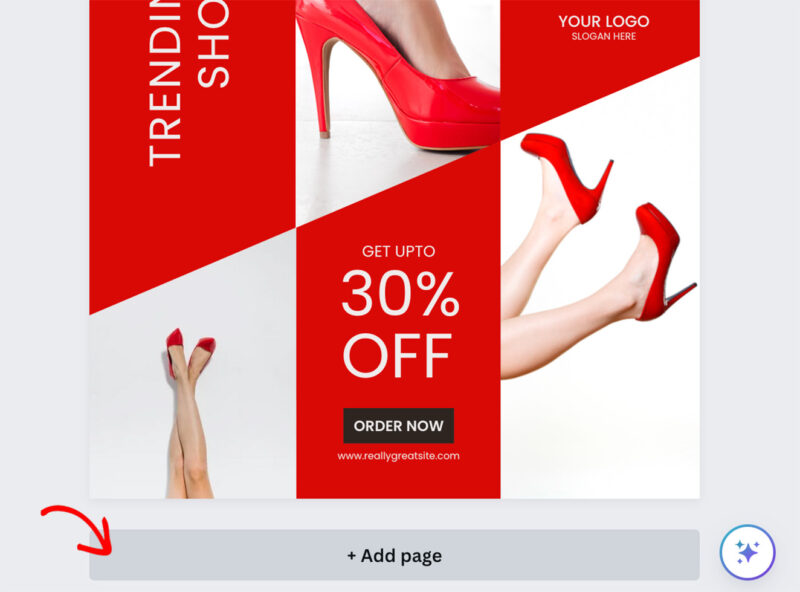
One neat thing about Canva is that you can easily add multiple pages. This allows you to create several templates at once and bundle them as a package to sell on your website.
For example, you could design a bundle of social media templates and sell them for a higher price than a single template.
To do this, click the + Add Page button beneath your design.
A quick note on Canva Pro elements: you can use Pro graphics and fonts in templates you sell, but your buyers will need their own Canva account to open the template link. If they’re on the free plan, they won’t see any Pro elements you used.
For the widest buyer accessibility, stick to free Canva elements wherever possible.
Canva Pro ($15/month, or $120/year) gives you access to a larger library of stock photos, videos, and premium fonts, which speeds up design work significantly. But the free plan is enough to create sellable templates.
Step 2. Install Easy Digital Downloads
You’re now ready to add your template to your online store so you can sell it. We recommend Easy Digital Downloads because it’s one of the easiest ways to sell digital products on a WordPress site.
You can use the free version of Easy Digital Downloads for this. However, the Pro version is excellent for extra features, such as more payment gateways, recommended products, and multi-currency add-ons.
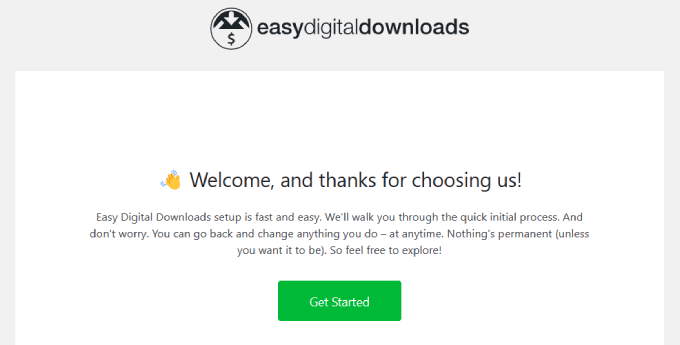
After installing and activating EDD’s eCommerce plugin, you’ll see a setup wizard that walks you through personalizing the plugin for your needs. All you need to do is go through each screen and fill in the information.
Step 3. Set Up Your Business Information
Once the setup wizard is complete, navigate to Downloads » Settings and select Store under the General tab. This is where you can set up your online business details, including its location.
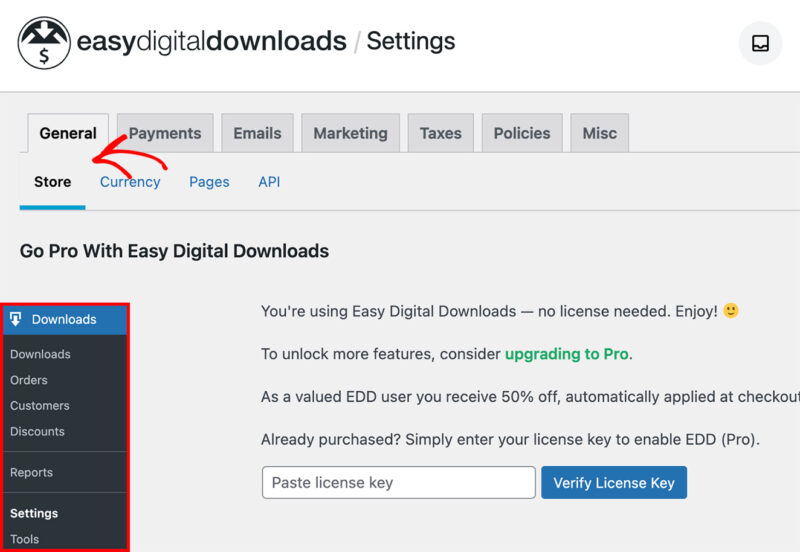
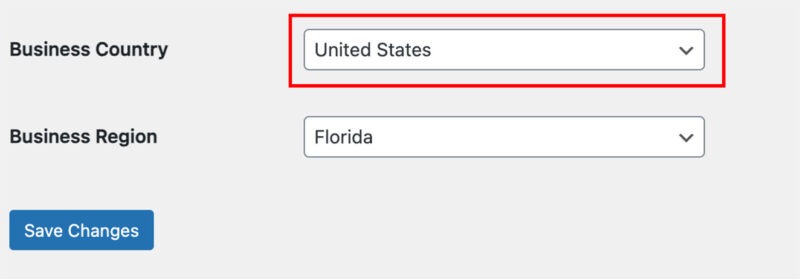
It’s important to fill this out, even if you’re not selling physical products. That’s because the plugin uses a customer’s country, state, and province to autofill their details during purchase to calculate sales tax.
Scroll to the bottom of the page and enter your business country and region before clicking Save Changes.
Step 4. Connect a Payment Gateway
Next, you need to set up a way to accept payments for your templates.
Go to the Payments tab and click the General option to do this. Here, tick the boxes beside each payment option you plan to accept.
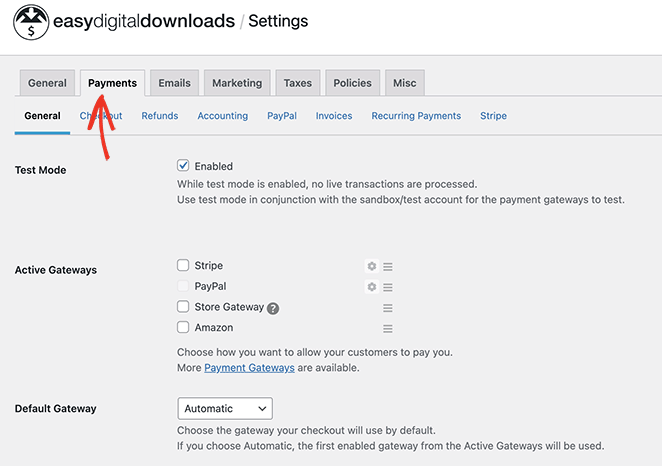
You can choose Stripe and PayPal out-of-the-box with the free version of EDD. This allows customers to use their credit cards to check out.
With EDD add-ons, however, you can connect other options, including Braintree and Authorize.net.
To configure your payment options, click the gear icon, then follow the steps to authorize and connect your account.
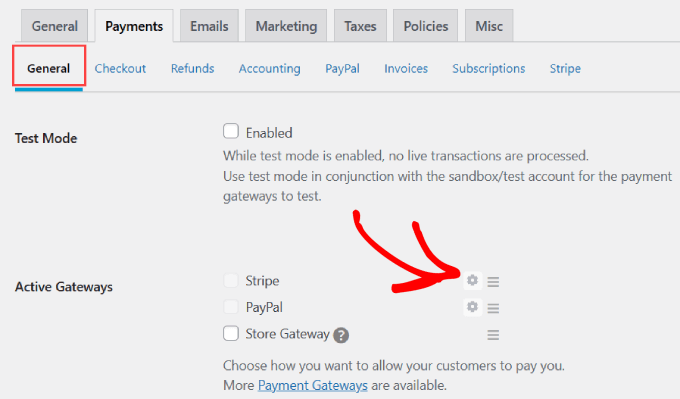
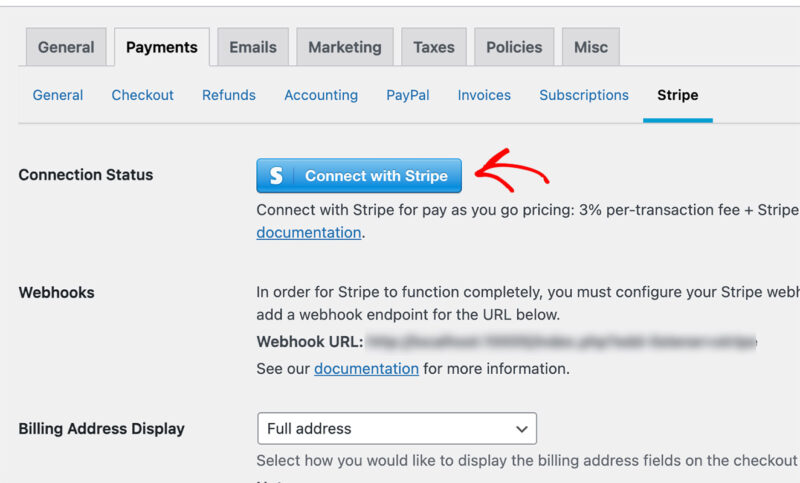
For example, with the Stripe option, you’ll have to click the Connect with Stripe button and log into your Stripe account.
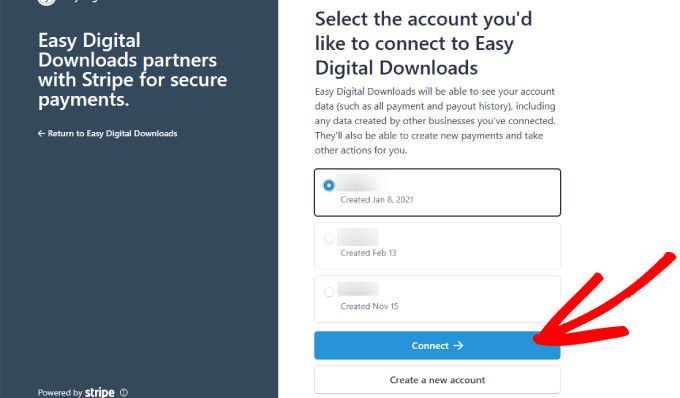
You’ll see the accounts connected to your email address in a list, so choose the Stripe account you want to link and click the Connect button.
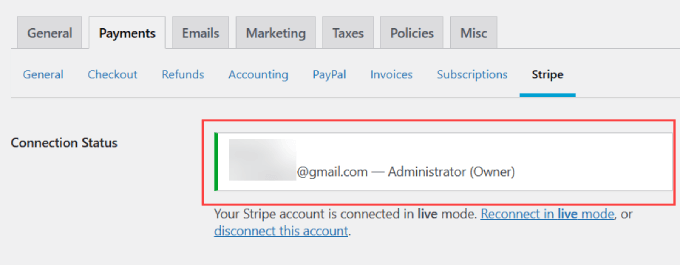
Once connected, you’ll return to your WordPress dashboard, where you should see a positive connection status.
Step 5. Add Your Canva Template as a Download
With the settings configured, you can upload your Canva template to WordPress. But first, you need to get the shareable template link from Canva, not download the file.
Here’s how to get the correct link. When you’ve finished designing your template in Canva, click the Share button in the top-right corner. Then click the three dots menu, select Template link, then click Create template link. Copy the URL that appears. This is the link your buyers will click to get an editable copy of your template added directly to their own Canva account.
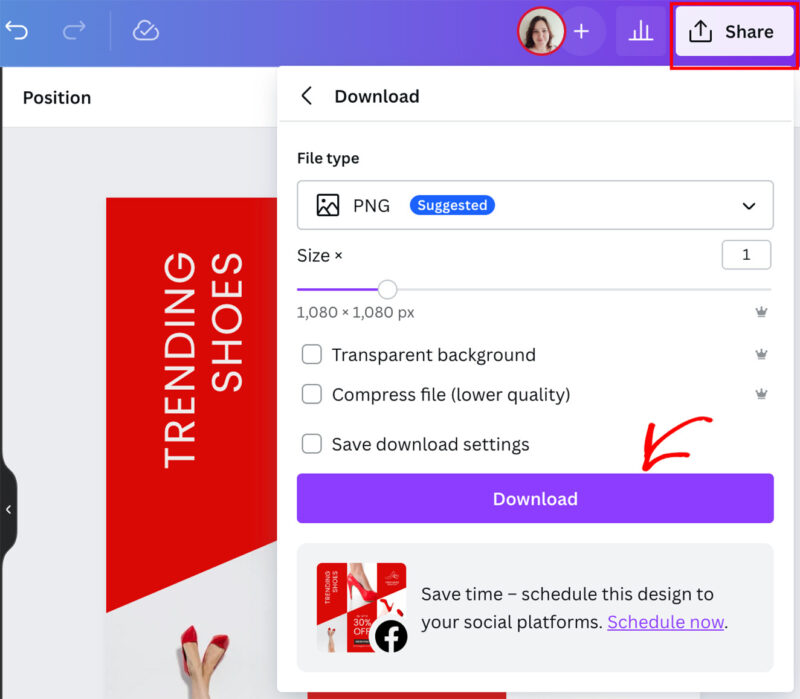
Now, create a simple PDF in Canva. This PDF is what buyers actually download from your store. Paste the template link inside it with a short instruction like “Click the link below to get your editable template in Canva.” Upload the finished PDF to your media library or directly to the EDD product.
When buyers complete checkout, EDD emails them a download link for the PDF. They click the Canva link inside, and a copy of your template is added to their Canva account. That’s the full delivery loop.
To add your product, navigate to Downloads » Downloads in your WordPress admin and click the Add New button.
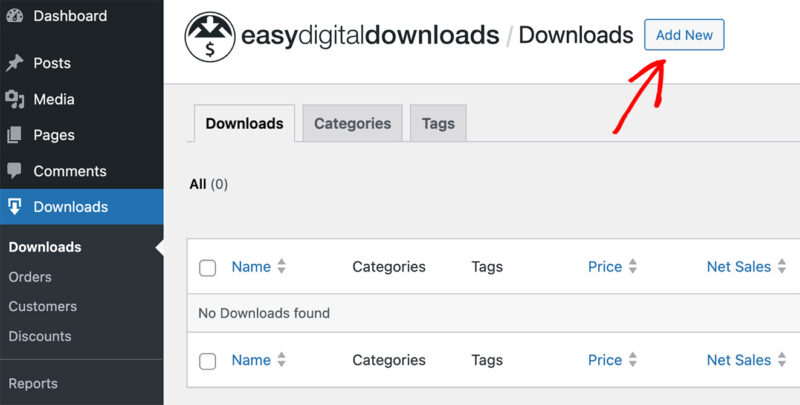
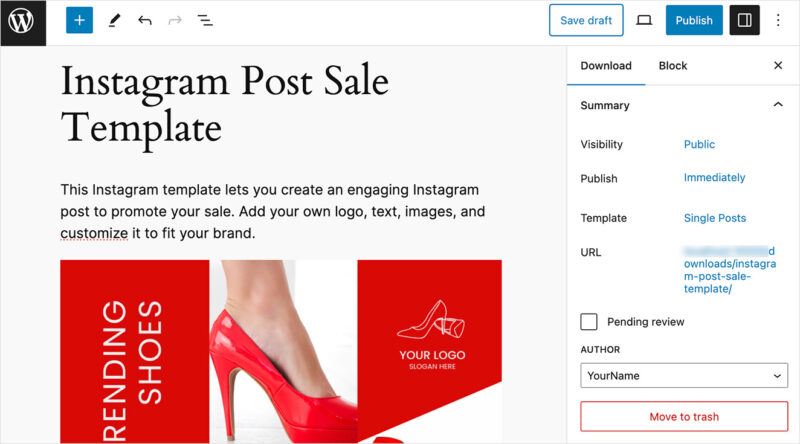
On the following screen, give your template a name, then write a description explaining what it includes, along with an image.
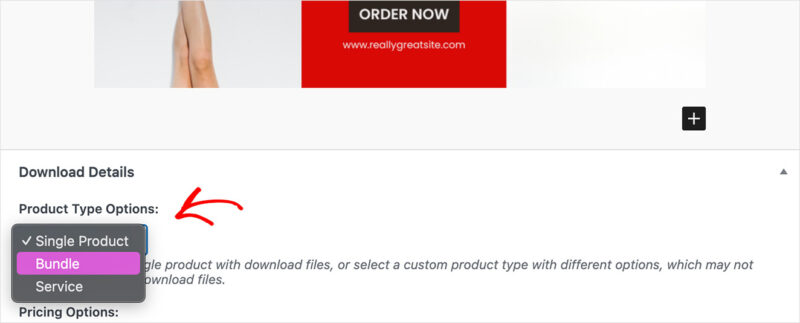
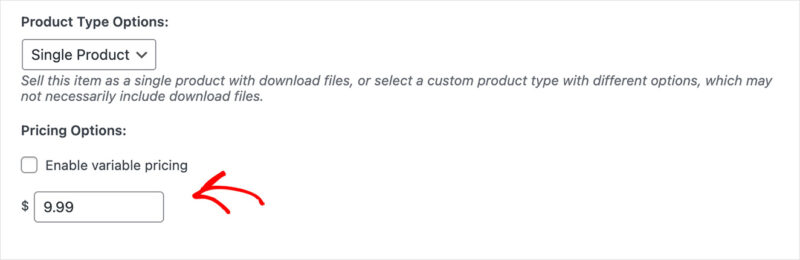
Next, scroll to the Download section and choose a product type from the dropdown menu, such as a single product, bundle, or service.
You can then enter a price for your template.
After setting the price, go to the Download Files section and click the link icon to upload your PDF file containing the Canva template link.
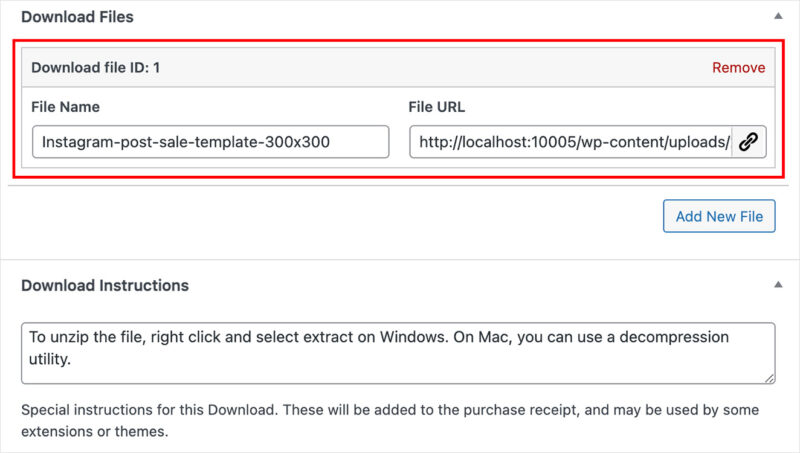
It’s also a good idea to enter any special instructions you may have for users, such as how to access the template link in the PDF. You can add this information in the Download Instructions box.
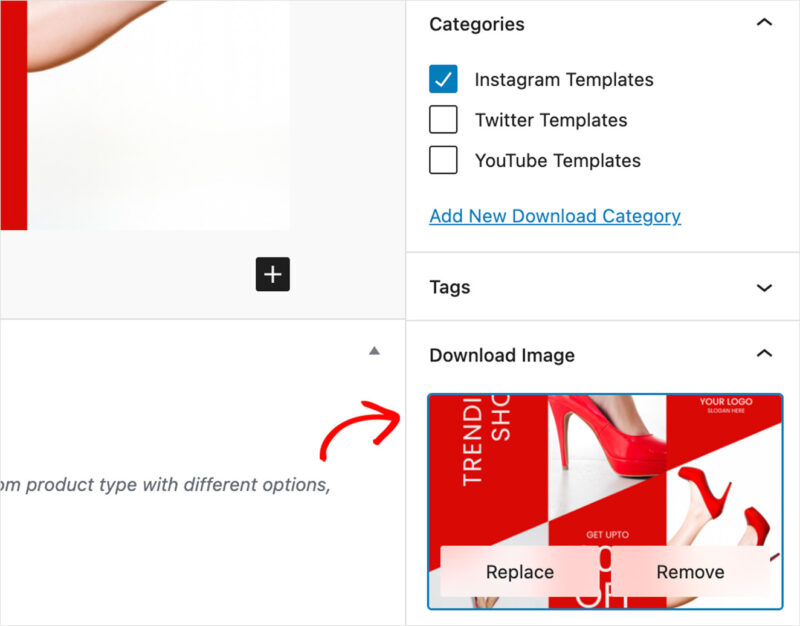
Now, let’s look at the right-hand panel. Here, you can set the download category and tags and add a featured image to encourage users to buy.
One thing buyers can’t do is preview your template before they purchase. A strong product image is what sells it. Create a mockup in Canva showing the template in context, for example an Instagram post on a phone screen, or a planner page laid flat. That image is often what closes the sale.
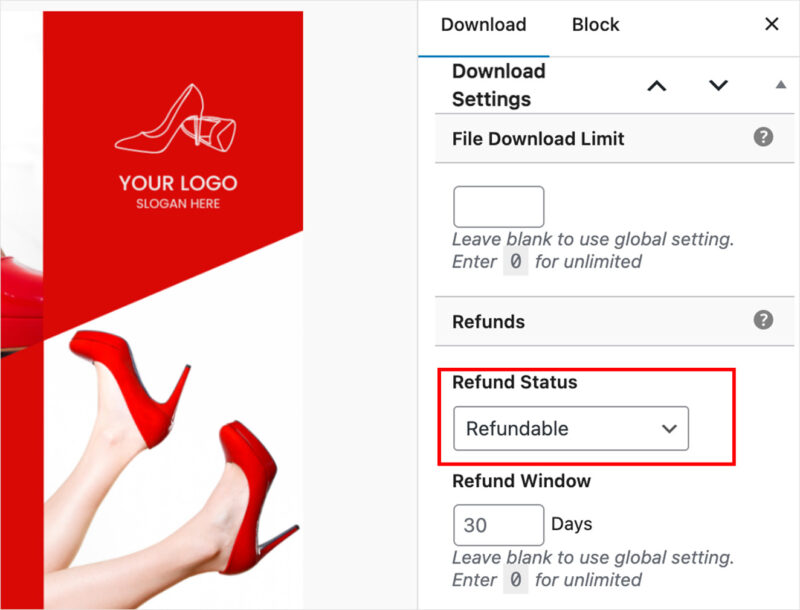
There’s also the option to limit the number of downloads and set the product’s refund status.
When you’re happy with your template listing details, you can preview it and click the Publish button.
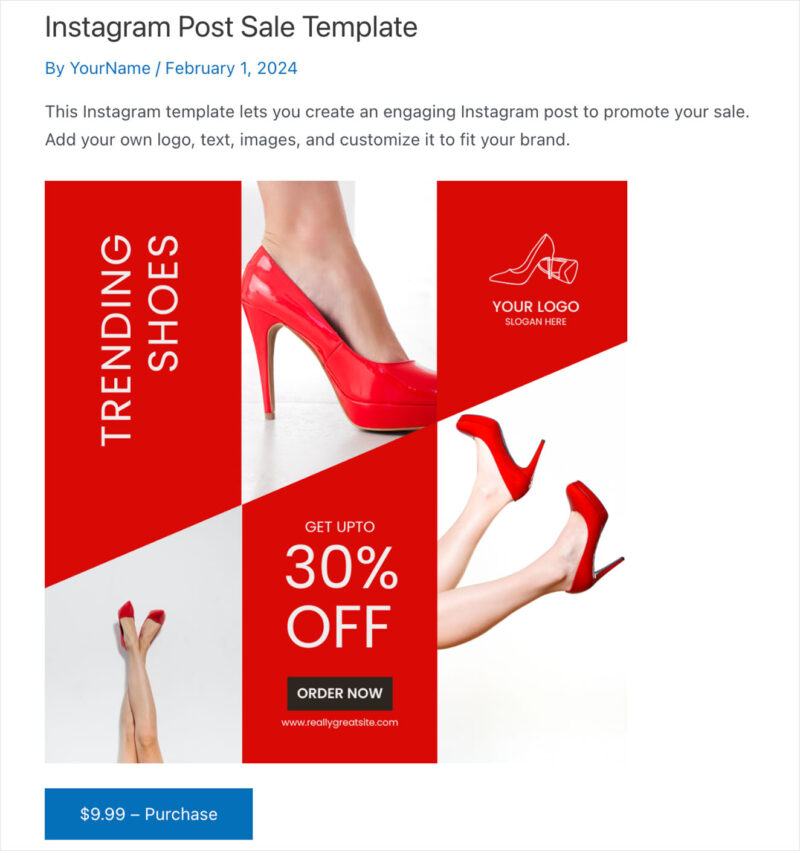
Here is an example of how our product page looks on our test website:
Test Your Download Works
Before you continue, it’s important to see if your download works as expected. This means reviewing your checkout process and ensuring customers can download your template.
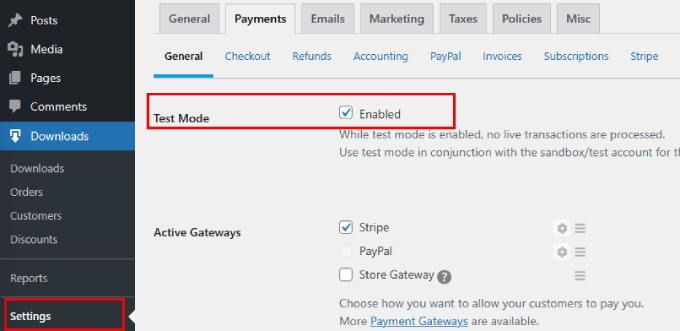
You can do this by enabling the Test Mode on the EDD Payments settings page.
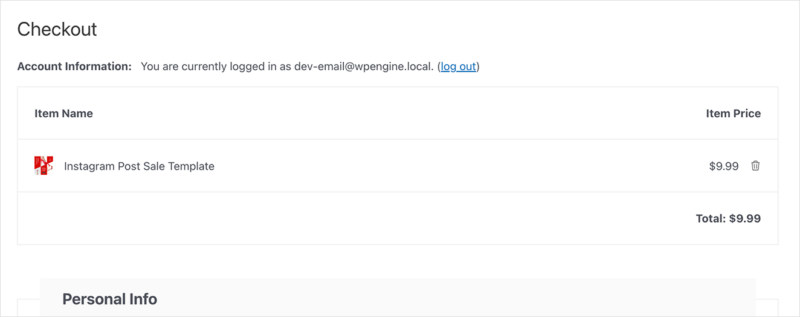
From there, add the product to your cart, enter your payment details (you won’t be charged), and complete the purchase.
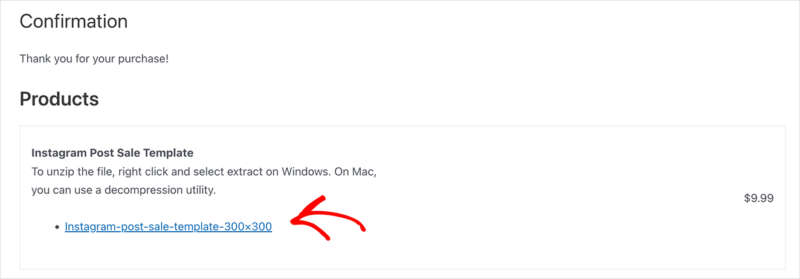
On the following screen, you should see details of the purchase along with a link to download the PDF containing your template link.
If everything works as expected, you can go ahead and turn off test mode.
Step 6. Customize the Product Page (Optional)
Depending on your WordPress theme, your default EDD product page can look plain. If you want a more polished template shop without writing code, SeedProd is a drag-and-drop website builder that integrates directly with Easy Digital Downloads. You can add product images, EDD buy buttons, and custom layouts.
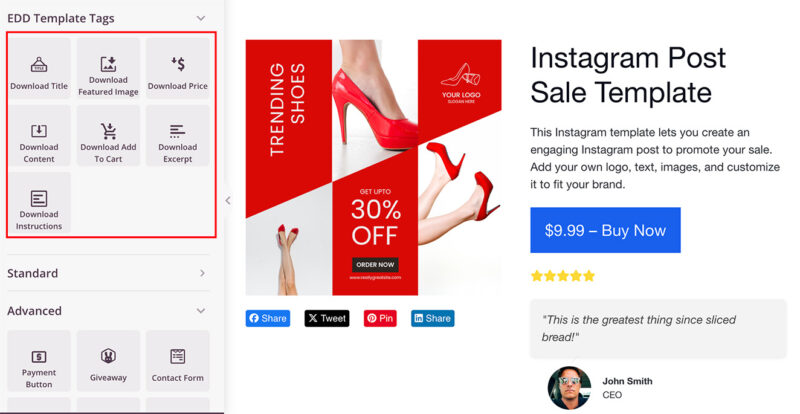
For all the steps, see our guide on how to sell digital downloads in WordPress.
Step 7. Promote Your Canva Templates
How Much Should You Charge?
Before you start promoting, you need a price. Single Canva templates typically sell for around $5-$25, while bundles of 5-10 templates can go for $20-$50 or more. These are approximate ranges based on what I see on Etsy and Creative Market, not guarantees.
Check competitor listings in your niche before you set your price. If you’re using EDD’s variable pricing feature, you can also offer individual templates from a bundle at a lower price point alongside the full bundle.
How to Get Traffic to Your Template Shop
Creating and listing your Canva templates on WordPress is only half the job. The other half is getting people to your store.
- Post on social media: Share examples on Pinterest, Instagram, and Facebook groups.
- Build an email list: Send new product announcements and bundle deals to subscribers.
- Improve SEO: Use keywords like “Instagram templates for realtors” or “fitness planner Canva template.”
- Run bundle promotions: Offer limited-time discounts or upsell packs.

The more people see your templates in use, the more sales you’ll get, so encourage buyers to tag you when they use them.
Frequently Asked Questions
Is it legal to sell Canva templates?
Yes, selling Canva templates is legal as long as you follow Canva’s Content License Agreement. You can sell templates you create, but you can’t resell Canva’s own stock assets on their own. When buyers use your template link, they get an editable copy in their own Canva account. Canva Pro elements in your design will only be visible to buyers with their own Pro subscription, so using free elements keeps your templates accessible to everyone.
How much can you realistically make selling Canva templates?
There’s no honest single number here, because it depends entirely on your niche, your promotion effort, and how many templates you list. I’ve seen single templates sell repeatedly over months with no ongoing work after the initial setup. Some sellers report a few hundred dollars a month from a small shop; others build it into a significant passive income stream over time. The realistic expectation for most beginners is slow growth that compounds as you add more templates and build an audience.
Do buyers need a paid Canva account to use your templates?
No. Buyers only need a free Canva account to open a template link and start editing. However, if your template uses Pro elements like premium stock photos, fonts, or graphics, those specific elements won’t be available to buyers on the free plan. To avoid this problem, design your templates using only free Canva elements, or clearly note any Pro element requirements in your product description.
Can I sell Canva templates on Etsy and WordPress at the same time?
Yes, you can sell the same templates on multiple platforms simultaneously. Etsy gives you access to built-in traffic and existing buyers searching for digital products, while your WordPress store lets you keep the full sale price and build a direct customer relationship. Many sellers start on Etsy for discovery, then migrate repeat buyers to their own store over time. Running both together is a common strategy, not a conflict.
What’s the difference between selling a Canva template link vs. downloading the file?
A shareable template link gives buyers an editable copy in their own Canva account. They can modify colors, fonts, text, and images directly in Canva. Downloading a file (PNG, PDF, JPG) gives buyers a static image they can’t edit in Canva. If you want to sell truly editable Canva templates, the shareable template link is the only correct delivery method. That link is what goes inside the PDF your buyers download from your store.
Get Started Selling Canva Templates
We hope this guide has helped you learn how to sell Canva templates on WordPress.
For more tricks to grow your business, please see our recommended tutorials:
- How to Sell Videos Online in WordPress
- How to Sell Workout Programs Online
- Best Web Analytics Tools for Your Website
Thanks for reading! We’d love to hear your thoughts, so please feel free to join the conversation on YouTube, X and Facebook for more helpful advice and content to grow your business.



