

TL;DR: 9 Best WordPress Backup Plugins for 2026.
Not all WordPress backup plugins are equal. Some back up fine but fail on restore. Here’s what actually works based on real testing and daily use.
- Duplicator: Best overall for scheduled backups, site migration, and cloud storage. I use it on our own sites.
- UpdraftPlus: Best free option with over 3 million active installs and solid cloud storage support.
- Jetpack VaultPress Backup: Best for WooCommerce with real-time backups and order data protection.
- Solid Backups: Best all-in-one cloud backup with staging and off-site storage.
- BlogVault: Best for large sites and agencies managing multiple WordPress installs.
- BackWPup: Best no-frills free option if you just need basic automated backups.
You’ve spent months building your WordPress site. Then a plugin update goes wrong, your hosting server crashes, or malware takes hold, and everything is gone.
I’ve seen this happen to site owners who were certain their host was handling backups. It wasn’t.
A dedicated WordPress backup plugin is the only reliable safety net. In this article, I’ll walk you through the 9 best options for 2026 so you can pick one and set it up today.
| Plugin | Best For | Free Plan | Starting Price |
|---|---|---|---|
| Duplicator | Site migration and scheduled backups | Yes | $49.99/yr |
| UpdraftPlus | Best free WordPress backup plugin | Yes | $70/yr |
| Jetpack VaultPress Backup | WooCommerce real-time backups | No | $4.77/mo |
| Solid Backups | All-in-one cloud backup solution | No | $99/yr |
| BlogVault | Large sites and agency backup management | No (7-day trial) | $49.50/yr |
| BoldGrid Backup | Budget-friendly automated backups | Yes (limited) | $2.50/mo |
| BackWPup | No-frills free backup option | Yes | $69/yr |
| Backup Migration | Free option for sites under 2GB | Yes | $19.98/6 mo |
| WPvivid | Free backup and site migration | Yes | $32.90/yr |
How I Chose These WordPress Backup Plugins
I use Duplicator Pro on SeedProd for scheduled automated backups, so I know what reliable backup software looks like in practice. For the rest of these plugins, I evaluated each one based on criteria that matter when something actually goes wrong.
- Restore reliability: A backup plugin that can’t restore your site is useless. I looked at each plugin’s restore process and checked user reports of restore failures.
- Backup completeness: Does it back up files and the database? Can you restore individual components or only full-site restores?
- Storage flexibility: Can you send backups off-site to Google Drive, Dropbox, or Amazon S3? Local-only storage is a single point of failure.
- Scheduling and automation: Manual backups get forgotten. I prioritized plugins with reliable automated scheduling so backups happen without thinking about them.
- Ease of use for beginners: The best backup plugin is the one you’ll actually configure and use. I weighted plugins that don’t require technical knowledge to set up.
Why You Need a WordPress Backup Plugin
You need a WordPress backup plugin to restore your site quickly if it crashes, you lock yourself out, or malware takes hold. Without a backup, you could lose months of content and face days of downtime, the kind that tanks search rankings and sends customers to a competitor.
Many site owners rely on their hosting provider for backups. Most hosts limit backup frequency or lock restores behind paid upgrades. Take responsibility for your own backups with a dedicated plugin.
Backup Plugin Features to Consider
A reliable backup plugin should make it easy to back up and restore your website. Here’s what to look for when choosing one:
- Full website backup: Choose a plugin that backs up both your database and WordPress files, not just one or the other.
- Scheduled automated backups: Manual backups get skipped. Look for reliable scheduling so your backups run automatically on a set timetable.
- Incremental backup support: An incremental backup plugin copies only what changed since the last backup, reducing server load and keeping your site fast.
- Off-site cloud backup storage: Local-only backups are a single point of failure. Look for plugins that send backups to Google Drive, Dropbox, or Amazon S3 as off-site backup storage.
- Real-time backups for WooCommerce: If you run an online store, you need real-time backups so order and customer data is captured the moment it’s created, not just overnight.
Best WordPress Backup Plugins
If you don’t have a backup plugin running right now, every day you wait is a day you’re unprotected. Here are the 9 best WordPress backup plugins tested and compared for 2026.
- 1. Duplicator: Best for Site Migration and Scheduled Backups
- 2. UpdraftPlus: Best Free WordPress Backup Plugin
- 3. Jetpack VaultPress Backup: Best for WooCommerce Real-Time Backups
- 4. Solid Backups: Best All-in-One Cloud Backup Solution
- 5. BlogVault: Best for Large Sites and Agency Backup Management
- 6. BoldGrid Backup: Best Budget-Friendly Automated Backup Plugin
- 7. BackWPup: Best No-Frills Free Backup Option
- 8. Backup Migration: Best Free Option for Sites Under 2GB
- 9. WPvivid: Best Free Backup and Site Migration Plugin
- FAQs About WordPress Backup Plugins
1. Duplicator: Best for Site Migration and Scheduled Backups
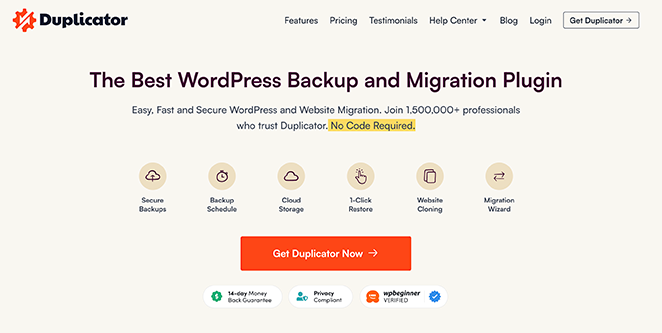
Duplicator is the best WordPress backup plugin. I use it on SeedProd for scheduled backups, so I can tell you the setup takes less than 10 minutes and the restore process is straightforward even when things go wrong.
It backs up your WordPress files as a .zip you can download locally or send to Dropbox, Google Drive, OneDrive, and other cloud storage destinations. You can also use Duplicator to migrate your site across servers, cloning pre-configured setups with your plugins and themes already in place.
If you’re building your WordPress site with SeedProd, Duplicator makes it easy to back up your entire theme and page layouts so you can restore them exactly as they were.
Key Features:
- Scheduled and on-demand automated backups
- WordPress site migration and cloning
- Cloud backup storage to Dropbox, Google Drive, OneDrive, and more
- Selective backup limits
- Email notifications
- Include or exclude specific files
| Pros | Cons |
|---|---|
| Handles both backups and site migration in one plugin | Free version limits backup storage to local only |
| Simple restore process even for beginners | Cloud storage requires a paid plan |
| Reliable scheduled backup automation |
Verdict: Duplicator is the right choice if you want scheduled automated backups, cloud backup WordPress storage, and the ability to migrate your site without extra tools. It’s what I use on our own sites and what I’d recommend first to anyone starting out.
Pricing: Duplicator has a free version. Premium plans start from $49.99 per year.
2. UpdraftPlus: Best Free WordPress Backup Plugin
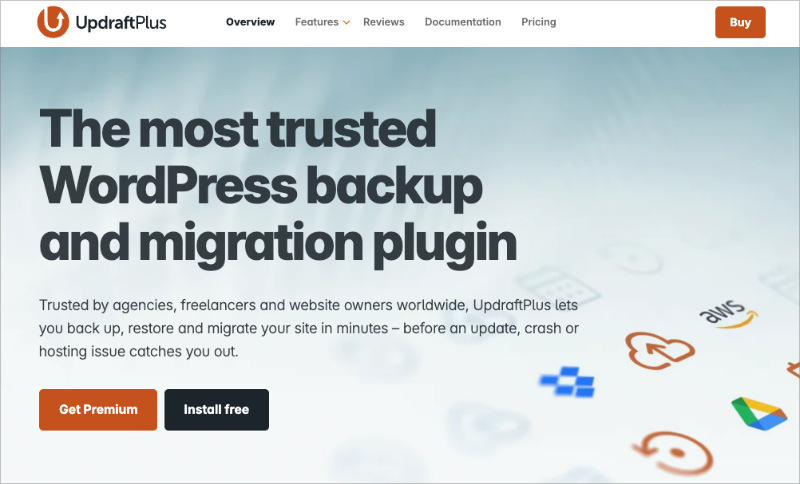
UpdraftPlus is the most popular free WordPress backup plugin, with over 3 million active installs. That install count matters because it means the plugin gets consistent testing, fast bug fixes, and a large community of users who will surface issues quickly.
The free version lets you store backups to Google Drive, Dropbox, Rackspace, S3, SFTP, FTP, and email. You can schedule automated backups and restore directly from your WordPress dashboard.
The premium version adds site migration, multisite support, search and replace for database tables, and priority customer support.
Key Features:
- Scheduled and on-demand incremental backups
- Multiple remote cloud storage destinations
- Restore backups directly from WordPress admin
- WordPress multisite support (premium)
- Cloning and site migration (premium)
| Pros | Cons |
|---|---|
| Free version covers most backup needs for small sites | Restore interface can be confusing for first-time users |
| Widest cloud storage destination support of any free plugin | Migration and multisite features require premium |
| Large community means well-tested and actively maintained |
Bottom line: UpdraftPlus is the best free WordPress backup plugin if you need reliable automated backups and off-site cloud backup storage without paying anything. The free tier covers more than most paid plugins did five years ago.
Pricing: The free core version is available on WordPress.org. Premium plans start from $70 per year.
3. Jetpack VaultPress Backup: Best for WooCommerce Real-Time Backups

Jetpack VaultPress Backup is a backup plugin from Automattic, the company behind WordPress.com, led by WordPress co-founder Matt Mullenweg. It was originally called VaultPress and has been rebuilt as a standalone backup product.
The plugin runs automatic daily and real-time backups without touching your website speed. A mobile app lets you restore from anywhere.
For WooCommerce store owners, this is one of the strongest options available. It backs up orders, products, and customer data in real time so you never lose a transaction even if your server fails mid-purchase.
Key Features:
- Automatic real-time and daily backups
- Mobile app for remote restores
- Unlimited backup archive storage
- WooCommerce order and customer data protection
- One-click restore from any backup point
| Pros | Cons |
|---|---|
| Real-time backups capture every change as it happens | No free plan available |
| Best WooCommerce backup support of any plugin on this list | Requires a Jetpack-connected account |
| Mobile restore is genuinely useful in emergencies | Pricier than alternatives for similar features |
Verdict: If you run a WooCommerce store and losing even one order overnight is unacceptable, Jetpack VaultPress Backup is worth the cost. For content-only sites without transactions, UpdraftPlus covers the same ground for free.
Pricing: Plans start from $4.77 per month, billed annually, with a 14-day money-back guarantee.
You might also like to read this showcase of the best Jetpack alternatives.
4. Solid Backups: Best All-in-One Cloud Backup Solution
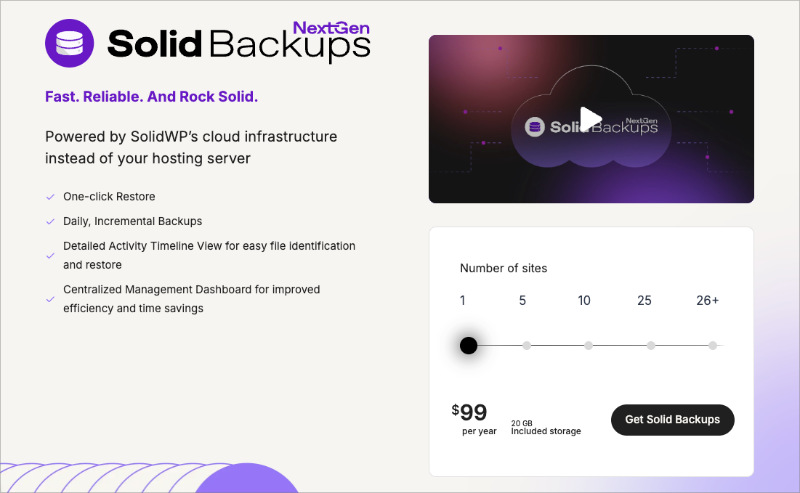
Solid Backups (formerly BackupBuddy, now under SolidWP) has been a trusted WordPress backup plugin since 2010. It backs up your entire site from the WordPress dashboard and sends those backups to a secure remote location.
With a few clicks you can schedule automatic backups, restore files quickly, and optimize your database to keep things running cleanly after a restore. Every plan includes 1GB of Stash cloud storage so you can start backing up immediately without setting up a third-party storage account.
Key Features:
- Full file and database backups
- Automatic scheduled backups
- Customize backup content
- One-click restore
- Off-site secure backup storage (includes 1GB Stash)
- Real-time backups
- Cloning and staging
| Pros | Cons |
|---|---|
| Includes cloud storage with every plan so you’re immediately protected | No free version available |
| Cloning and staging built in for safe testing | Pricier than most alternatives at $99/yr |
| Around since 2010 with a strong track record |
Verdict: Solid Backups is a good fit if you want an established plugin with built-in cloud storage and staging tools. The price is higher than most alternatives, but the all-in-one setup means you won’t need additional storage services.
Pricing: Plans start from $99 per year. No free version available.
5. BlogVault: Best for Large Sites and Agency Backup Management
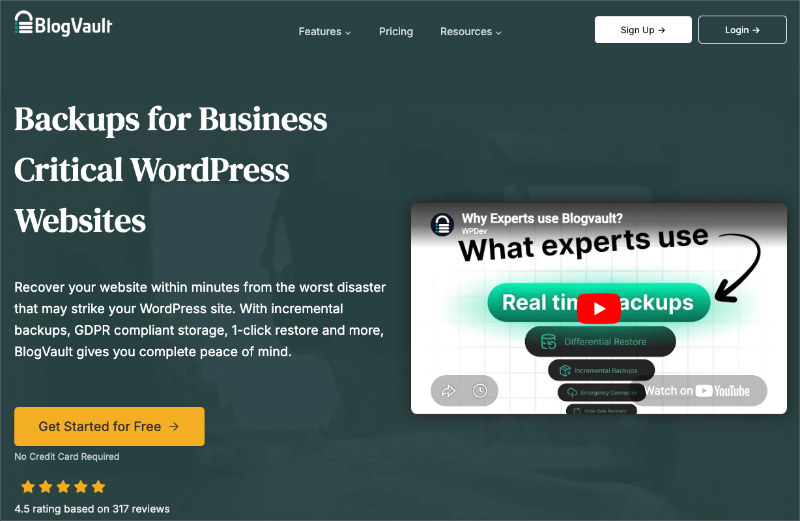
BlogVault is a Software as a Service (SaaS) backup solution rather than a traditional WordPress plugin. After connecting your site, you manage backups through an external dashboard that works across multiple websites from one place.
It uses incremental backups to protect site performance and stores files off-site with encryption. You can view uptime, schedule backups, and restore with a single click.
BlogVault also handles WooCommerce with a 365-day backup archive so you can roll back to any point in the past year.
Key Features:
- Automatic and scheduled backups
- Website uptime monitoring
- Free staging with one-click merging
- Centralized multi-site dashboard
- WordPress multisite backup support
- WooCommerce backup with 365-day backup archive
| Pros | Cons |
|---|---|
| Multi-site dashboard is ideal for agencies managing many clients | No permanent free plan, only a 7-day trial |
| 365-day backup history is longer than most competitors | SaaS model means backups depend on BlogVault’s service staying online |
| Incremental backups keep site performance intact |
Verdict: BlogVault is the strongest choice for agencies or developers managing multiple client sites. For a single personal site, the monthly cost is harder to justify when free options cover the basics.
Pricing: Plans start from $49.50 per year with a 7-day free trial.
6. BoldGrid Backup: Best Budget-Friendly Automated Backup Plugin
BoldGrid Backup is a premium WordPress plugin that handles automated site backups and lets you roll back failed updates with a few clicks. It’s one of the more affordable paid options on this list.
You can set a predefined backup schedule, create on-demand backups, and push files to Google Drive, Amazon S3, FTP, or SFTP. It also monitors your site for potential errors and emails you before problems escalate.
Key Features:
- Customizable backup schedule
- Restore individual files or the full site
- Secure remote cloud backup storage
- Automatic update rollback
- Site migration support
- Database encryption
| Pros | Cons |
|---|---|
| One of the cheapest paid backup options at $2.50/mo | Fewer active installs than larger competitors |
| Update rollback feature protects against bad plugin updates | Free version has limited features |
Bottom line: BoldGrid Backup is a good choice if you want a budget-friendly paid plugin with update rollback protection. It’s not the most widely tested option, but the feature set covers the essentials well.
Pricing: BoldGrid Backup starts from $2.50 per month, billed annually.
7. BackWPup: Best No-Frills Free Backup Option
BackWPup is a free WordPress backup plugin with no-frills functionality and a straightforward setup. From what I’ve seen, it works well for site owners who want basic automated backups without extra overhead.
The free version handles scheduled backups and saves them to multiple destinations per job. The premium version adds encryption, Google Drive storage, Amazon Glacier support, and a one-click restore app for emergencies.
Key Features:
- Back up to multiple locations per job
- Remote storage destinations (Amazon S3, Dropbox, FTP)
- Emergency restore app (premium)
- Customizable backup file path
| Pros | Cons |
|---|---|
| Free version is genuinely functional for basic needs | Restore requires downloading files manually in the free version |
| Can send backups to multiple destinations at once | Interface feels dated compared to newer alternatives |
Verdict: BackWPup is a solid free choice if your main need is scheduled off-site backup storage and you don’t mind a slightly older interface. If you ever need a one-click restore, the premium plan is worth the upgrade.
Pricing: BackWPup is free. Premium plans start from $69 per year.
8. Backup Migration: Best Free Option for Sites Under 2GB

Backup Migration is a straightforward free backup plugin for WordPress that gets you protected quickly. It includes both automatic and manual backups and lets you schedule daily or monthly runs.
The premium version unlocks custom file and database selection, custom backup locations, and file naming controls. It also supports site migration for moving your WordPress install to a new host.
Key Features:
- Schedule regular automated backups
- Control what to include in your backup
- Store backups locally
- Easy backup and restore
- Site migration support
| Pros | Cons |
|---|---|
| Free for sites up to 2GB with no feature restrictions at that tier | 2GB limit makes it unsuitable for media-heavy or larger sites |
| Quick to configure and start backing up | Local storage only in the free version |
Verdict: Backup Migration is worth trying if your site is small and you want something free that works without configuration overhead. Once your site grows past 2GB, you’ll need to upgrade or switch to UpdraftPlus.
Pricing: Free for backups up to 2GB. Premium plans start from $19.98 for 6 months.
9. WPvivid: Best Free Backup and Site Migration Plugin

WPvivid is a free backup, staging, and WordPress site migration plugin. It lets you send backup files to remote cloud storage destinations and use those backups to migrate your site to a new host.
A standout feature is the ability to clean up images before backing them up, which reduces file sizes and speeds up the backup and restore process. You can also use WPvivid on multisite networks to migrate a child site to a standalone WordPress installation.
Key Features:
- Backup customization with include/exclude file control
- Encrypted backups
- ‘Push to live’ staging sites
- White labeling support
- Multisite child site migration
| Pros | Cons |
|---|---|
| Free version includes both backup and migration features | Smaller community than UpdraftPlus means slower issue discovery |
| Image cleanup before backup reduces file size and restore time | Staging features require premium |
Verdict: WPvivid is the best free option if you need both backup and site migration support in one plugin. For pure backup automation without the migration features, UpdraftPlus has a larger community and more active maintenance.
Pricing: WPvivid is free. Pro plans start from $32.90 per year, or a one-time fee starting at $79.20.
Which WordPress Backup Plugin Is Best?
The best WordPress backup plugin overall is Duplicator. It covers scheduled automated backups, cloud backup WordPress storage, and site migration in one tool. I use it on our own sites and the restore process has never let me down.
If you need a free option, UpdraftPlus is the most reliable choice with the widest cloud storage support. For WooCommerce stores where real-time order data matters, Jetpack VaultPress Backup is the one to use.
FAQs About WordPress Backup Plugins
How often should I back up my WordPress site?
For most sites, daily automated backups are the right baseline. If you publish content or make site changes frequently, set your backup plugin to run daily so you never lose more than 24 hours of work. WooCommerce stores should use real-time backups to capture every order as it happens. Static or rarely-updated sites can run weekly backups safely, but daily is the better default if your plugin supports it.
Are free WordPress backup plugins safe and reliable?
Yes, but with conditions. A free backup plugin is safe and reliable if it has a large active install base (100,000+), receives regular updates, and has active support. UpdraftPlus and Duplicator’s free versions meet all three criteria and handle real restores reliably. The risk with smaller or unmaintained free plugins is not the backup itself but the restore, which many plugins do well until they’re actually needed. Check when the plugin was last updated before installing anything.
What’s the best WordPress backup plugin for WooCommerce?
Jetpack VaultPress Backup is the best WordPress backup plugin for WooCommerce because it runs real-time backups that capture order and customer data the moment a transaction completes. BlogVault is a strong second choice, with a 365-day backup archive and incremental backups that don’t slow your store down. Both protect transactional data specifically, which standard daily backup plugins can miss if an order comes in between scheduled runs.
Can I restore my WordPress site if it’s completely down?
Yes, as long as your backups are stored off-site. If your backup files are only on the same server that crashed, you won’t be able to access them. Plugins like Duplicator, UpdraftPlus, and Jetpack VaultPress Backup store copies in Google Drive, Dropbox, or their own cloud storage so you can restore even when your hosting account is inaccessible. Always verify your off-site backup destination is connected and receiving files, not just that the plugin is installed.
What’s the difference between a full backup and an incremental backup?
A full backup copies your entire site every time it runs, which is thorough but uses more server resources and storage. An incremental backup plugin only copies what changed since the last backup, so backups are faster and lighter on your server. For most sites, incremental backups are the better choice because they run more frequently without slowing things down. Full backups are useful for major milestones like before a major update or site migration.
We hope this article helped you compare and find the best WordPress backup plugin to fit your needs. You might also like this guide on how to backup a WordPress site for step-by-step setup instructions.
Thanks for reading! We’d love to hear your thoughts, so please feel free to join the conversation on YouTube, X and Facebook for more helpful advice and content to grow your business.



