

Resumindo: Como Adicionar uma Barra Lateral no WordPress
- SeedProd Theme Builder: Crie uma barra lateral totalmente personalizada com arrastar e soltar e atribua-a a qualquer página ou postagem.
- Personalizador do WordPress: Use as configurações do seu tema clássico para definir o layout da barra lateral e adicionar widgets.
- Tela de Widgets: Vá para Aparência → Widgets para adicionar blocos diretamente à sua área de barra lateral.
- Editor de Site de Tema de Blocos: Use Aparência → Editor para adicionar um bloco de Colunas ao seu modelo para um efeito de barra lateral.
Nos meus primeiros sites, eu lutava para encaixar menus e formulários no layout até descobrir o que uma barra lateral poderia fazer. Aprender como adicionar uma barra lateral no WordPress acabou sendo uma das melhores mudanças que fiz para manter os visitantes engajados.
É o local onde você pode manter os leitores engajados com links de navegação, posts recentes ou até mesmo um formulário de newsletter. Neste guia, mostrarei como adicionar uma barra lateral no WordPress passo a passo usando 4 métodos nos quais confio para todos os meus projetos.
Você pode adicionar uma barra lateral no WordPress em alguns cliques usando o construtor visual do SeedProd, o Aparência → Personalizador para temas clássicos, ou o Aparência → Editor para temas de blocos. Nenhum código é necessário para nenhum deles.
- O que é uma Barra Lateral do WordPress?
- Como Criar uma Barra Lateral Personalizada no WordPress com o SeedProd?
- Como Exibir uma Barra Lateral Diferente em Páginas Diferentes
- Como Adicionar uma Barra Lateral Usando o Personalizador do WordPress?
- Como Adicionar Widgets à sua Barra Lateral do WordPress?
- Como Adicionar uma Barra Lateral em um Tema de Blocos do WordPress?
- Perguntas Frequentes sobre Como Adicionar uma Barra Lateral ao WordPress
O que é uma Barra Lateral do WordPress?
Uma barra lateral do WordPress é uma seção vertical que fica ao lado do seu conteúdo principal, geralmente no lado esquerdo ou direito da página. É uma área de widgets onde você pode exibir conteúdo extra como menus, posts recentes, anúncios ou formulários de newsletter sem poluir o espaço do artigo principal.
Ao contrário do seu conteúdo principal, que muda de página para página, uma barra lateral geralmente permanece a mesma em todo o seu site. Você também pode configurar barras laterais diferentes para páginas diferentes, se precisar de mais flexibilidade.
Seu tema do WordPress controla se as barras laterais estão disponíveis, quantas você pode usar e onde elas aparecem. Alguns temas as incluem por padrão, enquanto outros podem exigir que você adicione as suas.
A maioria das barras laterais padrão vem com widgets básicos que nem sempre se encaixam nos seus objetivos. Se você quiser mais controle, pode criar uma barra lateral personalizada e escolher exatamente o que aparece para seus visitantes.
Para que Você Pode Usar sua Barra Lateral do WordPress?
Você pode adicionar quase qualquer conteúdo à sua barra lateral usando os widgets do WordPress.
Aqui estão alguns exemplos:
- Navegação – Você pode usar widgets de menu de navegação para ajudar os usuários a encontrar páginas relevantes ou um menu para filtrar seus posts de blog por categoria.
- Pesquisar – Adicionar uma caixa de pesquisa à sua barra lateral é uma excelente maneira de ajudar os usuários a encontrar o que procuram rapidamente.
- Assinatura de e-mail – Adicione um formulário de e-mail opt-in à sua barra lateral para coletar endereços de e-mail e aumentar sua lista.
- Conteúdo em destaque – Sua barra lateral é um ótimo lugar para exibir posts individuais que são mais valiosos para os usuários do que outros.
- Mídias sociais – Adicione botões de seguir redes sociais e um widget de compartilhamento para aumentar seu público.
- Anúncios – Sua barra lateral é um lugar excelente para exibir anúncios se você os usa para gerar receita.
- Chamadas para ação (CTA) – Se você tem um novo curso online, produto ou oferta, pode adicionar uma CTA à sua barra lateral para incentivar os leitores a conferirem.
Isso cobre o que é uma barra lateral e por que ela ajuda. Agora vamos adicionar uma ao WordPress.
Compartilharei 4 métodos abaixo: o Personalizador do WordPress, a tela Widgets, o Editor de Site e um construtor visual de sites. Nenhum deles precisa de código.
Qual método é o certo para você depende da sua configuração. Se você deseja controle de design e barras laterais ilimitadas, use o SeedProd (Método 1).
Se você estiver usando um tema clássico, o Personalizador é a opção mais rápida (Método 2). Se você estiver usando um tema de blocos como o Twenty Twenty-Five, vá direto para o Método 4.
Como Criar uma Barra Lateral Personalizada no WordPress com o SeedProd?
Talvez você queira uma única barra lateral personalizada, ou várias para diferentes partes do seu site.
De qualquer forma, você precisará de um plugin do WordPress ou algum código personalizado para criar uma. O caminho mais fácil é o SeedProd, que faz isso sem código.

SeedProd é o melhor construtor de sites WordPress de arrastar e soltar. Você pode usá-lo para criar temas e layouts de página personalizados do WordPress sem código.
O SeedProd usa modelos individuais para criar todas as partes do seu tema. Um desses modelos é a Barra Lateral, que permite adicionar uma barra lateral personalizada ao seu site com apenas alguns cliques.
Melhor ainda, você pode criar quantas barras laterais quiser com o SeedProd e exibi-las em páginas e posts específicos do seu site.
Portanto, siga os passos abaixo para adicionar uma barra lateral ao WordPress com o SeedProd.
Passo 1. Instale o Construtor de Sites SeedProd
O primeiro passo é instalar o plugin SeedProd Website Builder.
Observação: Você precisará de uma licença SeedProd Pro ou Elite para usar o recurso Theme Builder.
Você pode seguir este guia sobre como instalar um plugin do WordPress se precisar de ajuda com esta etapa.
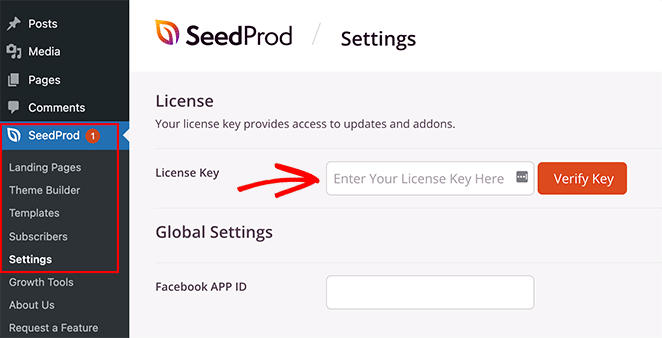
Após instalar e ativar o arquivo .zip do plugin, vá para a página SeedProd ≫ Configurações e insira os detalhes da sua chave de licença. Você pode encontrar sua chave de licença no site do SeedProd, no painel da sua conta.
Passo 2. Crie seus Modelos de Tema do WordPress
Para criar uma barra lateral personalizada com o SeedProd, você primeiro precisará criar as diferentes partes do seu tema. É mais rápido do que parece, e você não editará nenhum arquivo de modelo diretamente.
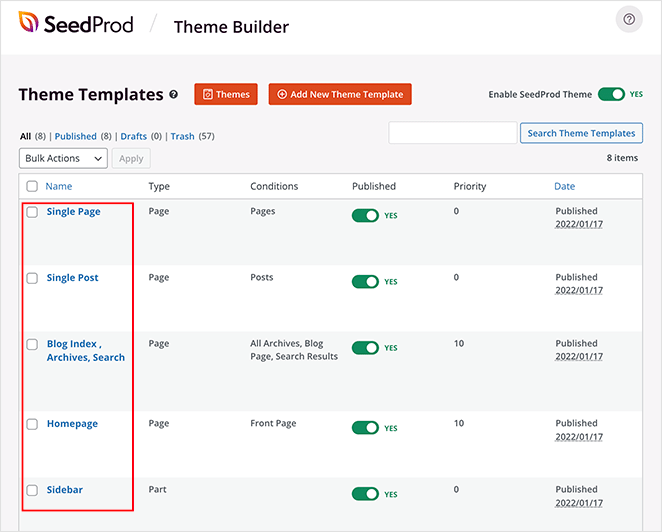
Primeiro, vá para a página SeedProd » Theme Builder. Você verá uma lista de modelos para o seu tema SeedProd atual nesta página.
Quando você o abre pela primeira vez, verá apenas um modelo CSS Global.
Para começar, você tem duas opções.
- Use um dos temas SeedProd prontos como ponto de partida
- Crie manualmente modelos de tema do zero
Sugiro começar com um modelo de tema pré-fabricado. O SeedProd gera todos os arquivos para você, então você começa com um tema funcional em vez de uma página em branco.
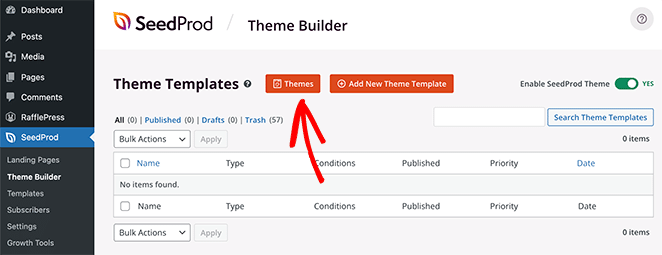
Para escolher um modelo de tema, clique no botão Temas e selecione um dos temas disponíveis. Existem temas diferentes para sites diferentes, então escolha um que melhor atenda às suas necessidades.
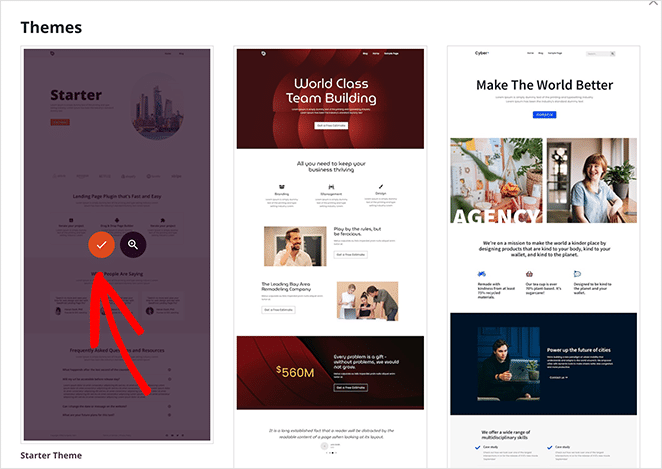
Depois de escolher um tema, o SeedProd cria todos os modelos para você. Agora você pode editar cada um no editor de arrastar e soltar.
Passo 3. Personalize sua Barra Lateral do WordPress
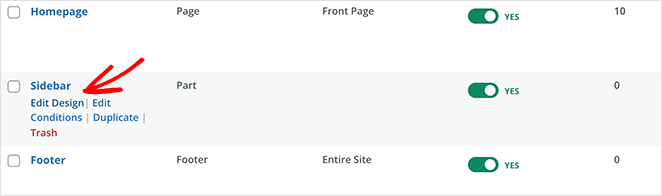
Para personalizar sua barra lateral com o SeedProd, localize o modelo Sidebar e clique no link Editar Design.
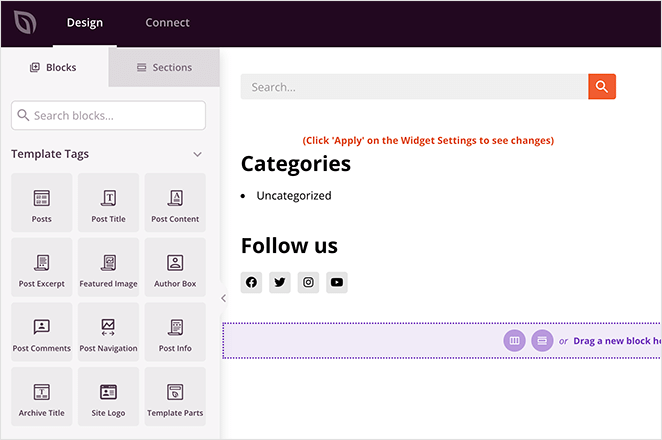
Isso abrirá sua barra lateral no construtor de arrastar e soltar do SeedProd. Você verá uma prévia ao vivo do seu modelo de barra lateral na coluna da direita com um painel de edição na coluna da esquerda.
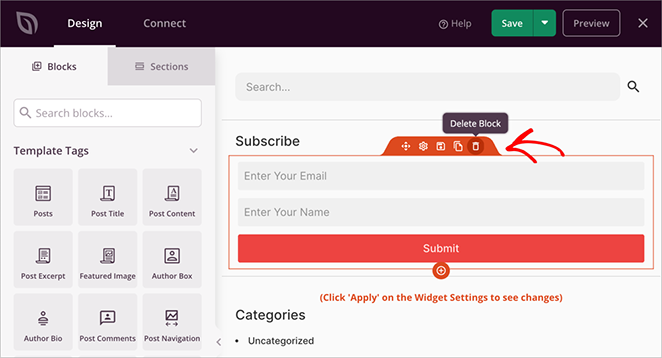
Alterar um item na sua barra lateral é tão simples quanto apontar e clicar. Por exemplo, você pode clicar no ícone da lixeira para excluir blocos.
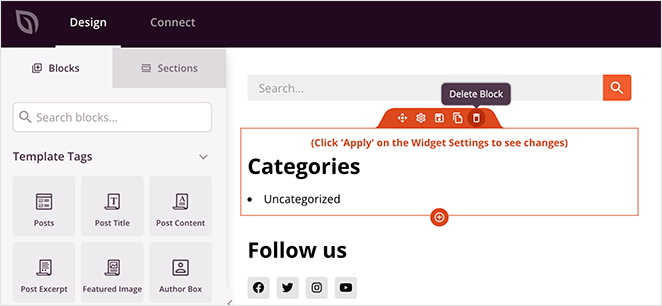
Ou você pode clicar em qualquer bloco para ver suas configurações no painel esquerdo.
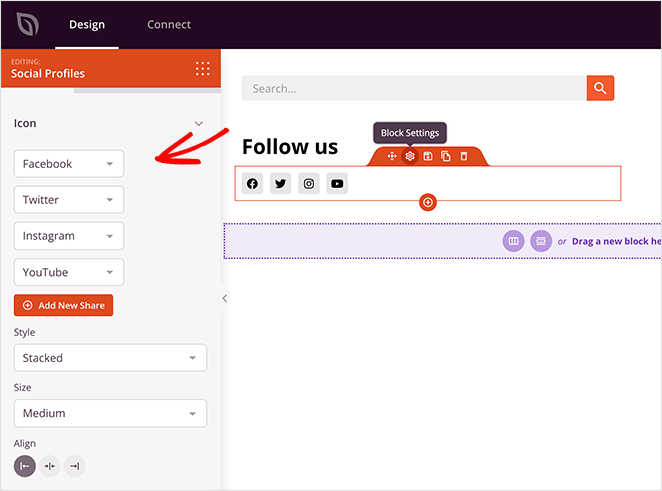
Você pode adicionar quase qualquer coisa usando os blocos do SeedProd. Arraste um bloco da esquerda e solte-o no lugar na sua barra lateral.
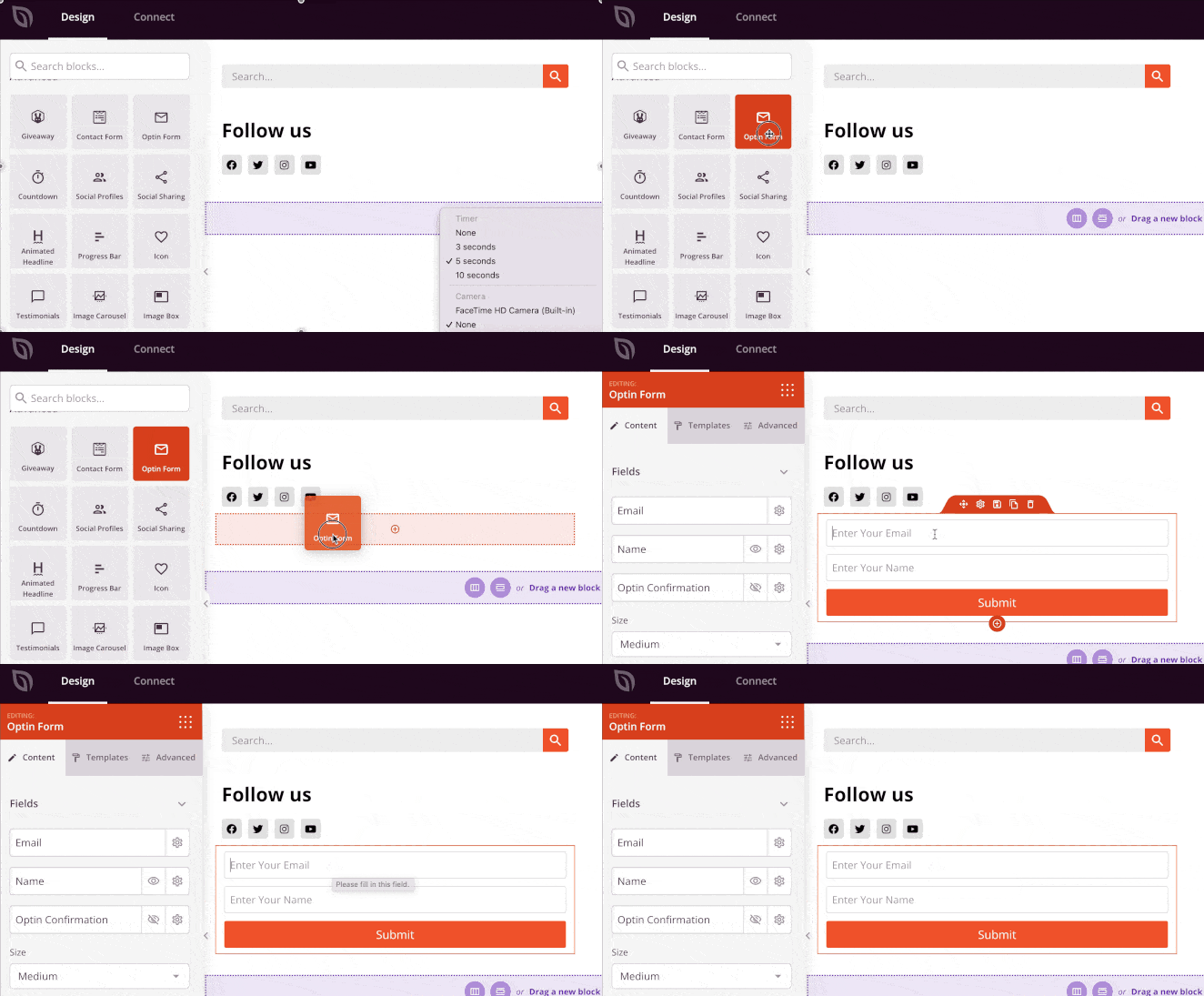
Alguns dos blocos que você pode escolher incluem:
- Tags de Modelo – Blocos que permitem adicionar conteúdo dinâmico do WordPress, como posts de blog, comentários, imagens em destaque, etc. Esta é uma ótima maneira de criar uma barra lateral dinâmica.
- Blocos Padrão – Estes são elementos populares de design web que a maioria dos sites usa, como imagens, botões, texto e vídeos.
- Blocos avançados – Recursos avançados de geração de leads, como formulários de contato, perfis sociais, botões de compartilhamento, formulários de inscrição, Google Maps e mais.
- WooCommerce – Se você administra uma loja online, pode usar blocos do WooCommerce para exibir produtos populares, carrinhos de compras e outros recursos da loja em sua barra lateral.
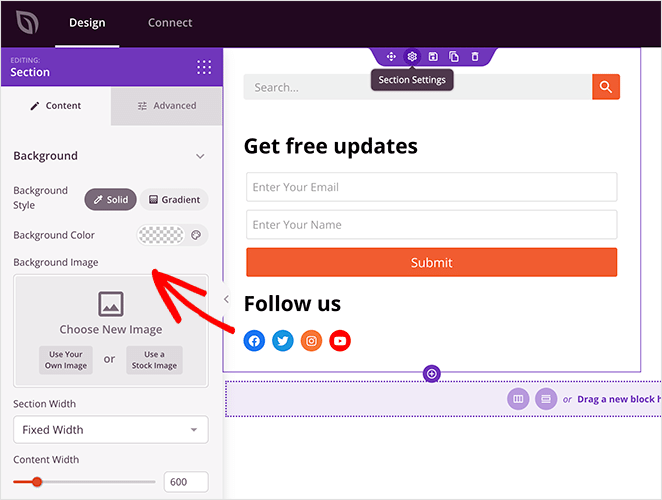
Além de adicionar conteúdo à sua barra lateral, o SeedProd também permite personalizar suas cores, fontes, espaçamento, bordas e muito mais.
Por exemplo, se você clicar no ícone de configurações de uma seção, poderá ver opções para alterar a cor de fundo, carregar uma imagem de fundo e alterar a largura. Em seguida, há mais configurações na guia Avançado que permitem controlar as bordas, o espaçamento e muito mais.
Quando estiver satisfeito com sua nova barra lateral, clique no botão verde Salvar no canto superior direito da sua tela.
Agora repita este processo para os outros modelos do seu tema, incluindo:
- Página Única
- Post Único
- Índice/Arquivos do Blog
- Página inicial
- Cabeçalho
- Rodapé
Repita para cada parte, e você pode criar um tema personalizado do WordPress que se encaixe no seu site.
Passo 4. Publique sua Barra Lateral Personalizada no WordPress
Quando estiver satisfeito com sua barra lateral personalizada do WordPress, o passo final é ativá-la no seu site WordPress.
No SeedProd, você vira uma chave para torná-lo ativo.
Vá para a página SeedProd » Theme Builder e alterne o interruptor ao lado da opção ‘Enable SeedProd Theme’ para ‘Yes’.
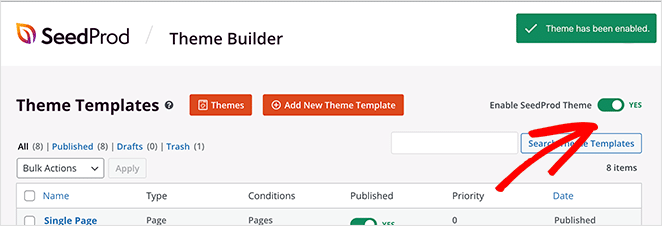
O SeedProd agora substituirá seu design existente pelo novo tema e barra lateral do WordPress.
Agora visite seu site para ver sua barra lateral personalizada no lugar.
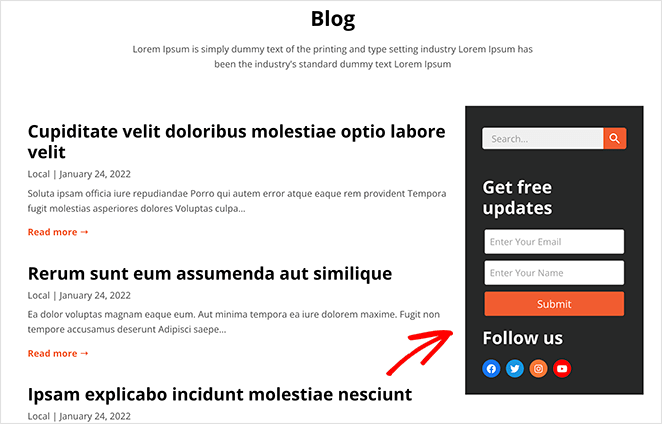
Como Exibir uma Barra Lateral Diferente em Páginas Diferentes
Uma barra lateral raramente serve para todas as páginas. Os links que ajudam em um post de blog podem parecer fora de lugar em sua página de contato ou em uma página de vendas.
Mostrar uma barra lateral diferente em páginas diferentes resolve isso. Você pode colocar posts recentes ao lado de seus artigos, um botão de reserva em sua página de serviços e nada em uma landing page.
Isso também mantém os visitantes engajados. Um design interativo e bem direcionado pode aumentar a retenção de usuários em até 60%, então uma barra lateral que combine com a página justifica seu espaço.
Com o SeedProd, você pode criar quantas barras laterais quiser e atribuir cada uma a um modelo específico. Aqui está a maneira mais rápida de fazer isso.
Prefere assistir primeiro? Aqui está a parte do nosso tutorial do Theme Builder que cobre partes globais reutilizáveis.
Passo 1. Duplique Sua Barra Lateral Existente
Em vez de construir uma segunda barra lateral do zero, duplique a que você já tem. Isso mantém as fontes, o espaçamento e a estilização consistentes em todo o seu site.
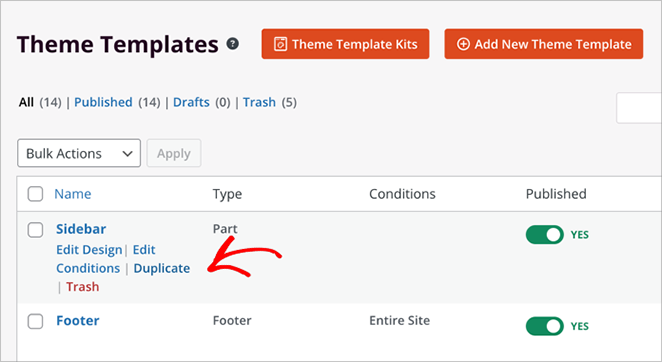
Em SeedProd » Theme Builder, passe o mouse sobre a parte do modelo Sidebar e clique em Duplicate.
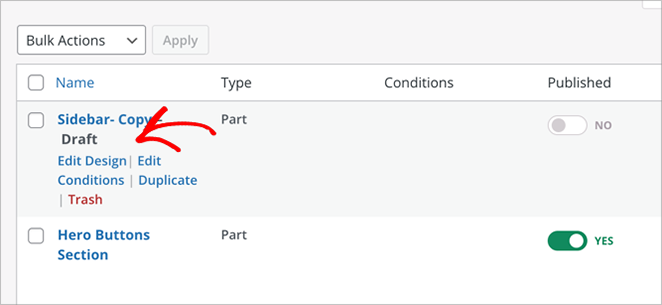
Uma cópia aparece em sua lista de partes do tema. Clique em Edit Design na duplicata para abri-la no construtor visual.
Passo 2. Personalize a Duplicata para Sua Página
Agora altere o conteúdo para que ele se encaixe onde aparecerá. Para remover um bloco, passe o mouse sobre ele e clique no ícone da lixeira.
Em seguida, arraste e solte os blocos que você deseja. Para uma barra lateral de arquivo, troco o formulário de opt-in por um bloco de posts recentes e alguns depoimentos.
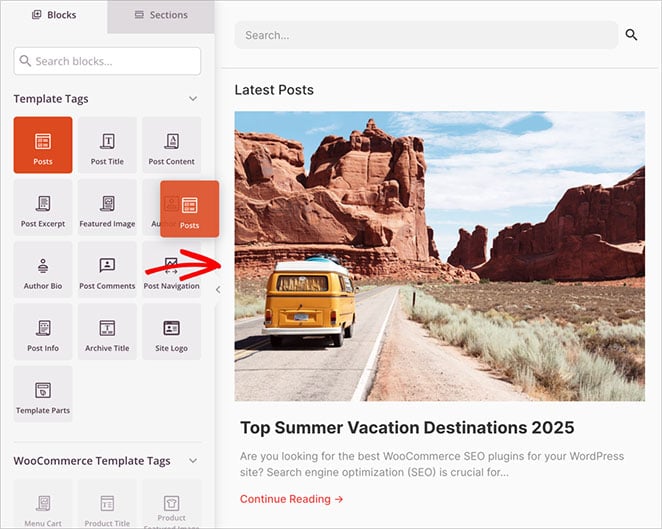
Clique em Salvar quando o layout estiver correto. Ele permanece fiel à marca porque você começou com sua barra lateral original.
Passo 3. Atribua a Barra Lateral a um Modelo Específico
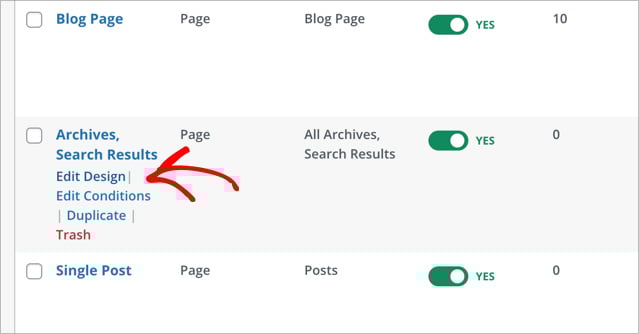
Em seguida, decida quais páginas devem usar a nova barra lateral. Os temas SeedProd geralmente incluem um modelo Post Único para posts de blog e um modelo Arquivos, Resultados da Pesquisa para páginas de categoria e pesquisa.
Neste exemplo, quero que as páginas de arquivo usem minha nova barra lateral. Encontre o modelo Arquivos, Resultados da Pesquisa e clique em Editar Design.
Dentro do editor, passe o mouse sobre a área da barra lateral até que a barra de ferramentas laranja apareça e clique para selecioná-la. O painel esquerdo exibirá Editando: Partes do Modelo.
Abra o menu suspenso Parte do Modelo e escolha a barra lateral que você acabou de criar.
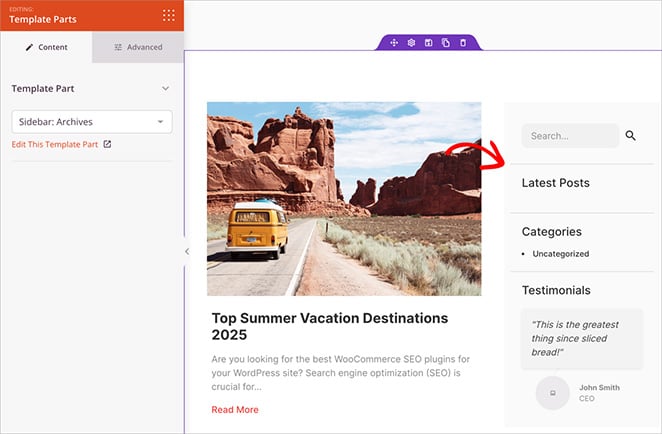
O layout é atualizado imediatamente. Clique em Salvar e suas páginas de arquivo agora mostram uma barra lateral diferente da dos seus posts de blog.
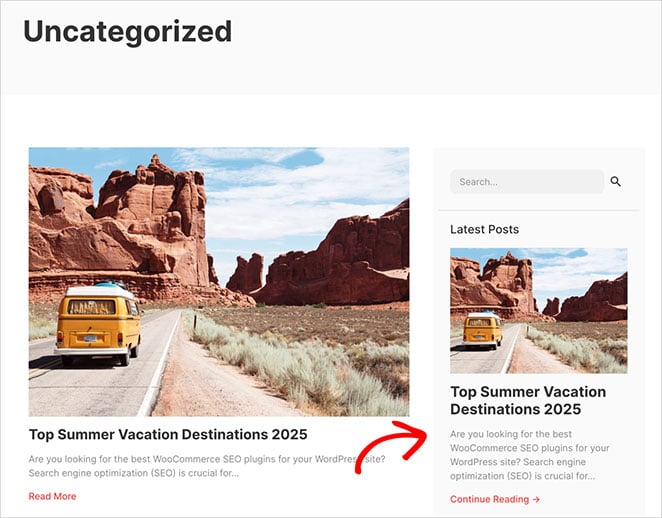
Repita essas etapas para qualquer outro modelo, como Páginas ou um layout específico do WooCommerce. Cada um pode ter sua própria barra lateral.
Como Exibir Barras Laterais Diferentes Sem um Page Builder
Você não precisa de um construtor de páginas para isso, se preferir evitá-lo. Existem duas rotas sem construtor, dependendo do seu tema.
Em um tema clássico, o Personalizador integrado geralmente permite definir layouts de barra lateral separados para posts, páginas e arquivos. Eu cubro isso no método do Personalizador abaixo.
Em um tema de blocos, você atribui o conteúdo da barra lateral por modelo no Editor do Site. Eu explico isso no método do tema de blocos mais adiante.
Se você deseja controle por página em um tema clássico sem um construtor, um plugin gratuito como Custom Sidebars, Dynamic Widget Area Manager cria áreas de widget extras e as atribui a posts, páginas ou categorias específicas.
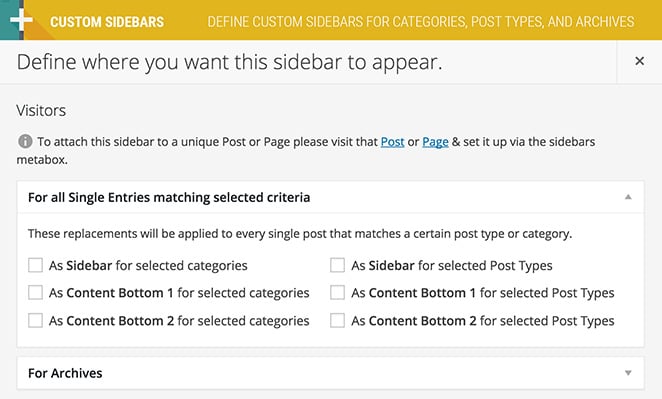
Funciona com a maioria dos temas e não precisa de código. A desvantagem é que você está limitado a layouts baseados em widgets, sem o controle visual completo que o SeedProd oferece.
Como Adicionar uma Barra Lateral Usando o Personalizador do WordPress?
O personalizador integrado do WordPress facilita a adição de uma barra lateral personalizada ao seu site WordPress. O personalizador usa as configurações padrão do seu tema WordPress para controlar o layout, o conteúdo e o posicionamento da sua barra lateral.
Para usar este método, você precisará de um tema WordPress que inclua áreas de widgets de barra lateral. Se você ainda não tem um tema, aqui estão os temas WordPress mais populares para pequenas empresas.
Para este guia, estou usando o Tema Astra WordPress.
Passo 1: Adicione o Layout da sua Barra Lateral do WordPress
Após instalar seu tema, vá para Aparência ≫ Temas e clique no botão azul Personalizar.
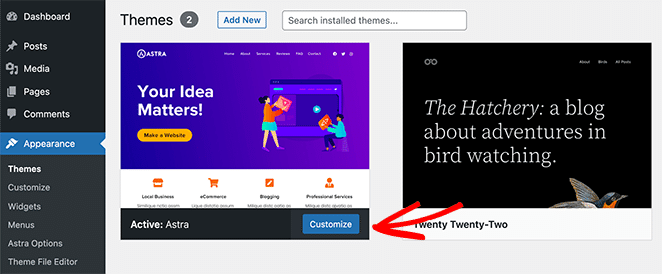
Isso o levará à página do Personalizador do WordPress, onde você pode editar o layout e o design do seu tema. As configurações variam de tema para tema, mas usarei o Astra aqui para que você possa ver como funciona.
Olhe no painel esquerdo dentro do personalizador e encontre o título 'Sidebar'. Clique nesse título para abrir as opções de personalização da sua barra lateral.
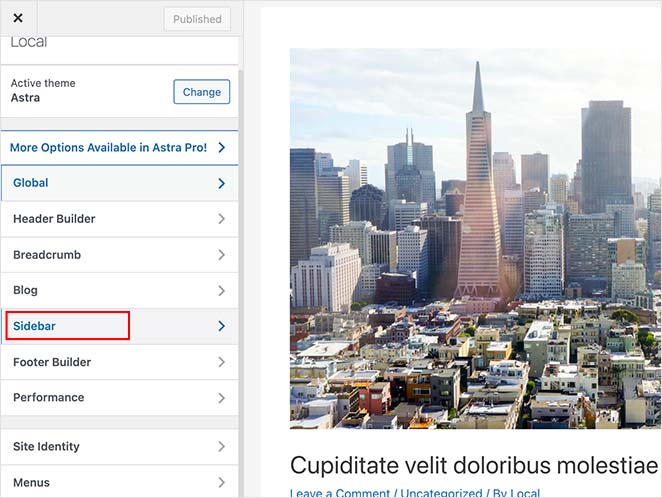
Na próxima tela, você pode escolher entre as seguintes opções de barra lateral:
- Layout Padrão – Sem barra lateral, barra lateral direita ou barra lateral esquerda.
- Páginas – Onde exibir a barra lateral em páginas individuais.
- Posts – Onde exibir sua barra lateral em posts individuais.
- Arquivos – Como sua barra lateral aparece em páginas de arquivo como sua página de blog.
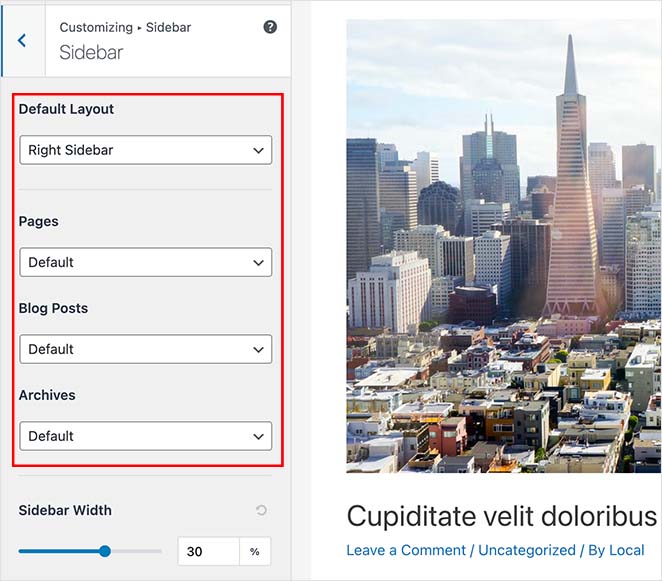
Você também pode escolher a largura da sua barra lateral na mesma página. Quando estiver satisfeito com o layout da sua barra lateral, clique no botão Publicar.
Passo 2. Adicione Widgets à sua Barra Lateral com o Personalizador
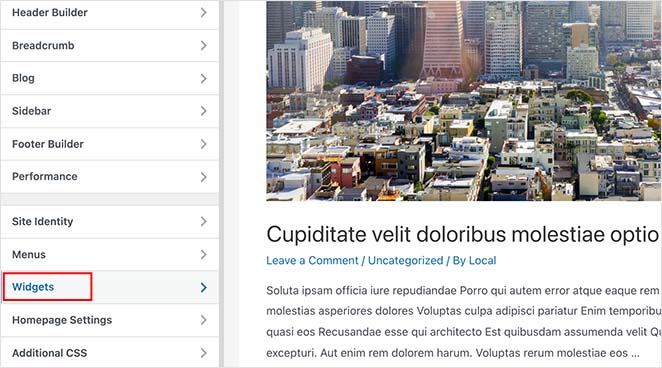
Após escolher o layout da sua barra lateral, você pode começar a adicionar widgets a ela. Para fazer isso, encontre o título 'Widgets' no menu do Personalizador do WordPress e clique para abrir as configurações.
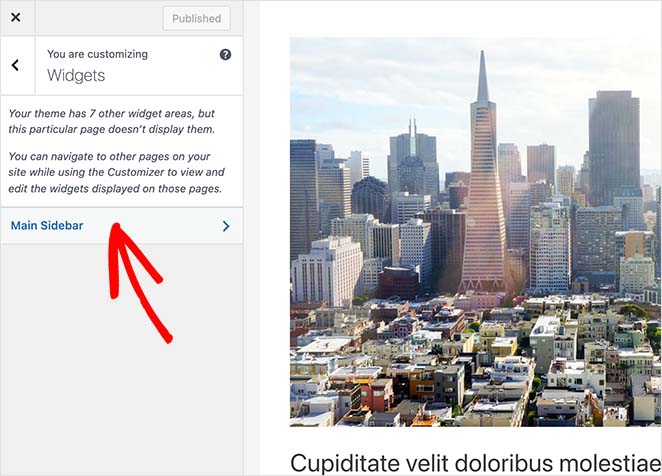
Na próxima tela, há uma lista de barras laterais atualmente disponíveis para aquela página específica, então clique na barra lateral que você deseja personalizar.
Agora você verá um construtor de barra lateral, pronto para exibir os widgets que você escolher. Clique no ícone de mais (+) para pesquisar um bloco ou widget que você deseja mostrar na sua barra lateral.
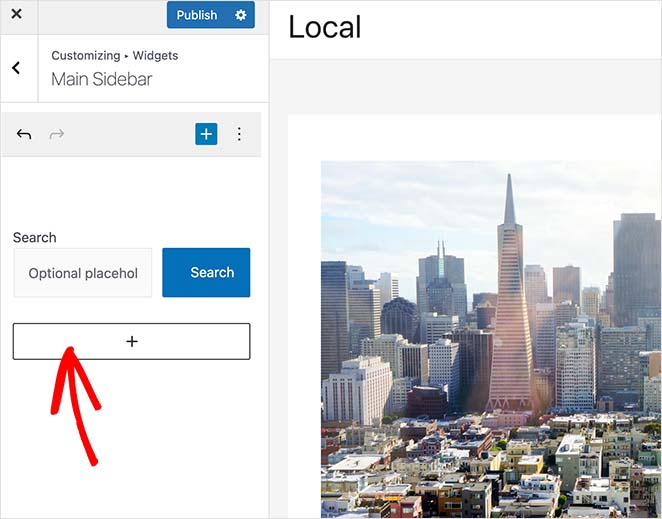
Clicar em um bloco o adicionará à sua barra lateral automaticamente.
Continue adicionando widgets à sua barra lateral até que ela fique do jeito que você quer. Em seguida, clique no botão Publicar para salvar suas alterações.
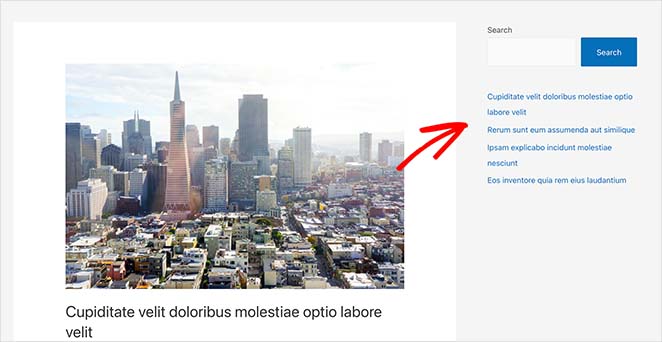
Agora, quando você visitar sua página, verá sua barra lateral personalizada do WordPress.
Como Adicionar Widgets à sua Barra Lateral do WordPress?
O método a seguir usa a tela de widgets do WordPress para adicionar uma barra lateral ao WordPress. É semelhante ao método anterior, mas permite apenas adicionar widgets à sua barra lateral em vez de permitir que você altere a posição da sua barra lateral.
Vá para Aparência ≫ Widgets no seu painel do WordPress para usar este método. Você pode ver todas as barras laterais que seu tema suporta atualmente nesta tela.
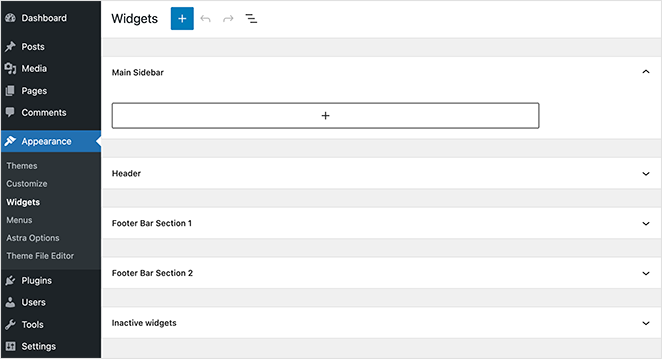
No meu caso, o tema inclui 4 áreas de barra lateral:
- Barra Lateral Principal
- Cabeçalho
- Seção 1 da Barra Inferior
- Seção 2 da Barra Inferior
Adicionar widgets funciona como na etapa anterior. Clique no ícone de mais e procure os widgets que você deseja.
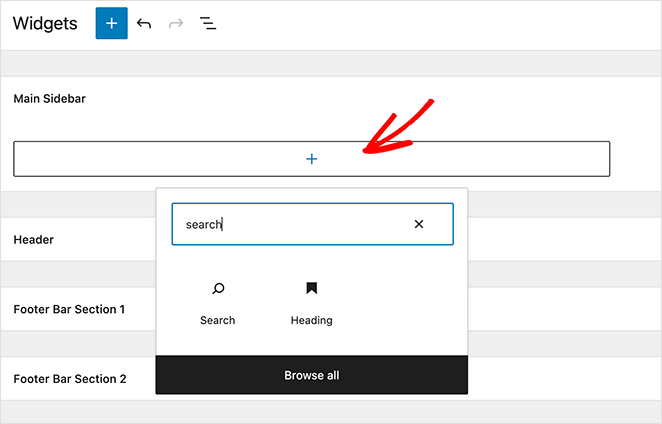
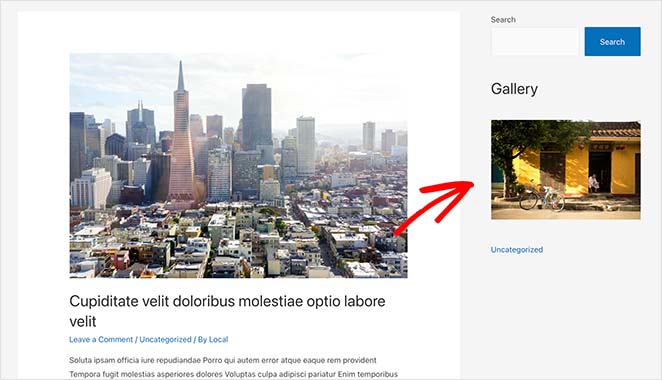
Quando terminar de criar sua barra lateral, clique no botão Atualizar. Agora você pode visitar seu site e ver sua nova barra lateral.
Como Adicionar uma Barra Lateral em um Tema de Blocos do WordPress?
Temas de blocos como o Twenty Twenty-Five não usam áreas de widgets de barra lateral tradicionais. Em vez disso, você cria um efeito de barra lateral diretamente dentro dos seus modelos de página usando o Editor de Site.
Eu mesmo já passei por essa confusão. Quando você muda para um tema de blocos, o Personalizador não controla mais a posição da barra lateral, e isso confunde muitas pessoas.
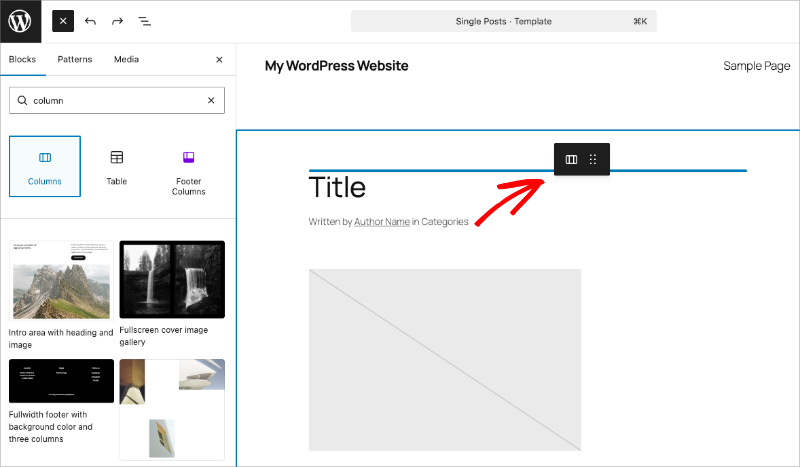
Para adicionar uma barra lateral em um tema de blocos, vá para Aparência → Editor no seu painel do WordPress. Clique em Modelos e escolha o modelo que deseja editar, como Postagem única ou Página.
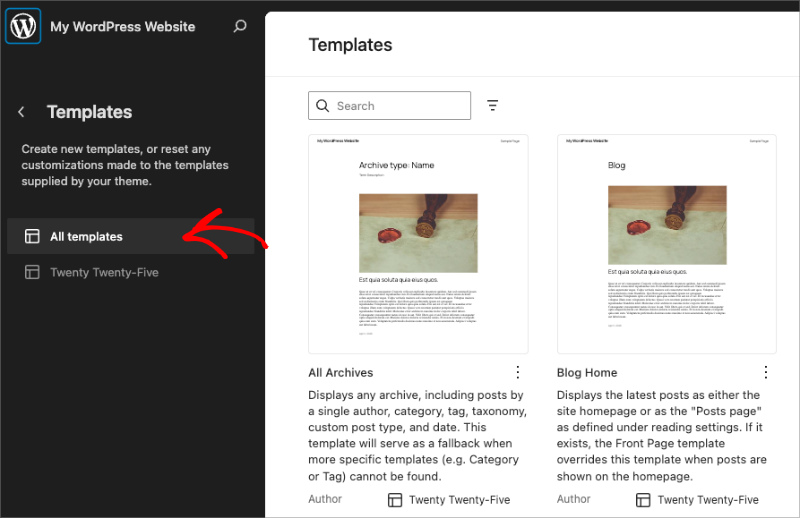
Dentro do editor de modelos, clique no botão + e pesquise por Colunas. Insira um layout de duas colunas e redimensione para que a coluna da barra lateral seja mais estreita que a coluna de conteúdo.
Adicione o conteúdo principal da sua página à coluna mais larga usando um bloco de Conteúdo da Postagem. Na coluna mais estreita, adicione conteúdo da barra lateral como Postagens Recentes, Pesquisar ou um bloco de HTML Personalizado.
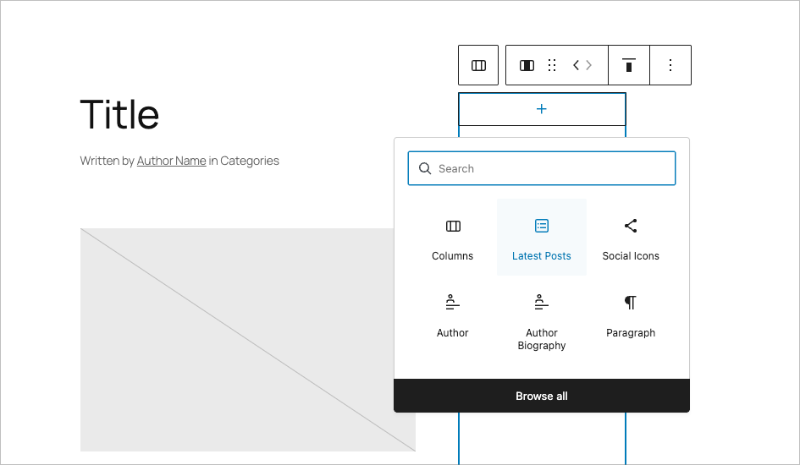
Quando estiver satisfeito com o layout, clique em Salvar. Sua barra lateral agora aparecerá em todas as páginas que usam esse modelo.
Lembre-se de que isso se aplica apenas a temas de blocos. Se você estiver usando um tema clássico, os Métodos 1, 2 ou 3 acima são a escolha certa.
Perguntas Frequentes sobre Como Adicionar uma Barra Lateral ao WordPress
Como adiciono uma barra lateral esquerda e direita no WordPress?
Para uma barra lateral direita, vá para Aparência → Personalizar e encontre as configurações de Layout ou Barra lateral do seu tema. Escolha Barra lateral direita ou Barra lateral esquerda nas opções de layout. Com o SeedProd, você define a posição das colunas diretamente no editor de arrastar e soltar. Para temas de blocos, use o bloco Colunas do Editor de Site e coloque o conteúdo da barra lateral em qualquer coluna que desejar.
O que é uma barra lateral no WordPress?
Uma barra lateral do WordPress é uma área vertical de widgets que fica ao lado do seu conteúdo principal, geralmente no lado esquerdo ou direito da página. Você pode preenchê-la com menus de navegação, postagens recentes, formulários de inscrição por e-mail ou anúncios. A maioria dos temas clássicos do WordPress inclui uma barra lateral por padrão. Temas de blocos não incluem uma, a menos que você a adicione através do Editor de Site.
Como edito minha barra lateral do WordPress?
Para temas clássicos, vá para Aparência → Widgets e adicione ou reorganize blocos na sua área de barra lateral. No Personalizador, vá para Aparência → Personalizar → Widgets em vez disso. Com o SeedProd, abra o Construtor de Temas, encontre o modelo de Barra Lateral e clique em Editar Design para atualizá-lo no editor visual. Suas alterações entram em vigor quando você salva e publica.
O que devo fazer se o meu tema do WordPress não tiver uma barra lateral?
Se o seu tema clássico não incluir uma barra lateral, mude para um tema que suporte áreas de widgets ou use o Construtor de Temas do SeedProd para criar uma. Para temas de blocos, as configurações da barra lateral do Personalizador não aparecerão porque os temas de blocos usam o Editor de Site. Vá para Aparência → Editor, abra seu modelo e adicione um bloco Colunas para criar o layout da barra lateral.
Posso mostrar barras laterais diferentes em páginas diferentes no WordPress?
Sim. Muitos temas clássicos permitem que você atribua diferentes áreas de barra lateral a tipos de página específicos, como postagens, páginas e arquivos, através do Personalizador. Com o SeedProd, você pode criar barras laterais ilimitadas e atribuir cada uma a um modelo ou página específica. Isso facilita a exibição de uma barra lateral de blog em postagens e uma barra lateral diferente em suas páginas de serviço ou de destino.
Onde gerencio barras laterais diferentes no SeedProd?
Todas as suas barras laterais ficam em SeedProd » Theme Builder como partes do modelo. Você duplica ou adiciona uma parte de Barra Lateral lá, depois abre qualquer modelo, seleciona sua área de barra lateral e escolhe qual barra lateral mostrar no menu suspenso Partes do Modelo.
Posso adicionar uma barra lateral personalizada às páginas do WooCommerce?
Sim. O SeedProd suporta WooCommerce, então você pode atribuir uma barra lateral personalizada às páginas de produtos, arquivos da loja, carrinho e checkout. Crie a barra lateral como uma parte de modelo, então defina-a no modelo WooCommerce relevante.
Posso remover completamente a barra lateral de uma página?
Sim. Basta deixar o bloco de barra lateral ou a parte do modelo fora do layout dessa página, e o conteúdo preenche a largura total. Esta é uma escolha comum para páginas de destino e páginas de contato onde uma barra lateral apenas distrairia.
Obter o controle correto da barra lateral significa que cada página trabalha mais para você. Você pode direcionar os leitores para o seu melhor conteúdo e mantê-los engajados sem alterar seu layout principal.
Para a máxima flexibilidade de design, o Theme Builder da SeedProd permite que você crie barras laterais personalizadas ilimitadas e as atribua a qualquer página ou postagem. Não é necessário código.
Você também pode gostar deste post sobre os melhores exemplos de lead magnet para aumentar sua lista. E se você estiver refinando todo o seu layout, veja nosso guia sobre como mudar o layout do seu blog no WordPress.
Obrigado por ler! Adoraríamos saber sua opinião, então sinta-se à vontade para participar da conversa no YouTube, X e Facebook para mais conselhos e conteúdo úteis para expandir seus negócios.



