
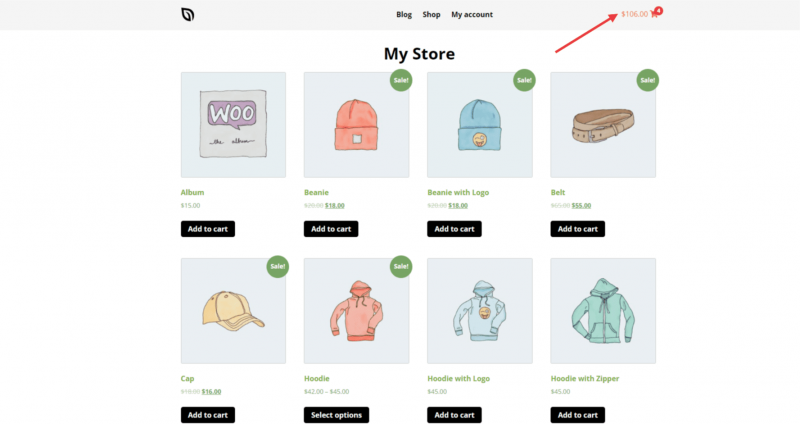
The Menu Cart block allows you to add a WooCommerce shopping cart icon to any SeedProd page. This block displays a cart icon with an item count badge, making it easy for shoppers to see what’s in their cart and navigate to checkout from any page you build.
You can optionally show the cart subtotal alongside the icon, control its alignment, and fully customize the icon color, badge color, and badge text color to match your store’s branding.
Adding the Menu Cart Block to Your Pages
Follow these steps to add a Menu Cart block to your SeedProd page:
Step 1: Add the Block
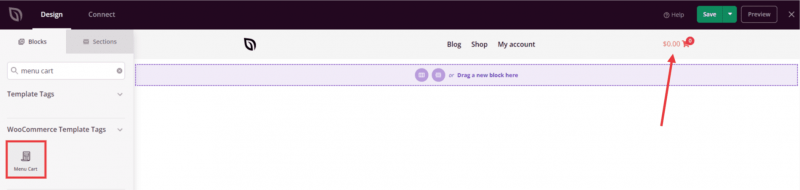
Under Design > Blocks, drag and drop the Menu Cart block into the desired section of your page.
Step 2: Configure Content Settings
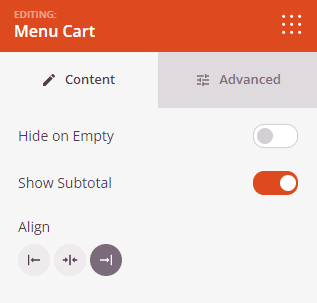
Once added, click on the Menu Cart block to open its settings. In the Content tab, configure how the cart icon is displayed.
- Hide on Empty: Toggle this on to hide the cart icon completely when the shopper’s cart contains no items.
- Show Subtotal: Toggle this on to display the cart subtotal amount alongside the cart icon.
- Alignment: Set the horizontal alignment of the cart icon — Left, Center, or Right.
Step 3: Customize the Design
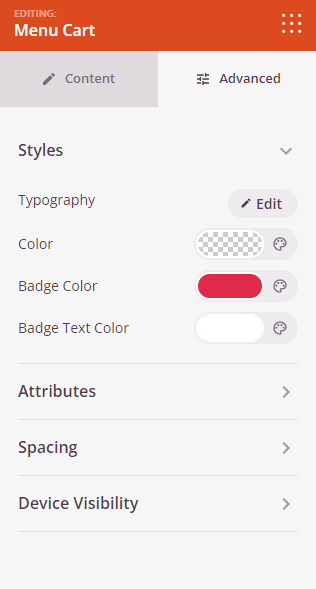
In the Advanced tab, you can customize the appearance and spacing of your Menu Cart block.
Styles:
- Typography: Fine-tune the font family, font weight, size, line height, letter spacing, and text transform for the subtotal and any text displayed with the cart icon. Supports per-device values for desktop, tablet, and mobile.
- Color: Set the color of the cart icon and subtotal text.
- Badge Color: Set the background color of the item count badge that appears on the cart icon.
- Badge Text Color: Set the text color of the item count number displayed inside the badge.
Spacing:
- Margin: Control the outer spacing around your Menu Cart block (Top, Right, Bottom, Left). Supports per-device values for desktop, tablet, and mobile.
- Padding: Adjust the inner spacing within your Menu Cart block (Top, Right, Bottom, Left). Supports per-device values for desktop, tablet, and mobile.
Attributes:
- CSS ID: Displays the auto-generated unique identifier for your Menu Cart block, created automatically by SeedProd for custom styling or JavaScript targeting.
- Custom Class: Add custom CSS classes to apply specific styles from your theme or custom CSS.
- Custom Attributes: Add any HTML attributes to the block wrapper element. Enter each attribute on a new line using the format: attribute-name|value.
Device Visibility:
- Hide on Desktop: Hide the Menu Cart block on desktop screens.
- Hide on Tablet: Hide the Menu Cart block on tablet devices.
- Hide on Mobile: Hide the Menu Cart block on mobile devices.
Animation Effects:
- Entrance Animation: Choose an animation effect that plays when the Menu Cart block scrolls into view, such as Bounce, Fade In, Zoom In, Rotate In, and many more.
Step 4: Save Your Changes
Once you have finished configuring the Menu Cart block and customizing its appearance, make sure to save your work.
You’ve successfully added a Menu Cart block to your page! Placing a cart icon in your header or navigation area helps shoppers keep track of their selections and drives them toward checkout. Use the badge color settings to make the item count stand out, and the Show Subtotal option to give shoppers an at-a-glance view of their order total.