
The X (Twitter) Tweet Button block allows you to add a native Tweet button to any SeedProd page, making it easy for visitors to share your content with their X (Twitter) followers in a single click. You can pre-populate the tweet with a URL, custom text, hashtags, and attribution, giving you full control over how your content is shared.
This block is ideal for blog posts, product pages, and landing pages where you want to encourage visitors to spread the word. The button adapts to small or large sizes and supports over 30 display languages to match your audience.
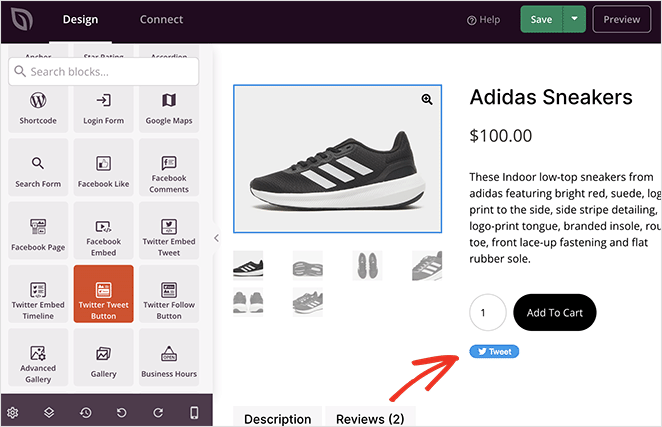
Adding the X (Twitter) Tweet Button Block to Your Pages
Follow these steps to add an X (Twitter) Tweet Button block to your SeedProd page:
Step 1: Add the Block
Under Design > Blocks, drag and drop the X (Twitter) Tweet Button block into the desired section of your page.

Step 2: Configure Content Settings
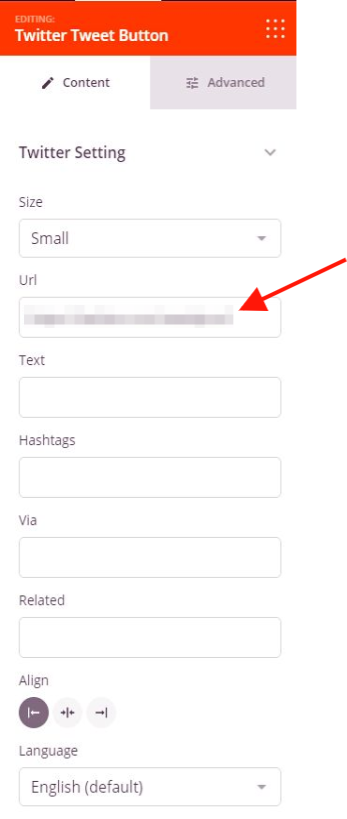
Once added, click on the X (Twitter) Tweet Button block to open its settings. In the Content tab, you’ll find the following options under the X (Twitter) Setting section:
- URL: Enter the URL that will be shared when a visitor clicks the Tweet button. Leave blank to share the current page URL.
- Text: Enter pre-composed tweet text that will appear in the visitor’s tweet composer when they click the button. Leave blank to let visitors write their own message.
- Hashtags: Enter one or more hashtags to include in the pre-composed tweet (comma-separated, without the # symbol).
- Via: Enter an X (Twitter) username to attribute the tweet to (without the @ symbol). This appears as “via @username” in the tweet.
- Related: Enter a comma-separated list of X (Twitter) accounts that X (Twitter) may suggest to the user after they post the tweet.
- Size: Choose between Small and Large button sizes.
- Alignment: Set the horizontal alignment of the button on the page — Left, Center, or Right — with per-device controls for desktop, tablet, and mobile.
- Language: Choose the display language for the button interface. Options include Automatic, English, Arabic, Bengali, Czech, Danish, German, Greek, Spanish, Persian, Finnish, Filipino, French, Hebrew, Hindi, Hungarian, Indonesian, Italian, Japanese, Korean, Malay, Dutch, Norwegian, Polish, Portuguese, Romanian, Russian, Swedish, Thai, Turkish, and more.
Step 3: Customize the Design
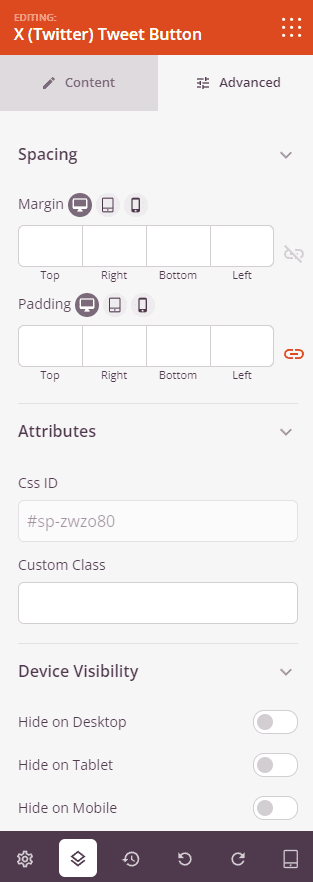
In the Advanced tab, you can further control the layout and behavior of your X (Twitter) Tweet Button block.
Spacing:
- Margin: Set the outer spacing around the block on all four sides, with independent controls for desktop, tablet, and mobile.
- Padding: Set the inner spacing inside the block wrapper on all four sides, with per-device controls.
Attributes:
- Custom Class: Add one or more custom CSS classes to the block wrapper for targeted styling.
- CSS ID: SeedProd automatically generates a unique CSS ID for this block. You can use it to reference the block in custom CSS or JavaScript.
- Custom Attributes: Add custom HTML attributes to the block wrapper element. Enter each attribute on a new line using the key|value format.
Device Visibility:
- Hide on Desktop: Toggle to hide the block when viewed on desktop screens.
- Hide on Tablet: Toggle to hide the block when viewed on tablet screens.
- Hide on Mobile: Toggle to hide the block when viewed on mobile screens.
Animation Effects:
- Scrolling Effect: Apply a scroll-triggered animation to the block, including Vertical Scroll and Horizontal Scroll options with direction, speed, and viewport offset controls.
- Mouse Effect: Apply a mouse movement-driven parallax effect to the block.
Step 4: Save Your Changes
Once you have finished configuring the X (Twitter) Tweet Button block and customizing its appearance, make sure to save your work.
You’ve successfully added an X (Twitter) Tweet Button block to your page! Pre-composing the tweet text, hashtags, and attribution removes friction for visitors and makes it far more likely they’ll share your content. Pair this block with your most shareable content for the best results.