
A footer template in the SeedProd Website Builder lets you design a custom footer and display it automatically across your entire site. You can also create multiple footer templates with different display conditions to show different footers in different areas of your site.
Step 1: Add a New Footer Template
In your WordPress admin, go to SeedProd > Website Builder and click Add New Template.
Step 2: Configure the Template Settings
In the New Theme Template popup, configure the following settings before creating the template:
- Type: Select Footer from the dropdown.
- Name: Enter a name to identify this footer template.
- Conditions: Set the display conditions to control where this footer appears — for example, on all pages, specific post types, or individual pages.
- Priority: Set a priority number to manage which footer shows when conditions overlap. A higher number takes precedence over a lower one.
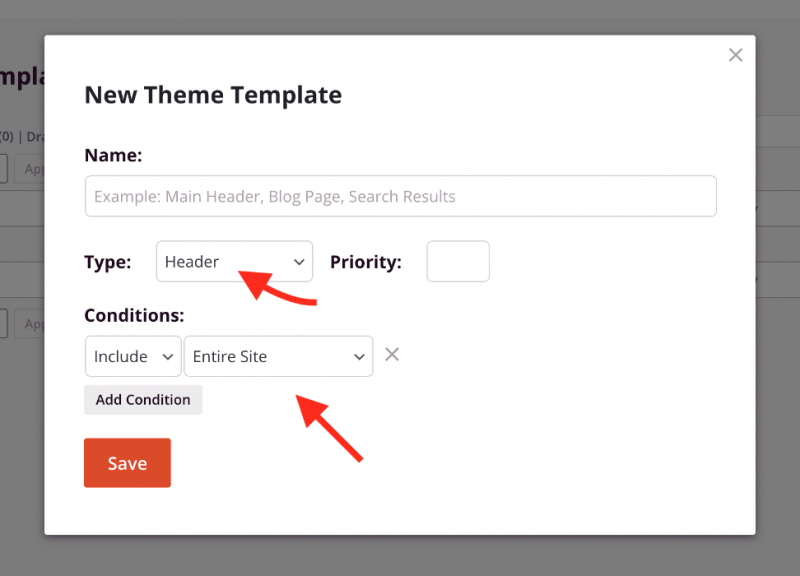
Click Save to open the template in the SeedProd builder.
Step 3: Design Your Footer
Inside the builder, design your footer layout. To get started quickly, open the Sections panel in the left sidebar and browse the pre-built footer sections under Sections > Footer. You can insert one of these as a starting point and customize it, or build your footer from scratch by adding blocks directly.
Step 4: Publish the Footer Template
When your footer design is complete, click the dropdown arrow on the Save button and select Publish. Your footer template will immediately begin appearing on the pages that match its display conditions.
Your footer template is now live across your site. You can return to SeedProd > Website Builder at any time to edit the template, adjust its conditions, or create additional footer templates for specific sections of your site.