
Global Part templates let you design a section once and reuse it across multiple pages or templates. Unlike saved sections, global parts stay in sync — edit the template once and every instance updates automatically across your entire site.
Global parts are ideal for shared design elements such as promotional banners, newsletter sign-up forms, announcement bars, or any content block that needs to appear consistently in multiple locations.
Creating a Global Part Template
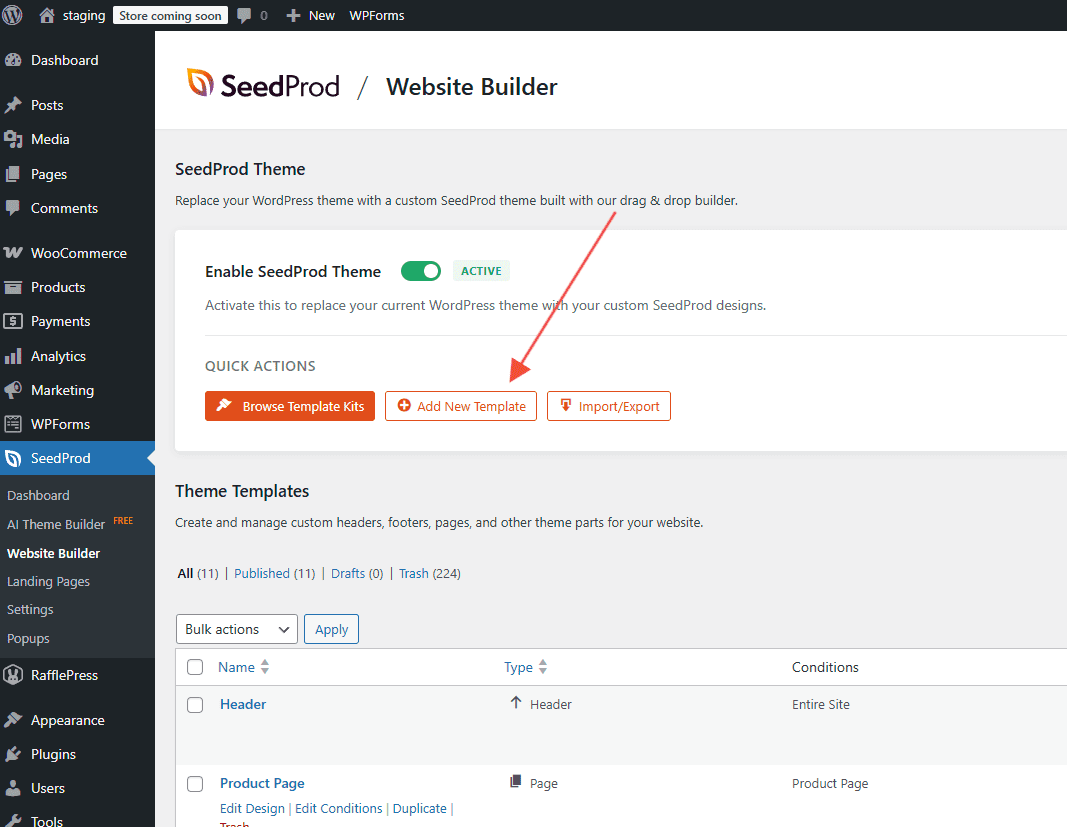
- Go to SeedProd > Website Builder in your WordPress admin and click Add New Template.
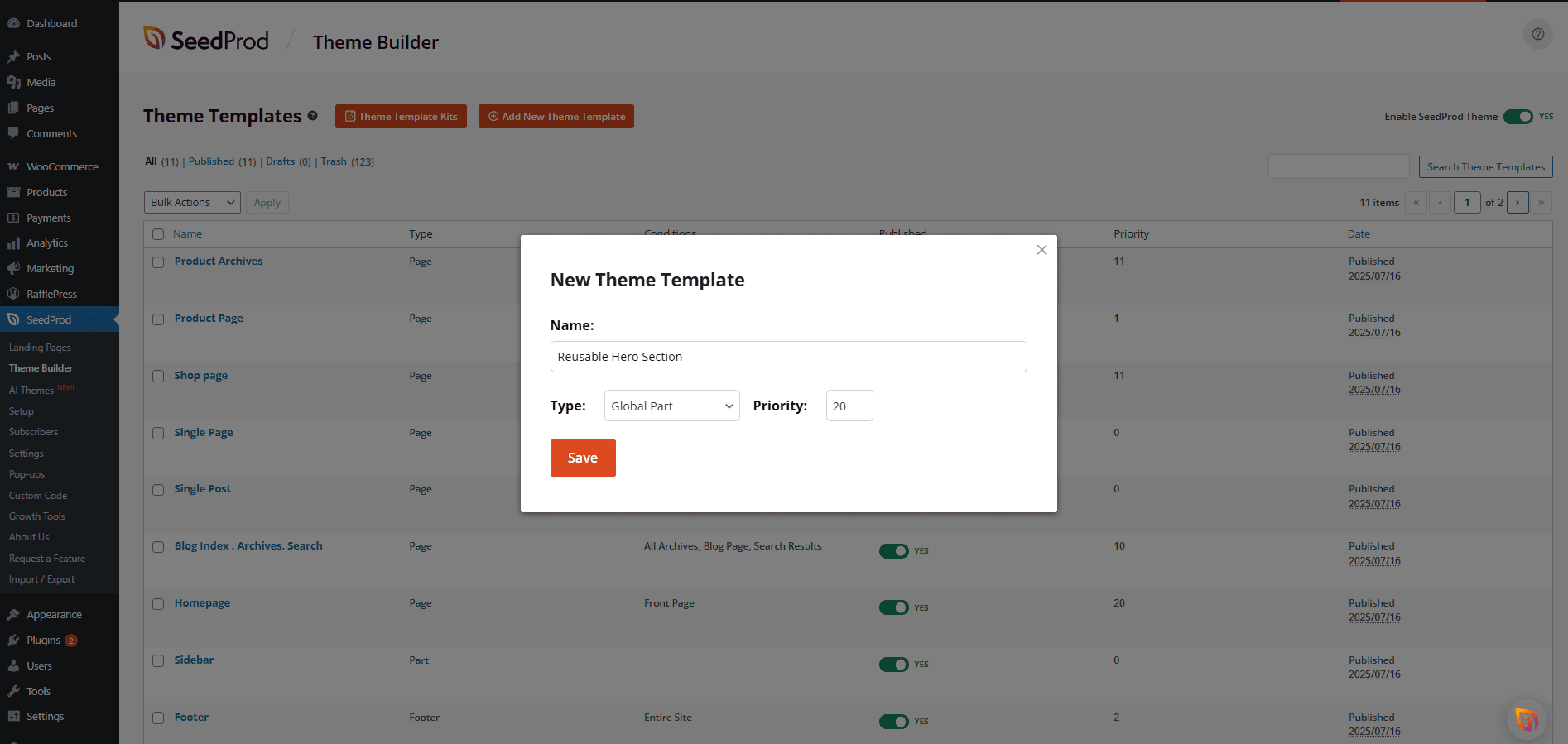
- In the popup, enter a name for your template and select Template Part from the Template Type dropdown. Click Create Template to continue.
- Design the content for your global part in the SeedProd editor, then click Save.
Using a Global Part Template on a Page
Once your global part is created, you can add it to any page or template using the Template Parts block:
- Open the page or template in the SeedProd editor.
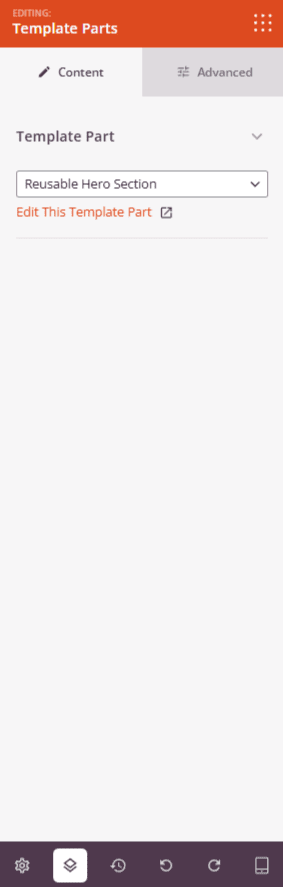
- Find the Template Parts block in the block panel and drag it into your layout.
- In the block settings, select the global part template you want to display.
Global parts are one of the most efficient ways to manage your site’s content at scale. Pair them with reusable sections and reusable blocks to build a consistent, maintainable website without duplicating work across pages.