

Kurz gesagt: WooCommerce-Warenkorb funktioniert nicht
Die meisten Warenkorbprobleme hängen mit einer falsch konfigurierten Seite, einem Plugin-Konflikt oder einem Caching-Problem zusammen. Beginnen Sie mit den schnellsten Prüfungen:
- Bestätigen Sie, dass Artikel tatsächlich im Warenkorb sind – ein leerer Warenkorb zeigt keine Schaltfläche zum Anzeigen des Warenkorbs an
- Überprüfen Sie, ob Ihre Warenkorbseite zugewiesen ist – gehen Sie zu WooCommerce » Einstellungen » Erweitert und überprüfen Sie das Dropdown-Menü für die Warenkorbseite
- Deaktivieren Sie Plugins einzeln – ein Plugin-Konflikt ist eine der häufigsten Ursachen
- Wechseln Sie zu Storefront oder einem Standard-Theme – schließt Theme-Konflikte sofort aus
- Leeren Sie Ihren Cache und setzen Sie Permalinks zurück – wenn die Seite zugewiesen ist, aber immer noch leer ist, ist veralteter Cache oft die Ursache
Ich habe das Problem, dass der WooCommerce-Warenkorb nicht funktioniert, bei Shop-Betreibern häufiger angetroffen, als Sie vielleicht denken. Wenn Kunden ihren Warenkorb nicht anzeigen können, geben sie oft auf und verlassen die Seite.
Hier sind 11 Lösungen, die Sie durchgehen können, beginnend mit den schnellsten Prüfungen.
In diesem Leitfaden:
- So beheben Sie, dass der WooCommerce-Warenkorb nicht funktioniert (11 bewährte Lösungen)
- 1. Bestätigen Sie, dass Artikel zum Warenkorb hinzugefügt wurden
- 2. Überprüfen Sie Produkte auf fehlende Details
- 3. Aktualisieren Sie WooCommerce auf die neueste Version
- 4. Deaktivieren/Reaktivieren Sie WordPress-Plugins
- 5. Ändern Sie Ihr WooCommerce-Theme
- 6. Überprüfen Sie Ihre WooCommerce-Warenkorbseiteneinstellungen
- 7. Beheben Sie WooCommerce-Warenkorb-Weiterleitungen zur Homepage
- 8. Setzen Sie Ihre Permalinks zurück
- 9. Leeren Sie den Cache-Plugin-Daten
- 10. Prüfen Sie auf Anpassungs-/Codefehler
- 11. Kontaktieren Sie Ihren Hoster wegen serverseitiger Probleme
- Weitere Möglichkeiten zur Anpassung von WooCommerce
So beheben Sie, dass der WooCommerce-Warenkorb nicht funktioniert (11 bewährte Lösungen)
Diese Schritte helfen Ihnen, WooCommerce-Warenkorbprobleme zu beheben, die Kunden daran hindern, ihren Kauf abzuschließen.
1. Bestätigen Sie, dass Artikel zum Warenkorb hinzugefügt wurden
Der erste Schritt zur Behebung des Problems „Warenkorb anzeigen funktioniert nicht“ besteht darin, zu überprüfen, ob Artikel korrekt zum Warenkorb hinzugefügt werden. Dies scheint einfach, aber das Problem mit dem leeren Warenkorb wird oft übersehen.
WooCommerce erstellt automatisch eine spezielle Seite für den Warenkorb, auf der die vom Kunden ausgewählten Artikel angezeigt werden. Wenn diese jedoch ein Problem hat, funktioniert die Schaltfläche „Warenkorb anzeigen“ möglicherweise nicht, da sie technisch leer ist.
Um dies zu überprüfen, besuchen Sie Ihre WooCommerce-Website als Kunde und legen Sie einen Artikel in den Warenkorb. Klicken Sie dann auf die Schaltfläche oder den Link „Warenkorb anzeigen“.
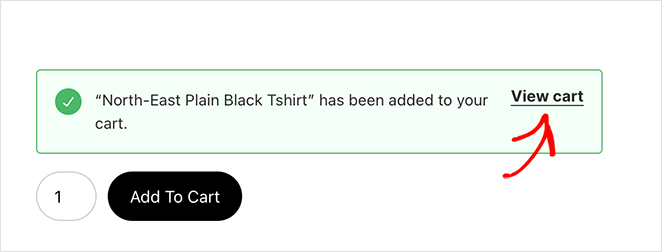
Wenn der Artikel im Warenkorb ist, gibt es in diesem Stadium möglicherweise kein Problem.
2. Überprüfen Sie Produkte auf fehlende Details
Manchmal ist das Nichtanzeigen der Schaltfläche „Warenkorb anzeigen“ ein Symptom fehlender Produktinformationen, die WooCommerce daran hindern, den Warenkorb-Link zu generieren. Dies kann eine fehlende Produktkategorie, ein fehlender Preis oder eine fehlende Artikelnummer (SKU – Stock Keeping Unit) sein.
Um dies zu überprüfen, gehen Sie in Ihrem WordPress-Dashboard zu Produkte » Alle Produkte und klicken Sie auf einen Produkttitel, um den Editor zu öffnen.
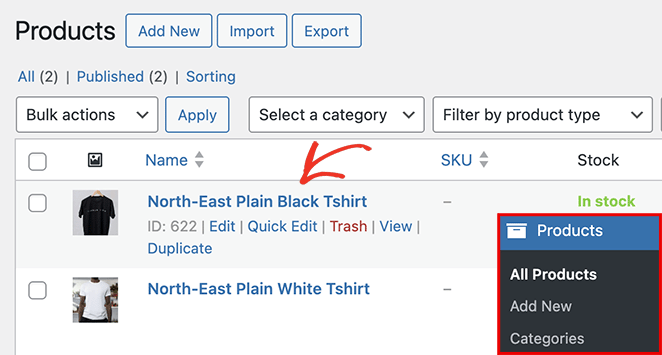
Überprüfen Sie auf diesem Bildschirm, ob alle erforderlichen Felder ausgefüllt sind, einschließlich:
- Produktname
- Produktbeschreibung
- Produktkategorie
- Produktbild
- Regulärer und reduzierter Preis
- SKU
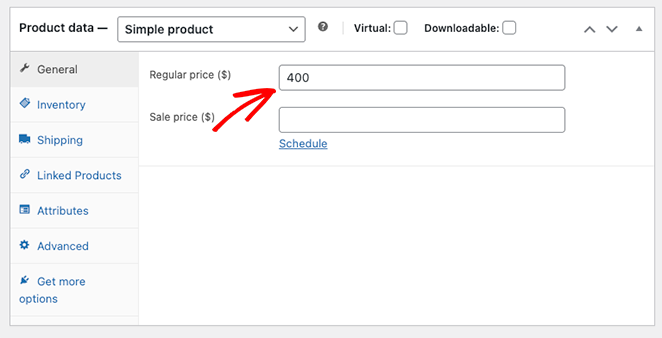
Wenn Sie fehlende Details finden, füllen Sie diese aus und klicken Sie oben rechts auf dem Bildschirm auf „Aktualisieren“.
Sobald Sie die fehlenden Details für alle Ihre Produkte ausgefüllt haben, versuchen Sie erneut, ob die Option „Warenkorb anzeigen“ in Ihrem WooCommerce-Shop funktioniert.
3. Aktualisieren Sie WooCommerce auf die neueste Version
Eine mögliche Lösung für das Problem, dass der WooCommerce-Warenkorb nicht funktioniert, besteht darin, sicherzustellen, dass Ihr WooCommerce-Plugin auf dem neuesten Stand ist. Veraltete Versionen könnten die Ursache Ihrer Probleme sein, überprüfen Sie daher Ihre.
Entwickler veröffentlichen häufig Updates, um Fehler zu beheben und Verbesserungen vorzunehmen. Wenn Sie eine alte Version von WooCommerce verwenden, treten möglicherweise Probleme auf, die in neueren Versionen bereits behoben wurden.
Um zu überprüfen, ob Ihr WooCommerce-Plugin auf dem neuesten Stand ist, klicken Sie im WordPress-Adminbereich auf Plugins » Installierte Plugins und suchen Sie nach dem WooCommerce-Plugin.
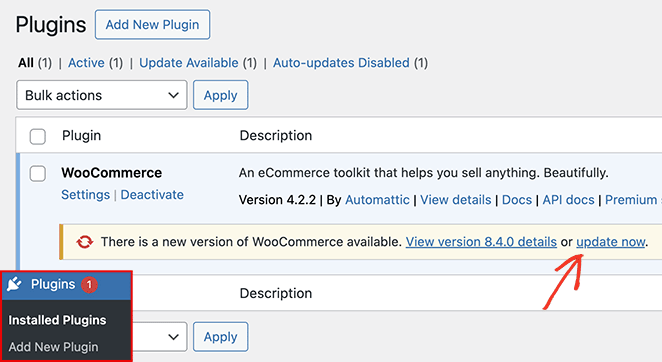
Wenn ein Update verfügbar ist, sollten Sie einen Link mit der Bezeichnung „Jetzt aktualisieren“ sehen. Klicken Sie darauf, um die neueste WooCommerce-Version zu installieren.
4. Deaktivieren/Reaktivieren Sie WordPress-Plugins
WordPress-Plugins auf Ihrer Website können manchmal Kompatibilitätsprobleme mit dem WooCommerce-Plugin verursachen. Um Plugin-Konflikte zu identifizieren, führen Sie einen einfachen Test durch, indem Sie Ihre Plugins einzeln deaktivieren.
Navigieren Sie zu Plugins » Installierte Plugins und klicken Sie für jedes Plugin auf das Häkchenfeld. Wählen Sie dann unter dem Dropdown-Menü „Massenaktionen“ die Option „Deaktivieren“ und klicken Sie auf Anwenden.
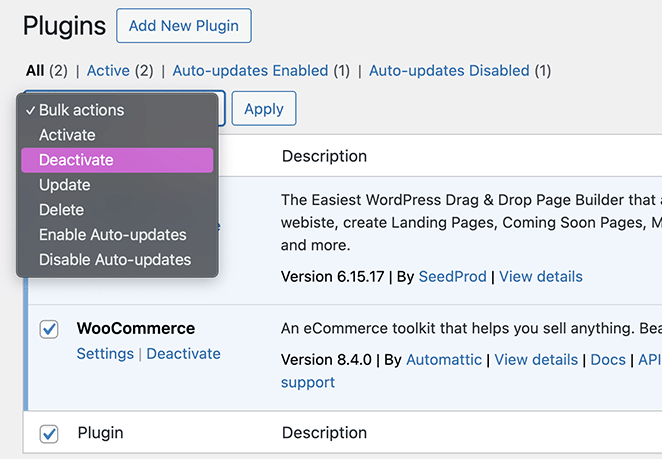
Nachdem Sie Ihre Plugins deaktiviert haben, überprüfen Sie, ob die Schaltfläche „Warenkorb anzeigen“ funktioniert. Wenn die Schaltfläche funktioniert, reaktivieren Sie jedes Plugin einzeln, bis Sie dasjenige gefunden haben, das das Problem verursacht.
5. Ändern Sie Ihr WooCommerce-Theme
WooCommerce-Theme-Konflikte können ebenfalls dazu führen, dass die Schaltfläche „Warenkorb anzeigen“ nicht funktioniert. Nicht alle WordPress-Themes und Vorlagen sind miteinander kompatibel, und WooCommerce ist da keine Ausnahme.
Um zu überprüfen, ob Ihr Theme Probleme verursacht, wechseln Sie zu einem Standard-WordPress-Theme oder zu Storefront, dem offiziellen WooCommerce-Theme.
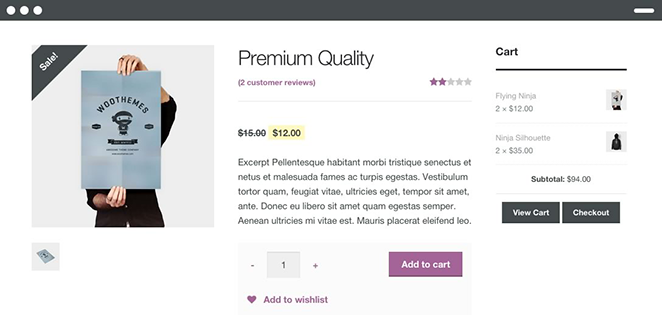
Nachdem Sie die Themes gewechselt haben, versuchen Sie erneut, Ihren WooCommerce-Warenkorb anzuzeigen. Wenn das Problem behoben ist, ist klar, dass Ihr Theme den Konflikt verursacht hat.
In diesem Fall müssen Sie möglicherweise Ihr Theme aktualisieren oder den Entwickler des Themes kontaktieren, um ihn über das Problem zu informieren.
Eine andere Möglichkeit, dies zu lösen, ist die Erstellung Ihres eigenen WordPress-Themes.
Wenn der Theme-Konflikt immer wieder auftritt oder Sie ein Drittanbieter-Theme nicht beheben möchten, können Sie mit SeedProd's Elite Plan einen vollständig benutzerdefinierten WooCommerce-Warenkorb, Checkout und eine Shop-Seite mit dem Drag-and-Drop-Editor erstellen.
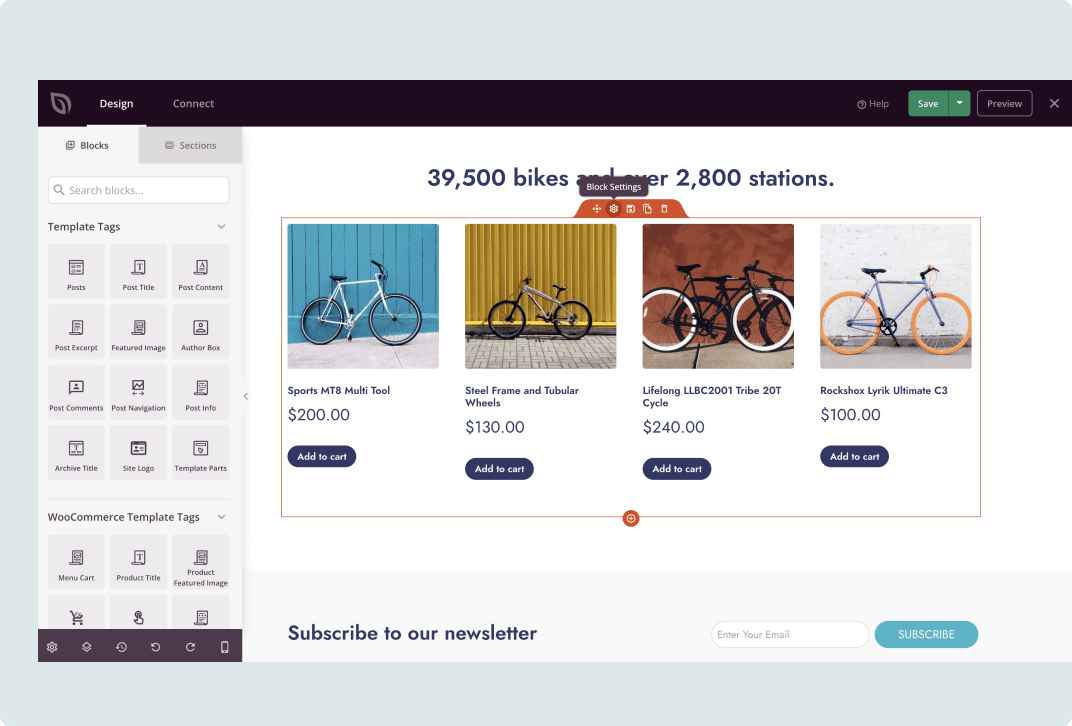
Sie gestalten die Seiten. WooCommerce kümmert sich um den Handel. Keine Theme-Kompatibilitätsprobleme.
6. Überprüfen Sie Ihre WooCommerce-Warenkorbseiteneinstellungen
Selbst ein kleiner Fehler in den Einstellungen Ihrer Warenkorbseite kann Probleme mit Ihrem Online-Shop verursachen. Wenn Ihre Website keine eigene Warenkorbseite hat oder Ihre Einstellungen nicht übereinstimmen, werden Sie wahrscheinlich Probleme mit dem Button „Warenkorb anzeigen“ haben.
Wenn keine Seite festgelegt ist, landen Besucher möglicherweise auf einer 404-Seite oder es tritt ein WooCommerce-Warenkorbseitenfehler auf, wenn sie versuchen, ihren Warenkorb anzuzeigen.
Um die Einstellungen Ihrer Warenkorbseite zu überprüfen, gehen Sie in Ihrem WordPress-Adminmenü zu WooCommerce » Einstellungen und klicken Sie auf die Registerkarte „Erweitert“.
Hier sehen Sie verschiedene Seiteneinstellungen, einschließlich „Warenkorbseite“. Klicken Sie auf das Dropdown-Menü, um sicherzustellen, dass die Warenkorbseite Ihrer Website ausgewählt ist.
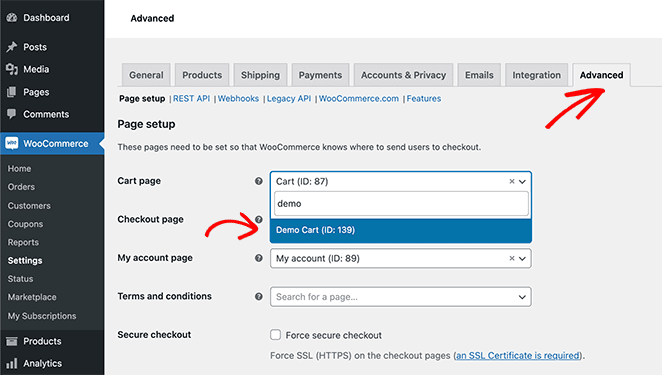
Wenn Sie keine eigene Warenkorbseite haben, müssen Sie eine erstellen.
Gehen Sie dazu zu Seiten » Neu hinzufügen und nennen Sie sie „Warenkorb“. Alternativ können Sie dieser Anleitung folgen, um eine benutzerdefinierte Einkaufswagen-Seite zu erstellen mit SeedProd.
Kehren Sie dann zur WooCommerce-Einstellungsseite zurück und wählen Sie Ihre neue Seite aus dem Dropdown-Menü aus.
Speichern Sie abschließend die Änderungen und prüfen Sie, ob der Button „Warenkorb anzeigen“ funktioniert.
Wenn die Warenkorbseite zugewiesen ist, aber immer noch leer angezeigt wird, öffnen Sie sie im Editor und prüfen Sie, ob sie den WooCommerce-Warenkorb-Block (bei Verwendung des Block-Editors) oder den Shortcode [woocommerce_cart] (bei Verwendung des klassischen Editors) enthält.
Eine Seite ohne Warenkorb-Block wird leer angezeigt, auch wenn sie in den WooCommerce-Einstellungen korrekt zugewiesen ist.
7. Beheben Sie WooCommerce-Warenkorb-Weiterleitungen zur Homepage
Wenn Sie beim Hinzufügen eines Artikels zur Homepage statt zur Warenkorbseite weitergeleitet werden, überschreibt möglicherweise eine Weiterleitungsregel die zugewiesene Warenkorbseite.
Bestätigen Sie zuerst, dass die Warenkorbseite unter WooCommerce » Einstellungen » Erweitert festgelegt ist. Wenn sie korrekt zugewiesen ist, prüfen Sie auf Weiterleitungsregeln in Sicherheit-Plugins wie Wordfence oder dem Redirection-Plugin, die die Warenkorb-URL abfangen könnten.
Deaktivieren Sie diese Plugins nacheinander, um den Verursacher zu identifizieren. Wenn keine Plugins die Ursache sind, überprüfen Sie die functions.php Ihres Themes auf benutzerdefinierten Weiterleitungscode.
8. Setzen Sie Ihre Permalinks zurück
Permalinks sind entscheidend, da sie die Online-Adresse Ihrer Seiten und Beiträge definieren. Wenn sich Ihr WooCommerce-Warenkorb nach dem Hinzufügen von Artikeln nicht aktualisiert, kann dies an einem Caching-Problem oder einem Permalink-Konflikt liegen.
Um sie zurückzusetzen, gehen Sie in Ihrem WordPress-Dashboard zu Einstellungen » Permalinks. Auf der Registerkarte „Permalink-Einstellungen“ scrollen Sie nach unten und klicken Sie auf die Option „Einfach“.
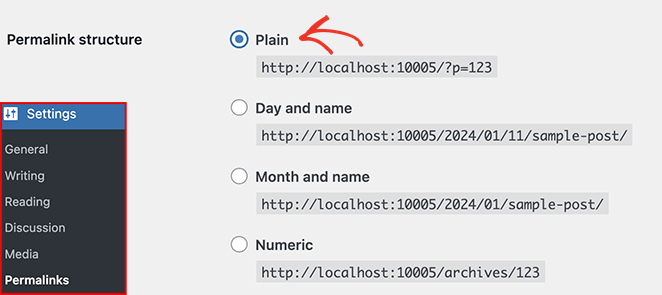
Klicken Sie nun unten auf der Seite auf die Schaltfläche „Änderungen speichern“.
Nach dem Speichern kehren Sie zu Ihren vorherigen Permalink-Einstellungen zurück, indem Sie Ihre ursprünglichen Optionen erneut auswählen und erneut auf „Änderungen speichern“ klicken.
9. Leeren Sie den Cache-Plugin-Daten
Eine weitere Ursache dafür, dass der WooCommerce-Warenkorb nicht funktioniert, kann das Caching Ihrer Website sein.
Caching hilft, Ihre WordPress-Website zu beschleunigen, indem Kopien Ihrer Seiten gespeichert und Ihren Besuchern zur Verfügung gestellt werden. Manchmal kann dies zu Inkonsistenzen zwischen den zwischengespeicherten und den Live-Versionen Ihrer Website führen.
Eine Lösung hierfür ist das Leeren des Caches Ihrer Website.
Suchen Sie auf Ihrer Seite mit den installierten Plugins in WordPress Ihr Caching-Plugin. Klicken Sie dann in den Plugin-Einstellungen auf die Option „Cache leeren“.
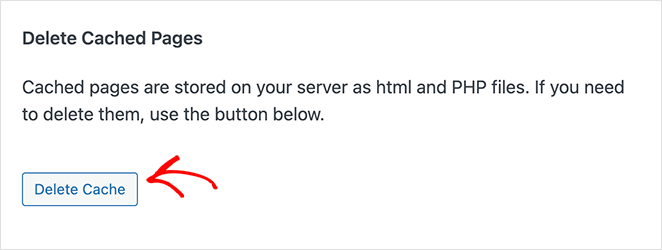
Abhängig vom verwendeten Plugin kann die Option auch „Cache löschen“ oder „Cache leeren“ heißen.
Das Leeren Ihres Caches kann das Problem sofort beheben, indem Benutzern eine saubere, aktualisierte Version Ihrer Website angeboten wird.
10. Prüfen Sie auf Anpassungs-/Codefehler
Manchmal liegt die Ursache dafür, dass Ihr Warenkorb-Button nicht funktioniert, an benutzerdefinierten Code-Snippets und Shortcodes. Wenn Sie Ihr WooCommerce-Theme geändert oder benutzerdefinierte Funktionen zu Ihrer functions.php-Datei hinzugefügt haben, können die Änderungen mit Ihrem Warenkorb in Konflikt geraten.
Um diese Probleme zu beheben, suchen Sie nach benutzerdefinierten Code-Snippets auf Ihrer WordPress-Website. Sichern Sie dann Ihre Website und entfernen Sie die Snippets einzeln.
Überprüfen Sie nach dem Entfernen jedes Snippets, ob der Warenkorb-Button funktioniert. Wenn ja, haben Sie den Übeltäter gefunden.
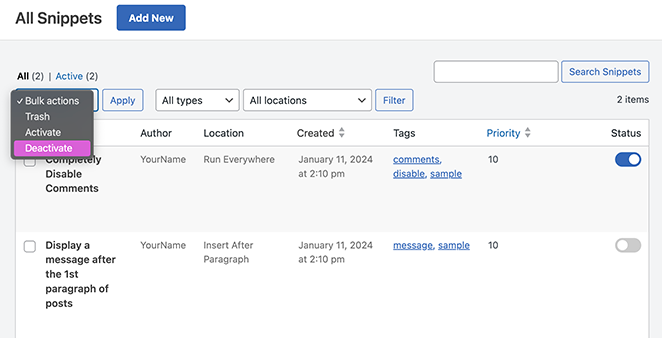
Wenn Sie ein fehlerhaftes Code-Stück finden, sollten Sie einen professionellen Entwickler beauftragen, das Problem zu untersuchen und zu beheben. Wenn Sie es selbst korrigieren, ohne die erforderliche Fachkenntnis zu haben, kann dies mehr schaden als nützen.
Alternativ können Sie Code mit einem Code-Snippet-Plugin wie WPCode zu Ihrer Website hinzufügen. Es ermöglicht Ihnen, Snippets einzeln ein- und auszuschalten, was die Fehlerbehebung erleichtert.
11. Kontaktieren Sie Ihren Hoster wegen serverseitiger Probleme
Wenn Sie die vorherigen Schritte ausgeführt haben und das Problem, dass der WooCommerce-Warenkorb nicht funktioniert, weiterhin besteht, liegt es möglicherweise auf Serverseite. In diesem Fall ist es an der Zeit, Ihren Hosting-Anbieter einzuschalten.
Server-Engpässe oder Probleme mit Ihrem Website-Hosting-Unternehmen können zu Unterbrechungen bei WooCommerce und der Leistung Ihrer Webseite führen.
Kontaktieren Sie Ihren Hosting-Dienstleister und teilen Sie ihm so viele Informationen wie möglich über Ihr Problem mit. Dies hilft ihm, das Problem zu debuggen und die perfekte Lösung zu finden.
Einige spezifische Dinge, die Sie erwähnen sollten, sind:
- Die genaue Fehlermeldung, die Sie sehen, falls vorhanden.
- Wann das Problem begann.
- Die Fehlerbehebungsschritte, die Sie bereits unternommen haben.
- Ob das Problem konstant oder intermittierend auftritt.
Die meisten Webhoster verfügen über einen starken Kundensupport, der mit Ihnen zusammenarbeitet, um das Problem zu lösen.
Wenn sie jedoch nicht helfen können, sollten Sie zu einem anderen Hoster wechseln, der eine bessere WooCommerce-Kompatibilität und -Unterstützung bietet. Hier sind einige unserer Top empfohlenen WordPress-Hosting-Anbieter.
Weitere Möglichkeiten zur Anpassung von WooCommerce
Die Behebung des Fehlers „Warenkorb nicht funktionierend“ ist nur eine von vielen Möglichkeiten, Ihren Shop anzupassen. Weitere WooCommerce-Anpassungen finden Sie in den folgenden Anleitungen:
- So passen Sie den WooCommerce-Tab „Zusätzliche Informationen“ an
- So passen Sie Ihre WooCommerce-Warenkorbseite an
- So passen Sie Ihre WooCommerce-Shop-Seite ganz einfach an
- So fügen Sie eine Produktbildergalerie in WooCommerce hinzu
- So fügen Sie Produktseiten in WooCommerce Sternebewertungen hinzu
- So zeigen Sie Produktkategorien und -tags in WooCommerce an
- So erhalten und zeigen Sie Produktbeschreibungen in WooCommerce an
- So zeigen Sie empfohlene Produkte in WooCommerce an
- So blenden Sie nicht vorrätige Produkte in WooCommerce aus
FAQs zu WooCommerce-Warenkorb funktioniert nicht
Hier sind einige häufig gestellte Fragen und Antworten zum Problem, dass der WooCommerce-Warenkorb nicht funktioniert.
Warum fehlt die Schaltfläche „Weiter zur Kasse“ in meinem Warenkorb?
Ein fehlender Checkout-Button wird normalerweise durch fehlende Zahlungs-Gateways verursacht. Stellen Sie sicher, dass mindestens eines aktiv und in Ihren WooCommerce-Einstellungen korrekt konfiguriert ist. Der Button kann auch nicht verfügbar sein, wenn der Versand erforderlich, aber nicht konfiguriert ist, oder wenn Sie einen Mindestbestellwert festgelegt haben und der Warenkorbwert darunter liegt.
Warum wird eine leere Seite angezeigt, wenn ich versuche, meinen Warenkorb anzuzeigen?
Wenn Sie beim Anzeigen des Warenkorbs eine leere Seite sehen, versuchen Sie, die Seite zu aktualisieren oder einen anderen Browser zu verwenden. Browser-Erweiterungen können ebenfalls stören, versuchen Sie daher, diese zu deaktivieren. Wenn die Warenkorbseite in den WooCommerce-Einstellungen zugewiesen ist, aber immer noch leer ist, öffnen Sie die Seite in Ihrem Editor und bestätigen Sie, dass sie den WooCommerce-Warenkorb-Block oder den Shortcode [woocommerce_cart] enthält.
Warum leert sich mein WooCommerce-Warenkorb immer wieder, nachdem ich Artikel hinzugefügt habe?
Dies liegt normalerweise an Cookies oder Caching. Ihr Browser hat möglicherweise Cookies deaktiviert, oder ein Caching-Plugin schließt die Seite /cart/ vom Caching aus. Ein SSL/HTTPS-Mismatch kann ebenfalls zu Sitzungsverlust führen, wodurch der Warenkorb nach jedem Seitenaufruf geleert wird. Versuchen Sie, Ihren Cache zu löschen, in ein privates Browserfenster zu wechseln und sicherzustellen, dass Ihre Shop-URL durchgängig https verwendet.
Als Nächstes: So beheben Sie abgebrochene Warenkörbe
Gehen Sie diese Lösungen von oben durch, und die meisten Warenkorbprobleme werden in den ersten Schritten behoben.
Wenn Sie bereit sind, die volle Kontrolle über Ihren WooCommerce-Shop zu übernehmen, enthält SeedProd's Elite-Plan benutzerdefinierte Warenkorb-, Checkout- und Produktseiten-Vorlagen, die mit dem Drag-and-Drop-Editor erstellt wurden.
Für das Gesamtbild lesen Sie meinen Leitfaden zum Thema Behebung von abgebrochenen Warenkörben.
Danke fürs Lesen! Wir würden uns freuen, Ihre Gedanken zu hören. Treten Sie also gerne der Unterhaltung auf YouTube, X und Facebook bei, um weitere hilfreiche Ratschläge und Inhalte für das Wachstum Ihres Unternehmens zu erhalten.



