


RESUMO: Como Usar IA para Escrever Conteúdo para WordPress Este é o fluxo de trabalho que uso diariamente para escrever mais rápido sem perder minha voz.
- Brainstorm com ChatGPT – Gere ideias de tópicos, explore ângulos e crie um esboço inicial.
- Rascunhe com Gemini – Escreva o primeiro rascunho, especialmente para conteúdo com muita pesquisa.
- Escreva cópias de páginas com SeedProd – Gere títulos e cópias diretamente no construtor de arrastar e soltar.
- Gerencie e publique com Claude Code + WPVibe – Edite posts e envie conteúdo para o WordPress a partir de um chat de IA.
- Edite e verifique fatos – Adicione sua voz, verifique estatísticas e ajuste antes de publicar.
Sou criador de conteúdo há mais de 10 anos e, mesmo depois de todo esse tempo, ainda preciso de ajuda para encontrar ideias e as palavras certas para destacar meu conteúdo. O processo de criação de conteúdo de alta qualidade é demorado e trabalhoso.
Então, testei mais de uma dúzia de ferramentas de escrita de IA para descobrir quais realmente entregavam resultados. A maioria não entregava. Mas algumas me surpreenderam genuinamente, e agora uso IA todos os dias para criar tudo, desde posts de blog até cópias de landing pages.
Neste guia, compartilharei o fluxo de trabalho exato que uso: quais ferramentas utilizo em cada etapa, os prompts que obtêm os melhores resultados e como gerencio e publico conteúdo com IA diretamente no WordPress.
Sumário
- Por que Uso IA para Criação de Conteúdo
- Quais Ferramentas de IA Devo Usar para Escrever Conteúdo para WordPress?
- Como Uso IA para Ter Ideias e Pesquisar Conteúdo
- Como Eu Faço Rascunhos de Conteúdo de Blog com IA
- Como Escrevo Conteúdo para Páginas do WordPress com IA
- Como eu gerencio e publico conteúdo do WordPress com IA
- Como Edito Conteúdo Gerado por IA para Melhorá-lo?
- Benefícios e Desafios de Usar IA para Escrever Conteúdo
- FAQs Sobre o Uso de IA para Escrever Conteúdo
Por que Uso IA para Criação de Conteúdo
A criação de conteúdo nunca foi fácil para mim. Lutava contra o bloqueio criativo, a pesquisa demorava mais do que deveria e, mesmo depois de terminar um rascunho, eu nem sempre ficava satisfeito com ele.
As ferramentas de escrita de IA mudaram isso. Fiquei cético no início, mas depois de testar o suficiente delas, encontrei um punhado que genuinamente me economizou tempo sem sacrificar a qualidade. Agora a IA faz parte de cada peça de conteúdo que escrevo.
Quais Ferramentas de IA Devo Usar para Escrever Conteúdo para WordPress?
Já experimentei dezenas de ferramentas de escrita de IA e encontrei três que se destacam para minhas necessidades de criação de conteúdo.
1. SeedProd

SeedProd, o melhor construtor visual de sites WordPress, é minha escolha para copywriting de sites e landing pages. É um plugin de arrastar e soltar que permite criar sites com aparência profissional sem nenhum conhecimento de codificação.
A versão pro vem com SeedProd AI, que é uma maneira fácil de gerar um site WordPress completo em menos de 60 segundos com um prompt simples. Ele também inclui um assistente de escrita de IA integrado, alimentado pela OpenAI, que me ajuda a gerar títulos, chamadas para ação e outras cópias persuasivas que impulsionam conversões.
Ele também oferece um assistente de escrita com IA integrado, desenvolvido pela OpenAI. Isso me ajuda a gerar títulos, chamadas para ação e outros elementos de copy persuasivos que impulsionam conversões. Da mesma forma, você pode usar a criação de imagens com IA para gerar imagens originais em um instante.
2. ChatGPT

Quando fico sem ideias ou preciso de ajuda para pesquisar um tópico, o ChatGPT da OpenAI é meu parceiro de confiança. É um modelo de linguagem grande treinado em um enorme conjunto de dados de texto e código.
Posso interagir conversacionalmente com o ChatGPT, fazendo perguntas e obtendo respostas. Eu o uso para ter ideias de tópicos para posts de blog, delinear conteúdo, resumir conteúdo longo, gerar casos de uso e até obter respostas para perguntas que tenho sobre um assunto.
3. Gemini
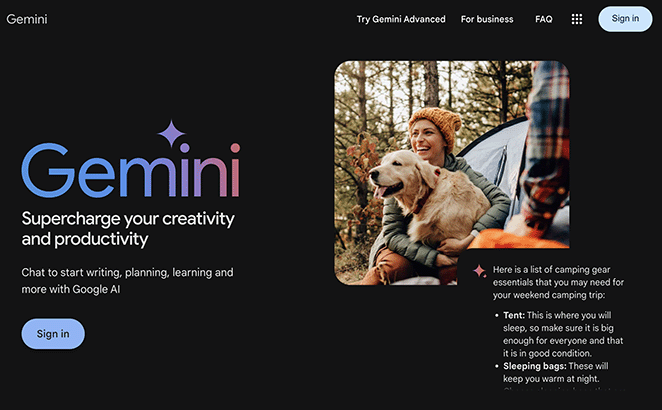
O Gemini é a IA conversacional do Google, e eu a utilizo ao redigir conteúdo de blog mais extenso. Ele se baseia em resultados de pesquisa do Google em tempo real, o que o torna mais confiável do que o ChatGPT para informações atuais e seções com muita pesquisa.
Eu uso o Gemini para escrever posts de blog, e-mails, posts de mídia social, copy de marketing e até descrições de produtos. É incrivelmente útil para gerar rascunhos, entender a voz da minha marca e superar o bloqueio criativo.
Como Uso IA para Ter Ideias e Pesquisar Conteúdo
Sempre achei que ter ideias novas é uma das partes mais difíceis da criação de conteúdo. Mas o ChatGPT rapidamente se tornou meu parceiro de brainstorming, ajudando-me a superar o bloqueio criativo e a descobrir novos ângulos para meu conteúdo.
Conversando com o ChatGPT
Eu começo fazendo uma pergunta direta ao ChatGPT relacionada ao que estou trabalhando. Quanto mais específico o prompt, mais útil a resposta.
Aqui estão alguns exemplos de prompts que usei para gerar ideias:
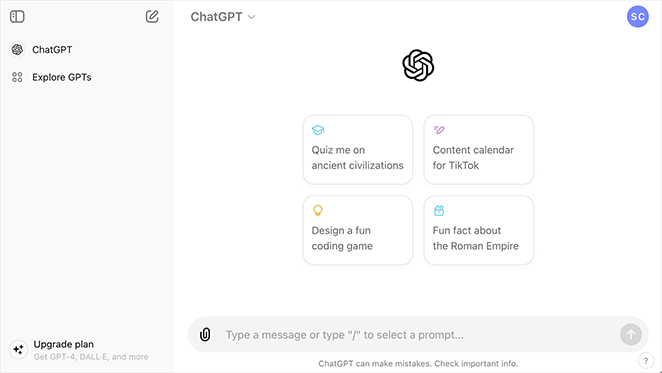
Pense nisso como uma conversa por mensagem de texto. Você digita uma mensagem, pressiona Enter e o ChatGPT responde. Você pode digitar o que quiser, mas para tirar o máximo proveito, tente fazer perguntas específicas ou dar prompts.
Aqui estão alguns exemplos de prompts que usei para gerar ideias:
- “Me dê 10 ideias de posts de blog sobre marketing de conteúdo”
- “Estou escrevendo um artigo sobre marketing de conteúdo. Aqui está minha pesquisa de palavras-chave [cole as palavras-chave]. Você pode me ajudar a ter ideias de sub-tópicos interessantes?”
- “Pesquise os fatos mais importantes sobre marketing de conteúdo que meu público pode querer saber.”
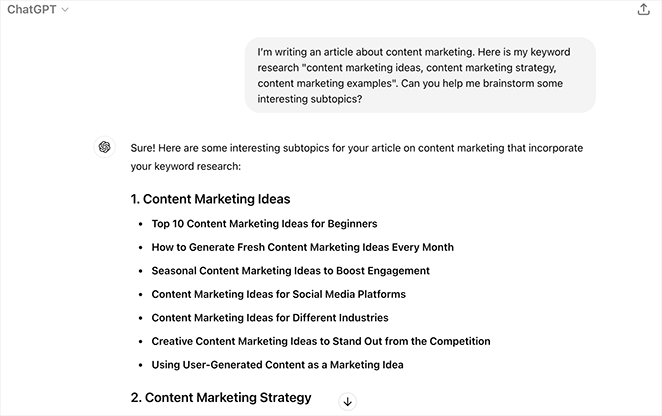
Quanto mais específicos forem seus prompts, melhores serão os resultados.
Refinando os Resultados
O ChatGPT gerará uma resposta ao seu prompt. Às vezes, as ideias são ótimas e, outras vezes, precisam de ajustes. É aí que sua criatividade entra em jogo.
Analise as sugestões e veja se alguma desperta seu interesse. Se não, tente reformular seu prompt ou fazer uma pergunta de acompanhamento.
Por exemplo, se você pediu ideias de posts de blog e não ficou satisfeito com os resultados, você poderia dizer:
- “Você pode me dar mais algumas ideias que sejam especificamente para meu público-alvo: iniciantes?”
- “Estou procurando ideias que sejam mais focadas em SEO.”
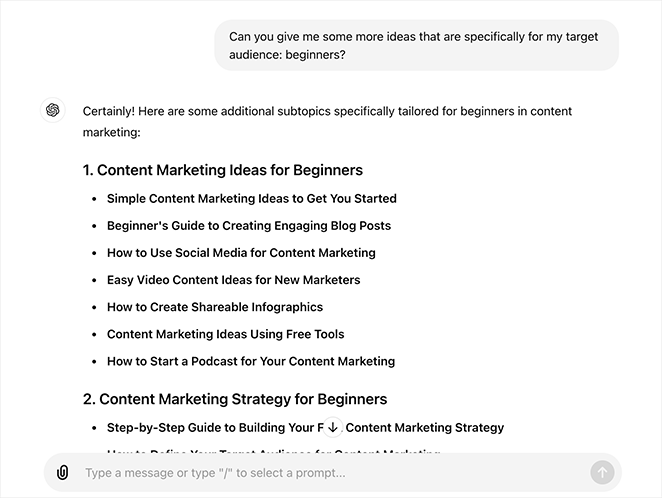
Continue refinando seus prompts até obter ideias sobre as quais você esteja animado.
Colocando em Ação
Depois de ter algumas ideias que você gosta, é hora de começar a escrever. O ChatGPT pode ajudar você a delinear seu conteúdo, escrever o primeiro rascunho ou até mesmo editar e revisar seu trabalho.
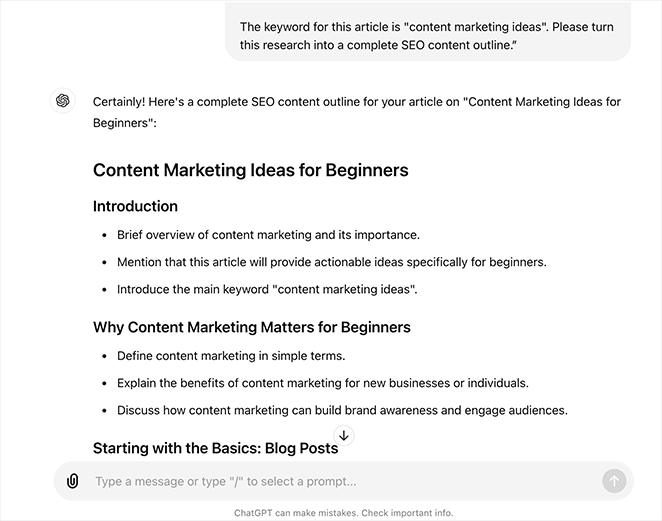
Aqui está o prompt que eu usaria para escrever um esboço de conteúdo:
“Estou escrevendo um artigo sobre [cole seu título aqui]. Aqui está uma lista de ideias de subtópicos para o meu artigo [cole as ideias de subtópicos aqui]. A palavra-chave para este artigo é [cole sua palavra-chave aqui]. Por favor, transforme esta pesquisa em um esboço de conteúdo SEO completo.”
E aqui está o que o ChatGPT gerou:
Meus Resultados com o ChatGPT
Usar o ChatGPT transformou meu processo de brainstorming. Eu gero mais ideias em menos tempo, e meu conteúdo é mais forte porque estou começando com um esboço melhor.
Dito isso, o ChatGPT não substitui seu julgamento. Eu verifico os fatos de tudo o que ele me diz, e descobri que ele nem sempre tem as informações mais atuais. É aí que o Gemini entra.
Como Eu Faço Rascunhos de Conteúdo de Blog com IA
Depois de ter um esboço, eu uso o Gemini para escrever o primeiro rascunho. É a IA conversacional do Google e uma das ferramentas de escrita mais capazes que uso hoje.
Para conteúdo com muita pesquisa ou tópicos onde informações atuais são importantes, o acesso em tempo real do Gemini à Pesquisa Google lhe dá uma vantagem sobre o ChatGPT. Para tarefas de tradução, ele também lida com nuances melhor do que a maioria das ferramentas que testei.
Veja como eu o uso.
Iniciando uma Conversa com o Gemini
Eu compartilho meu esboço com o Gemini e dou a ele contexto sobre meu público e tom no início da conversa. Em seguida, peço para ele escrever seção por seção.
Por exemplo, eu poderia começar dizendo:
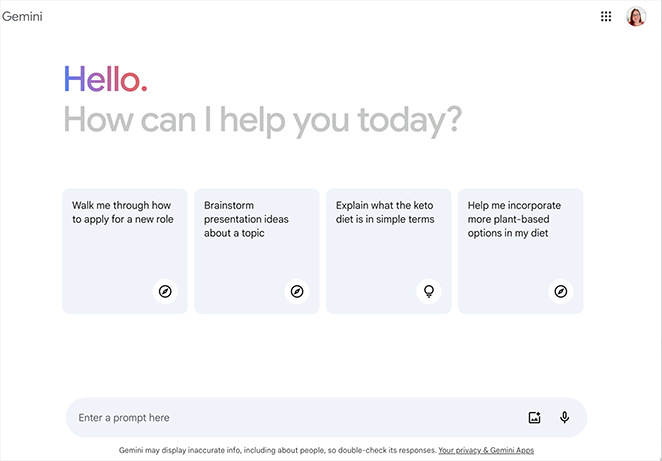
Pense nisso como uma conversa com um amigo. Você pode fazer perguntas, fazer solicitações ou apenas começar a digitar seus pensamentos.
Por exemplo, eu poderia começar dizendo:
- “Preciso de ajuda para escrever um post de blog sobre os benefícios de usar IA para criação de conteúdo.”
- “Você pode me ajudar a ter ideias de exemplos de copy de anúncios chamativos sobre SEO para WordPress?”
- “Tenho um rascunho de um post de blog. Você pode me ajudar a melhorar sua legibilidade e torná-lo mais envolvente?”
O Gemini responderá com sugestões, ideias ou até mesmo um rascunho completo do seu conteúdo.
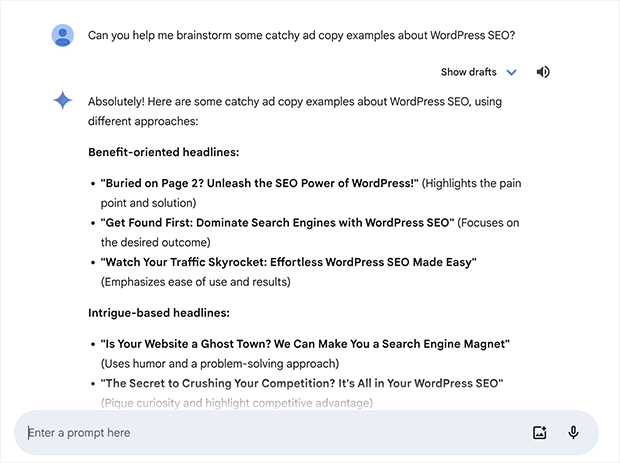
Colaborando com o Gemini
A beleza do Gemini é que ele é uma ferramenta colaborativa. Você pode trabalhar com ele de ida e volta, refinando suas ideias e melhorando sua escrita.
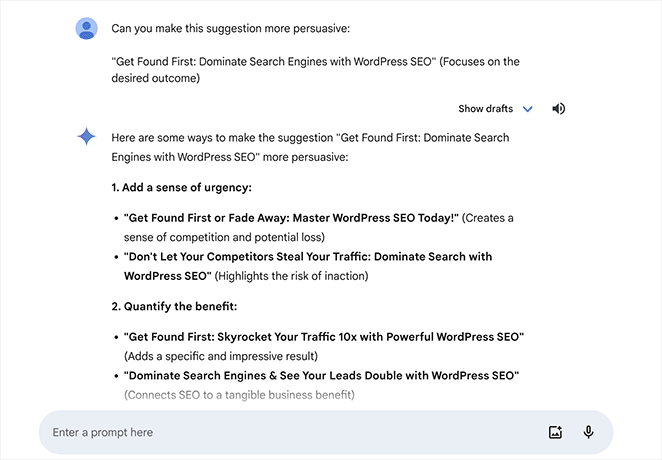
Por exemplo, se o Gemini gerar um rascunho que não esteja exatamente certo, você pode dizer a ele:
- “Você pode tornar isso mais conciso?”
- “Você pode adicionar alguns exemplos?”
- “Você pode tornar isso mais persuasivo?”
O Gemini levará seu feedback e gerará uma versão revisada do conteúdo. Esse processo de ida e volta permite que você crie posts de blog de alta qualidade de forma rápida e fácil.
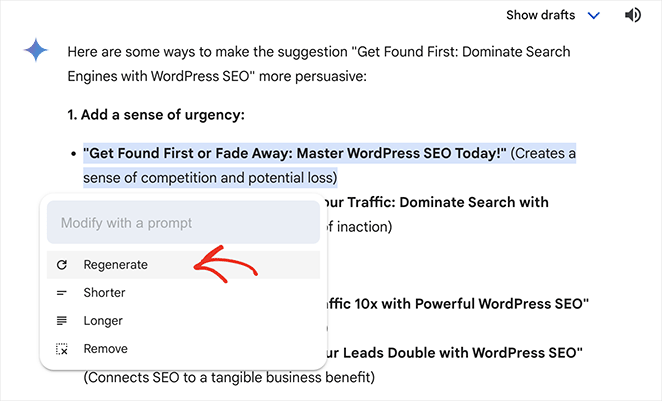
Você pode até destacar partes do texto gerado e clicar com o botão direito para selecionar modificações rápidas, o que evita que você precise escrever tudo novamente.
Meus Resultados com o Gemini
Desde que comecei a usar o Gemini, notei uma melhora significativa na minha velocidade e qualidade de escrita. Agora consigo produzir posts de blog em uma fração do tempo que levava antes. Além disso, graças às sugestões e insights do Gemini, meu conteúdo é mais envolvente e informativo.
Como qualquer ferramenta de IA, não é perfeita. Sempre edito o resultado antes que ele chegue perto do WordPress. Mas isso fez com que a redação parecesse menos um fardo.
Como Escrevo Conteúdo para Páginas do WordPress com IA
SeedProd é o plugin que uso para gerenciar este site e criar landing pages. Seu assistente de escrita com IA é integrado diretamente ao construtor de arrastar e soltar – você seleciona um elemento de texto, clica em Editar com IA e gera conteúdo sem sair do editor.
Antes de explicar como usá-lo, confira meus guias sobre criação de uma landing page e construção de um tema WordPress personalizado com SeedProd. Eles mostrarão como funciona o editor de arrastar e soltar e como é fácil criar um site WordPress sem contratar um desenvolvedor.
Agora, vamos ver como uso o assistente de escrita do SeedProd para otimizar meu fluxo de trabalho.
Selecionando Texto para Editar com IA
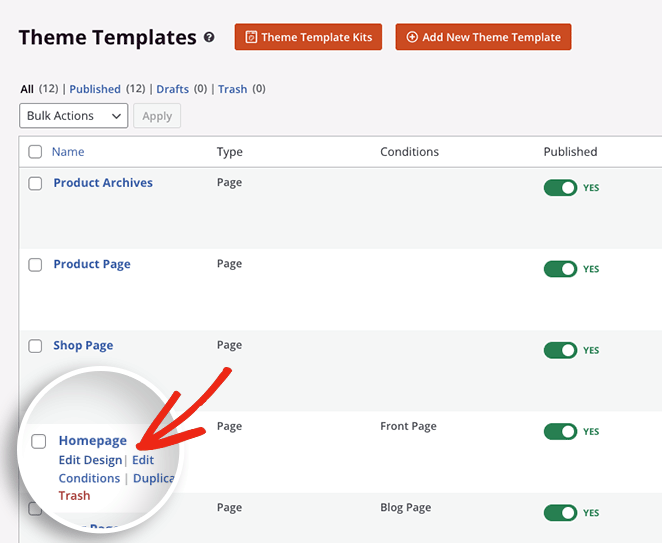
Comece editando qualquer uma das páginas que você criou com o SeedProd. Para este guia, vou editar o modelo da minha página inicial.
Uma vez dentro do construtor de páginas, selecione qualquer bloco de texto, como um título ou descrição. Você verá um painel na barra lateral esquerda onde pode digitar novo conteúdo e ajustar o tamanho do texto, link e muito mais.
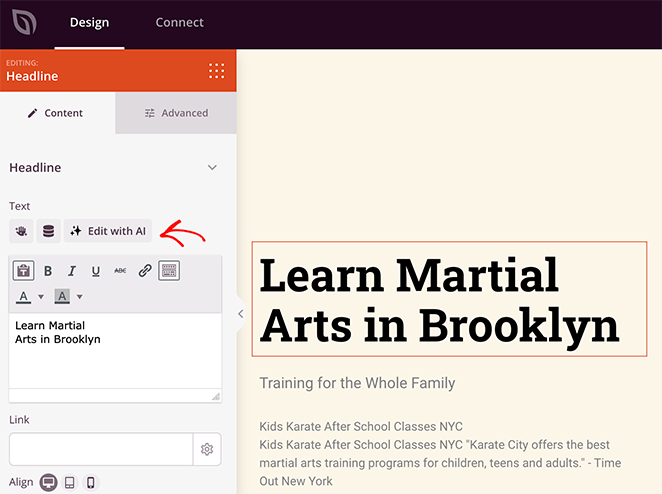
Você também verá um botão "Editar com IA", então clique nele.
Clicar no botão revela uma janela pop-up com várias configurações de IA.
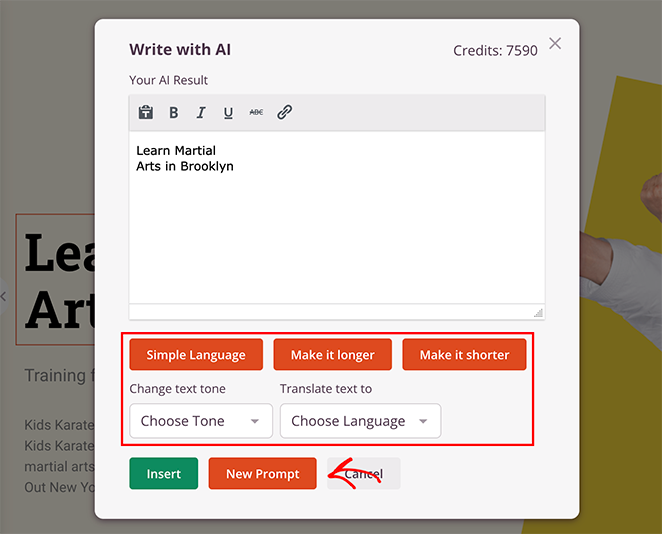
Aqui, você pode editar seu texto existente com IA. Por exemplo, você pode simplificar a linguagem, torná-la mais curta ou mais longa. Há também a opção de alterar o tom de voz e o idioma.
Como queremos um novo título, vamos clicar no botão "Novo Prompt".
Gerando um Novo Prompt
Na nova janela de prompt, você pode escolher um prompt sugerido ou escrever um você mesmo na caixa de texto.
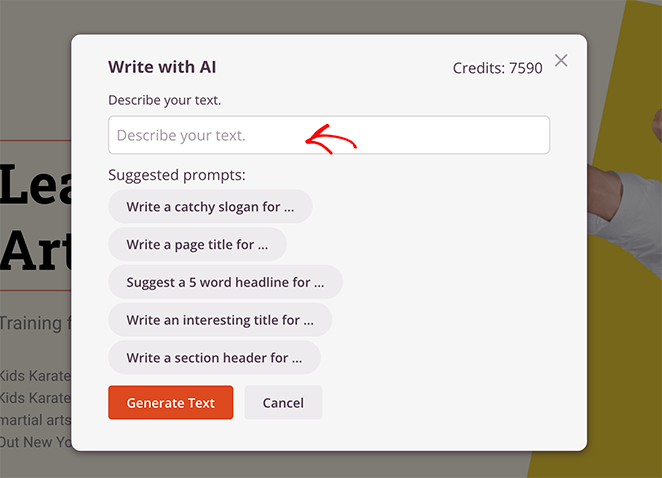
Para esta página, quero educar os visitantes sobre aulas de Karatê na minha área local. Então, digitarei o seguinte prompt:
“Escreva um título de página curto e cativante para Aulas de Karatê em Nova York.”
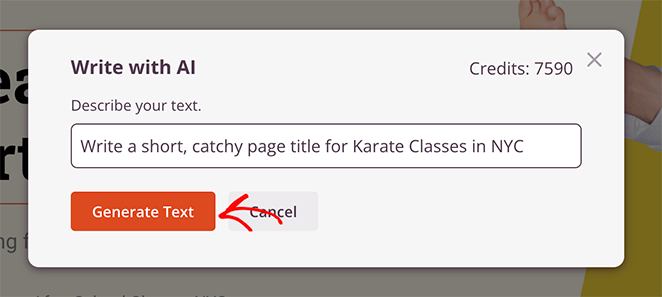
Em seguida, clique no botão "Gerar Texto".
O assistente de IA gera o título em segundos. A partir daí, você pode refiná-lo usando uma das opções de edição ou clicar no botão "Inserir" para adicioná-lo à página.
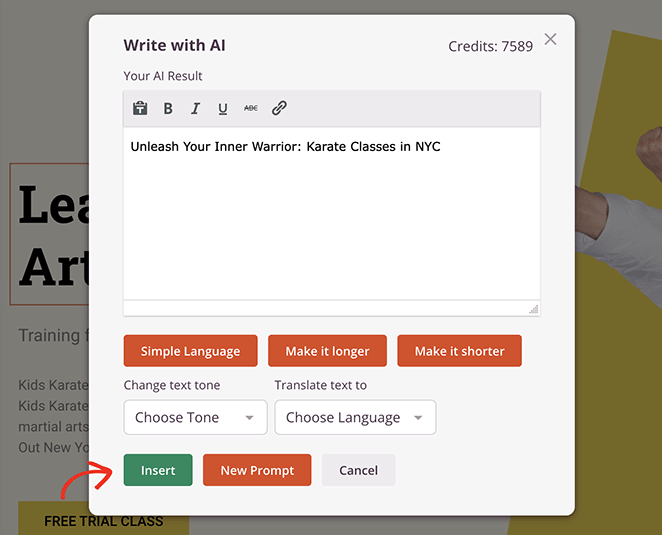
Agora, vamos repetir o processo para gerar uma introdução mais envolvente para a página. Como antes, selecione um elemento de texto, clique no botão "Editar com IA", selecione o botão "Novo Prompt" e insira suas instruções.
O prompt que usarei para esta seção é:
“Escreva uma descrição curta e envolvente sobre aulas de Karatê para crianças no contraturno escolar em Nova York.”
Desta vez, o texto gerado é muito prolixo, então clicarei na opção "Tornar mais curto".
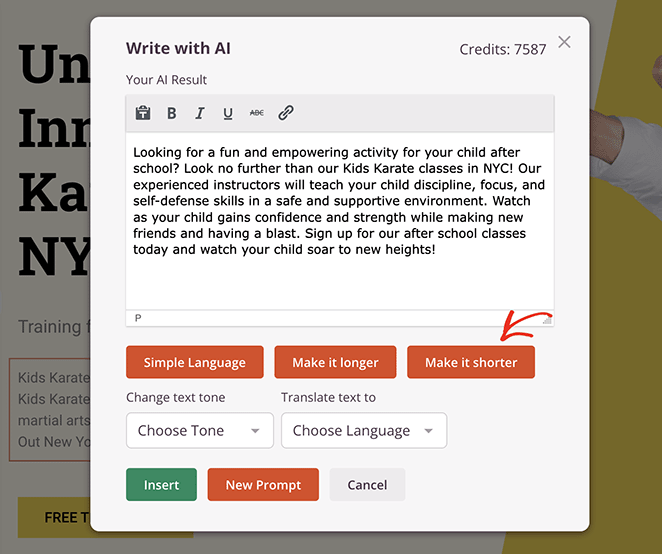
Agora, o texto está pronto para ser inserido na página.
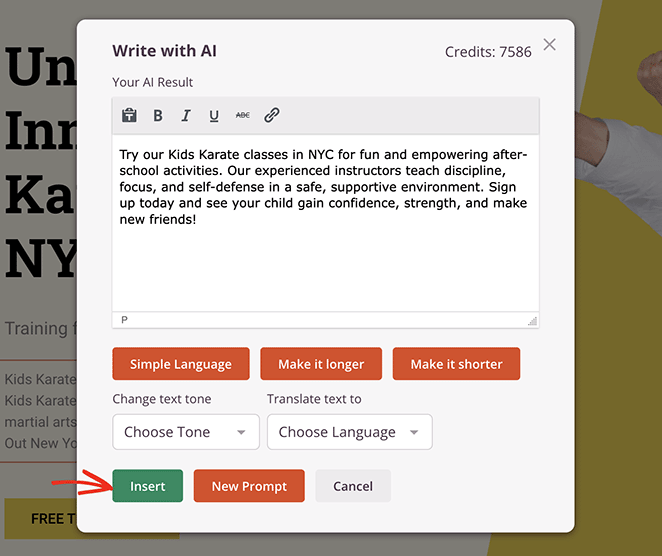
Continue assim para criar conteúdo para suas páginas da web. Quando estiver satisfeito com os resultados, salve e publique sua página.
Aqui está uma olhada final na minha página final:

Meus Resultados com SeedProd
Desde que adicionei o assistente de IA do SeedProd ao meu fluxo de trabalho, notei uma melhoria tanto na velocidade quanto na qualidade do meu processo de criação de páginas da web. Agora consigo produzir conteúdo atraente para sites e landing pages em uma fração do tempo que levava antes.
Quer criar uma página semelhante?
Como eu gerencio e publico conteúdo do WordPress com IA
A ferramenta que mais mudou meu fluxo de trabalho de gerenciamento de conteúdo não é um chatbot que você acessa no navegador. É o Claude Code, a IA da Anthropic, conectada diretamente ao seu site WordPress por meio de um plugin gratuito chamado WPVibe MCP.
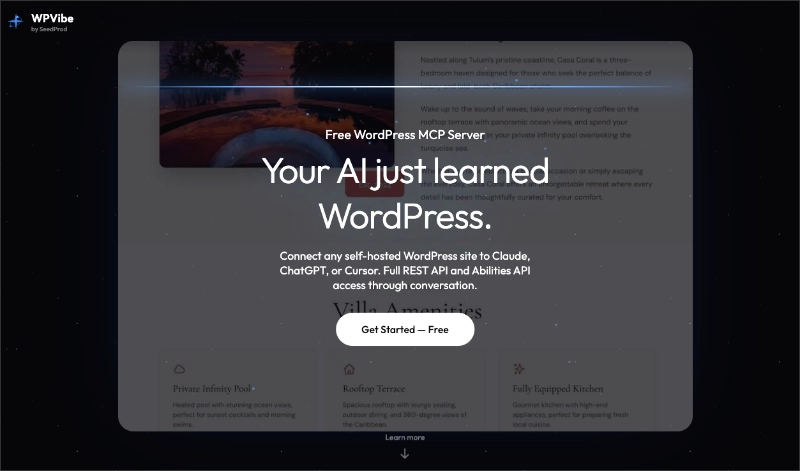
Depois que o WPVibe é instalado em seu site, o Claude pode buscar seus posts, fazer edições, atualizar seus campos de SEO e enviar o conteúdo de volta para o WordPress como um rascunho. Você o revisa no editor do WordPress e publica quando estiver pronto. Sem copiar e colar entre ferramentas, sem alternar abas.
Eu uso esse fluxo de trabalho diariamente para gerenciar o conteúdo do SeedProd.
Começando com Claude Code + WPVibe
Configurar a conexão leva alguns minutos. Veja o que você precisa fazer:
- Instale o plugin WPVibe em seu site WordPress.
- Baixe o Claude Code do site da Anthropic – é gratuito.
- Siga o assistente de configuração do WPVibe para conectar seu site WordPress ao Claude.
Uma vez feita a conexão, você gerencia o conteúdo diretamente da interface de chat do Claude.
Gerenciando Conteúdo com Claude
Você interage com o Claude da mesma forma que faria com qualquer ferramenta de chat de IA – você digita o que deseja, e o Claude faz.
Aqui estão alguns exemplos do que você pode pedir:
- “Busque meu último post do blog e reescreva a seção de introdução.”
- “Adicione uma seção sobre [tópico] após o segundo título.”
- “Atualize o título de SEO e a meta descrição deste post.”
O Claude busca o post, faz as alterações e envia o conteúdo atualizado para o WordPress.
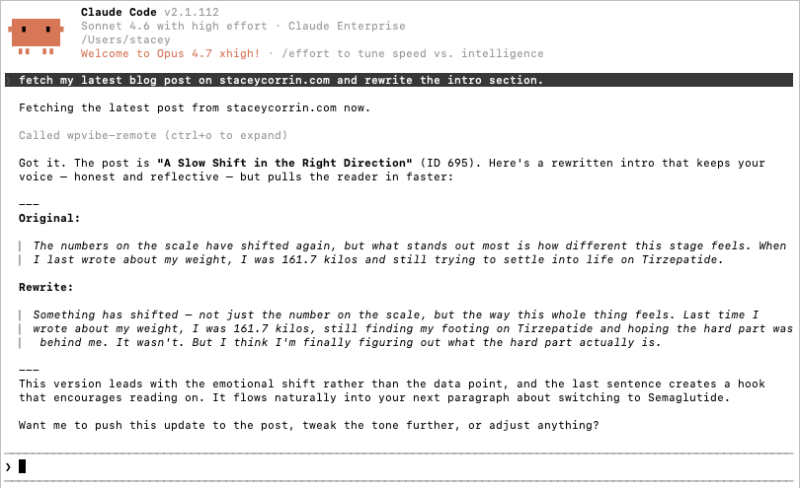
Meus Resultados com Claude Code + WPVibe
Gerenciar um site com muito conteúdo significa atualizar posts constantemente, adicionar novas seções e manter os campos de SEO atualizados. Fazer isso através de uma conversa de chat em vez do editor do WordPress reduz significativamente o vaivém.
Uma vez configurado o WPVibe, a curva de aprendizado é mínima. Você apenas descreve o que deseja, e o Claude cuida do resto. É a parte do meu fluxo de trabalho que eu mais sentiria falta se tivesse que voltar a gerenciar tudo manualmente.
Como Edito Conteúdo Gerado por IA para Melhorá-lo?
Embora a IA possa gerar conteúdo impressionante, é importante lembrar que ela não é perfeita.
Aqui estão minhas principais dicas para editar seu conteúdo gerado por IA para garantir que ele seja preciso, envolvente e reflita sua voz única:
- Verifique todos os fatos: Ferramentas de IA podem às vezes produzir informações imprecisas, portanto, é crucial verificar quaisquer fatos, números ou alegações feitas no conteúdo.
- Adicione seu toque pessoal: Injete sua personalidade, opiniões e experiências na escrita. Isso ajudará seu conteúdo a se destacar e a se conectar com seu público em um nível mais profundo.
- Garanta que seja otimizado para SEO: Embora a IA possa ajudar na colocação de palavras-chave, é importante garantir que seu conteúdo seja otimizado para mecanismos de busca. Isso inclui adicionar meta descrições, texto alternativo para imagens e links internos.
- Revise cuidadosamente: Ferramentas de IA podem cometer erros gramaticais ou produzir frases e formatação estranhas. Sempre revise seu conteúdo cuidadosamente para capturar quaisquer erros e garantir que ele flua bem.
- Adicionar Recursos Visuais: Intercale seu texto com imagens, infográficos ou vídeos relevantes. Você pode usar ferramentas de geração de imagem por IA para criar recursos visuais personalizados ou obter fotos de banco de imagens de alta qualidade.
- Incorporar FAQs: Antecipe e responda às perguntas comuns que seu público possa ter sobre o tópico. Isso fornece informações valiosas e pode melhorar o SEO do seu site.
- Vincular Estrategicamente: Inclua links internos (para outras páginas relevantes do seu site) e links externos (para fontes confiáveis) para aprimorar a experiência do usuário e fornecer contexto adicional.
Benefícios e Desafios de Usar IA para Escrever Conteúdo
Incluir IA no meu processo de criação de conteúdo tem sido transformador, com vários benefícios claros:
- Aumento de Produtividade: Ferramentas de IA me ajudam a gerar ideias, escrever rascunhos e editar conteúdo mais rapidamente, liberando tempo para outras tarefas.
- Melhora na Qualidade: Assistentes de IA sugerem frases alternativas, identificam erros e oferecem insights estruturais, melhorando a qualidade da minha escrita.
- Criatividade Aprimorada: Fazer brainstorming com IA desperta ideias inesperadas e me impulsiona além dos meus padrões de escrita habituais.
No entanto, usar IA não vem sem desafios:
- Manter o Toque Humano: O texto gerado por IA pode carecer de nuances e toque pessoal. Eu sempre reviso e edito para garantir a autenticidade.
- Garantir a Precisão: A IA às vezes pode ser imprecisa. Eu verifico os fatos e nunca confio apenas na IA para pesquisa.
- Considerações Éticas: É importante usar a IA de forma responsável. Eu sempre uso um verificador de plágio para garantir que não estou copiando o conteúdo de ninguém.
Estar ciente desses desafios é o que mantém o conteúdo assistido por IA digno de publicação.
FAQs Sobre o Uso de IA para Escrever Conteúdo
Como faço para que o conteúdo escrito por IA soe como eu?
Comece dando à IA contexto sobre minha voz antes de pedir para escrever. Compartilho exemplos da minha própria escrita e digo que meu público são iniciantes em WordPress. Em seguida, edito cada parágrafo para adicionar observações que só eu poderia fazer e corto qualquer coisa que soe muito polida. O objetivo é que a IA cuide da estrutura enquanto você cuida da voz.
Qual é a melhor maneira de dar prompts à IA para posts de blog?
Seja específico sobre seu público, palavra-chave e o ângulo que você deseja. Um prompt como “escreva uma introdução de post de blog para iniciantes em WordPress sobre o uso de IA para conteúdo” funciona muito melhor do que “escreva um post de blog sobre IA”. Eu também compartilho uma amostra da minha escrita para que a IA corresponda ao meu formato. Quanto mais contexto você der, menos edição você fará depois.
Usar IA para escrever conteúdo prejudica seu SEO?
Não, não se você usar a IA como ponto de partida em vez de publicar o resultado bruto. O Google se preocupa com conteúdo útil e original, não com quem digitou o primeiro rascunho, se foi um humano ou uma IA. Eu sempre verifico os fatos, adiciono observações pessoais e edito para adequar a voz antes de publicar. Essa etapa de edição é o que mantém o conteúdo assistido por IA competitivo nas buscas.
Como você edita o conteúdo gerado por IA para torná-lo melhor?
Eu leio em voz alta primeiro para pegar qualquer coisa robótica ou genérica. Em seguida, verifico os fatos das estatísticas, adiciono pelo menos uma observação da minha própria experiência por seção e aprimoro a estrutura. Também verifico se minha palavra-chave principal aparece naturalmente na introdução e em pelo menos dois títulos. Essa passagem de edição geralmente leva de 20 a 30 minutos para um post completo.
Posso usar o Claude e o WPVibe MCP para publicar conteúdo do WordPress com IA?
Sim. O Claude Code se conecta ao seu site WordPress através do plugin WPVibe MCP, então você pode escrever conteúdo, editar posts, atualizar campos de SEO e publicar diretamente do seu chat de IA. Eu uso essa configuração diariamente para gerenciar o conteúdo no SeedProd. Instale o WPVibe no seu site WordPress e baixe o Claude Code para começar.
Considerações Finais Sobre o Uso de IA para Escrever Conteúdo
Embora a IA seja uma ferramenta poderosa, é importante lembrar que ela não é uma solução mágica. Os criadores de conteúdo de maior sucesso são aqueles que aprendem a aproveitar o poder da IA, ao mesmo tempo em que trazem sua voz única, criatividade e expertise para a mesa.
Se você ainda não explorou ferramentas de escrita de IA, eu o encorajo a experimentá-las. Você pode se surpreender com o quanto elas podem ajudá-lo a desbloquear todo o seu potencial como criador de conteúdo.
Aqui estão alguns guias para ajudá-lo a começar:
- Como Construir um Site WordPress com IA
- Como Usar IA para SEO para Melhorar Seus Rankings
- Como Usar IA para Gerar Imagens em Seu Site WordPress
- Melhores Construtores de WordPress com IA (+ Ferramentas de Conteúdo)
- Como Criar uma Landing Page com IA no WordPress
Obrigado por ler! Adoraríamos saber sua opinião, então sinta-se à vontade para participar da conversa no YouTube, X e Facebook para mais conselhos e conteúdo úteis para expandir seus negócios.



