
The Table of Contents block automatically generates a clickable navigation menu based on the headings in your page content. This block helps visitors quickly scan and navigate to specific sections of your page, improving user experience and making long-form content more accessible.
Table of Contents blocks are especially useful for detailed guides, tutorials, product documentation, blog posts, and any page with multiple sections that users may want to jump to directly.
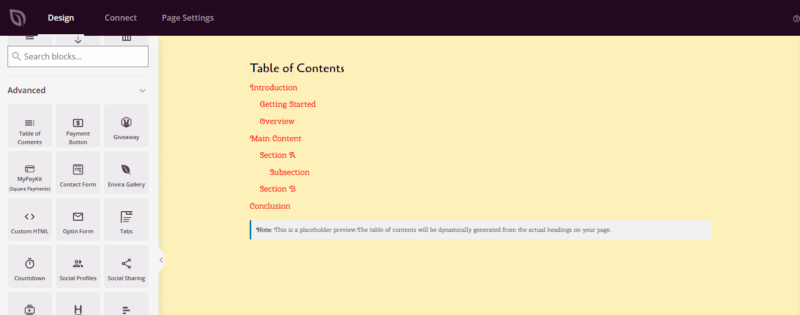
Adding the Table of Contents Block to Your Pages
Follow these steps to add a Table of Contents block to your SeedProd page:
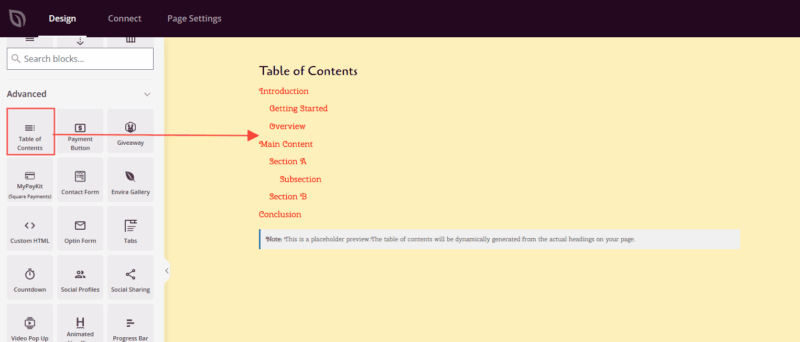
Step 1: Add the Block
Under Design > Blocks, drag and drop the Table of Contents block into the desired section of your page. This block is typically placed near the top of your page content, after the introduction but before the main sections begin.
Step 2: Configure Content Settings
Once added, click on the Table of Contents block to open its settings. In the Content tab, you’ll find several options to customize how your table of contents works:
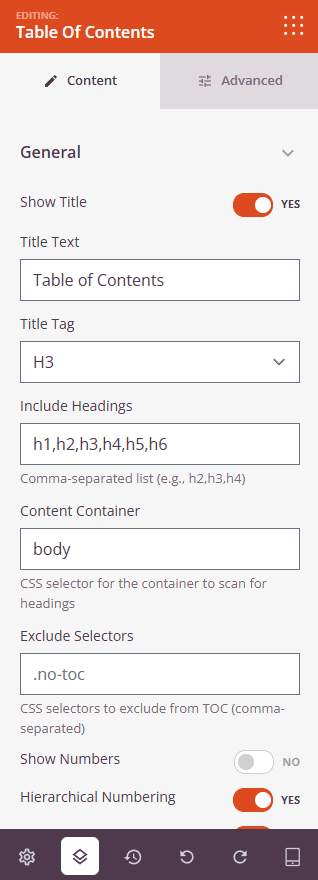
General Settings:
- Show Title: Toggle whether to display a title above your table of contents (e.g., “Table of Contents” or “On This Page”)
- Title Text: Customize the text that appears as the title
- Title Tag: Choose the HTML heading tag for the title (H2, H3, H4, or DIV)
- Include Headings: Specify which heading levels to include in your table of contents using a comma-separated list (e.g., h2,h3,h4). This determines which headings from your page will appear as links
- Content Container: Enter the CSS selector for the container where SeedProd should scan for headings. Leave blank to scan the entire page
- Exclude Selectors: Add CSS selectors for any headings you want to exclude from the table of contents (comma-separated)
Display Options:
- Show Numbers: Add automatic numbering to your table of contents items (e.g., 1, 2, 3)
- Hierarchical Numbering: Use nested numbering for sub-headings (e.g., 1.1, 1.2, 2.1)
- Smooth Scroll: Enable smooth scrolling animation when users click on table of contents links
- Scroll Offset: Set the number of pixels to offset the scroll position, useful when you have a fixed header
- List Style: Choose the bullet style for your table of contents (None, Disc, Circle, Square, or Decimal)
Additional Options:
- Minimize Box: Allow users to collapse and expand the table of contents with a toggle button
Step 3: Customize the Design
In the Advanced tab, you can customize the visual appearance of your table of contents:
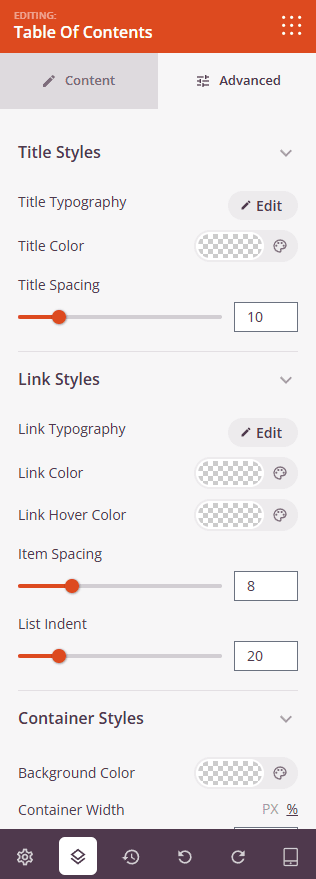
Title Styles:
- Title Typography: Adjust font family, size, weight, and line height for the title
- Title Color: Set the color of the title text
- Title Spacing: Control the spacing around the title
Link Styles:
- Link Typography: Customize font settings for the table of contents links
- Link Color: Set the default color for links
- Link Hover Color: Choose the color when users hover over links
- Item Spacing: Adjust the space between each table of contents item
- List Indent: Control the indentation for nested heading levels
Container Styles:
- Background Color: Set the background color for the table of contents container
- Container Width: Adjust the width in pixels or percentage
- Container Padding: Add internal spacing within the container
- Border: Add and customize borders around the table of contents
- Border Radius: Create rounded corners for the container
Step 4: Save Your Changes
Once you have finished configuring the Table of Contents block and customizing its appearance, make sure to save your work.
You’ve successfully added a Table of Contents block to your page! This powerful navigation tool helps visitors find exactly what they’re looking for, improving engagement and user experience. Experiment with different styles and settings to create a table of contents that matches your brand and serves your audience.