
SeedProd lets you replace the default WordPress login page with a fully branded, custom-designed login page. You can redirect wp-login.php to your custom page and activate it with a single toggle — no coding required.
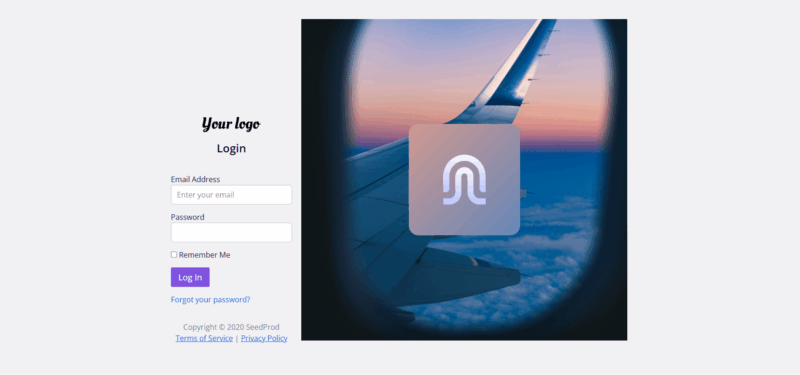
Step 1: Open the Login Page Setup
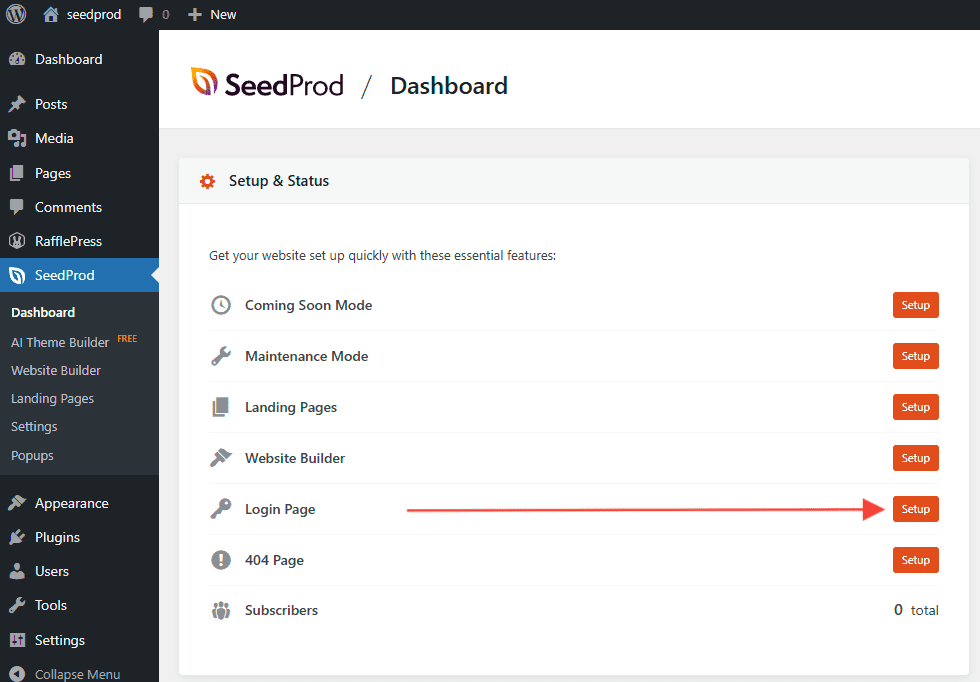
In your WordPress admin, go to the SeedProd Dashboard and click the Set Up a Login Page button next to the Login Page option.
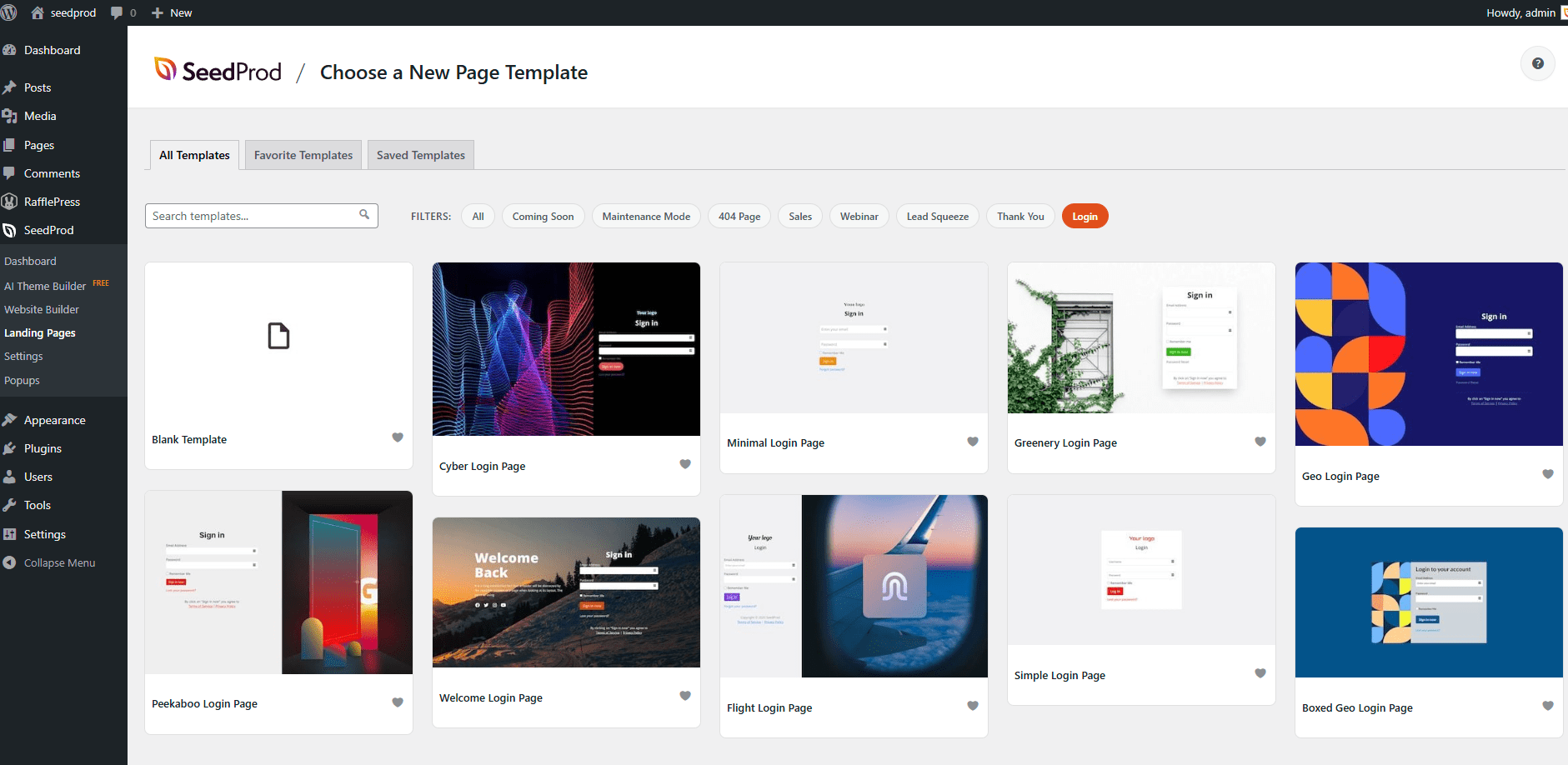
Step 2: Choose a Template
Browse the available login page templates and click one to import it. You can also choose a blank template to start from scratch.
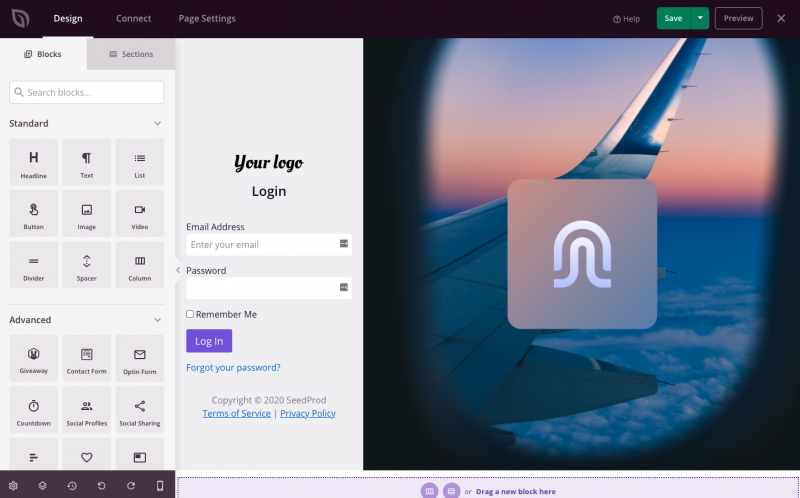
Step 3: Design Your Login Page
Customize your login page in the SeedProd drag-and-drop builder. Add your logo, brand colors, background image, or any other elements you want. The login form block will handle the actual authentication. When you are satisfied with the design, click Save.
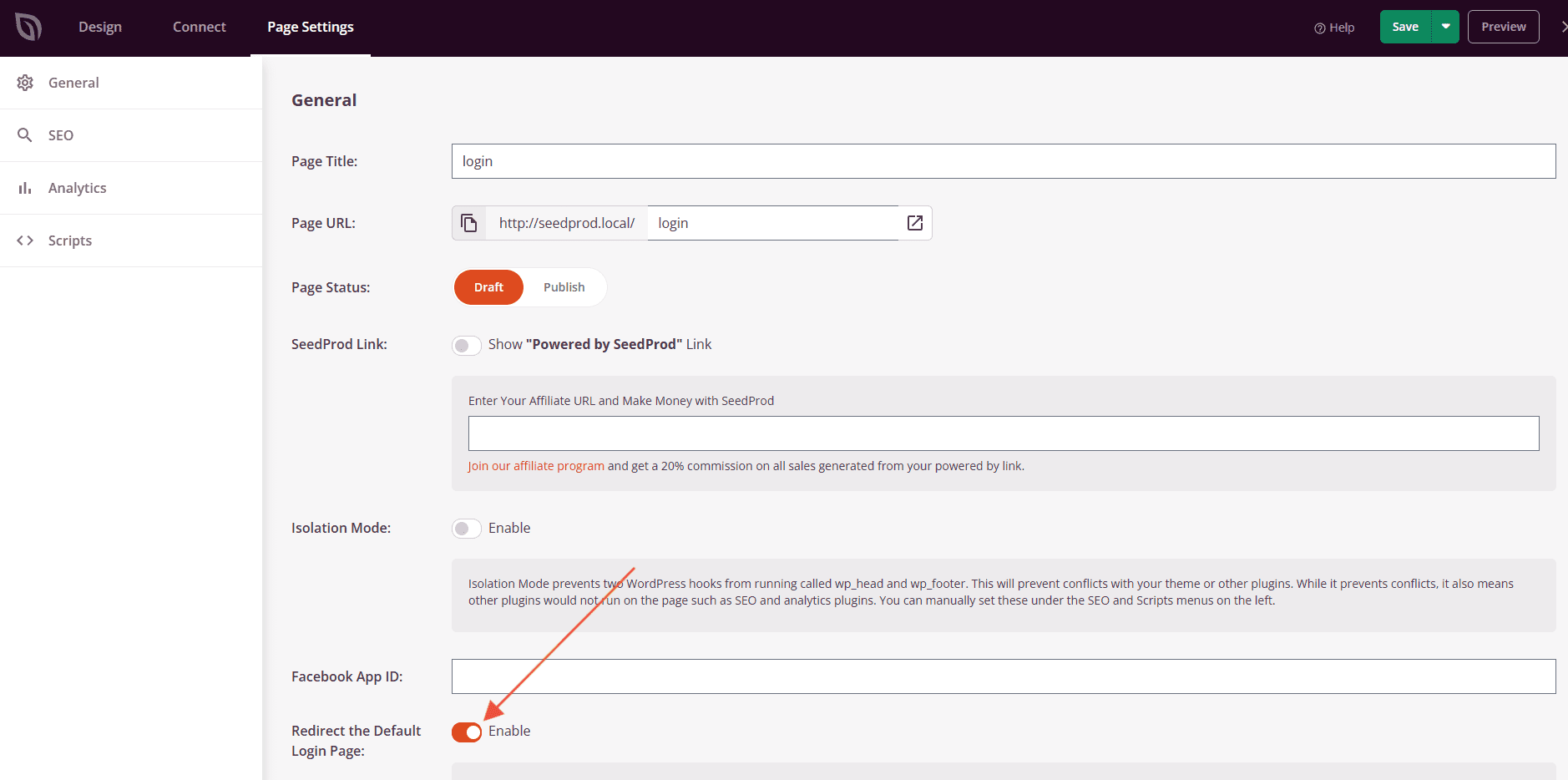
Step 4: Enable the Default Login Page Redirect (Optional)
To redirect the default WordPress login page to your custom page, enable the Redirect the Default Login Page setting. When active, visits to https://example.com/wp-login.php will be redirected to your custom login page.
Step 5: Activate Your Login Page
Return to the SeedProd Dashboard and toggle the Login Page switch to the active position. Your custom login page will immediately go live.
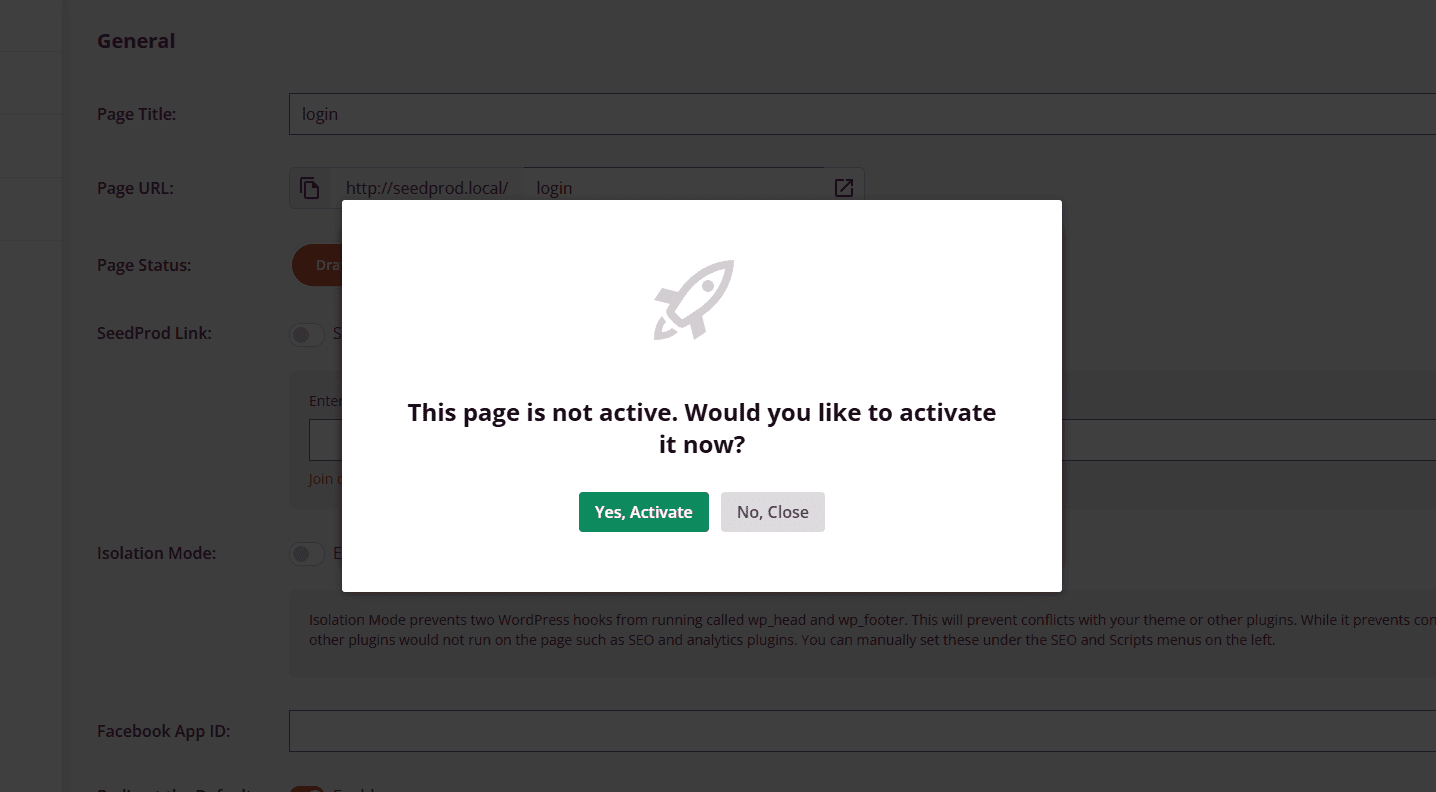
Your custom login page is now live. You can return to the SeedProd builder at any time to update the design. To deactivate it, toggle the Login Page switch off from the SeedProd Dashboard.