

TL;DR: How to Create a Custom WordPress Checkout Page
The default WooCommerce checkout loses sales. Here’s how to replace it with a high-converting custom page in about 15 minutes.
- Install SeedProd Pro – Activate the plugin and enter your license key.
- Create a new page – Pick a template and name your checkout page.
- Add checkout content – Drag in the WooCommerce Checkout block, plus a header, popular products, and testimonials.
- Publish your page – Preview on mobile, then hit Publish.
- Assign to WooCommerce – Set it as the checkout page in WooCommerce → Settings → Advanced.
If you’ve ever lost a sale because your checkout page was slow, confusing, or missing the right payment option, you know how frustrating it is. A custom checkout page in WordPress fixes that and gives shoppers a smooth, trustworthy way to pay.
Studies show 70–85% of shoppers abandon their cart before they pay. I’ll walk you through building a page that keeps them moving, in about 15 minutes, without touching code.
We’ll do it using SeedProd, a drag-and-drop builder that works seamlessly with WooCommerce so you can launch a high-converting checkout page today.
Quick steps to create a custom WordPress checkout page:
How to Create a Checkout Page in WordPress (No Code)
For this tutorial, we’ll use SeedProd to create a WordPress checkout page. SeedProd is the best drag-and-drop WordPress page builder used by over 1 million websites.

With SeedProd, you can easily create any WordPress landing page without writing a single line of code. And because of its powerful WooCommerce integration, you can create custom checkout pages and other WooCommerce pages and link them to your WooCommerce store.
This means that instead of using the default WooCommerce one page checkout, you can create a fully customized page optimized for conversions. And before you launch, you can create a WooCommerce coming soon page to generate leads.
So if you want to create a checkout page in WordPress for beginners, here’s how to do it with SeedProd.
Video-Anleitung
Note: WooCommerce 8.3 and later use block-based checkout by default. SeedProd replaces that entirely with a custom page, which is what this tutorial covers. If your WooCommerce admin looks different from the screenshots here, that’s why.
Schritt 1: SeedProd installieren und aktivieren
The first step is to install and activate the SeedProd plugin.
Note: There’s a free version of SeedProd available. However, we’ll use SeedProd Pro for the advanced WooCommerce blocks.
If you need help with this step, follow this step-by-step guide on installing a WordPress plugin.
After activating SeedProd, go to SeedProd » Settings and enter your license key.
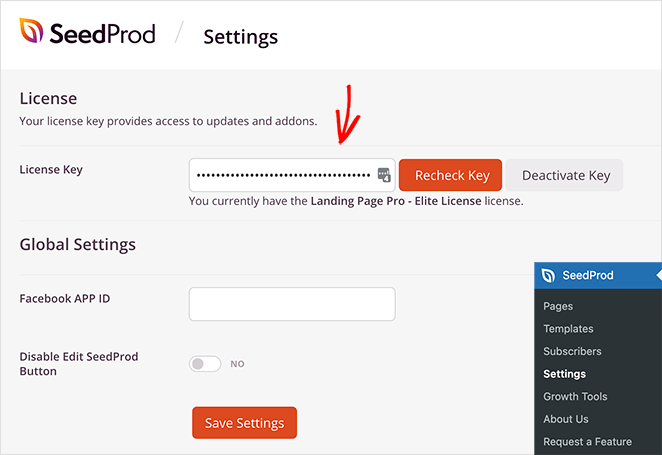
This information is easy to find under the Downloads section of your account on the SeedProd website.
Step 2: Create a New Page
After activating your license key, navigate to SeedProd » Pages from your WordPress dashboard. On this page, you’ll see an overview of SeedProd’s different page modes and an area to add new landing pages.
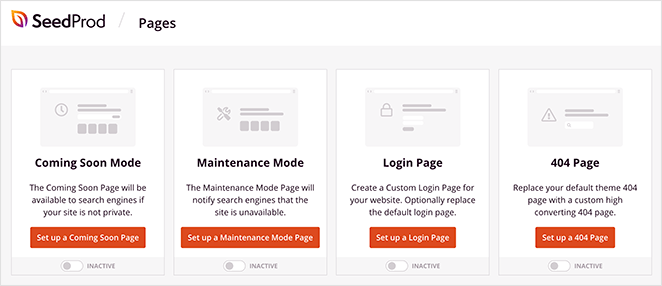
With the page modes, you can instantly:
- Eine "Coming Soon"-Seite erstellen und aktivieren
- Den Wartungsmodus aktivieren
- Erstellen Sie eine benutzerdefinierte 404-Seite
- Set up a custom WordPress login page
- Eine eigenständige WordPress-Landingpage erstellen
The great thing about this is that it gives your site extra functionality without installing multiple WordPress plugins.
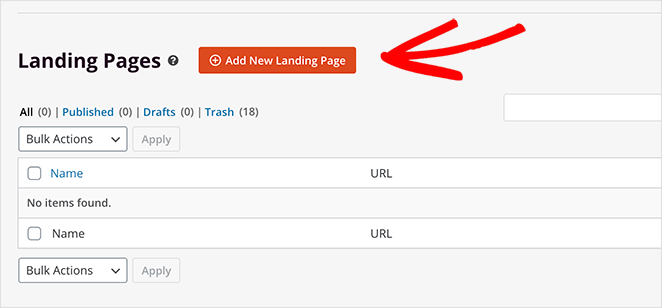
For this guide, we want to create a standalone WordPress checkout page. To do that, click the Add New Landing Page button.
On the next screen, you can pick from hundreds of responsive landing page templates.
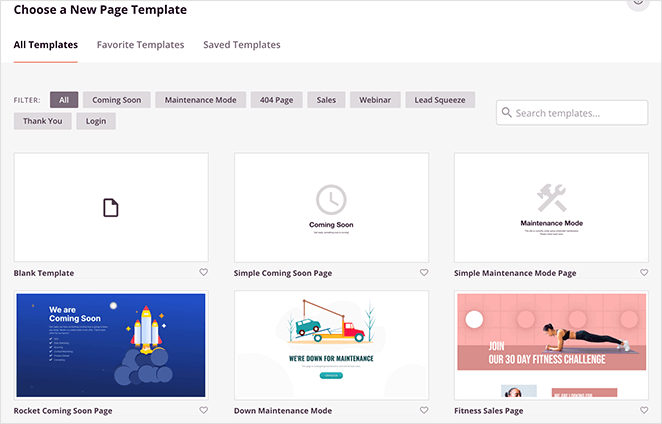
You can filter designs by clicking the tab placeholders along the top:
- Alle
- Wartungsmodus (Coming Soon)
- Wartungsmodus
- 404-Seite
- Verkäufe
- Webinar
- Lead Squeeze
- Webinar
- Anmelden
The best approach is to look for a template that closely matches the design you want. And if it isn’t a perfect fit, you can easily customize it in the next step without PHP, CSS, or shortcodes.
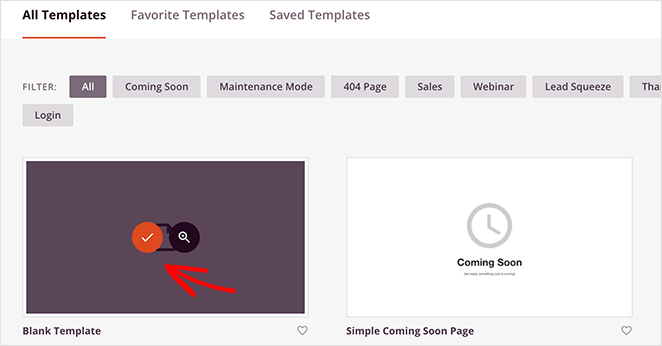
For this tutorial, we’ll use the Blank template to show you how easy it is to create your WordPress checkout page without hiring a developer.
To choose the template, hover your mouse over the thumbnail and click the orange checkmark icon.
After, a popup appears asking you to enter a name and URL for your page.
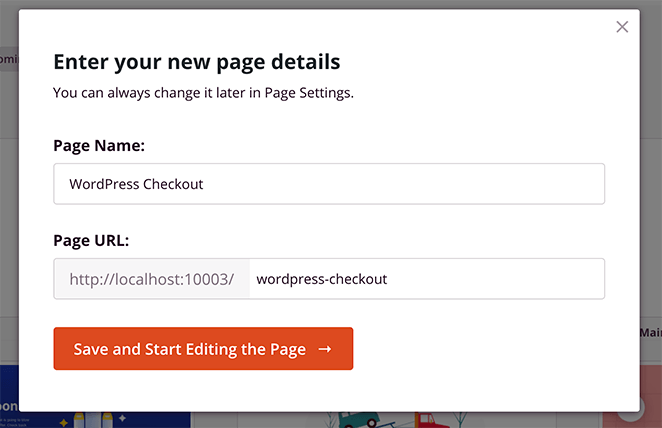
You can then go ahead and click the Save and Start Editing the Page button.
Step 3: Add Content to Your Checkout Page
After importing your template, it will open in SeedProd’s visual page builder and look similar to the example below. This is where you can create your WordPress checkout page and optimize it for conversions.
In my GTmetrix testing, a SeedProd-built page loaded in 556ms, compared to 1,882ms for the same page built with Elementor. A faster checkout page means fewer drop-offs before payment.
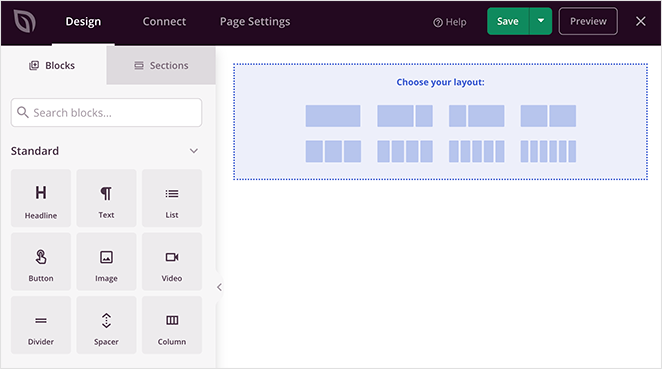
You’ll see a live preview of your page on the right. And on the left is an options panel where you can choose different blocks, sections and customize your design.
Checkout Page Header
First, we’ll add a header to your checkout page so that you can keep your branding consistent across your website.
To do this, click the Sections tab in the left-hand panel and click the Header category. From there, hover your mouse over any header section and click the plus icon to add it to your page.
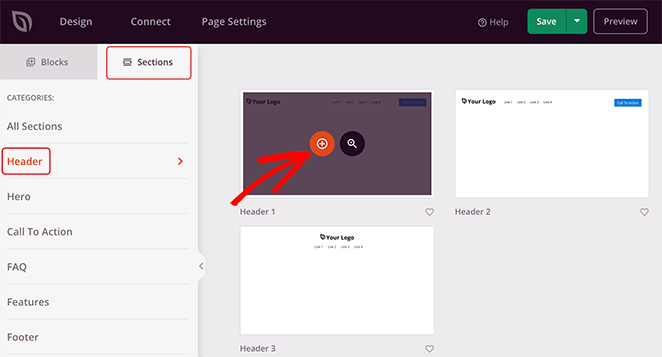
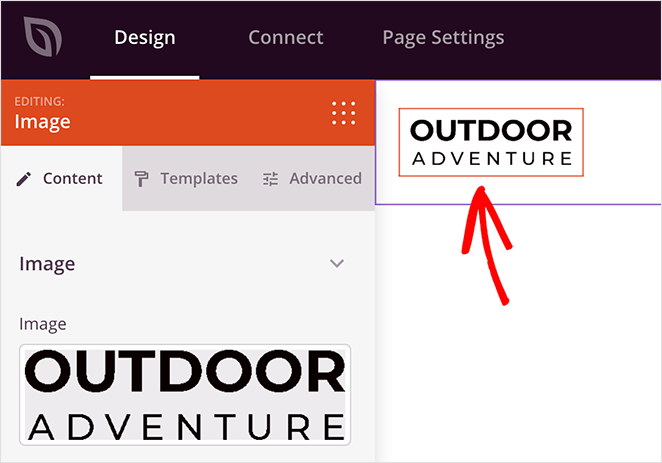
Next, click the image area of your new header section. Here you can upload an image from your computer or WordPress media library to use as your site’s logo.
We also recommend removing the navigation menu from your checkout page. This will reduce the number of people leaving the page and encourage users to complete the checkout process.
To delete the navigation menu, just hover your mouse over the navigation block, and click the trashcan icon.

Now let’s customize the call-to-action button (CTA). Instead of sending users away from the page, you can use this button to remind users about the contents of their shopping cart.
So click the CTA button to open the settings on the left and replace the default text. In our case, we changed it to ‘View Cart.’
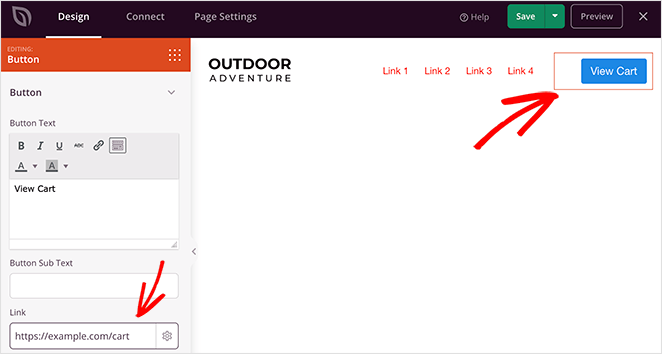
Then you can add the URL for your WooCommerce cart page in the Link field. If you like, you can make the link nofollow or open it in a new tab by selecting the checkbox.
WooCommerce Checkout Block
With your site’s branding in place, let’s move on to adding checkout functionality with form fields to your page. First, drag a new Column block onto your page.
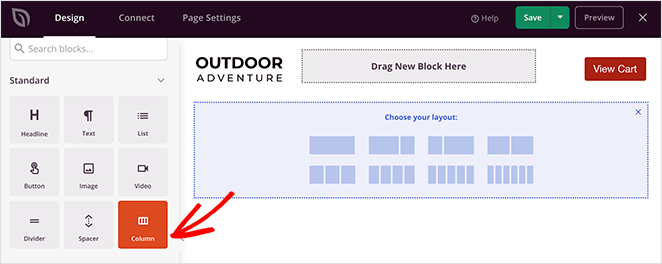
Then, go ahead and choose your preferred layout.
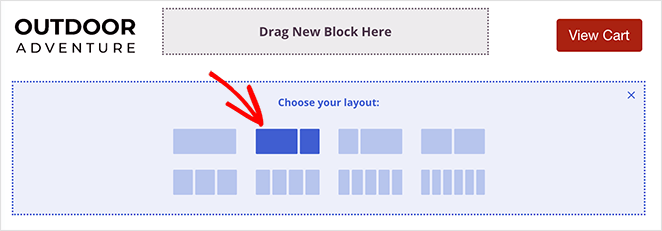
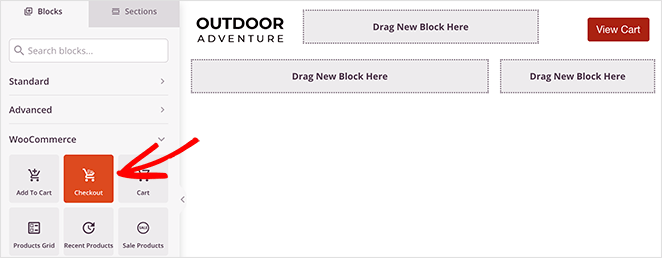
Next, scroll down the left-hand panel to the WooCommerce area, which offers the best WooCommerce blocks. From there, choose the Checkout block and drag it onto your page.
Click anywhere on the Checkout block to customize the settings, including:
- 1 or 2 column checkout layout
- Checkout header fonts and colors
- Custom field styling
- Button styles
- Alert highlight colors
- Cart borders, backgrounds, and styling
- Payment section customizations
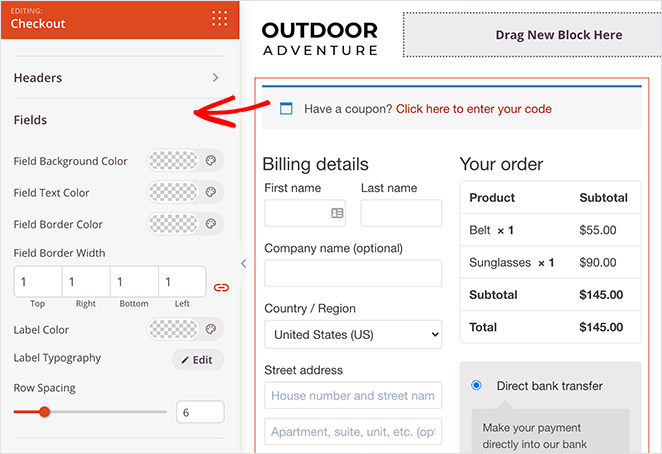
Remember to click Save to store your checkout field editor settings.
WooCommerce Popular Products
If you want to improve sales, you can add popular products to your WordPress checkout page next. This can encourage shoppers to add more items to their cart before paying.
To add popular products, choose the Best Selling Products block from the WooCommerce section and drag it onto your page.
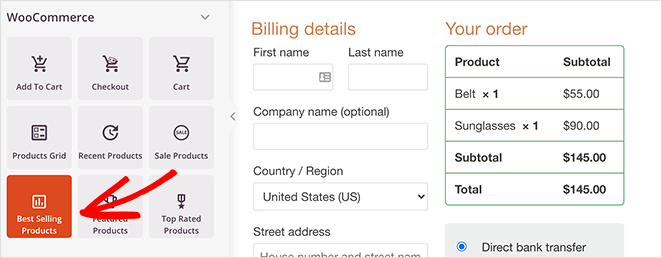
From there, you can edit the number of columns, add pagination and adjust other settings from the drop-down menus.
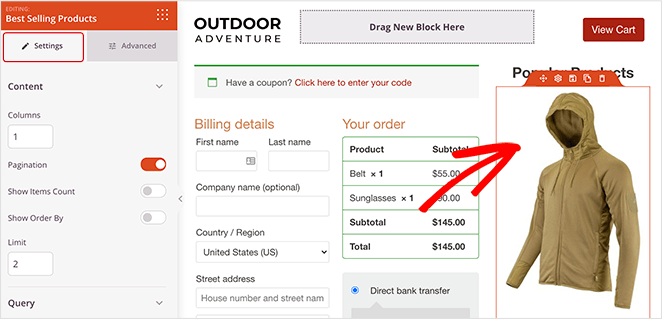
It’s a good idea at this point to drag over the headline block and change it to something like “Popular Products”. That way, people know exactly what they’re looking at.
Reviews & Testimonials
When it comes to social proof, reviews, and testimonials, they all add up to increasing the chances of shoppers buying your WooCommerce products. The reason for this is it reassures people that other people trust your products and that they’re making the right decision.
So why not include some reviews, testimonials, and star ratings on your checkout page?
You can do this easily with SeedProd. Just head to the Advanced blocks and drag the Testimonials block over to your checkout page.
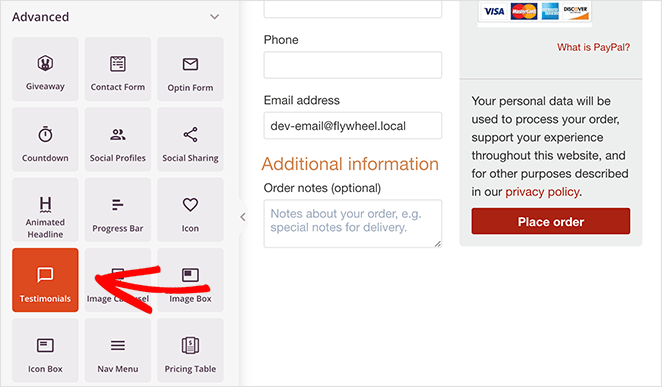
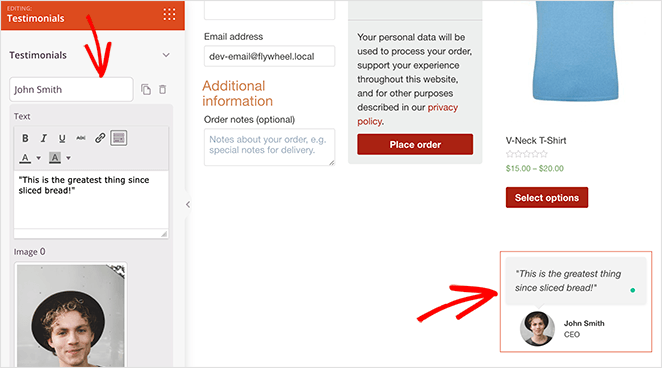
In the settings, you can completely customize the block. For instance, you can add a testimonial photo or job title and even turn it into a scrolling carousel with multiple testimonials.
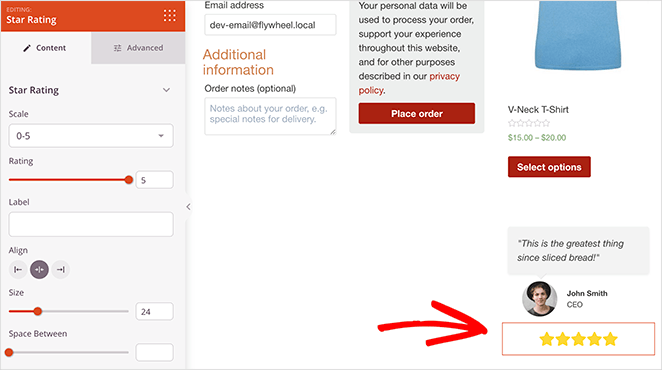
In addition, you can add even more social proof by using the Star Rating block beneath the testimonial.
Step 4: Publish Your WordPress Checkout Page
Once you’re happy with your page, let’s see how it looks on mobile. After all, many people shop from their mobile devices nowadays, so ensuring everything is optimized for mobile users is crucial to increasing sales.
Luckily, SeedProd has a feature that allows you to preview your WordPress checkout on mobile easily. Just click the mobile icon in the bottom navigation bar.
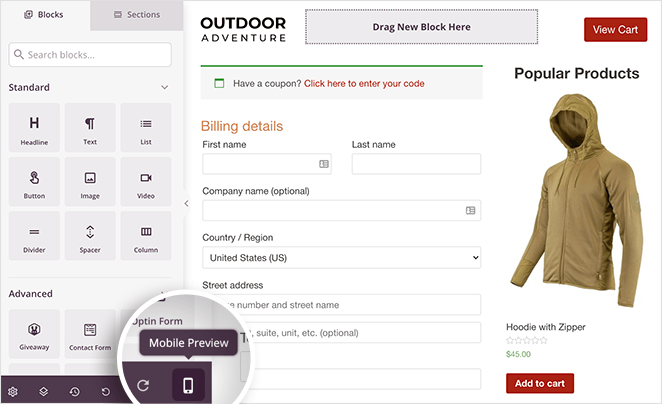
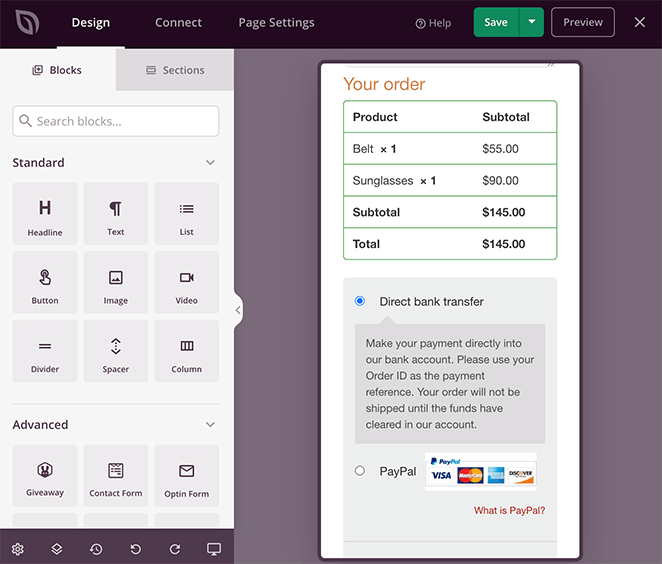
Then you can see your page setup as any mobile user would. From there, you can make adjustments to improve the user experience.
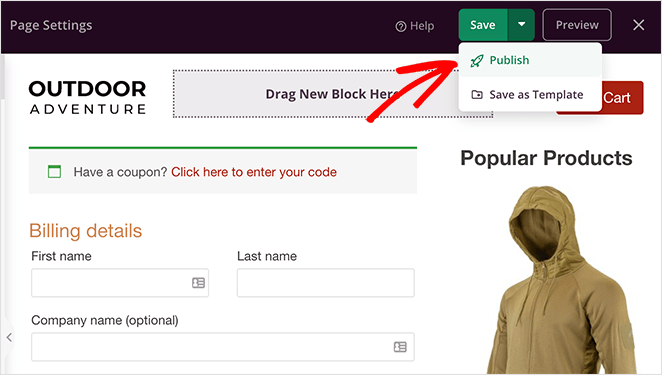
When you’re happy with how everything looks, click the dropdown arrow next to the green Save button and click Publish to make your checkout page live.
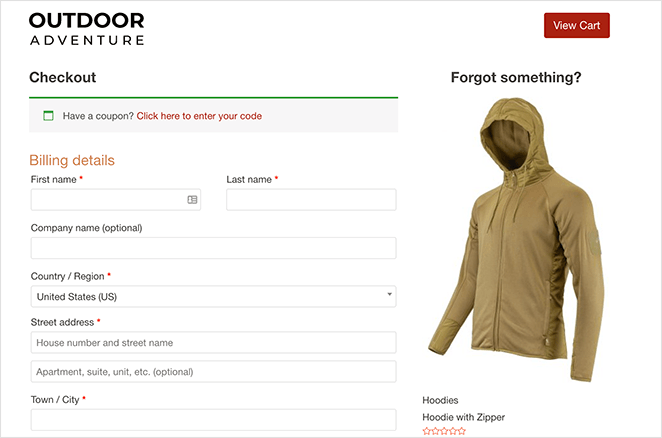
Instead of the default WooCommerce checkout page, you now have a high-converting WordPress checkout page tailored to your audience.
Step 5: Assign Your Checkout Page to WooCommerce
The final step in this guide is to assign your new WordPress checkout page to WooCommerce. This involves changing the default WooCommerce settings and adding the URL for your new page.
Changing the URL makes it, so your customers will automatically go to your new WordPress checkout page instead of the default option.
To configure this setting, go to WooCommerce » Settings and click on the Advanced tab. Then next to the Checkout Page heading, search for the page you just made.
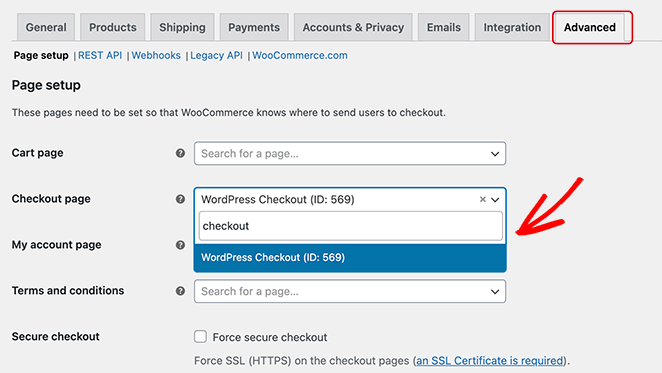
When you find it in the dropdown list, click it to assign it as your official checkout page. Make sure you click Save Changes at the bottom of the screen to preserve your settings.
Now, when a visitor clicks ‘Proceed to checkout,’ they’ll go to your new, high-converting checkout screen you just made.
Before going live, test the checkout using WooCommerce’s built-in test mode. In WooCommerce → Settings → Payments, enable a test gateway and place a test order to confirm everything works.
If your payment methods aren’t showing on the page, that’s where to check first. SeedProd displays whatever gateways you’ve enabled there, including Stripe, PayPal, and any others you’ve activated.
FAQs About Creating a Checkout Page in WordPress
Do I need coding skills to customize a WooCommerce checkout page?
No. With SeedProd’s drag-and-drop builder, you can customize the WooCommerce checkout page without touching code. Change the layout, add trust signals, and adjust form fields using visual controls. No PHP or CSS needed.
Can I add extra payment gateways to my custom checkout page?
Yes. WooCommerce supports multiple payment gateways, including Stripe, PayPal, Apple Pay, and Buy Now Pay Later options. Enable them in WooCommerce → Settings → Payments, and SeedProd will display them on your custom checkout page automatically.
How can I improve conversion rates on my checkout page?
Keep the form simple, offer multiple payment options, and add security badges and customer testimonials. Removing navigation menus prevents shoppers from leaving mid-checkout. SeedProd’s visual builder makes all of these adjustments without any code.
How do I test my WooCommerce checkout before going live?
Enable a test gateway in WooCommerce → Settings → Payments. Stripe and PayPal both offer sandbox modes. Place a test order to confirm the checkout page loads correctly, processes payments, and sends order confirmation emails before you go live.
Build Your Custom Checkout in WordPress
Creating a custom checkout page in WordPress is about more than design. It makes the buying process clear, fast, and tailored to your store so more shoppers complete their orders.
With SeedProd and its WooCommerce integration, you can design a checkout page that matches your brand, removes distractions, and adds features that build trust and increase sales without writing code.
Set up your custom page today and turn more visitors into paying customers.
If you’re looking for more WooCommerce tips, check out these posts:
- So aktivieren Sie den Wartungsmodus für WooCommerce-Shop-Seiten
- How to Speed Up Your WooCommerce Store (In 7 Easy Steps)
- So richten Sie die WooCommerce-Conversion-Nachverfolgung für Ihr Geschäft ein
While you’re here, don’t forget to follow us on Twitter, YouTube, and Facebook for more helpful content to grow your business.




