
Eine benutzerdefinierte 404-Seite hilft Besuchern, auf Ihrer Website zu bleiben, wenn sie auf einen defekten oder fehlenden Link stoßen. Anstatt einen generischen Browserfehler anzuzeigen, können Sie eine gebrandete Seite anzeigen, die dem Design Ihrer Website entspricht und Besucher zurück an den richtigen Ort leitet.
Schritt 1: Öffnen Sie die 404-Seiten-Einrichtung
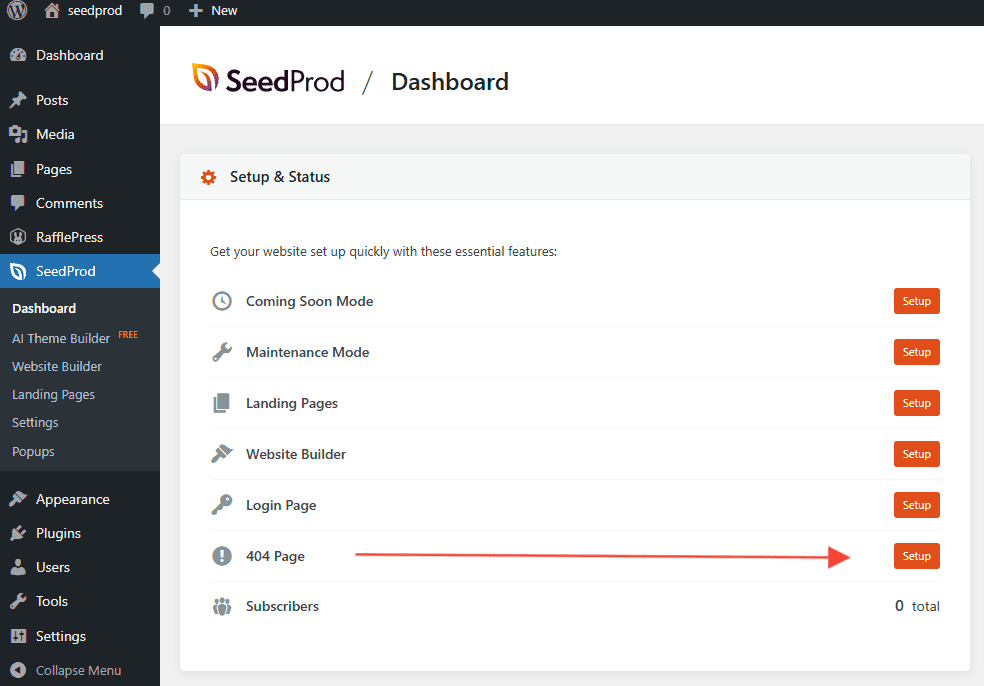
Gehen Sie in Ihrem WordPress-Admin zum SeedProd Dashboard und klicken Sie auf die Schaltfläche 404-Seite einrichten neben der Option 404-Seite.
Schritt 2: Wählen Sie eine Vorlage
Durchsuchen Sie die verfügbaren 404-Seiten-Vorlagen und klicken Sie auf eine, um sie zu importieren. Sie können auch eine leere Vorlage wählen, um von Grund auf neu zu beginnen.

Schritt 3: Entwerfen, Speichern und Aktivieren
Passen Sie Ihre 404-Seite im Drag-and-Drop-Builder von SeedProd an. Erwägen Sie das Hinzufügen einer Suchleiste, Links zu beliebten Seiten oder einer kurzen Nachricht, die Besucher zurück zu Ihrer Homepage leitet. Wenn Sie mit dem Design zufrieden sind, klicken Sie auf Speichern.
Kehren Sie dann zum SeedProd Dashboard zurück und schalten Sie den Schalter 404-Seite in die aktive Position, um sie live zu schalten. Jeder Besucher, der auf eine fehlende oder ungültige URL auf Ihrer Website stößt, sieht nun Ihre benutzerdefinierte 404-Seite.
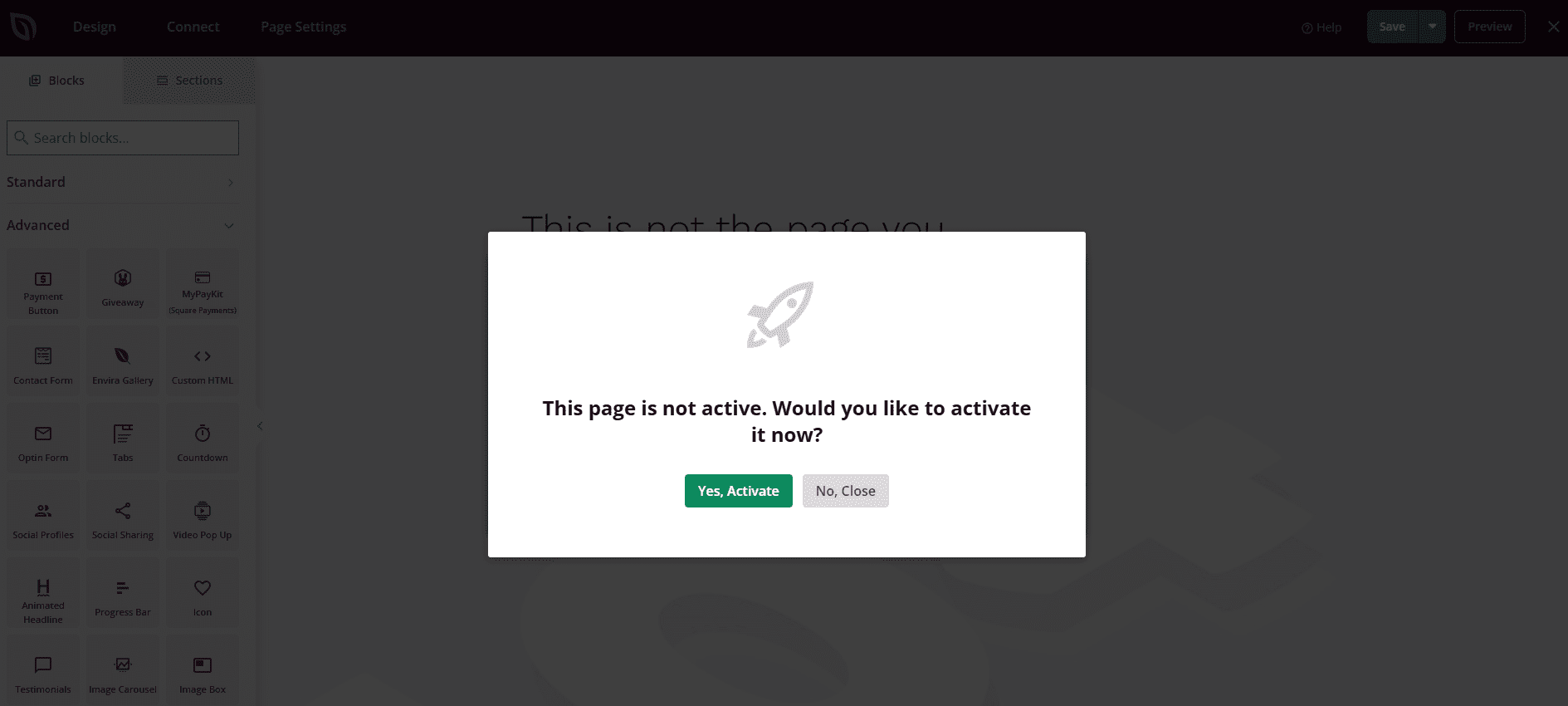
Ihre benutzerdefinierte 404-Seite ist jetzt live. Sie können jederzeit zum SeedProd Dashboard oder zum Seitenersteller zurückkehren, um das Design zu aktualisieren. Um sie zu deaktivieren, schalten Sie den Schalter 404-Seite im SeedProd Dashboard aus.