
The Upsells block enhances your WooCommerce Single Product template by automatically displaying recommended upsell products beneath the current product. These are products you have manually designated as upsells in WooCommerce, giving you a curated way to guide customers toward complementary or higher-value items.
Before adding this block, make sure your upsell products are already configured in WooCommerce by navigating to each product’s Linked Products tab and adding items to the Upsells field. Once in place, the block handles the display — with full control over columns, ordering, typography, button style, and image presentation.
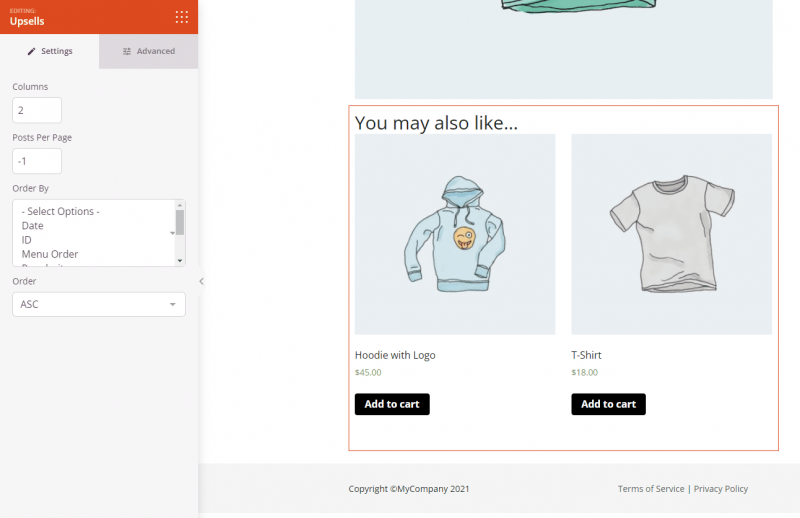
Adding the Upsells Block to Your Single Product Template
Follow these steps to add an Upsells block to your SeedProd Single Product template:
Step 1: Add the Block
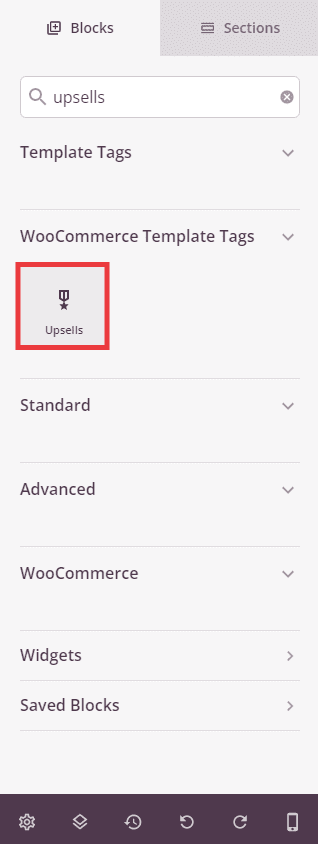
Under WooCommerce Template Tags, drag and drop the Upsells block into the desired section of your Single Product template.
Step 2: Configure Content Settings
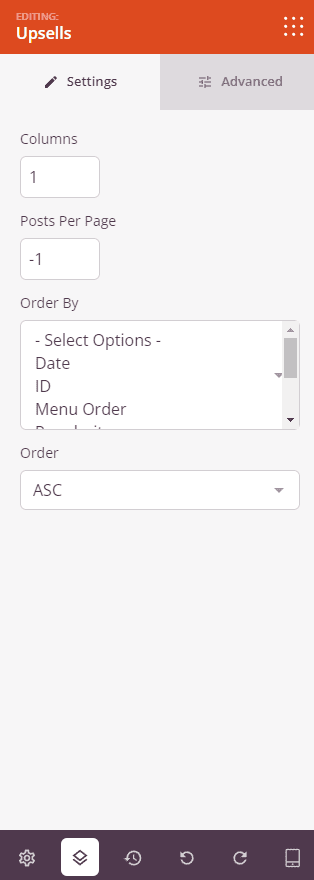
Once added, click on the Upsells block to open its settings. In the Content tab, you can adjust the following display options:
- Columns: Set the number of columns used to display upsell products in the grid.
- Posts Per Page: Set the maximum number of upsell products to display. Use
-1to show all available upsells. - Order By: Choose the field used to sort upsell products — Date, ID, Menu Order, Popularity, Random, Rating, or Title.
- Order: Set the sort direction — ASC (ascending) or DESC (descending).
Step 3: Customize the Design
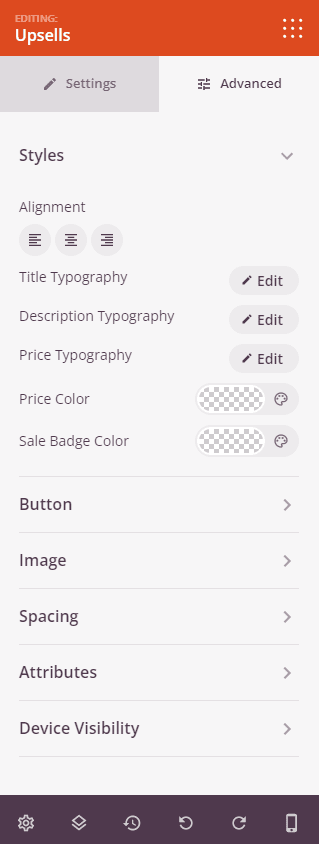
In the Advanced tab, you can customize the visual appearance of your Upsells block.
Styles:
- Alignment: Set the horizontal alignment of the upsell product grid — Left, Center, or Right — with per-device controls for desktop, tablet, and mobile.
- Title Typography: Set the font family, size, weight, style, line height, letter spacing, and letter case for product titles.
- Description Typography: Set the typographic properties for product description text.
- Price Typography: Set the typographic properties for product price text.
- Price Color: Set the color for regular product prices.
- Sale Badge Color: Set the color for the sale price or sale badge.
Button:
- Button Typography: Set the font family, size, weight, style, and other typographic properties for the Add to Cart button text.
- Button Style: Choose the visual style of the Add to Cart button — Flat, 2D, Vintage, Ghost, or Link.
- Button Color: Set the background color of the button.
- Button Size: Choose the button size — Small, Medium, Large, X Large, or 2X Large.
- Border Radius: Round the corners of the button using a slider.
Image:
- Shadow: Apply a shadow to product images using preset sizes — None, Hairline, Small, Medium, Large, X Large, 2X Large, or Bottom Drop Shadow.
- Border Style: Choose a border style for product images — Solid, Dotted, or Dashed.
- Image Border Color: Set the color of the product image border.
- Image Border Width: Set individual border widths for each side of the product image — Top, Right, Bottom, and Left.
- Image Whitespace Padding: Add inner padding between the product image and its border.
Spacing:
- Margin: Set the outer spacing around the block on all four sides, with independent controls for desktop, tablet, and mobile.
- Padding: Set the inner spacing inside the block wrapper on all four sides, with per-device controls.
Attributes:
- Custom Class: Add one or more custom CSS classes to the block wrapper for targeted styling.
- CSS ID: SeedProd automatically generates a unique CSS ID for this block. You can use it to reference the block in custom CSS or JavaScript.
- Custom Attributes: Add custom HTML attributes to the block wrapper element. Enter each attribute on a new line using the key|value format.
Device Visibility:
- Hide on Desktop: Toggle to hide the block when viewed on desktop screens.
- Hide on Tablet: Toggle to hide the block when viewed on tablet screens.
- Hide on Mobile: Toggle to hide the block when viewed on mobile screens.
Animation Effects:
- Scrolling Effect: Apply a scroll-triggered animation to the block, including Vertical Scroll and Horizontal Scroll options with direction, speed, and viewport offset controls.
- Mouse Effect: Apply a mouse movement-driven parallax effect to the block.
Step 4: Save Your Changes
Once you have finished configuring the Upsells block and customizing its appearance, make sure to save your work.
You’ve successfully added an Upsells block to your Single Product template! Strategically placed upsell recommendations are one of the most effective ways to increase average order value in WooCommerce. Experiment with column layout, button styles, and image presentation to create a product recommendation section that feels native to your store’s design.