
The Business Reviews block allows you to display Google and Yelp reviews directly on your SeedProd pages. This block helps you showcase authentic customer feedback with customizable layouts, filters, and styling options to build trust and credibility with potential customers.
Displaying real customer reviews is one of the most effective ways to build social proof and influence purchasing decisions. With this block, you can filter reviews by rating, display star ratings, show reviewer details with photos, and even include links that redirect visitors to your full review profiles on Google or Yelp.
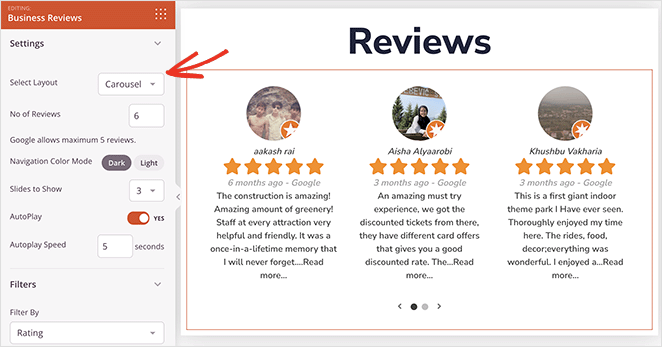
Adding the Business Reviews Block to Your Pages
Follow these steps to add a Business Reviews block to your SeedProd page:
Step 1: Add API Keys
Before adding the Business Reviews block, you need to configure your Google and/or Yelp API credentials in SeedProd Settings. Navigate to SeedProd > Settings and add your API keys.
- Click here to find your Google Place ID
- You’ll also need your Yelp Business ID if displaying Yelp reviews
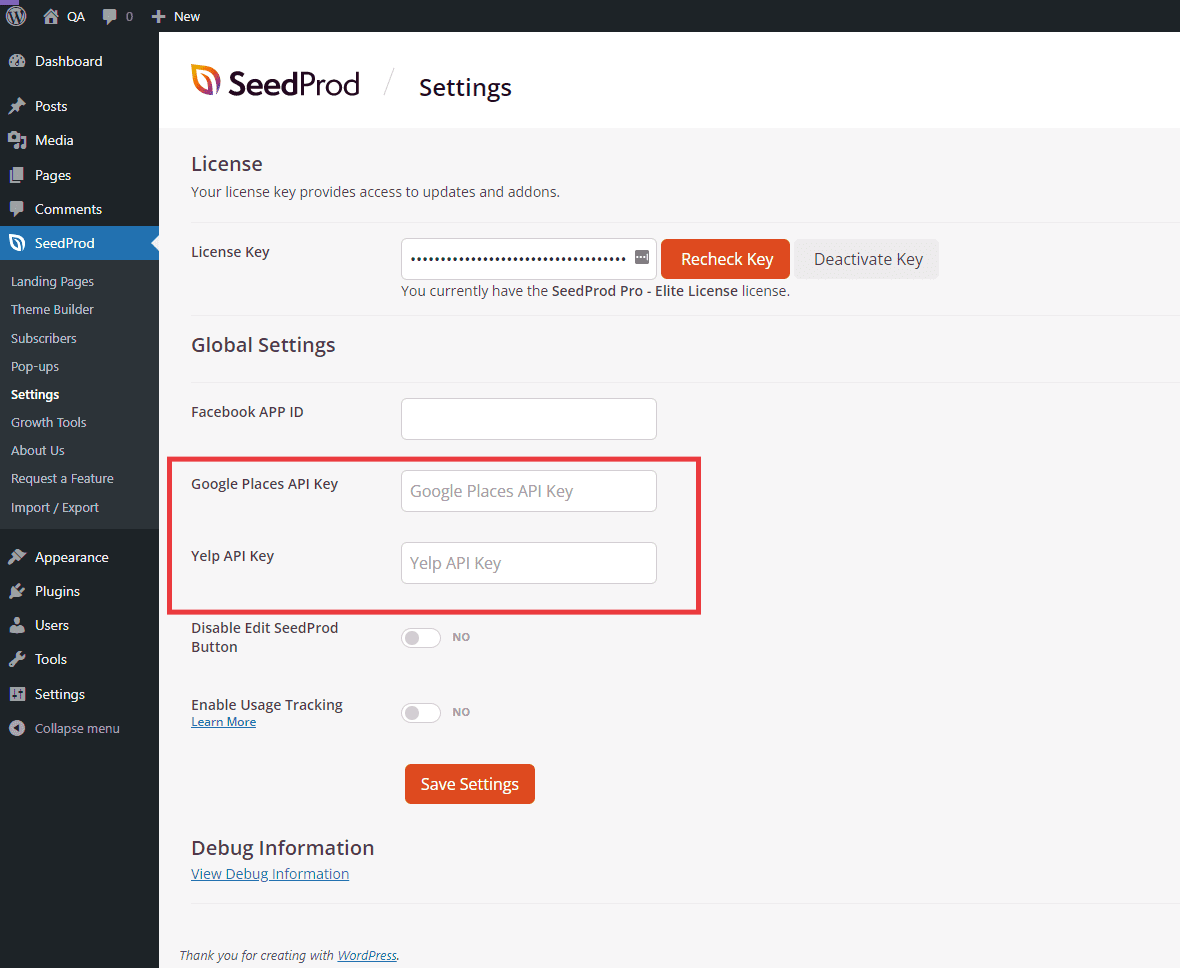
Add your Google Places API Key and Yelp API credentials in SeedProd Settings before using the Business Reviews block.
Step 2: Add the Block
Under Design > Blocks, drag and drop the Business Reviews block into the desired section of your page.
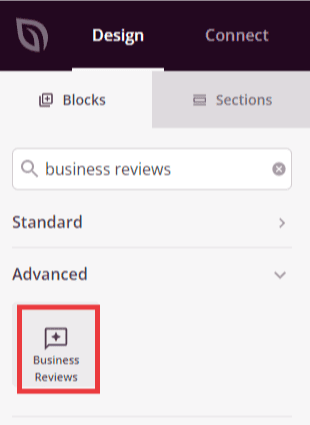
The Business Reviews block is located under Design > Advanced and can be dragged into any section of your page.
Step 3: Configure Content Settings
Once added, click on the Business Reviews block to open its settings. In the Content tab, you can configure your review sources and display options.
General:
- Review Source: Choose which reviews to display – Google Places, Yelp, or both Google & Yelp combined
- Google Places API Key: Enter your Google Places API Key (if not already added in SeedProd Settings)
- Google Place ID: Enter your unique Google Place ID to pull reviews from your Google Business Profile. Click the link provided to find your ID
- Language Code: Specify the language code for displaying reviews in your preferred language (e.g., “en” for English, “es” for Spanish)
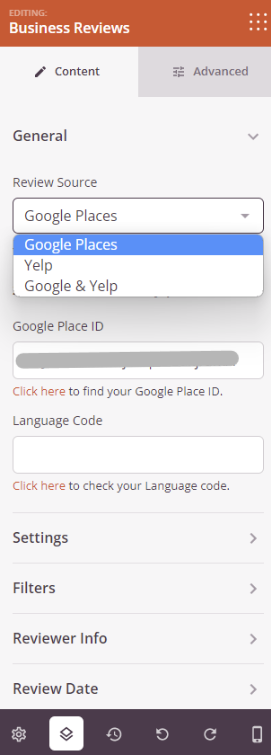
Select your review source and enter your Google Place ID and language preferences.
Settings:
- Select Layout: Choose between Grid (reviews displayed in rows and columns) or Carousel (reviews displayed in a sliding carousel)
- No of Reviews: Set the total number of reviews to display. Note that Google allows a maximum of 5 reviews, and the combined total from Google and Yelp cannot exceed 8 reviews
- Column: Choose how many columns to display your reviews in (1-5 columns). More columns fit more reviews per row but give each review less space
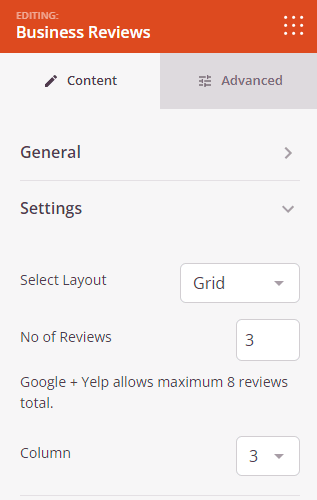
Choose your layout style, number of reviews to display, and column configuration.
Filters:
- Filter By: Choose how to filter which reviews appear. Options include No Filter (show all), Rating (filter by star rating), or Review Date (show most recent reviews)
- Minimum Rating: Set the lowest rating a review must have to be displayed. Options include 2 star, 3 star, 4 star, 5 star, or No Minimum Rating. This helps you showcase only your best reviews
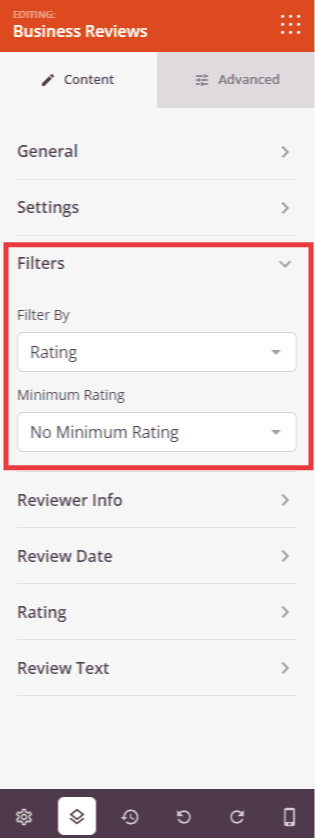
Filter reviews by rating or date, and set minimum rating requirements.
Reviewer Info:
- Reviewer Image: Toggle to show or hide the reviewer’s profile photo
- Image Size: Adjust the size of reviewer profile images
- Reviewer Name: Toggle to display or hide the name of the person who left the review
- Link Name: Toggle to make reviewer names clickable, linking to their Google or Yelp profile
- Reviewer Name Color: Set the color for reviewer names
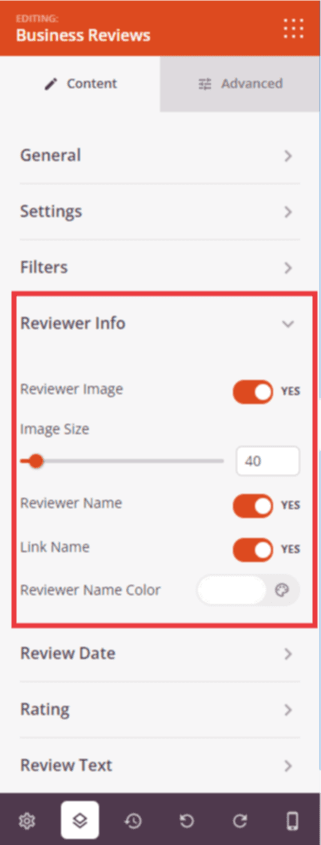
Configure reviewer profile images, names, and linking options.
Review Date:
- Review Date: Toggle to show or hide when each review was posted
- Select Type: Choose between Numeric (displays as a specific date like “Jan 15, 2024”) or Relative (displays as time elapsed like “2 weeks ago”)
- Review Date Color: Set the color for review date text
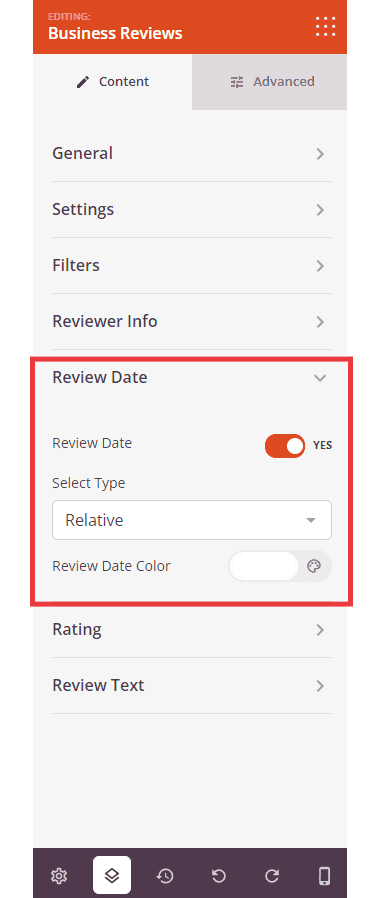
Control review date display format and styling.
Rating:
- Star Rating: Toggle to display or hide star rating icons for each review
- Icon Size: Adjust the size of star rating icons
- Icon Color: Set the color for filled (rated) stars
- Unmasked Icon Color: Set the color for empty (unrated) stars
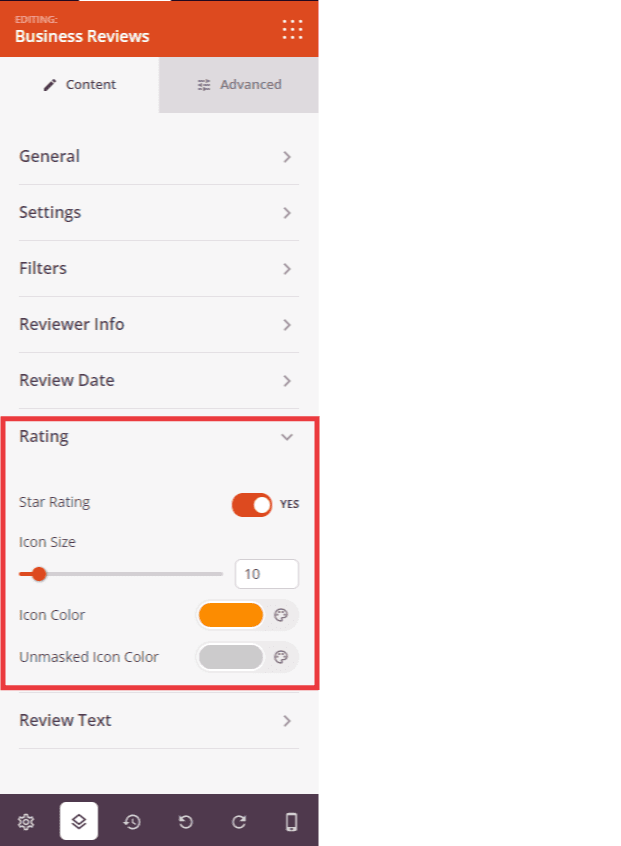
Customize star rating display, size, and colors.
Review Text:
- Review Text: Toggle to show or hide the actual review content written by customers
- Text Color: Set the color for review text content
- Text Length: Set the maximum number of characters to display from each review. Longer reviews will be truncated
- Read More Text: Enter custom text for the “read more” link that appears on truncated reviews (e.g., “Read Full Review”, “Show More”)
- Read More Color: Set the color for the “read more” link
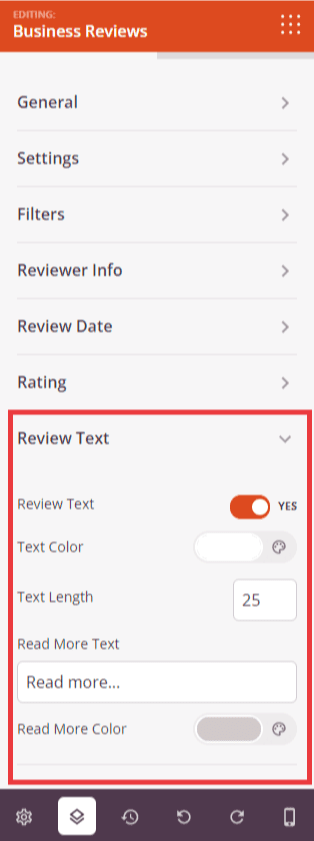
Configure review text display, length limits, and “read more” functionality.
Step 4: Customize the Design
In the Advanced tab, you can customize the visual appearance of your Business Reviews block:
Styles:
- Reviewer Name Typography: Control the font properties for reviewer names, including font family, size, weight, and style
- Reviewer Name Color: Set the color for reviewer names (also available in Content tab)
- Review Date Typography: Customize the font properties for review dates
- Date Color: Set the color for review date text
- Content Typography: Control the font properties for review text content
- Content Color: Set the color for review text
Spacing:
- Margin: Control the outer spacing around your Business Reviews block (Top, Right, Bottom, Left). This determines how much space appears between the reviews and surrounding elements
- Padding: Adjust the inner spacing within your Business Reviews block (Top, Right, Bottom, Left). This creates breathing room between the reviews and the block edges
Attributes:
- CSS ID: Displays the auto-generated unique identifier for your Business Reviews block. This ID is created automatically by SeedProd for custom styling or JavaScript targeting
- Custom Class: Add custom CSS classes to apply specific styles from your theme or custom CSS
- Custom Attributes: Add any HTML attributes to the block wrapper element. Enter each attribute on a new line using the format: attribute-name|value (e.g., data-reviews|business)
Device Visibility:
- Hide on Desktop: Hide the Business Reviews block on desktop screens
- Hide on Tablet: Hide the Business Reviews block on tablet devices
- Hide on Mobile: Hide the Business Reviews block on mobile devices
Animation Effects:
- Entrance Animation: Choose from various animation effects that play when the reviews scroll into view. Options include Bounce, Fade In, Zoom In, Rotate In, and many more. This draws attention to your social proof
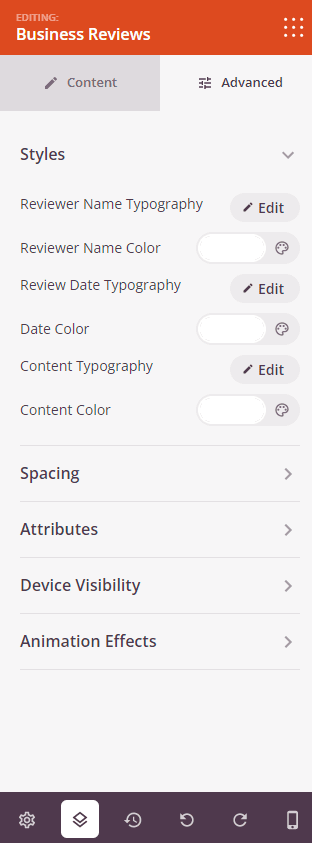
The Advanced tab provides typography controls, spacing options, and animation effects for your reviews display.
Step 5: Save Your Changes
Once you have finished configuring the Business Reviews block and customizing its appearance, make sure to save your work.
You’ve successfully added a Business Reviews block to your page! This powerful social proof tool helps you build trust and credibility by showcasing authentic customer feedback from Google and Yelp. Experiment with different layouts, filters, and styling options to create a reviews display that highlights your best customer experiences and encourages potential customers to choose your business.