
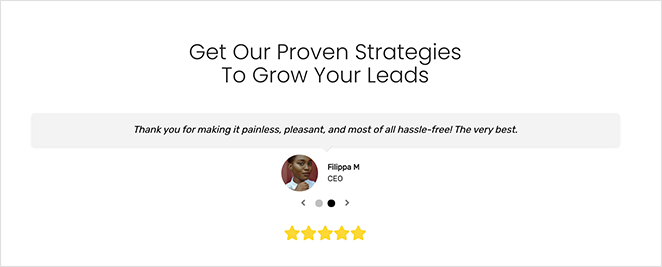
The Star Rating block lets you display a visual star rating on any SeedProd page. Whether you’re reviewing a product, rating a service, or adding credibility to a testimonial, the block renders a row of filled star icons alongside an optional text label — giving visitors an immediate, recognizable quality signal at a glance.
You have full control over the scale (0–5 or 0–10), the exact rating value, and how the stars are sized and spaced. Combined with typography and color options, the Star Rating block can be seamlessly styled to match any design system, from bold marketing pages to minimal review layouts.
Adding the Star Rating Block to Your Pages
Follow these steps to add a Star Rating block to your SeedProd page:
Step 1: Add the Block
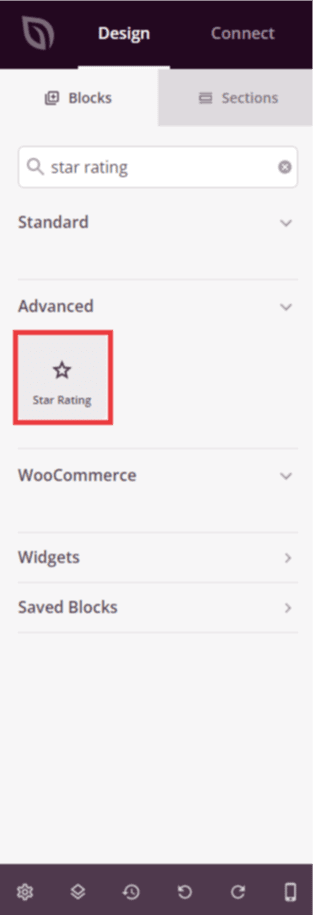
Under Design > Blocks, drag and drop the Star Rating block into the desired section of your page.
Step 2: Configure Content Settings
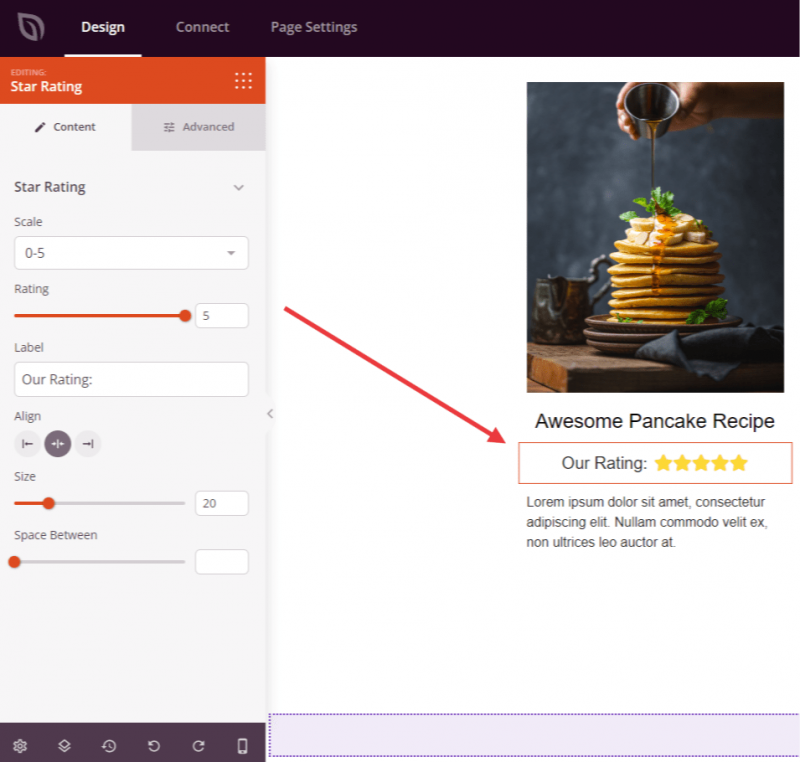
Once added, click on the Star Rating block to open its settings. In the Content tab, configure the rating display using the Star Rating section:
- Scale: Choose between a 0–5 or 0–10 rating scale from the dropdown menu.
- Rating: Set the exact rating value using the slider. The available range adjusts based on your chosen scale — up to 5 or up to 10 in increments of 0.5.
- Label: Enter an optional text label to display alongside the stars, such as a review count or a short descriptor (e.g., “4.5 out of 5”).
- Alignment: Set the horizontal alignment of the star row — Left, Center, or Right — with per-device control for desktop, tablet, and mobile.
- Size: Adjust the icon size using the slider (0–100px) to make your stars larger or smaller.
- Space Between: Control the gap between each star icon using the slider (1–100px).
Step 3: Customize the Design
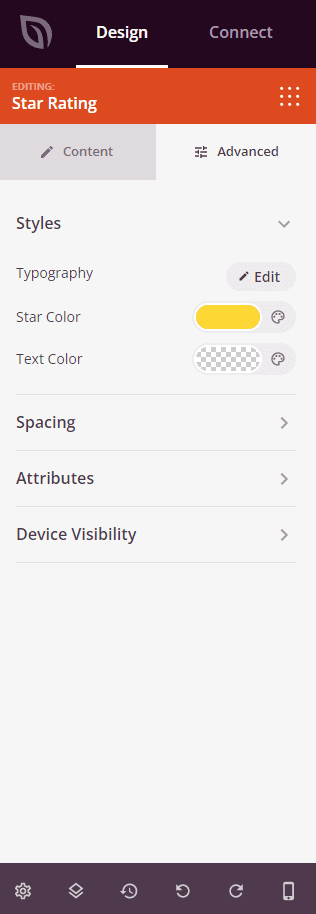
In the Advanced tab, you can customize the visual appearance of your Star Rating block. The Styles section contains the following options:
- Typography: Set the font family, size, weight, style, line height, letter spacing, and letter case for the label text.
- Star Color: Choose the fill color for the star icons (defaults to gold).
- Text Color: Set the color of the label text displayed next to the stars.
The Advanced tab also provides controls for spacing (margin and padding), custom CSS attributes, device visibility, and entrance animations.
Step 4: Save Your Changes
Once you have finished configuring the Star Rating block and customizing its appearance, make sure to save your work.
You’ve successfully added a Star Rating block to your page! Use it inside testimonials, product reviews, case studies, or anywhere you want to communicate quality and credibility at a glance. Experiment with different sizes, colors, and label text to create a star rating that fits naturally within your page design.