
The Social Sharing block adds a set of share buttons to your SeedProd pages, making it easy for visitors to share your page or post URL to their favorite social media platforms. Supported platforms include Facebook, X (Twitter), LinkedIn, and Pinterest — each rendered as a branded button that opens the platform’s share dialog with your page URL pre-filled.
Unlike the Social Profiles block, which links to your own accounts, the Social Sharing block is designed to amplify your content by letting your audience do the sharing. You can customize each button’s label, add platform-specific options like a Pinterest image or an X (Twitter) pre-filled tweet text, and reorder the buttons by drag and drop to prioritize the most relevant platforms for your audience.
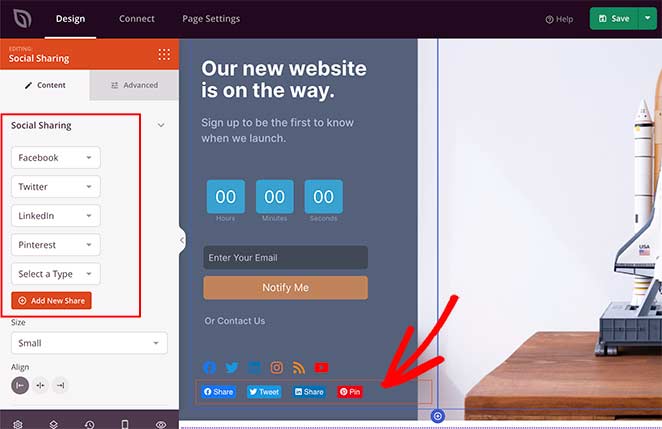
Adding the Social Sharing Block to Your Pages
Follow these steps to add a Social Sharing block to your SeedProd page:
Step 1: Add the Block
Under Design > Blocks, drag and drop the Social Sharing block into the desired section of your page.
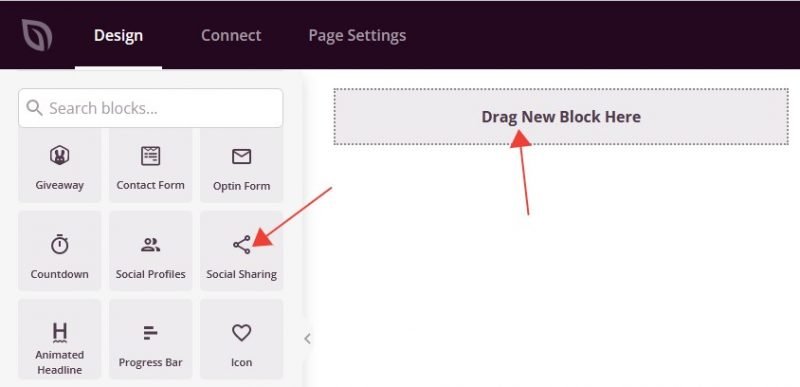
Step 2: Configure Content Settings
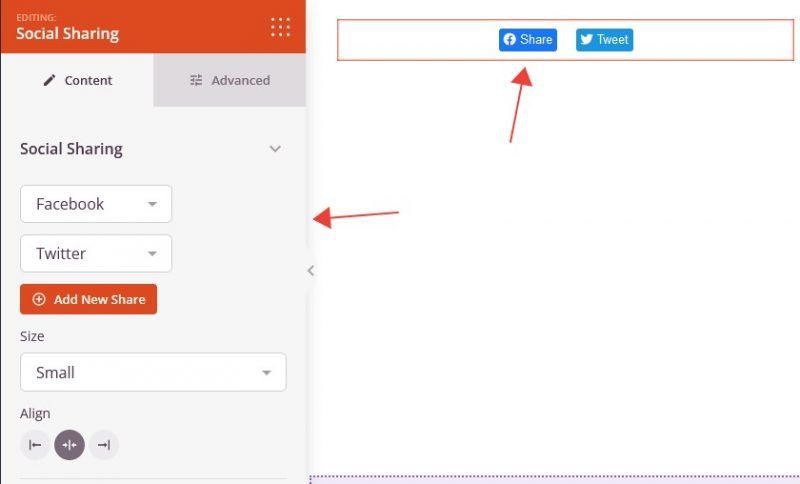
Once added, click on the Social Sharing block to open its settings. In the Content tab, the Social Sharing section lets you manage your share button list and configure display options.
Managing Share Buttons:
- Platform Type: Use the dropdown next to each entry to select the social platform. Available options are Facebook, X (Twitter), LinkedIn, and Pinterest.
- Label: Click the settings gear icon on any entry to expand its options, then enter a custom label to display alongside the share icon (e.g., “Share”, “Tweet”, “Pin It”).
- Tweet Text (X / Twitter only): When the X (Twitter) settings panel is open, enter pre-filled tweet text that will appear in the Twitter share dialog when a visitor clicks the button.
- Image (Pinterest only): When the Pinterest settings panel is open, select or enter an image URL to be shared with the pin. You can choose an image from your media library or paste a direct image URL into the Image Src field.
- Reorder: Drag entries up or down using the drag handle (arrows icon) to change the display order of share buttons.
- Duplicate / Delete: Hover over any entry to reveal the Duplicate and Delete buttons for quick management.
- Add New Share: Click the + Add New Share button at the bottom of the list to add another platform button.
Display Options:
- Size: Set the overall button size — Small, Medium, or Large.
- Alignment: Set the horizontal alignment of the button row — Left, Center, or Right. Supports per-device alignment for desktop, tablet, and mobile.
Step 3: Customize the Design
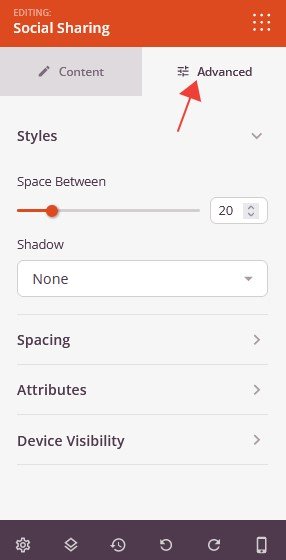
In the Advanced tab, you can adjust the visual appearance of your Social Sharing block and control its visibility.
Styles:
- Space Between: Set the horizontal gap between each share button in the row using the slider (1–100px).
- Shadow: Add a shadow effect to the share buttons. Choose from preset sizes — None, Hairline, Small, Medium, Large, X Large, and 2X Large.
Spacing:
- Margin: Control the outer spacing around your Social Sharing block (Top, Right, Bottom, Left). Supports per-device values for desktop, tablet, and mobile.
- Padding: Adjust the inner spacing within your Social Sharing block (Top, Right, Bottom, Left). Supports per-device values for desktop, tablet, and mobile.
Attributes:
- CSS ID: Displays the auto-generated unique identifier for your Social Sharing block. This ID is created automatically by SeedProd and can be used for custom styling or JavaScript targeting.
- Custom Class: Add custom CSS classes to apply specific styles from your theme or custom CSS.
- Custom Attributes: Add any HTML attributes to the block wrapper element. Enter each attribute on a new line using the format: attribute-name|value (e.g., data-section|share).
Device Visibility:
- Hide on Desktop: Hide the Social Sharing block on desktop screens.
- Hide on Tablet: Hide the Social Sharing block on tablet devices.
- Hide on Mobile: Hide the Social Sharing block on mobile devices.
Animation Effects:
- Entrance Animation: Choose from various animation effects that play when the Social Sharing block scrolls into view. Options include Bounce, Fade In, Zoom In, Rotate In, and many more.
Step 4: Save Your Changes
Once you have finished configuring the Social Sharing block and customizing its appearance, make sure to save your work.
You’ve successfully added a Social Sharing block to your page! By giving visitors a simple one-click way to share your content on Facebook, X (Twitter), LinkedIn, and Pinterest, this block helps extend your content’s reach with no extra effort. Customize the button labels, size, and spacing to match your page design, and use the per-device alignment controls to ensure the buttons look great on every screen.