
The Product Title block dynamically retrieves and displays the title of each WooCommerce product on your Single Product Templates. Rather than manually entering a product name, this block pulls the title directly from WooCommerce for every product, keeping your pages accurate and consistent across your entire catalog.
This block is designed exclusively for use on Single Product Templates. You have full control over how the title is rendered — choose the HTML heading level (H1 through H6), set the alignment and font size per device, and optionally wrap the title in a link. The Advanced tab gives you additional styling options including typography, color, and text shadow effects.
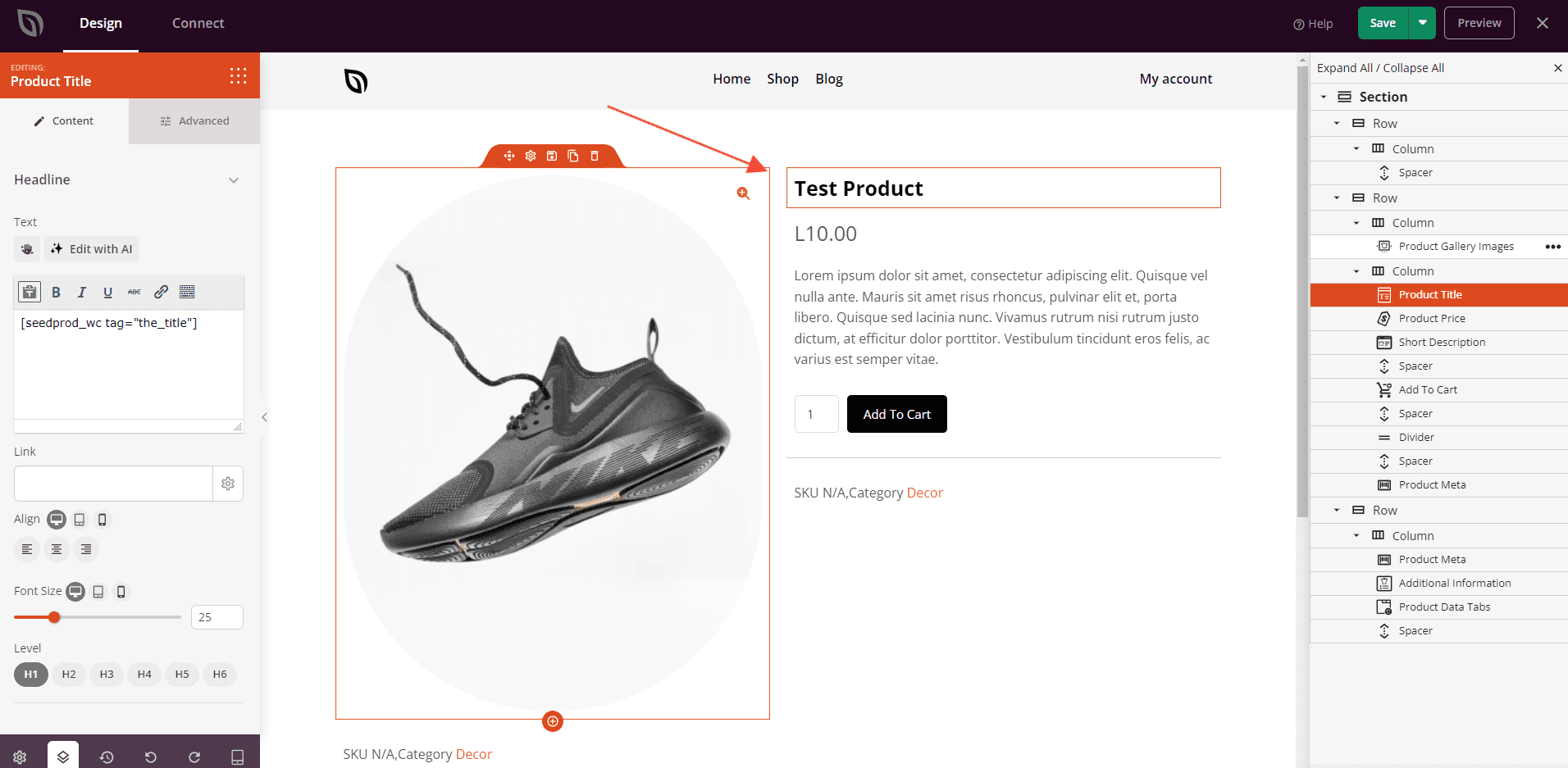
Adding the Product Title Block to Your Pages
Follow these steps to add a Product Title block to your SeedProd Single Product Template:
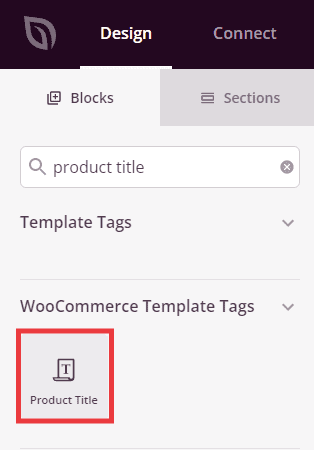
Step 1: Add the Block
Under Design > Blocks > WooCommerce Template Tags, drag and drop the Product Title block into the desired section of your Single Product Template.
Step 2: Configure Content Settings
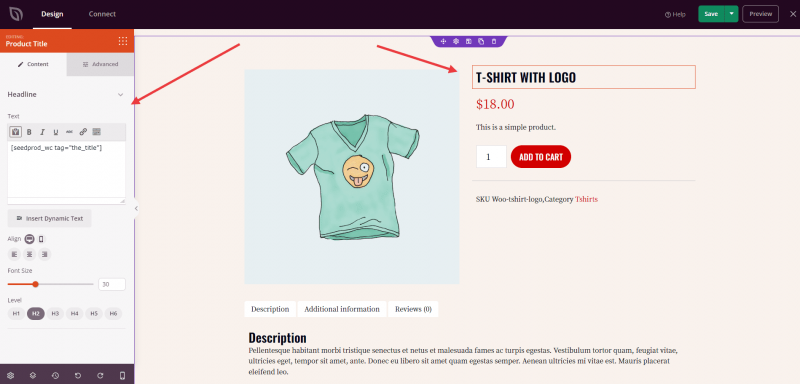
Once added, click on the Product Title block to open its settings. In the Content tab, the Headline section contains the title text field and all display options for how the product title appears on the page.
- Text: The content field is pre-populated with the
shortcode, which automatically fetches the correct product title from WooCommerce for each product. You can add custom text around the shortcode if needed, or use the rich text editor to apply bold, italic, or other inline formatting. - Link: Optionally wrap the product title in a hyperlink by entering a URL in the Link field. Expand the link options to enable Open In New Window (opens the link in a new browser tab) or No Follow (adds a
rel="nofollow"attribute to the link for SEO purposes). - Alignment: Set the horizontal alignment of the title — Left, Center, or Right. Supports per-device alignment for desktop, tablet, and mobile.
- Font Size: Set the font size of the title using the slider (10–72px). Supports per-device sizing for desktop, tablet, and mobile.
- Level: Choose the HTML heading tag used to output the product title — H1, H2, H3, H4, H5, or H6. For SEO best practice, use H1 for the main product title if no other H1 exists on the page.
Step 3: Customize the Design
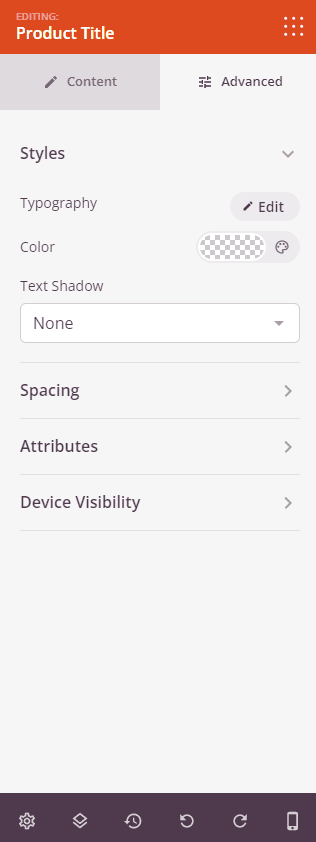
In the Advanced tab, you can further style the title’s appearance and control its visibility across devices.
Styles:
- Typography: Set the font family, weight, line height, letter spacing, and text transform for the product title text, giving you control beyond what the Content tab’s Font Size slider provides.
- Color: Set the text color of the product title.
- Text Shadow: Add a shadow effect directly to the title text. Choose from preset sizes (None, Hairline, Small, Medium, Large, X Large, 2X Large) to add subtle or dramatic depth to the heading.
Spacing:
- Margin: Control the outer spacing around your Product Title block (Top, Right, Bottom, Left). This determines how much space appears between the title and surrounding elements on the product page.
- Padding: Adjust the inner spacing within your Product Title block (Top, Right, Bottom, Left). This creates breathing room between the title text and the block edges.
Attributes:
- CSS ID: Displays the auto-generated unique identifier for your Product Title block. This ID is created automatically by SeedProd for custom styling or JavaScript targeting.
- Custom Class: Add custom CSS classes to apply specific styles from your theme or custom CSS.
- Custom Attributes: Add any HTML attributes to the block wrapper element. Enter each attribute on a new line using the format: attribute-name|value (e.g., data-title|product).
Device Visibility:
- Hide on Desktop: Hide the Product Title block on desktop screens.
- Hide on Tablet: Hide the Product Title block on tablet devices.
- Hide on Mobile: Hide the Product Title block on mobile devices.
Animation Effects:
- Entrance Animation: Choose from various animation effects that play when the Product Title block scrolls into view. Options include Bounce, Fade In, Zoom In, Rotate In, and many more.
Step 4: Save Your Changes
Once you have finished configuring the Product Title block and customizing its appearance, make sure to save your work.
You’ve successfully added a Product Title block to your Single Product Template! The block automatically displays the correct title for every product in your WooCommerce catalog without any manual effort. Experiment with heading levels, per-device font sizes, and text shadow effects to create a product title presentation that is both visually striking and optimized for search engines.