
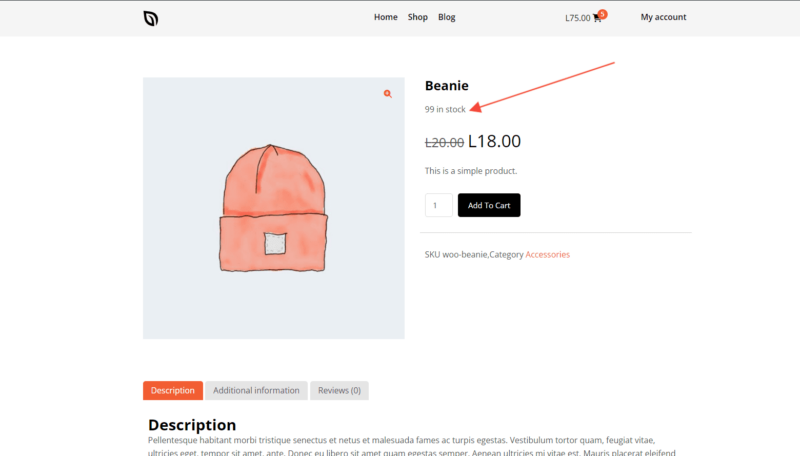
The Product Stock block displays real-time stock availability for each WooCommerce product on your Single Product Templates. Showing customers exactly how many units are in stock creates urgency and helps shoppers make faster purchase decisions.
This block is designed exclusively for use on Single Product Templates. It uses a dynamic shortcode to automatically pull the stock count from WooCommerce for each product, so the information stays accurate without manual updates. You can also combine the shortcode with custom text, adjust the font size and alignment, and style the output with typography, colors, and shadow effects.
Adding the Product Stock Block to Your Pages
Follow these steps to add a Product Stock block to your SeedProd Single Product Template:
Step 1: Add the Block
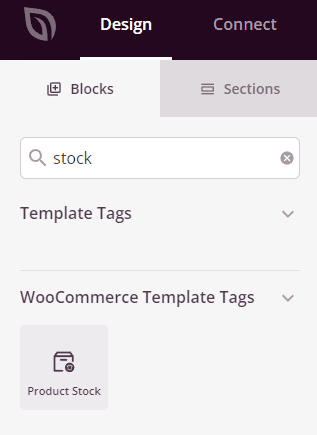
Under Design > Blocks > WooCommerce Template Tags, drag and drop the Product Stock block into the desired section of your Single Product Template.
Step 2: Configure Content Settings
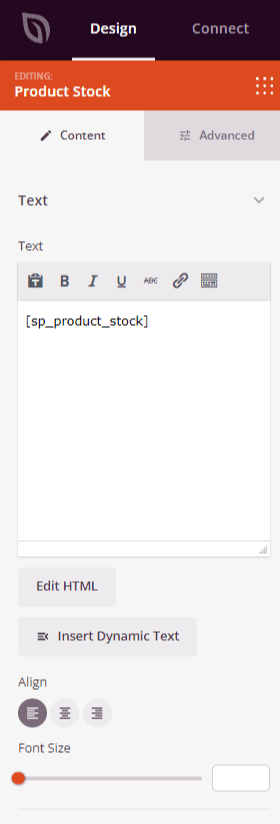
Once added, click on the Product Stock block to open its settings. In the Content tab, you can edit the stock display text, adjust alignment, and set the font size.
- Text: The content field is pre-populated with the
shortcode, which dynamically fetches the stock count from WooCommerce for each product. You can add custom text before or after the shortcode — for example, “Only left in stock!” — to create a more compelling message. Toggle between the Visual Editor (rich text) and Edit HTML (code) modes using the button beneath the field. - Alignment: Set the horizontal alignment of the stock text — Left, Center, or Right. Supports per-device alignment for desktop, tablet, and mobile.
- Font Size: Set the font size of the stock text using the slider (10–72px).
Step 3: Customize the Design
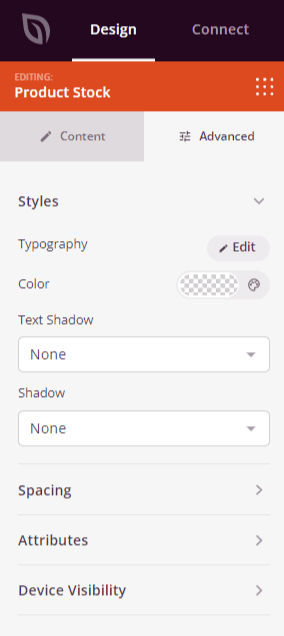
In the Advanced tab, you can style the block’s appearance and control its visibility across devices.
Styles:
- Typography: Set the font family, weight, line height, letter spacing, and text transform for the stock text.
- Color: Set the text color of the stock display.
- Text Shadow: Add a shadow effect directly to the stock text. Choose from preset sizes (None, Hairline, Small, Medium, Large, X Large, 2X Large) to add subtle or dramatic depth to the text.
- Shadow: Add a box shadow to the overall block element to lift it visually from the page background.
Spacing:
- Margin: Control the outer spacing around your Product Stock block (Top, Right, Bottom, Left). This determines how much space appears between the stock display and surrounding elements on the page.
- Padding: Adjust the inner spacing within your Product Stock block (Top, Right, Bottom, Left). This creates breathing room between the stock text and the block edges.
Attributes:
- CSS ID: Displays the auto-generated unique identifier for your Product Stock block. This ID is created automatically by SeedProd for custom styling or JavaScript targeting.
- Custom Class: Add custom CSS classes to apply specific styles from your theme or custom CSS.
- Custom Attributes: Add any HTML attributes to the block wrapper element. Enter each attribute on a new line using the format: attribute-name|value (e.g., data-stock|available).
Device Visibility:
- Hide on Desktop: Hide the Product Stock block on desktop screens.
- Hide on Tablet: Hide the Product Stock block on tablet devices.
- Hide on Mobile: Hide the Product Stock block on mobile devices.
Animation Effects:
- Entrance Animation: Choose from various animation effects that play when the Product Stock block scrolls into view. Options include Bounce, Fade In, Zoom In, Rotate In, and many more.
Step 4: Save Your Changes
Once you have finished configuring the Product Stock block and customizing its appearance, make sure to save your work.
You’ve successfully added a Product Stock block to your Single Product Template! The block automatically displays the live stock count from WooCommerce for every product, keeping shoppers informed without any manual effort on your part. Experiment with custom surrounding text, font size, and color to craft a stock availability message that creates urgency and encourages customers to buy before stock runs out.