
A favicon (also called a site icon) is the small image that appears in the browser tab next to your website title. Adding one helps visitors identify and recognize your site at a glance. SeedProd pages use your WordPress site’s favicon setting, so there is no separate favicon option inside the SeedProd builder.
There are two ways to add a favicon to your site, depending on your theme.
Method 1: WordPress Theme Customizer
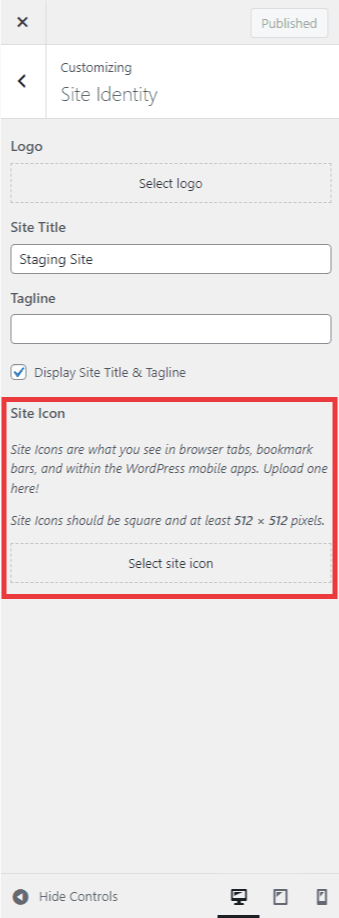
Most WordPress themes support setting a favicon through the built-in Customizer. Go to Appearance > Customize in your WordPress admin and click the Site Identity tab. From there you can upload your favicon image.
Method 2: Add Favicon Code via WPCode
If your theme does not support the Site Identity setting, you can add your favicon manually using the free WPCode plugin. Install and activate WPCode, then paste the following code into the Header scripts section. Replace the example URLs with the actual URL of your favicon image.
<link rel="icon" href="https://www.example.com/favicon.png" type="image/x-icon" />
<link rel="shortcut icon" href="https://www.example.com/favicon.png" type="image/x-icon" />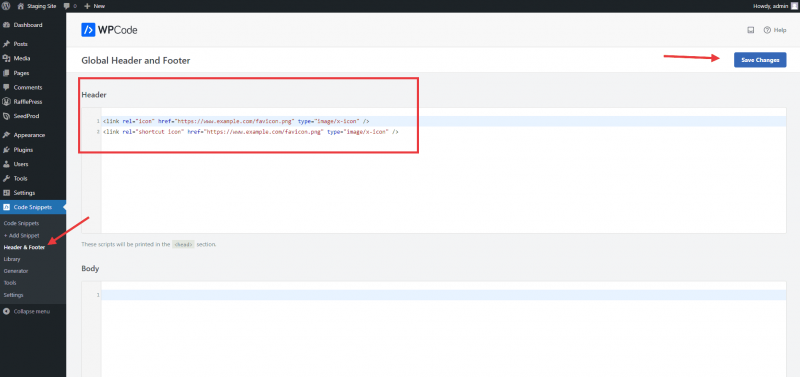
Alternatively, the All in One Favicon plugin provides a dedicated interface for uploading and managing your favicon without writing any code.
Once your favicon is set, it will appear automatically on all your SeedProd pages alongside the rest of your WordPress site. Use a square image of at least 512×512 pixels for the best results across all browsers and devices.